Excel Reader
The Excel Reader reads an Excel workbook as a data source. It supports both the
older .xls (Excel 97-2003) and the current .xlsx (Excel 2007 onwards)
formats.
The workbook does not have to be a file on disk. The reader takes its data from an IO controller, so the same transform can pick a workbook up from a folder, download one over HTTP, or take one off an email.
Setup
The Setup tab carries the transform's identity, the source the workbook comes from, and the options that say how to read it.
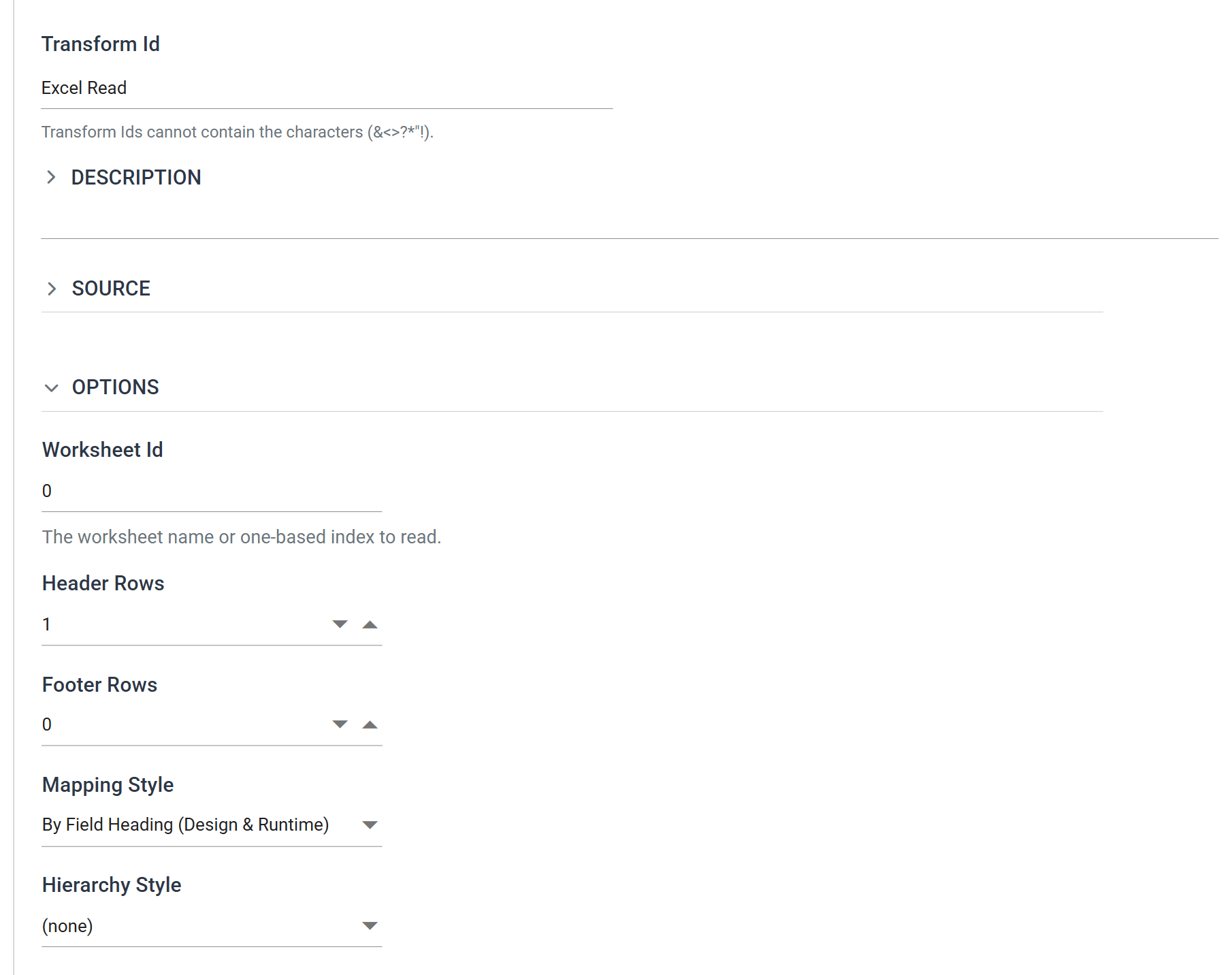
Transform Id, Description and Priority are the same on every transform and are described under Transform > Setup.
Source
The Source section holds the IO controller, which says where the workbook is read from, and the controller's own fields.
The drop-down at the top of the section chooses the controller. The Excel Reader accepts four:
- File — File System, File Path, File Name
- http(s) Url — Encoding Method, Webservice Behaviour, Http Headers, Query Url, Evaluate Url, Http Operation, and Request Body when the operation is not a GET
- Email — Email Server, From Address Like, Subject Like, Attachment File Name Contains, Data As Attachment, Delete From Server
- Transaction — Field
Each controller's own page describes its fields.
An Excel workbook is binary, so the File and Email controllers do not offer an Encoding Method here as they do for a text format. On http(s) Url, Encoding Method sets the encoding of a request body.
Options
Worksheet Id
The worksheet to read, given either as a name or as an index.
An index is counted from 0, so 0 is the first worksheet in the workbook and
1 is the second. IMan treats a value that is not a number as a worksheet
name. A name that is not in the workbook fails the read.
The help text is wrong: the first worksheet is 0
The help text under this field says the index is one-based. It is not. The
first worksheet is 0, which is also the value a new Excel Reader starts
with.
Header Rows
The number of rows at the start of the worksheet that are not data — a company logo, a title, a row of column headings.
IMan leaves those rows out of the dataset. Where Mapping Style uses headings, IMan also reads the headings from them.
Footer Rows
The number of rows at the end of the worksheet that are not data. IMan ignores everything in the footer rows.
Mapping Style
How a column in the worksheet is matched to a field in the dataset.
- By Field Heading — the headings in the header rows name the fields when the definition is built. At runtime, columns are read by the position they held at that point.
- By Field Heading (Design & Runtime) — as above, but the heading row is read again on every run and the fields re-matched to whatever column each heading is now in. Use this where the supplier of the file may add, remove or reorder columns. A new Excel Reader starts here.
- By Position — headings are ignored and each field is read from a fixed column.
Mapping by heading needs Header Rows to be at least 1; with no header rows
there is nothing to match against, and the fields are named Field1, Field2
and so on by position. A column whose heading cell is empty is named that way
too.
Hierarchy Style
Whether the worksheet is read as a flat list of records or as a hierarchical dataset, and if so how the structure is worked out.
- (none) — every row is a record of the same type. The dataset is flat.
- Keyed Fields — rows carry key values that place each record under its parent.
- Ordered Data — the order of the rows defines the structure. The reader inserts each record under the record above it.
Both hierarchical styles need a field whose value says which type each row is; that is Record Type Field, below. See Hierarchical data.
Record Type Field
The field holding the value that identifies each row's record type.
This field appears only when Hierarchy Style is not (none). A flat dataset
has one record type, so it needs no record type field.
The drop-down lists the fields of the topmost transaction by name. Before the field mapping has been populated it offers only a numbered placeholder. Refresh the field mapping first, then choose the field by name.
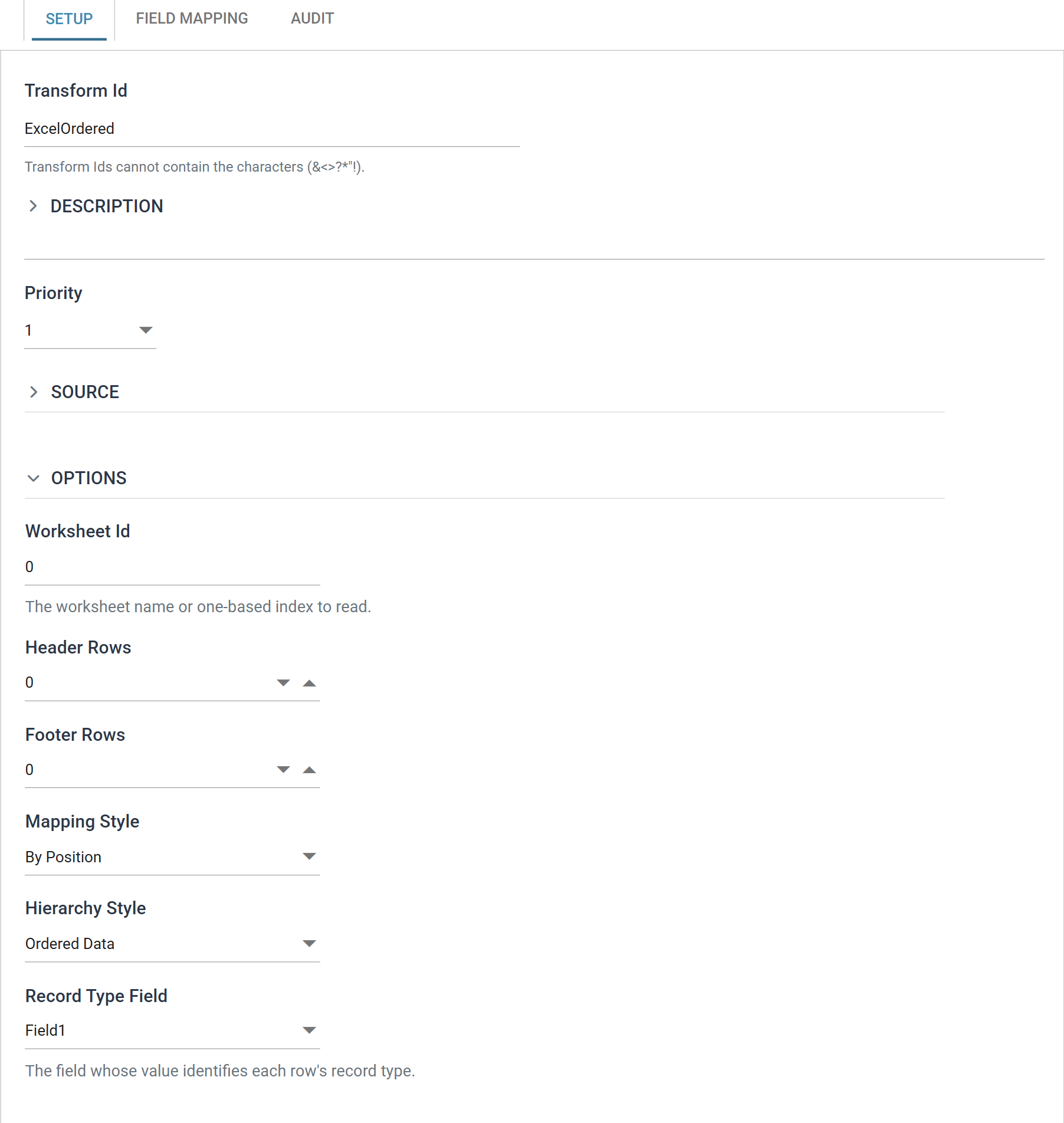
A hierarchical worksheet is usually read By Position with Header Rows 0.
Its record types do not share a column layout, so they cannot share a heading
row. That is why the fields above are named Field1, Field2 and so on.
Hierarchical data
A hierarchical dataset can be built from a worksheet when:
- there is a field in the data identifying the type of each record — header, detail, sub-detail and so on; and
- that field is in the same position on every row.
Example
The file below has a hierarchical structure. The first column identifies
the record type of every row: 1 denotes the header of a Receivables (A/R)
Invoice and 2 a detail line.
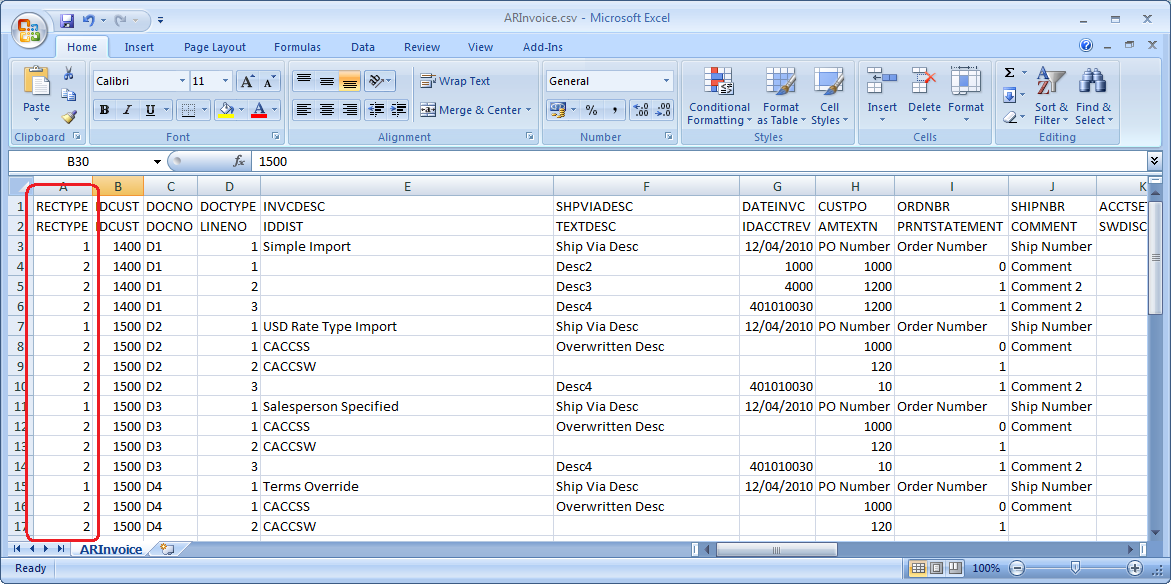
Set Hierarchy Style to Ordered Data and Record Type Field to that first
column, and the reader builds one invoice per 1 row with its 2 rows
beneath it.
When you refresh the schema, IMan creates one transaction for each record type it finds in the worksheet and names it after the record type value. Rename the transactions to something readable.
The first row decides the top transaction, and a parent must precede its children
The record type in the first row of the worksheet becomes the top transaction, and IMan creates every other type beneath it. If the sheet begins with a detail row, the detail becomes the top transaction and the header sits beneath it. IMan gives no warning. You cannot delete the top transaction afterwards, so you have to build the reader again.
A parent must also appear before its children, in both styles. The reader works through the rows one at a time and does not hold children back until their parent arrives. A child whose parent has not been read stops the run with an orphaned-transaction error naming the transaction and its key values.
Every transaction is given the worksheet's full column count
Every transaction is given the worksheet's full column count. A header row using fourteen columns and a charge row using three both produce fourteen fields. The fields a record type does not use are empty for it. The CSV Reader behaves differently on the same data: it gives each transaction only as many fields as its own record type has.
Ordered Data
With Ordered Data, structure comes from sequence. The reader inserts each record beneath the most recent preceding record that can be its parent, so the rows have to arrive in the order the structure implies.
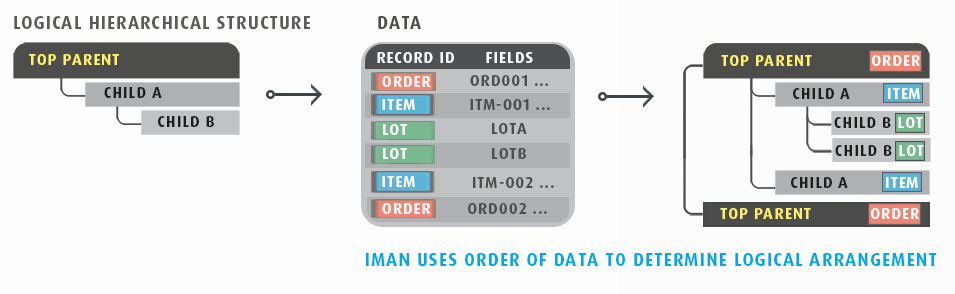
A row whose record type cannot follow the current position — a sub-detail before any detail, for instance — stops the read. The reader does not try to place it elsewhere.
Keyed Fields
With Keyed Fields, structure comes from values rather than from sequence. A Key column appears in the Field Mapping grid, and the key values of a child record must match those of its parent for the child to be inserted beneath it.
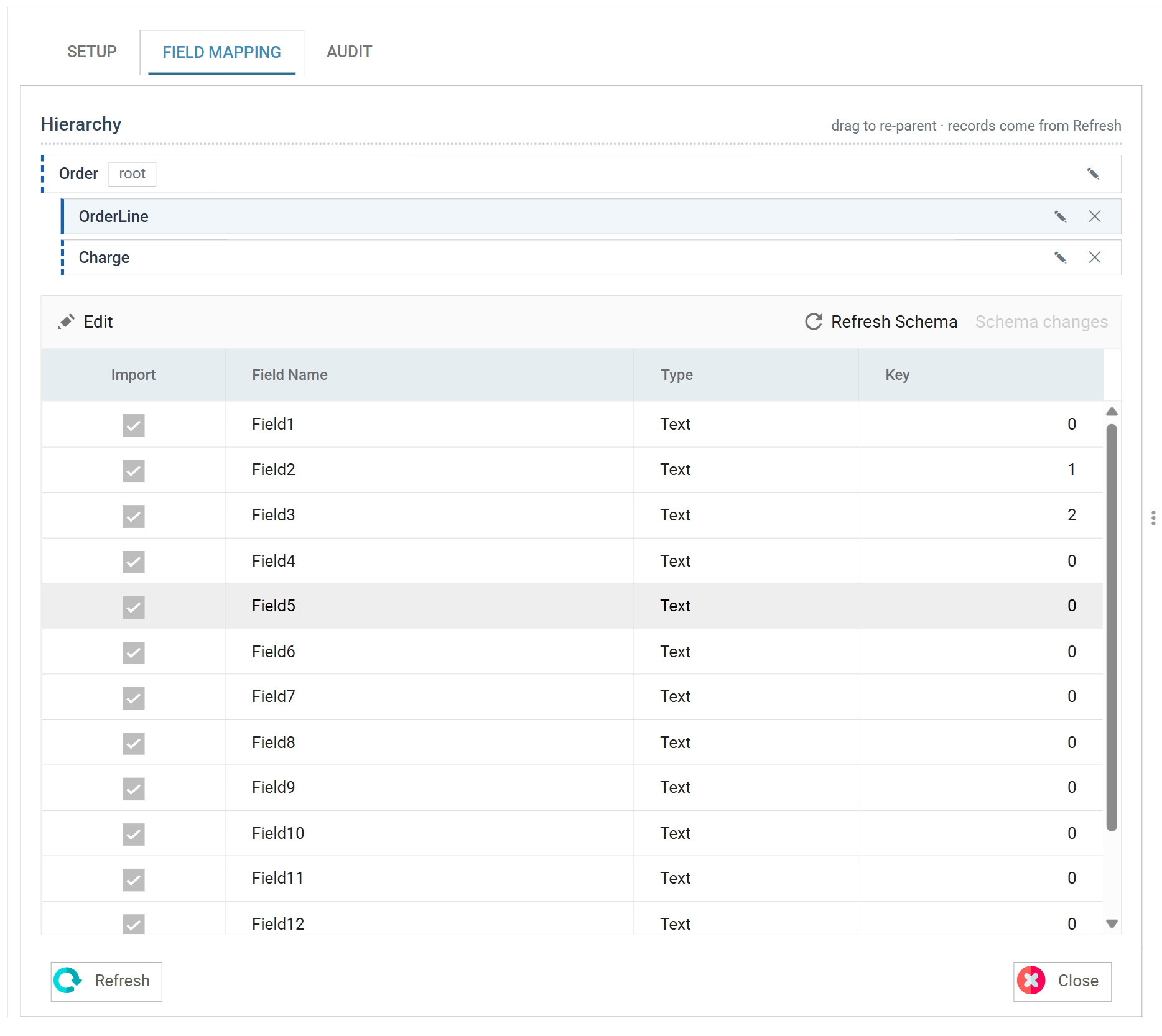
Each child transaction type must have at least one more key defined than its
parent, because that extra key distinguishes one child from another
within the same parent. Above, the order keys on Field2, its order id, and
each line keys on Field2 plus its own Field3.
The advantage over Ordered Data is interleaving. Ordered Data requires each parent to be followed by its own children and nothing else; Keyed Fields lets the children of different parents be mixed together in any order, because each one carries the values that say where it belongs. The parent-before-children rule above still applies.
You can also assign keys later with the Hierarchy transform. That is the usual approach when a flat file needs structure after it has been read.
Field Mapping
The Field Mapping tab lists the fields the reader produces, and is where you name and type them.
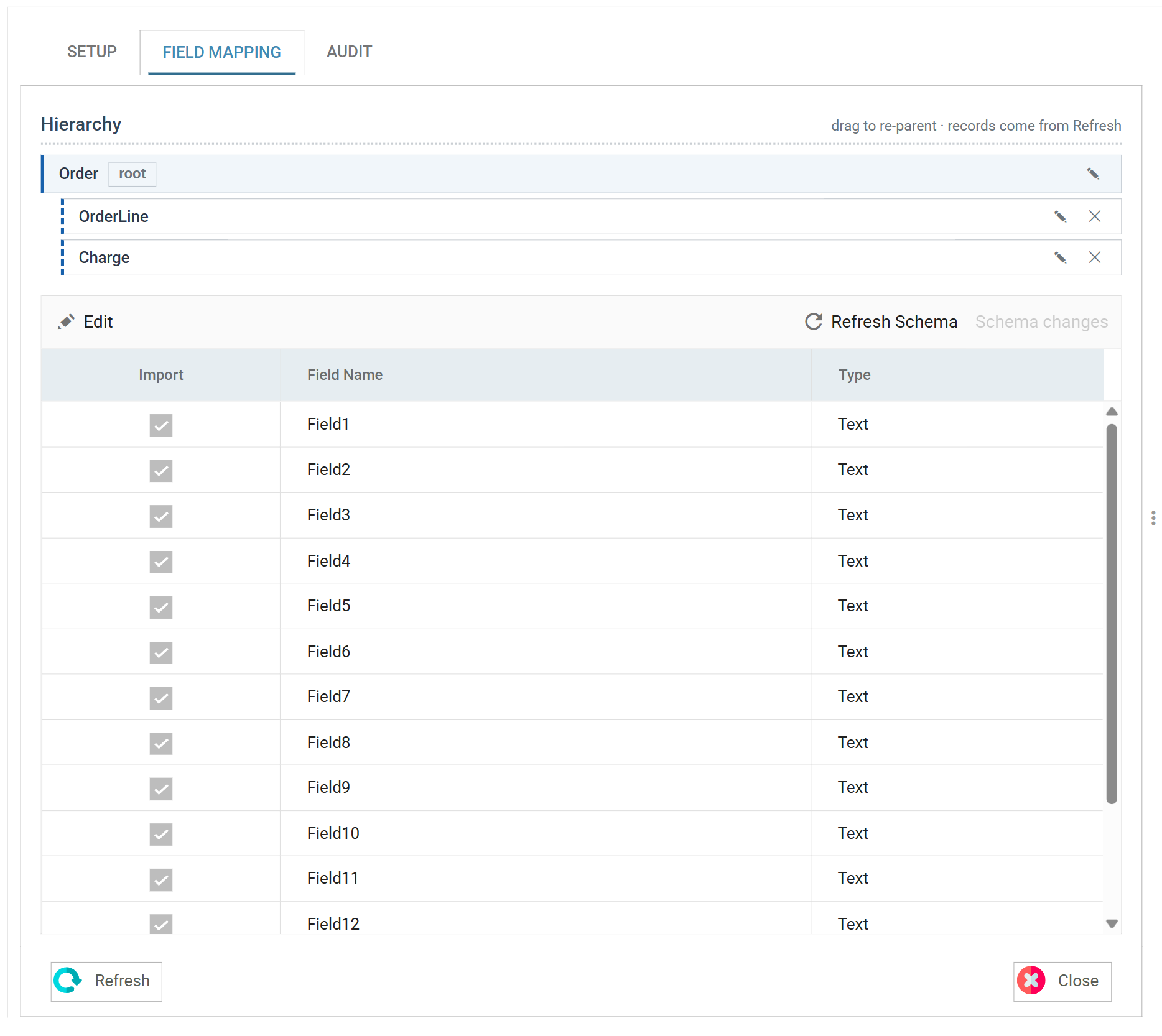
Schema changes
The reader does not read the workbook until you ask it to. Press Refresh Schema on the field grid's toolbar and IMan opens the workbook, works out what fields it holds, and compares them with the stored definition. The item beside it reports what the comparison found and opens the review.
The two items and the review dialog are the same on every reader. Field Mapping > Schema changes describes them.
Refresh from a file that contains every record type
For a hierarchical dataset, refresh from a file containing every record type. IMan discovers types from the data, and you cannot add a type that is missing from the file by hand afterwards.
Transaction
The strip above the grid lists the transaction types the reader produces, and selecting one opens its fields in the grid below. It is headed Transaction for a flat dataset and Hierarchy for a hierarchical one.
A flat dataset has a single transaction, marked root. The pencil beside it
renames the transaction, and downstream transforms refer to it by that name.
A hierarchical dataset shows the transactions in their parent-child relationship. You can drag them within the tree to re-parent them.
Import
Ticked, the field is included in the dataset the reader produces. Unticked, the reader reads the field and drops it, and nothing downstream sees it.
Untick the fields the integration does not need. The field mapping grids of every later transform are then easier to read.
You edit this column in batch. Press Edit on the grid's toolbar to put the whole grid into edit mode, and press Save to commit every change made in it.
Field Name
The name of the field, unique within its transaction.
Where Mapping Style matches by heading, this is the heading taken out of the file. You can edit it. With By Field Heading (Design & Runtime), though, the runtime matches the heading against this name, so renaming it breaks the match.
Records read through the File or http(s) Url controller also carry a
SYS.INPUTFILE field, holding the file or URL the record came from. The
controller supplies this field; it is not in the workbook.
Type
The data Type of the field.
Detection reads the names and samples the rows, and types each field from the values it finds. IMan chooses a type only if every non-blank value parses as that type, and it ignores blank values. The order of preference is True/False, whole number, decimal, date, text. A value with a leading zero forces text, so account codes and postcodes keep their leading zeros.
If detection chose the wrong type, set the type here. A later refresh will not undo the choice: it proposes a type change only where the field is still text, where the columns have turned out to be text after all, or where a whole number needs widening to a decimal. It never narrows a type that was set by hand.
With the type set here, the value arrives downstream as that type and needs no conversion in a Map transform.
Key
Only shown when Hierarchy Style is Keyed Fields.
The key that places a record beneath its parent — see Keyed Fields.
It is a number, not a check box: 0 means the field is not a key, 1 is the
first key, 2 the second. You edit the column in batch, with the rest of the
grid.
Audit
Supported counters
- PROCESSED — incremented for each record read.
- INSERTED — incremented for each record placed into the dataset.
Action on Transform Error
The setting and the rest of the tab are described on Transform > Audit.
Worked example
Step 2 of the Sage 300 and Sage 200 training manuals builds an Excel Reader over a sample orders workbook and names its transaction, and step 3 hierarchises the result.