XML Reader
The XML Reader reads an XML document as a data source. An XPath expression addresses every transaction and every field, so you need a working knowledge of XPath to use this reader.
Two starting points:
- Microsoft — XPath reference
- W3Schools — XPath tutorial
The document does not have to be a file on disk. The reader takes its data from an IO controller, so the same transform can pick a document up from a folder, fetch one over HTTP, or take one off an email. Where the controller is HTTP the reader can also be stepped: it issues a request per record and builds the dataset over several calls.
The document, and what the reader makes of it
XML is nested, so the structure is already in the document. You tell the reader which parts of it become transactions and which become fields.
Example
<OrderExport xmlns="http://schemas.realisable.co.uk/sample/orders/v1"
             xmlns:cust="http://schemas.realisable.co.uk/sample/customer/v1">
  <Order id="FBRN-309242" type="Web" currency="USD">
    <OrderDate>2016-03-11</OrderDate>
    <SalesTotal>282.00</SalesTotal>
    <cust:Customer>
      <cust:Title>Mr</cust:Title>
      <cust:FirstName>Ronald</cust:FirstName>
      <cust:CompanyName>Imperial Soap Inc</cust:CompanyName>
    </cust:Customer>
    <ShipTo>
      <City>Fairbanks</City>
    </ShipTo>
    <Lines>
      <Line no="1">
        <Qty>5</Qty>
        <SkuCode>A1-103/0</SkuCode>
      </Line>
    </Lines>
    <Charges>
      <Charge type="Delivery">
        <Amount>29.00</Amount>
      </Charge>
    </Charges>
  </Order>
</OrderExport>
The example is the first of three orders, cut down. The third order carries three charges.
Order repeats, so it becomes the top transaction, and Lines/Line and
Charges/Charge become children of it. OrderDate is a field. Customer and ShipTo do not repeat, so
they are not transactions. The reader folds their contents into the order
as fields.
You can see three results of this in the field mapping:
- A non-repeating child element is flattened into its parent. Its name
takes the element it came from as a prefix:
Customer_Title,ShipTo_City. - Attributes become fields.
id,typeandcurrencyonOrder, andnoonLine, with an XPath of@id,@typeand so on. - A repeating child becomes a transaction of its own, whose XPath is relative to its parent's.
Setup
The Setup tab carries the transform's identity, the source the document comes from, and the namespaces used to read it.
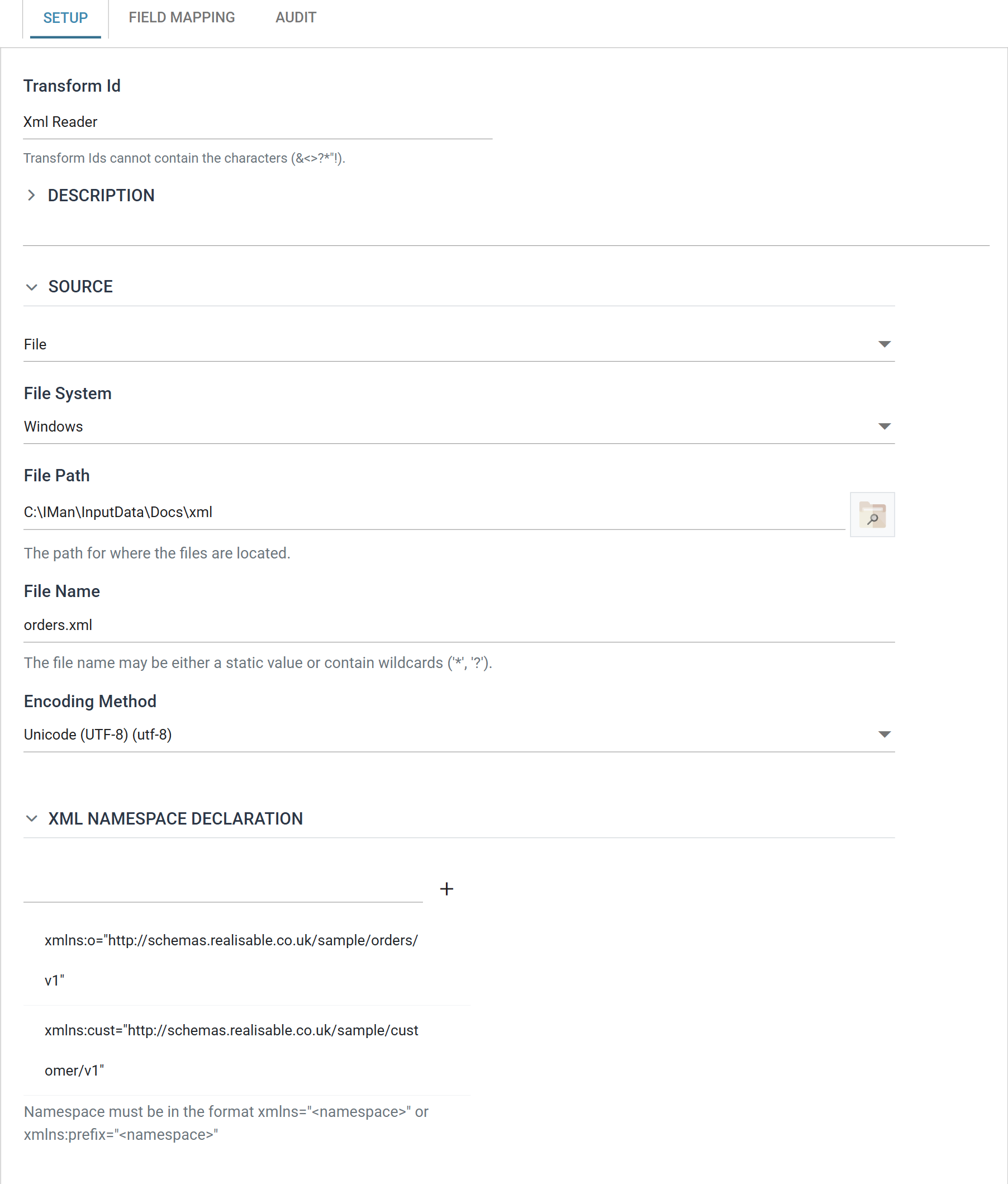
Transform Id, Description and Priority are the same on every transform and are described under Transform > Setup.
There is no Options section on this reader
There is no Options section on this reader. The entry point, the per-transaction paths and the transaction tree are all on the Field Mapping tab, because each is an XPath into a document the reader must read first.
Source
The Source section holds the IO controller, which says where the document is read from, and the controller's own fields.
The drop-down at the top of the section chooses the controller. The XML Reader accepts four:
- File — File System, File Path, File Name, Encoding Method
- http(s) Url — Encoding Method, Webservice Behaviour, Http Headers, Query Url, Evaluate Url, Http Operation, and Request Body when the operation is not a GET
- Email — Email Server, From Address Like, Subject Like, Attachment File Name Contains, Data As Attachment, Delete From Server, Encoding Method
- Transaction — Field
Each controller's own page describes its fields.
Xml Namespace Declaration
The namespaces used by the source document, one per row. Press the + button
to add one and the cross beside a row to remove it.
A declaration takes the same form it does in the document:
A default namespace, which the document declares without a prefix, is written without one:
Every XPath on this transform must carry the prefix, including paths into a
default namespace. You cannot address an element in a namespaced document by
its bare name: Order/OrderDate matches nothing, but o:Order/o:OrderDate
matches the element. A missing prefix is the most common reason an XML Reader
that looks correctly configured returns an empty dataset.
Give the document's default namespace a prefix of your own here, and use it. In
the example above the document declares the order namespace as its default; the
reader declares it as o: and every path uses o:.
Field Mapping
You define the entry point, the transactions and the fields on the Field Mapping tab.
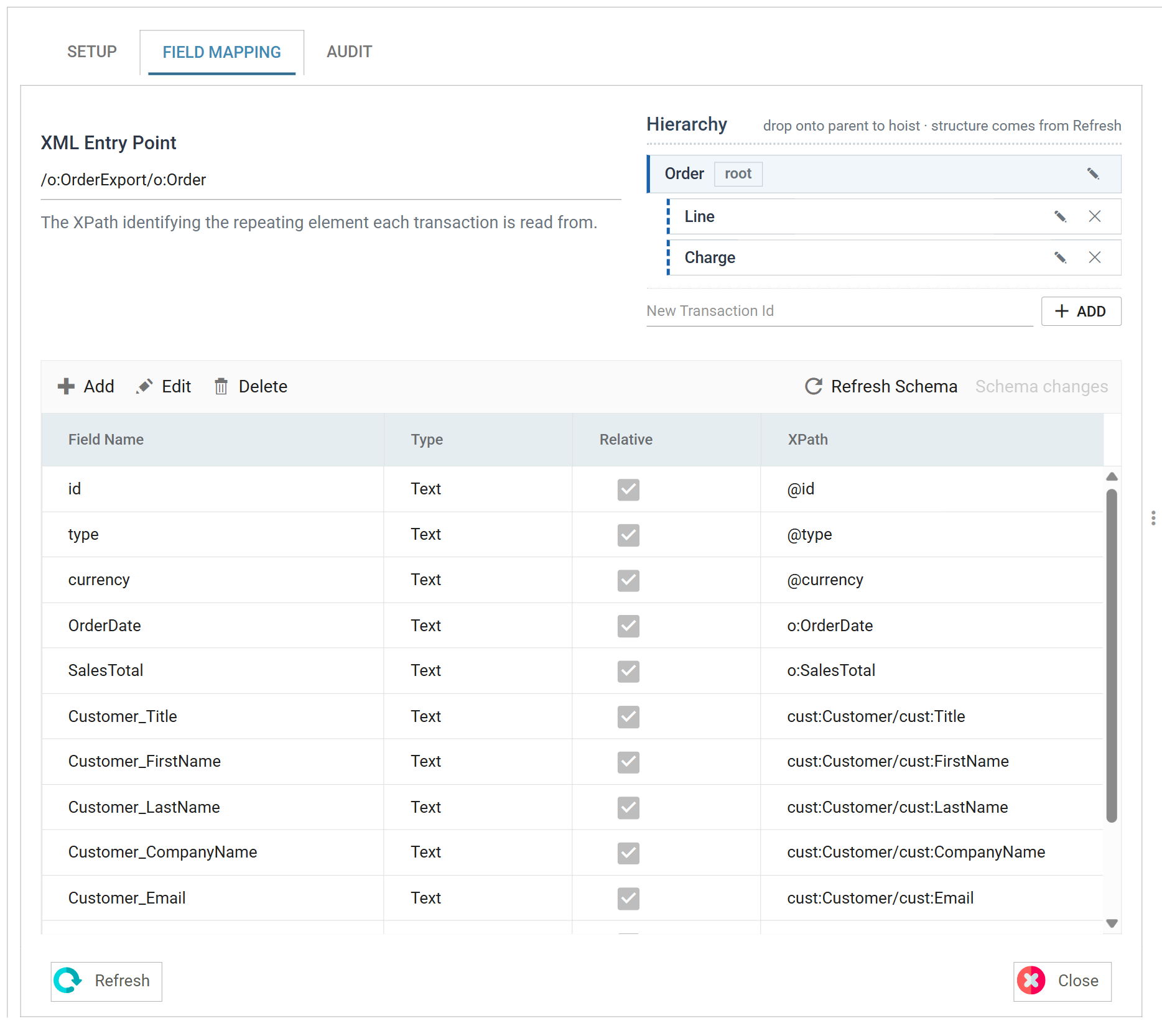
XML Entry Point
The XPath of the repeating element each transaction is read from. It is the point in the document where records begin.
In the example that is /o:OrderExport/o:Order: the reader produces one
top-level record per Order element, and every path below is relative to it.
Schema changes
The reader does not read the document until you ask it to. Press Refresh Schema on the field grid's toolbar and IMan opens the document, works out what elements and attributes it holds, and compares them with the stored definition. The item beside it reports what the comparison found and opens the review.
The two items and the review dialog are the same on every reader. Field Mapping > Schema changes describes them.
Detection builds the transaction tree and the XPaths for you, so start there. Set the source and the entry point, refresh, and correct what detection produced. You do not need to type every path by hand.
Transaction
The tree lists the transactions the reader produces. Select one to open its fields in the grid below.
Press Add to add a transaction by name, the pencil to rename it and the cross to delete it. Deleting a transaction also deletes its children. Drag a node onto another to re-parent it. IMan creates the root with the transform; it has no cross and no parent to move to.
Transaction XPath
Every transaction below the root has a path of its own, relative to its parent.

The root has no such field: its path is the XML Entry Point.
The Line transaction's full path is therefore the entry point followed by its
own path: /o:OrderExport/o:Order then o:Lines/o:Line. A field inside it is
relative to that full path.
The field grid
The grid lists the fields of the selected transaction. Add, Edit and Delete on its toolbar work one field at a time; unlike the CSV and Excel readers there is no batch edit.
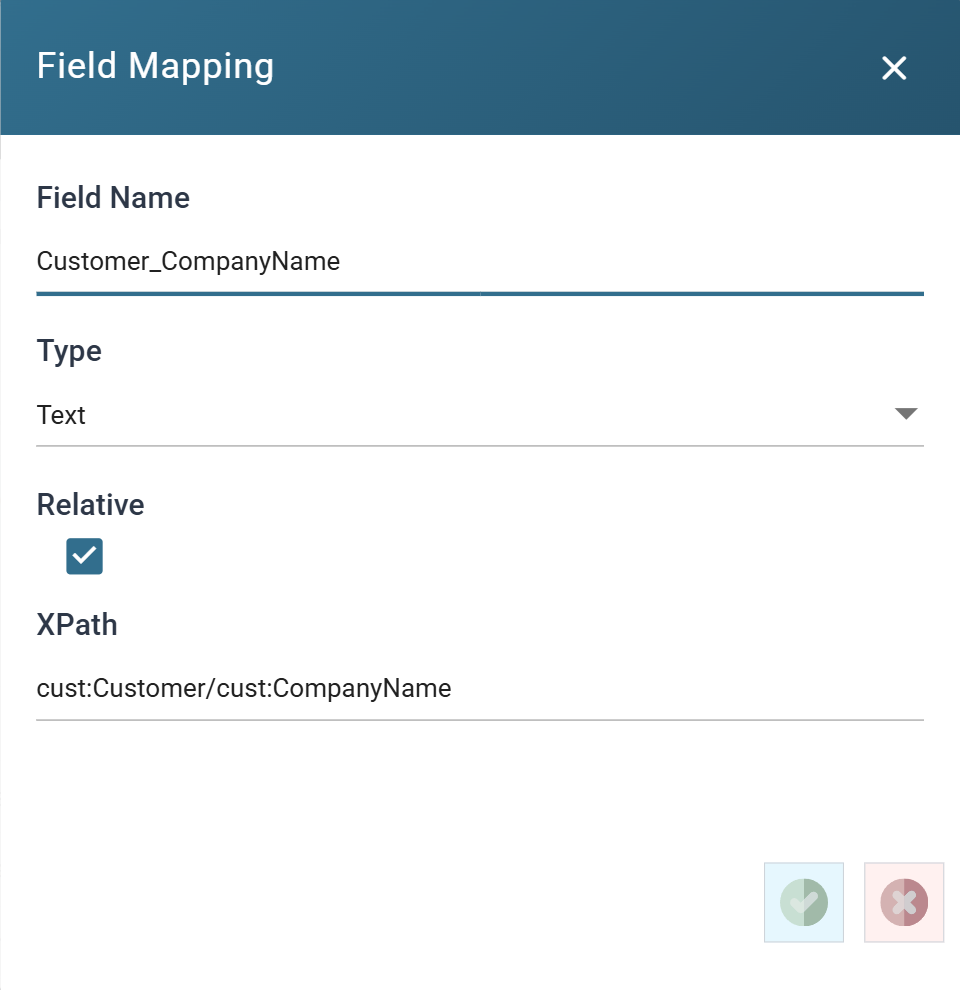
Field Name
The name of the field, unique within its transaction.
Detection names a field after the element or attribute it came from, prefixing
the names of any non-repeating elements it was nested inside:
Customer_CompanyName for cust:Customer/cust:CompanyName. You can change the
name. The reader uses the XPath, not the name, to read the value.
Type
The data Type of the field.
Detection reads names and paths, not types, so every newly detected field arrives as Text. Where a value is a number or a date, set the type here.
Relative
Whether the field's XPath is resolved against its transaction, or against the document.
Ticked, which is the normal case, the path starts from the element the
transaction was read from, so o:SalesTotal means this order's total.
Unticked, the path is absolute and the reader resolves it from the root of the document. Use this to copy a value from outside the record onto every record, such as an export timestamp in the document's header, repeated onto each order.
XPath
The expression that fetches the field's value.
IMan checks the path when you leave the field. It checks against the namespaces declared on the Setup tab and takes the Relative setting into account. A prefix you have not declared, or a path that cannot resolve, is reported straight away. You do not have to wait for an empty column after a run.
Hoisting a repeating group
A repeating child does not have to stay a child. Hoisting folds it into its
parent as a fixed number of numbered columns. Use it when a downstream system
wants Charge1, Charge2, Charge3 on the order instead of a child table.
There is no button for it. Drag the child transaction onto its parent in the tree.
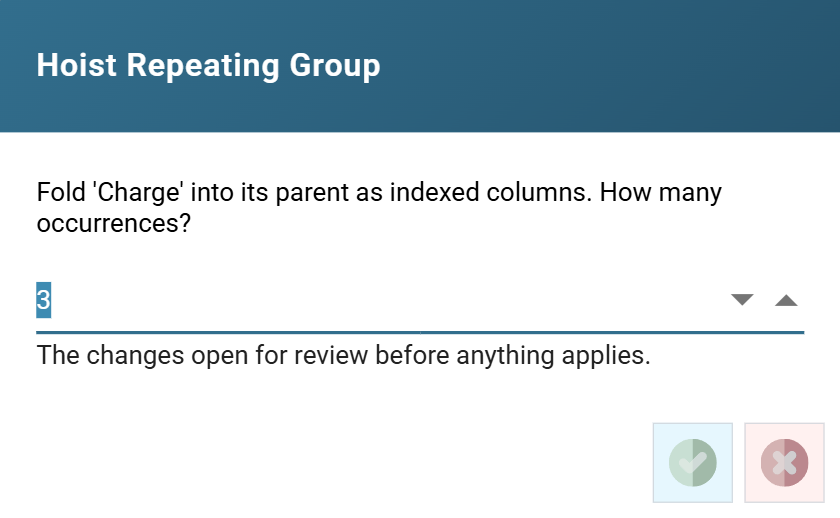
The count defaults to the most occurrences the reader saw in the source: three, for the sample above, because its third order carries three charges. A lower count drops the extras. A higher count leaves the surplus columns empty.
IMan applies nothing at that point. The proposed changes open in the Schema Changes review, with every row set to Apply. OK commits them and Cancel leaves the definition as it was.
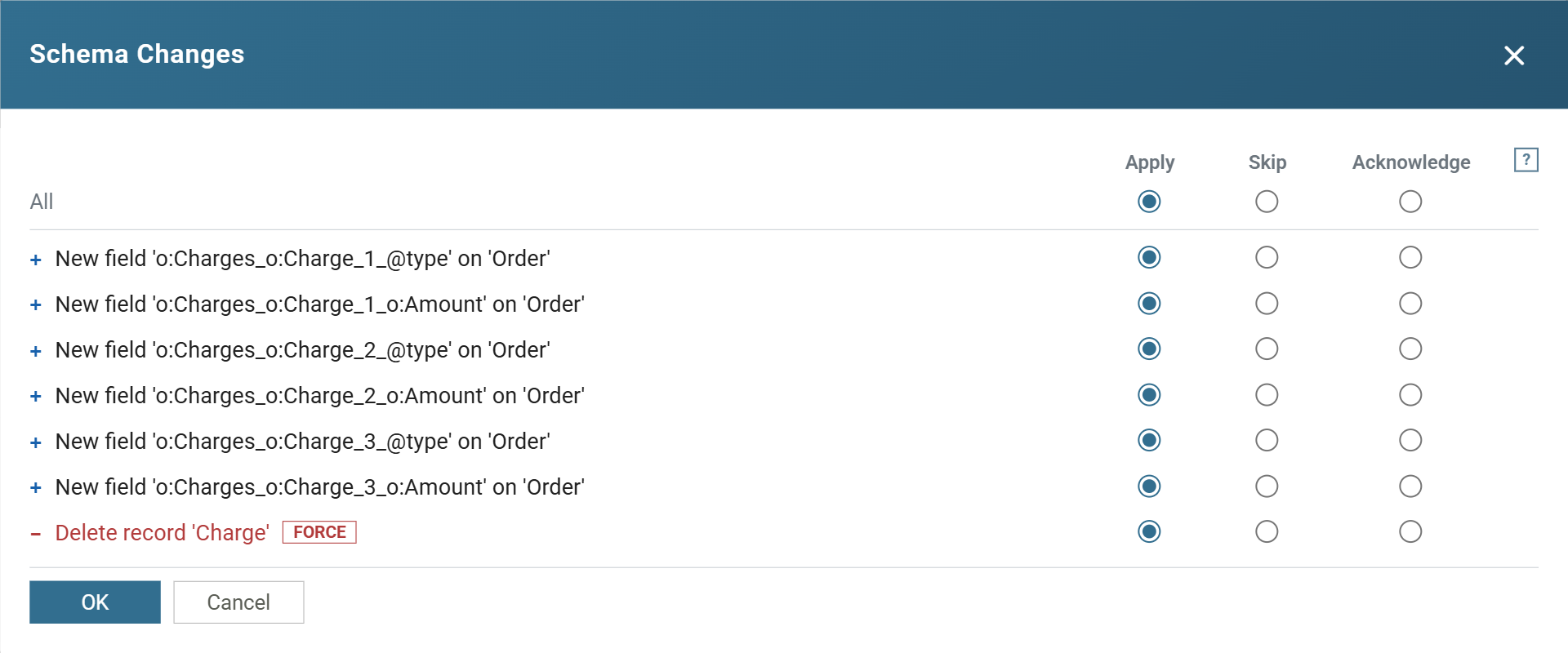
Two things to note in what it proposes:
- The new field names are built from the XPath, not from the field names,
and include the prefixes:
o:Charges_o:Charge_1_@type. They are long, so rename them afterwards. - The child transaction is deleted. It is marked
FORCEbecause a later refresh cannot undo that deletion. Hoisting replaces the child; it does not duplicate it.
IMan offers hoisting only after Refresh Schema has run in the open pane, because the occurrence count comes from the detected schema, not from the definition.
SYS.INPUTFILE
Records read through the File or http(s) Url controller can carry a
SYS.INPUTFILE field holding the file or URL the record came from. Add a field
of that name with any XPath. The controller supplies the value; it is not read
from the document.
See Streamline processing for what it is for.
Audit
Supported counters
- PROCESSED — incremented for each record read.
- INSERTED — incremented for each record placed into the dataset.
Action on Transform Error
The setting and the rest of the tab are described on Transform > Audit.