Fixed Width Reader
The Fixed Width Reader reads a text file whose fields are marked out by their position on the line, not by a separator. Every record has the same column layout, and you define a field by where it starts and how long it is.
The file does not have to be on disk. The reader takes its data from an IO controller, so the same transform can pick a file up from a folder, download one over HTTP, or take one off an email.
Example
Reading the ruler above the data, OrderId starts at position 4 and runs
for 12 characters, OrderType at 16 for 6, and Currency at 22 for 3:
         1         2         3         4
1234567890123456789012345678901234567890
HDRFBRN-309242 Web   USDEnglish, Ronald
HDRFBRN-309243 Web   GBPWard, Claire
A value shorter than its field is padded: Web occupies six characters.
The reader trims the padding from both ends when it reads the field, so a
right-aligned amount arrives without its leading spaces.
Determining field positions
You define every field by hand. This reader has no schema detection, so it cannot work the positions out from the file.
Most text editors show the cursor's line and column on a status bar. Put the cursor on the first character of a field and read the column number: that is the field's Position. Move to the first character of the next field. The difference between the two numbers is the Length.
Two things to watch:
- Positions are absolute and start at 1, not at 0 and not relative to the previous field.
- They include the record-type prefix in a hierarchical file. With a record type three characters long, the first real field starts at position 4.
Set the editor to a monospaced font before counting. In a proportional font the columns do not line up, so a field can look as if it starts in the right place when it does not.
Setup
The Setup tab carries the transform's identity, the source the file comes from, and the options that say how to read it.
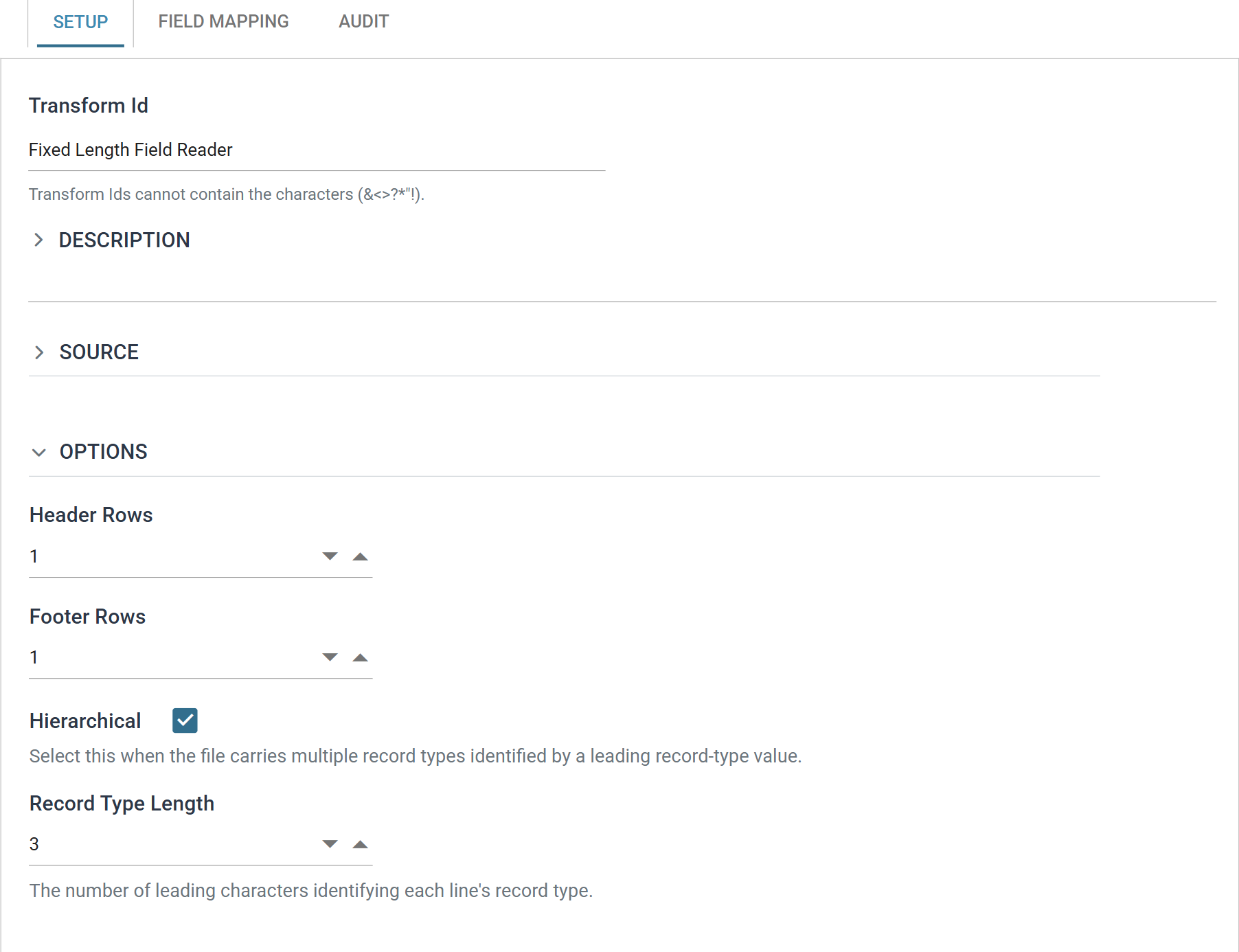
Transform Id, Description and Priority are the same on every transform and are described under Transform > Setup.
Source
The Source section holds the IO controller, which says where the file is read from, and the controller's own fields.
The drop-down at the top of the section chooses the controller. The Fixed Width Reader accepts four:
- File — File System, File Path, File Name, Encoding Method
- http(s) Url — Encoding Method, Webservice Behaviour, Http Headers, Query Url, Evaluate Url, Http Operation, and Request Body when the operation is not a GET
- Email — Email Server, From Address Like, Subject Like, Attachment File Name Contains, Data As Attachment, Delete From Server, Encoding Method
- Transaction — Field
Each controller's own page describes its fields.
Encoding Method matters more here than elsewhere, because positions are counted in characters. If you read a UTF-8 file with another encoding, a single accented character can become two and shift every later field along the line.
Options
Header Rows
The number of rows at the start of the file that are not data — a banner line, an export timestamp.
IMan leaves those rows out of the dataset. This reader does not name fields from a heading row, so it only skips header rows.
Footer Rows
The number of rows at the end of the file that are not data — a record count, a control total. IMan ignores everything in the footer rows.
A trailer record is the usual case. Skip it with Footer Rows instead of defining a transaction for it. A transaction for the trailer would appear in the drop-downs of every downstream transform.
Hierarchical
Whether the file holds one record type or several.
Unticked, every line is a record of the same type and the dataset is flat. Ticked, the leading characters of each line say which type it is, and the reader builds a hierarchical dataset from them.
A check box here, and Keyed Fields is not offered
The CSV and Excel readers offer a Hierarchy Style drop-down with three options. This reader has a check box instead. A hierarchical fixed width file is always read as Ordered Data, and Keyed Fields is not offered.
Record Type Length
The number of characters at the start of each line that identify its record type.
This field appears only when Hierarchical is ticked. In the example below the
record type is HDR or DTL, so Record Type Length is 3.
The reader matches these characters against the transaction names: a
transaction named HDR collects the lines whose first three characters are
HDR. So you cannot name the transactions in a hierarchical fixed width file
freely. Each name must be the record type value it stands for.
Hierarchical data
The reader can build a hierarchical dataset when the file carries more than one record type and a fixed number of leading characters identifies the type.
Example
The file below holds order headers and their lines, with HDR and DTL as
the record types and a TRL trailer skipped by Footer Rows:
ORDEREXPORT     Web Storefront          2016-03-12
HDRFBRN-309242 Web   USDEnglish, Ronald         Fairbanks       USA
DTL  1    5A1-103/0  Big Desklamp                 20.00
DTL  2   30A1-401/0  Big Style Notepad             5.10
HDRFBRN-309243 Web   GBPWard, Claire            London          United Kingdom
DTL  1    2S1-200/B  Flat Screen 2M              141.80
TRL   3     3749.60
Header Rows is 1 for the banner, Footer Rows is 1 for the trailer,
Hierarchical is ticked and Record Type Length is 3.
Structure comes from sequence. The reader inserts each record beneath the most
recent preceding record that can be its parent, so the rows have to arrive in
the order the structure implies. A DTL line before any HDR has no parent to
go under.
Field Mapping
You define every field by hand on the Field Mapping tab.
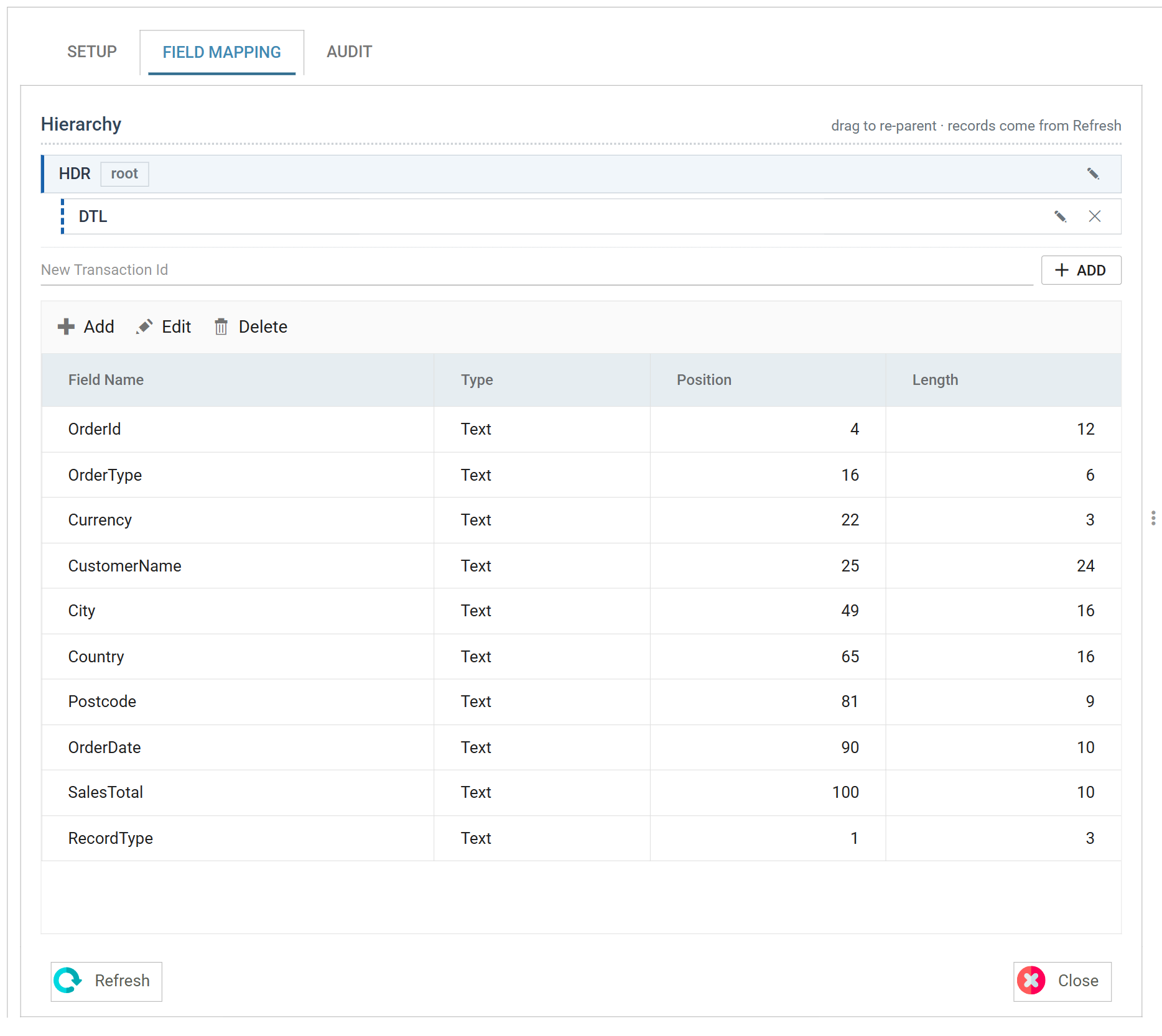
This reader does not detect its schema
The toolbar has no Refresh Schema item. Eight other readers detect their fields from the source and offer the differences for review. This one cannot, because nothing in a run of characters says where one field ends and the next begins.
Transaction
The tree at the top lists the transaction types the reader produces. Select one to open its fields in the grid below. There is no drop-down: the grid shows the transaction selected in the tree.
A flat dataset has a single transaction, marked root.
A hierarchical one needs a transaction per record type, and you add them here by hand. Type the record type value into New Transaction Id and press Add. IMan creates the new transaction beneath the selected one, so select the intended parent first. Ids may contain only letters and digits.
A new transaction already has a RecordType field, at position 1 with the
length set in Record Type Length. That field ties the transaction to its record
type; leave it in place.
The pencil renames a transaction and the cross deletes it and its children. The root has neither. IMan creates it with the transform and you cannot remove it.
Add, Edit and Delete
The toolbar above the grid adds a field, opens the selected one for editing, and deletes it. Unlike the CSV and Excel readers there is no batch edit. You change fields one at a time, through a dialog.
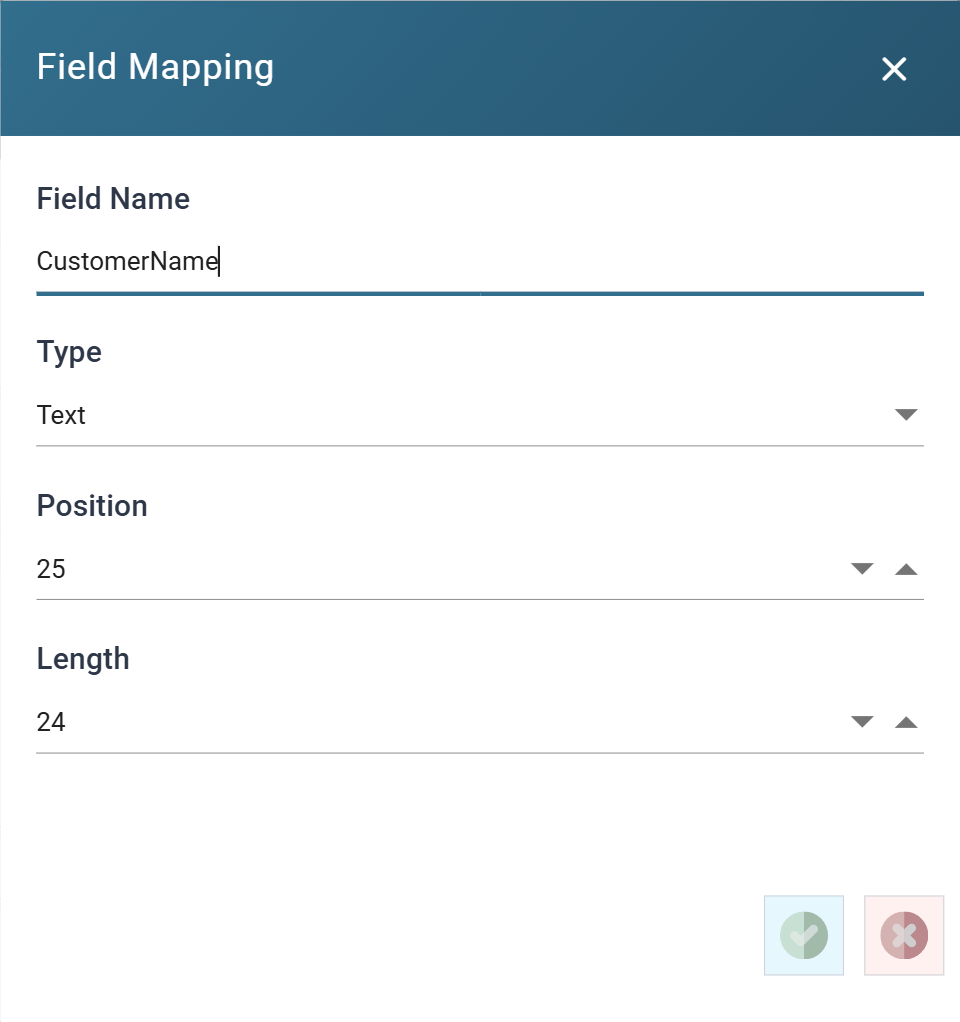
Field Name
The name of the field, unique within its transaction.
Records read through the File or http(s) Url controller also carry a
SYS.INPUTFILE field, holding the file or URL the record came from. The
controller supplies this field; it is not in the file.
Type
The data Type of the field.
Every field starts as Text. Where a column is a number or a date, set the type here. The value then arrives downstream as that type and needs no conversion in a Map transform.
Position
The column the field starts at, counting from 1 and including the record-type prefix.
Length
The number of characters the field occupies.
IMan does not check that fields do not overlap, and fields do not have to cover the whole line. A field may cover a range another field already covers. This is useful where you need a value both whole and in parts. The reader does not read a range that no field covers.
A line shorter than the field definitions expect does not fail the read. A field that starts within the line but runs past its end returns whatever is left. A field that starts past the end returns empty. The reader therefore accepts lines with trailing fields left off, as the CSV reader's Ragged Right option does. Here the behaviour is always on and you cannot turn it off.
Audit
Supported counters
- PROCESSED — incremented for each record read.
- INSERTED — incremented for each record placed into the dataset.
Action on Transform Error
The setting and the rest of the tab are described on Transform > Audit.