Email Controller
The Email controller reads a reader's input from a mailbox: either the attachments of the emails it finds there, or the emails' bodies. The mailbox is a record on the POP3/IMAP Servers screen, and that record's Mailbox Protocol decides what the controller can remember. Over POP3 it remembers nothing, so an integration must delete an email to avoid reading it twice. Over IMAP it keeps a read position for each reader, and a Mark Email Read task advances it. The mail can then stay in the mailbox.
Only readers use this controller. No writer offers it. To send mail, use the Email Task.
The file-format readers accept it: CSV, Excel, Fixed Width, XML and JSON. Each parses what the controller passes it as it would a file, so an emailed spreadsheet needs the Excel Reader and an emailed CSV file needs the CSV Reader.
Source
On a POP3 server the Source section holds the server, the monitor, the three filters and the two options:
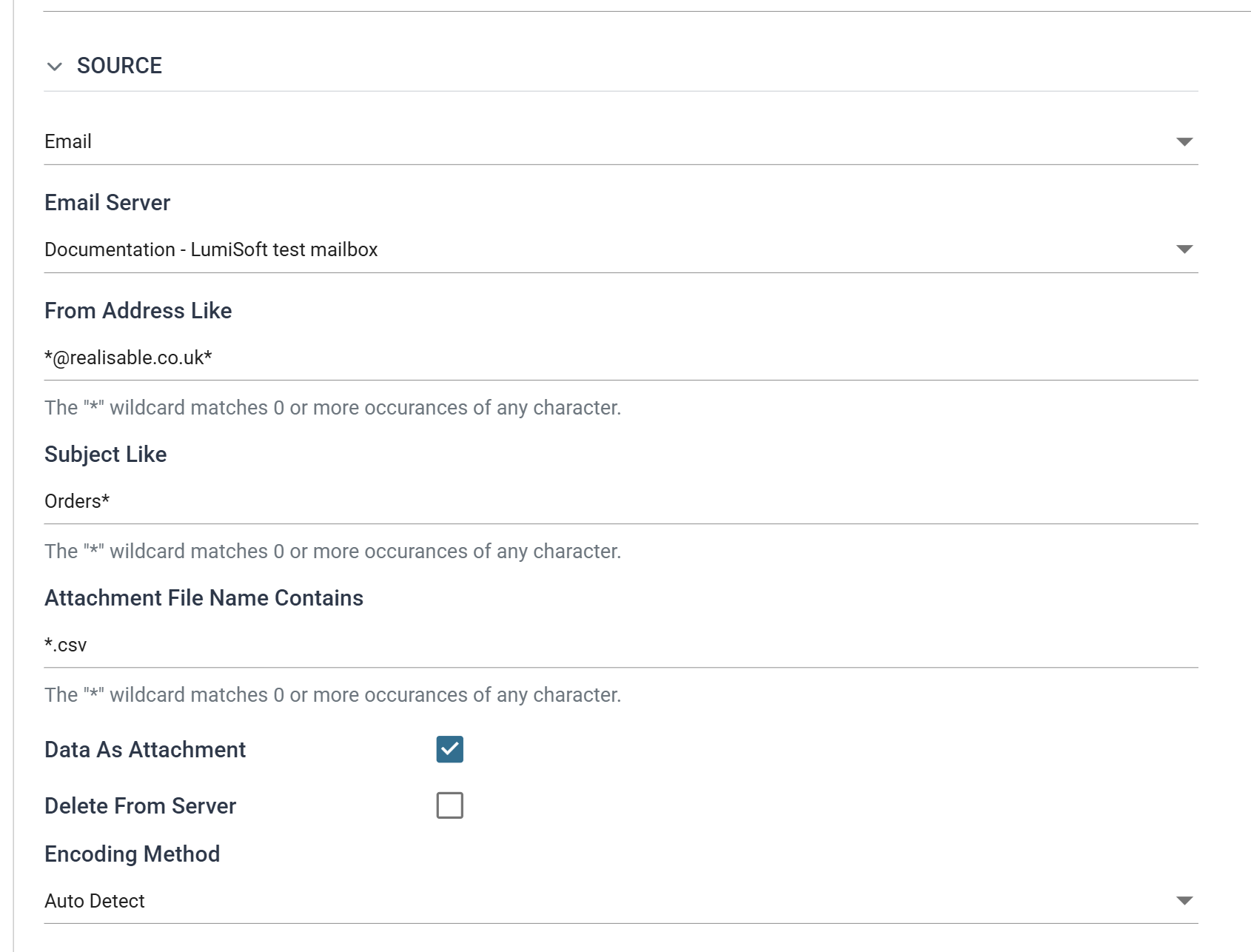
On an IMAP server four more controls appear beneath the server: the folder, the preview window, the batch size and the read position.
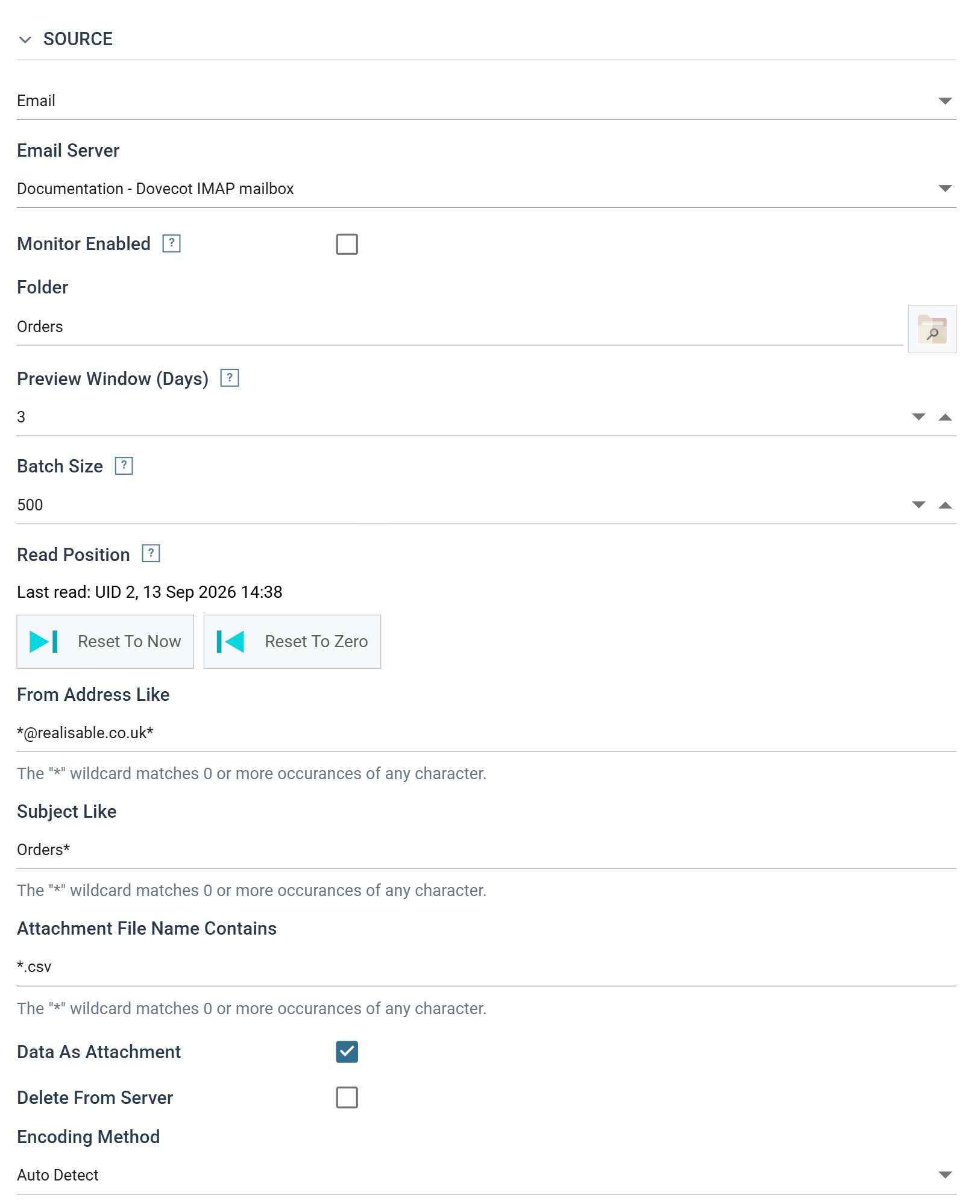
Email Server
The POP3/IMAP server whose mailbox is read. The list shows the records by Description. The record's Mailbox Protocol decides whether the four IMAP controls appear.
Monitor Enabled
When ticked, IMan registers the reader as a monitor. The scheduler service polls the mailbox every 60 seconds using the three filters below, and starts the integration as soon as it finds a matching email, without a schedule. Only the Email controller can do this.
A monitor needs an integration that removes the emails it reads (on POP3) or a Mark Email Read task that advances the position (on IMAP). Without it, the same email starts the integration again a minute later. See Monitors.
Folder
IMAP only. The folder to read. Blank means the inbox, INBOX. The browse
button opens the account's folders in the same dialog the file system controls
use, so you can pick the folder instead of typing it:
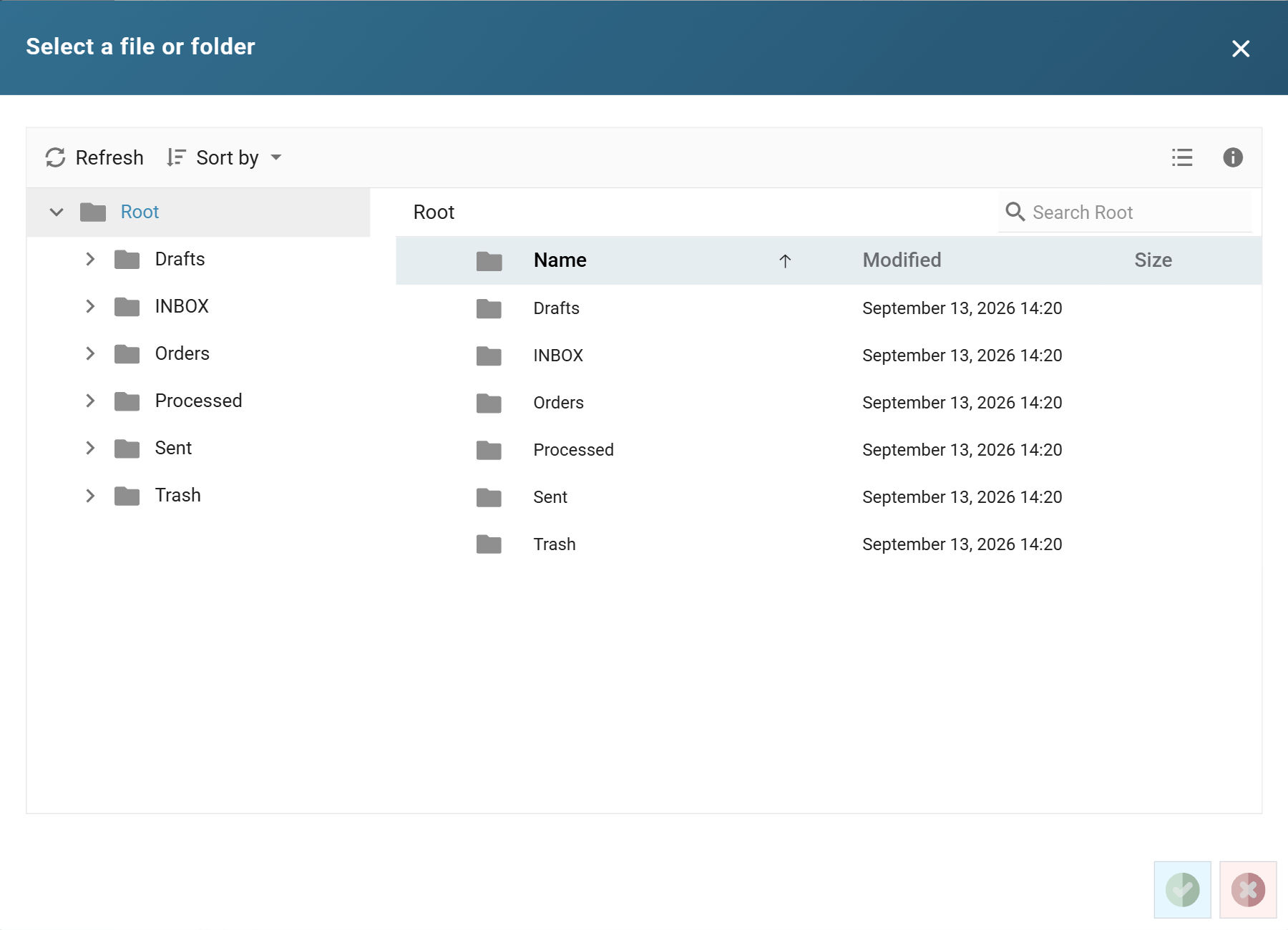
A folder can be at the top level or beneath the inbox. The match on the name ignores case. If the server does not have the folder, the reader does not create it: the run fails with an error that names the folders the server offers.
Preview Window (Days)
IMAP only. How far back a preview in the Designer looks. When you refresh the reader, it reads every matching email received within this many days, three by default, whatever the read position says. The setting has no effect on a scheduled run. A scheduled run reads from where the reader last got to.
Refreshing the reader does not move the position or mark anything on the server. An Email task previewed further down the chain does act on the messages the reader's preview read.
Batch Size
IMAP only. The most emails one run takes, 500 by default. The reader leaves any beyond that for the next run; it does not drop them. The position advances only as far as the run acknowledged.
Read Position
IMAP only. Where this reader has got to in the folder, in the mail server's own numbering (each email in an IMAP folder has a UID that never changes), with the time the position last moved:

The line has three states:
| The line reads | Meaning |
|---|---|
| Not yet read - the next run will start from new mail only. | The reader has never run. Its first run notes the newest email in the folder as its starting point and processes nothing; what arrives after that is read on the runs that follow. |
| Last read: UID 2, 13 Sep 2026 14:38 | The reader has been acknowledged up to UID 2. The next run reads what arrived after it. |
| Reset - the next run will read everything in Orders. | You have pressed Reset To Zero. The next run reads the whole folder, in batches of Batch Size. |
IMan keeps the position per reader in its own database, not on the mail server, and the reader never advances it itself. Only a Mark Email Read task, placed after the transforms that use the data, moves it. If a run fails part way through, the next run reads the same mail again and does not skip it. An integration with an IMAP reader and no Mark Email Read task reads the same emails on every run.
Two buttons change the position directly. Both take effect at once, whether or not you save the integration:
- Reset To Now discards the position. The reader returns to Not yet read, and its next run starts from the newest email, as a new reader does.
- Reset To Zero sets the position to the beginning of the folder, so the next run processes every email in it, however long the reader has been running and however much mail the folder holds. It asks for confirmation first:
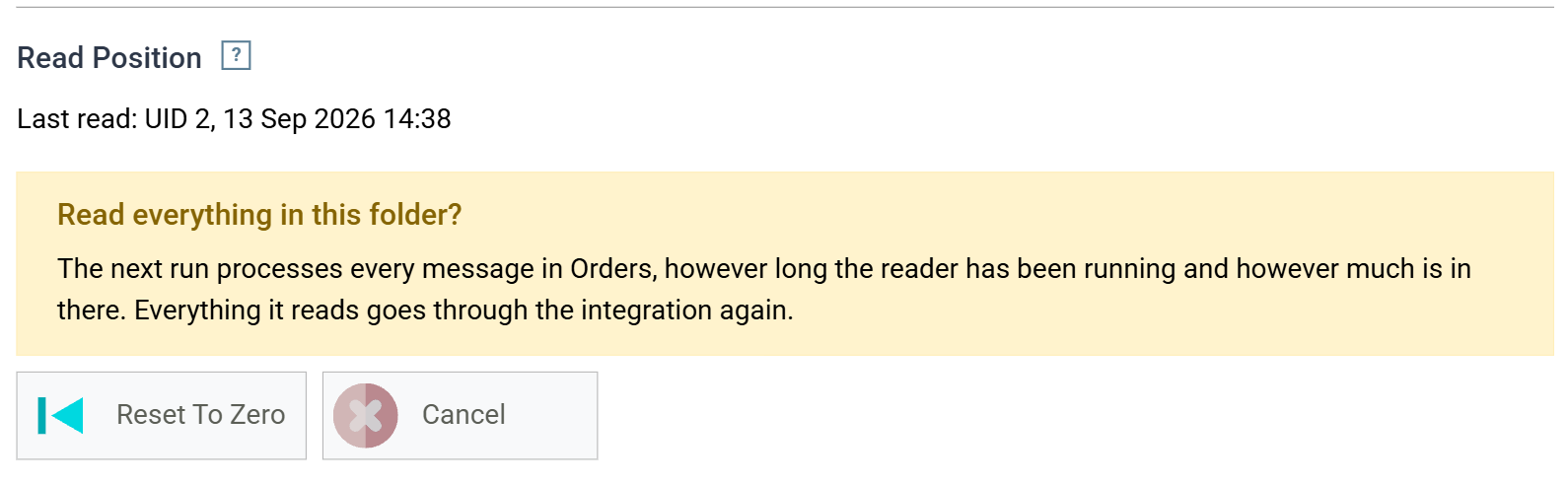
Three more things about the position:
- A restored or rebuilt mailbox renumbers its folders. IMAP marks each numbering with a UIDVALIDITY, and a position taken under one numbering is not valid under another. The reader detects the change, processes whatever the folder still reports as unread, and restates the position in the new numbering. The trace records this.
- The position belongs to the reader node. Deleting the reader, or the integration, removes it. If you point the reader at another server or folder, the old position no longer applies: the reader shows Not yet read and its next run establishes a new one.
- Delete From Server and the position are independent. Delete From Server removes the emails the reader read from the folder. The position still moves only when a Mark Email Read task acknowledges them.
Filtering the mailbox
The three filters decide which emails, and which attachments, become the
reader's input. Each accepts the *
wildcard, which matches
any run of characters. A blank filter matches everything.
Over IMAP the reader also passes the sender and subject filters to the mail server as search criteria, and applies the attachment filter to each email's structure before it downloads anything. The reader never fetches an email the filters reject, and a monitor counts only the emails the run will accept.
From Address Like
Matched against the sender's address as the mail server reports it. That includes the display name:
"Web Orders" <[email protected]>
A filter on the address alone therefore needs the wildcard on both sides,
*[email protected]*. A filter on the domain, *@realisable.co.uk*,
accepts every sender there.
Subject Like
Matched against the subject. *Orders* matches any subject with "Orders"
anywhere in it; Orders* matches subjects that start with it.
Attachment File Name Contains
Matched against each attachment's file name. The reader reads only the
attachments whose names match, and skips an email with no matching attachment.
*.csv keeps a signature image or a PDF out of a CSV Reader.
Data As Attachment
Ticked, the default, the reader's input is the attachments. The reader reads each matching attachment of each matching email in turn, as one file each. An email with no matching attachment contributes nothing.
Unticked, the reader's input is the body of each matching email. The body must be in the reader's format: a CSV Reader on the body of an email expects CSV text. IMan strips HTML formatting before the reader reads the body.
Only a machine-generated body is reliable to read
Reading the body is reliable only where a system generates the emails. A body typed by a person contains signatures, replies and formatting that no reader's format expects.
Delete From Server
Ticked, the reader removes each email from the folder once it has taken the email's last attachment (or its body). Unticked, the emails stay.
How the email is removed depends on the protocol. Over POP3 the reader deletes the email from the mailbox. Over IMAP it moves the email to the Deleted Items folder: the folder the server flags as its trash, or otherwise one named Deleted Items or Trash. A reader that reads that folder cannot delete from it.
On POP3 this is the only way to stop the next run reading the same email
again. Leave it unticked while you build the integration. Before you schedule
it, either tick it or add an
Email Task that deletes by EML.Uidl.
On IMAP it is optional. The read position already stops a run re-reading what
a Mark Email Read task acknowledged, and a
Move Email task can file
the processed mail in a folder of your choice instead.
Encoding Method
The character encoding used to read an attachment or body. Unlike the File and HTTP controllers, it defaults to Auto Detect here, because mail from several senders rarely shares one encoding. See Character Encoding.
Field Mapping
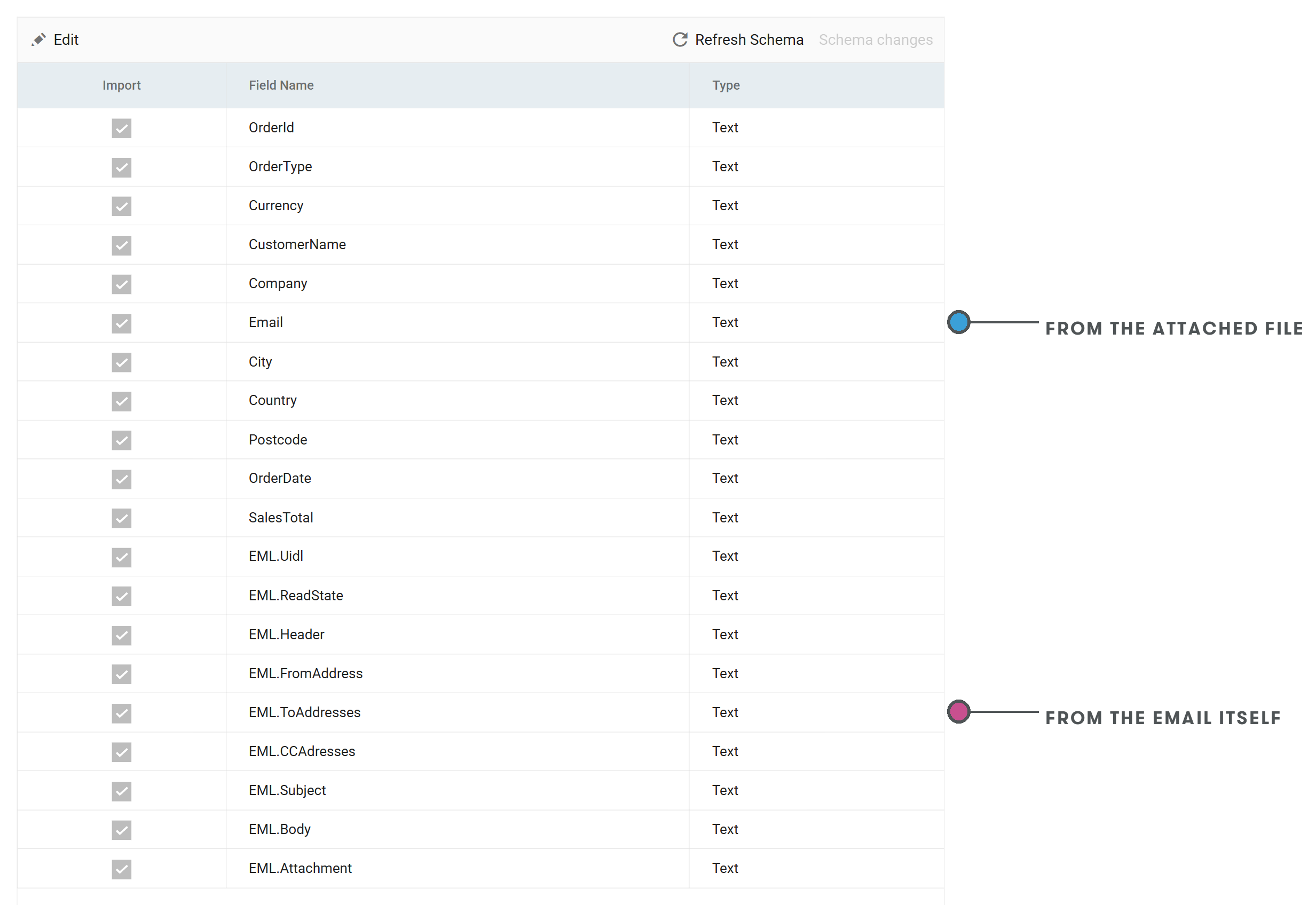
The reader detects the fields of the attachment (or body) as it would a
file's, and the controller adds nine EML.* fields carrying the email's
details. The same Refresh Schema adds them to the Field Mapping grid, after
the attachment's own fields. Every record read from an email carries the
values of the email it came from. The grid is the same over both protocols;
over POP3 EML.ReadState is present but empty.
EML.Uidl
The mailbox's unique identifier for the email. Over POP3 it is a string in the
mail server's own format, 20260905225553_1_64 on the server used for the
POP3 example. Over IMAP it is the email's UID in its folder, a number, 2
in the IMAP example. Either way, an
Email Task uses it to delete or move
exactly the emails an integration has processed.
EML.ReadState
IMAP only; empty over POP3. The reader's read position token for this
email, RSZB:1789304993:2 in the example: the reader's own identifier, the
folder's numbering (its UIDVALIDITY) and the email's UID, separated by colons.
It identifies one email in one folder under one numbering. Map this field, not
EML.Uidl, in the
Mark Email Read and
Move Email tasks. The task
checks that the position belongs to a reader on its own server and folder, and
rejects one that does not.
EML.Header
The email's headers as one block of text, one Name: value pair per line: the
route it took, the sender, the recipients, the message and thread ids, the
date and time zone. Parse it downstream if a decision depends on one of them.
EML.FromAddress
The sender's address as the mail server reports it, including the display name where there is one, as in the From Address Like example above.
EML.ToAddresses
The addresses the email was sent to, which may include display names.
EML.CCAdresses
The addresses copied, which may include display names. The field is spelt with one d, as the product spells it.
EML.Subject
The subject line.
EML.Body
The body of the email as HTML, formatting included, where the email was sent as HTML. Where Data As Attachment is unticked, this is also the text the reader parses, with the formatting stripped.
EML.Attachment
The file name of the attachment the record was read from. Empty when the reader is reading bodies, or when the email had no matching attachment.
Two of the nine, EML.Header and EML.Body, contain line breaks. A writer
that exports them into a flat file splits one record across several lines.
Leave them out of a CSV or fixed-width writer's exports unless the file needs
them.
Worked example
Both examples read the same attachment, orders.csv, three web orders in
eleven columns, from Web Orders <[email protected]> with a subject
starting Orders. The CSV Reader's three filters are *@realisable.co.uk*,
Orders* and *.csv, Data As Attachment is ticked and Delete From Server
is unticked.
Over POP3
The reader shown at the top of the page reads one such email from a POP3
mailbox. Refresh Schema on the Field Mapping tab detects the eleven columns
and adds the nine EML.* fields. Preview returns the three orders, each
carrying the same email details:
| Field | Value on every record |
|---|---|
EML.Uidl |
20260905225553_1_64 |
EML.ReadState |
empty; a POP3 mailbox keeps no position |
EML.FromAddress |
"Web Orders" <[email protected]> |
EML.ToAddresses |
[email protected] |
EML.CCAdresses |
empty; nobody was copied |
EML.Subject |
Orders - 5 September 2026 |
EML.Body |
The attached file holds today's web orders. |
EML.Attachment |
orders.csv |
EML.Header |
the headers, beginning From: Web Orders <[email protected]> |
With Delete From Server unticked, the reader reads the same email on every preview and every run. That is useful while you build the integration, but wrong once it is scheduled.
Over IMAP
The IMAP reader reads the folder Orders of a mailbox on an IMAP server, at
the head of a four-transform chain: the reader, a CSV writer, a Mark Email
Read task and a Move Email task that files each processed email into a folder
called Processed.

Preview, on the Field Mapping tab, returns the orders of every matching email received in the three-day preview window. The trace records how the reader used the position:
Folder [Orders]. Read state - DesignMode. Action - ProcessPreviewWindow. Criteria - [SINCE 10-Sep-2026]. UIDVALIDITY - 1789304993. UIDNEXT - 2.
The email's details come through as they do over POP3, with two differences:
| Field | Value on every record |
|---|---|
EML.Uidl |
2, the email's UID in the folder |
EML.ReadState |
RSZB:1789304993:2: the reader, the folder's numbering, the UID |
The integration then ran twice. One email was already in the folder before the first run, and a second arrived between the runs:
- The first run processed nothing. The reader had no position, so it
noted the newest email as its starting point and read nothing. The writer
wrote no file, the email was left unread in
Orders, and the reader's Setup tab changed from Not yet read to Last read: UID 1. - The second run processed the new email only. The writer wrote the three
orders from the second email, each carrying
EML.Uidl2and the tokenRSZB:1789304993:2. The Mark Email Read task flagged that email read on the server and moved the position to UID 2, and the Move Email task filed it intoProcessed. The first email, older than the position, stayed unread inOrders.
So the reader does not pick up mail that was in the folder before the integration existed, and each run reads only what arrived since the last run that completed.
The Integration Cookbook builds this integration step by step, with the two runs and what each leaves behind: Reading Data from Email.