File Controller
The File controller reads files from, and writes files to, a file system. That can be the IMan server's own file system — a local path or a UNC path — or any cloud location defined on the File Systems screen.
IMan must have the necessary Permissions for the read/write operations. For a cloud file system the equivalent is the credential held against the file system record. You can test it from that screen.
The controller's fields appear on the transform's Setup tab: in the Source section of a reader, and in the Target section of a writer. The two sets differ.
Source
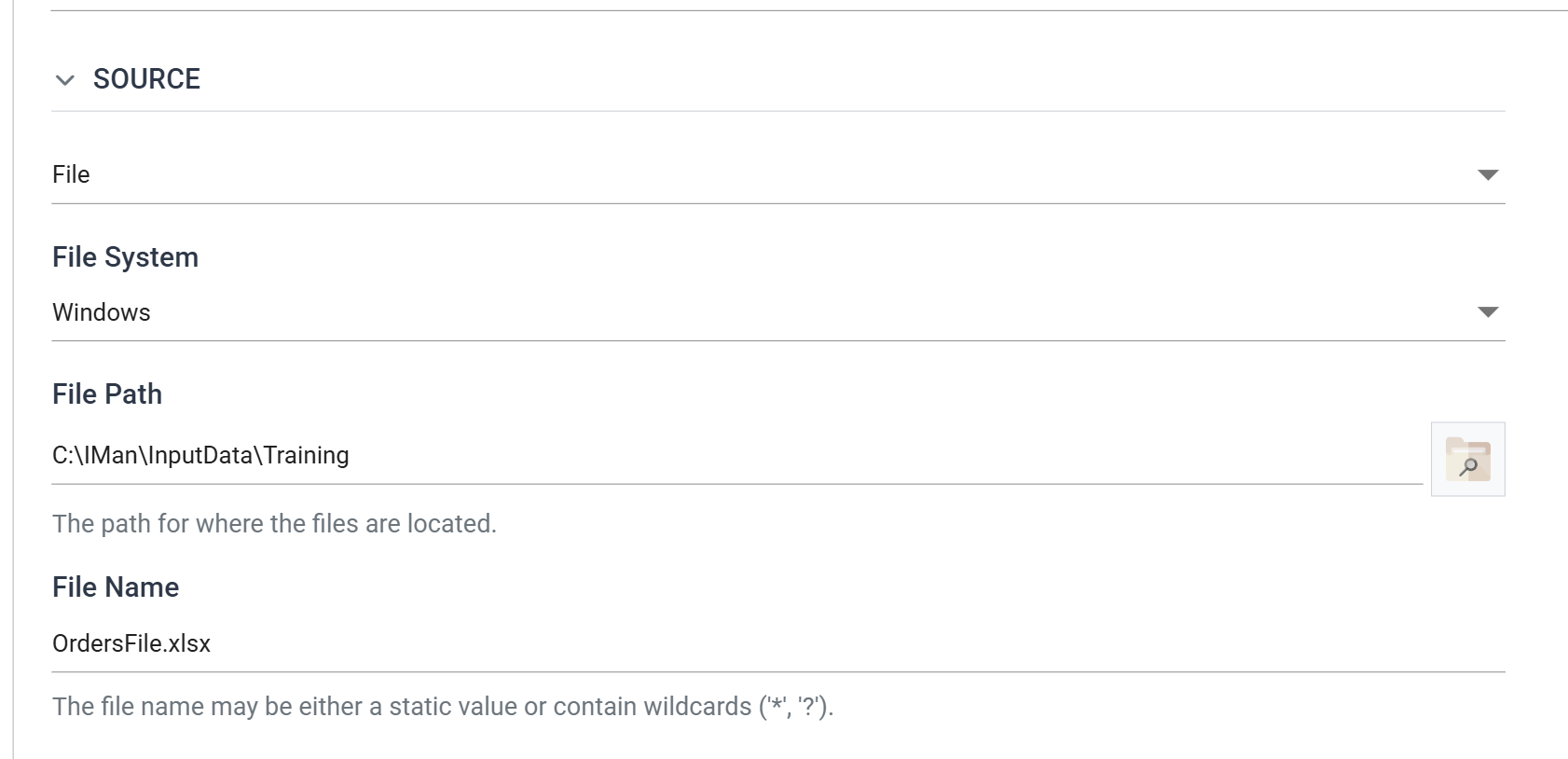
A reader with the File controller selected shows File System, File Path and File Name. Readers of text formats also show Encoding Method. Binary readers such as the Excel Reader have no encoding to choose and do not show it.
File System
The file system the path is relative to.
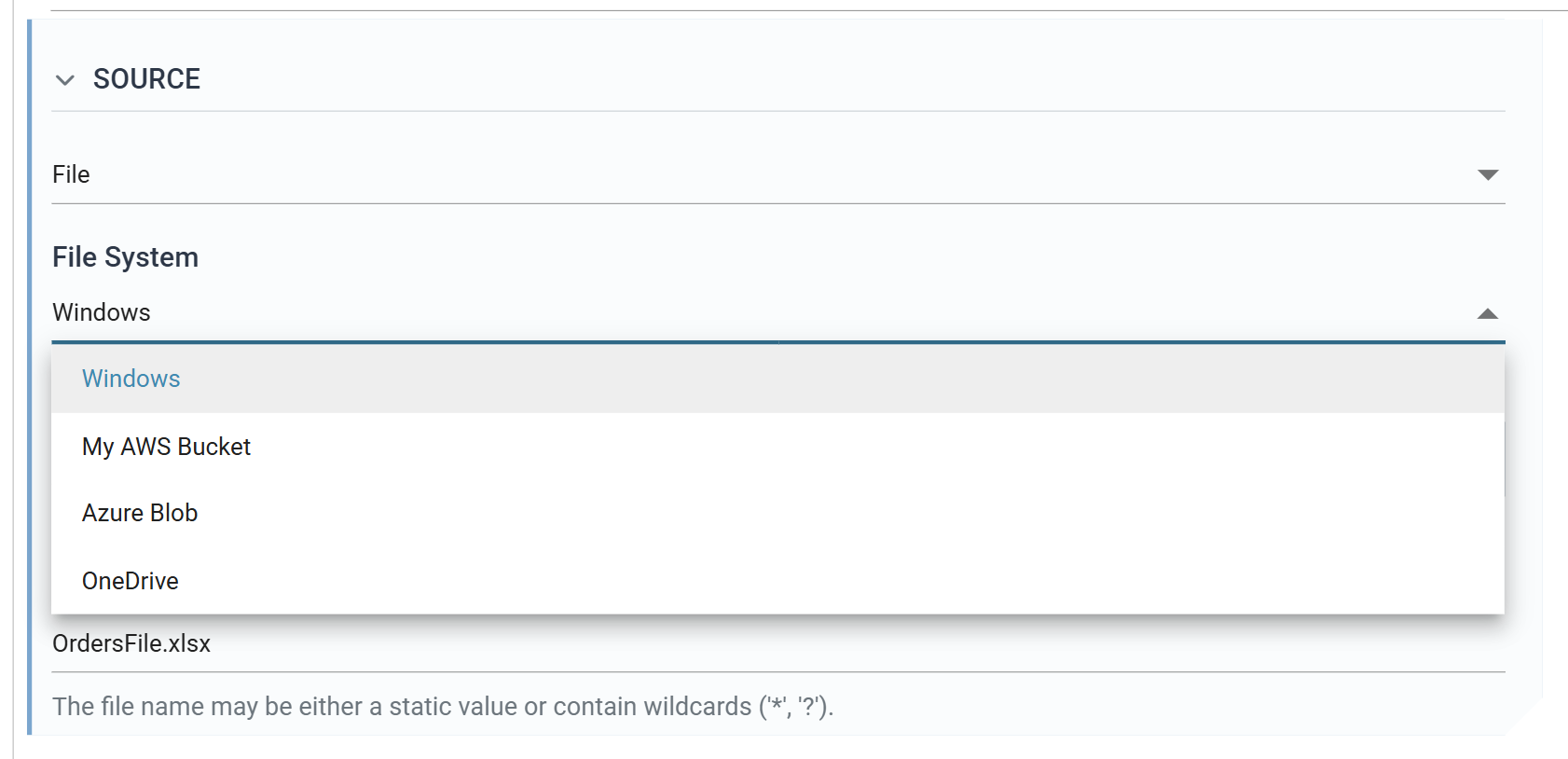
Windows is always present. It is the file system of the IMan server itself,
so a File Path may be a local path or a UNC path, and access is whatever the
IMan service account has.
Every other entry is a file system defined on the File Systems screen — an AWS S3 bucket, an Azure Blob Storage container, or a OneDrive or SharePoint drive. The drop-down lists entries by their Description, so give each file system a recognisable Description.
File Path
The directory the files are read from, within the selected file system.
The Browse button opens the File Explorer on that file system. It is the quickest way to confirm that a path resolves where you expect.
File Name
The name of the file, or files, to read.
The name may use Wildcards
(? or *) to match single or multiple characters. The reader reads every
file in File Path that matches the name.
Encoding Method
The character encoding used to read the file.
See Appendix B – Character Encoding for further details.
Reading more than one file
Where File Name matches several files, the reader reads all of them and their records arrive as a single dataset, not one integration run per file. Downstream transforms see one batch, and the audit reports one read.
The controller does not sort the matches. It reads them in the order the file system returns them. Where the order of the data matters, match one file.
Every record read through the File controller carries a SYS.INPUTFILE field
holding the full path of the file it came from. It appears in the Field Mapping
grid alongside the fields read out of the file itself. A
Map or
Filter transform downstream can
use it to tell one source file from another.
Target
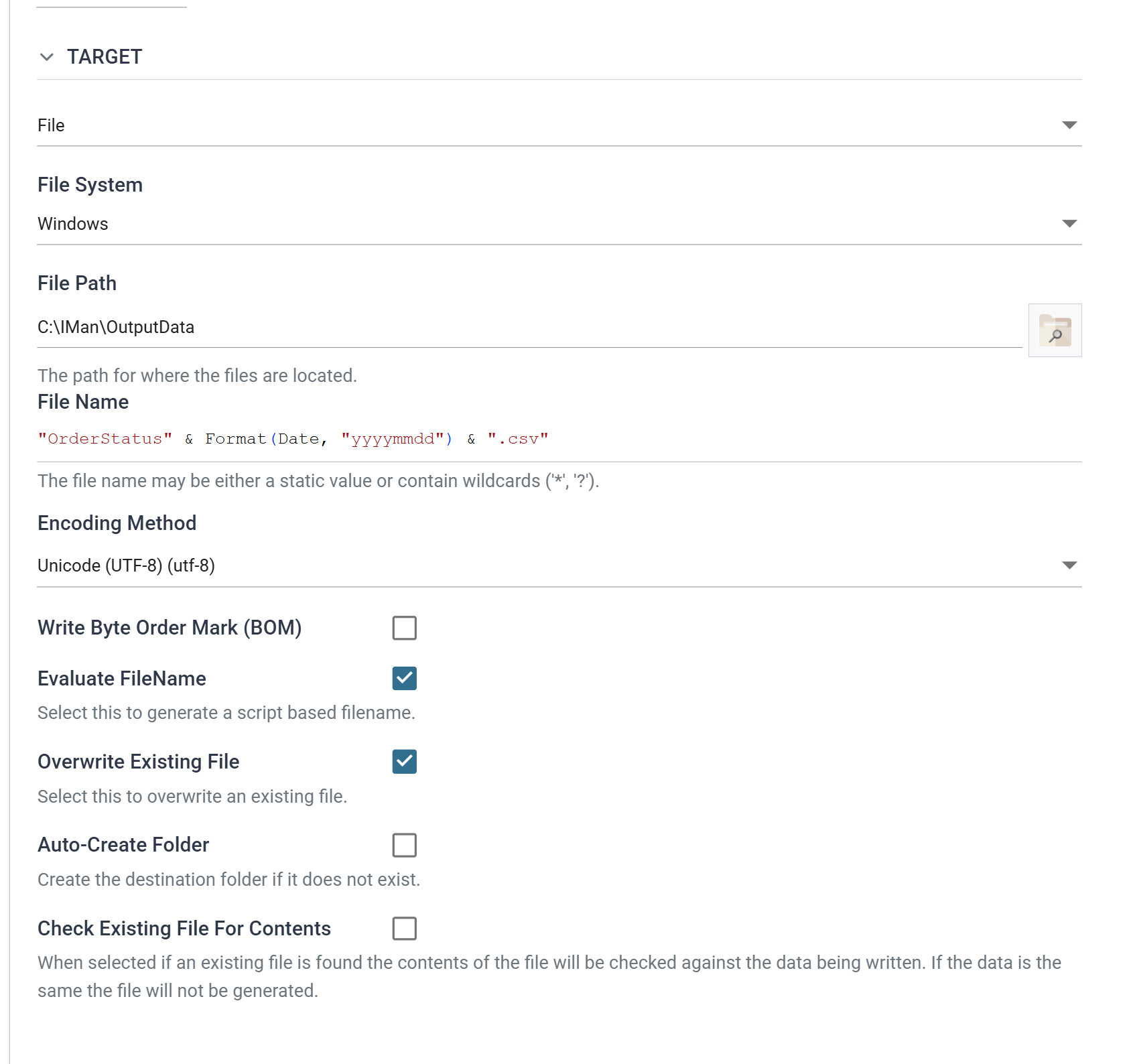
A writer with the File controller selected shows the same File System, File Path and File Name, followed by the options that govern how the file is written.
File System
As for a reader: Windows, or any file system defined in Setup. IMan creates
the file within that file system.
File Path
The directory the file is written to.
The folder must exist unless Auto-Create Folder is ticked.
File Name
The name of the file to create.
When Evaluate FileName is ticked, this field becomes a script editor instead of a plain text box.
The help text is the reader's, and wildcards are not expanded when writing
The help text under this field is the reader's, and mentions wildcards. IMan does not expand wildcards when writing. On a writer the value is either a literal name or, when Evaluate FileName is ticked, a VBScript expression.
Encoding Method
The character encoding used to write the file.
See Appendix B – Character Encoding for further details.
Write Byte Order Mark (BOM)
For Unicode encodings, writes the byte order mark at the start of the file.
The option is enabled only when the selected encoding has a byte order mark. IMan stores it as unticked for any encoding that does not, so if you tick it and then change the encoding, the setting does not carry over.
See Appendix B – Character Encoding for further details.
Evaluate FileName
When ticked, IMan evaluates the File Name as an inline VBScript expression each time it writes a file. When unticked, IMan uses the File Name literally.
Example
To generate a file name in the form:
where the middle section is the date and time of the export, enter:
Note the straight quotation marks. A typographic quote is not a VBScript string delimiter, and the expression fails to evaluate.
You can also use a field reference, so that the name carries a value from the data:
A field reference resolves only where the writer is committing against a
transaction. Where it is not, IMan rejects a File Name containing %. It does
not write the name literally.
Overwrite Existing File
Ticked by default.
When ticked, IMan replaces a file of the same name in File Path.
When unticked, and the name is already taken, IMan makes the new file name
unique by adding _1, _2, _3 and so on before the extension.
Auto-Create Folder
When ticked, IMan creates the folder being written to if it does not already exist.
When unticked, writing to a folder that does not exist fails.
Check Existing File For Contents
When ticked, and a file of the same name already exists, IMan compares its contents with the data about to be written. If they match, IMan does not write the file again.
It does nothing unless Overwrite Existing File is also on
This has effect only when Overwrite Existing File is also ticked. With Overwrite Existing File unticked, the writer always makes the name unique and never writes to an existing file, so there is nothing to compare against.
Writing more than one file
The controller writes a file each time the writer commits. The writer, not the
controller, sets how often that happens, with the Generate File Per
Transaction setting in its Commit section. Left at (none), the writer
commits once and writes one file for the whole dataset. Set to a transaction,
it writes a file for each record of that type.
IMan generates the File Name again for each file, so a fixed name with Overwrite Existing File ticked leaves only the last file. Either build a unique name with Evaluate FileName, or untick Overwrite Existing File and let IMan add a suffix. A field reference resolves against the transaction being committed, so Evaluate FileName can give each order its own file.
Worked example
The Excel Reader in step 2 of the Sage 300 and Sage 200 training manuals reads through this controller, and the CSV Writer in step 9 (Sage 300, Sage 200) writes through it.