Field Mapping Tab
The Field Mapping tab lists a transform's fields and lets you edit them. For most transforms the work is done here. The Setup tab holds little more than a name, and the transform's behaviour is in this grid.
The transform decides which columns the grid has and what you can do to a row. This page covers what is the same everywhere. Each transform's own page describes its columns.
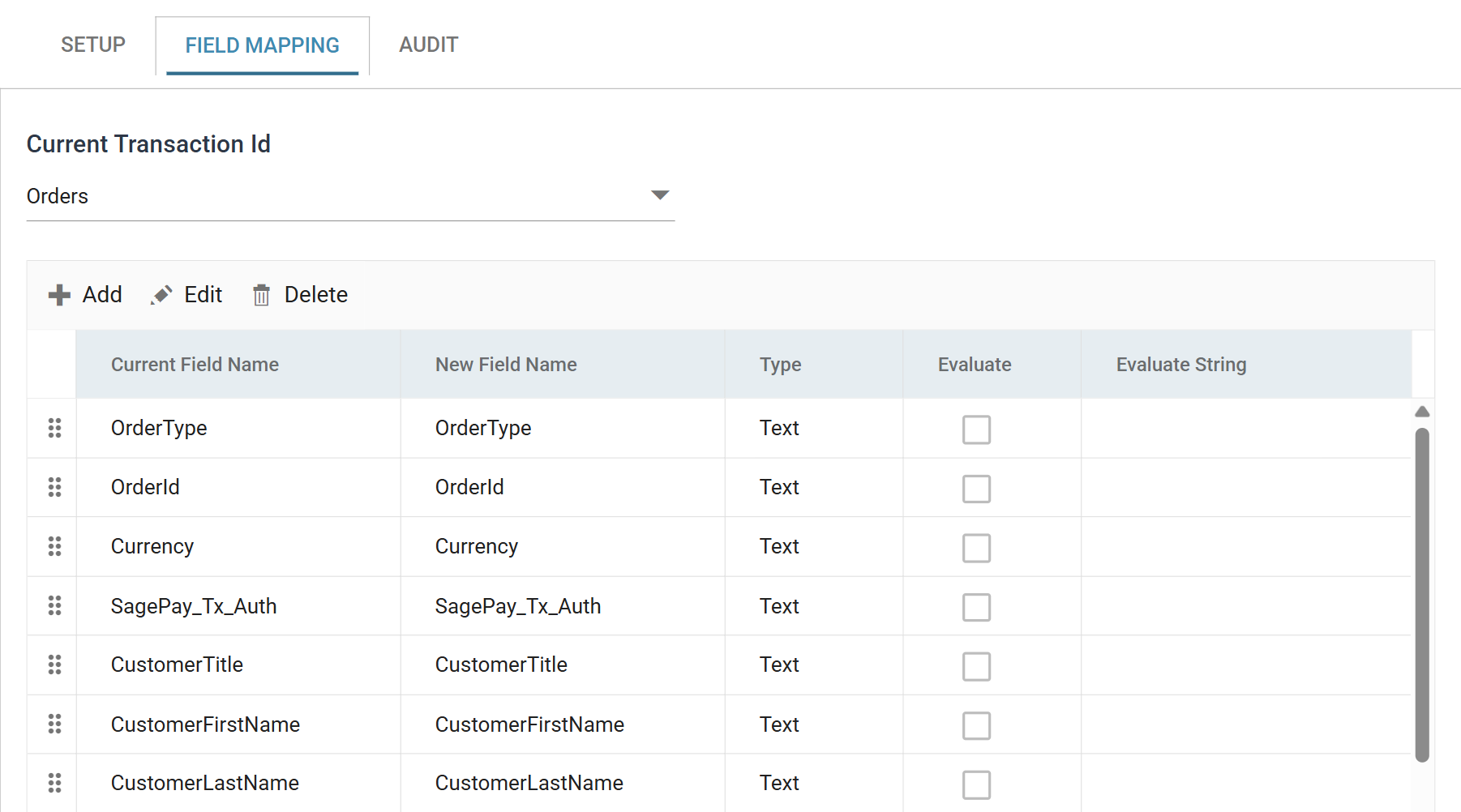
Current Transaction Id
The transaction whose fields the grid is showing.
You map a dataset with more than one transaction type one transaction at a time, and this drop-down switches between them. It is not drawn when the transform has a single transaction. Readers that build a hierarchy show a tree of the transactions instead.
If you switch transaction with a batch edit unsaved, IMan asks before discarding the edit.
The grid
One row per field. The transform does not carry a field that is not in the grid, and nothing downstream of it sees that field.
Import
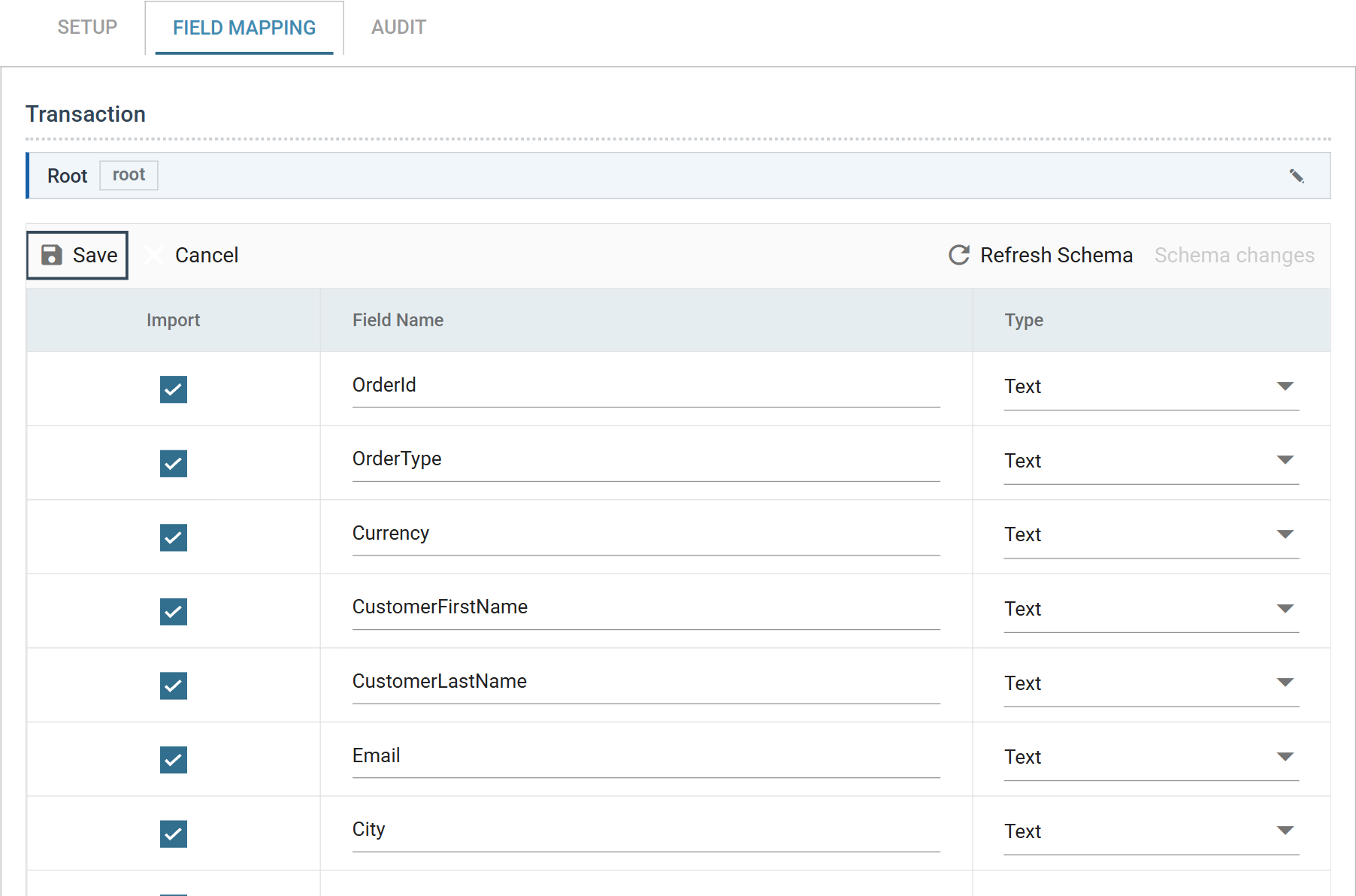
Where the transform offers it, a check box that decides whether the transform carries the field. Untick it to remove the field from the transform and from the field mapping grids of every transform downstream.
Transforms that create their fields, instead of receiving them, have no Import column. They use Add and Delete instead.
Editing a row
There are two kinds of grid. You can tell them apart by their toolbar.
A toolbar that shows only Edit belongs to a batch grid. Press Edit to make every cell in the grid editable at once. The toolbar then shows Save, which commits all the changes, and Cancel, which abandons them. While you edit the grid, the rest of the pane is locked. The Setup and Audit tabs are disabled, and the pane's Refresh is unavailable until you save or cancel the edit. Refresh Schema stays enabled throughout.
A toolbar that shows Add, Edit and Delete belongs to an inline grid. You edit rows one at a time through a dialog, and each change is committed on its own.
Each transform decides which kind it uses. Most readers and writers use a batch grid, but not all of them.
Where a transform lets you reorder its fields, a handle appears at the left of each row. Drag the handle to move the row. On a batch grid the handle does nothing until you press Edit. Not every transform allows reordering. The order of a reader's fields comes from the file, not from the grid.
The Field Mapping dialog
An inline grid edits a row through a dialog. A batch grid has no dialog. You edit its cells in place.
The transform decides which controls the dialog has, and the transform's own page lists them. Only two appear everywhere: the field's name and its data Type. Everything else differs. A Map adds a rename and a VBScript expression. A JSON Reader adds Relative and JPath. A JSON Writer adds Export Field, Default Value and Response JPath.
The example below is a Map.
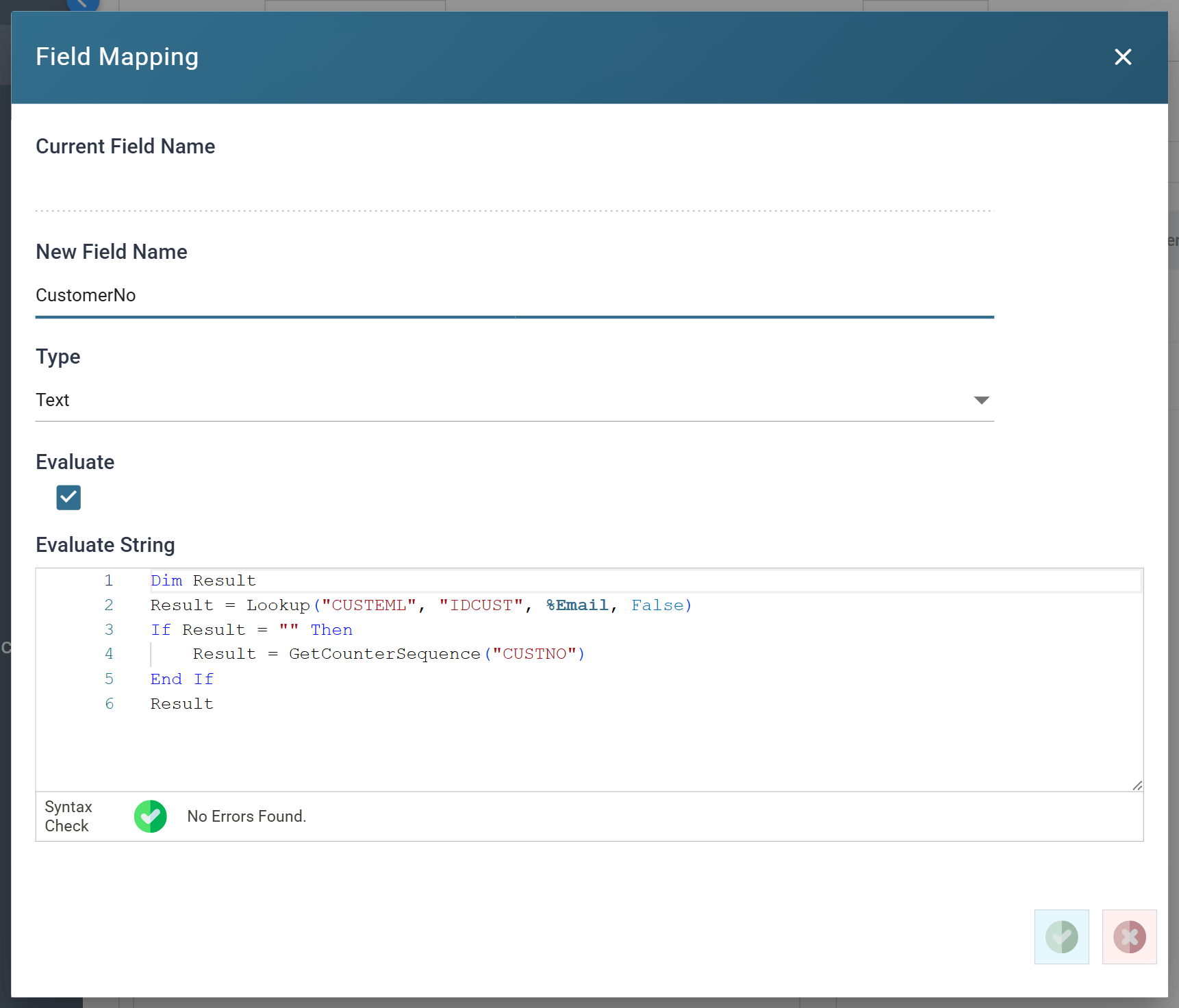
Three rules apply wherever the controls appear.
You can never edit the name a field arrived with. IMan uses that name to match the field. A transform that can rename a field shows a second, editable name beside it: Current Field Name and New Field Name above. A transform that cannot rename shows a single read-only Field Name. A field created in the dialog has no incoming name, so that box is not shown.
Evaluate and Evaluate String go together, on the transforms that have them. Tick Evaluate and the field takes the result of the VBScript expression instead of the value it arrived with. Syntax Check beneath the editor reports as you type, but only while Evaluate is ticked. IMan does not check an expression on an unticked field, because it will not run. A transform that evaluates can create a field that is in no source at all, for example sequential customer Ids from GetCounterSequence.
Allow Value Accumulation, where a transform offers it, lets a field hold more than one value. Without it, the last value written replaces the others.
Hierarchical data
Where the transform builds a Keyed Hierarchy, you define it on this tab by choosing the fields whose values place a record beneath its parent. See Hierarchical Data and the Hierarchy transform.
Schema changes
Reader transforms only. A reader's fields come from its source. Two toolbar items on this tab keep the reader's field definition in step with the source.

The reader reads the source only when you ask it to. Refresh Schema reads the source, works out what fields and record types it holds, and compares them with the stored definition. The item beside it shows the result. When there is nothing to review, it reads No schema changes and is disabled. Schema changes (3) opens the review. If IMan cannot read the source, it shows the error in a line above the grid instead.
Refresh Schema is not the Refresh at the foot of the pane. Refresh Schema reconciles the field definition. The footer Refresh runs the integration as far as this transform and fills the preview.
The definition does not change until you close the review with OK.
Reviewing the changes
Each difference between the source and the definition is one row of the Schema Changes dialog. For each row, choose one of three decisions:
- Apply writes the change into the definition.
- Skip leaves the definition alone, and the next refresh reports the difference again.
- Acknowledge leaves the definition alone and stops later refreshes reporting the difference.
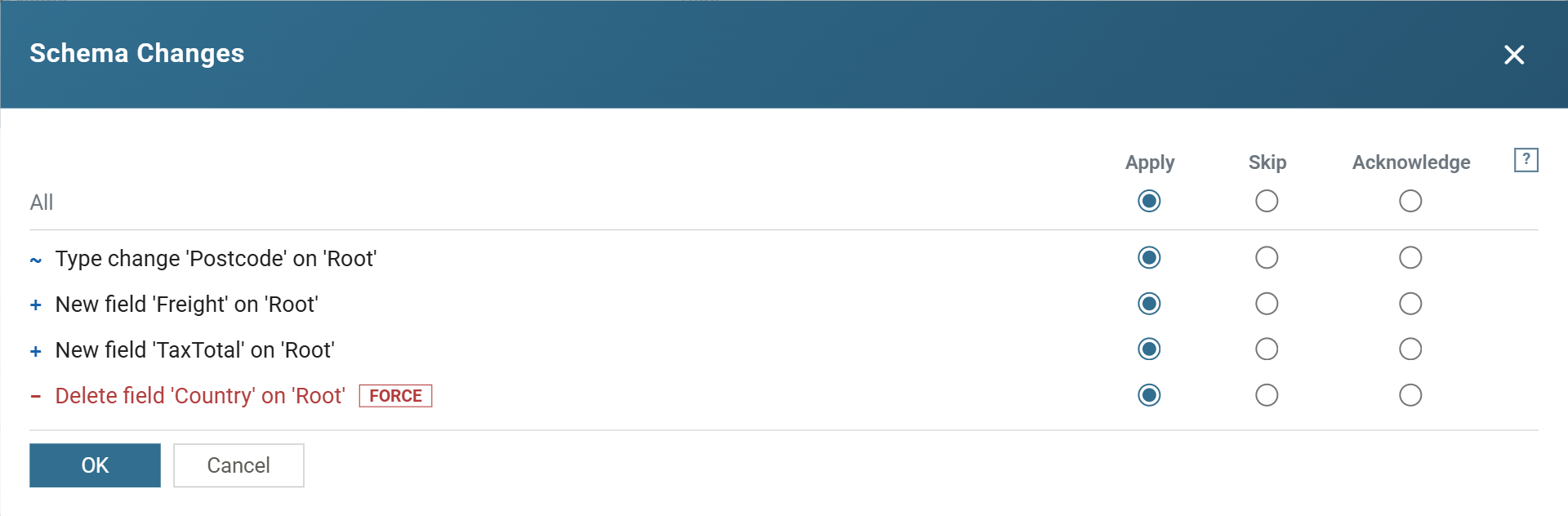
Each row starts with a marker: + adds, − removes and ~ changes. The text
names what changed: New field 'Freight' on 'Root', Type change 'Postcode' on
'Root', Delete record 'Charge'. IMan names a reader's top record Root.
The records below it keep their own names.
New differences come first and start on Apply. Differences acknowledged on an earlier refresh follow them, greyed, and start on Acknowledge. A Hide acknowledged link at the head of the list shows their count and collapses them. The All row sets every listed row at once. It shows a selection only when every row has the same decision.
OK posts all three decisions together. Cancel posts nothing, and the next refresh asks again.
A change marked FORCE discards work
A difference that removes a field or a record, or otherwise discards mapping already built downstream, has a red FORCE marker. It starts on Apply like everything else, and OK applies it without a second confirmation. Read the list before you press OK.
The first refresh
A reader with nothing defined has nothing to compare against, so every field is new. Refresh at the foot of the pane detects the schema and applies all of it without opening the review. Refresh Schema on the toolbar opens the review with every field listed as new.
Refresh from a source that contains every record type
For a hierarchical dataset, refresh from a source that contains every record type. IMan discovers the types from the data, and you cannot add a missing type to the transform by hand afterwards.
Losing a field, and losing an edit
IMan asks before it removes a field, because everything downstream that is mapped to the field breaks. The question depends on how you remove it:
- Delete on an inline grid confirms the one field by name.
- Unticking Import on an inline grid warns that the field will be deleted from the transform.
- Save on a batch grid lists every field whose Import was unticked during the edit, and confirms them together.
- Switching Current Transaction Id with a batch edit unsaved warns that the changes will be lost.
None of them checks which downstream transforms refer to the field, and IMan does not report the break when you make it. It appears on the next preview or the next run. If the field is mapped further down the integration, expect to fix those transforms too.