Hierarchy
Hierarchy transforms flat data into Hierarchical Data, by giving it multi-level structure.
It can also take a dataset, or a single transaction, that already has a hierarchical structure and add further levels to it.
Example
The first example below shows a flat transaction (A) transformed into a two-level hierarchy.
The second shows a two-level hierarchy whose child (transaction B) is itself hierarchised, giving four levels within the existing structure.
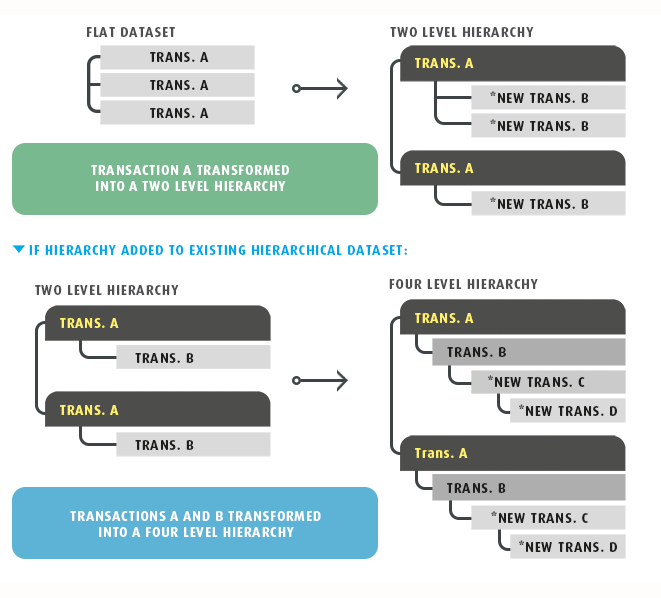
You configure the transform on its Field Mapping tab: which transaction to hierarchise, what to call the new transactions beneath it, and which of the incoming fields belongs to each. The Setup tab holds only the controls every transform has. See Transform > Setup.
Field Mapping
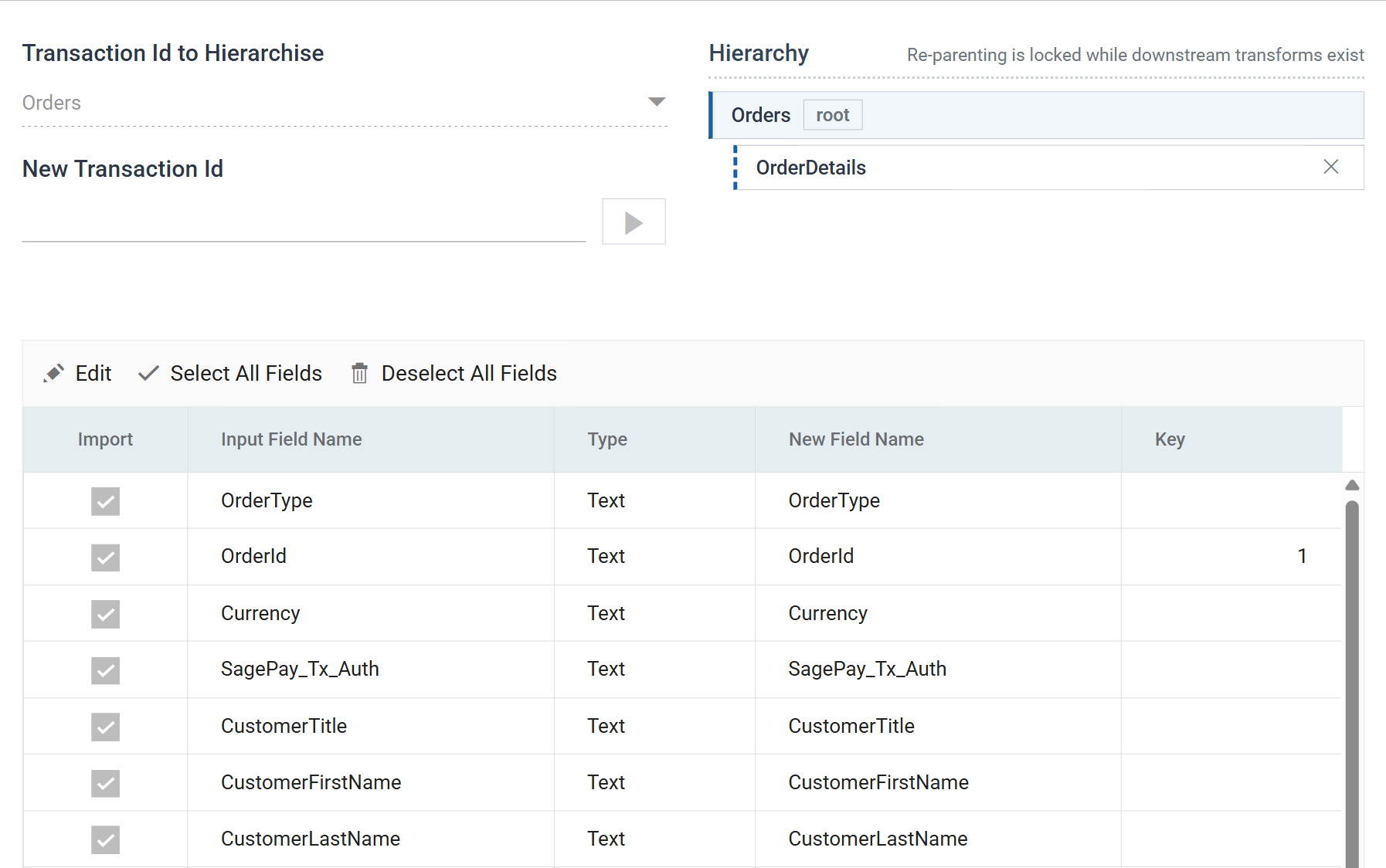
Transaction Id to Hierarchise
The transaction to give structure to. In the first example above this is TransactionA; in the second it is ChildA.
You can choose it only while the transform is empty. Once you have added transactions beneath it, the drop-down is fixed, because each of them was defined against it.
New Transaction Id
The name of a transaction to add.
Select the transaction it should sit under in the Hierarchy tree, type the new name here and press the add button beside it. The button stays disabled until the name is filled in and not already in use, and the transaction selected in the tree is one a new transaction can attach to. That is the hierarchised transaction itself, or another transaction this transform added.
Hierarchy
The tree of transactions this transform produces: the hierarchised transaction at the root, and everything added beneath it.
Select a transaction to open its fields in the grid below. Drag one onto another to re-parent it. The ✕ beside a transaction removes it, along with its fields. The hierarchised transaction at the root has no ✕, and you cannot remove it.
Once downstream transforms exist, re-parenting is locked, and the tree shows a message where the drag hint would otherwise be. Moving a transaction changes the shape of the dataset every later transform was built against. The lock stops a drag from breaking those transforms without warning.
Transactions the incoming data already had
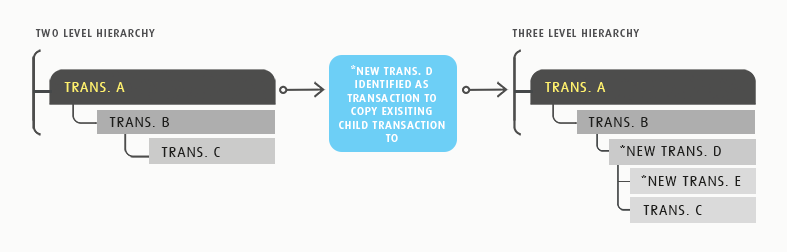
Where the transaction being hierarchised already has children of its own, those children have to end up somewhere: under the transaction they were already under, or under one of the new ones.
Drag them where they belong and the transform records it. There is no separate control for this. In v5 it was a Copy Child Transaction To Transaction drop-down; the drag now does the same thing.
Example
Transaction B has a child, transaction C. Adding a further level beneath B creates transactions D and E, and C can stay a child of B or become a child of D.
The field grid
The fields of the transaction selected in the tree. The grid lists every field arriving from the transform upstream against every transaction. Ticking a field's Import box puts it in that transaction.
The grid edits in batch: Edit puts the whole grid into edit mode, Save commits it and Cancel discards it. Select All Fields and Deselect All Fields apply to the transaction currently selected; Deselect All asks first, because it empties the transaction.
Import
When ticked, the field is part of this transaction. When unticked, it is not.
A field can be in more than one transaction. A key usually is.
Input Field Name
The name the field arrived with. It is fixed here; change it upstream.
Type
The data Type of the field.
New Field Name
The name the field carries out of this transform. It defaults to the input name.
Key
The Key Field used to construct the hierarchy.
Keys are numeric, and they define the parent-child relationship: IMan inserts a child record into the dataset where its keys match its parent's. Each child transaction must have at least one more key defined than its parent. That extra key tells one child apart from another within the same parent.
Propagating transform changes
Edits and deletions to a transaction and to its individual fields filter down to every child transaction automatically.
Changes to the structure, such as re-parenting or removing a transaction, are riskier. A downstream transform built against the old shape may fail. A later Hierarchy or Flatten transform is the most likely to fail, because those two depend on the shape. This is why re-parenting locks once downstream transforms exist.
Audit
Supported counters
- PROCESSED — incremented for each new record generated by the transform and processed.
- INSERTED — incremented for each new record generated by the transform.
Action on Transform Error
Any error fails the transform, whatever this is set to. The integration then stops, unless its Action on Transform Failure is Continue.
The setting and the rest of the tab are described on Transform > Audit.
Worked example
Step 3 of the Sage 300 and Sage 200 training manuals hierarchises a flat sheet of order lines into orders and their details.