Map
The Map transform works at field level, and is the most generally useful transform in IMan.
It can:
- give a field a VBScript formula, so that the result of the formula becomes the field's value;
- add new fields to a transaction;
- rename a field and change its Type;
- reorder the fields within a transaction.
You configure it on its Field Mapping tab. The Setup tab holds only the controls every transform has. See Transform > Setup.
Order of execution
Two orderings matter.
- IMan processes child records before their parents, as described in the Data Processing Pattern.
- Within a transaction, IMan evaluates formulae in grid order, first to last. If a formula reads a field that another formula in the same transform sets, it must come after that formula. Reorder the grid to arrange this.
Field Mapping
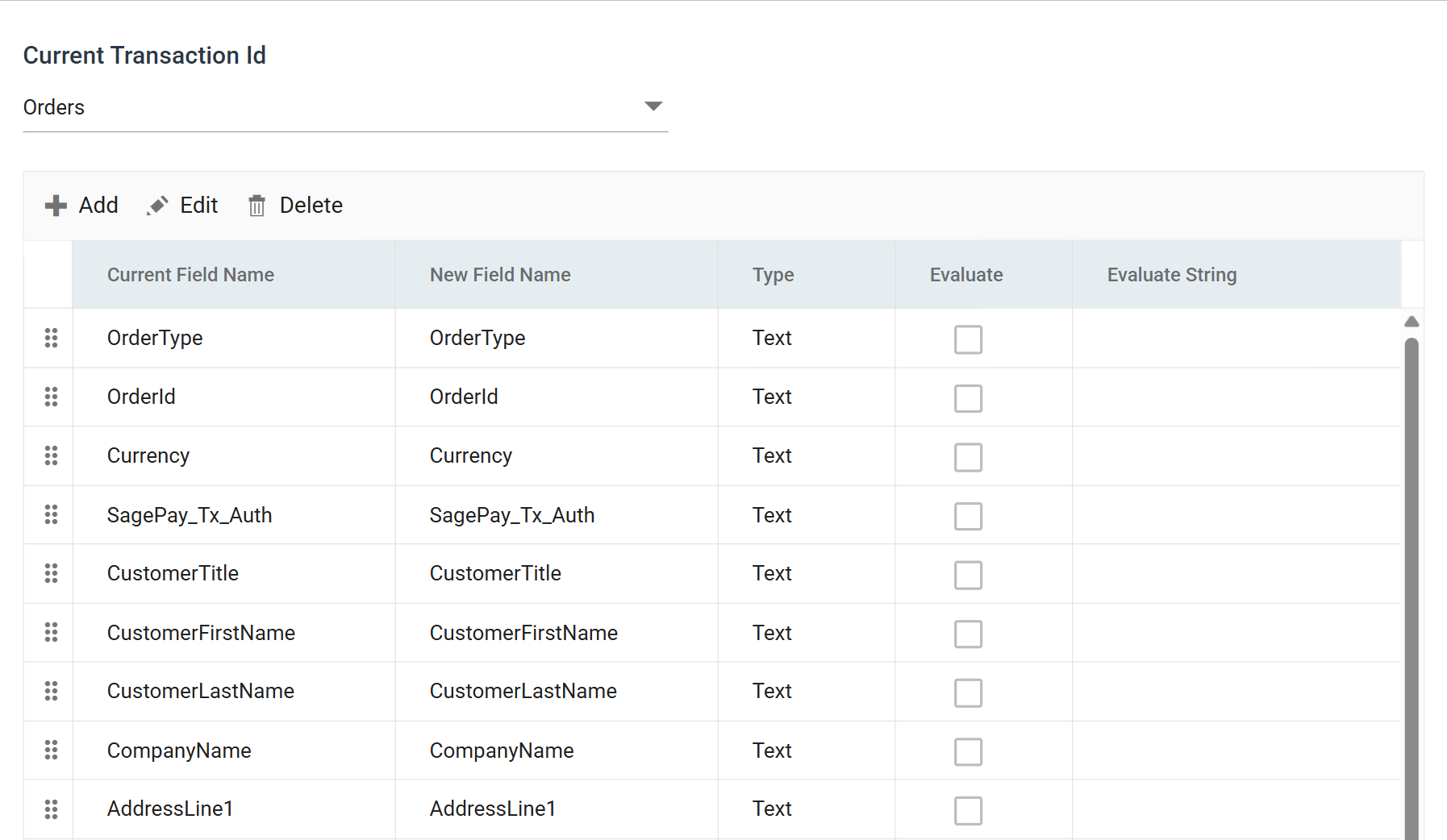
Current Transaction Id
The transaction whose fields the grid is showing.
When you select another, IMan saves the current one and opens the new one. The drop-down appears only where the dataset has more than one transaction.
The field grid
One row per field. The columns are the same values the edit dialog carries, and are described under Add and Edit below.
The toolbar has three actions:
- Add opens the dialog with an empty row, for a field this transform creates.
- Edit opens the selected row. Double-clicking the row does the same.
- Delete removes the selected row. You can delete only fields added in this transform. Fields arriving from the transform upstream are fixed; to drop one, remove it in the transform that introduced it.
Drag a row to reorder it. The grid order sets the order in which IMan evaluates formulae.
Add and Edit
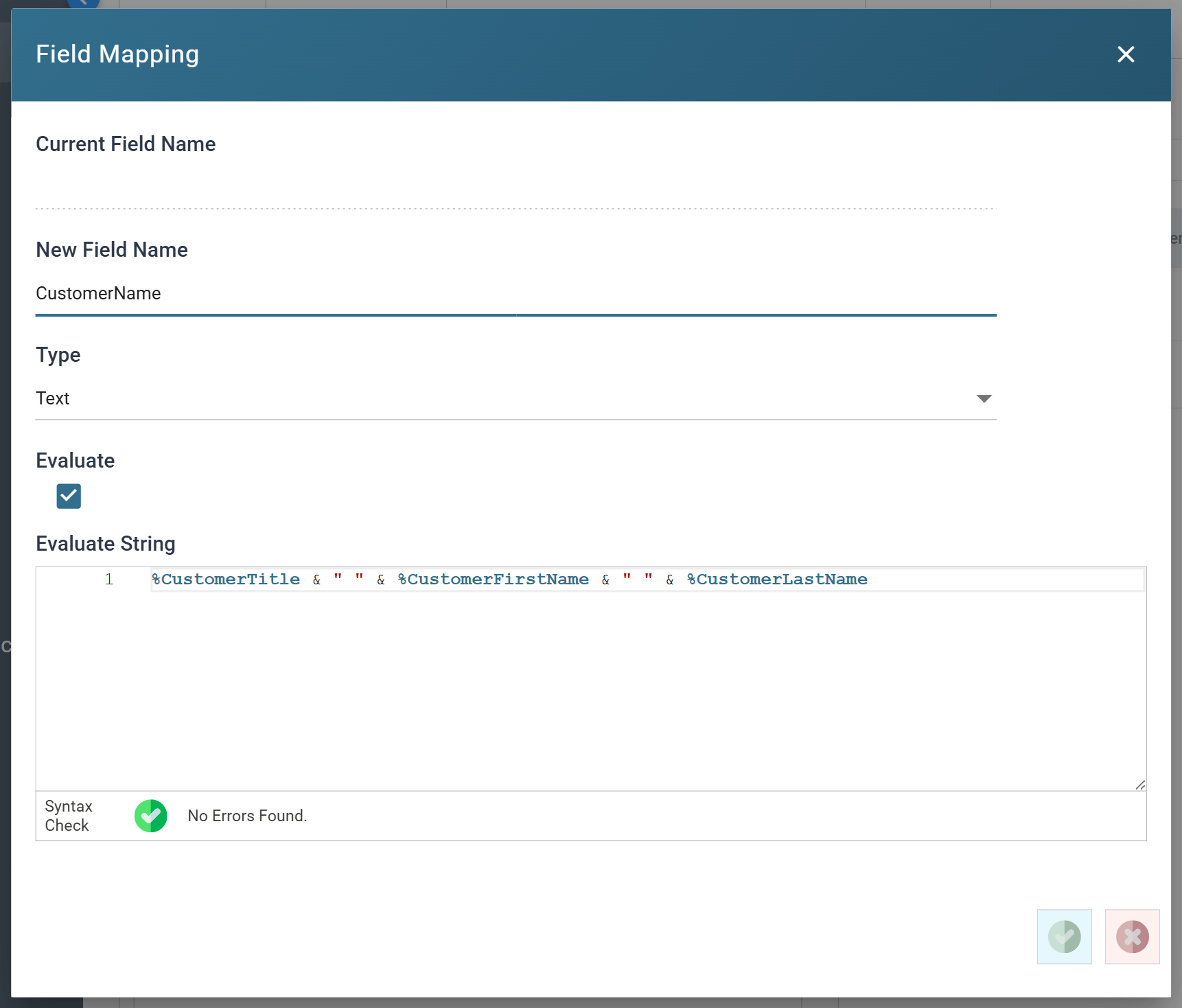
Current Field Name
The name the field arrived with. You cannot edit it, and it is empty for a field this transform adds.
New Field Name
The name the field carries out of this transform.
Type
The data Type of the field.
Type matters more here than elsewhere, because it governs how IMan stores the result of a VBScript formula. A formula that puts a number into a Text field, or a date into a Decimal field, gives a wrong value or an error. IMan does not convert it.
Evaluate
When ticked, IMan evaluates the Evaluate String as VBScript and the result becomes the field's value. If IMan cannot evaluate it, IMan raises an exception and logs it to the Audit Report. The transform then rejects the record or aborts according to Action on Transform Error.
When unticked, IMan treats the Evaluate String as a literal and sets it into the field as it stands.
Evaluate String
The formula, or the literal value, for the field. If you leave it blank, the field is empty.
Field references use the Expando Field syntax, so a formula can read any field in the transaction:
The editor checks the expression as you type and reports syntax errors beneath it, with a marker against the offending line. The check runs only while Evaluate is ticked. When it is unticked, the value is a literal and there is nothing to parse.
Audit
Supported counters
- PROCESSED — incremented for each record processed.
- UPDATED — incremented for each record the transform writes its fields into, which is every record it processes.
- ERRORS — incremented for each unhandled error in a formula.
Action on Transform Error
Set this to Abort. Reject Record and Continue both let the integration carry on past a formula that failed. A Map formula usually sets fields that downstream transforms read, so the integration continues with wrong data.
The setting and the rest of the tab are described on Transform > Audit.
Worked example
The Map transform appears four times in the training manuals: step 4 builds customer names out of their parts (Sage 300, Sage 200), and step 6.1 prepares the shipment charge lines (Sage 300, Sage 200).