File Task
The File task performs file system operations — moving, copying, deleting, zipping and unzipping — as a step within an integration.
It does not read or write the dataset, so it has no Field Mapping tab. Everything is on the Setup tab.
Setup
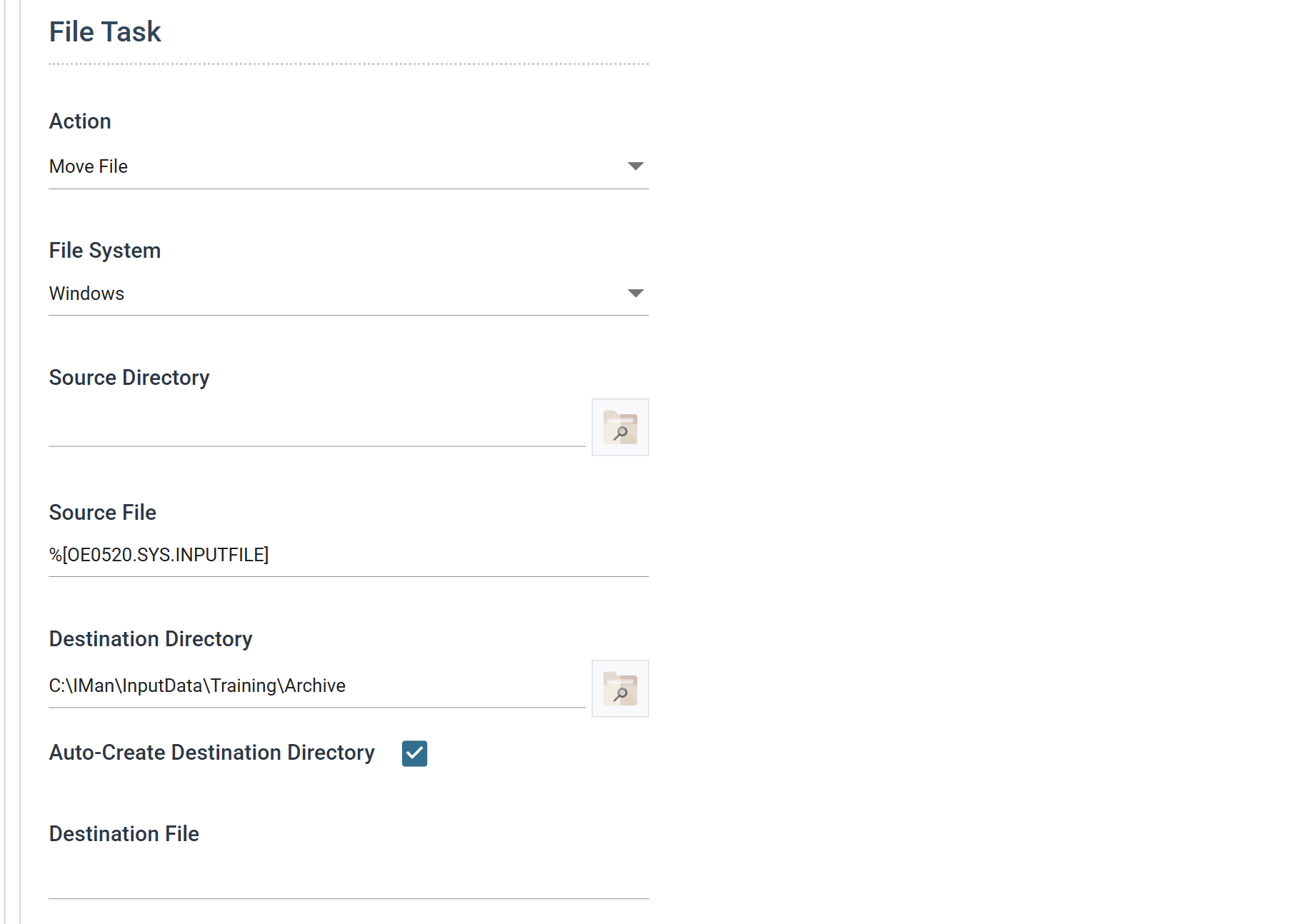
Transform Id, Description and Priority are the same on every transform and are described under Transform > Setup.
Action
What the task does.
- Move File — moves files from the source to the destination.
- Delete File — deletes files from the source.
- Copy File — copies files from the source to the destination.
- Move Folder — moves a folder to the destination directory.
- Delete Folder — deletes the folder named in Source Directory.
- Zip File — compresses files from the source into a zip.
- Unzip File — expands a zip from the source into the destination.
The Action decides which of the fields below are available. IMan disables the ones that do not apply:
| Field | Move / Copy File | Delete File | Move Folder | Delete Folder | Zip / Unzip |
|---|---|---|---|---|---|
| Source Directory | ✓ | ✓ | ✓ | ✓ | ✓ |
| Source File | ✓ | ✓ | ✓ | ||
| Destination Directory | ✓ | ✓ | ✓ | ||
| Destination File | ✓ | ✓ |
Zip File and Unzip File add two more fields of their own. See Zipping and unzipping.
File System
The file system the operation runs on.
Windows is the IMan server's own file system. A path may be local or UNC, and
the task has the access the IMan service account has. The other entries are
the cloud file systems defined on the
File Systems
screen, so the same task can also tidy up an S3 bucket or a SharePoint library.
Source and destination are both on this one file system. Moving a file between two file systems takes two tasks.
Source Directory
The folder the operation reads from.
For the file-based actions you can leave it empty if Source File holds the whole path.
Source File
The file or files to act on.
The name may use Wildcards
(* and ?) and reference fields of the dataset
(Expando Fields). A
task can then act on the file the integration has just read or written.
Destination Directory
The folder the operation writes to.
It may also use Expando Fields, so the data can decide the destination. For example, you can build a document store organised by customer, or by the first letter of a reference.
Auto-Create Destination Directory
When ticked, the task creates the destination folder if it does not already exist.
Destination File
The name to give the file at the destination.
The field's picker offers two tokens that stand for the file being acted on:
The source file's name, without its extension.
The source file's extension.
For example, a task that adds the prefix Bad to every file it moves has a
Destination File of Bad%FILENAME.%FILEEXT. Field references work here as well.
When zipping, the task combines Destination Directory and Destination File to give the path of the zip, whatever its extension.
Zipping and unzipping
Zip File and Unzip File add a Password field and one check box. Unzip File also relabels Destination File.
Password
The password to zip or unzip with.
IMan masks the saved password. The box shows ********, followed by the last
three characters when the password is eight or more characters long. Press the
eye button beside the box to show the stored password, and press it again to
hide it. Showing a stored password needs the Can reveal a stored secret in
full permission. To change the password, click in the box and type the new
one. Leave the box empty to keep the stored password.
Encryption is 256-bit AES. Current WinZip produces it, and Windows can open it.
Add to Existing Archive
Zip File only.
When ticked, the task adds files to the zip if one already exists at that path, and creates a new one if not.
When unticked, an existing file of that name causes an error.
Extract Matching File Pattern
Unzip File only. This is the Destination File field, renamed.
The task extracts only the entries in the zip that match the pattern. *
matches multiple characters. ? is not supported here, although IMan supports
it everywhere else it takes a wildcard.
Overwrite Existing Files when Expanding
Unzip File only. This is the Add to Existing Archive check box, renamed.
When ticked, extracted files overwrite anything already in the destination. When unticked, the task leaves existing files alone.
Tidying up after a read
Every record read through the
File or
http(s) Url controller carries a
SYS.INPUTFILE field that holds the file it came from. Point a File task's
Source File at it, and the integration files away its own input once it has
finished with it. You do not need to name the file a second time.
Security
The operation runs as the account the job runs under, and ordinary file system permissions apply. See Scheduling.
For a cloud file system, the task uses the credential held against the file system record. You can test it from the File Systems screen.
Audit
Supported counters
None. IMan records no counter for any File operation, so an audit summary cannot report on one.
Action on Transform Error
Ignored. IMan logs any error and the transform aborts, whatever this is set to.
The rest of the tab — the report group and the audit summary — works as described on Transform > Audit.
Worked example
Steps 11 and 12 of the training manuals archive the input file once the integration has read it: simple archiving in step 11 (Sage 300, Sage 200) and a destination built from the data in step 12 (Sage 300, Sage 200).