Step 4 – Map Transform
The Map transform can:
- Set each field to a static value or a formula.
- IMan formulas use a variant of the VBScript/VBA language. See VBScript Function in the IMan User Guide for more detail.
- Add fields to each of the transaction types.
The Map transform cannot delete fields
The Map transform cannot:
- Delete fields
In this step you use the Map transform to:
- Create functions to derive the customer name and customer contact fields.
- Look up the customer number for existing records or generate one for new records.
Design > Transform Setup
- Press the Transform Setup tab.
- Open the Transforms group in the palette.
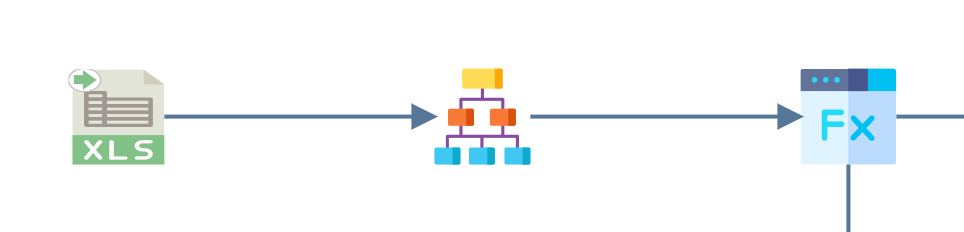
- Drag a Map transform onto the design surface.
-
Drag a Connector from the same group and join the Hierarchise transform to it.
Transform > Setup
-
Double-click the Map transform to open it.
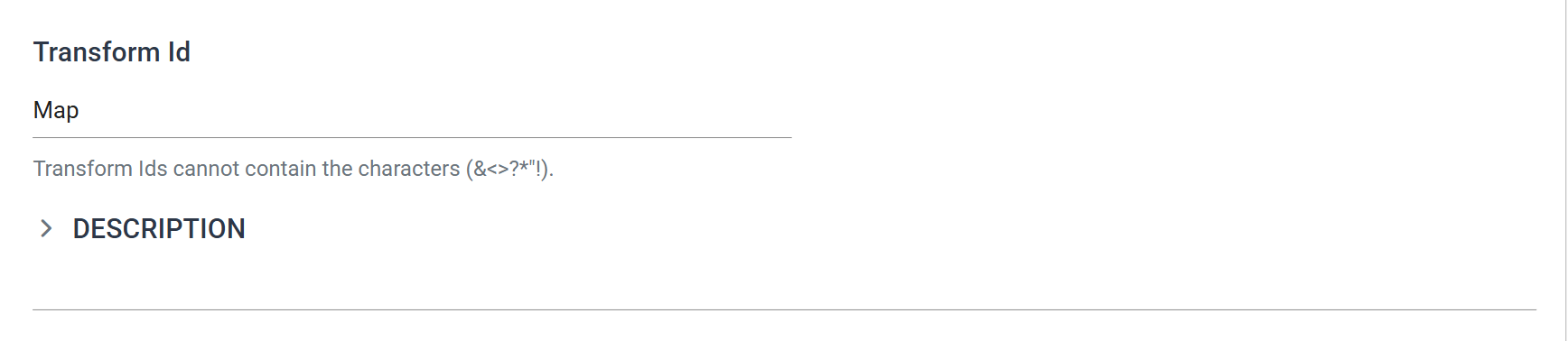
- The Transform Id identifies the transform in the audit report. A new Map transform is already named
Map. For training, leave it.
- The Transform Id identifies the transform in the audit report. A new Map transform is already named
Transform > Field Mapping
Here you create fields that hold customer details, with a few simple formulas and some more complex ones.
- Press the Field Mapping tab.
- Check that Orders is selected in the transaction drop-down above the grid.
-
Press Add to create a new field.
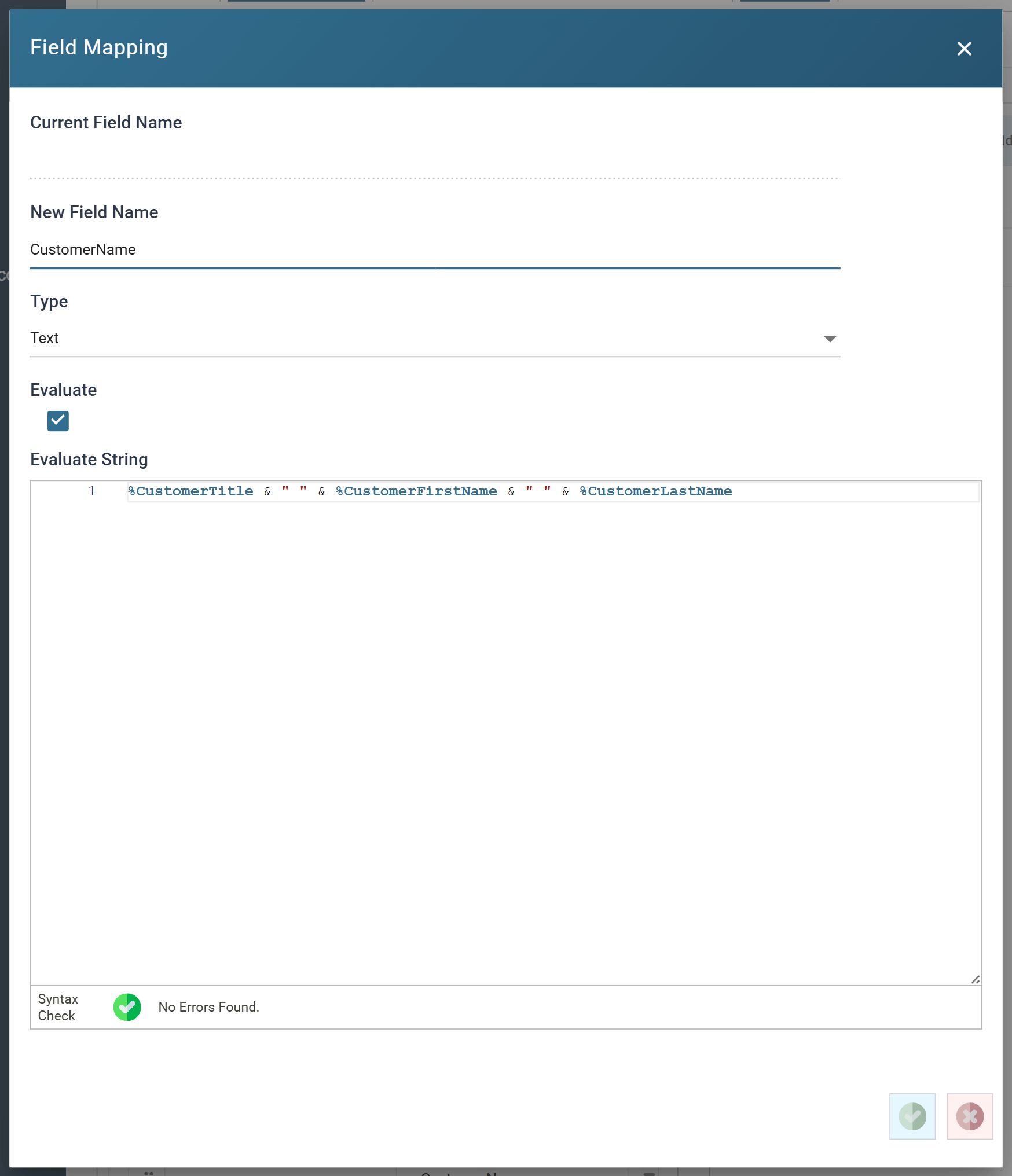
- New Field Name
- The name of the field being added.
- Type
- The data type of the result. For training, leave as: Text
- Evaluate
- Ticked, IMan runs the Evaluate String as a formula. Unticked, IMan uses it as a static value.
- Evaluate String
- The formula, or the static value. Field names are prefixed with
%. - The editor checks the formula as you type and reports No Errors Found beneath it.
- The formula, or the static value. Field names are prefixed with
- New Field Name
-
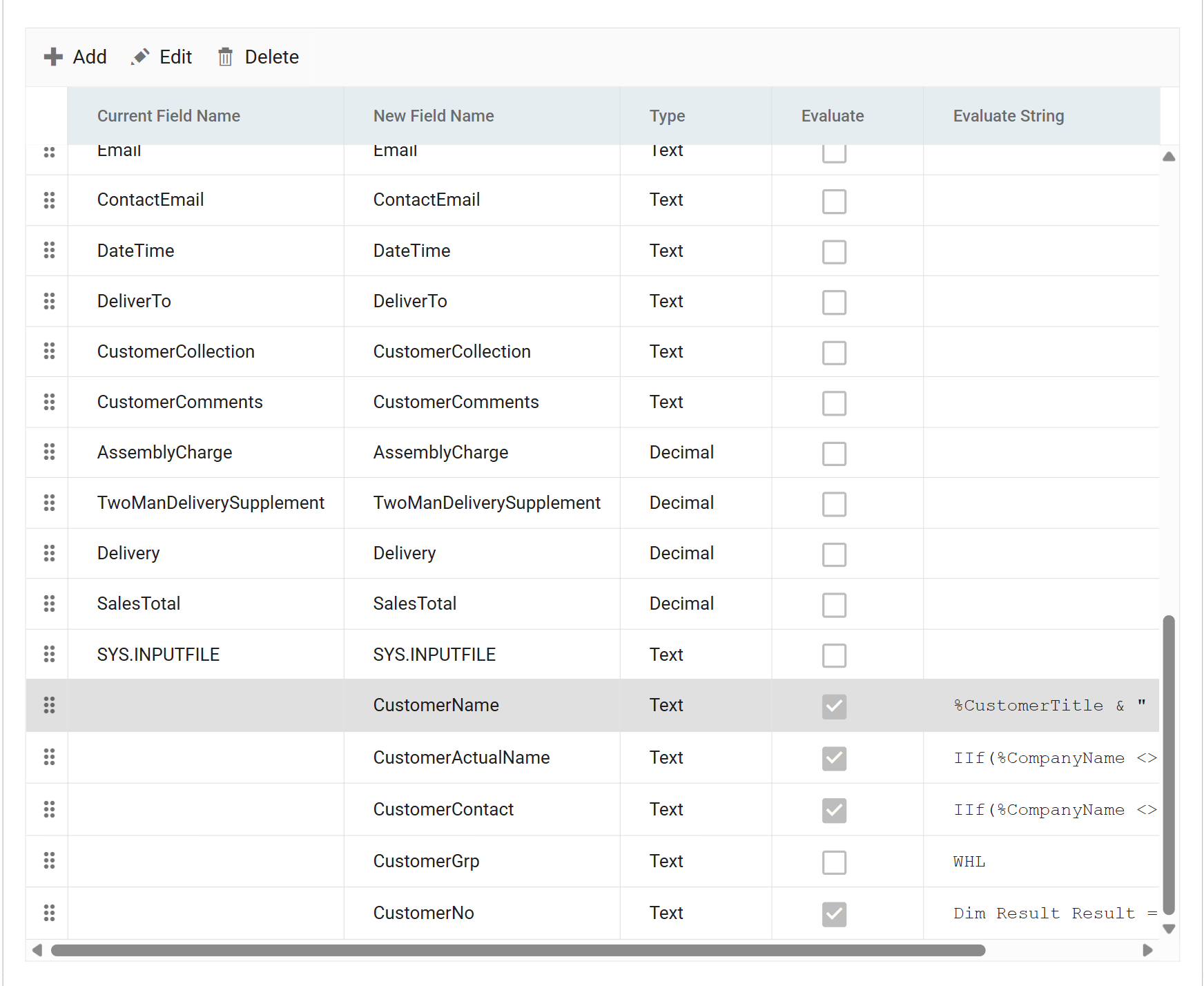
Press the tick to save the field, then repeat for each of the following:
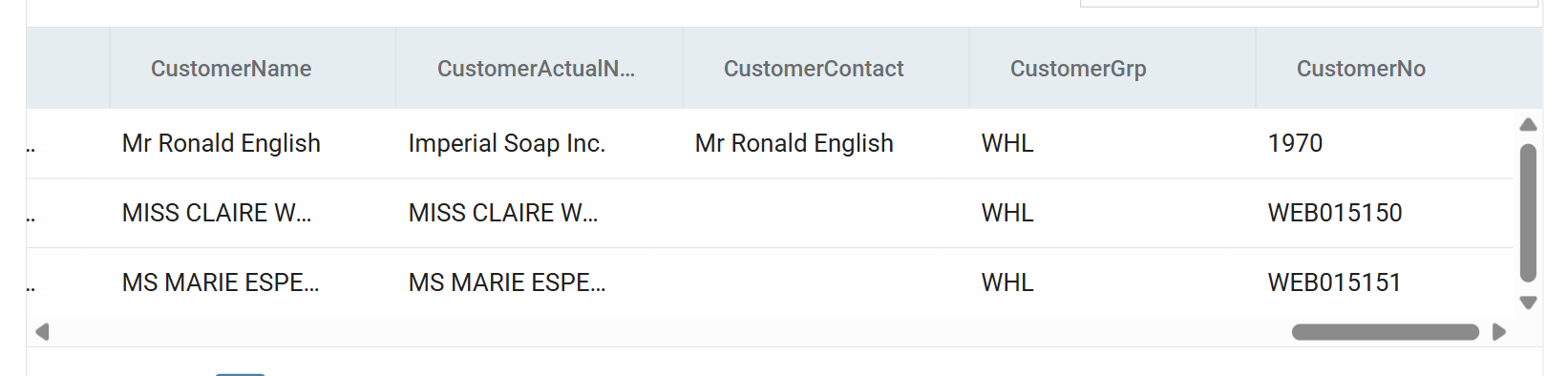
New Field Name Evaluate Evaluate String CustomerName ✔ %CustomerTitle & " " & %CustomerFirstName & " " & %CustomerLastNameCustomerActualName ✔ IIf(%CompanyName <> "", %CompanyName, %CustomerName)CustomerContact ✔ IIf(%CompanyName <> "", %CustomerName, "")CustomerGrp ✘ WHLCustomerGrphas Evaluate unticked, so every order gets the literal valueWHL.
-
Press Refresh and scroll the preview to the right to see the new fields.
- The first order has a company name, so
CustomerActualNametakes the company andCustomerContacttakes the person. The other two have no company, soCustomerActualNametakes the person's name andCustomerContactis empty.
- The first order has a company name, so
Lookups and counters
Example
Problems:
- The input file does not have the customer id. You need to search the customer table by email address to see whether the customer record exists.
- Sage 300 cannot generate new customer ids automatically.
Solutions:
- Use the IMan lookup function for checking.
- Use the IMan counter function to generate new sequential ids.
A lookup queries a database through a database connection. You define the connection once under Setup and then choose it by name in any lookup. Define the connection first.
Setup > Database Connections
-
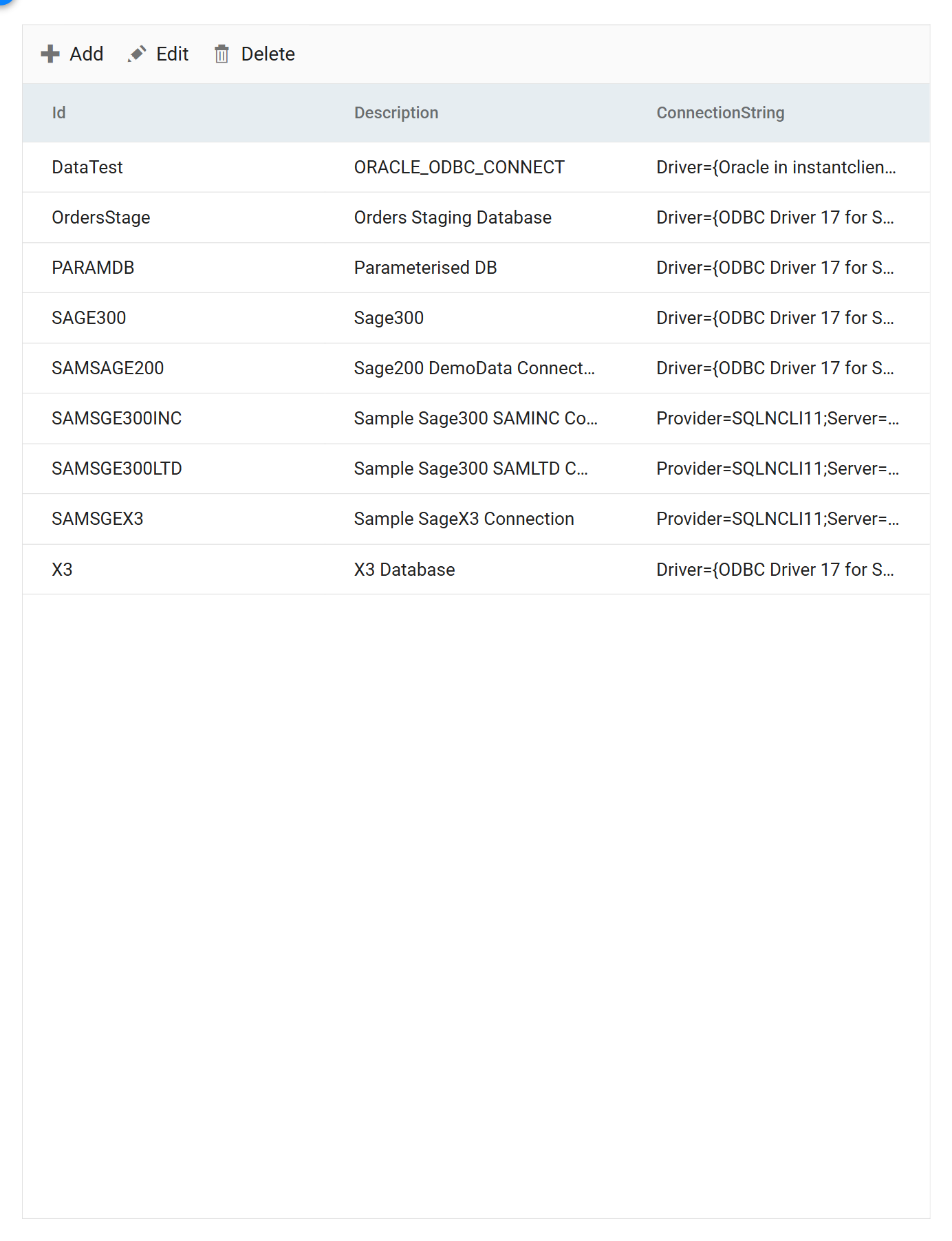
Press Setup, then Database Connections in the left-hand menu.
-
Press Add, or select the connection and press Edit to see an existing one.
- Id
- Identifies the connection.
- For training, enter:
SAGE300
- Description
- A recognisable name. You pick from these when you set up a lookup.
- For training, enter: Sage300
- Connection String
- An ODBC connection string for the Sage 300 database.
- For training:
Driver={ODBC Driver 17 for SQL Server};Server=<server>;Database=<DBID>;Trusted_Connection=yes;
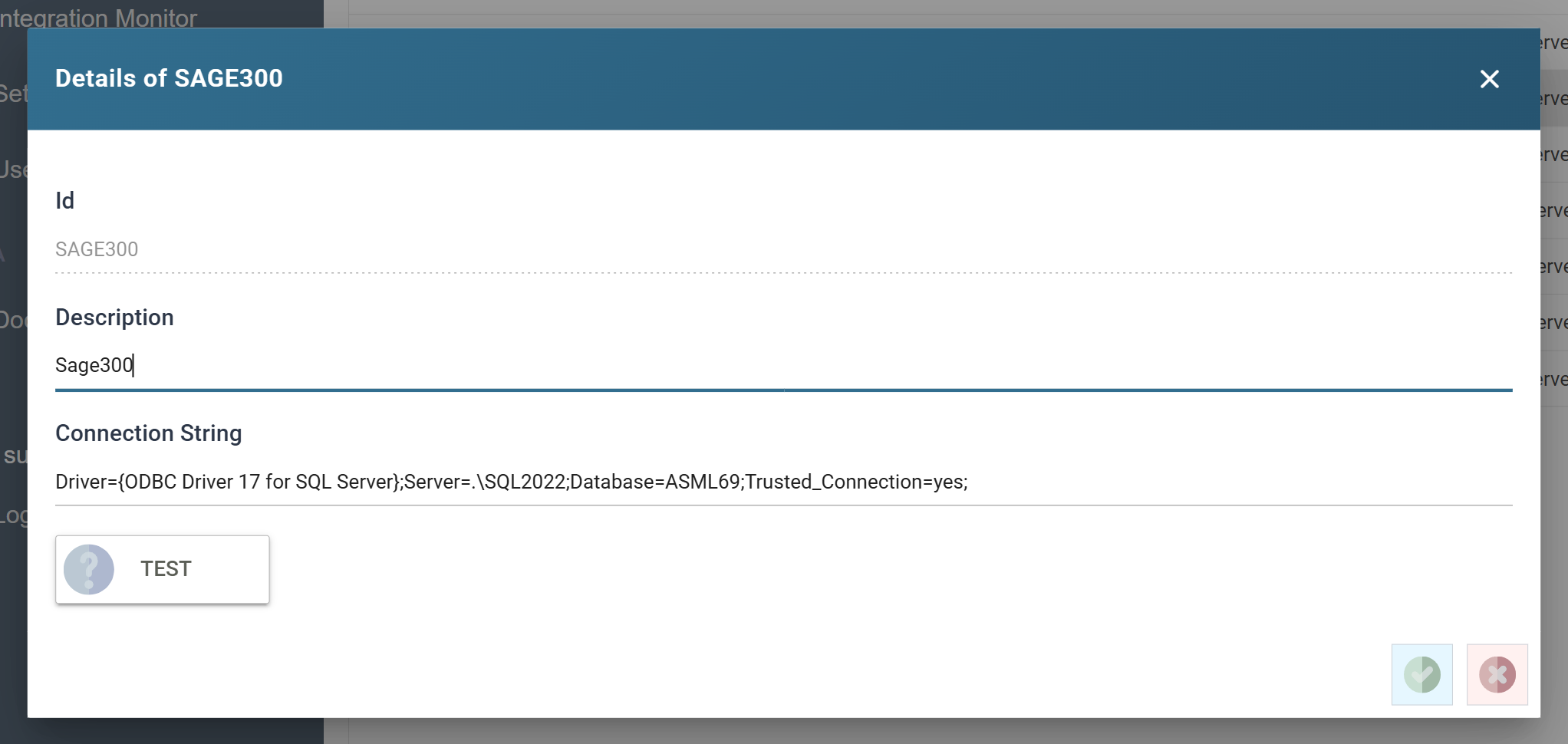
<server>is your SQL Server and instance, and<DBID>is the id of the Sage 300 database.Trusted_Connection=yesconnects as the IMan service account. To connect as a named SQL user, replace it withUid=<user>;Pwd=<password>;. - Id
Use ODBC Driver 17 or 18, not SQLNCLI
Use the ODBC Driver 17 for SQL Server or ODBC Driver 18 for SQL Server. Some sample connections still carry older Provider=SQLNCLI… strings. Do not use them for new work.
-
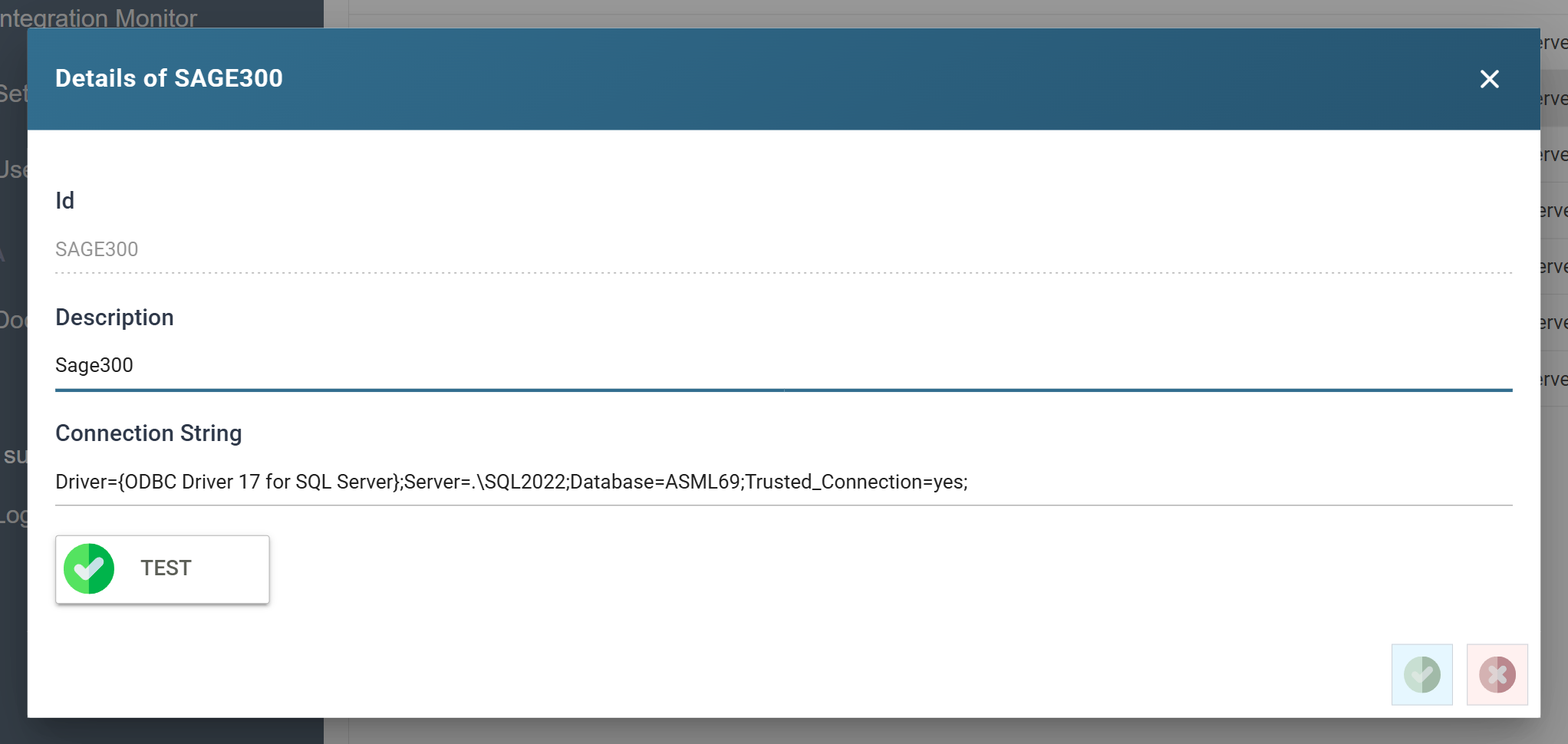
Press TEST.
- A green tick on the button confirms that IMan opened the connection. If it fails, a red cross appears on the button and the database driver's error appears to the right of it. Fix the string before you go any further.
-
Press SAVE.
Setup > Lookups
-
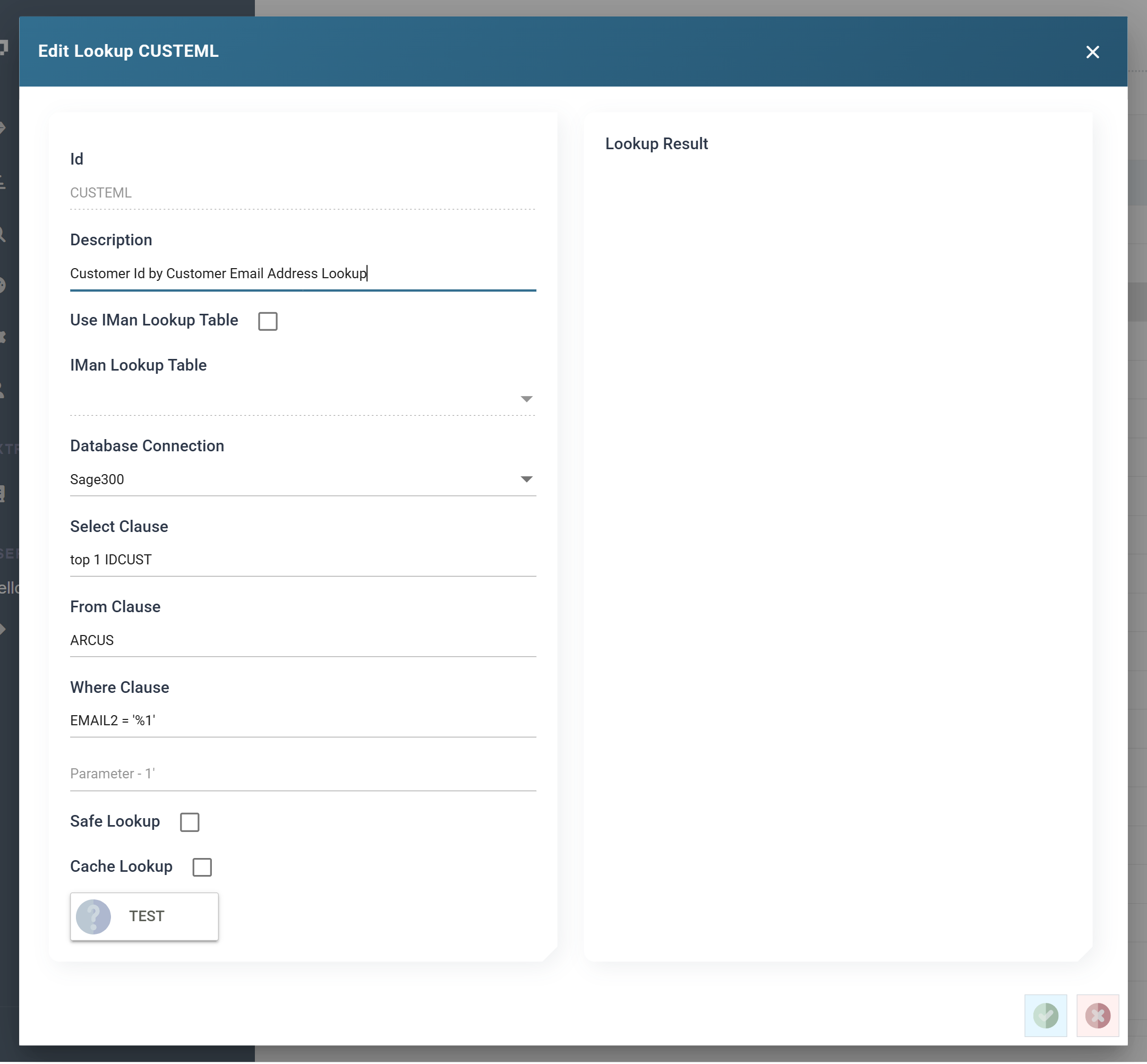
Press Lookups in the left-hand menu, then Add. To change an existing lookup, select it and press Edit.
- Id
- Identifies the lookup.
- For training, enter: CUSTEML
- Description
- A recognisable name.
- Use IMan Lookup Table
- IMan has an internal lookup table that can store 20 fields per lookup.
- For training, leave unticked. This lookup queries the Sage 300 database.
- Database Connection
- The connection defined above.
- For training, choose: Sage300
- Select Clause
- One or more fields to return from the query.
- For training, enter: top 1 IDCUST
top 1keeps the lookup to a single answer if more than one customer shares an email address.
- From Clause
- The
Fromclause of the SQL query. This can be a single table or a join across many tables. - For training, enter: ARCUS
- The
- Where Clause
- The
Whereclause of the SQL query. - To add parameters, enter
%1,%2,%3and so on. The formula that calls the lookup passes in their values. - For training, enter:
EMAIL2 = '%1'
- The
- Id
-
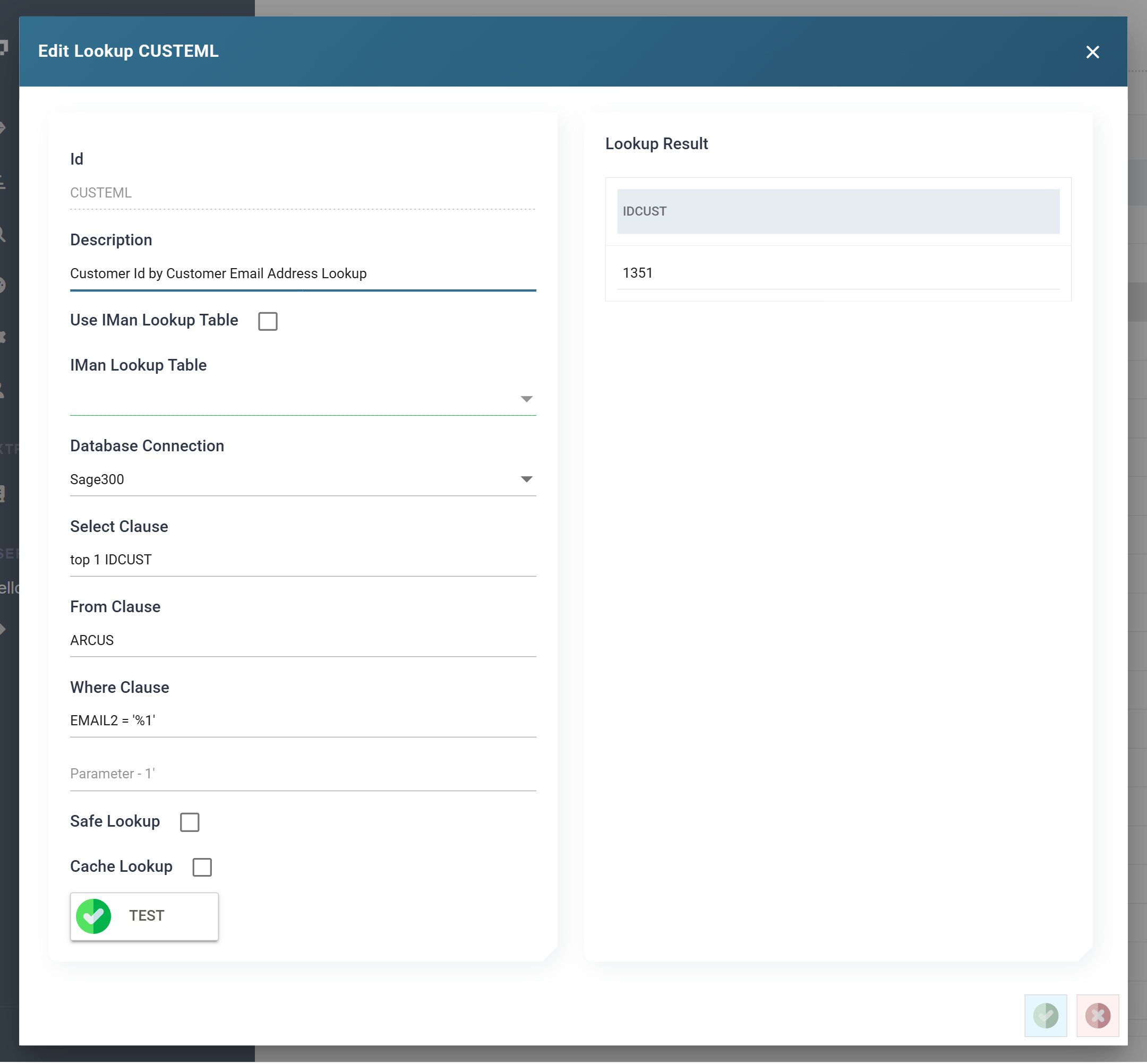
Enter a value for the parameter and press TEST.
- IMan shows the result of the query beneath. This is new in IMan v6. It is the quickest way to prove a lookup before you use it in a formula.
-
Press SAVE.
Setup > Counters
A counter generates a sequential number, or sequence, and IMan stores it between calls. The counter's settings format the number with a prefix, suffix and length.
-
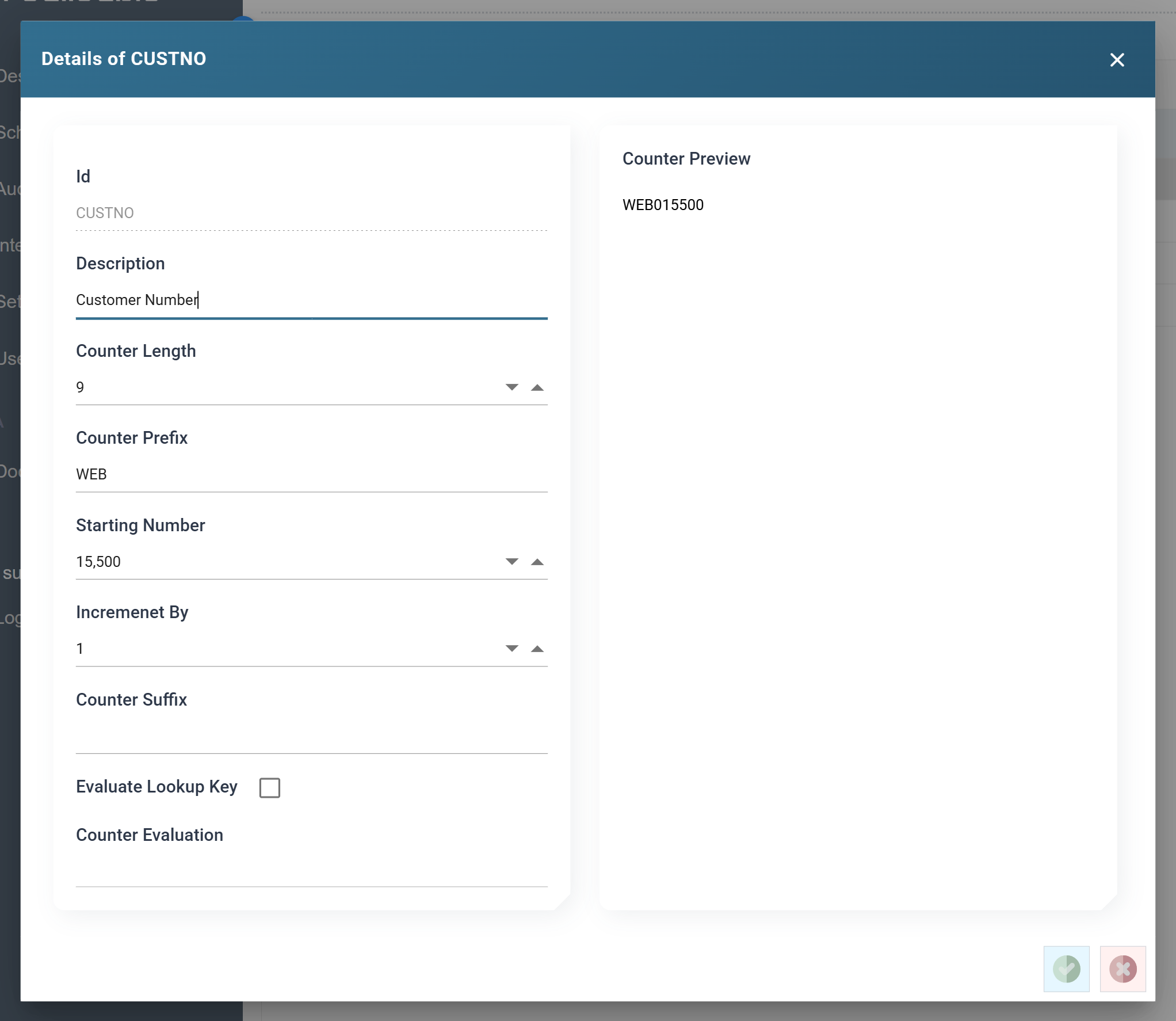
Press Counters in the left-hand menu, then Add. To change an existing counter, select it and press Edit.
- Counter Id
- Identifies the counter.
- For training, enter: CUSTNO
- Description
- A friendly name.
- Counter Length
- The total length of the generated value, including the prefix.
- Prefix
- A fixed prefix added to the returned value.
- For training, enter: WEB
- Suffix
- A fixed suffix added to the returned value.
- For training, leave blank.
- Evaluate Key
- One counter can keep one or several sequences. When ticked, IMan evaluates the formula field, and the result names the counter detail record, that is, the sequence to use. If the record exists, IMan takes the next number from it. If not, IMan creates a new one that begins at the counter's starting value.
- For training, leave unticked.
- Step
- How much to increment on each call.
- For training, enter: 1
- Starting Value
- Where a sequence begins the first time it is used.
- Counter Id
-
Press SAVE.
Map > Field Mapping — the customer number
The lookup function takes four parameters:
- Lookup Id —
"CUSTEML", the id of the lookup defined above. - Return Field —
"IDCUST", the field to return. - Parameters —
%Email, the values that fill the where clause.%Emailfills%1. - Must Return —
False, whether a matching result is required.
Where the parameters are described in full
Lookup in the VBScript function reference describes each parameter in full.
-
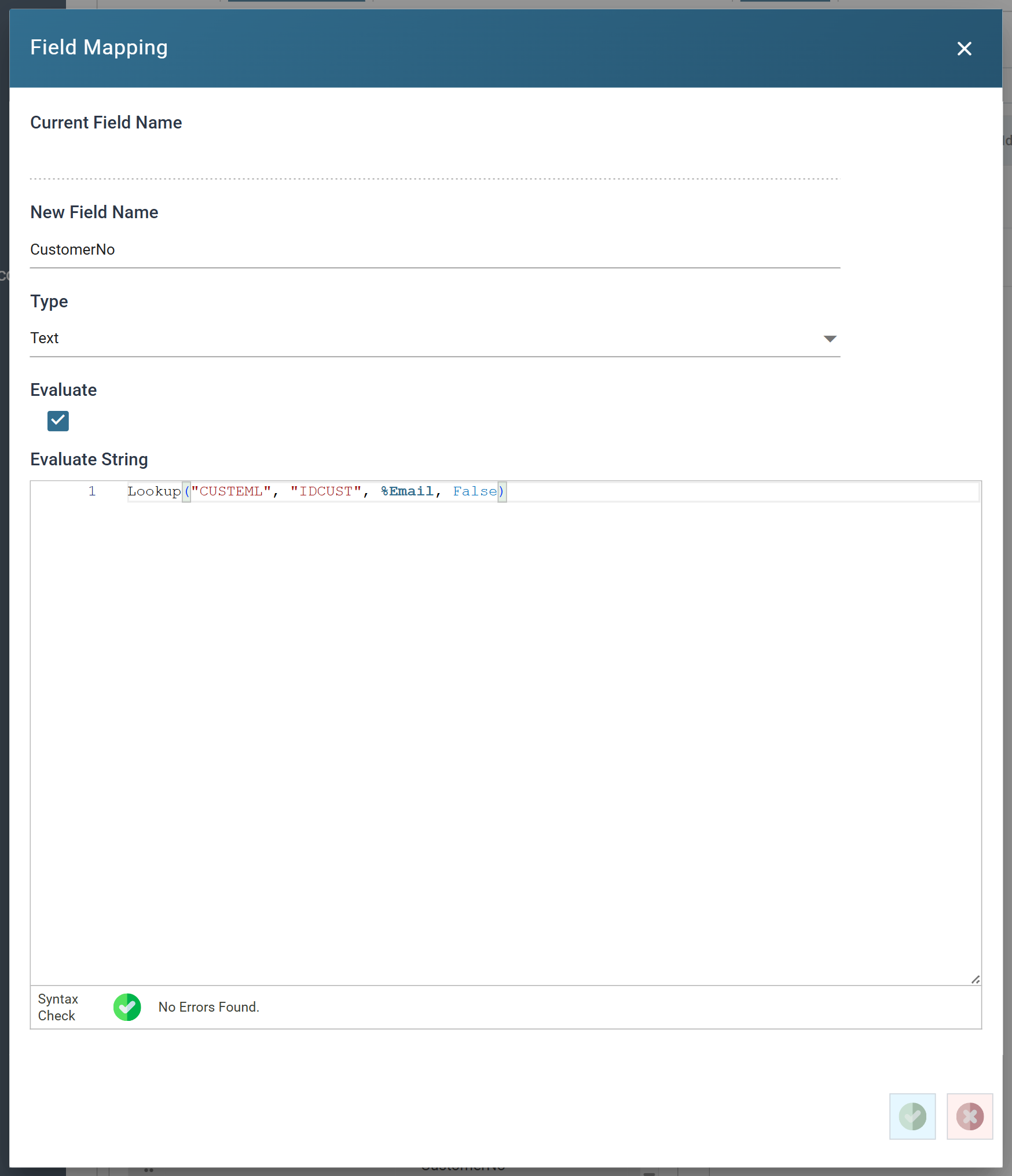
Re-open the Map transform, press the Field Mapping tab and press Add:
- New Field Name
- CustomerNo
- Evaluate
- Ticked
- Evaluate String
Lookup("CUSTEML", "IDCUST", %Email, False)
- New Field Name
-
Save the field and press Refresh.
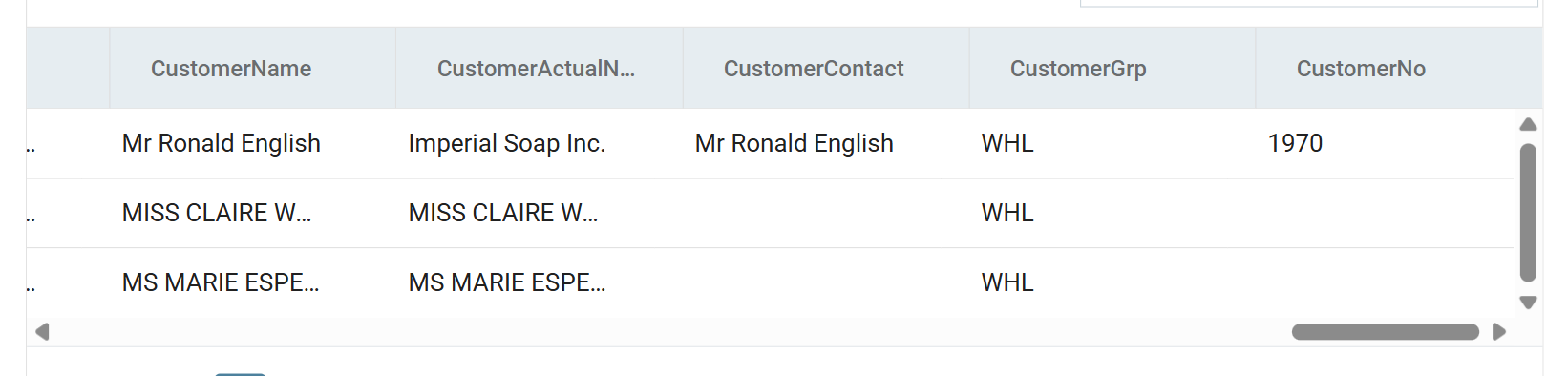
- The first order matches an existing customer on its email address and returns their customer id. The other two do not match, so their
CustomerNois empty. These customers need a generated number.
- The first order matches an existing customer on its email address and returns their customer id. The other two do not match, so their
-
Re-open the
CustomerNofield and extend the formula. When the lookup finds nothing, the formula takes the next number from the counter:Dim Result Result = Lookup("CUSTEML", "IDCUST", %Email, False) If Result = "" Then Result = GetCounterSequence("CUSTNO") End If Result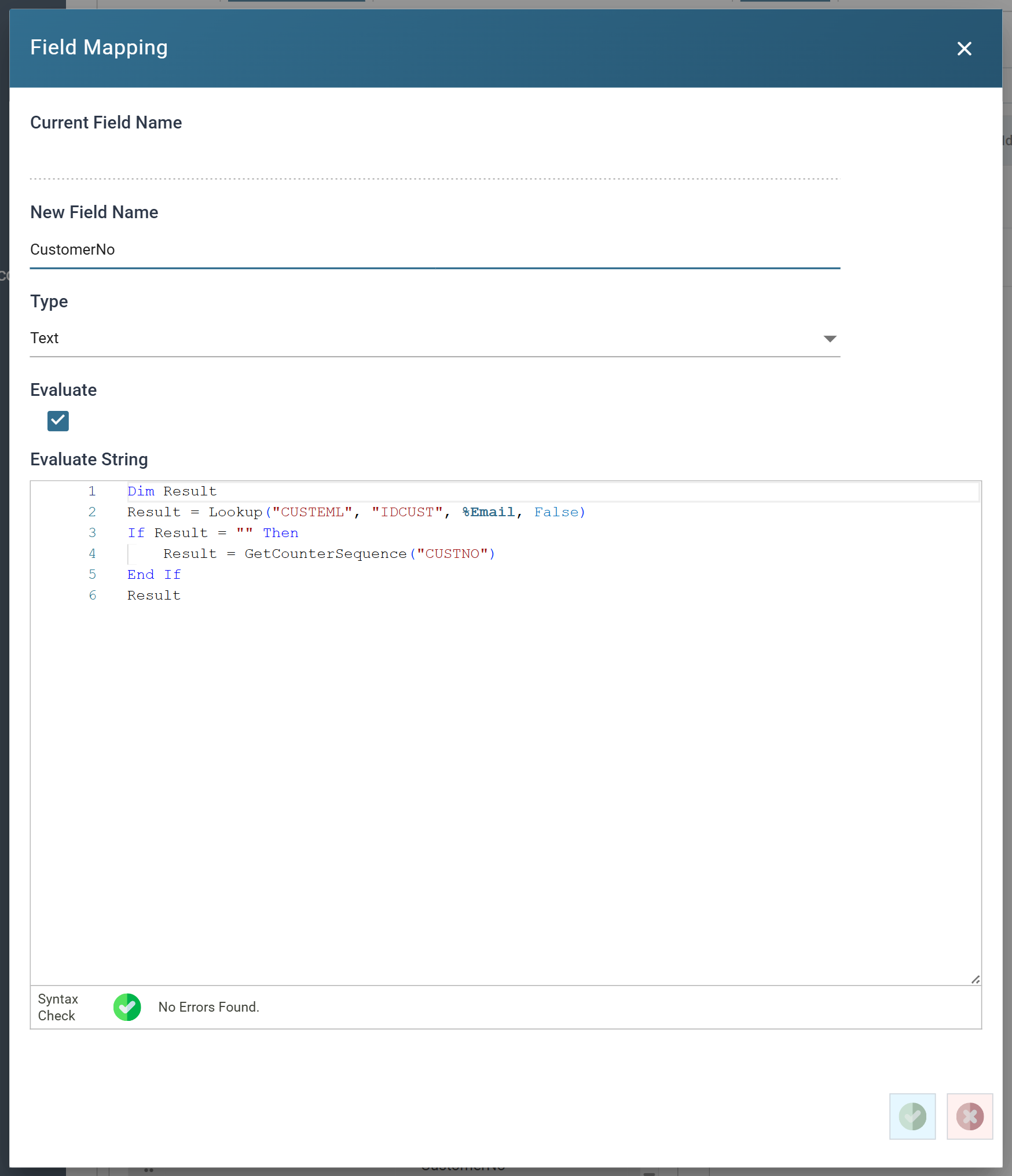
-
Save the field and press Refresh.
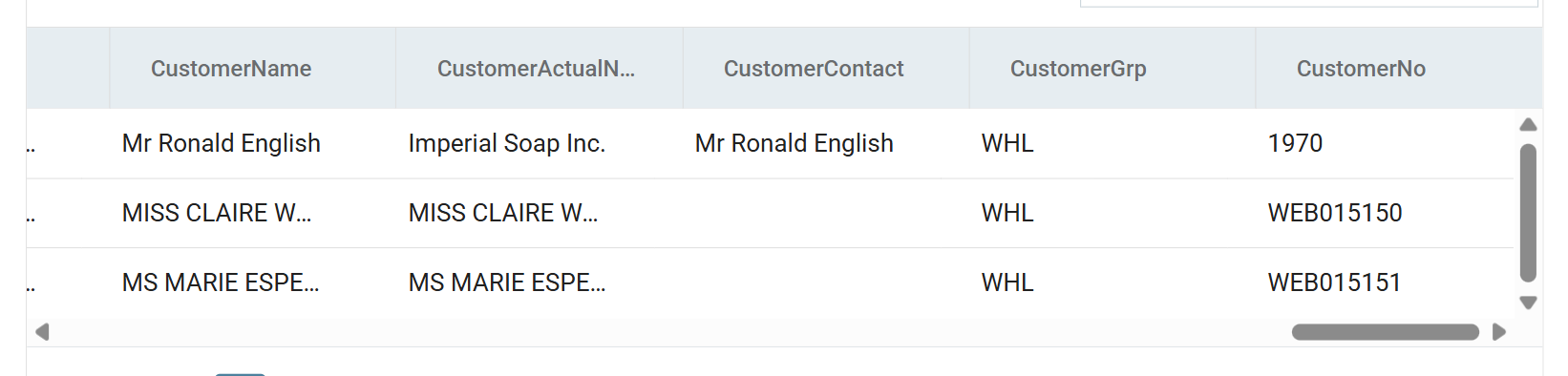
The first record matched, so it kept its Id
The first record still returns the existing customer id, because its email address matched. The others now carry a newly generated number.
- Press Close at the bottom of the transform, then Save the integration.