Aggregate
The Aggregate transform inserts one or more records into each container of child records.
The records it inserts are called Calc Records, the name the screen calls them, and each field of a Calc Record can carry its own formula. Because those formulae can read the records the Calc Record sits among, one transform covers everything from adding a line to a sales order to collapsing a set of records into a single total.
Example
With two child records already present, the Aggregate transform can add a third. Add more Calc Records for a fourth, fifth and so on.
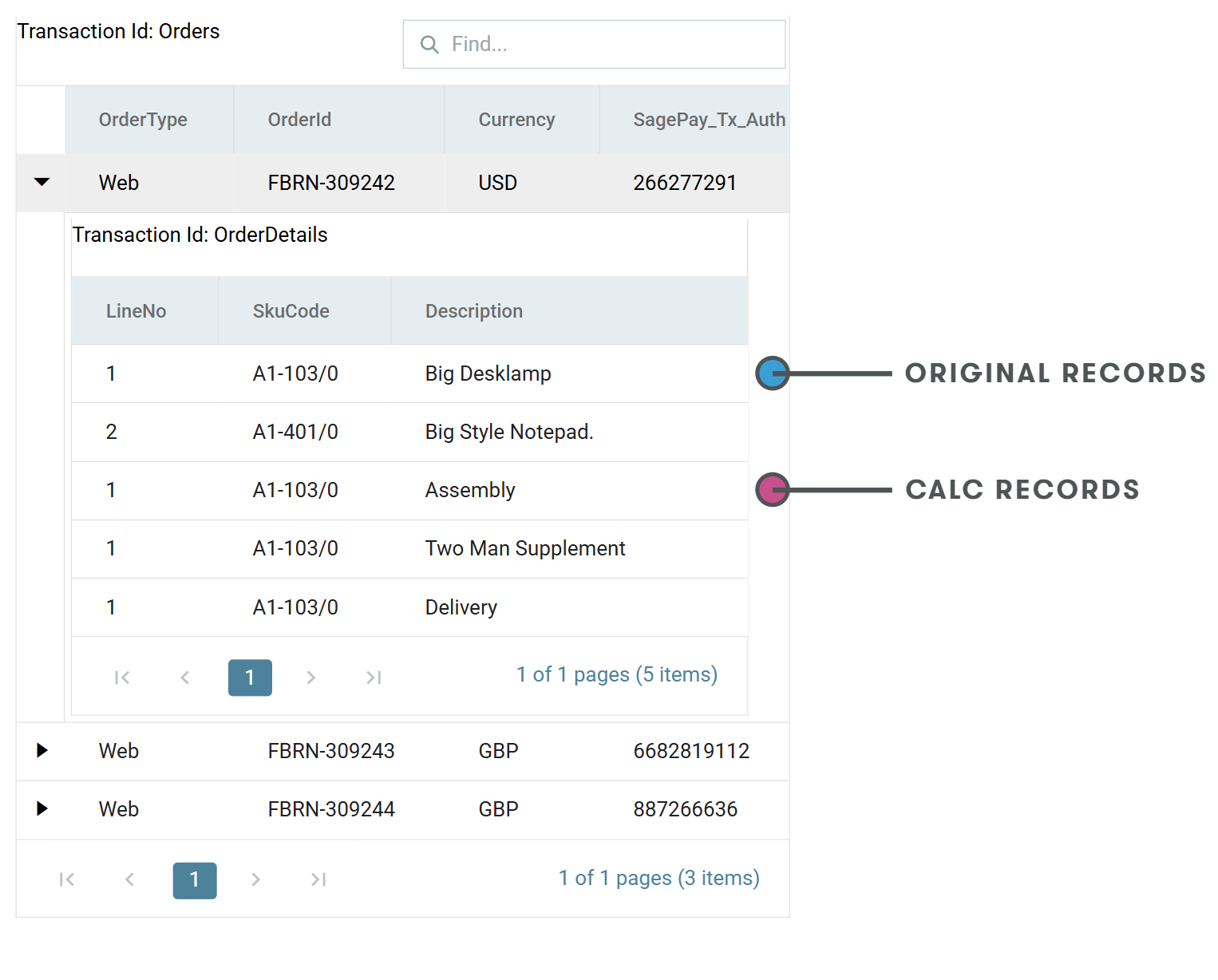
Beyond inserting records, it has three further uses:
- Each field of each Calc Record can have its own formula, so separate logic applies to each one.
- A field set to Allow Value Accumulation collects the values of that field from every record in the container, rather than taking the first.
- Delete Child Records removes the original records, leaving only the Calc
Records. This works like a SQL
GROUP BY.
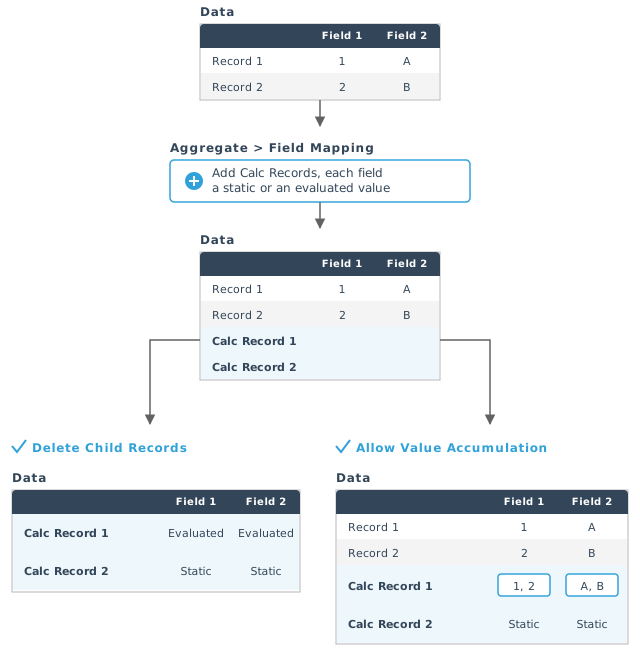
What it is used for
- Normalisation and de-normalisation. Because it adds records to an existing dataset, it can flatten a dataset into something like a field-value structure.
- Nominal ledger (G/L) journal imports. A journal has to balance. Where the source carries only one side of the transactions, an Aggregate transform builds the record that balances it.
- Tax calculation. Build a tax record that sums the constituent parts of the tax.
- Surcharges and service charges on sales orders. Where a surcharge, warranty or delivery charge depends on the order's detail lines, one Calc Record both inserts the line and calculates its value.
The Aggregate Functions — Sum, Min, Max and Count — query the values held in a field marked to allow accumulation, and make the second and third uses above practical.
You configure the transform on its Field Mapping tab. The Setup tab holds only the controls every transform has. See Transform > Setup.
Field Mapping
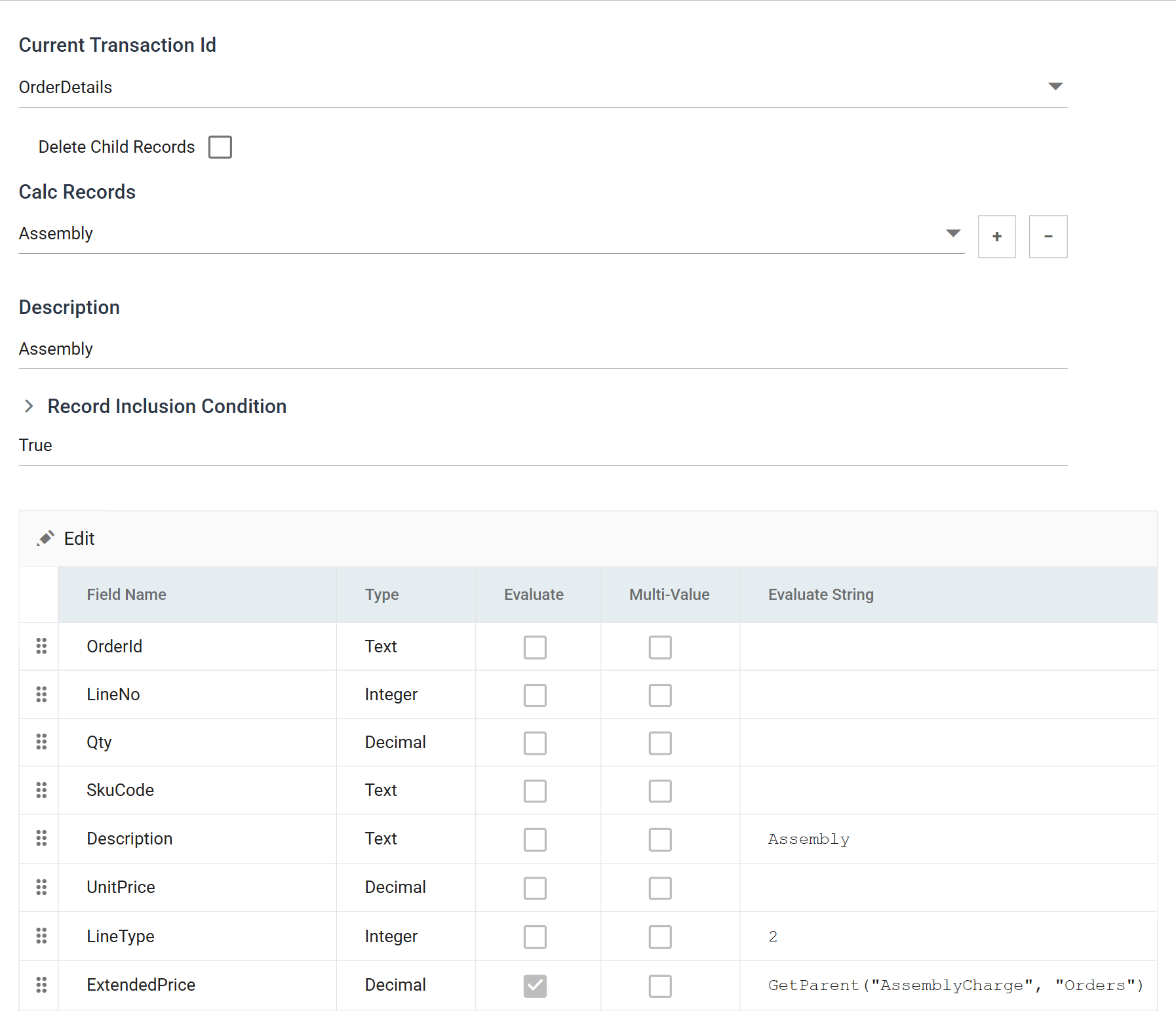
Current Transaction Id
The transaction the Calc Records are inserted into.
When you select another, IMan saves the current one and opens the new one. The drop-down appears only where the dataset has more than one transaction.
Delete Child Records
When ticked, IMan deletes the original records the Calc Record was calculated from, leaving only the Calc Records.
When unticked, the original records stay in place alongside them.
Calc Records
The Calc Record being edited. + adds one and − deletes the one selected.
A transaction can hold several. IMan inserts them in the order they are listed.
Description
The name of the Calc Record. It appears in the drop-down above, so name it after what it produces.
Record Inclusion Condition
A VBScript expression evaluated against each record in the container. Where it returns True the record takes part in the aggregation; where it returns False it does not.
It works exactly like the Filter
transform's expression, and defaults to True, which includes everything.
The section collapses to a single read-only line when it is not being edited, so a Calc Record with a long condition does not push the field grid off the screen.
The field grid
The fields of the Calc Record: one row per field of the transaction, whether or not this Calc Record sets it. Edit opens the selected row, and double-clicking it does the same. You cannot add or delete rows here, because the fields belong to the transaction.
Field Name
The field of the transaction this row sets. Fixed.
Type
The data Type of the field, which governs how the result of a formula is stored.
Evaluate
When ticked, IMan evaluates the Evaluate String as VBScript and the result becomes the field's value. If IMan cannot evaluate it, IMan raises an exception and logs it to the Audit Report. The transform then rejects the record or aborts according to Action on Transform Error.
When unticked, IMan treats the Evaluate String as a literal, replaces any field references and sets the result into the field as it stands.
Multi-Value
Allow Value Accumulation in the edit dialog, and the same setting.
When ticked, the field collects the value of that field from every record making up the aggregation, so a single field holds several values and the Aggregate Functions have something to work on.
When unticked, the field takes the first value it meets.
Evaluate String
The formula, or the literal value, for the field.
If you leave it blank, IMan evaluates nothing and the field takes the first value of the original container records.
Audit
Supported counters
- PROCESSED — incremented for each record processed within the transform.
- INSERTED — incremented for each Calc Record generated.
- UPDATED — incremented for each Calc Record generated. INSERTED and UPDATED are normally equal.
- ERRORS — incremented for each unhandled error in a formula.
Action on Transform Error
Set this to Abort. Reject Record and Continue both let the integration carry on past a formula that failed. The dataset then carries on with a wrongly calculated Calc Record in it.
The setting and the rest of the tab are described on Transform > Audit.
Worked example
Step 6.2 of the Sage 300 and Sage 200 training manuals builds three Calc Records that turn an order's assembly, two-man delivery and delivery charges into extra order lines.