Sort
The Sort transform orders the records within a transaction.
To set up a sort, give fields a Sort Key and a direction. Key 1 is the field to sort on first, 2 is the field that breaks its ties, and so on. Fields without a key take no part in the sort.
The transform adds nothing to the Setup tab, which holds only the controls every transform has. See Transform > Setup.
Field Mapping
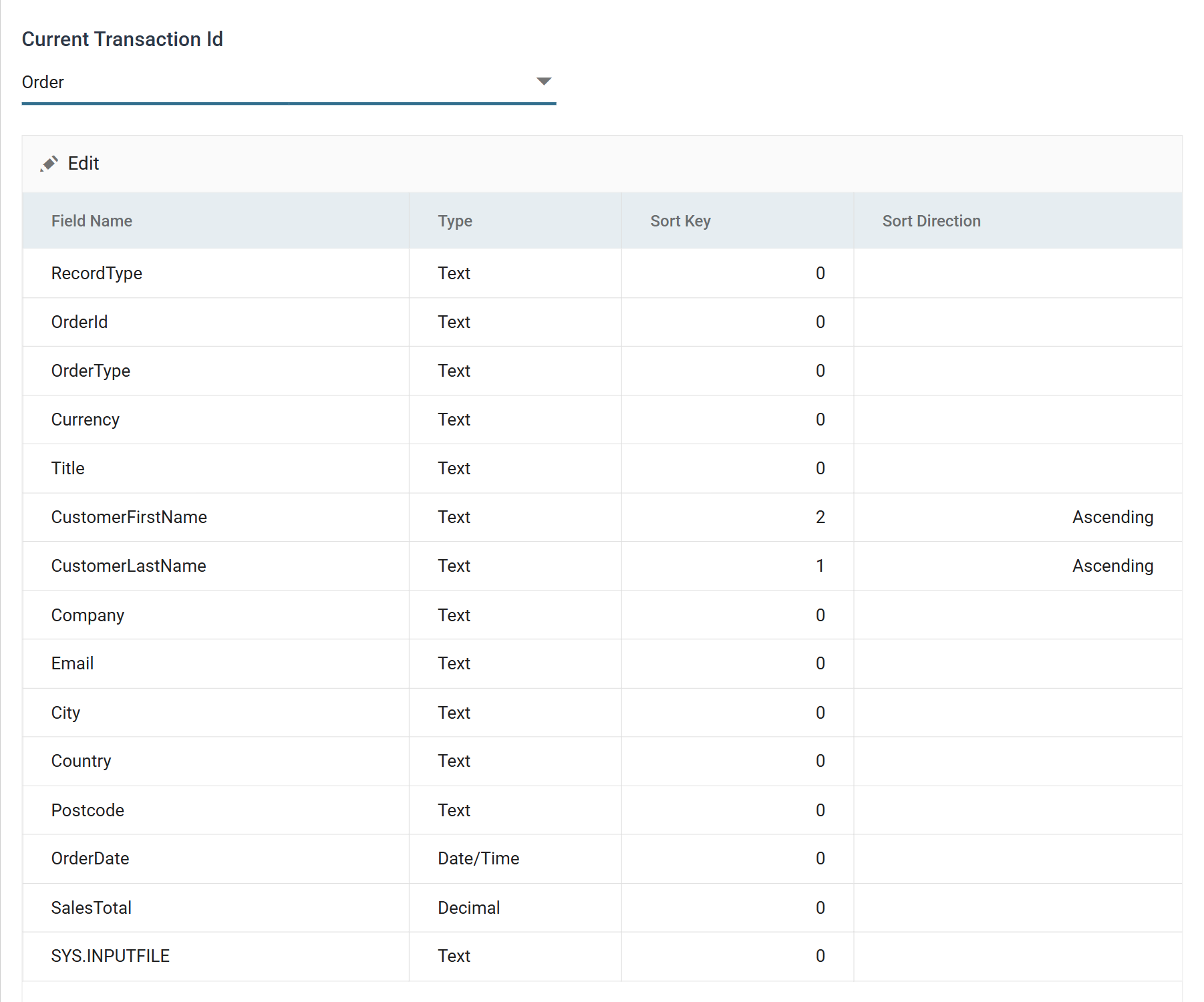
The grid lists every field of the selected transaction. It is a batch edit. The toolbar carries only Edit. Pressing it puts the whole grid into edit at once and swaps the toolbar for Save and Cancel. There is no per-row dialog.
You cannot add or delete rows here. The fields belong to the transaction; Sort only sets keys on them.
Current Transaction Id
The transaction whose records to sort.
Each transaction carries its own sort, so one transform can order a dataset at more than one level. The drop-down appears only where the dataset has more than one transaction.
Field Name
The field. Read-only. Sort does not create or rename fields.
Type
The field's data Type. Read-only. It also decides how the field is compared. See The sort is typed below.
Sort Key
The field's position in the sort. 1 is sorted on first, 2 breaks its ties, 3 breaks theirs, and so on.
0 is the default and leaves the field out of the sort entirely.
Keys must be unique within the transaction. If you give a field a key that another field already holds, IMan refuses it when you save the batch and shows "Sort key 2 is already assigned to field 'CustomerFirstName'." beneath the grid.
Sort Direction
Whether that field sorts ascending or descending. You set the direction per field, so a sort can run ascending on one key and descending on the next.
The column is blank until the row has a Sort Key. It is also blank for a key whose direction has never been set. An unset direction sorts ascending, because that is the engine's default, so a blank here means ascending.
Sort keys must run 1, 2, 3 with no gap
The transform collects its keys by counting upwards from 1 and stops at the first number it does not find.
A gap in the keys cuts the sort short without warning
Keys of 1, 2 and 4 sort on 1 and 2 only. IMan ignores key 4 and raises no warning or error. The records come back sorted, but not by the field you expected.
The gap usually opens when you edit an existing sort. If you take a field out by clearing its key, renumber every key after it.
The sort is typed
IMan compares each key as the data type its Type column reports: Boolean, Integer, Decimal, Text or Date/Time.
This matters most for numbers arriving from a file. A reader detects names and
positions but never types, so a quantity or a total read from a CSV is Text
until something changes it, and Text sorts 10 before 9. Where a sort has to
be numeric or chronological, set the type first, on the reader or with a
Translate transform in front of
the Sort.
You cannot sort on a Binary field. If you give a Binary field a sort key, IMan skips it without an error, and only the keys after it sort the records.
What a sort applies to
A sort orders the records of one transaction, within each parent separately. It does not reorder the parents, and it does not move a record from one parent to another.
Example
Sorting a child transaction sorts Parent A's children among themselves, then Parent B's children among themselves.
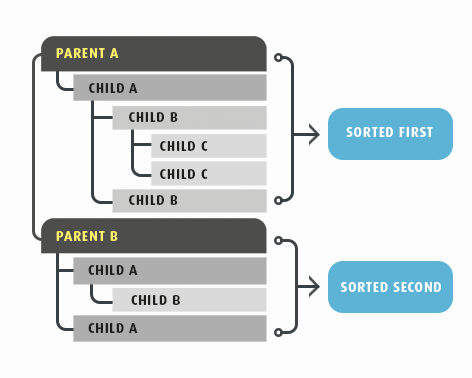
To order the parents as well, give the parent transaction its own sort in the same transform. Select it in Current Transaction Id and set keys there too.
Audit
Supported counters
None. The transform only reorders records, so it keeps no counters and the Audit Summary field picker offers none.
Action on Transform Error
The setting has no effect here. Any error fails the transform, whatever this is set to. The integration then stops, unless its Action on Transform Failure is Continue. The usual cause is a value that cannot be read as its field's declared type.
The setting and the rest of the tab are described on Transform > Audit.