Step 4 – Map Transform
The Map transform can:
- Apply a static value or a formula to each field.
- IMan uses a derivation of the VBScript/VBA language for formulas. See VBScript Function in the IMan User Guide for more detail.
- Add fields to each of the transaction types.
The Map transform cannot delete fields
The Map transform cannot:
- Delete fields
In this step you use the Map transform to:
- Create functions to derive the customer name and customer contact fields.
- Parse the telephone number into its subscriber, area and country parts.
- Look up the customer number for existing records or generate one for new records.
Design > Transform Setup
- Press the Transform Setup tab.
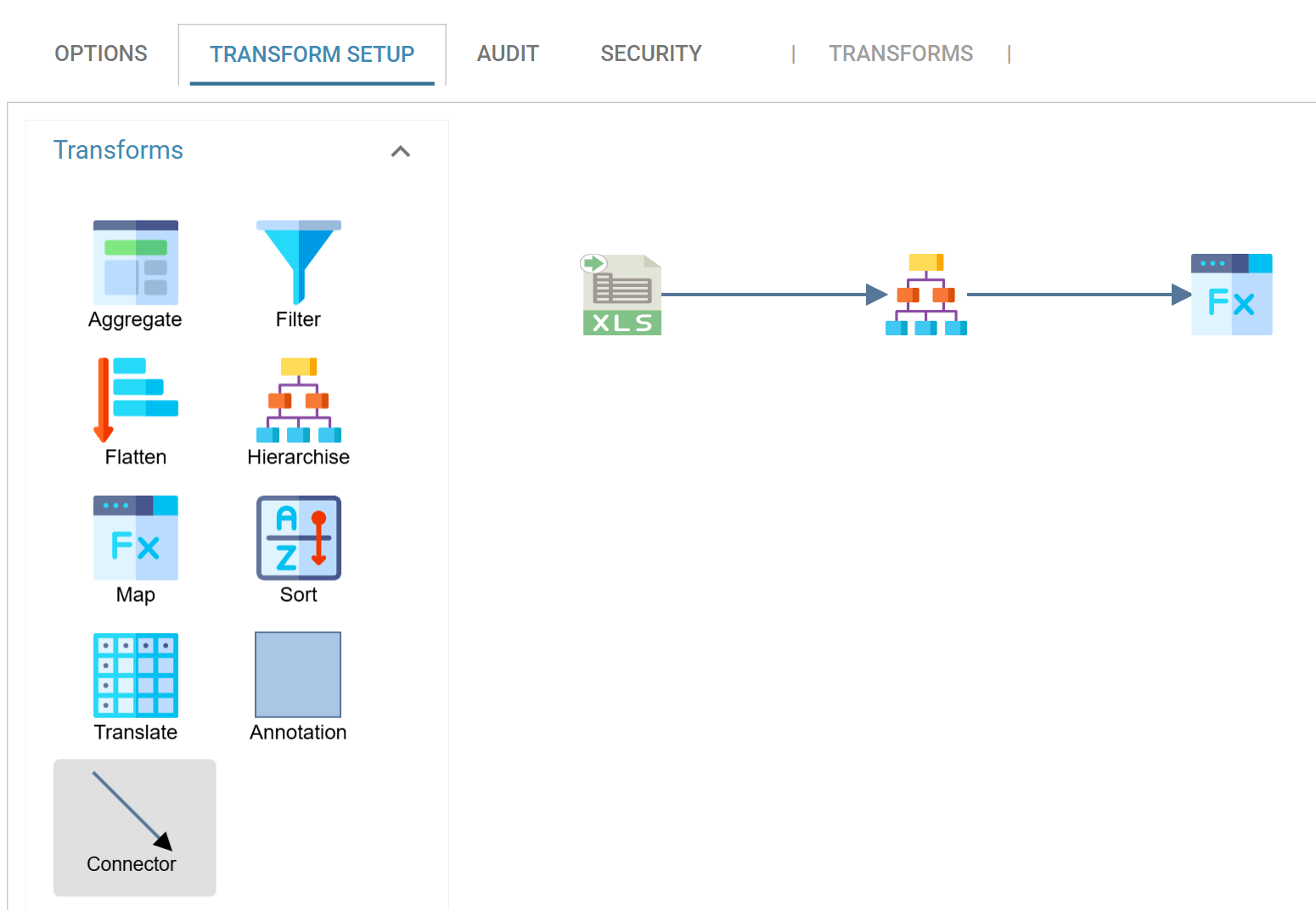
- Open the Transforms group in the palette.
- Drag a Map transform onto the design surface.
-
Drag a Connector from the same group and join the Hierarchise transform to it.
Transform > Setup
-
Double click the Map transform to open it.
- The Transform Id identifies the transform in the audit report. A new Map transform is already named
Map. For training, leave it as it is.
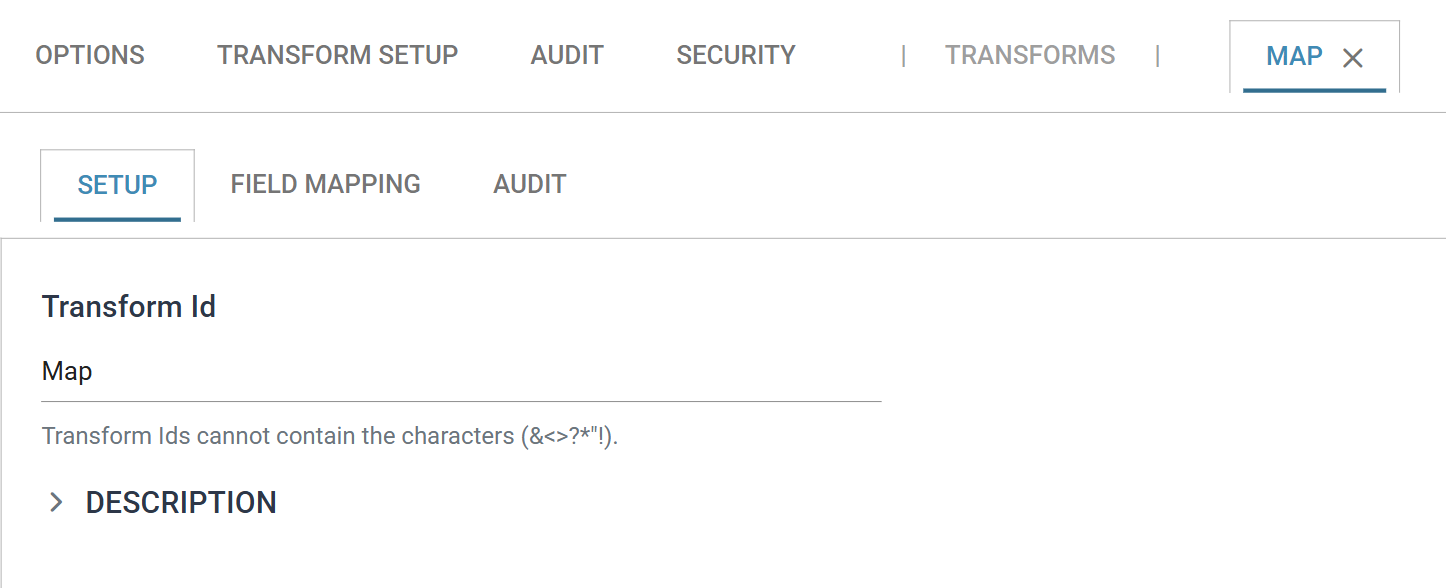
- The Transform Id identifies the transform in the audit report. A new Map transform is already named
Transform > Field Mapping
Here you create fields for some customer details, using a few simple formulas and some more complex ones.
- Press the Field Mapping tab.
- Make sure Orders is selected in the transaction drop-down above the grid.
-
Press Add to create a new field.
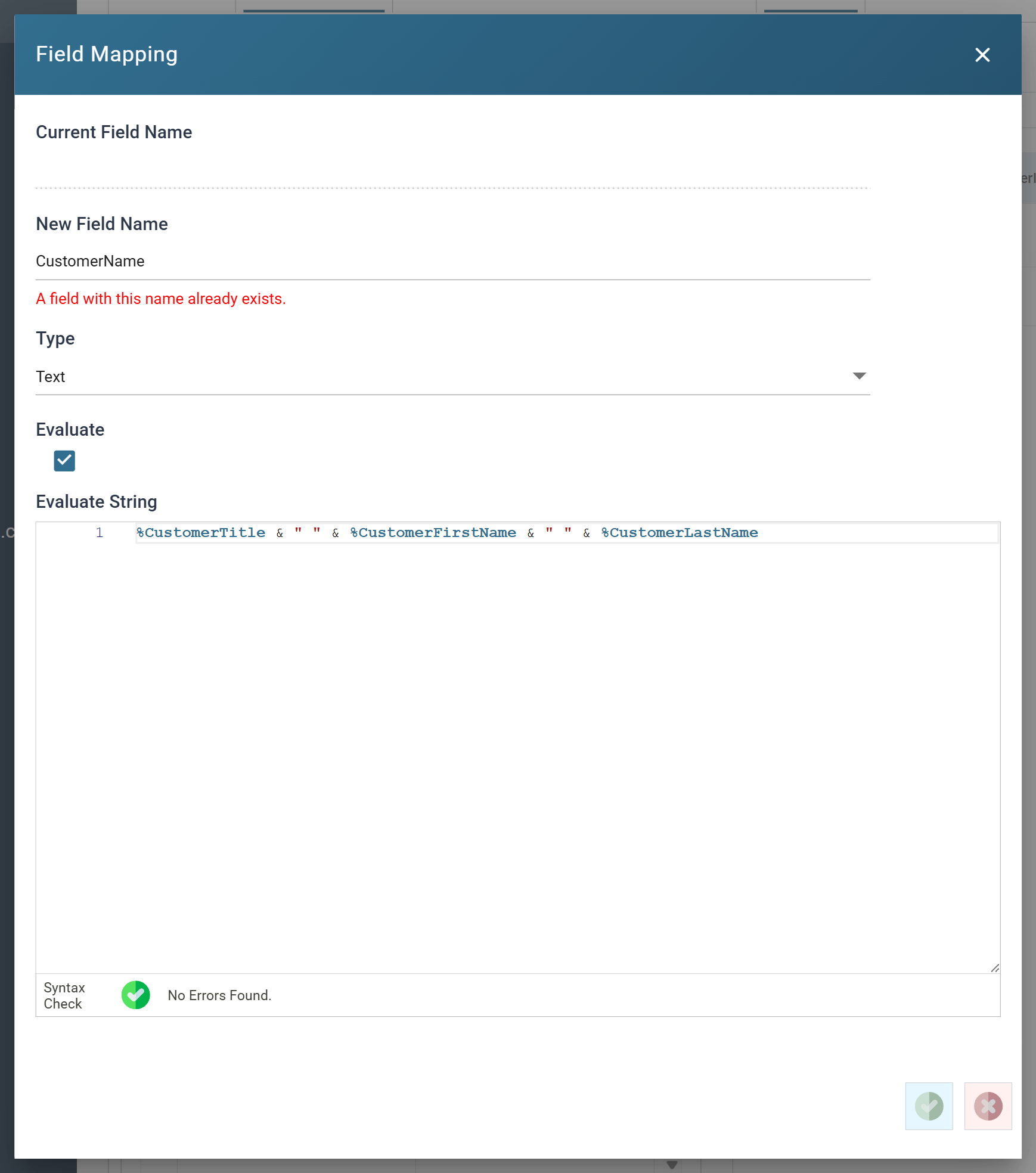
- New Field Name
- The name of the field being added.
- Type
- The data type of the result. For training, leave as: Text
- Evaluate
- When ticked, IMan runs the Evaluate String as a formula. When unticked, IMan uses it as a static value.
- Evaluate String
- The formula, or the static value. Field names are prefixed with
%. - The editor checks the formula as you type and reports No Errors Found beneath it.
- The formula, or the static value. Field names are prefixed with
- New Field Name
-
Press the tick to save the field, then repeat for each of the following:
New Field Name Evaluate Evaluate String CustomerName ✔ %CustomerTitle & " " & %CustomerFirstName & " " & %CustomerLastNameCustomerActualName ✔ IIf(%CompanyName <> "", %CompanyName, %CustomerName)CustomerContact ✔ IIf(%CompanyName <> "", %CustomerName, "")Sage200OrderNo ✘ (leave empty) Ph1TelNo ✔ Right(Replace(Replace(%Phone, " ", ""), "+", ""),7)CustomerActualNameandCustomerContactboth test the company name. On an order placed by a company, the company becomes the customer and the person becomes the contact. On an order placed by an individual, the person becomes the customer and there is no contact.Sage200OrderNohas Evaluate unticked and nothing in the Evaluate String. It is an empty field for Step 7 to fill.
The telephone fields
Ph1TelNo above takes the last seven digits of the telephone number. Two more fields extract the parts in front of it. Copy and paste the formulas; you can study the logic later.
-
Press Add, enter
Ph1Area, tick Evaluate, and enter:Dim Result Dim LenPh Dim Phone Dim CntryPfxLen If Left(%Phone,1) = "+" Then CntryPfxLen = 2 End If Phone = Replace(Replace(%Phone, " ", ""), "+", "") LenPh = Len(Phone) 'If the phone is longer than 7 chars, try to parse the area code. If LenPh > 7 Then '11 chars or fewer: take the digits between the country prefix and the last 7. 'Longer: take four characters from the start of the last 11. If LenPh <= 11 Then Result = Mid(Phone, 1 + CntryPfxLen, LenPh - 7 - CntryPfxLen) Else Result = Mid(Phone, LenPh - 11 + 1 + CntryPfxLen, 4 - CntryPfxLen) End If End If Result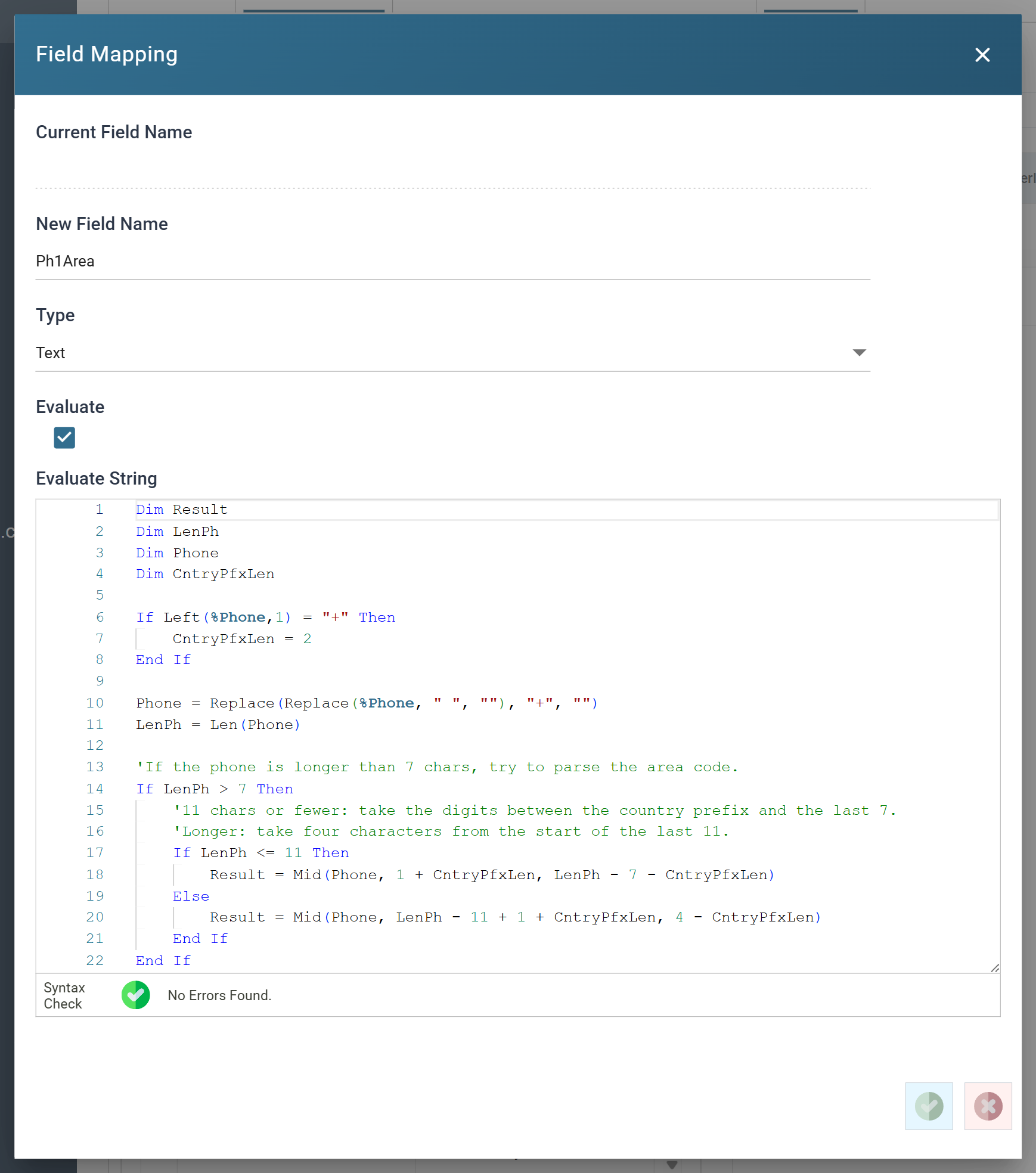
- The editor numbers the lines, colours the syntax and checks the formula as you type. Paste a formula this long rather than typing it.
- The last expression in the formula is its result. That is why
Resultstands on a line of its own at the end.
-
Press Add again, enter
Ph1Country, tick Evaluate, and enter:Dim Phone Dim Result Dim HasCountryPfx 'A leading +, or more than 11 digits, means there is a country code. HasCountryPfx = Left(%Phone,1) = "+" Phone = Replace(Replace(%Phone, " ", ""), "+", "") If HasCountryPfx Then Result = Left(Phone, 2) ElseIf Len(Phone) > 11 Then Result = Mid(Phone, 1, Len(Phone) - 11) Else Result = "" End If Result -
IMan adds the seven new fields at the end of the grid, below
SYS.INPUTFILE. Existing fields have both a Current Field Name and a New Field Name; a field the Map creates has only a New Field Name.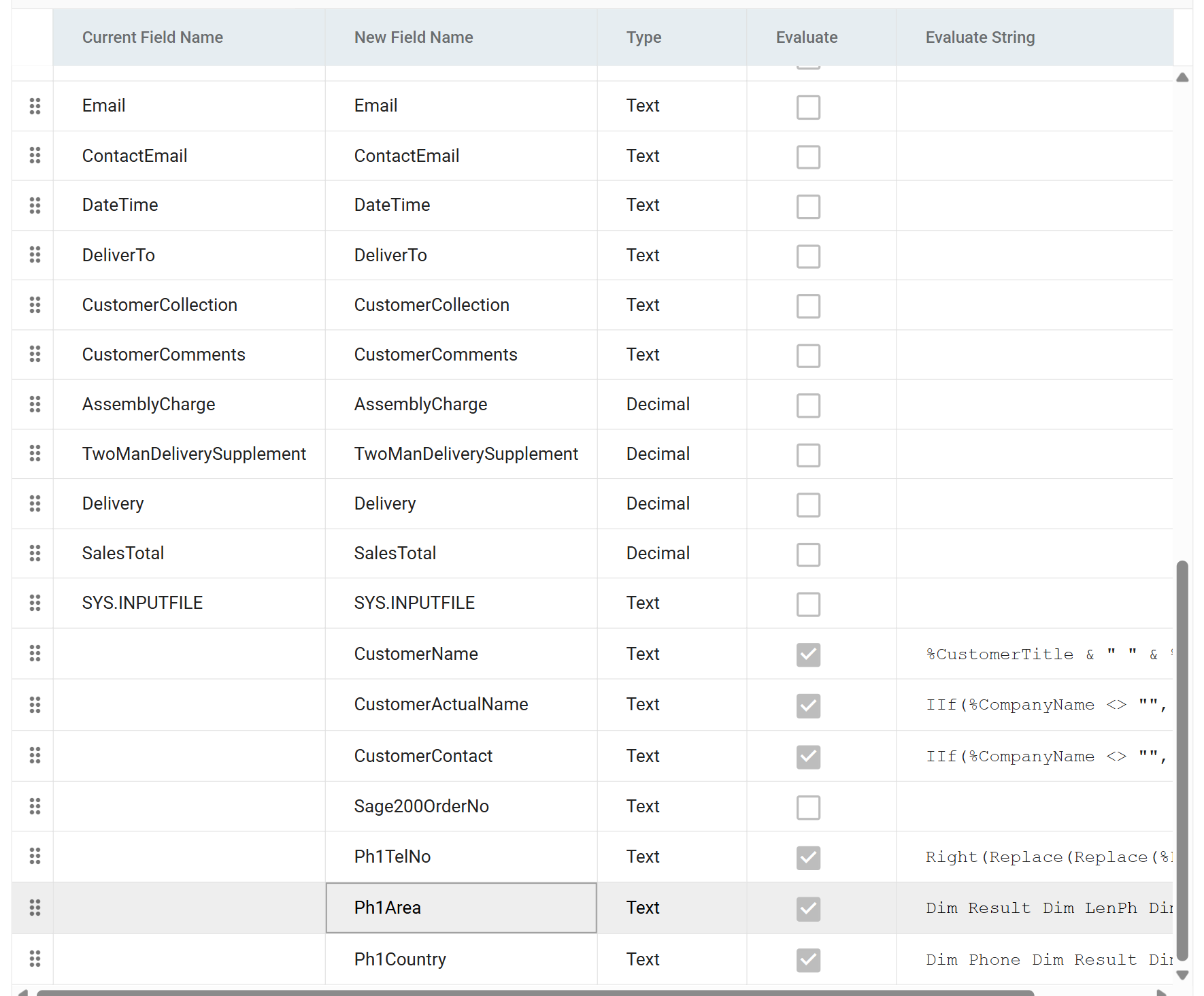
-
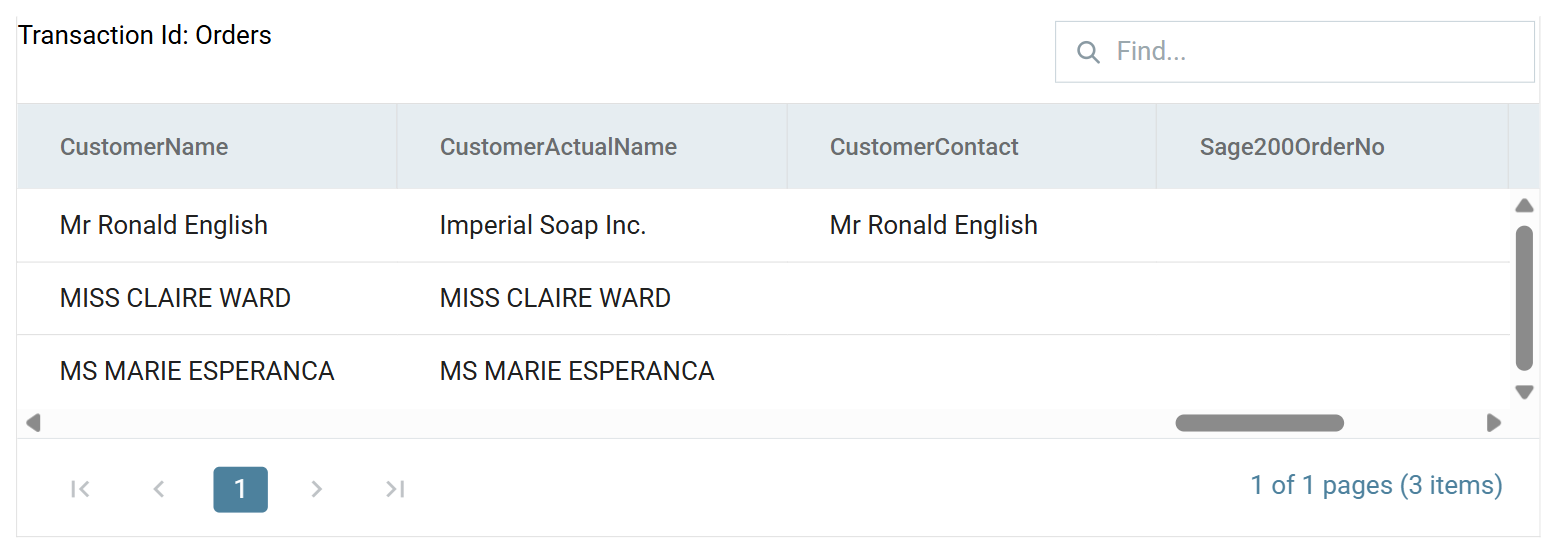
Press Refresh, then scroll the preview to the right to see the new fields.
- The first order has a company name, so
CustomerActualNametakes the company andCustomerContacttakes the person. The other two have no company, soCustomerActualNametakes the person's name and the contact is empty.
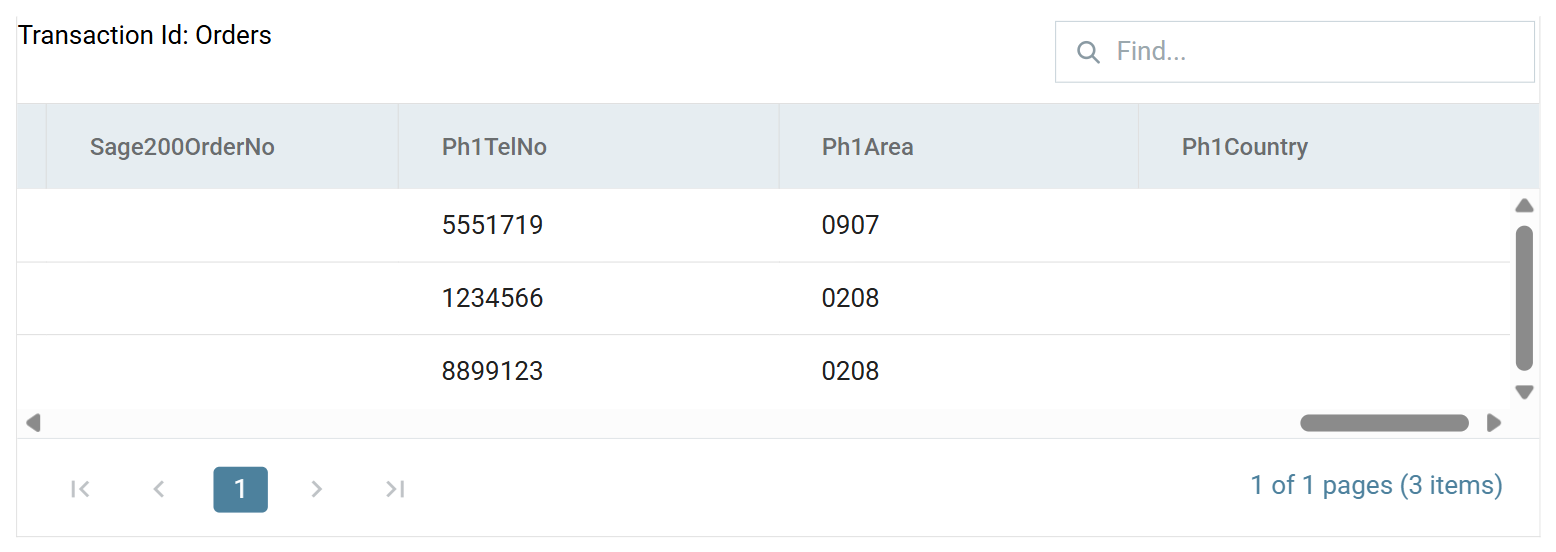
- Scroll further right to see the three telephone fields.
09075551719becomes area0907and subscriber5551719. None of the training numbers has a country code, soPh1Countryis empty for all three.
- The first order has a company name, so
Tip
Preview columns are 150px wide and cut a longer value short with an ellipsis. Drag a column edge to see a value in full.
Lookups and counters
Example
Problems:
- The input file does not have the customer id. You need to search the customer table for the email address to see whether the customer exists.
- Sage 200 cannot generate new customer ids automatically.
Solutions:
- Use the IMan lookup function to check.
- Use the IMan counter function to generate new sequential ids.
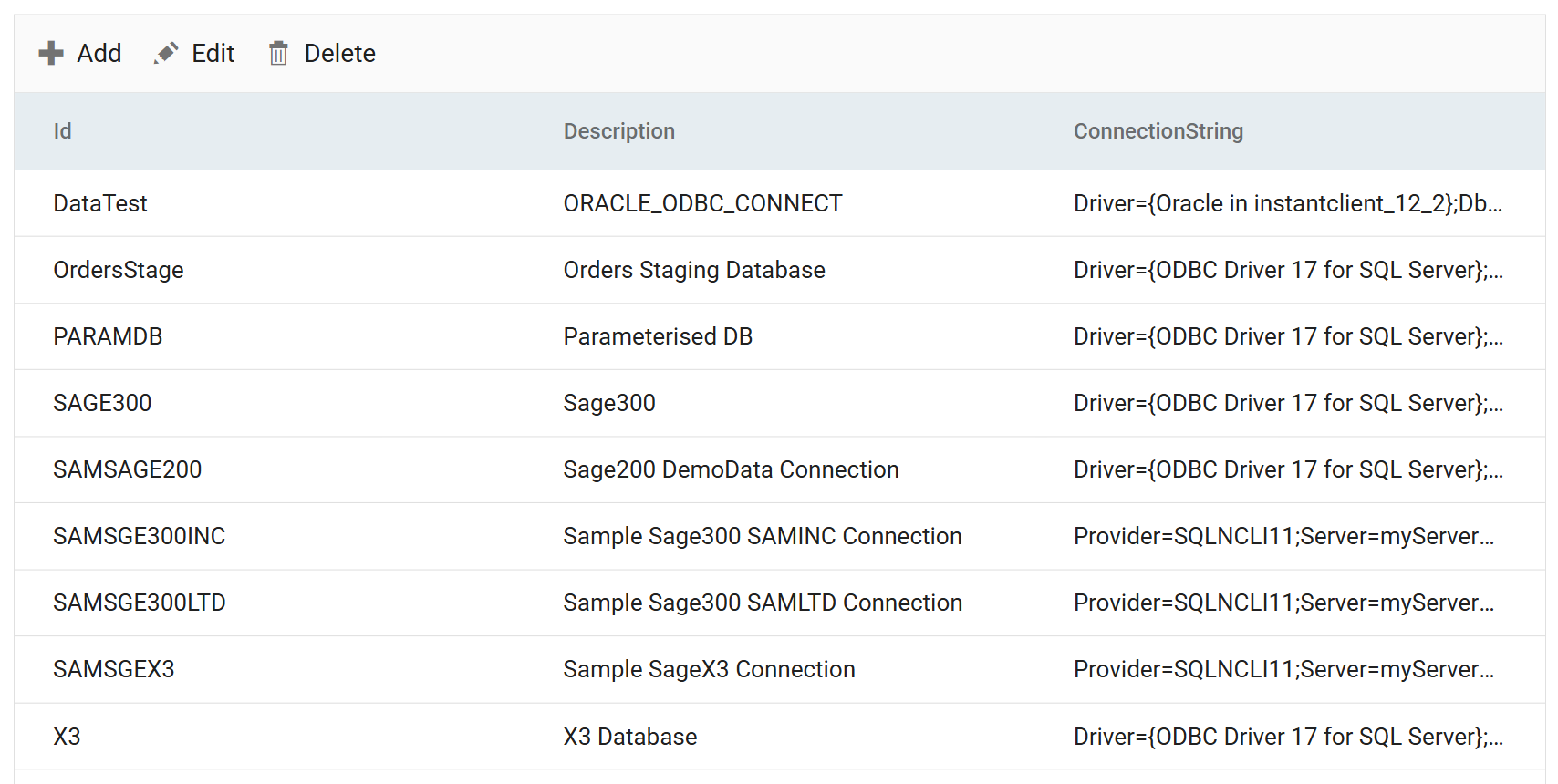
A lookup queries a database through a database connection. You define the connection once under Setup, then choose it by name in any lookup. Define the connection first.
Setup > Database Connections
-
Press Setup, then Database Connections in the left-hand menu.
-
Press Add, or select the connection and press Edit to see an existing one.
- Id
- Identifies the connection.
- For training: SAMSAGE200
- Description
- A recognisable name. You pick from these names when you set up a lookup.
- For training: Sage200 DemoData Connection
- Connection String
- An ODBC connection string pointing at the Sage 200 database.
- For training:
Driver={ODBC Driver 17 for SQL Server};Server=<server>;Database=<DBID>;Trusted_Connection=yes;
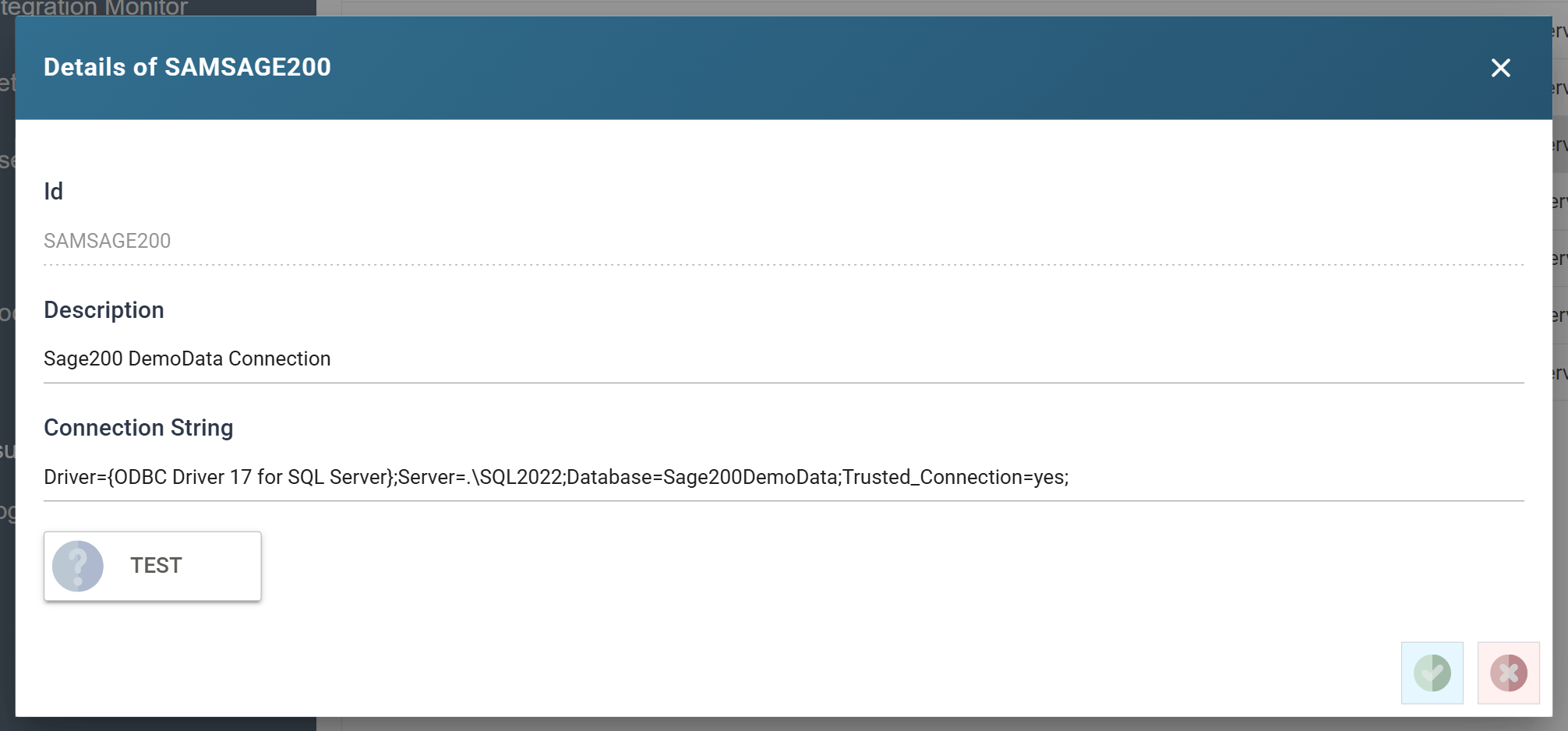
<server>is your SQL Server and instance, and<DBID>is the id of the Sage 200 database.Trusted_Connection=yesconnects as the IMan service account. To connect as a named SQL user, replace it withUid=<user>;Pwd=<password>;. - Id
Use ODBC Driver 17 or 18, not SQLNCLI
Use the ODBC Driver 17 for SQL Server or ODBC Driver 18 for SQL Server. Some sample connections still use older Provider=SQLNCLI… strings. Do not use them for new work.
-
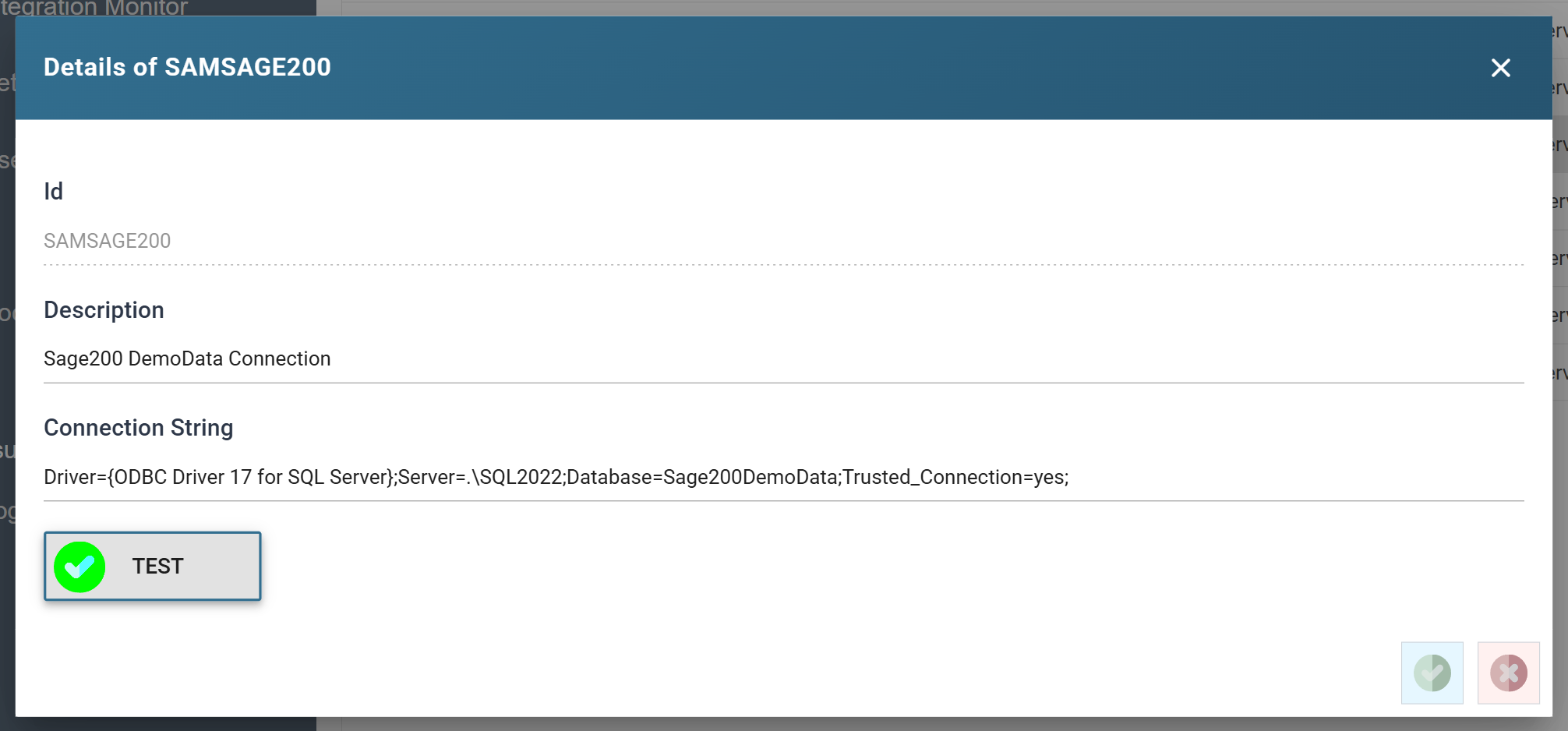
Press TEST.
- A green tick on the button confirms that IMan opened the connection. If it fails, a red cross appears on the button and the database driver's error appears to the right of it. Fix the string before you go any further.
-
Press SAVE.
Setup > Lookups
A lookup queries a database to check whether a record exists or to translate a value.
-
Press Lookups in the left-hand menu, then Add. To open an existing lookup, select it and press Edit.
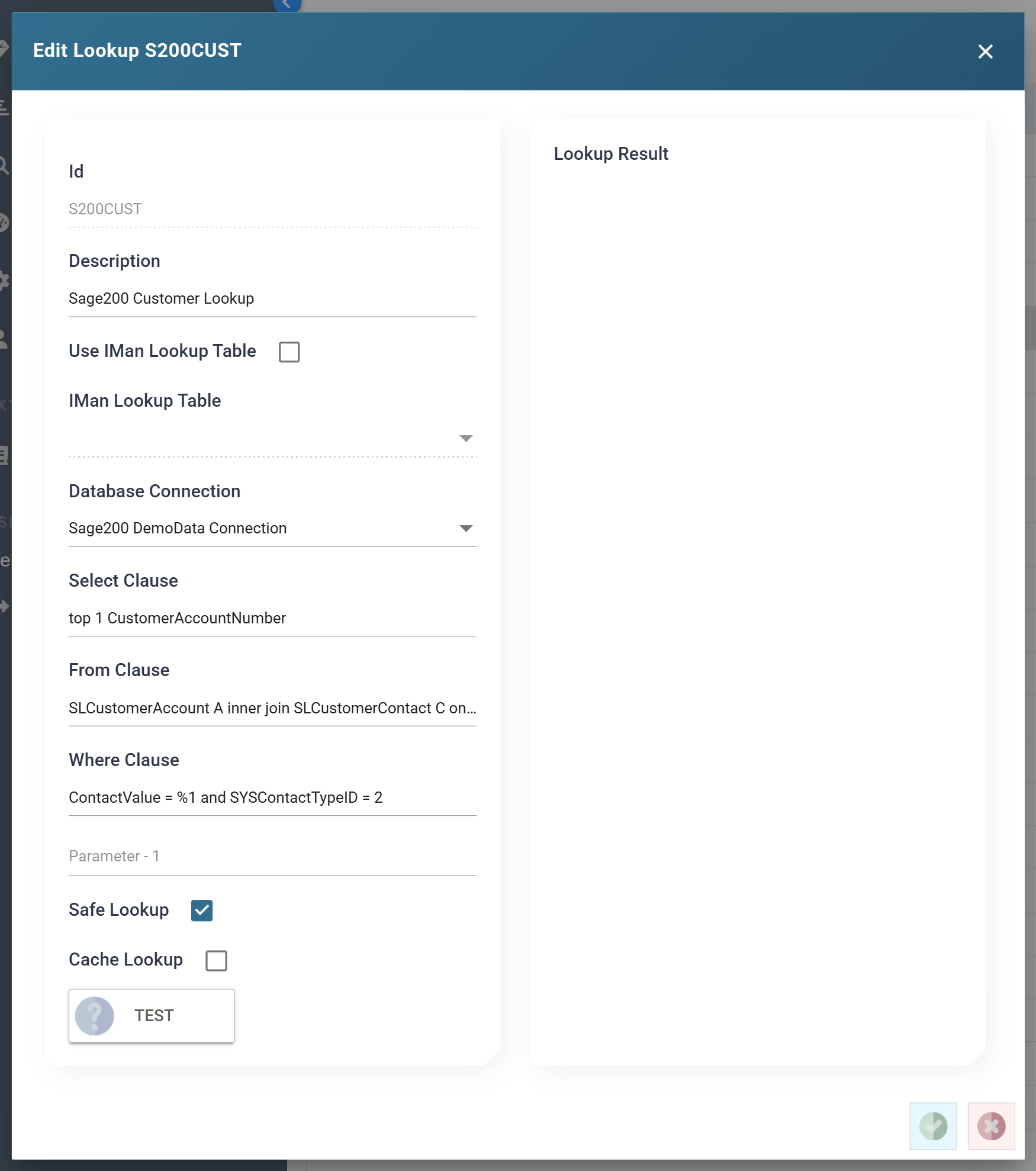
- Id
- Identifies the lookup.
- For training, enter: S200CUST
- Description
- A recognisable name.
- Use IMan Lookup Table
- IMan has an internal lookup table that can store 20 fields per lookup.
- For training: leave unticked. This lookup queries the Sage 200 database.
- Database Connection
- The connection defined above.
- For training, choose: Sage200 DemoData Connection
- Select Clause
- One or more fields to return from the query.
- For training, enter: top 1 CustomerAccountNumber
top 1keeps the lookup to a single answer if more than one contact shares an email address.
- From Clause
- The
Fromclause of the SQL query. It can be a single table or a join across many tables. - For training, enter:
SLCustomerAccount A inner join SLCustomerContact C on A.SLCustomerAccountID = C.SLCustomerAccountID inner join SLCustomerContactValue V on C.SLCustomerContactID = V.SLCustomerContactID
- The
- Where Clause
- The
Whereclause of the SQL query. - To parameterise the query, enter
%1,%2,%3for each parameter. The formula that calls the lookup passes in their values. - For training, enter:
ContactValue = %1 and SYSContactTypeID = 2 SYSContactTypeID = 2restricts the join to email contacts.
- The
- Id
-
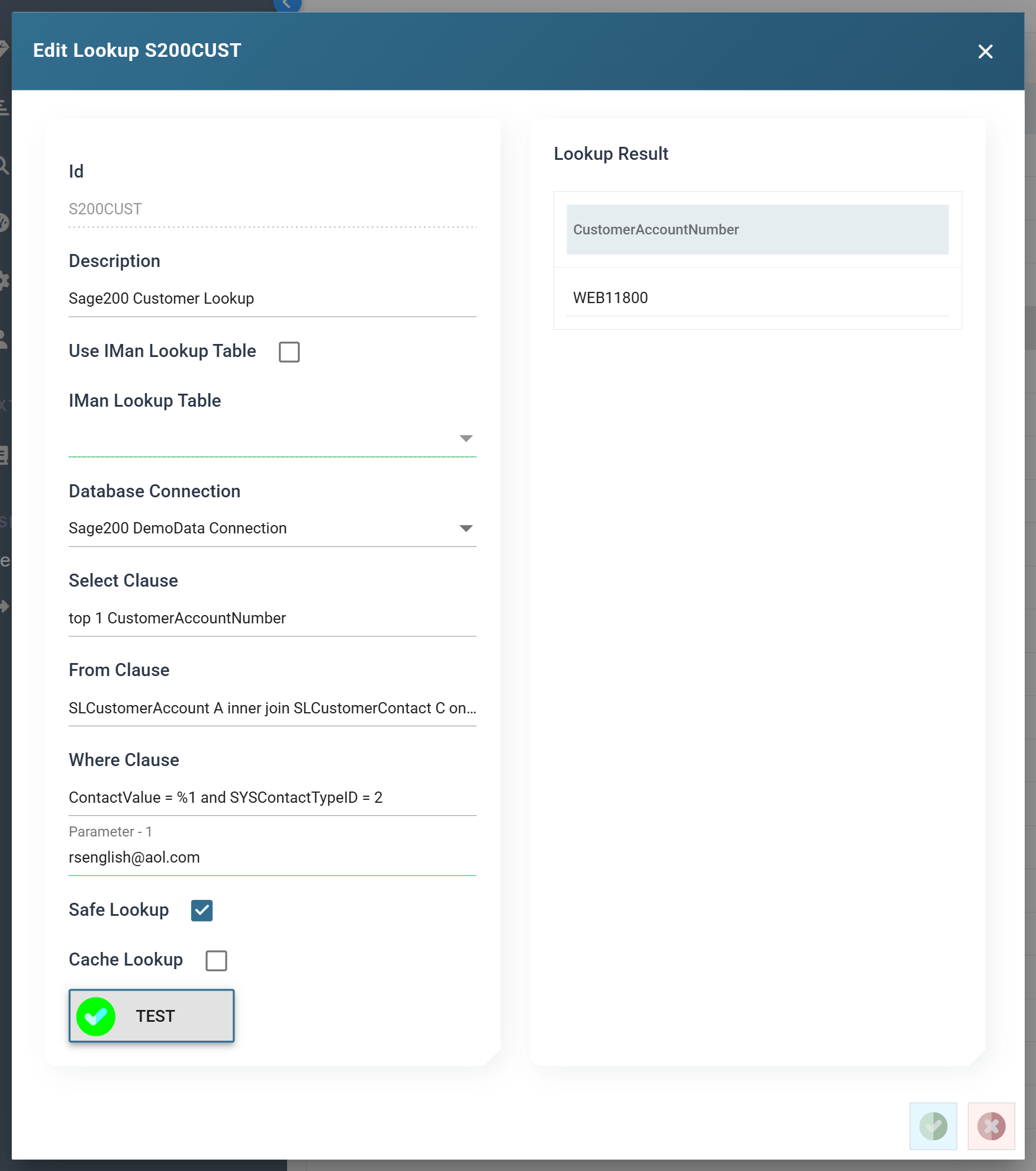
Enter a value for the parameter and press TEST.
- IMan shows the result of the query beside it. This is new in IMan v6. It is the quickest way to prove a lookup before you use it in a formula.
-
Press SAVE.
Setup > Counters
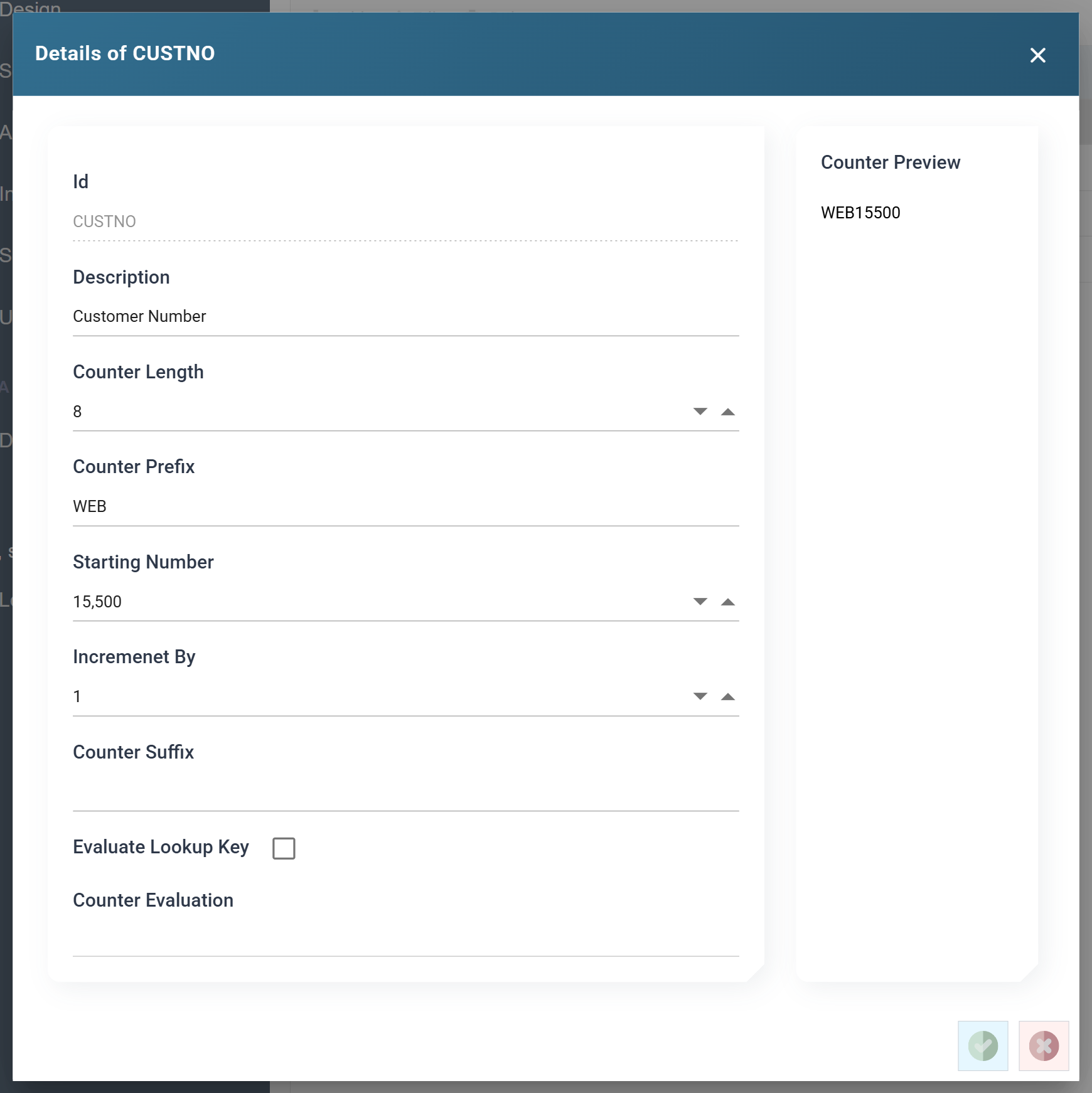
A counter generates a sequential number, or sequence, and keeps its value between calls. The counter's settings format the number with a prefix, suffix and length.
-
Press Counters in the left-hand menu, then Add. To open an existing counter, select it and press Edit.
- Id
- Identifies the counter.
- For training, enter: CUSTNO
- Description
- A recognisable name.
- Counter Length
- The total length of the generated value, including the prefix.
- For training, enter: 8
- Sage 200 holds a customer's account number in eight characters, and
step 5 maps this counter's output
straight into it. The import refuses a ninth character with
Cannot set the value of the Field (.Reference). The three
characters of
WEBleave five digits for the sequence.
- Counter Prefix
- A static prefix incorporated into the returned value.
- For training, enter: WEB
- Starting Number
- Where a sequence begins the first time it is used.
- Increment By
- How much to increment on each call.
- For training, enter: 1
- Counter Suffix
- A static suffix incorporated into the returned value.
- For training: leave blank
- Evaluate Lookup Key
- A single counter can keep one or several sequences. When ticked, IMan evaluates the Counter Evaluation formula, and the result names the counter detail record, and so the sequence, to use. If the record exists, IMan takes the next number from it. Otherwise IMan creates a new record that starts at the counter's Starting Number.
- For training: leave unticked
- Counter Preview shows the value the counter would return next, formatted as it will be stored.
- Id
-
Press SAVE.
Map > Field Mapping — the customer number
The lookup function takes four parameters:
- Lookup Id —
"S200CUST", the id of the lookup defined above. - Return Field —
"CustomerAccountNumber", the field to return. - Parameters —
%Email, the values that fill the where clause.%Emailcorresponds to%1. - Must Return —
False, whether a matching result is required.
Where the parameters are described in full
Lookup in the VBScript function reference describes each parameter in full.
-
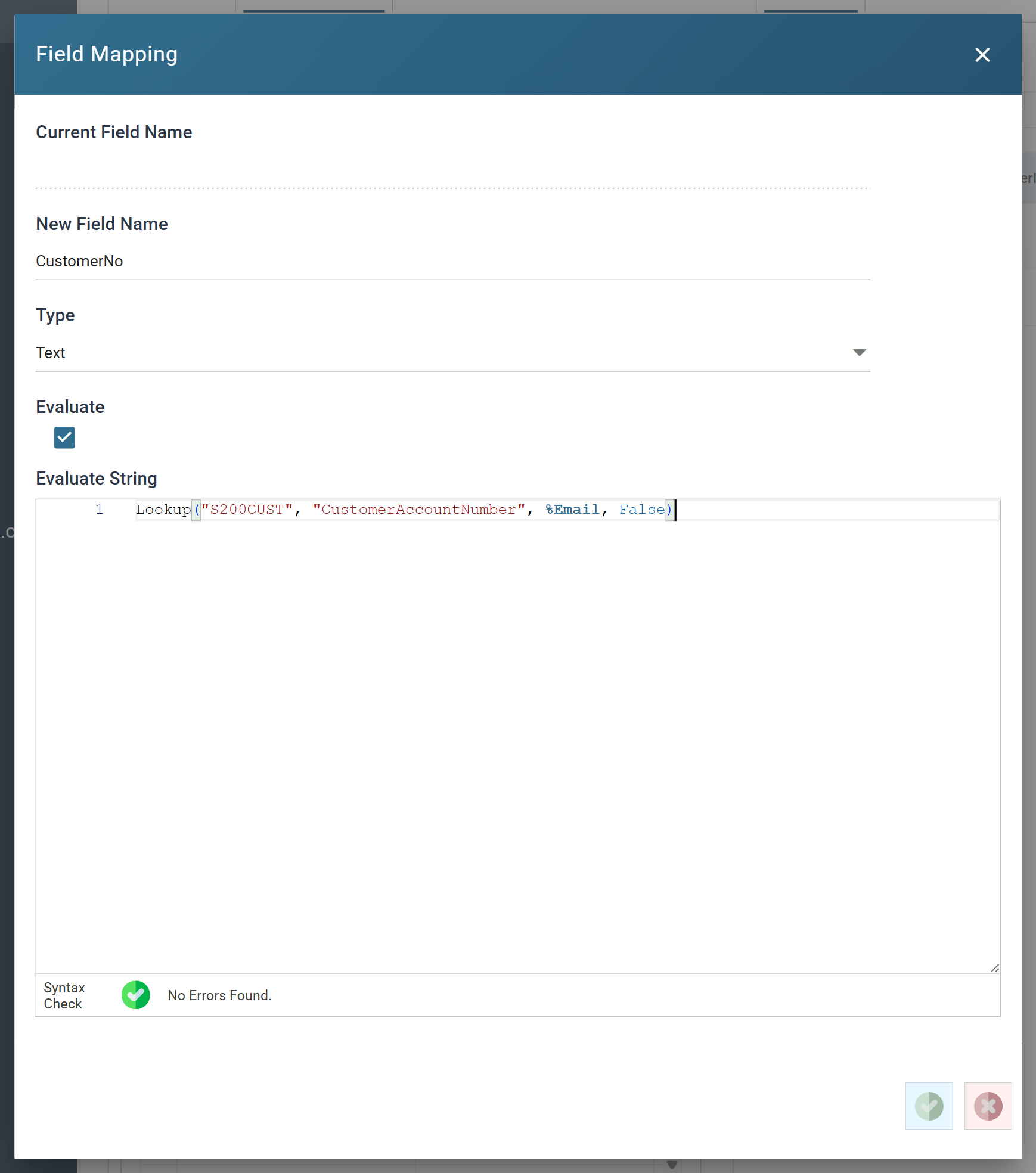
Return to Design, re-open the Map transform, press the Field Mapping tab and press Add:
- New Field Name
- CustomerNo
- Evaluate
- Ticked
- Evaluate String
Lookup("S200CUST", "CustomerAccountNumber", %Email, False)
- New Field Name
-
Save the field and press Refresh.
- The first order matches an existing customer on its email address and returns their account number. The other two do not match, so
CustomerNois empty. These two customers need a new number.
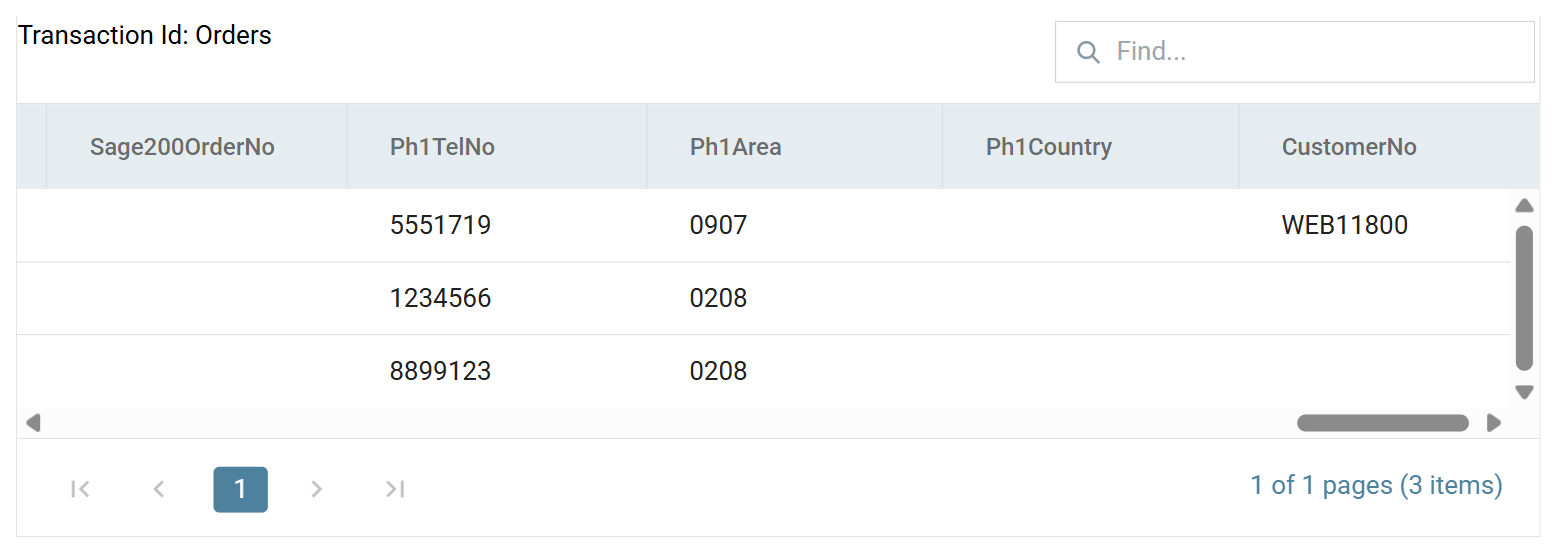
- If the lookup is wrong (an invalid field, an invalid SQL statement or a connection string that does not connect), the refresh fails and reports the error. It does not return an empty value.
- The first order matches an existing customer on its email address and returns their account number. The other two do not match, so
-
Re-open the
CustomerNofield and extend the formula to generate a sequence from the counter whenever the lookup finds nothing:Dim Result Result = Lookup("S200CUST", "CustomerAccountNumber", %Email, False) If Result = "" Then Result = GetCounterSequence("CUSTNO") End If Result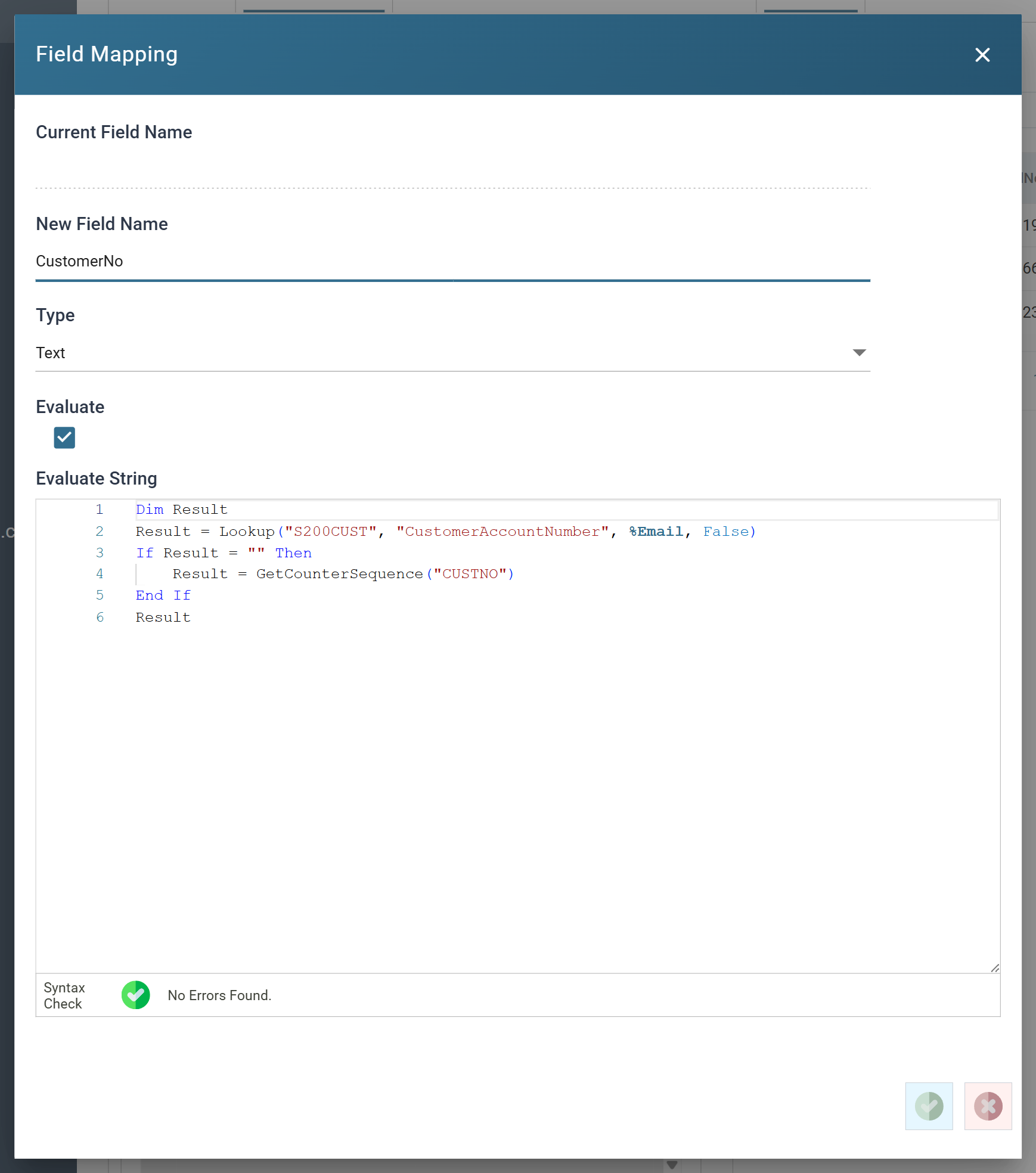
-
Save the field and press Refresh.
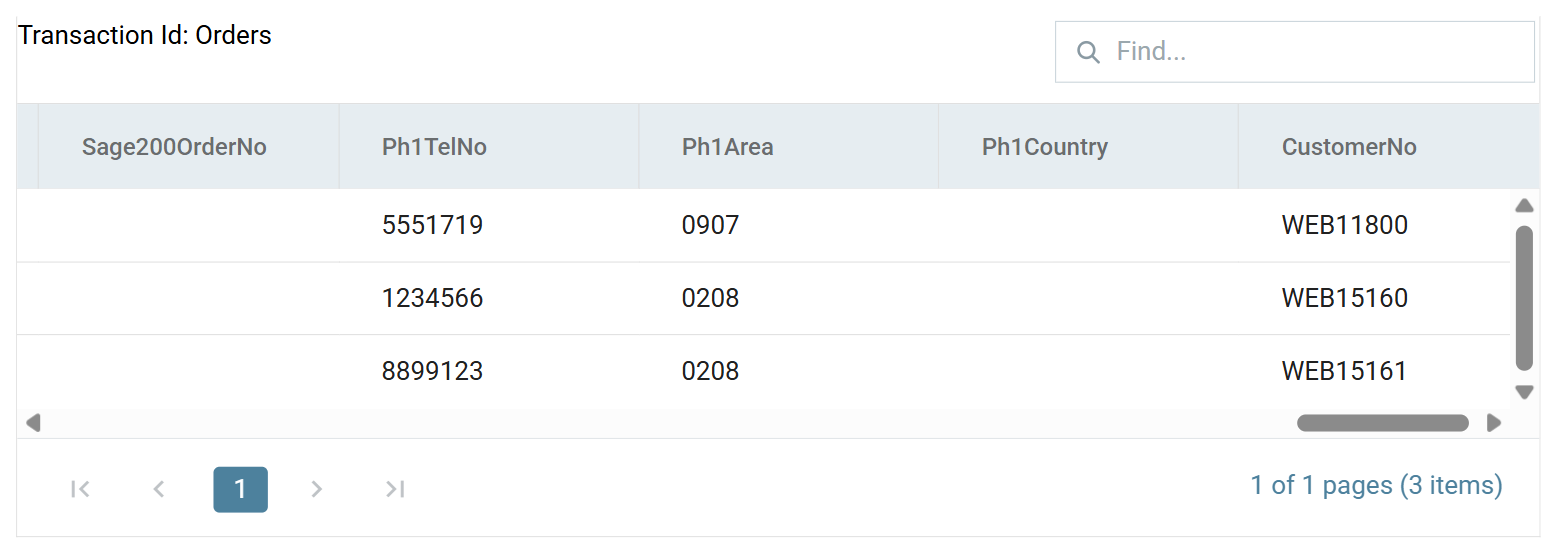
The first record matched, so it kept its account number
The first record still returns the existing customer account number, because its email address matched. The others now have a new number from the counter, prefixed WEB.
- Press Close at the bottom of the transform, then Save the integration.