6.1 – Map Transform
Adding Fields to the Dataset
An Aggregate transform can create records, but it cannot add fields. Every field the shipment charge records need must exist on the dataset before the Aggregate runs. The Map transform adds them.
Step 7 maps the four fields you create here into the Sage 300 order: one on the order header and three on the order lines.
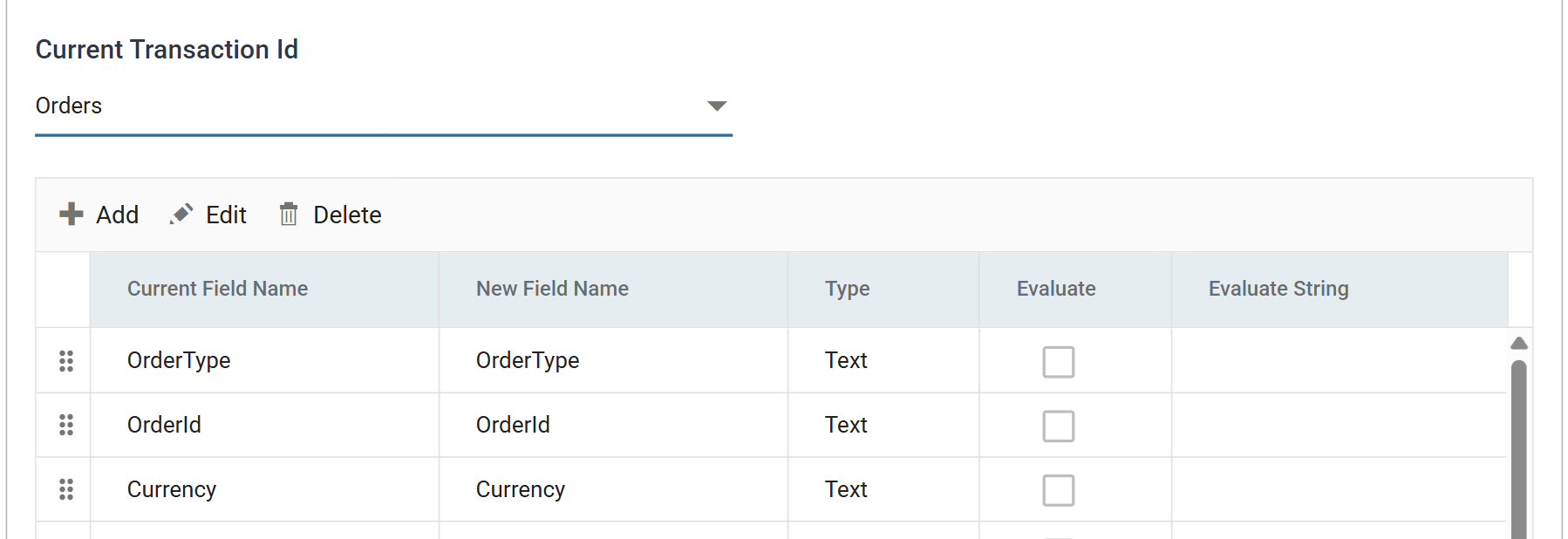
Transform > Field Mapping
- Double-click the Map transform to re-open it, then press the Field Mapping tab.
-
Check that Orders is selected in the Current Transaction Id drop-down above the grid.
-
Press Add and create the field that will carry the Sage 300 order number:
- New Field Name
- Sage300OrderNumber
- Type
- Text
- Evaluate
- Unticked
- Evaluate String
- Leave blank
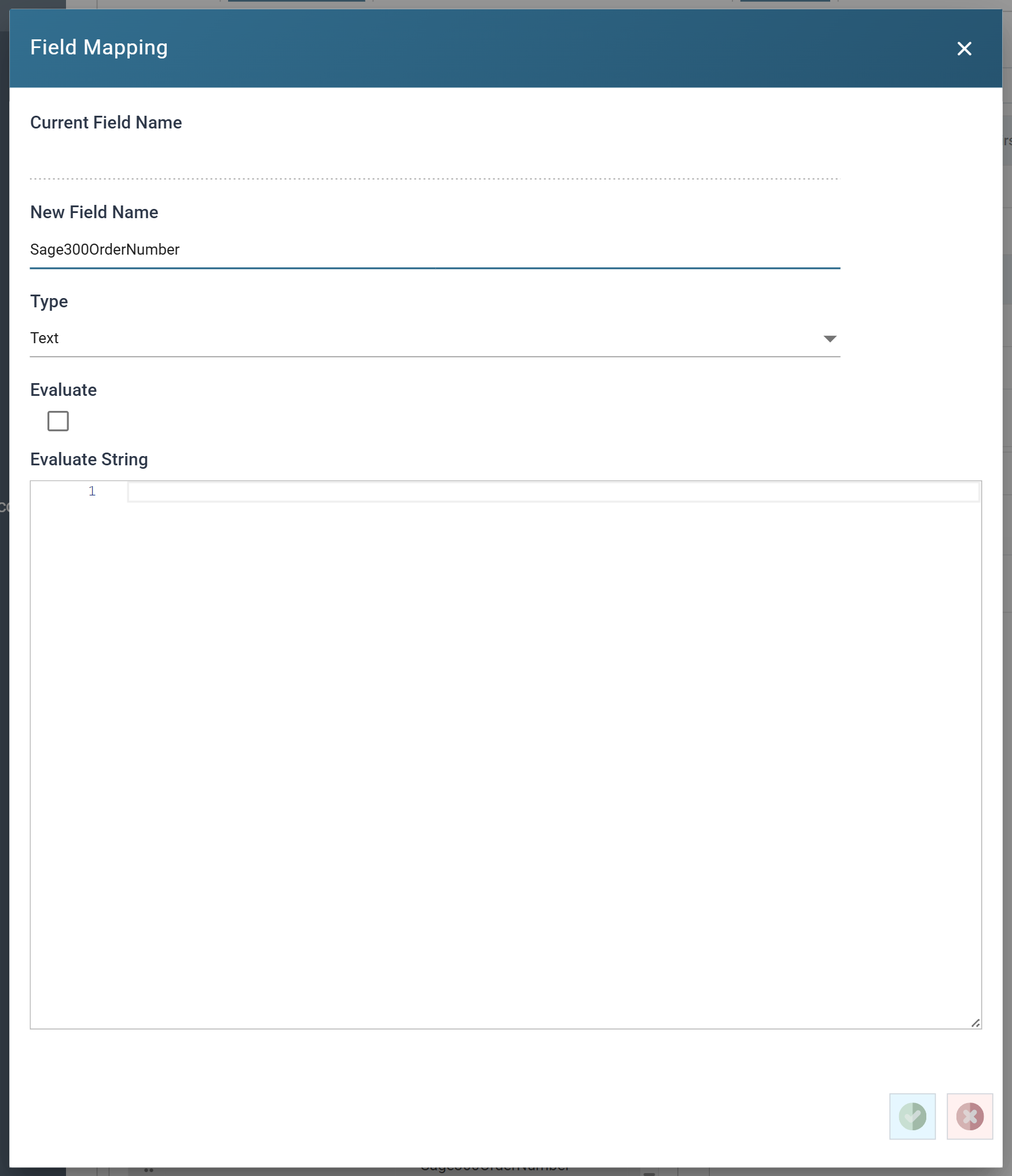
Leave the value empty. Step 7 maps this field to the Sage 300 Order Number, which Sage 300 generates during the import. The field goes in empty and comes back with the order number.
- New Field Name
-
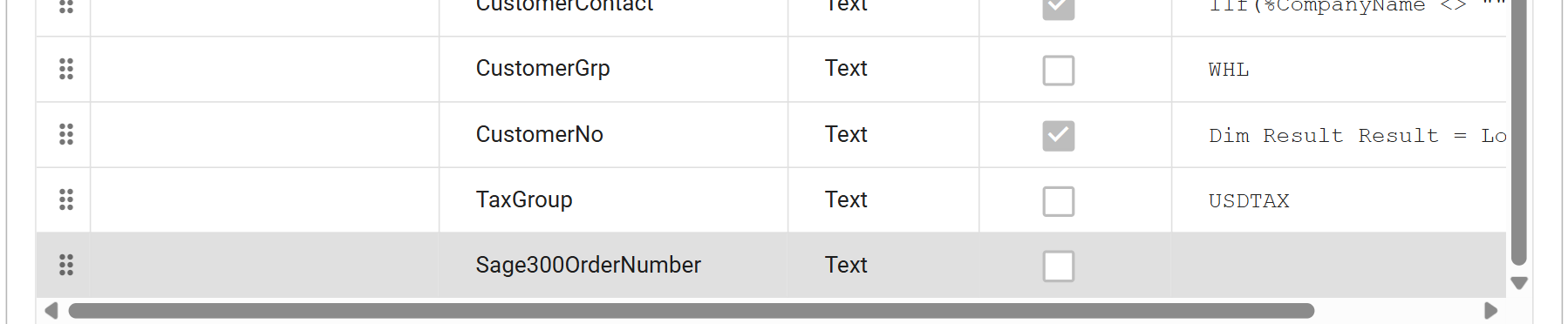
Press the tick to save the field. IMan adds it to the end of the Orders list.
The order line fields
The miscellaneous charge lines that 6.2 creates are order detail records. The fields they need belong to the OrderDetails transaction, not to Orders.
- Change the Current Transaction Id to
OrderDetails. -
Press Add for each of the following three fields:
New Field Name Type Evaluate Evaluate String LineType Integer ✘ 1ExtendedPrice Decimal ✘ leave blank MiscChargeId Text ✘ leave blank 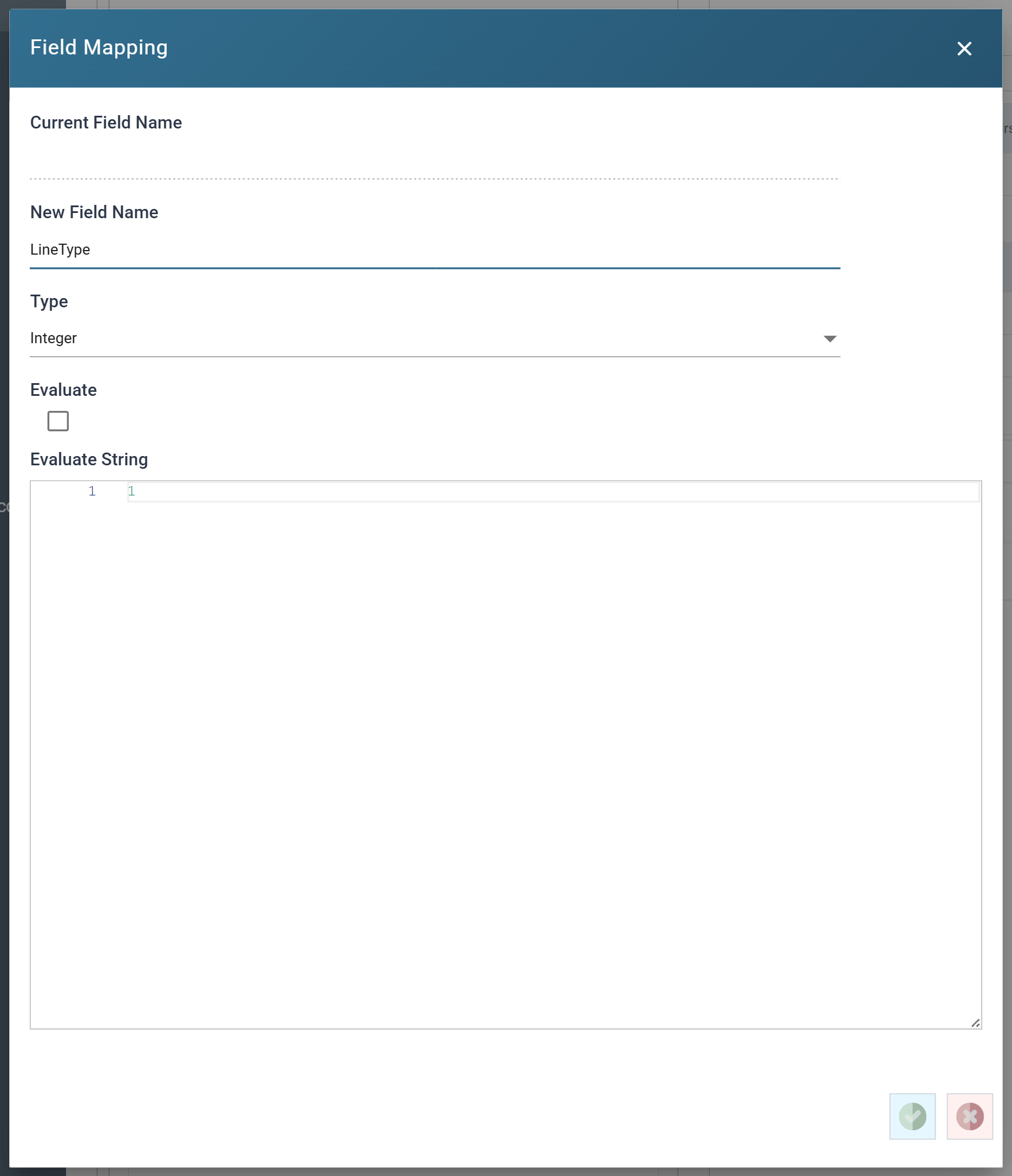
- Set Type carefully here. It did not matter for the customer fields in
step 4.
LineTypeis a whole number,ExtendedPriceis a money amount, and Sage 300 rejects a value it cannot convert. LineTypeis the Sage 300 order line type:1for an item line,2for a miscellaneous charge. Every line read from the workbook is an item, so the static value is1. The charge records created in 6.2 set theirs to2.- Leave
ExtendedPriceandMiscChargeIdempty. Only the charge records carry a value in them, and 6.3 uses the empty value to filter out the charges that do not apply.
- Set Type carefully here. It did not matter for the customer fields in
step 4.
-
With all three added, the OrderDetails list ends with the new fields, their types and
LineType's static value.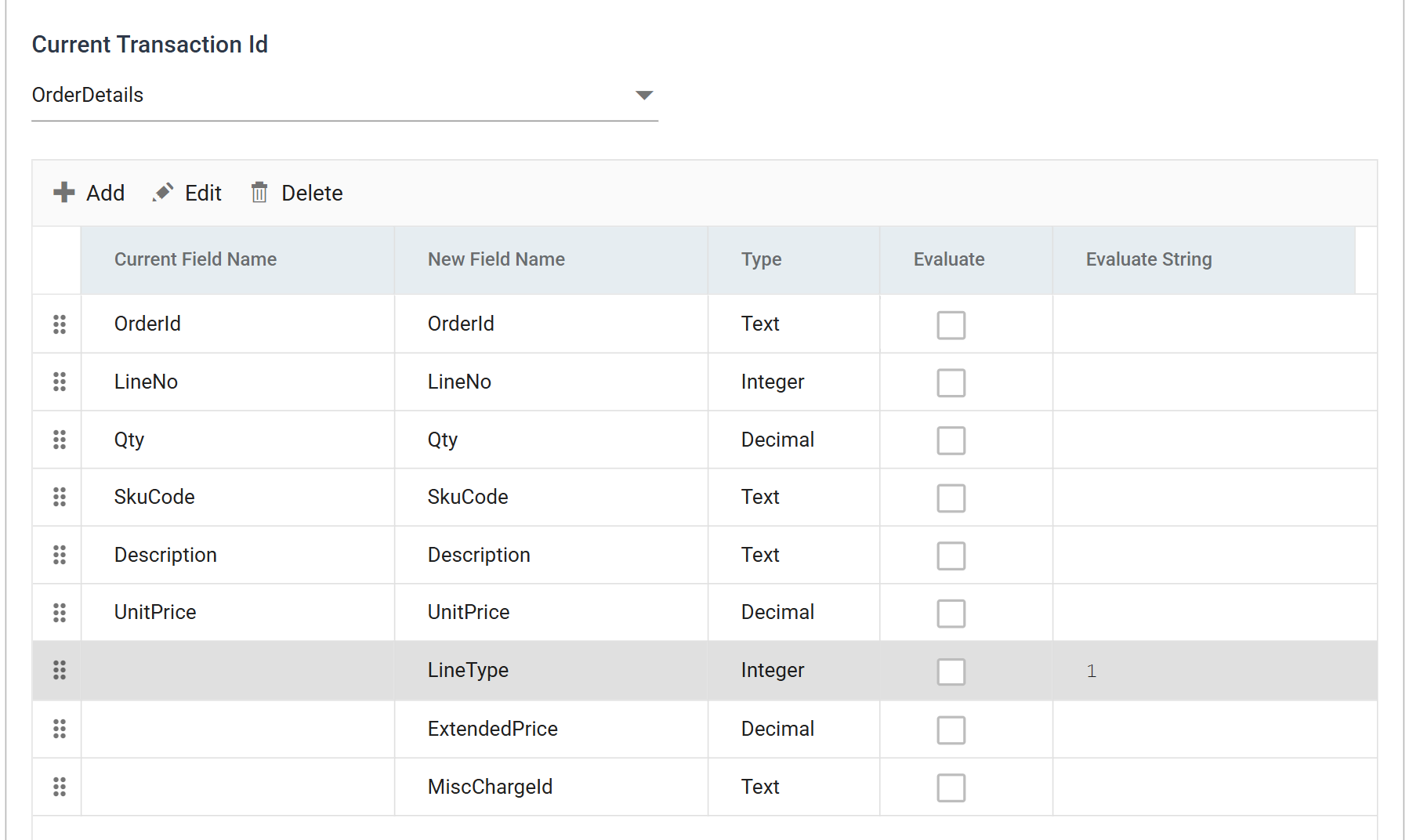
-
Press Refresh.
- Press Close at the bottom of the transform, then Save the integration.
A transform pane has no Save of its own
A transform pane has no Save of its own. Close commits the transform to the integration held in the designer. Save then writes the integration to the server. If you close the transform and do not save the integration, you lose the work.