Translate
The Translate transform renames transactions, renames fields and changes field types. It does not add, remove or reorder records, and it does not recalculate values.
Use it to join one part of an integration to another part that expects different names. Everything downstream of a Translate uses the names it produces. If something upstream changes, you fix it in the Translate, not in every transform that follows.
Example
A file format changes and the reader has to be rebuilt. The new reader
detects its fields as Field1, Field2, Field3 and names its transaction
1. A Translate between it and the rest of the integration renames both to
the names the existing transforms already use, and nothing downstream needs
to change.
Its other use is types. A reader detects field names and positions but never types, so everything read from a file arrives as Text. A Translate in front of the transforms that depend on type gives the fields their correct types. A Sort then orders numbers numerically and dates by date, instead of comparing them as text.
The transform adds nothing to the Setup tab, which holds only the controls every transform has. See Transform > Setup.
Field Mapping
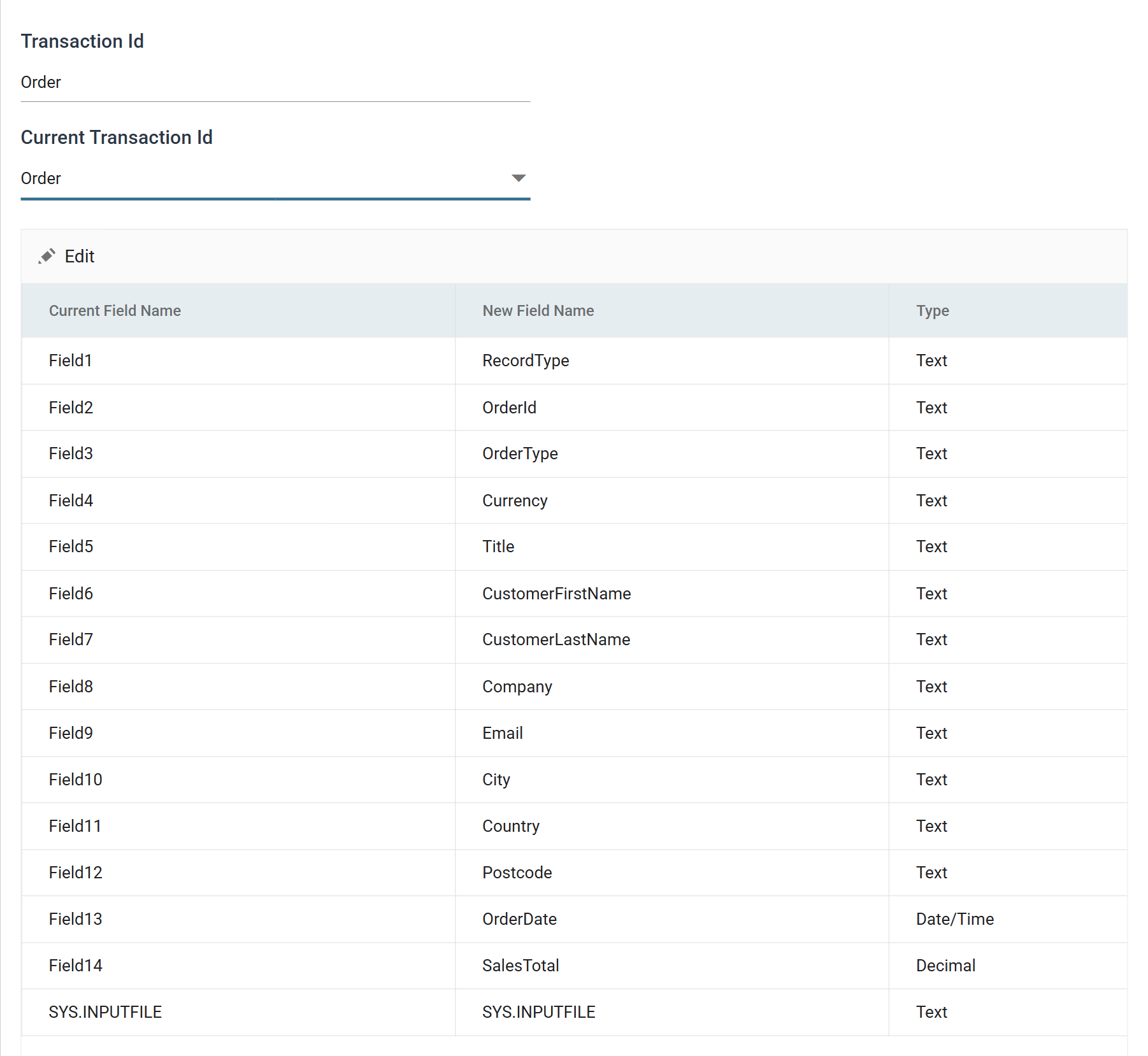
The grid is a batch edit. The toolbar carries only Edit. Pressing it puts the whole grid into edit at once and swaps the toolbar for Save and Cancel. There is no per-row dialog.
You cannot add or delete rows. Translate renames what it is given; it does not create or drop fields.
Transaction Id
The name to give the selected transaction. Typing over it renames the transaction in place. There is no separate "new name" box, and the drop-down below updates as soon as the rename takes effect.
IMan refuses a rename if the new name is empty or another transaction in this dataset already uses it. The box reverts to the old name and IMan shows no message. If a name springs back, it clashed with another name.
Current Transaction Id
The transaction you are editing. The box above renames it and the grid below shows its fields.
The drop-down appears only where the dataset has more than one transaction. You rename each transaction separately, and rename its fields while it is selected. The selection stays on the transaction when you rename it.
Current Field Name
The field's name as it arrives from the transform above. Read-only.
New Field Name
The name the field takes on the way out. Leave it unchanged for a field that does not need renaming.
Type
The data Type the field takes on the way out.
IMan converts the value into the new type as it copies it. A value that cannot be converted, such as letters in a field being made Decimal, raises an error and the transform fails.
What it costs
Translate rebuilds the dataset instead of editing it in place. It creates each record afresh under the new definition, copies its values across and discards the original.
That takes time on a large dataset, so the transform does nothing at all when nothing has changed. It compares the incoming definition with its own. Where every transaction and field name and type already matches, it returns immediately without touching a record.
Audit
Supported counters
- PROCESSED — incremented for each record processed.
Action on Transform Error
The setting has no effect here. Any error fails the transform, whatever this is set to. The integration then stops, unless its Action on Transform Failure is Continue. In practice the error is a value that will not convert into its field's new type.
The setting and the rest of the tab are described on Transform > Audit.