Email Task
The Email task has five actions:
- Send Email: rich text or HTML, with the data in the body, as an attachment, or both.
- Download Attachment: save a message's attachments to a directory for a later transform to read.
- Delete Email: remove messages from a mailbox once they have been processed.
- Mark Email Read: acknowledge the messages an IMAP reader has processed, which advances its read position.
- Move Email: file messages into another folder of an IMAP mailbox.
The Action drop-down selects one, and the rest of the tab changes to suit. Mark Email Read and Move Email apply to IMAP mailboxes only. The other three work with a POP3 or an IMAP mailbox. See POP3/IMAP Servers for the difference between the two protocols.
A preview runs the task
Pressing Refresh on an Email task in the Designer runs it, exactly as a scheduled run would. A Send Email task sends, Delete Email deletes, Mark Email Read flags the messages and moves the reader's position, and Move Email moves them. Preview a Send Email task only with addresses that can receive a test message. Preview the other actions only against messages you are willing to have deleted, acknowledged or moved.
Expando field support
The task supports Expando Fields throughout. You can build the addresses, the subject, the body and the attachments from the data. This suits the task to:
- alerting;
- sending customer and supplier documents: order confirmations, invoices, shipping confirmations, mail shots;
- driving a workflow from inbound mail.
Setup
The Setup tab holds only the controls every transform has. See Transform > Setup. Everything else is on the Email Task tab.
Email Task
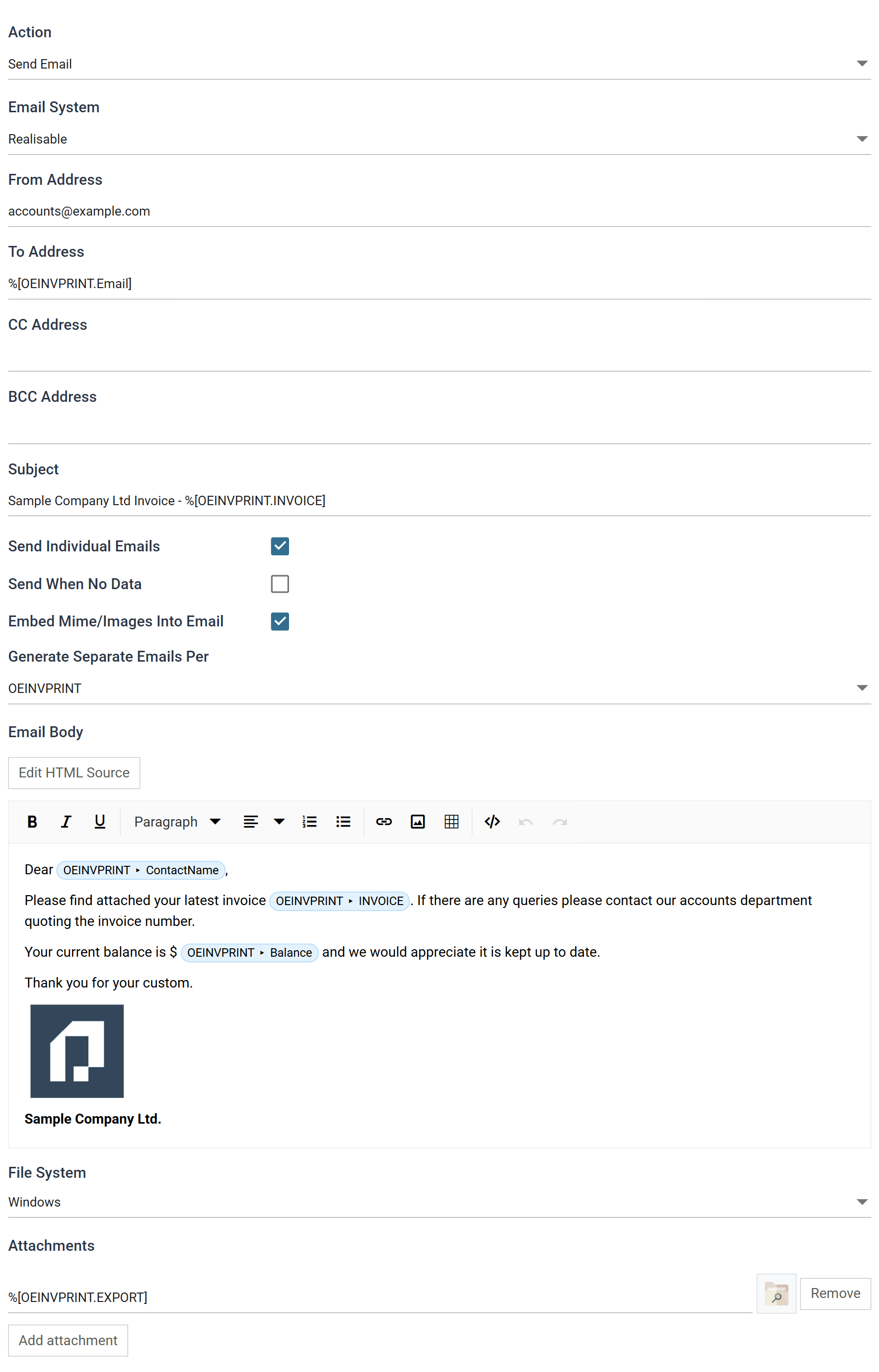
Action
Which of the five actions the task performs: Send Email, Delete Email, Download Attachment, Mark Email Read or Move Email.
Send Email
Sends data as plain text or formatted HTML in the body of the message, as an attachment, or both.
Example
Send each customer a personalised email with their invoice attached whenever an order is processed.
Email System
The SMTP server the mail is sent through, defined on the SMTP Server setup screen.
Addresses
From Address and To Address are mandatory. CC Address and BCC Address are optional. All four accept Expando Fields.
- To, CC and BCC take a list of addresses separated by semicolons. Where a field reference expands to more than one address, each address receives a copy.
- From takes one address. Where a reference expands to more than one, IMan uses the first.
An address can carry the addressee's name:
John Smith [[email protected]]
Subject
The subject line. It can contain field references. Where one expands to more than one value, IMan uses the first.
Send Individual Emails
When ticked, each address in To Address receives its own message instead of one message addressed to all of them. Each CC and BCC recipient receives a copy of each.
Send When No Data
When ticked, IMan sends the message whether or not the dataset holds any data.
When unticked, IMan sends nothing for an empty dataset.
Embed Mime/Images Into Email
When ticked, IMan embeds in the message any image referenced by an <img> tag
in the body, whether the src is a file path or an http URL. Without it, the
image is linked. An embedded logo shows even when the recipient's mail client
blocks remote images.
Generate Separate Emails Per
Generates one message for each record of the selected transaction.
If left blank, a single message carries the whole dataset.
Email Body
The body of the message, in one of two modes. The button above the editor switches between them: Edit HTML Source opens the HTML, Switch to Rich Text returns.
- Rich text has a formatting toolbar and a WYSIWYG body. Field references
appear as chips instead of raw
%text. - HTML source is the markup itself, for a body that must be laid out exactly.
In HTML source mode a Use Internal Stylesheet check box appears. When ticked, IMan applies its own styling, the same styling the Audit Report email uses. When unticked, IMan sends the HTML as written, styles included.
File System
The file system to read the attachments from. Windows is the IMan server's
own file system. The other entries are the cloud file systems defined on the
File Systems
screen. The control sits directly above the attachments it applies to.
Attachments
The files to attach. Add attachment adds a row and Remove removes one.
An attachment path can be static, and can use field references and Wildcards. One expression can attach several files.
Download Attachment
Saves the attachments of matching messages to a directory, usually for a later transform to read.
Email System
The POP3/IMAP server to collect from.
Folder
Shown when the Email System is an IMAP server. The folder to search. Pick it with the browse button or type it. Blank means the inbox. A POP3 mailbox has only its inbox.
From Address Like
The task considers only messages whose sender matches. * matches any run of
characters.
Subject Like
The task considers only messages whose subject matches, with the same *
wildcard.
Attachment Like
The task saves only attachments whose file name matches, with the same *
wildcard. A message can match and still have no matching attachments.
File System
The file system to write the attachments to: Windows or one of the cloud
file systems.
Output Directory
The directory to write the attachments to, on the file system chosen above.
Delete From Server
When ticked, the task deletes a message once it has saved its attachments. Over IMAP, deleted means moved to the mailbox's Deleted Items folder.
The task keeps no read position of its own. It searches the whole folder on every run and saves from the same messages again unless they are removed. Before you schedule the integration, tick Delete From Server or follow the task with a Delete Email or Move Email task.
Delete Email
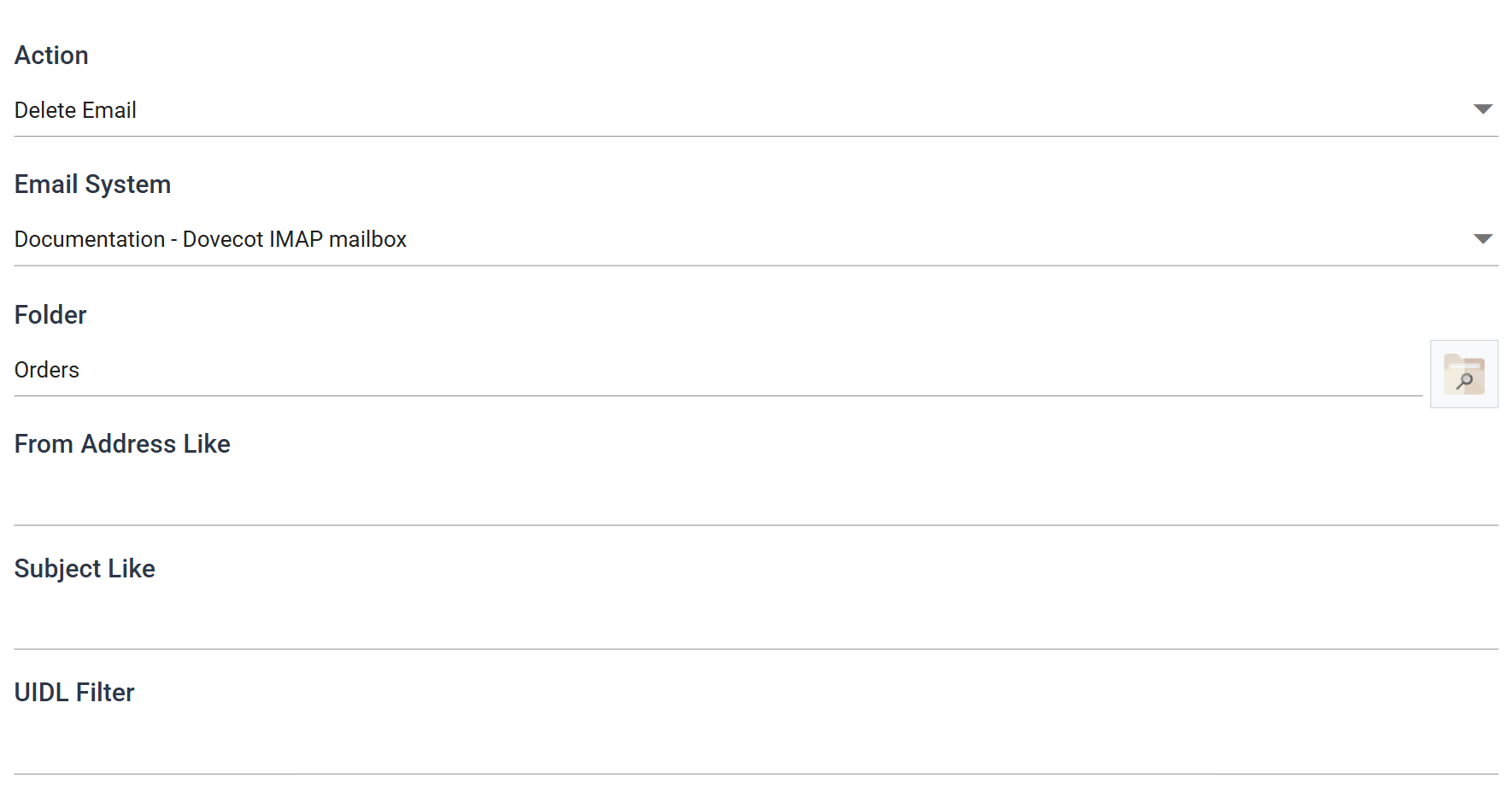
Removes messages from a mailbox, typically once a reader on the Email controller or a Download Attachment task has taken what it needs from them.
Email System
The POP3/IMAP server to delete from.
Folder
Shown when the Email System is an IMAP server. The folder the messages are in; blank means the inbox.
From Address Like
The task deletes only messages whose sender matches.
Subject Like
The task deletes only messages whose subject matches.
UIDL Filter
Matches the message's unique identifier on the server, not its content.
Map it to the reader's EML.Uidl (%[Root.EML.Uidl] for a flat reader). The
task then deletes only the messages the reader passed on, each once, however
many records came from it. When a UIDL is given, the task ignores the two
filters above.
Over IMAP, deleted means moved to the Deleted Items folder: the folder the server flags as its trash, or otherwise one named Deleted Items or Trash. A task whose Folder is that folder cannot delete from it. To file processed mail in another folder, use Move Email.
Mark Email Read
Acknowledges the messages an IMAP reader has processed. The task flags each one read on the server, and the reader's read position moves past it. Nothing else advances the position, and a reader never moves its own. An integration that reads an IMAP mailbox without a Mark Email Read task reads the same messages on every run. Under a monitor, those messages start it every minute.
![The Email Task tab with Mark Email Read selected: Action, an Email System drop-down set to the documentation IMAP mailbox, and a Read State box reading %[Root.EML.ReadState]](../../../assets/Documentation/Resources/Images/UG/11.Tasks/email-02.png)
Place the task after the transforms that use the data, typically after the writer or connector, so that the task acknowledges a message only once its data has been written. If the run fails before the task, the position stays where it was and the next run reads the same messages again. No message is skipped.
Email System
The IMAP server the mapped reader reads from. The drop-down lists only IMAP servers, and the task rejects a read position from a reader on any other server.
Read State
A field reference to the reader's EML.ReadState, %[Root.EML.ReadState]
for a reader with a single flat transaction. The token identifies the reader,
the folder's numbering and the message, so the task knows which reader's
position to move. The task rejects anything else: a field other than
EML.ReadState, a reader that is not an Email reader, or an Email reader on a
POP3 server, which keeps no position.
The task collects the tokens of every record it processes and acknowledges them once per reader, after the whole run, at the highest UID it saw. A message named by several records is flagged once, and records arriving out of order cannot move the position backwards. The task flags the messages first and moves the position second. If a failure happens between the two, the next run reads the messages again and none is lost. If the folder has been renumbered since the reader read it, the task refuses the acknowledgement and the next run reads the messages again.
Move Email
Moves messages between folders of an IMAP mailbox, so that an integration can file the messages it has processed instead of deleting them.
![The Email Task tab with Move Email selected: Email System, Folder reading Orders, Destination Folder reading Processed, an empty UIDL Filter, Read State reading %[Root.EML.ReadState], and empty From Address Like and Subject Like boxes](../../../assets/Documentation/Resources/Images/UG/11.Tasks/email-03.png)
Email System
The IMAP server holding the folders. The drop-down lists only IMAP servers.
Folder
The folder to move the messages out of. Blank means the inbox.
Destination Folder
The folder to move the messages into. It must already exist on the server. The task does not create a missing folder. It reports an error that lists the folders the server has. The destination cannot be the source folder.
Which messages move
The first of these that has a value decides, and the task ignores the rest:
- UIDL Filter: the message's UID, usually mapped from the reader's
EML.Uidl. - Read State: the reader's
EML.ReadStatetoken,%[Root.EML.ReadState]. The token names a message in one folder under one numbering, so the mapped reader must read the same folder on the same server as the task. The task rejects a token from any other folder. - From Address Like and Subject Like: every message in the folder whose sender and subject match, whether or not the integration read it.
A message named by several records is moved once. If the folder has been renumbered since the reader read it, the run stops instead of moving the wrong messages.
Audit
Supported counters
- PROCESSED — incremented for each record processed.
- INSERTED — incremented for each message sent.
- DELETED — incremented for each message deleted.
- UPDATED — incremented for each record whose message was marked read or moved.
- ERRORS — incremented for each unhandled error.
Action on Transform Error
The setting and the rest of the tab are described on Transform > Audit.
Worked examples
Step 13.3 of the Sage 300 and Sage 200 training manuals emails each customer their invoice as an attachment, with the body built from the invoice data, using the Send Email task shown at the top of this page.
The Email controller
page's IMAP example uses Mark Email Read and Move Email together: a CSV reader
on an IMAP folder, a writer, then the two tasks, both mapped to the reader's
EML.ReadState. Each run writes the new orders, acknowledges their emails and
files them into a Processed folder.