Step 11 – Simple File Archiving
The integration reads every workbook in its input folder, so a file that stays there is imported again on the next run. In this step you move the file to an archive folder after IMan has processed it.
Design > Transform Setup
- Open the Tasks group in the palette and drag a File task onto the design surface, below the CSV Writer.
- Drag a Connector from the Transforms group and join the writer to it.
-
Save the integration. You cannot open a newly dropped task until you do.
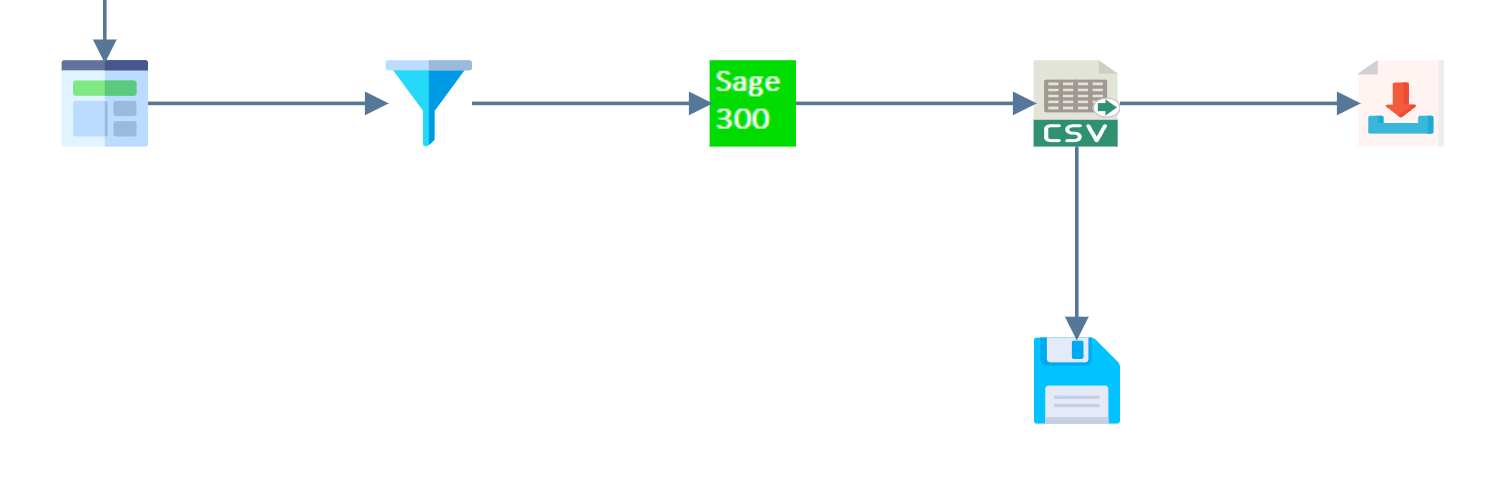
The writer now feeds two tasks, so the Priority field appears on both of them.
File Task > Setup
Double-click the task to open it.
- Transform Id
- It arrives called
File System. - For training, enter: ARCHIVE
- It arrives called
- Priority
- The order in which the transforms connected to the same parent run, lowest number first. It offers one entry per sibling.
- For training, leave as: 2. IMan uploads the status file first, then archives the workbook.
- Action
Move File,Copy File,Delete File,Move Folder,Delete Folder,Zip FileorUnzip File. It arrives onCopy File.- For training, select: Move File
- File System
- The Windows file system or Azure Blob storage.
- For training, leave as: Windows
- Source Directory
- The folder IMan reads the files from.
- For training, enter:
C:\IMan\InputData\Training
- Source File
- The files to move. Use a wildcard, so the task archives whatever arrived and not only a name you knew in advance.
- For training, enter:
*.xlsx
- Destination Directory
- The folder to move them to.
- For training, enter:
C:\IMan\InputData\Training\Archive
- Auto-Create Destination Directory
- Creates the destination if it does not exist. Unticked, the task fails when the folder is missing.
- For training, tick it.
- Destination File
- A new name, if you want to rename the file as it moves.
- For training, leave blank to keep its name.
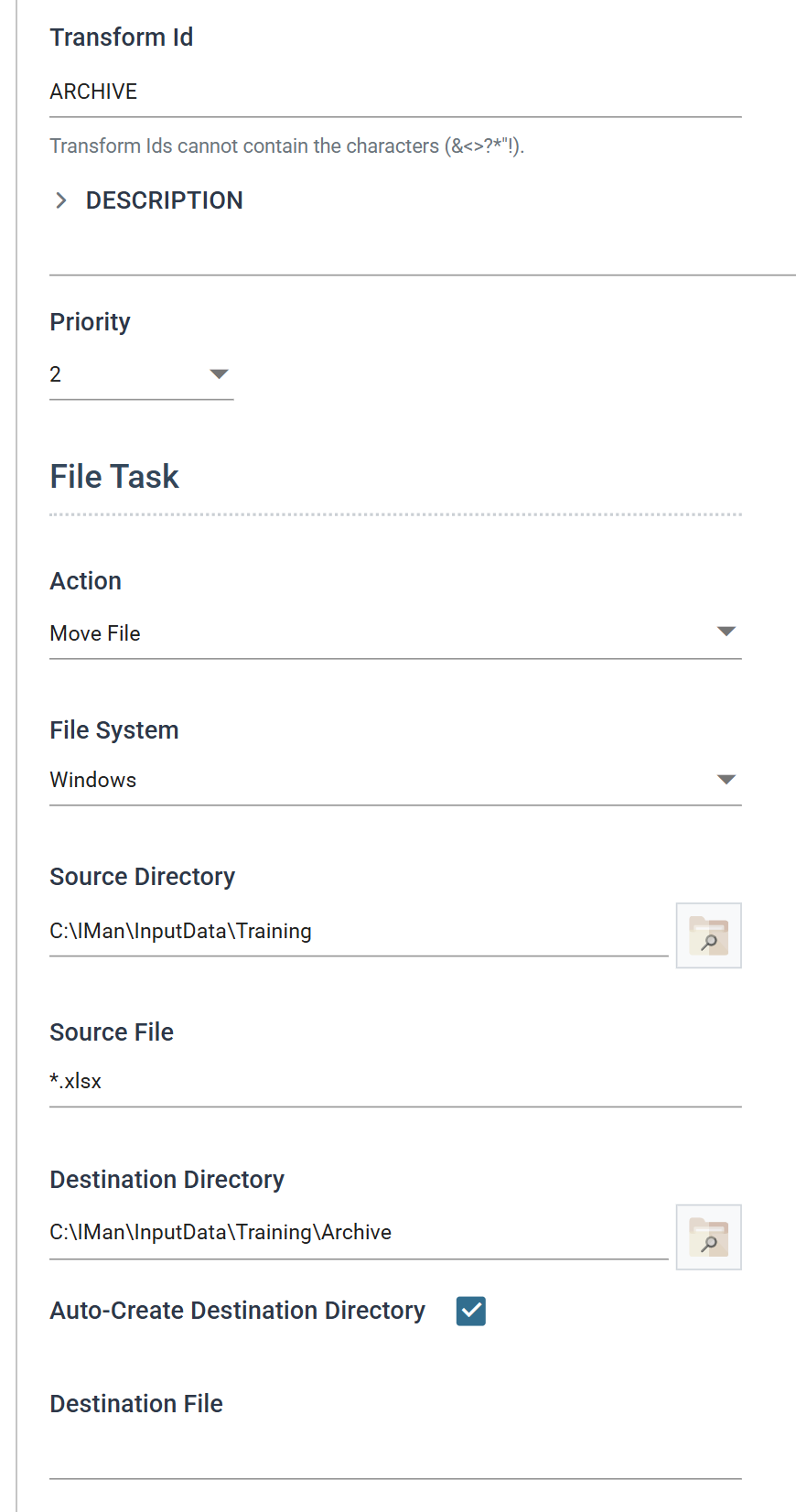
Priority appears only once a transform has a sibling
Priority appears only when a transform has a sibling. The FTP task had no Priority field in step 10, because it was then the only transform connected to the writer. Adding this task gave both of them one.
Running it
Press Refresh. The integration runs down to this task, and the workbook moves:
SampleLogo.png stays where it is, because *.xlsx did not match it.
Close the task and save the integration.
Move the workbook back before starting step 12
The workbook is now in Archive, so the next run of this integration reads
nothing. Move it back to C:\IMan\InputData\Training before you start
step 12. Step 12 archives it again in
a safer way.
A *.xlsx that matches everything in the folder also moves files that
arrived while the run was going and were never imported. In a busy folder
that loses data, and nothing reports it. Step 12 fixes this.