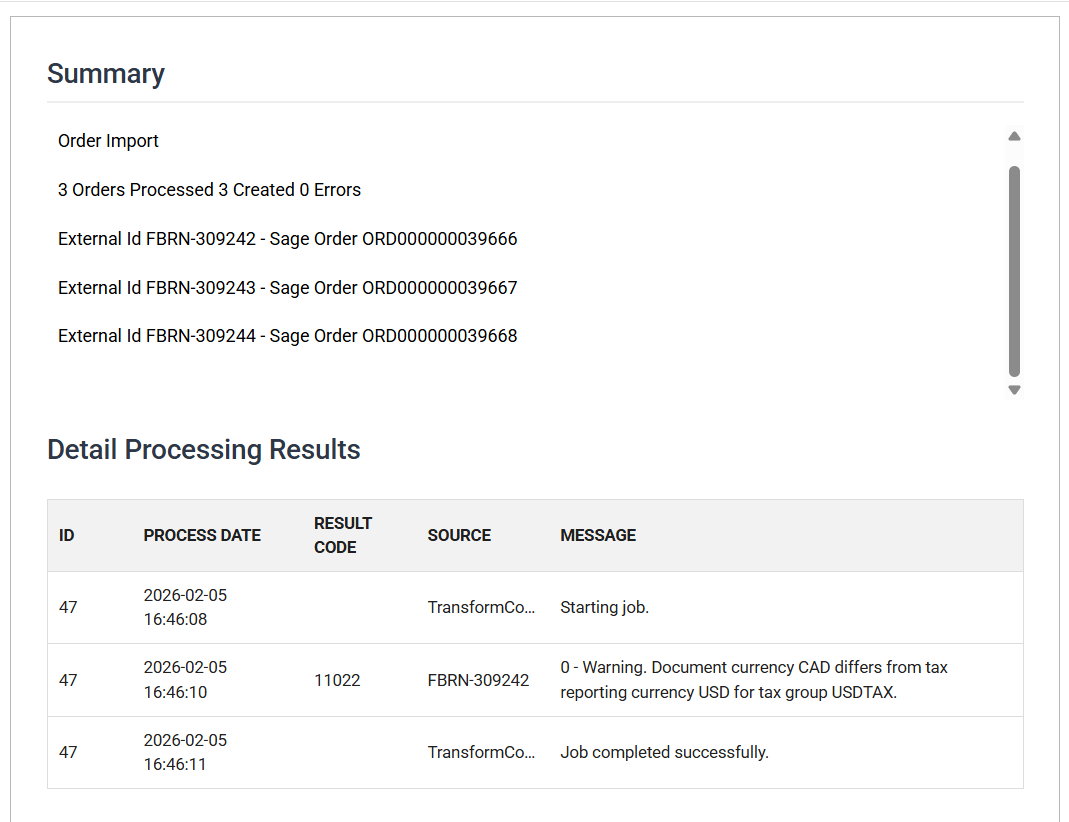
Scheduling tab
Once an integration is configured, you tell IMan to run it here.
You can run an integration immediately or on a schedule with a set frequency.
The results appear in the window on the right. If emails are set up, you receive a copy of the Audit Report.
Start by selecting Scheduling from the primary navigation menu.
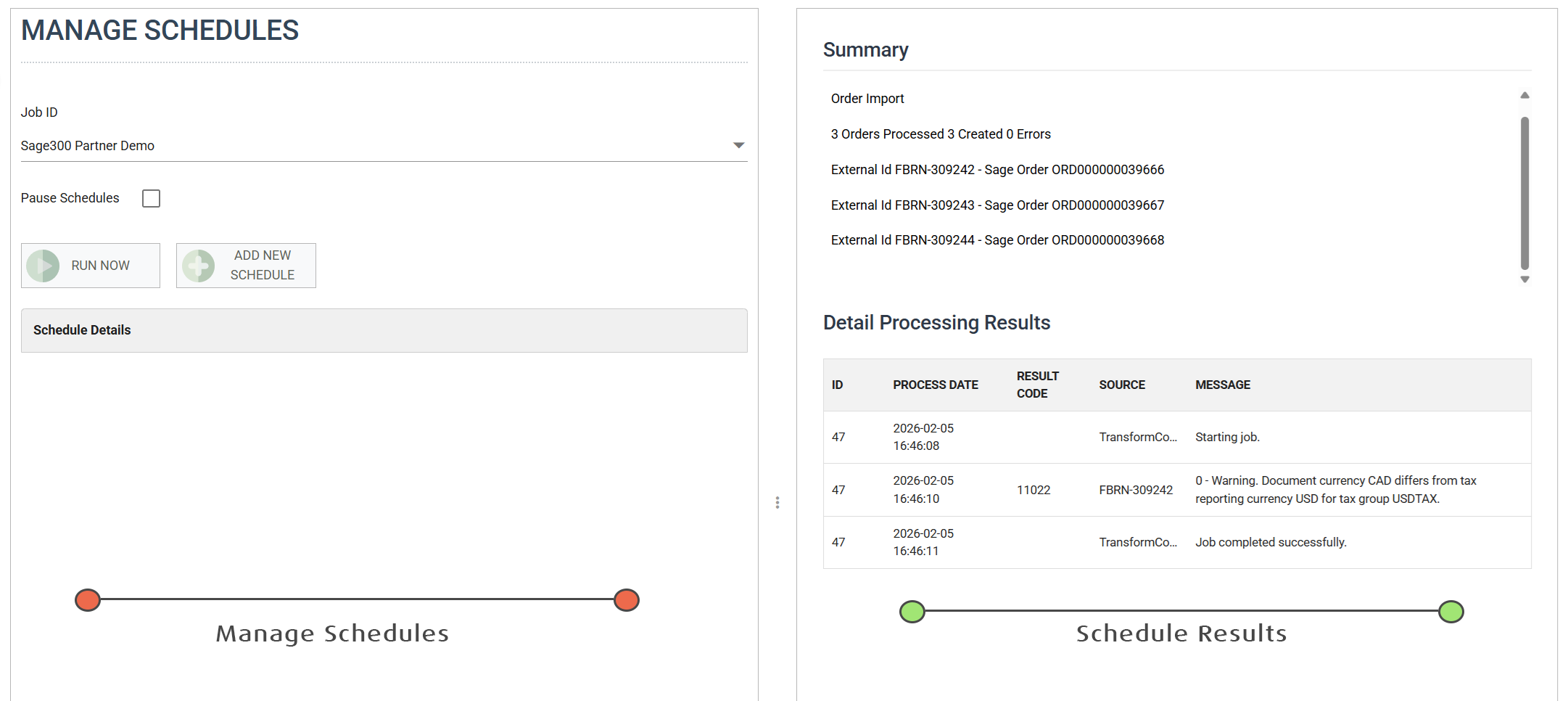
Schedule Screen Overview
The schedule screen is divided into two vertical panes:
- Managing Schedules
- Add, maintain and delete schedules, or run on demand.
- Viewing Schedule Results
- The results of the selected integration appear on the right.
Manage Schedules
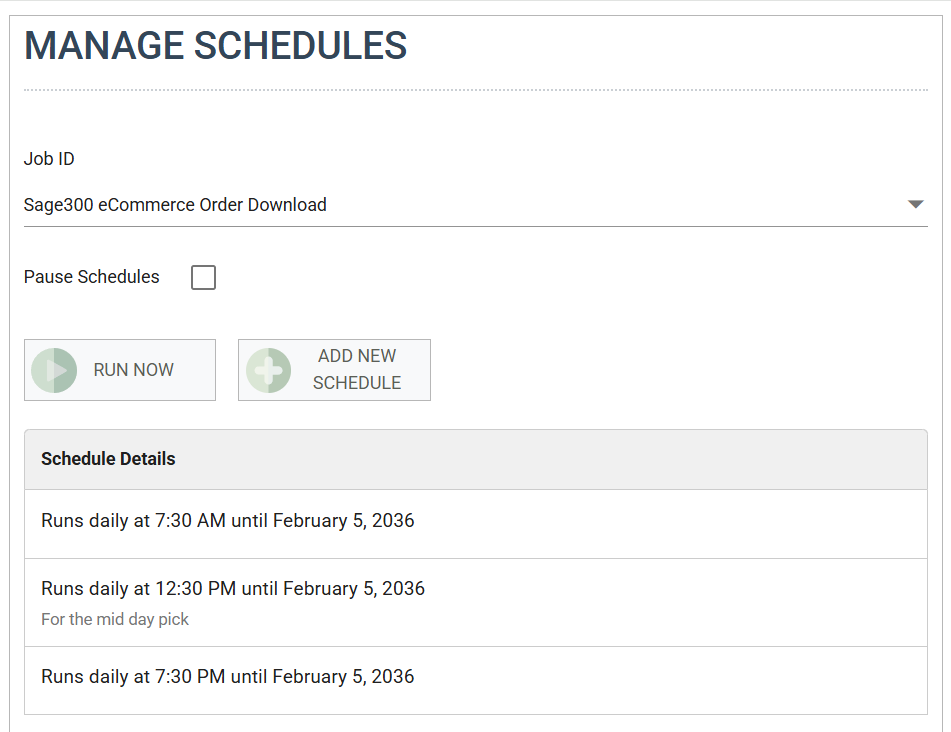
Job Id
Select the integration the schedule runs.
The grid below shows its recurring schedules.
Pause Schedules
Tick Pause Schedules to stop all scheduled tasks for the selected integration, including 'Run Now' tasks.
When you untick it, the integration's schedules run again. IMan does not trigger any schedules that were due while the schedules were paused.
Schedule Grid
This grid shows the schedules for the selected integration.
To create a new schedule, press Add New Schedule. To change an existing one, click its row in the grid.
Run Now Button
Runs the integration immediately.
Add / Edit Schedule
To create a new schedule, press Add New Schedule. To edit an existing schedule, click its row.
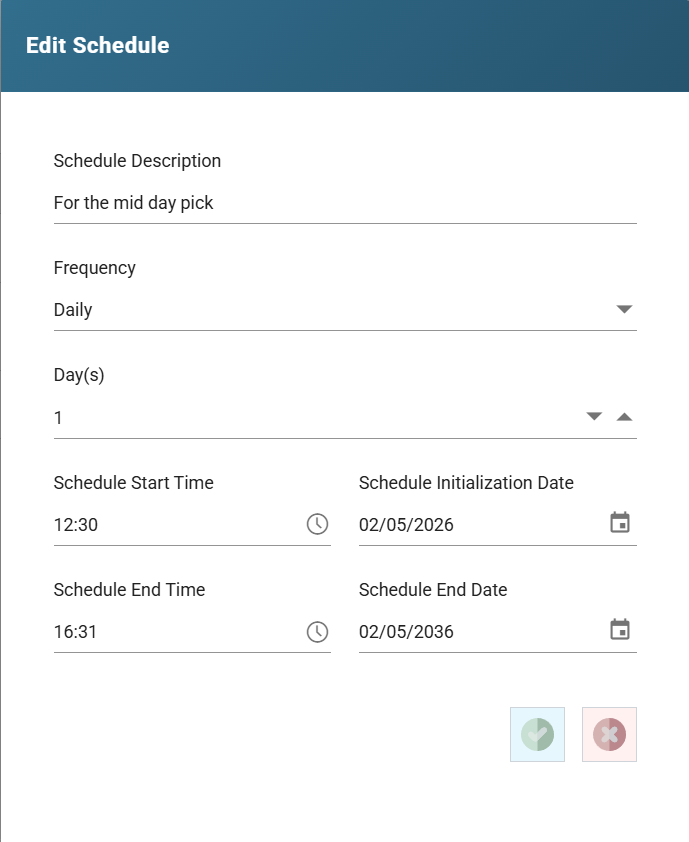
Description
An optional description for the schedule.
Frequency
How often the job runs.
Every frequency except ‘Now’ lets you set the recurrence.
Recurrence Period
The recurrence period depends on the Frequency selected.
For example, with a Monthly frequency you select how many months and days there are between each scheduled run.
Recurrence Period does not apply to schedules set to run 'Now'.
Start
The date and time to start the scheduled job, depending on the Frequency:
Date
- The day of the first scheduled run. The schedule in the screenshot above runs on the 10th of every month.
- For a Daily schedule, for example, the Start Date is the day the schedule first runs.
Time
- The time of day the schedule runs. The schedule in the screenshot above runs at 16:51 on the 10th of every month.
End
The date and time to end the scheduled job.
By default this is 10 years from the current date, so a schedule runs at its specified day, date and time for 10 years.
Viewing Results
The integration results area is on the right of the schedule screen. It shows the audit results of each run of the selected Job.
The results are the same as the audit report that IMan emails to the specified recipients at the end of every run.
Clicking a summary section jumps to its detail rows
Click a summary section to scroll the detail section to its rows and highlight them.