Step 12 – Advanced File Archiving
Step 11 archived by folder and wildcard, which moves everything in the folder when the task runs. That is more than the run read. It also took the Sage 300 training workbook and the invalid one. In a busy folder it also takes files that arrived while the integration was running and were never imported. If the folder only ever holds one file, this does not matter. Anywhere else, IMan archives files it never imported, and raises no error.
In this step you move only the files the run processed.
SYS.INPUTFILE
Every file reader (CSV, XML, Excel and Fixed Width Text) has an extra field
called SYS.INPUTFILE that holds the full path of the file each row came from.
It is the last field in the reader's list, and IMan fills it in. To see it,
refresh the Excel Read transform and scroll the preview to its right-hand
end:
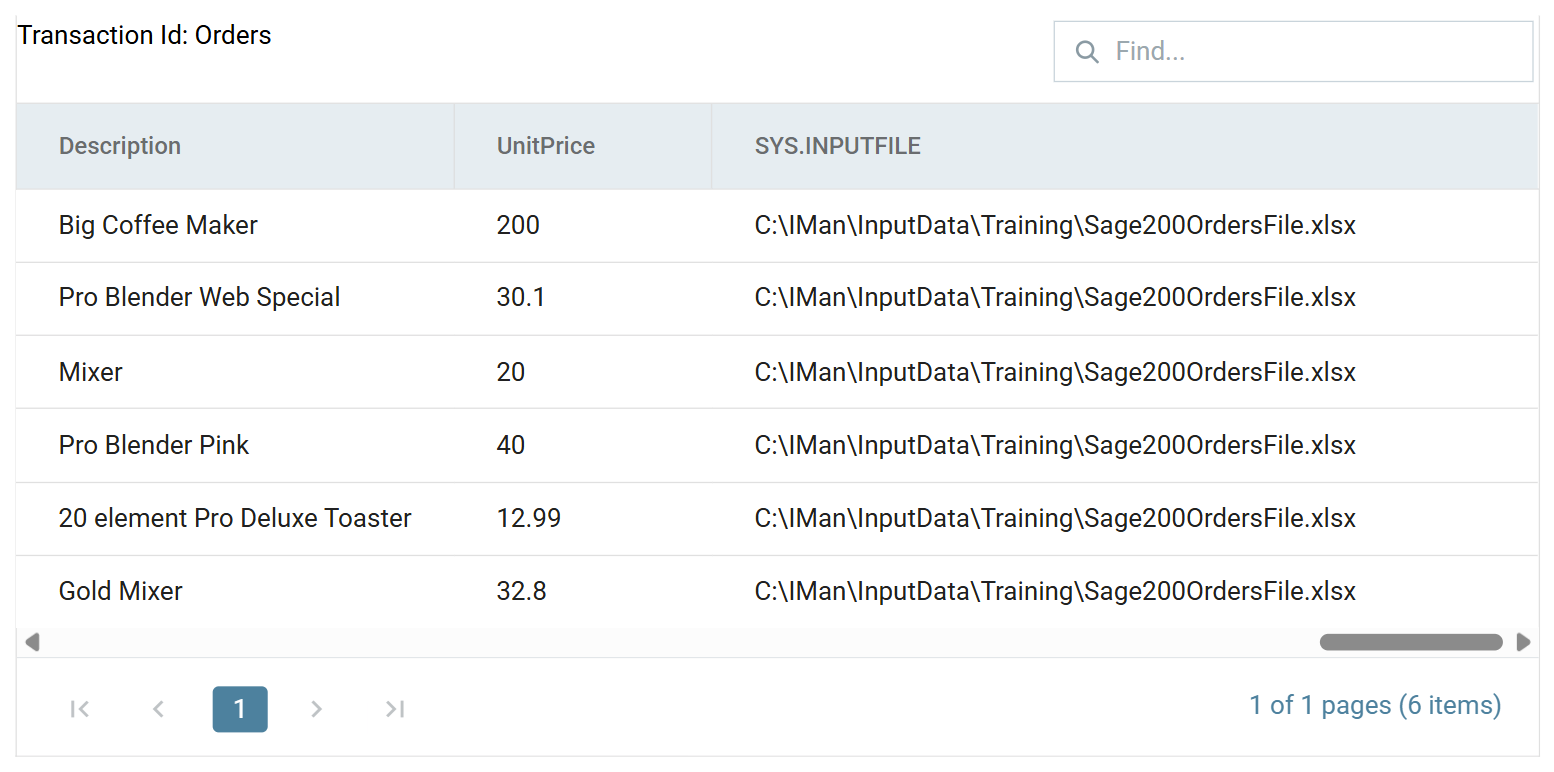
A full path does not fit a 150px column
The preview's columns are 150px wide, so IMan cuts a full path short with an ellipsis. Drag the column edge to widen it, as in the screenshot above.
It is an ordinary field, so it travels with the rows. If it reaches the File task, the task can move the files those rows came from and nothing else.
Making it reach the File task
The order connector is in the way. As
Step 7 explains, a connector performs
destructive mapping: a field that is not mapped does not flow out the other
side of it. SYS.INPUTFILE has no Sage 200 field to map to. A log key makes
it flow.
Step 8 has already set the Log Key on
SYS.INPUTFILE to 20 on the Orders transaction, for this step:
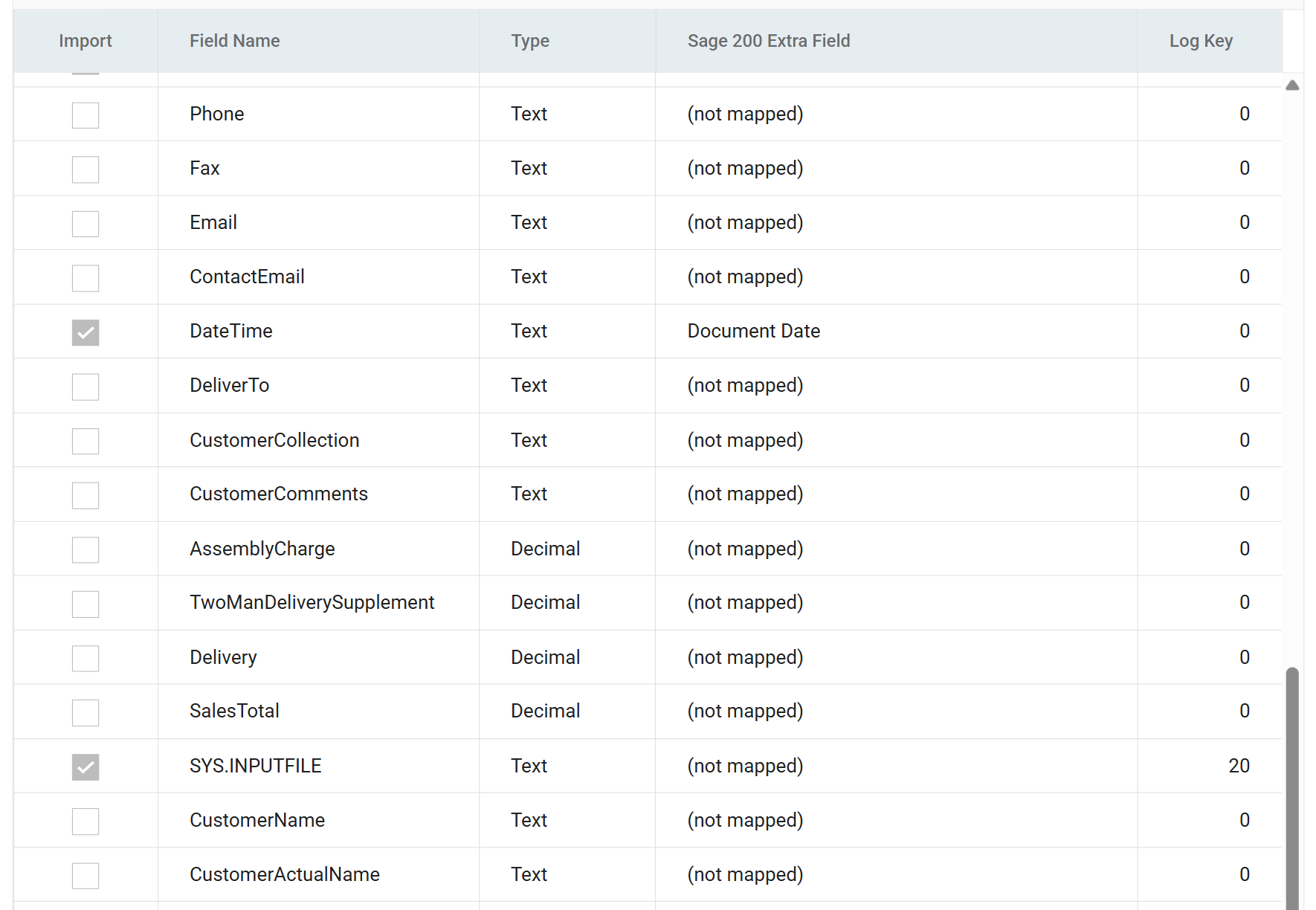
The value is 20, not 3, for the reason given there. IMan joins log keys
numbered consecutively from 1 to make the Source column of the audit report,
and a full file path in that column would bury the order reference.
If you skipped Step 8, set the log key now. The rest of this step does not work without it.
File Task > Setup
Re-open the ARCHIVE File task from step 11 and change two fields:
- Source Directory
- Clear it.
SYS.INPUTFILEis a full path, so there is no folder to give.
- Clear it.
- Source File
- Enter:
%[SOPOrder.SYS.INPUTFILE]
- Enter:
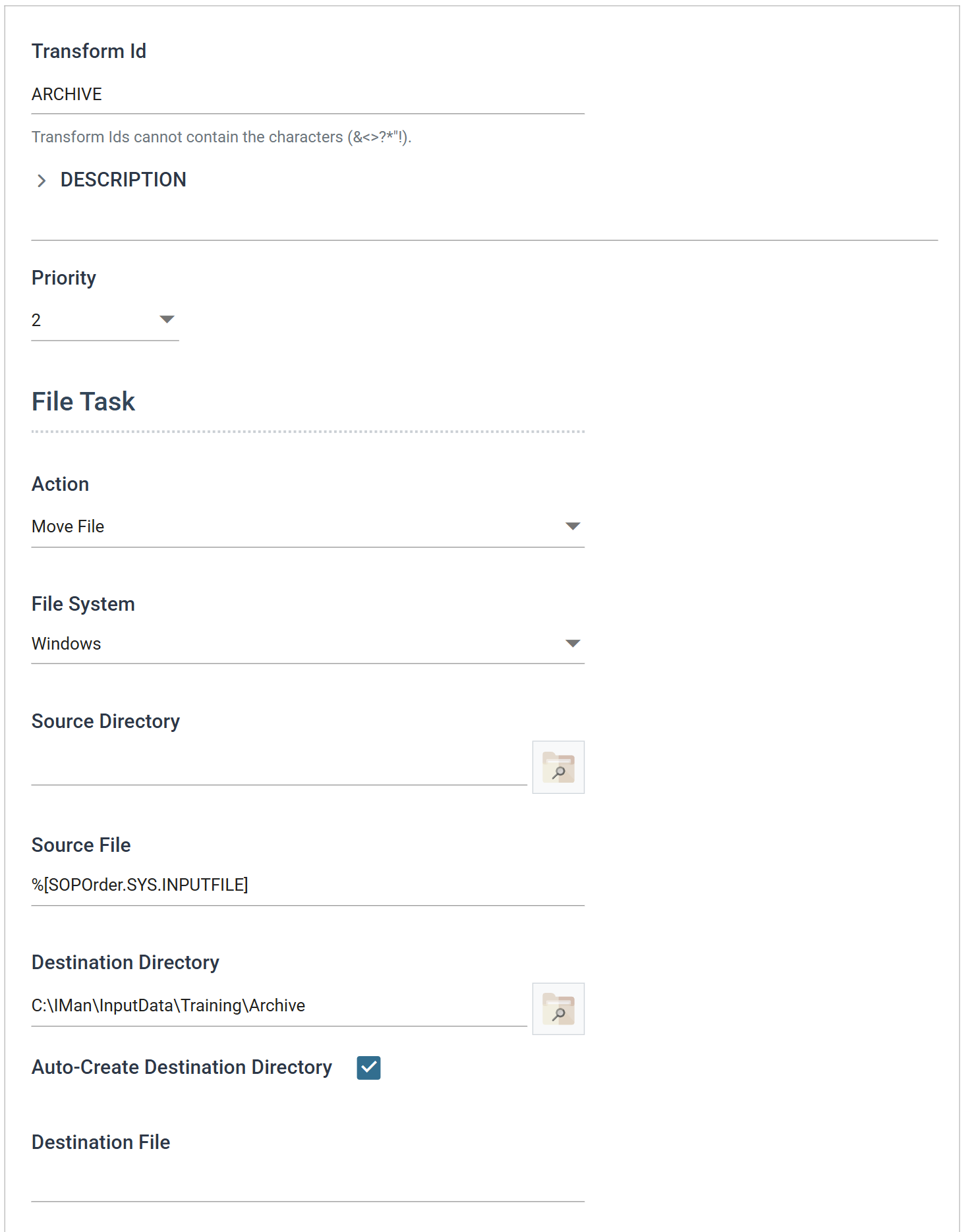
The reference must name the transaction as well as the field
The reference must name the transaction as well as the field. Because the field name contains dots, wrap the whole reference in square brackets.
%[SYS.INPUTFILE] on its own resolves to nothing, and the task stops with
The transaction is SOPOrder, not Orders, because the connector renames
the transaction as it passes through, just as it renamed the fields in
Step 7. On a transform after the
connector, use the names the Current Transaction Id drop-down offers:
here, SOPOrder and SOPOrderLine.
Running it
Press Refresh. The workbook moves to Archive as it did in Step 11, but
this time nothing else moves:
C:\IMan\InputData\Training
    OrdersFile.xlsx
    Sage200OrdersFile-invalid.xlsx
    SampleLogo.png
C:\IMan\InputData\Training\Archive
    Sage200OrdersFile.xlsx
Compare that with Step 11, which archived all three workbooks. The two that this run never read stay where they are, because no row in the dataset names them.
Close the task and save the integration.
Refresh the connector first if its mapping has changed
A task's Refresh replays the cached dataset from the transform above it, as Step 9 describes. If you gave a field its log key after the cache was filled, the field is not in the cache. The column arrives empty, and an empty path fails in the same way as no path.
Refreshing the connector, or each transform in turn from the Excel Read down, fills the cache from a real run. Nothing tells you that the run used a stale copy, so refresh the connector whenever you change its field mapping.
Running the whole thing
The import is now complete, so run it end to end instead of transform by transform. Save the integration, go to Scheduling, choose the job and press RUN NOW.
The Job ID drop-down lists jobs by description
The Job ID drop-down lists jobs by their description, not by their id, so this integration appears as Sage 200 Training - Excel order and customer import.
The summary that comes back is the same one step 8 built:
Customer Import
3 Customers Processed. 0 Errors. 0 Inserted. 0 Updated.

Order Import
3 Orders Processed. 3 Orders Created. 0 Errors.

Web Order FBRN-309242 - Sage 200 Order 0000006018
Web Order FBRN-309243 - Sage 200 Order 0000006019
Web Order FBRN-309244 - Sage 200 Order 0000006020
Afterwards, Sage200OrdersFile.xlsx is the only file in Archive.
Move the workbook back before the next run
A scheduled run archives the workbook it read, so the next run of this
integration finds nothing to read. Move Sage200OrdersFile.xlsx from
C:\IMan\InputData\Training\Archive back to
C:\IMan\InputData\Training before
step 13.
In production this is what you want. The folder empties as IMan processes it, and the next run waits for the next delivery.