Step 11 – Simple File Archiving
The integration reads Sage200OrdersFile.xlsx from its input folder, so a file
that stays there is imported again on the next run. In this step you move the file out of
the input folder once IMan has processed it.
Design > Transform Setup
- Open the Tasks group in the palette and drag a File task onto the design surface, below the CSV Writer.
- Drag a Connector from the Transforms group and join the writer to it.
-
Save the integration. You cannot open a newly dropped task until you do.
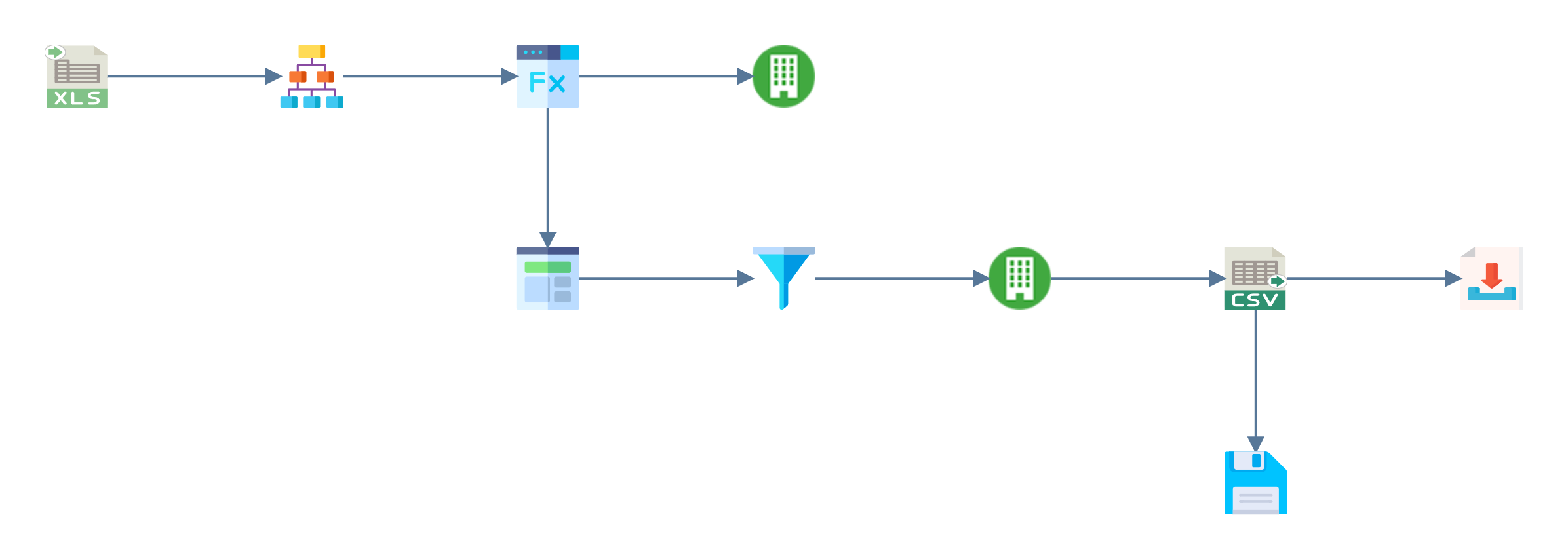
The writer now feeds two tasks, so the Priority field appears on both of them.
File Task > Setup
Double click the task to open it.
- Transform Id
- A new task is named
File System. - For training, enter: ARCHIVE
- A new task is named
- Priority
- The order in which transforms connected to the same parent run, lowest number first. It offers one number per transform, so here it offers 1 and 2.
- For training, select: 2 (see the warning below). IMan uploads the status file first, then archives the workbook.
- Action
Move File,Delete File,Copy File,Move Folder,Delete Folder,Unzip FileorZip File. A new task starts onCopy File.- For training, select: Move File
- File System
- The ordinary Windows file system, or Azure Blob storage.
- For training, leave as: Windows
- Source Directory
- The folder that holds the files.
- For training, enter:
C:\IMan\InputData\Training
- Source File
- The files to move. Use a wildcard: archiving should handle whatever files arrived, not one name you knew in advance.
- For training, enter:
*.xlsx
- Destination Directory
- The folder to move them to.
- For training, enter:
C:\IMan\InputData\Training\Archive
- Auto-Create Destination Directory
- Creates the destination if it does not exist, rather than failing.
- For training: ticked.
- Destination File
- A new name for the file, if you want to rename it as it moves.
- For training: leave blank to keep the file's name.
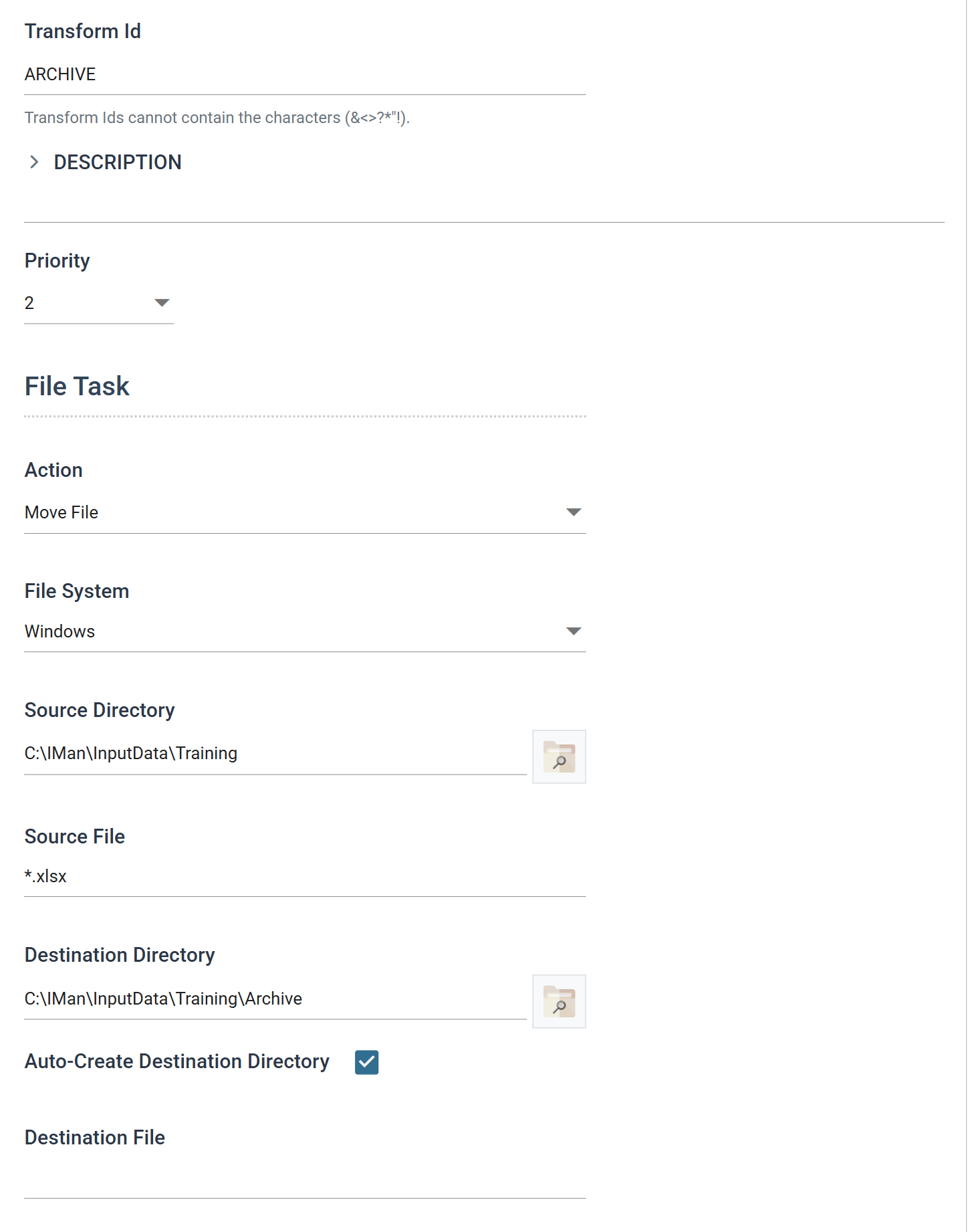
Priority appears only once a transform has a sibling
Priority appears only when a transform has a sibling. The FTP task had no Priority field in Step 10, because it was then the only transform connected to the writer. Adding this task gave both of them one.
Pick Priority, even when it already shows 2
A newly added task shows 2 in Priority but stores 1. If you save,
reload and open it again, the field reads 1, and the FTP task, which you
never touched, has become 2. The two tasks then run in the opposite order
to the one the screen showed you.
To commit the value, choose the other value and then the one you want. Leaving a drop-down on the value it first shows is not the same as setting it, here or anywhere else in IMan.
Running it
Press Refresh. IMan runs the integration down to this task and moves the workbooks:
C:\IMan\InputData\Training
    SampleLogo.png
C:\IMan\InputData\Training\Archive
    OrdersFile.xlsx
    Sage200OrdersFile-invalid.xlsx
    Sage200OrdersFile.xlsx
SampleLogo.png stays where it is, because *.xlsx did not match it.
Close the task and save the integration.
Move the workbook back before starting step 12
The workbook is now in Archive, so the next run of this integration reads
nothing. Move Sage200OrdersFile.xlsx back to
C:\IMan\InputData\Training before starting
Step 12, which archives it a better
way.
Look at what else moved. *.xlsx matched every workbook in the folder, so
IMan also archived the two that this run never read: the Sage 300 training
workbook, and the invalid one Step 8 used. In a real
folder, the wildcard also catches files that arrived during the run. IMan
archives them without importing them, and raises no error.
Step 12 solves this.
The workbook has to be closed
A Move File cannot move a file that another program has open, usually
Excel. If Sage200OrdersFile.xlsx is open in Excel, the task fails on that
file after it has already moved the others.
The run reports Progress - Error and nothing else. No message names the
file, and nothing appears in the trace, on the Audit tab or in the Windows
event log. The only sign is that the file is still in the source folder
afterwards.
If you then close the workbook and press Refresh again, IMan reports the same error and moves nothing, because the pane replays the failed result instead of re-running the task. It looks as though closing the file made no difference. Reload the page, open the task again and press Refresh. The same configuration then completes.