Reading Data from Email
A web shop emails its orders once a day. Each email carries a CSV file of the day's orders as an attachment, and IMan has to read that file, write the orders out, and never read the same email twice. This article builds that integration on an IMAP mailbox, runs it twice, and closes with what changes on POP3.
The Email controller and Email task pages describe every field. This article gives the values and the order to set them in.
The email
The sender is Web Orders <[email protected]>. The subject starts
with Orders, and the attachment is orders.csv: three web orders in eleven
columns, with a heading row.
OrderId,OrderType,Currency,CustomerName,Company,Email,City,Country,Postcode,OrderDate,SalesTotal
FBRN-309242,Web,USD,Ronald English,Imperial Soap Inc,[email protected],Fairbanks,USA,79160,2016-03-11,282.00
FBRN-309243,Web,GBP,Claire Ward,F3,[email protected],London,United Kingdom,E3 4RR,2016-03-11,1532.60
FBRN-309244,Web,GBP,Marie Esperanca,Endemol Building,[email protected],London,United Kingdom,W15 7UU,2016-03-12,1935.00
The emails land in a folder called Orders, and the integration files each
one it has processed into a folder called Processed. Both folders exist on
the server before the integration runs. IMan never creates a folder: it
refuses a name the server does not have and lists the folders it does.
The shape
Four transforms in a row, and one record under Setup:
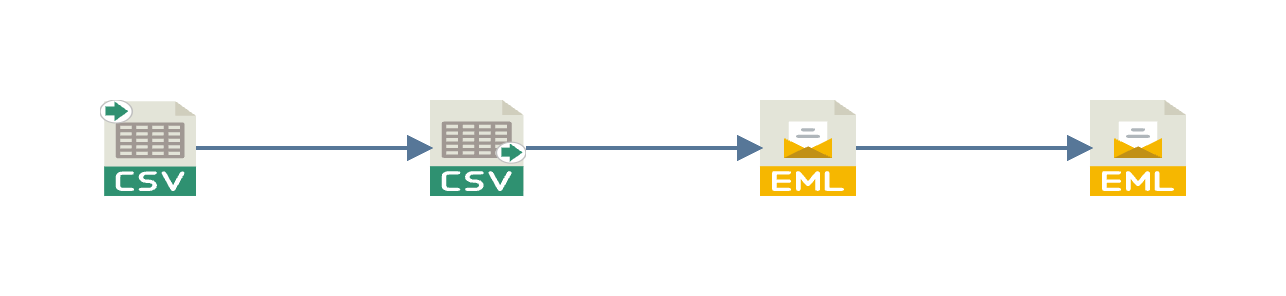
| 1 | A mailbox record | Setup > POP3/IMAP Servers. The account, the server and the protocol |
| 2 | A CSV Reader | Source set to Email, reading the Orders folder |
| 3 | A CSV Writer | Writes the orders to a file |
| 4 | Mark Email Read | Acknowledges each email once the writer has its orders, and moves the reader's position past it |
| 5 | Move Email | Files each acknowledged email into Processed |
This article uses DOCSIMAP as the integration id.
1. The mailbox record
Go to Setup, then POP3/IMAP Servers, and press Add. Fill in the account, and set Mailbox Protocol to IMAP before anything else. The protocol decides which controls the reader offers later.
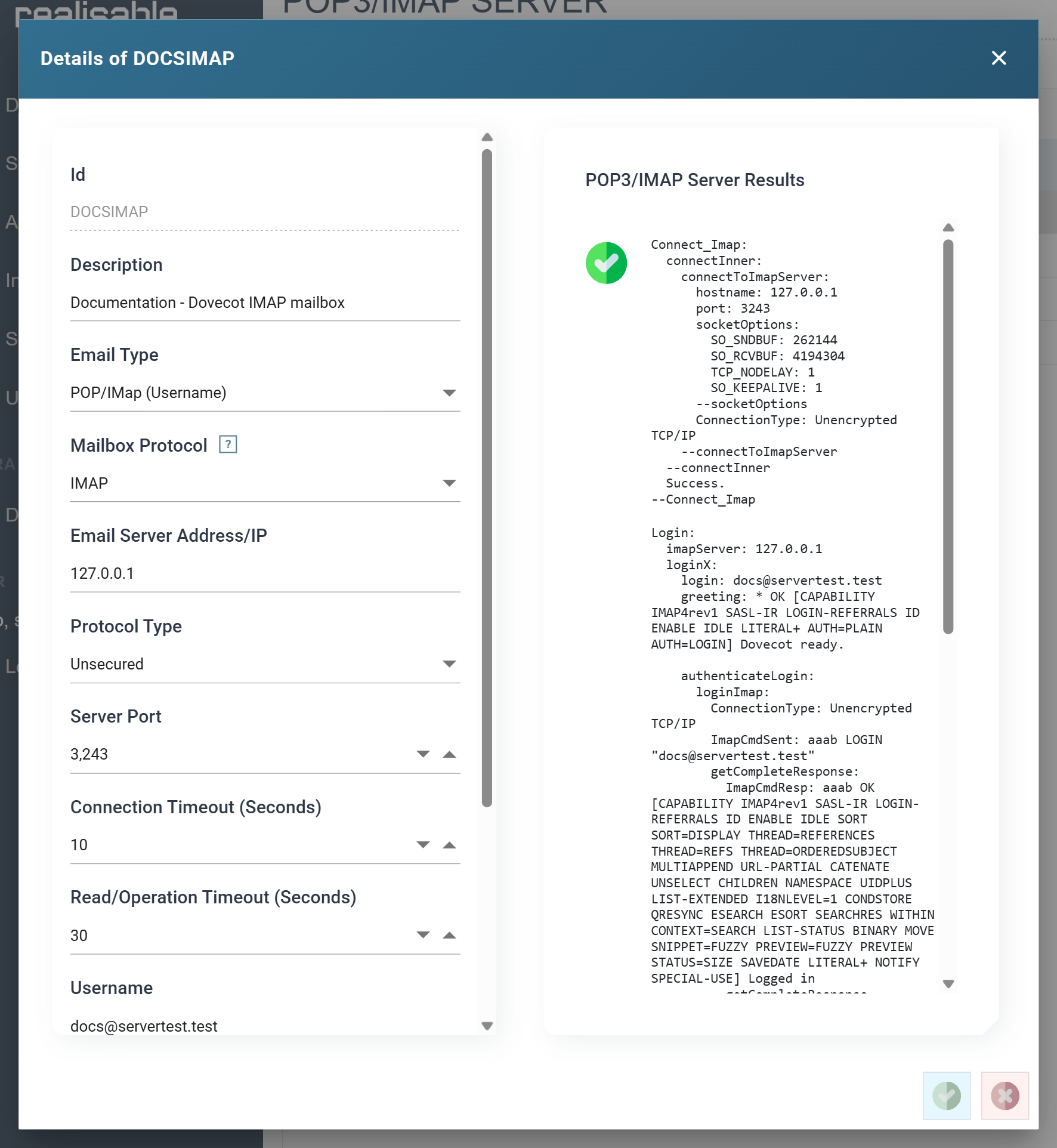
| Field | Value | |
|---|---|---|
| Id | DOCSIMAP |
Up to twelve characters. It cannot change once saved |
| Description | Documentation - Dovecot IMAP mailbox |
The reader and the tasks list the record by this. Say which mailbox it is |
| Email Type | POP/IMap (Username) | A host, a port and a username and password |
| Mailbox Protocol | IMAP | Folders, and a read position per reader. See below for POP3 |
| Email Server Address/IP | the mail server | 127.0.0.1 here |
| Protocol Type | Unsecured | TLS on a real server. Choosing TLS changes the default port to 993 |
| Server Port | 3243 |
143 on a standard IMAP server |
| Username | the mailbox | [email protected] |
| Password | its password |
Press TEST. IMan connects, logs in and selects the inbox, and the results pane lists each step. A green tick beside the button means all three worked. Press SAVE.
An Office 365 mailbox uses the other Email Type, Office 365 (OAuth), and an Azure app registration in place of the password. The Office 365 setup page covers that form. The reader and the tasks below work the same on either record.
2. The reader
- Create the integration.
- On the Transform Setup tab, open the Readers group in the palette and drag a CSV Reader onto the design surface.
- Save the integration. The Designer cannot open a node it has not saved.
- Double-click the node to open its setup pane.
Source
Set Source to Email. IMan asks you to confirm. The change discards the File settings. Press OK, then pick the mailbox record. Because the record is IMAP, four controls appear beneath it: Folder, Preview Window, Batch Size and Read Position.
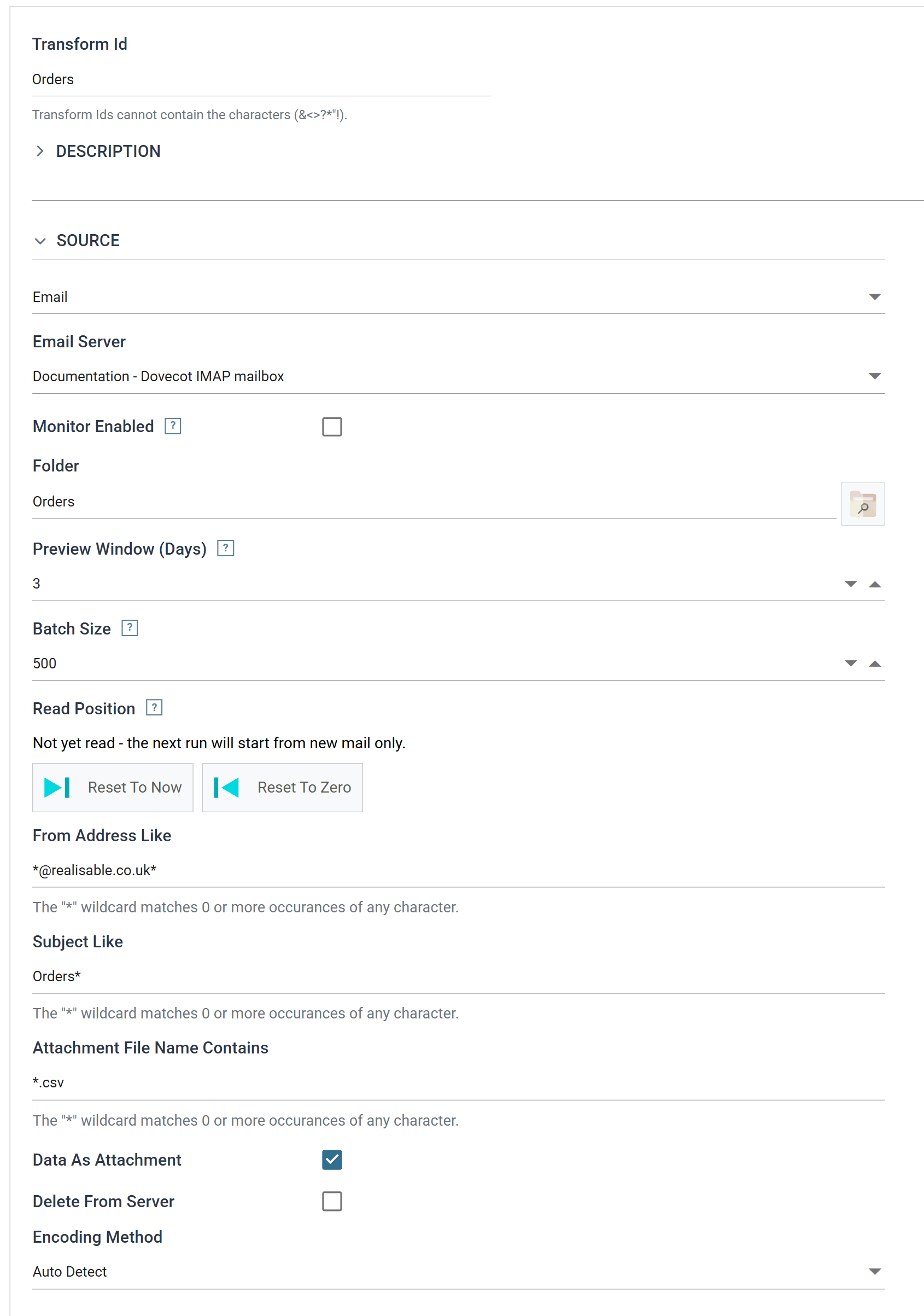
| Field | Value | |
|---|---|---|
| Transform Id | Orders |
|
| Source | ||
| Email Server | Documentation - Dovecot IMAP mailbox |
The record from step 1, listed by its Description |
| Monitor Enabled | clear | See the note below |
| Folder | Orders |
Blank means the inbox |
| Preview Window (Days) | 3 |
How far back a Refresh in the Designer looks. A scheduled run ignores it |
| Batch Size | 500 |
The most emails one run takes |
| Read Position | Not yet read | Leave it. The first run sets it |
| From Address Like | *@realisable.co.uk* |
The server reports the sender with its display name. The wildcard goes on both sides |
| Subject Like | Orders* |
Subjects that start with Orders |
| Attachment File Name Contains | *.csv |
The reader takes only CSV attachments. An email with no matching attachment contributes nothing |
| Data As Attachment | ticked | The attachment is the reader's input, not the body |
| Delete From Server | clear | The tasks in steps 4 and 5 deal with processed mail. See On POP3 |
| Encoding Method | Auto Detect |
Press the browse button beside Folder to pick the folder instead of typing it. The dialog lists the account's folders:
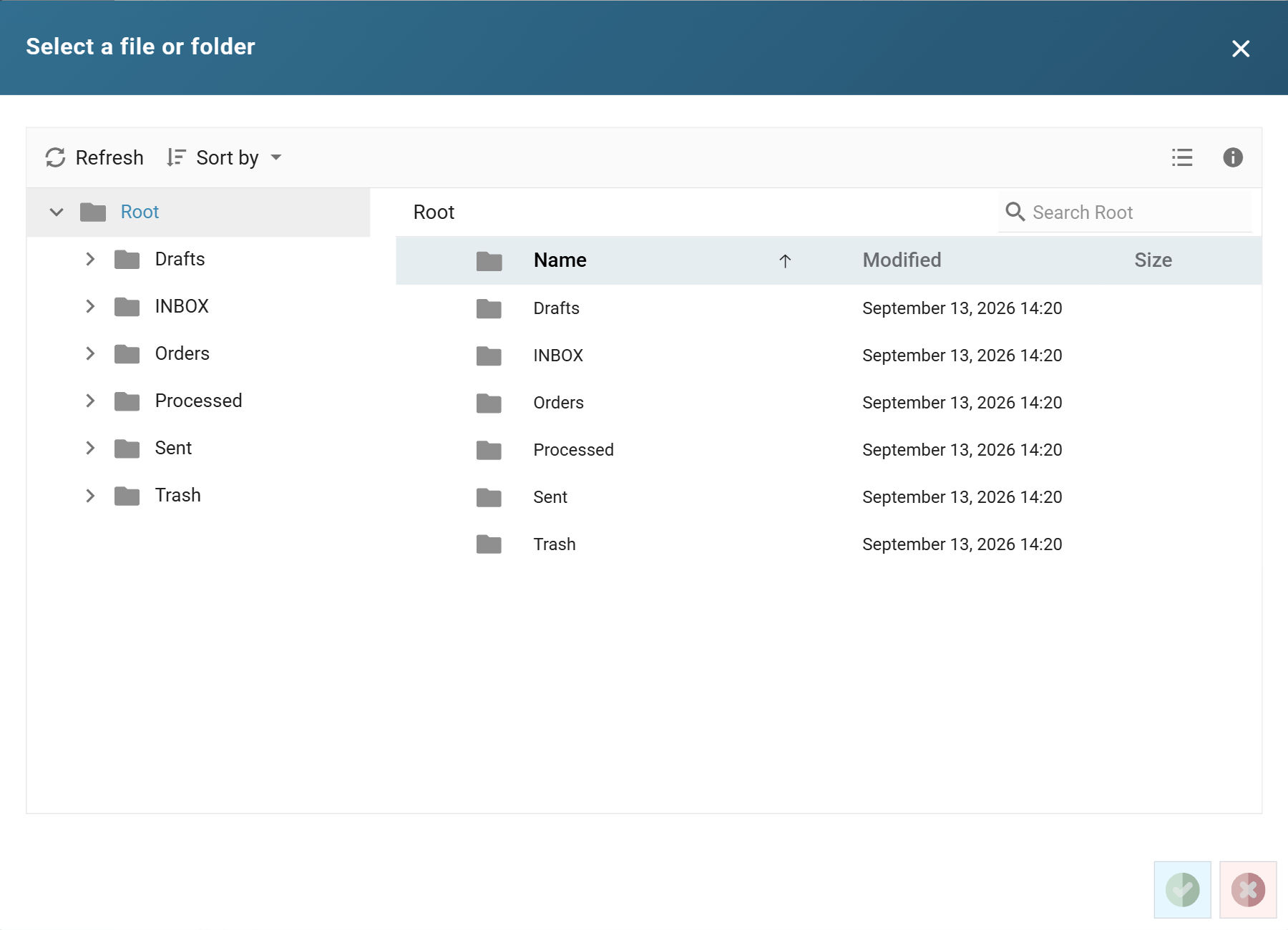
Monitor Enabled
Leave Monitor Enabled clear while you build the integration. Ticked, the scheduler polls the folder every minute and starts the integration whenever an email matches the three filters. Tick it once you have finished the integration and it has run cleanly, and only with the Mark Email Read task in place. Without that task the same email starts the integration again a minute later. See Monitors.
Options
The Options section describes the attachment, exactly as it would a file on disk:
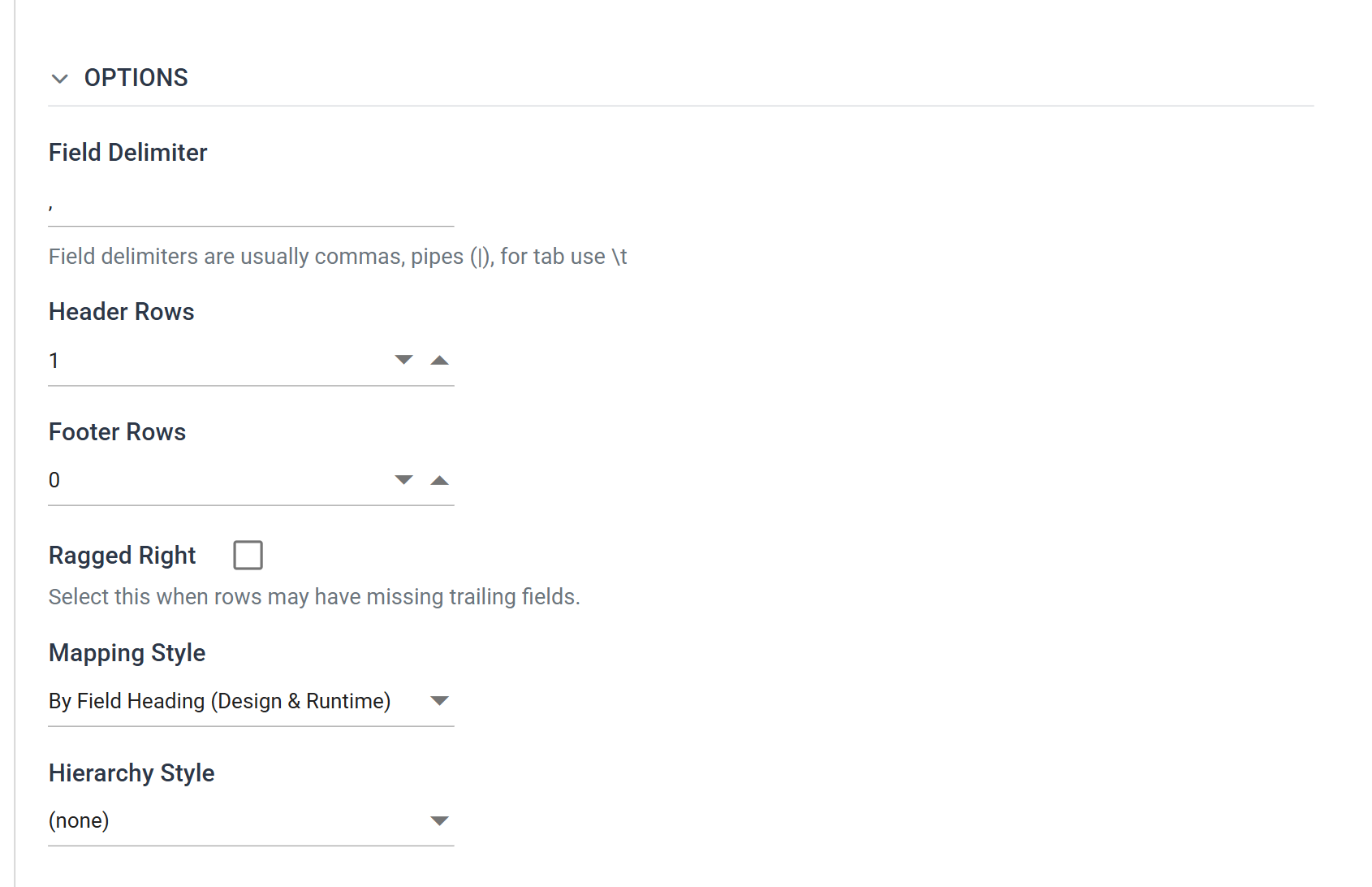
| Field | Value | |
|---|---|---|
| Field Delimiter | , |
|
| Header Rows | 1 |
The attachment has a heading row |
| Footer Rows | 0 |
|
| Ragged Right | clear | |
| Mapping Style | By Field Heading (Design & Runtime) | Fields take their names from the heading row |
| Hierarchy Style | (none) | One record per row |
Field Mapping
Move to the Field Mapping tab and press Refresh at the foot of the pane. IMan reads every matching email in the folder that arrived within the preview window, parses each attachment, and lists the fields it found.
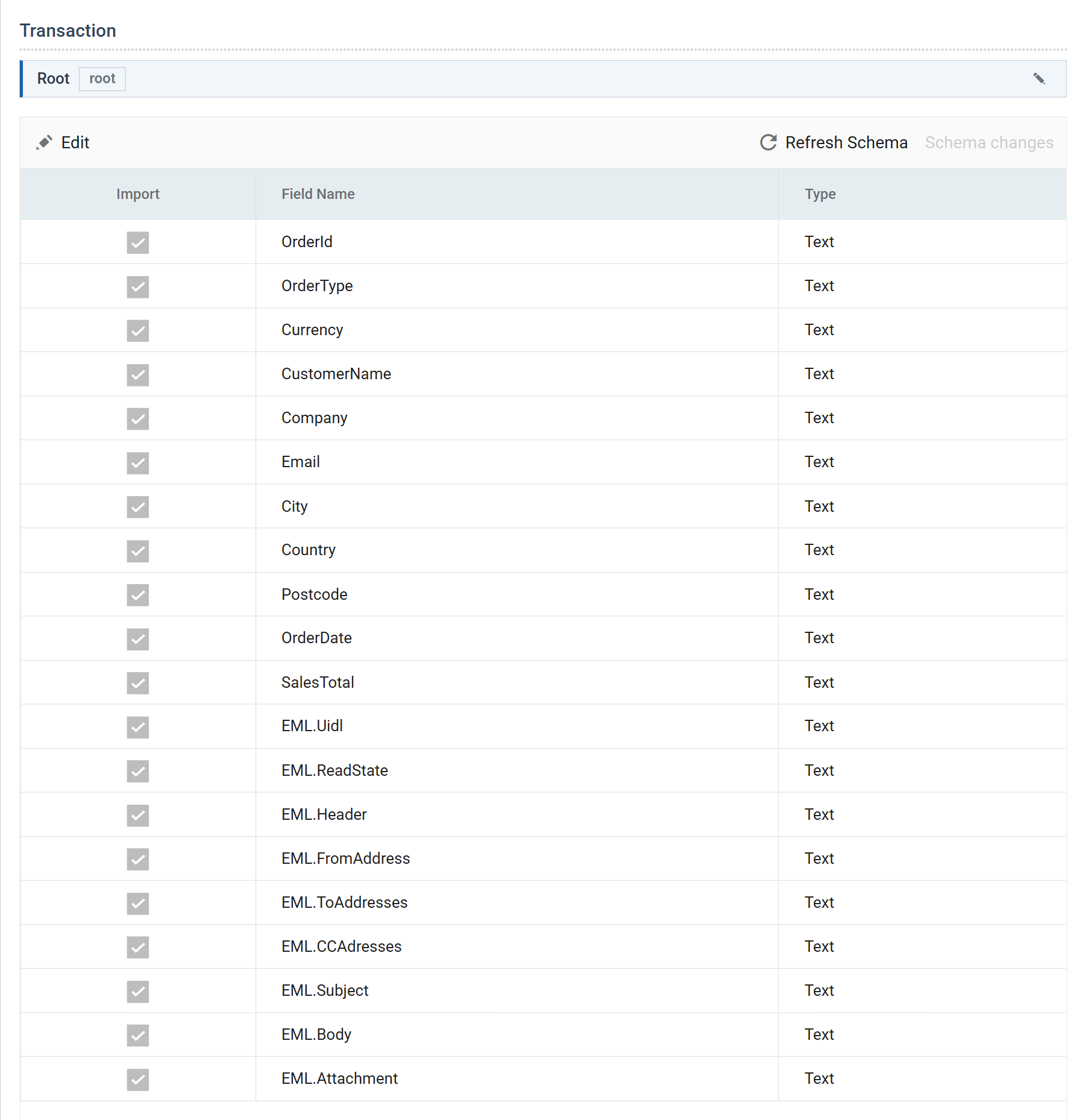
The first eleven fields are the attachment's columns. The Email controller
adds the nine EML.* fields after them, and every record carries the details
of the email it came from. Two of the nine matter to this recipe:
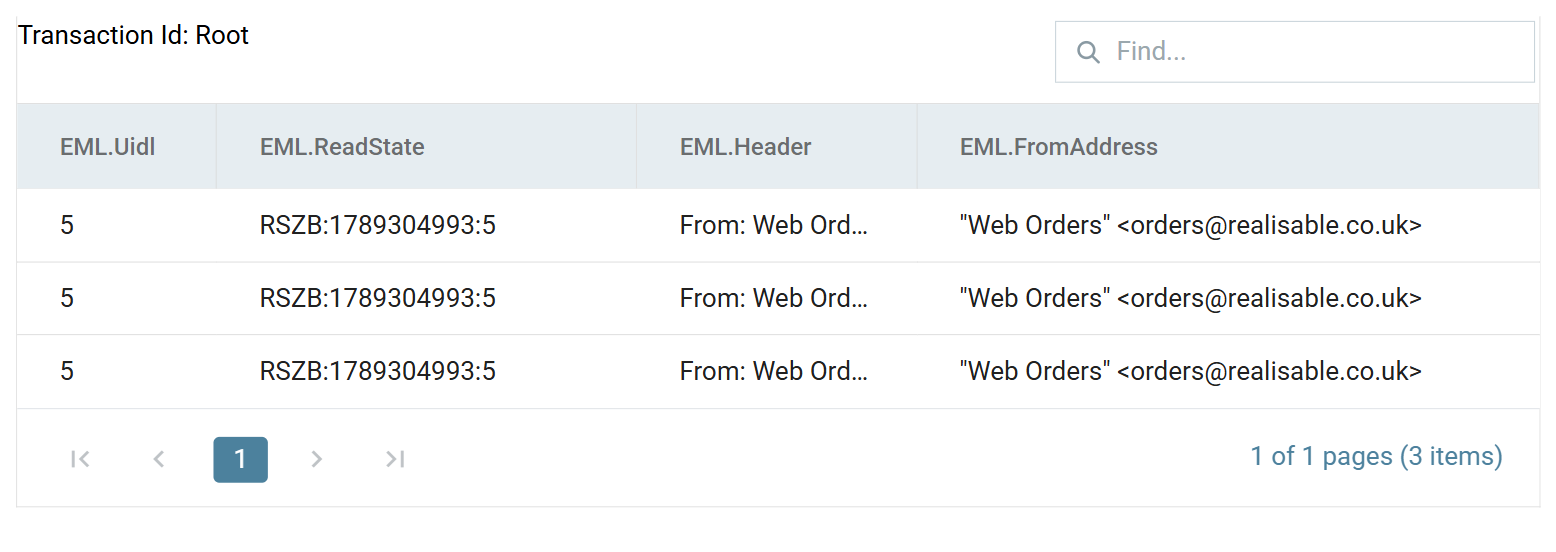
EML.Uidlis the email's UID in the folder,5for this email.EML.ReadStateis the reader's read position token for the email,RSZB:1789304993:5: the reader's own identifier, the folder's numbering and the UID, separated by colons. The two tasks in steps 4 and 5 map this field.
The preview grid on the right holds the three orders. Scroll it to the right to see the email's details on each:
The TRACE tab beside the preview shows how the reader read the folder:
Folder [Orders]. Read state - DesignMode. Action - ProcessPreviewWindow. Criteria - [SINCE 10-Sep-2026]. UIDVALIDITY - 1789304993. UIDNEXT - 6.
The reader passed the sender and subject filters to the server as search criteria and read only the last three days, the preview window. A Refresh on the reader moves no position and marks nothing on the server. You can press it as often as you like.
Press Close to commit the pane, then Save the integration.
3. The writer
Drag a CSV Writer from the Writers group onto the surface, connect the reader to it, and save. Open it and fill in the Target section.
| Field | Value | |
|---|---|---|
| Transform Id | Orders Out |
|
| Target | File | |
| File System | Windows | |
| File Path | C:\IMan\OutputData\Docs |
|
| File Name | imap-orders.csv |
|
| Encoding Method | Unicode (UTF-8) | |
| Field Delimiter | , |
|
| Quote Text Fields | QuoteAndEscape | See below |
| Write Header Rows | ticked |
Set Quote Text Fields to QuoteAndEscape, because the email's details
do not suit a bare CSV file. The sender arrives as
"Web Orders" <[email protected]>, with quotes of its own, and a
subject can carry a comma. With this option the writer wraps every text field
in quotes and doubles any quote inside a value, and a parser reads the file
back correctly.
Move to Field Mapping. The writer has taken every field from the reader with Export ticked. Clear Export on two of them:
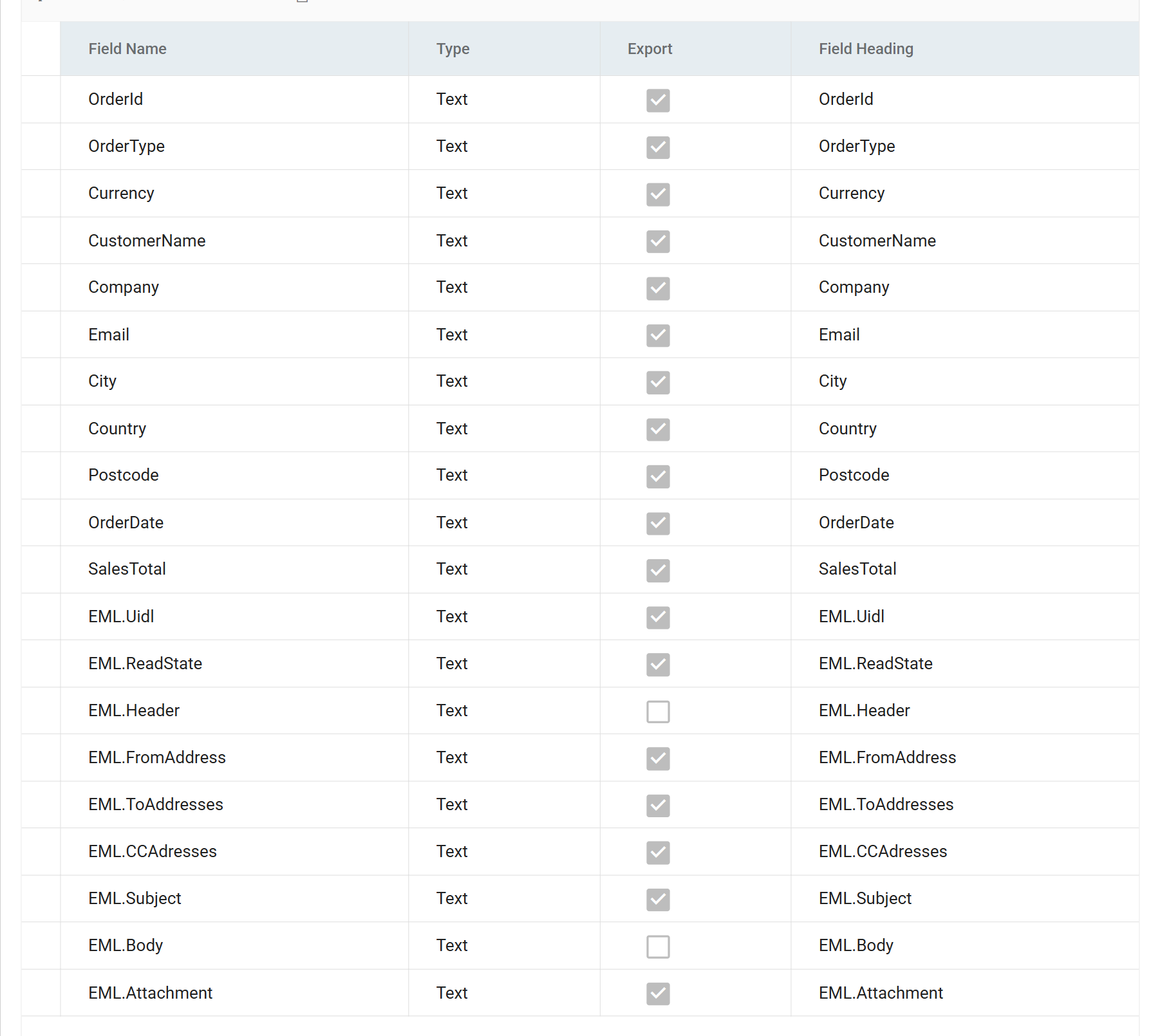
| Field | Export | |
|---|---|---|
EML.Header |
clear | The email's headers, one per line |
EML.Body |
clear | The body of the email |
| every other field | ticked |
Both values contain line breaks. A writer that exports either one splits each order across several lines of the file, and the file stops being one record per line. Leave them out unless the file is meant to hold them.
Press Close, then Save.
4. Mark Email Read
Drag an Email task from the Tasks group onto the surface, connect the writer to it, and save. Open it and move to the Email Task tab.
![The Email Task tab with Action set to Mark Email Read, Email System set to Documentation - Dovecot IMAP mailbox, and Read State set to %[Root.EML.ReadState].](../../../assets/Documentation/Resources/Images/ICB/reading-data/email-mark-read.png)
| Field | Value | |
|---|---|---|
| Transform Id | Mark Read |
On the Setup tab |
| Action | Mark Email Read | |
| Email System | Documentation - Dovecot IMAP mailbox |
The same record the reader reads. The list offers IMAP records only |
| Read State | %[Root.EML.ReadState] |
The reader's token. Root is the reader's one transaction, as the preview's Transaction Id line names it |
The task flags each email read on the server and moves the reader's position past it. Nothing else moves the position: the reader never moves its own, and a Refresh in the Designer leaves it alone. An integration that reads an IMAP mailbox without this task reads the same emails on every run.
Put the task after the writer. IMan acknowledges an email only once the transforms before the task have finished with its orders. If the writer fails, the run stops before the task, the position stays where it was, and the next run reads the same email again. The run skips nothing.
Press Close, then Save.
5. Move Email
Drag a second Email task onto the surface, connect the first task to it, and save. Open it, move to the Email Task tab, and set Action to Move Email.
![The Email Task tab with Action set to Move Email, Email System set to Documentation - Dovecot IMAP mailbox, Folder Orders, Destination Folder Processed, an empty UIDL Filter, Read State %[Root.EML.ReadState], and empty From Address Like and Subject Like boxes.](../../../assets/Documentation/Resources/Images/ICB/reading-data/email-move.png)
| Field | Value | |
|---|---|---|
| Transform Id | File Away |
On the Setup tab |
| Action | Move Email | |
| Email System | Documentation - Dovecot IMAP mailbox |
|
| Folder | Orders |
The folder the task moves the emails out of |
| Destination Folder | Processed |
The folder the task moves them into. It must already exist |
| UIDL Filter | blank | |
| Read State | %[Root.EML.ReadState] |
The same token as the Mark Email Read task |
| From Address Like | blank | |
| Subject Like | blank |
The task moves each email the reader handed on, once, whatever the number of
orders that came from it. The Orders folder then holds only mail the
integration has not processed. That is easier to watch than a folder that
holds everything.
Press Close, then Save.
A Refresh on an Email task runs it
Refresh on the reader is free of side effects. Refresh on either task is not: Mark Email Read flags the emails the reader's preview read and moves the position, and Move Email moves them. Preview the tasks only against mail you are willing to have acknowledged and moved, or run the integration from the Scheduler and read the results instead.
6. Run it twice
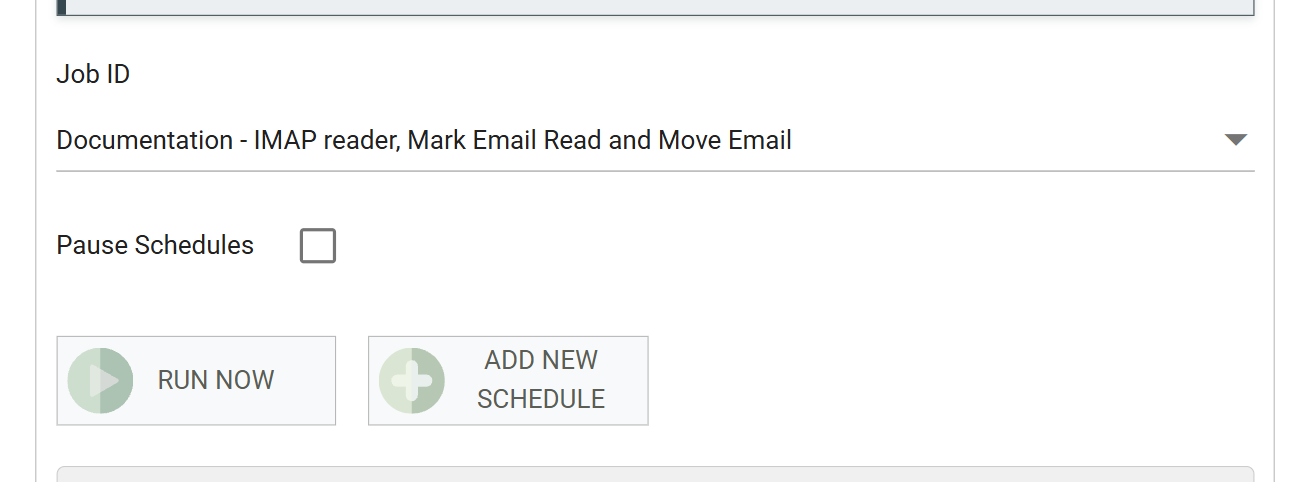
Go to Scheduling, pick the integration in Job ID, and press RUN NOW. The integration needs no schedule to run this way.
The two runs below show what the read position is for. One email is in the folder before the first run, and a second arrives between the runs.
The first run establishes the position
The reader had no position. The first run notes the newest email in the folder as its starting point and processes nothing. Three things show it:
-
The reader's Setup tab. The Read Position line has changed from Not yet read to the UID of that email and the time of the run:

-
The file. The writer wrote nothing, so
imap-orders.csvdoes not exist. - The mailbox. The email is still in
Orders, still unread.
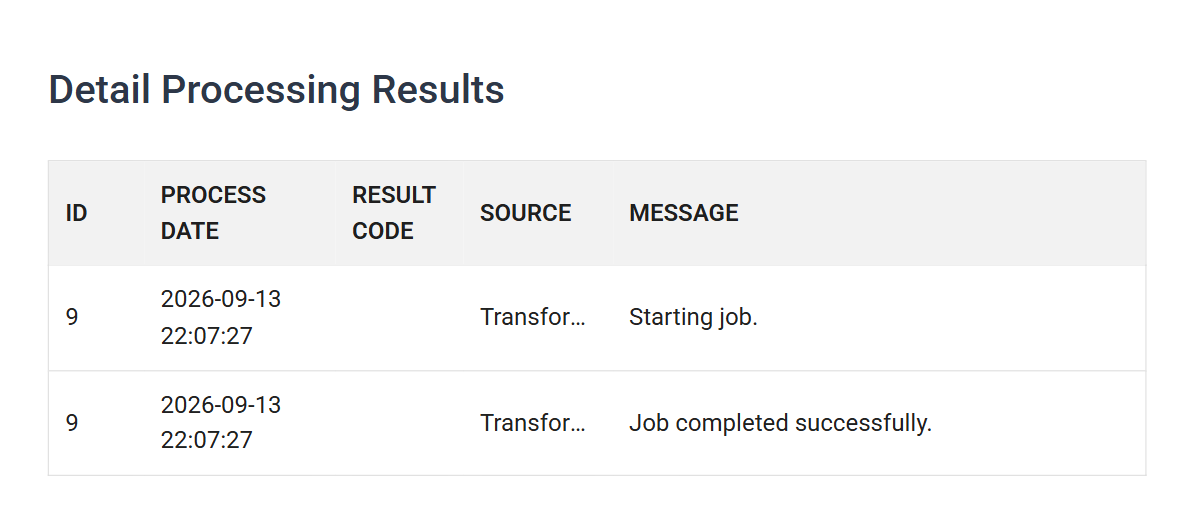
The Scheduling screen's Detail Processing Results reports two lines for the run, Starting job and Job completed successfully. A run that processes nothing completes successfully.
The run does not sweep up mail that was in the folder before the integration existed. To process it anyway, press Reset To Zero on the reader's Setup tab before the first run: the next run then reads the whole folder.
The second run processes the new email
Deliver a second email to the folder, then press RUN NOW again.
-
The reader's Setup tab. The position has moved to the second email:

-
The file. The writer wrote the three orders from the second email, and each carries that email's UID and token:
OrderId,OrderType,Currency,CustomerName,Company,Email,City,Country,Postcode,OrderDate,SalesTotal,EML.Uidl,EML.ReadState,EML.FromAddress,EML.ToAddresses,EML.CCAdresses,EML.Subject,EML.Attachment
"FBRN-309242","Web","USD","Ronald English","Imperial Soap Inc","[email protected]","Fairbanks","USA","79160","2016-03-11","282.00","6","RSZB:1789304993:6","""Web Orders"" <[email protected]>","[email protected]","","Orders - 13 September 2026, second batch","orders.csv"
"FBRN-309243","Web","GBP","Claire Ward","F3","[email protected]","London","United Kingdom","E3 4RR","2016-03-11","1532.60","6","RSZB:1789304993:6","""Web Orders"" <[email protected]>","[email protected]","","Orders - 13 September 2026, second batch","orders.csv"
"FBRN-309244","Web","GBP","Marie Esperanca","Endemol Building","[email protected]","London","United Kingdom","W15 7UU","2016-03-12","1935.00","6","RSZB:1789304993:6","""Web Orders"" <[email protected]>","[email protected]","","Orders - 13 September 2026, second batch","orders.csv"
The subject holds a comma and the sender holds quotes, and both read back correctly because the writer quotes its text fields.
-
The mailbox. The second email carries the read flag and sits in
Processed. The first email is still unread inOrders. It is older than the position.
A run reads only what arrived since the last run that completed. A run that fails leaves the position where it was and reads the same mail again next time.
On POP3
The same recipe serves a POP3 mailbox with four differences. Set the record's Mailbox Protocol to POP3, and:
- The reader has no Folder, Preview Window, Batch Size or Read Position. A POP3 mailbox has only its inbox, and IMan keeps no position for it. Every run reads every email in the inbox that matches the filters.
EML.ReadStateis empty. A POP3 mailbox has no position to name.- Mark Email Read and Move Email do not apply. Both actions work on IMAP
mailboxes only. To stop the next run reading the same email again, either
tick Delete From Server on the reader, or replace the two tasks with a
single Email task whose Action is Delete Email and whose UIDL Filter
is
%[Root.EML.Uidl]. Put it after the writer for the same reason as the Mark Email Read task above. - There is nothing to establish. The first run processes every matching email in the inbox, and there is no Reset To Now or Reset To Zero.
The POP3/IMAP Servers page sets the two protocols side by side. Choose IMAP where the mail server offers it.
Verified against IMan 6.1, September 2026.