Step 9 – Order Status Feedback File
The integration now writes orders into Sage 300, but the system that sent them cannot tell what happened to them. In this step you add a CSV file that lists each incoming order id against the order number Sage 300 allocated it. Step 10 uploads the file.
The file holds the same pairs as the audit summary in step 8.
Design > Transform Setup
- Open the Writers group in the palette and drag a CSV Writer onto the design surface, to the right of the Sage 300 order connector.
- Drag a Connector from the Transforms group and join the order connector to it.
-
Save the integration.
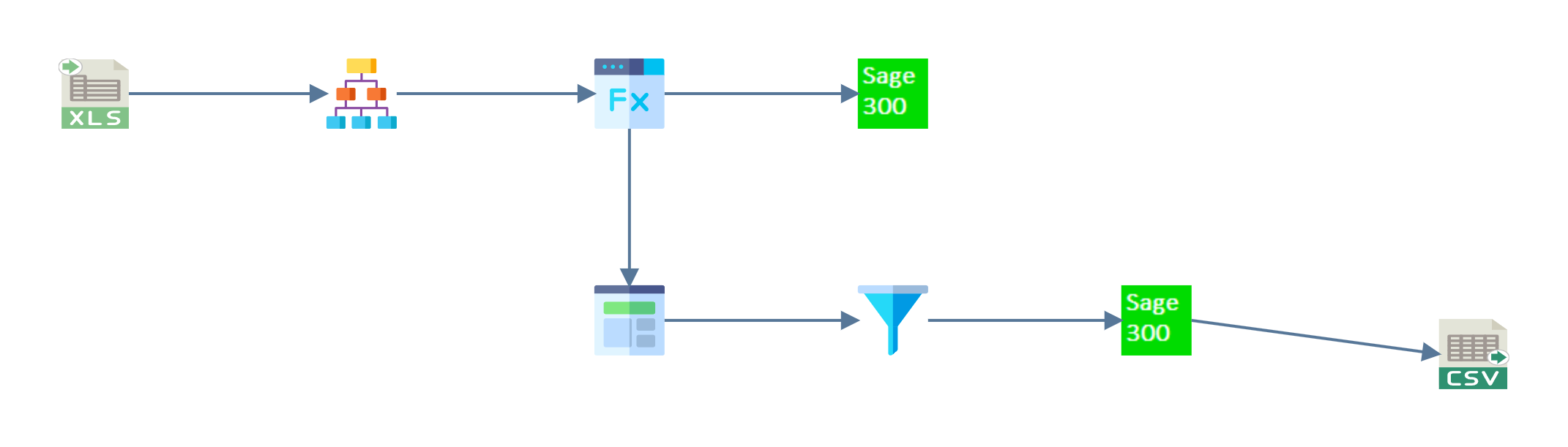
A transform cannot be opened until the integration is saved
Save before you go further. You cannot open a newly dropped transform until you save the integration. Double-clicking it does nothing, and no message says why.
Writer > Setup
Double-click the writer to open it.
- Transform Id
- It arrives called
CSV Writer. The audit report uses this name. - For training, enter: CSVWRITE
- It arrives called
- Target
- Where the output goes. For training, leave as: File
- File System
- For training, leave as: Windows
- File Path
- The folder the file is written to.
- For training, enter:
C:\IMan\OutputData
- Evaluate FileName
- Whether File Name is a literal name or a formula.
- For training, tick it.
- File Name
- For training, enter:
"OrderStatus" & Format(Date, "yyyymmdd") & ".csv"
- For training, enter:
- Encoding Method
- For training, leave as: Unicode (UTF-8) (utf-8)
- Overwrite Existing File
- For training, tick it.
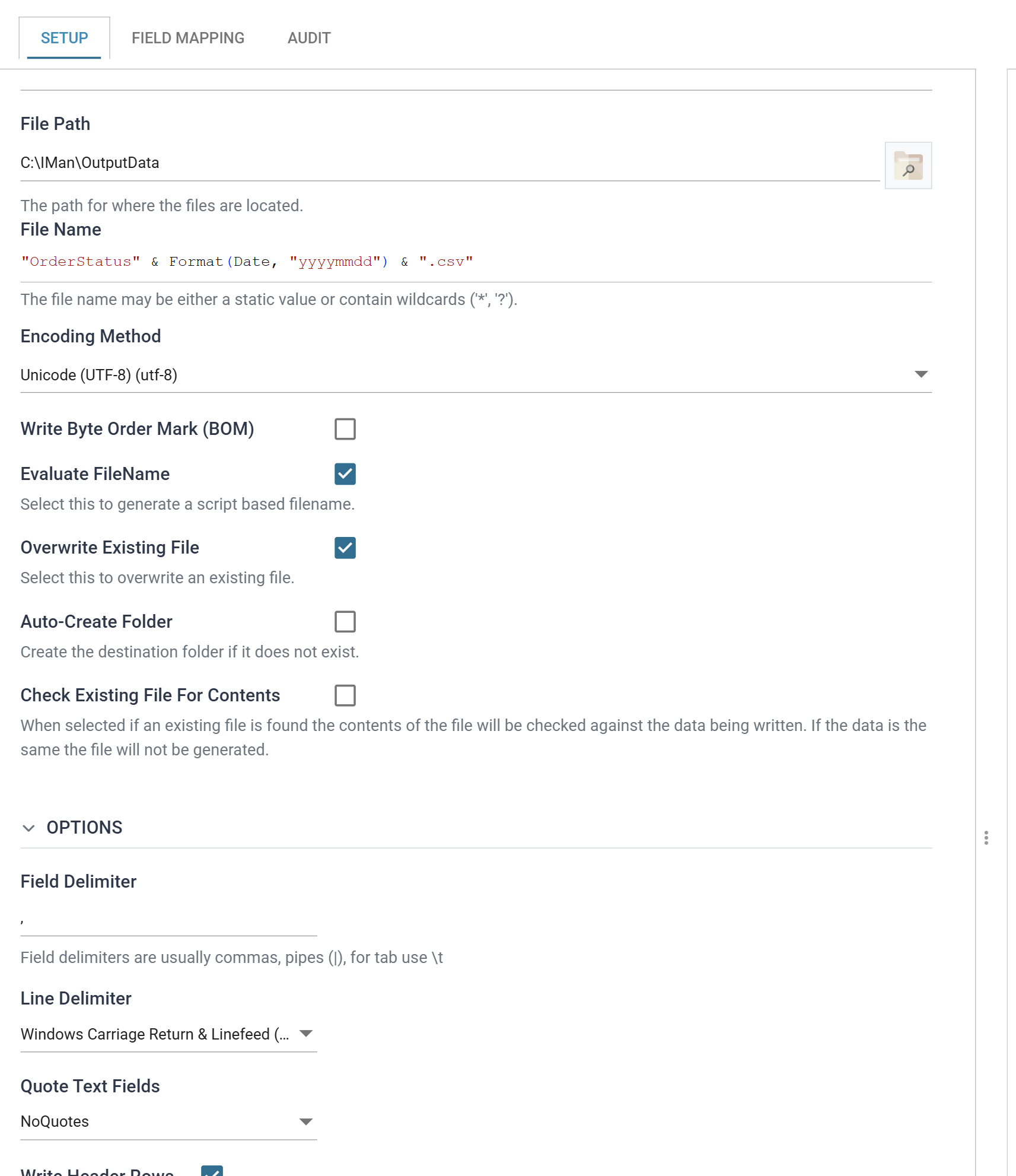
Tick Evaluate FileName before typing the file name
Tick Evaluate FileName before you type the file name. The steps above follow that order.
Ticking it replaces the plain File Name text box with a formula editor and discards whatever was in the box. If you fill in the name first, it disappears with no warning and the writer has no file name.
The folder in File Path must exist. Auto-Create Folder, further down,
creates it if it does not. For training, create C:\IMan\OutputData yourself
and leave that option unticked.
Writer > Setup — the output format
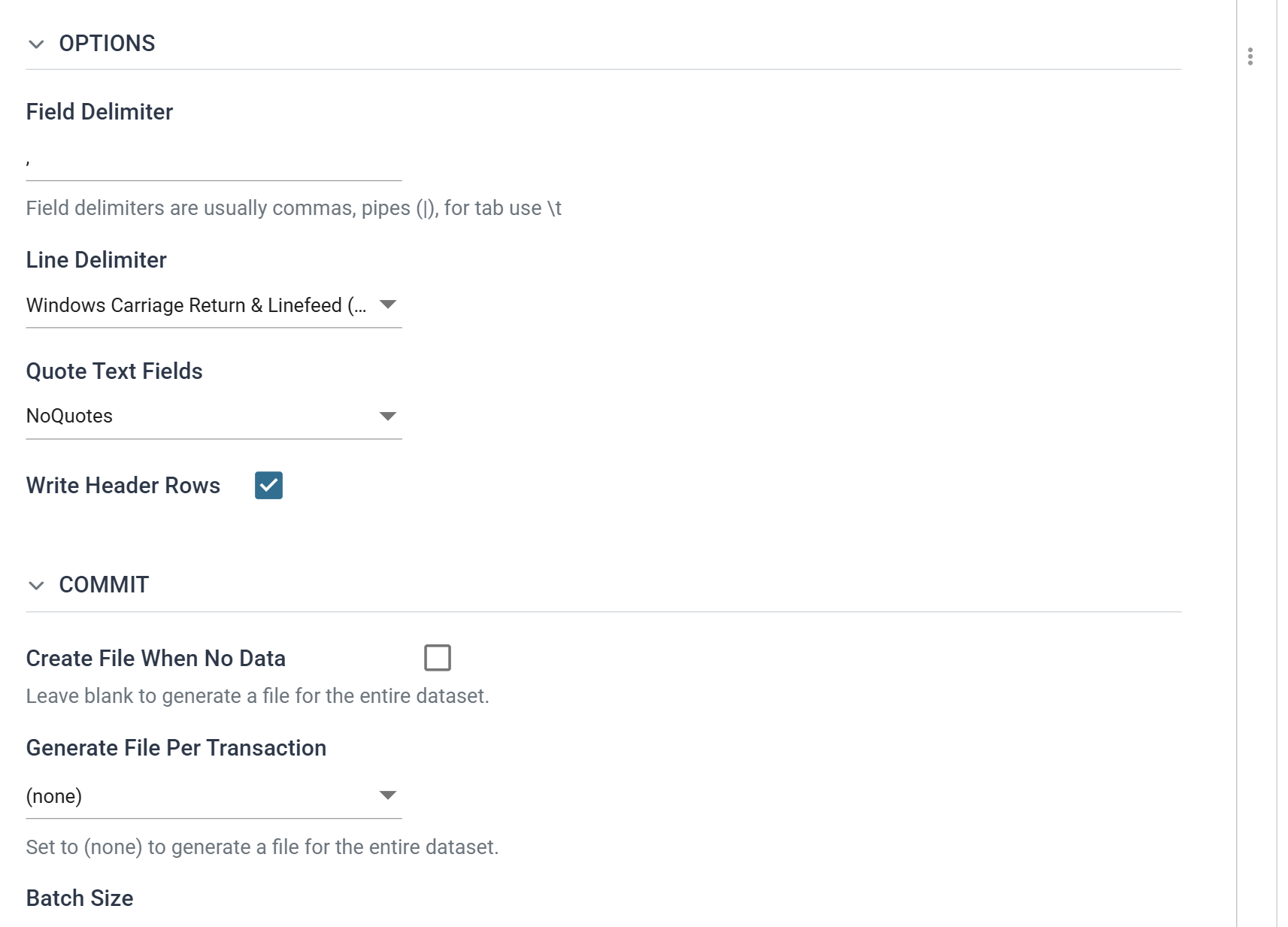
The rest of the tab controls what the file looks like. Scroll down to Options.
- Field Delimiter
- The character between values. For training, leave as:
,
- The character between values. For training, leave as:
- Line Delimiter
- For training, leave as: Windows Carriage Return & Linefeed (CRLF)
- Quote Text Fields
- Whether text values are wrapped in quotes. For training, leave as: NoQuotes
- Write Header Rows
- Writes the field names as the first line of the file, so the file describes its own columns. It is not on by default.
- For training, tick it.
- Create File When No Data
- For training, leave unticked. A run that imported no orders should not leave an empty file for the other system to collect.
- Generate File Per Transaction
- One file per transaction instead of one per run. For training, leave as: (none)
Writer > Field Mapping
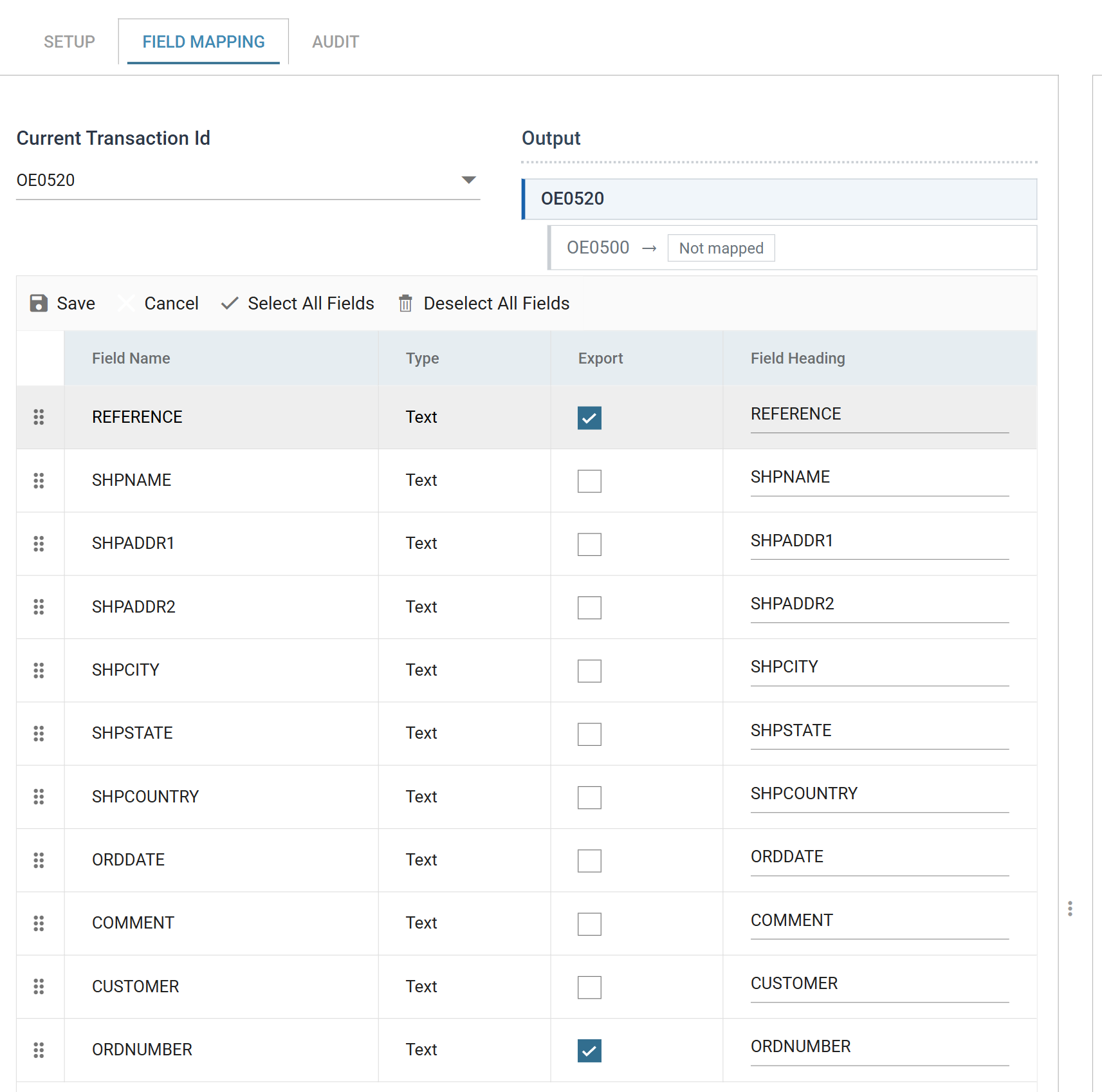
By default the writer exports everything the connector passes on. Here that is the whole order header, but the file needs only two columns.
The fields are listed under their Sage 300 names
The fields are listed under their Sage 300 names, such as REFERENCE
and ORDNUMBER, not the names the spreadsheet used. The connector renamed
them, as described in
step 7.
- Press the Field Mapping tab and check that OE0520 is the current transaction.
- Press Edit, then Deselect All Fields and confirm.
- Tick Export against
REFERENCEandORDNUMBERonly. -
Save the grid with the green tick.
-
Change the current transaction to OE0500 (the order lines). Press Edit, then Deselect All Fields and confirm. Nothing from the lines goes into this file.
- Save the grid, close the writer and save the integration.
Running it
Press Refresh on the writer. IMan writes the file as the preview runs, so it
appears in C:\IMan\OutputData immediately:
REFERENCE,ORDNUMBER
FBRN-309242,ORD000000041743
FBRN-309243,ORD000000041744
FBRN-309244,ORD000000041745
The first line is there because you ticked Write Header Rows. The file name carries the run date because Evaluate FileName made the name a formula.
Refreshing the writer writes another three orders into Sage 300
Refreshing the writer runs everything upstream of it, including the Sage 300 order connector. Every press writes another three orders into Sage 300, as described in step 7. Your order numbers will differ from the ones in the file above.