CSV Writer
The CSV Writer writes a dataset out as character-separated values.
An IO controller sets where it writes to. So the same transform can save a file into a folder, POST it to a URL, return it as the response to a WebAPI call or write it into a field of the dataset itself.
Setup
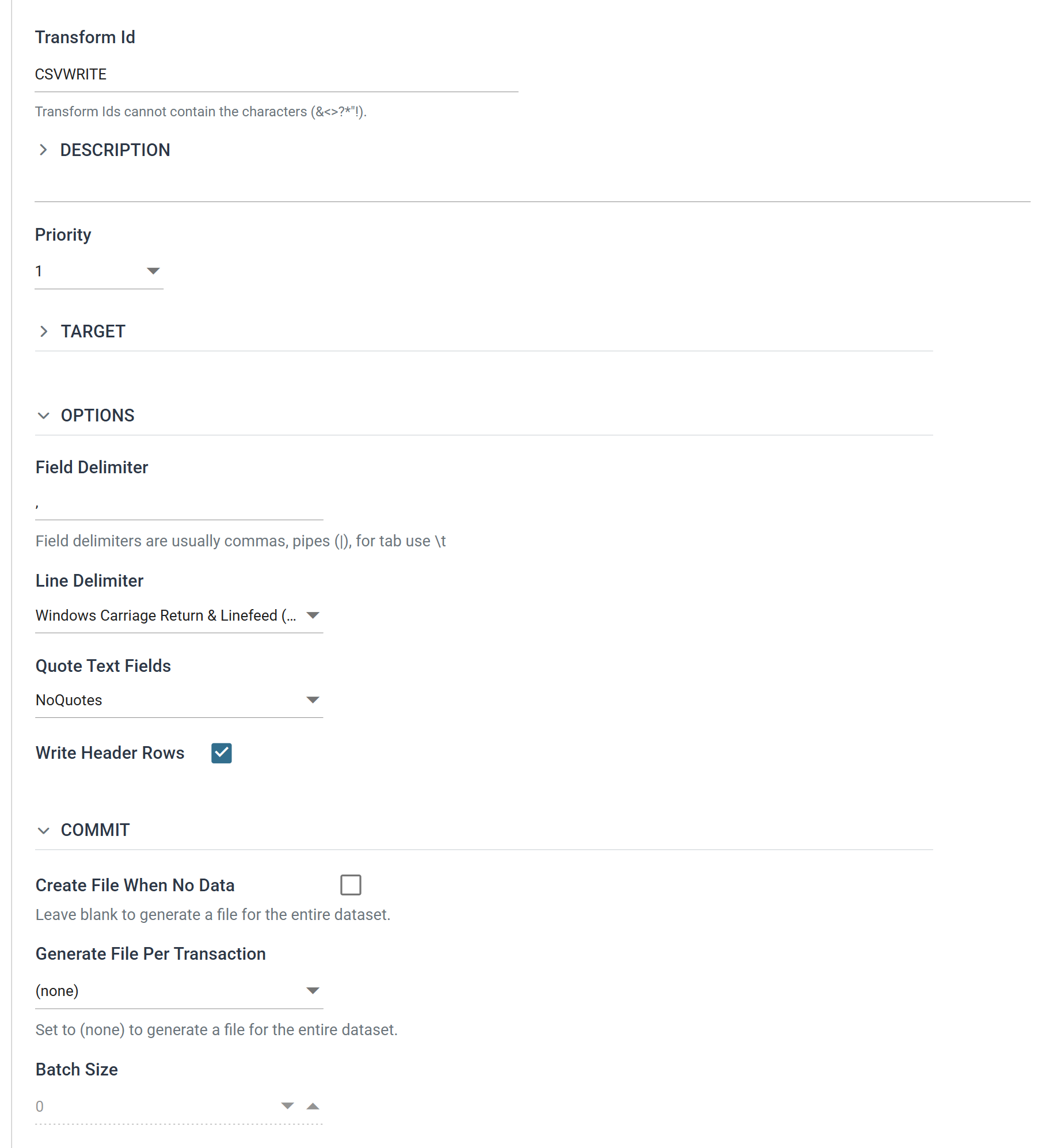
Transform Id, Description and Priority are the same on every transform. See Transform > Setup.
Target
The Target section holds the IO controller, which sets where the file is written, and the controller's own fields.
The drop-down at the top of the section chooses the controller. The CSV Writer accepts four:
- File — File System, File Path, File Name, Encoding Method, Write Byte Order Mark (BOM), Evaluate FileName, Overwrite Existing File, Auto-Create Folder, Check Existing File For Contents
- http(s) Url — Encoding Method, Insert Url, Http Operation
- Transaction — Field
- WebAPI — no fields; the section names the WebAPI the integration is published under. You set that on the WebAPI screen, not here
Those fields belong to the controller, not to the writer. The controller's own page describes them.
Options
Field Delimiter
The character or characters separating the fields within a line.
It may be more than one character. For a tab-delimited file enter \t.
Line Delimiter
The character or characters separating one record line from the next.
| On screen | Characters | Unicode |
|---|---|---|
| Windows Carriage Return & Linefeed (CRLF) | CRLF | U+000D U+000A |
| Carriage Return (CR) | CR | U+000D |
| Line Feed (LF) | LF | U+000A |
| Next Line (NEL) | NEL | U+0085 |
| Form Feed (FF) | FF | U+000C |
| Paragraph Separator (PS) | PS | U+2029 |
| Line Separator (LS) | LS | U+2028 |
Quote Text Fields
Whether the writer puts double quotes around fields of type Text, and what happens to a quote already inside one.
- NoQuotes — the writer adds no quotes.
- QuoteAndEscape — the writer adds quotes and escapes a double quote within the value by doubling it.
- QuoteDoNotEscape — the writer adds quotes and leaves a double quote within the value as it is. Most parsers will read that quote as the end of the field.
These options show their internal names
These are the only options on this screen that show an internal name instead of a readable one. They are listed here as they appear, so you can match them against the drop-down.
Quoting applies to fields of type Text only, so a value that needs quoting must be typed as Text. The writer writes a delimiter inside a Decimal field unquoted, whatever this is set to.
Write Header Rows
When ticked, the writer writes the field headings at the start of the file.
A hierarchical dataset produces one heading line per transaction. A transaction with no exported fields produces no heading line.
Commit
The Commit section decides how many files the writer writes, and when.
Create File When No Data
When ticked, the writer writes a file even when the dataset is empty. With Write Header Rows also ticked, that file contains the headings and nothing else.
When unticked, an empty dataset writes no file at all.
The help text belongs to the check box below
The help text under this check box, Leave blank to generate a file for the entire dataset, belongs to Generate File Per Transaction below it. It does not describe this setting.
Generate File Per Transaction
Left at (none), the writer writes one file for the whole dataset.
Set to a transaction, the writer writes a file for each record of that transaction. For example, select the invoice transaction to write a file per invoice.
Without a field reference in the File Name, each file overwrites the last
Give the File Name a field reference when this is in use, or every file after the first overwrites the one before it. See Evaluate FileName on the File controller.
Batch Size
How many records of that transaction go into each file. 0 writes one file per
record.
The field is enabled only once Generate File Per Transaction names a
transaction. With (none) there is one file and nothing to batch.
Field Mapping
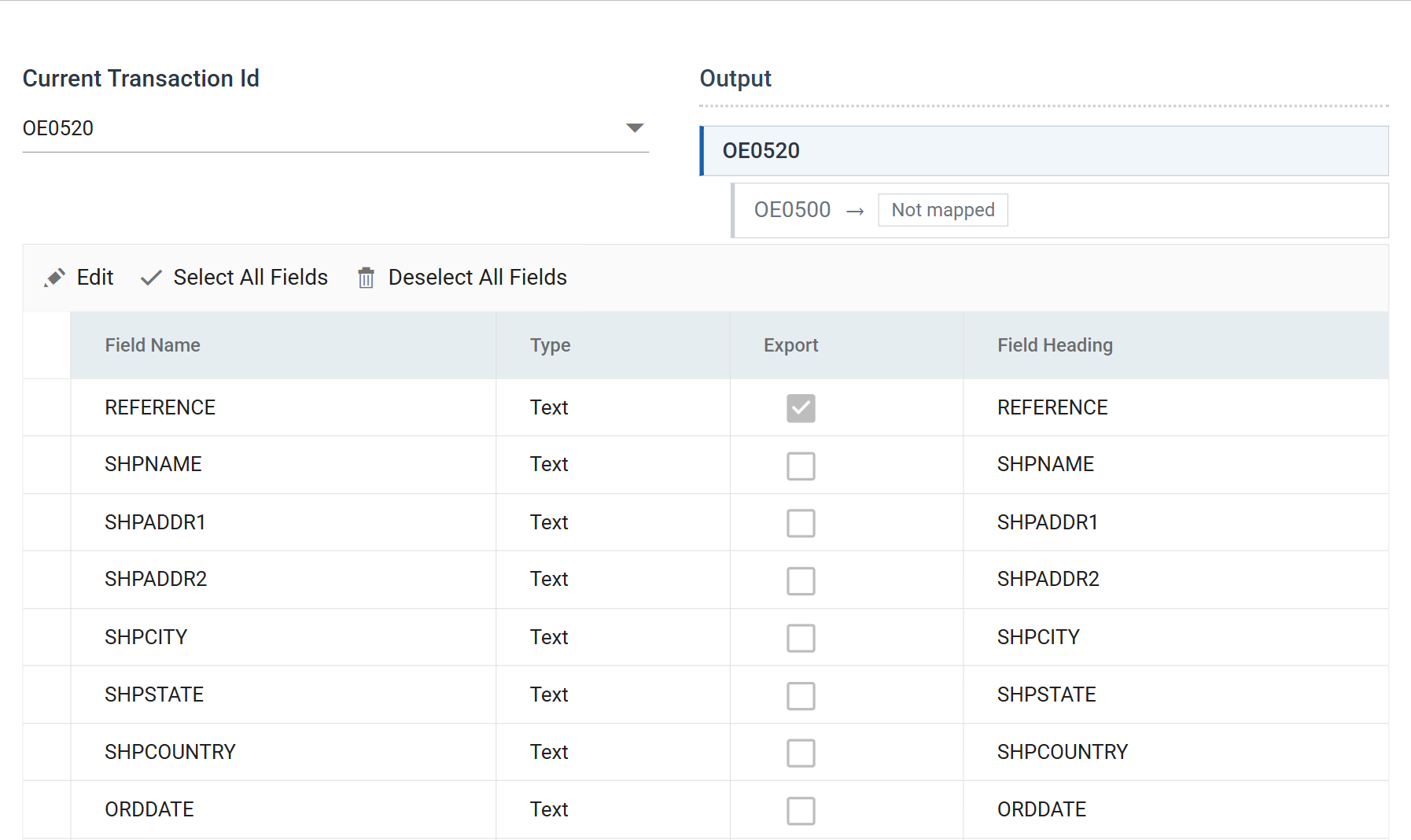
Current Transaction Id
The transaction whose fields the grid is showing.
Output
A tree of the transactions in the dataset, showing which of them this writer produces. A transaction with at least one exported field is highlighted. One with none is marked Not mapped and contributes nothing to the file.
Use it to catch a common mistake: a hierarchy whose detail transaction has no exported fields. The writer then writes a file of headers and parents with no lines, and raises no error.
The field grid
The grid edits in batch: Edit puts the whole grid into edit mode, Save commits it and Cancel discards it. Select All Fields and Deselect All Fields apply to the transaction currently selected.
The writer writes fields in grid order, left to right in the file. Drag rows to reorder them. The drag handle appears only once Edit has put the grid into edit mode. On a read-only grid the column is there but does nothing.
Field Name
The name of the field within IMan. Fixed here.
Type
The data Type of the field, which decides whether Quote Text Fields applies to it.
Export
When ticked, the writer writes the field to the file. When unticked, it does not.
Field Heading
The heading written for the field when Write Header Rows is ticked. It defaults to the field name. Set it when the system reading the file expects particular column names.
Audit
Supported counters
- PROCESSED — incremented for each record processed.
- INSERTED — incremented for each record written.
- UPDATED — incremented for each record written. INSERTED and UPDATED are normally equal.
- ERRORS — incremented for each unhandled error.
Action on Transform Error
The setting and the rest of the tab are described on Transform > Audit.
Worked example
Step 9 of the Sage 300 and Sage 200 training manuals writes an order status feedback file, pairing each incoming order with the order number the ERP allocated it.