Audit Tab
IMan produces an Audit Report for each process. The report gives the full results of the process and, if an error occurs, can point you straight to the data that caused it.
The Audit tab under the main Design tab holds the general settings for the Audit Reports.
For more on these settings, see The Audit Report.
Design > Audit Tab
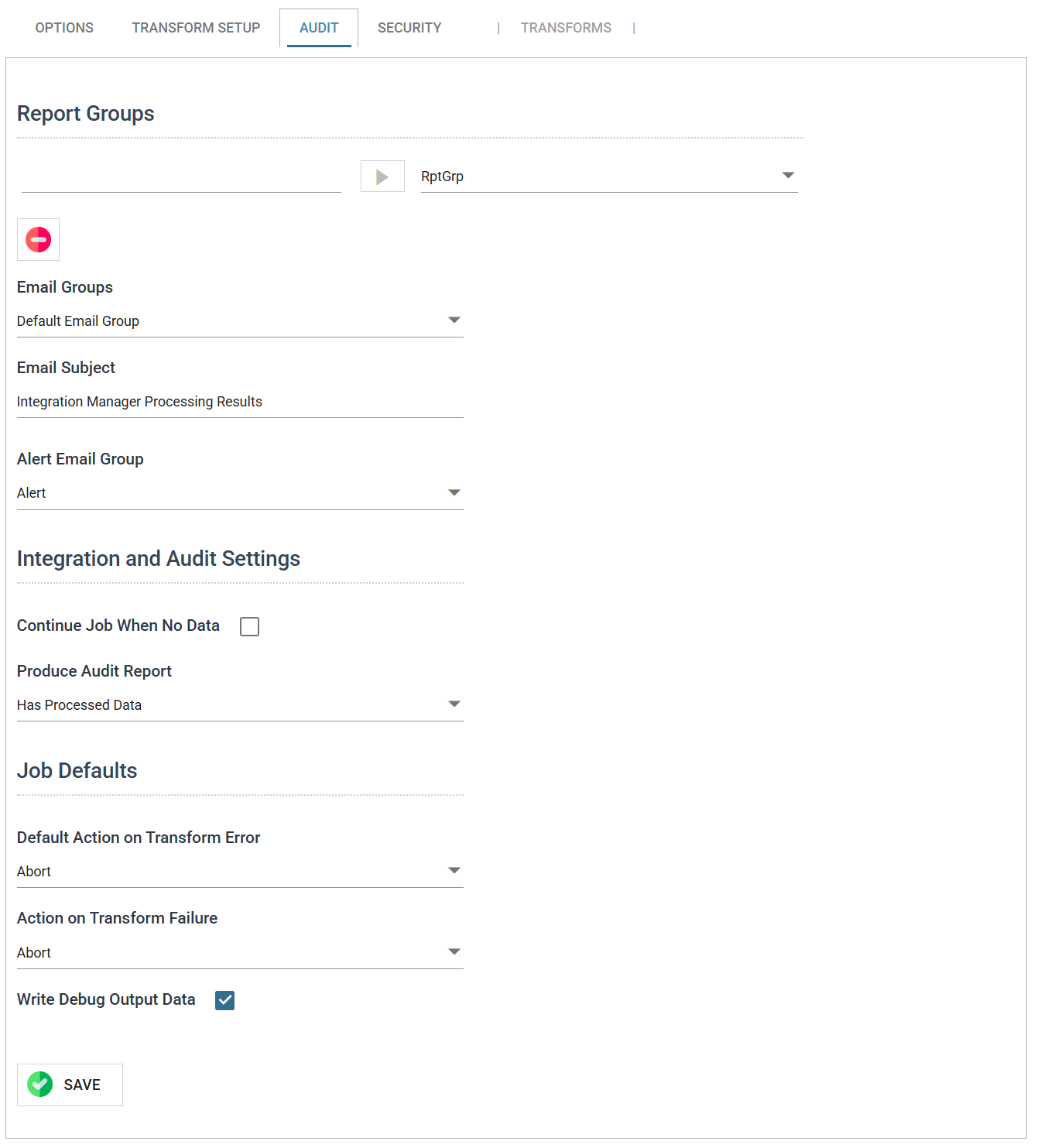
Report Group
Once you define this Id, you cannot change it.
Add Button
To create a new Report Group, enter a new Id in the Report Group field and press the Add (>) button.
Report Group Drop-down
Lists each of the defined Report Groups.
To edit a Report Group, select it from this list.
Delete Button

Deletes the selected Report Group.
Every integration must have at least one report group.
Deleting a Report Group reassigns its transforms to the one above
When you delete a Report Group, IMan assigns its transforms to the preceding Report Group in the list.
Email Group
The Email Group, defined in the primary Setup tab, that IMan sends the Audit Report to.
Email Subject
The text that will appear in the subject of the Audit Report email.
Alert Email Group
Select one of the integration's report groups. When a report group is selected, IMan sends an audit report to that report group's Email Groups if the integration has one or more errors, terminating or not.
This alert report is sent in addition to the normal audit reports. If an integration has one or more errors, IMan sends the audit reports according to the settings above AND sends a separate audit report to the selected report group.
The alert audit report ignores the Report Group selected on each transform. It contains the auditing of every transform.
Continue Job When No Data
When ticked, IMan runs the whole integration whether or not there is data, and sends the resulting email.
When unticked, the integration's Read transform looks for data. If it finds no input data, the integration stops at that point.
Produce Audit Report
Sets when IMan creates an Audit Report.
- Always
- IMan creates an audit report on every run.
- Has Processed Data
- IMan creates an audit report only when it has processed data. If there is no data, there is no audit report.
- Only On Transform Failure
- IMan creates an audit report only when an error causes a transform to fail.
- Use this option only for integrations that contain simple tasks, such as File Moves or FTP. An integration that completes successfully produces no report.
- Never
- Audit Report will never be created.
Do not use this setting except in exceptional circumstances. You will not be told what has succeeded or failed.
- Audit Report will never be created.
Default Action on Transform Error
This drop-down sets the default action when a transform encounters an error. There are two options:
- Abort
- The transform stops at the first error.
- Reject Record
- The action depends on the transform type. See the page for the relevant transform.
Action on Transform Failure
When an error causes a transform to fail, the integration can either continue or abort. The default is Abort, which stops the whole integration. With Continue, IMan skips the failed transform and the transforms below it, and runs the rest of the integration.
With Continue, the result may be corrupt or undefined, because a failed transform may leave a partly invalid dataset.
Continue is only safe where the error cannot affect the data
Use Continue only when you know that a transform error will not affect the data.
Write Debug Output Data
When ticked, IMan writes debug information for each transform to the \Debug folder.