Lookup Tables
Introduction & Uses
Lookup Tables store data in the IMan database. You can use them for:
- Translating data, when the target database has no room to create new fields against a record.
- Collating data that may be spread across several databases or instances of a system.
- Storing Settings used within an integration.
To access the records stored in a lookup table you must first define a Lookup that reads from it. You then use the Lookup Function to read the data.
This page covers defining a table. You maintain its records on the separate Lookup Table Maintenance screen, because that is usually a different person's job.
You can configure a lookup table as follows:
- It can hold between 1 and 21 values against any record. The first value is a mandatory result value and the other 20 are optional additional fields.
- Each field can have its own friendly name. The underlying database column keeps its fixed name.
- The 20 additional fields can each be a string, a number or a check box, and each type has its own formatting options.
Lookup Table Database Fields
- Lookup ID (
LKUPKEY) - The unique value that identifies a record. - Description (
LKUPDESC) - A description recorded against the record. - Value (
LKUPRESULT) - The default result field. FLD01toFLD20- The columns that store the additional fields.
Setup > Lookup Tables
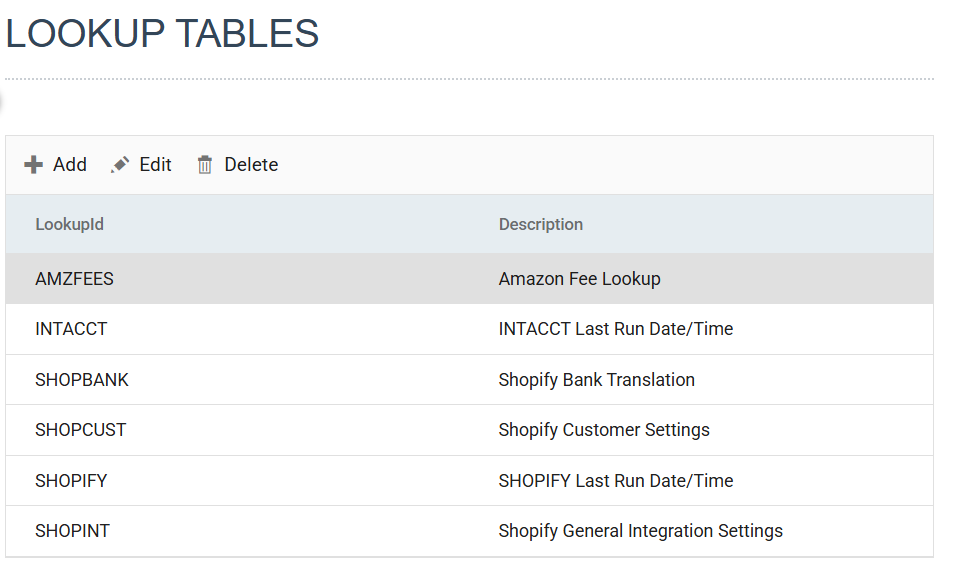
You define lookup tables under Lookup Tables in the Setup tab. The Setup tab is available to administrators. The screen lists the existing tables with Add, Edit and Delete above the list. Add opens an empty table and Edit opens the selected one. Both use the same dialog, with two tabs: Details and Security.
The Details tab
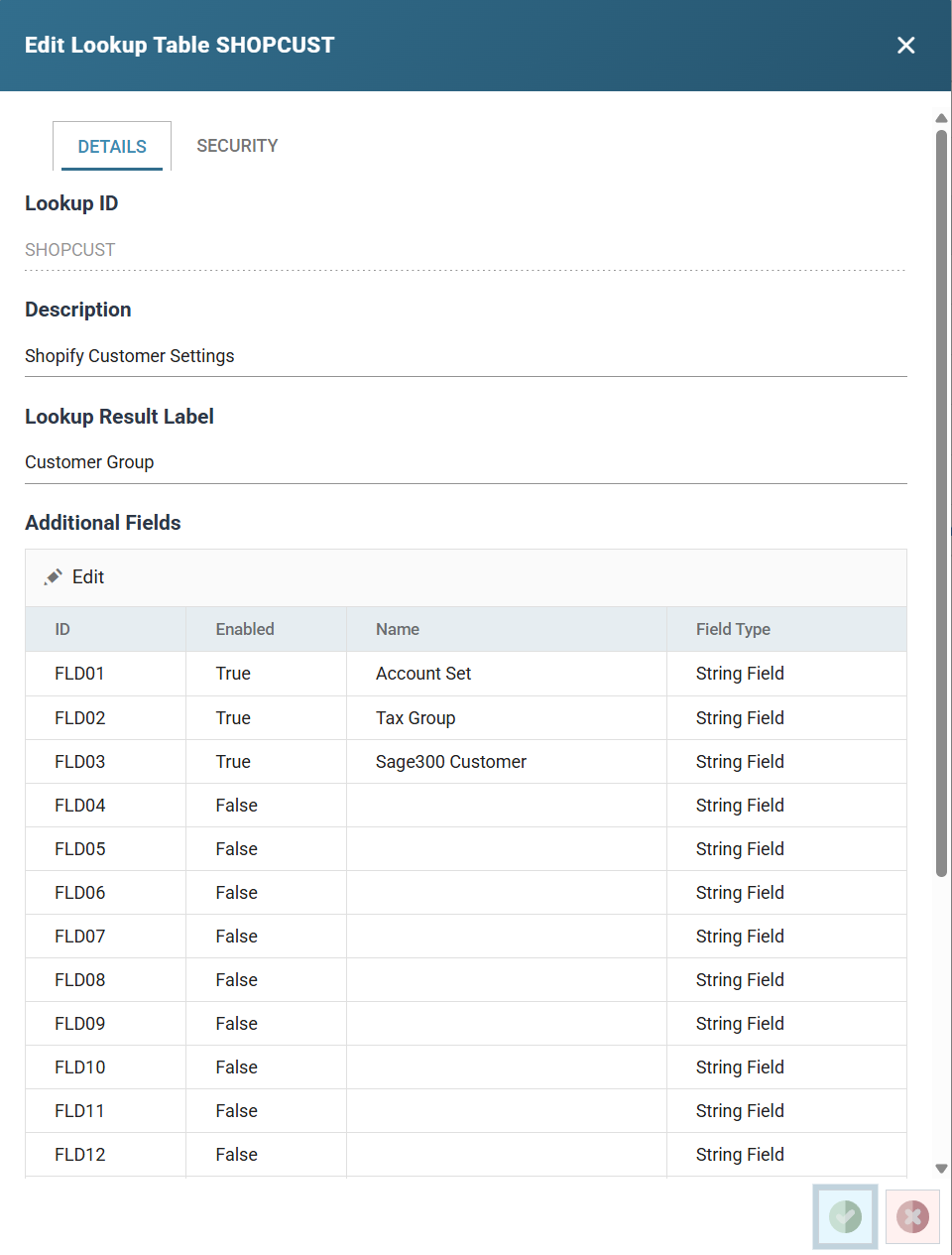
Lookup ID
The unique id of the table, up to 12 characters. A Lookup with Use IMan Lookup Table ticked names the table by this id. You cannot change the id after you save the table.
Description
A description of the table, up to 60 characters. The maintenance screen's table drop-down shows it.
Lookup Result Label
The name given to the result value. It is the heading of the value column on the maintenance screen and the label of the value box on its record form, so choose the name the data owner will recognise: Customer Group in the example above, rather than Value.
Additional Fields
The twenty optional fields, FLD01 to FLD20, listed with their Enabled flag, name and type. A new table has all twenty disabled.
To define a field, select its row and press Edit above the grid. The row opens in its own dialog. Press the tick to save it, or the cross to abandon it.
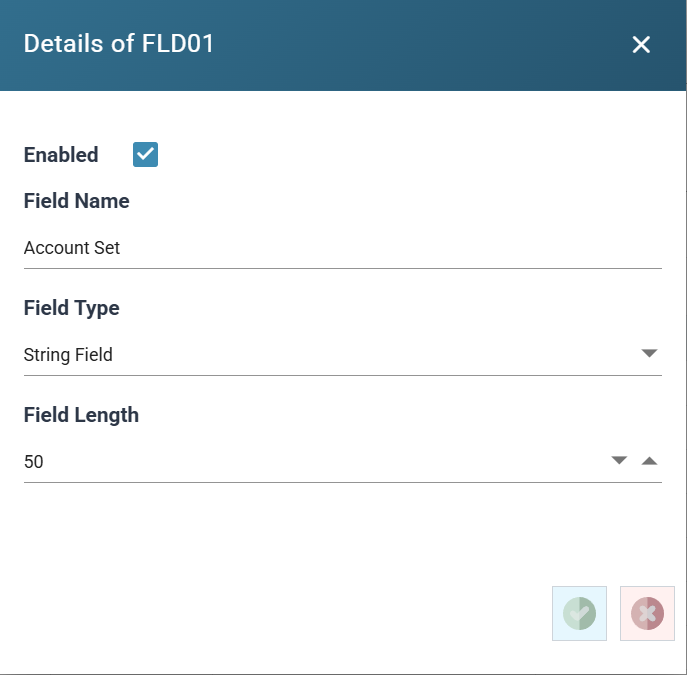
Enabled
When ticked, the field is in use. It appears on the record form and you can enter values against it. The other boxes in the dialog are disabled until you tick it.
Field Name
The friendly name shown for the field on the record form.
Field Type
String Field, Numeric Field or Checkbox Field. The type decides how the value is entered and checked on the record form, and which of the options below appear.
Field Type Specific Options
- Field Length (String Field) - The maximum length of the text, from 1 to 100. Defaults to 50.
- Decimals (Numeric Field) - The number of decimal places, from 0 to 6.
- Minimum Value and Maximum Value (Numeric Field) - The range a value must fall within.
- True Value and False Value (Checkbox Field) - The values stored when the box is ticked and unticked. Default to
YesandNo.
Changing a field's type resets its options to the defaults for the new type.
The Security tab
The Security tab records which jobs a table belongs to. IMan lists jobs in two columns, Unassociated Jobs and Associated Jobs. To move jobs between them, select one or more and press an arrow button. The double arrows move every job at once.
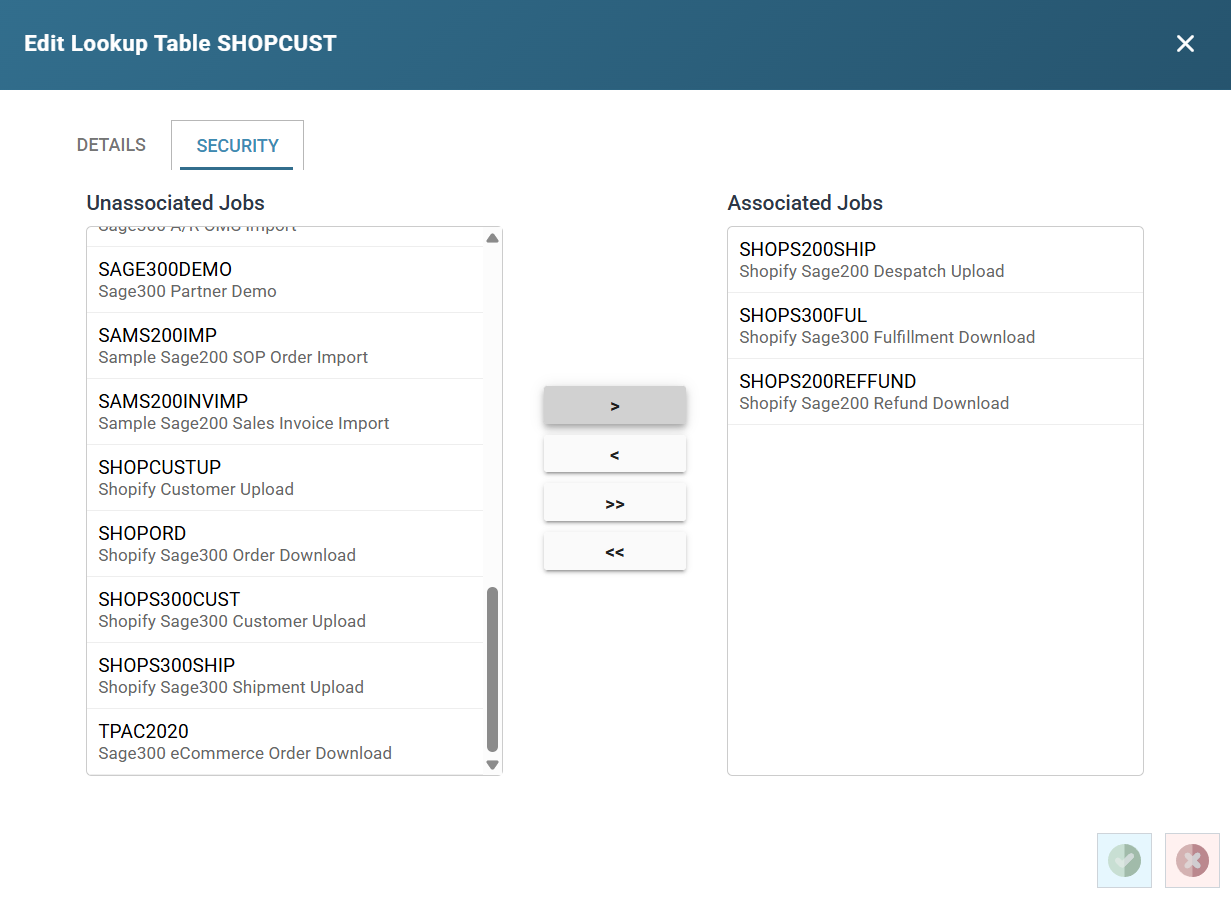
The association records which integrations read the table. Keep it accurate on a site with many tables, because it tells you who a change to the table affects. In IMan 6.1 the association does not grant anyone access. The table definition screens are available to administrators, and the maintenance screen to every user who can sign in to the Designer.