Using Lookups for Settings & Defaults
Integrating with an application usually needs a handful of settings and default values — the customer group a new account is created in, the location stock is taken from, the tax group to fall back on. There are two places to put them.
- In the job configuration. Easy, and hard to live with: changing one means opening the integration and finding where the value was used, and only somebody who can edit integrations can do it.
- In an IMan Lookup table. Changing a setting is then a change to a value in a table, and an end user can make it without opening the integration at all.
This article sets up the second, using a single table called INTCONSTANTS.
1. The Lookup table
The table is where the values live.
- Go to Setup, then Lookup Tables, and press Add.
-
Fill in Lookup ID, Description and Lookup Result Label, then press SAVE.
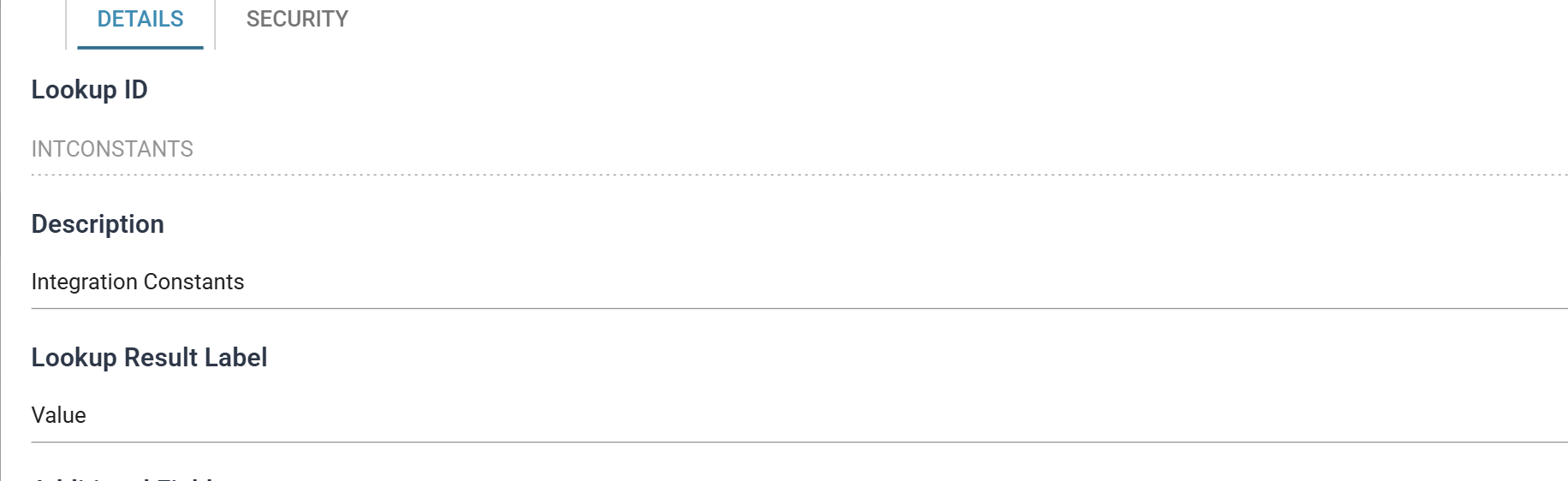
Field Value Lookup ID INTCONSTANTSThe id the Lookup function is called with Description Integration ConstantsWhat the maintenance screen lists the table as Lookup Result Label ValueThe heading over the value column when somebody maintains the table Whether you create one table for all settings across all integrations or a table per set of integrations depends on how many there are and on who maintains them. This guide assumes a single table.
-
Leave Additional Fields alone. A lookup table can hold up to twenty more fields against each record, and settings rarely need them — see Lookup Tables if yours do.
2. The Lookup
The table holds the values; a Lookup is what VBScript can call. Create one pointing at the table.
- Go to Setup, then Lookups, and press Add.
-
Set the Id and Description, tick Use IMan Lookup Table, and choose the table under IMan Lookup Table. Press SAVE.
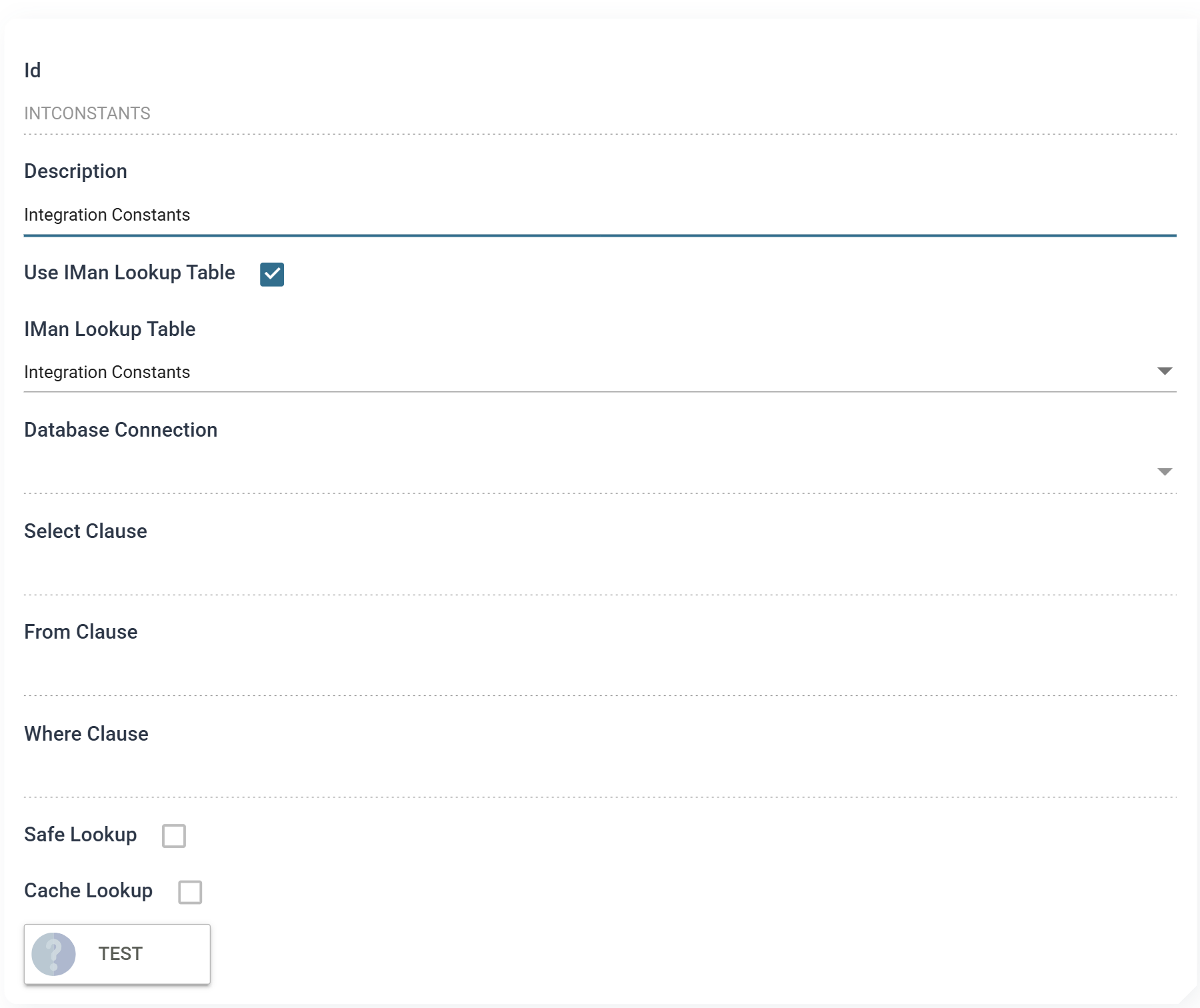
The Lookup's Id does not have to match the table's, and here it does only to keep the two easy to pair up.
Everything below IMan Lookup Table belongs to the other kind of lookup, the one that queries an external database: the connection, the three SQL clauses, and Safe Lookup, which parameterises a where clause this lookup does not have. Cache Lookup does apply, and is worth turning on for settings — the same handful of values gets asked for on every record. The Lookups setup page covers all of them.
-
Press TEST to check it before you rely on it. The result comes back in the Lookup Result panel beside the form, and so does any failure, with the database's own message.
3. Putting values in it
- Go to Setup, then Lookup Table Maint, and choose the table from the drop-down.
-
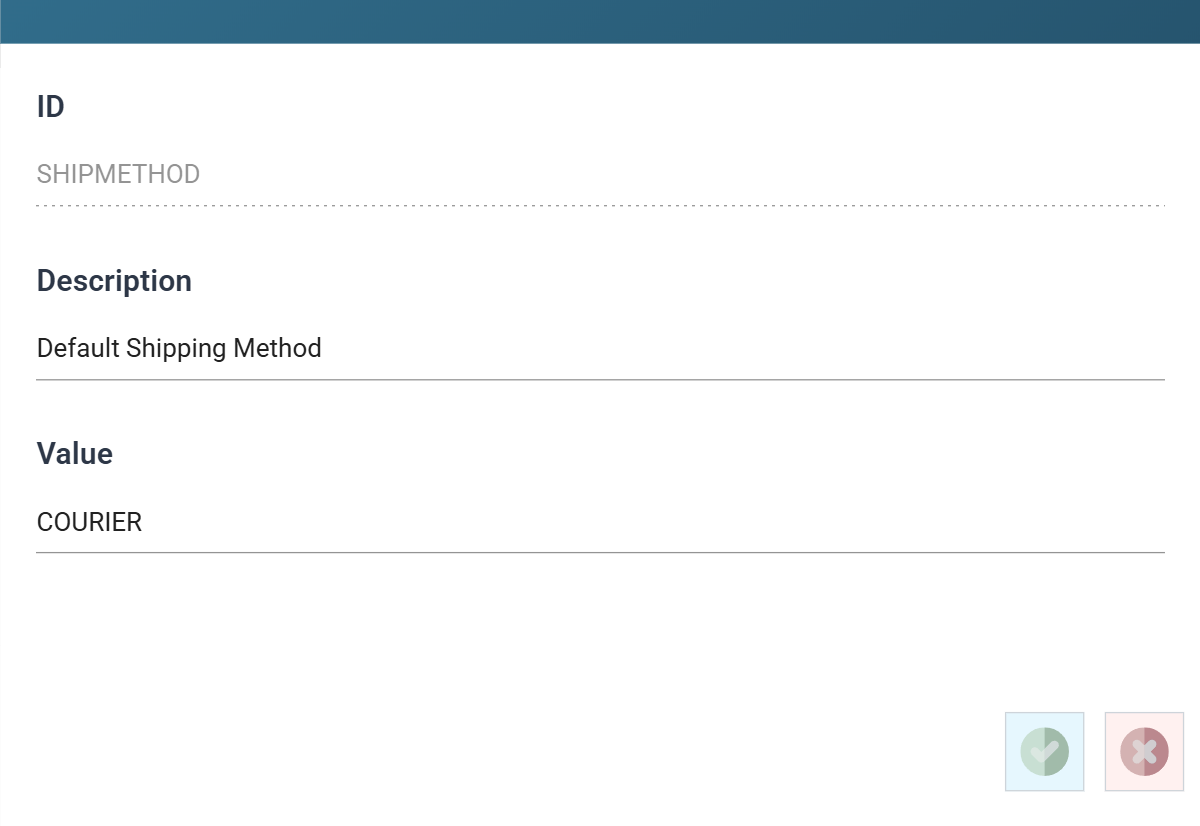
Press Add, fill in ID, Description and Value, and press the green tick.
-
Repeat for each setting.
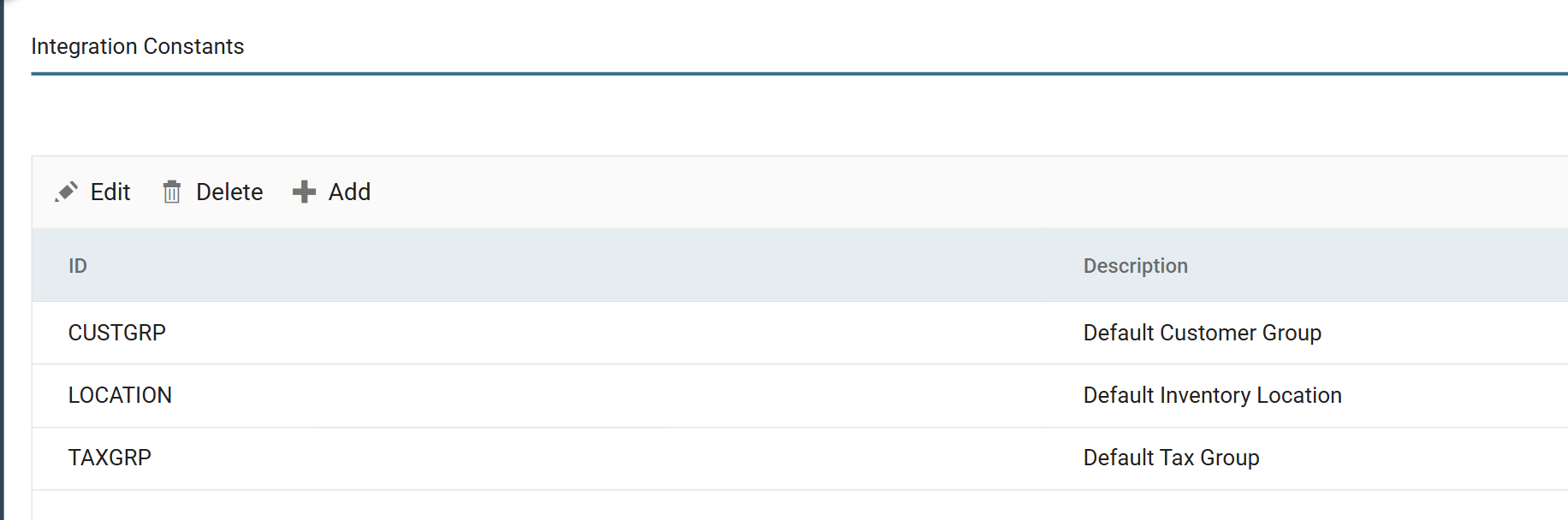
The ID is what the integration asks for, so it is the part that has to stay stable; the Description is for whoever maintains the table, and the Value is the thing they are there to change.
4. Reading a value back
In any transform or task that supports VBScript, call the Lookup function:
| Argument | ||
|---|---|---|
| 1 | "INTCONSTANTS" |
The Lookup's Id — the one created in step 2 |
| 2 | "LKUPRESULT" |
The field to return. For a simple setting this is always LKUPRESULT, whatever the Lookup Result Label calls it on screen. LKUPDESC returns the description, and FLD01…FLD20 the additional fields |
| 3 | "CUSTGRP" |
The ID of the record in the table |
| 4 | True |
Whether a matching record must be found |
The fourth argument is the one worth thinking about. True means there must be
a record, and a missing one fails the job rather than quietly returning
nothing. That is right for a setting, because a setting that has been
deleted is a configuration error and not an empty string. Use False only where
the absence of a value is a legitimate outcome.
A fifth, optional argument replaces the error message with your own, which is worth using when the person who will read it is not the person who built the integration.
Verified against IMan 6.1, September 2026.