Tiered Lookups
The Tiered Lookup Maintenance page lets administrators manage tiered (hierarchical) lookups. A tiered lookup has several levels. Each level can define its own rules using one or more matching strategies: fixed values, numeric ranges, tiered lists or multiple values.
During a transform, the TieredLookup function queries the values held in the tiered lookups.
On this page
- Use Cases
- When and why to use Tiered Lookups
- Page Layout
- Page Layout and Navigation
- Lookup Rules
- Defining the hierarchical rules.
- Editing Lookup Data
- Adding and editing the lookup data.
- TieredLookup Function Snippet
- What it is and how to use it.
Use Cases
Tiered lookups let you maintain complex sets of rules where the parent/child relationships vary. Each entry in a lookup can return a single value that represents a common entity.
Possible uses include:
- Tax Rates
- Some countries have one rate for the whole country. Others have a different rate per state.
- Each state may be further divided into counties.
- Calculate Shipping Costs
- When you process drop-ship orders, you may need to calculate the shipping cost on the purchase orders sent to the suppliers of the products.
- Each supplier has its own shipping costs, which may depend on factors such as:
- Any or all of the quantity, cost, weight and calculated size of the order.
- The area or region the goods are shipped to.
- The type of products ordered.
- Or the cost may be a flat rate for all orders.
Typical Workflow
- Go to Setup > Tiered Lookup Maint.
- Select a lookup from the drop-down, or first create a new tiered lookup on the Tiered Lookup Setup page.
- Press Rules to review or change the key definitions for the selected lookup.
- Add lookup entries with the Add button, or click an existing row or value to edit it.
- Press Save to save your changes.
- For tiered list types, click through the value levels to manage deeper tiers of the hierarchy.
Tiered Lookup Page Layout
The page consists of five main areas:
- Lookup Selector
- The drop-down list at the top of the page.
- Rule Editor
- A dialog for adding or editing the key definitions (rules) for the selected lookup.
- Tiered Value List(s)
- A rule defined as a tiered list shows its items in a selectable column of values.
- A tiered list entry can define the next rule as a tiered list too. IMan then shows another tiered list beside the selected one.
- Grid View
- Displays the lookup entries in a grid (for fixed, range and multi-key types), depending on the key configuration.
- Code Snippet
- The code snippet at the bottom shows how to call the tiered lookup.
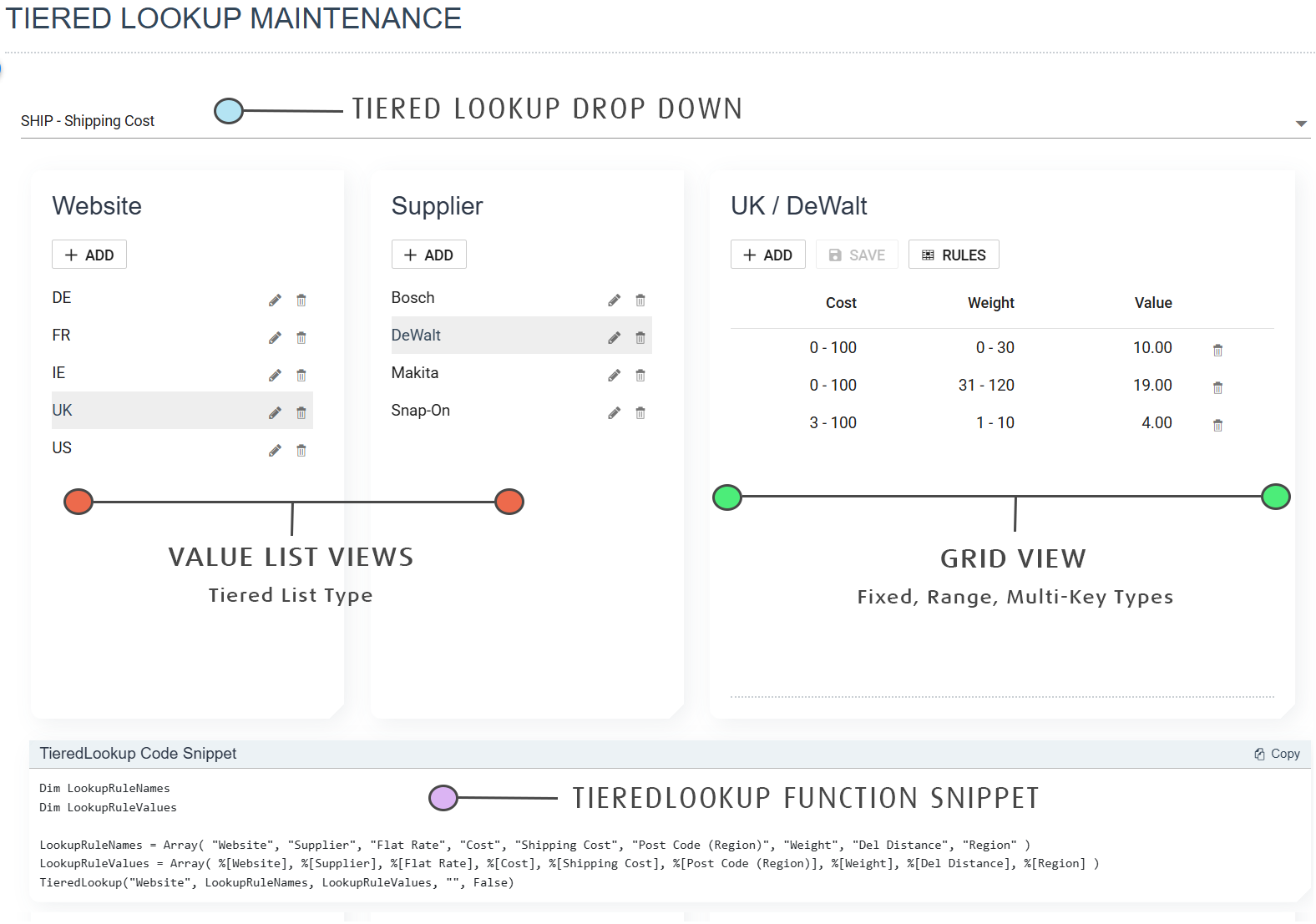
Selecting a Lookup
Select the tiered lookup from the drop-down at the top of the page. IMan loads its rules and data into the editing area below.
Editing Lookup Rules
You can edit rules in two places: when adding items to a Tiered List, or in the Grid View.
Add/Edit/Delete Lookup Rule (Tiered List Value)
You can add, edit and delete values in the tiered value list.
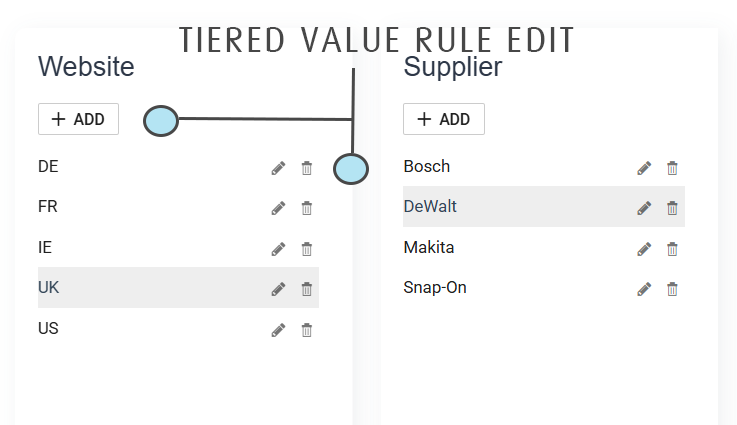
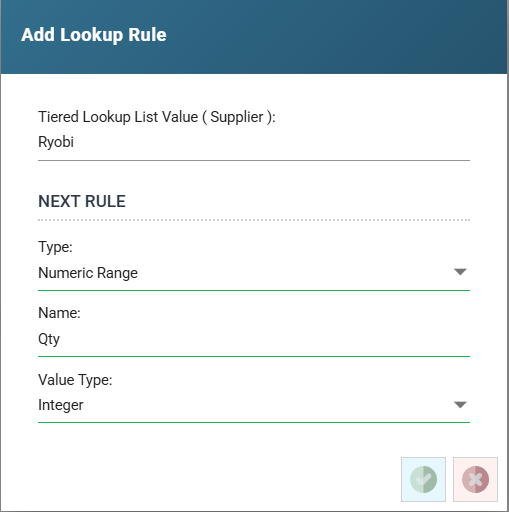
When you add or edit the rule, a dialog appears. Its first field is the value to add to the tiered hierarchy.
The fields after it define the next rule in the tiered hierarchy.
Rules Button (Grid View)
Press Rules in the grid or value view toolbar to open the Add/Edit Rules dialog.
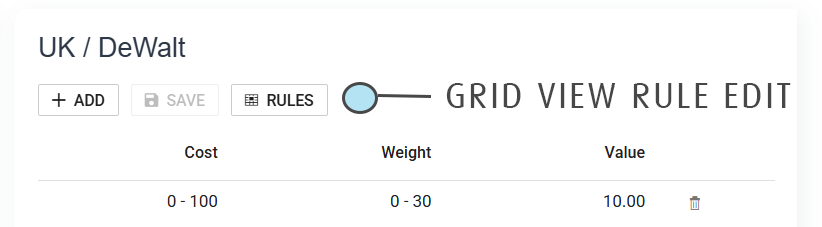
The dialog uses an accordion layout. Each accordion item is one key definition in the tiered hierarchy.
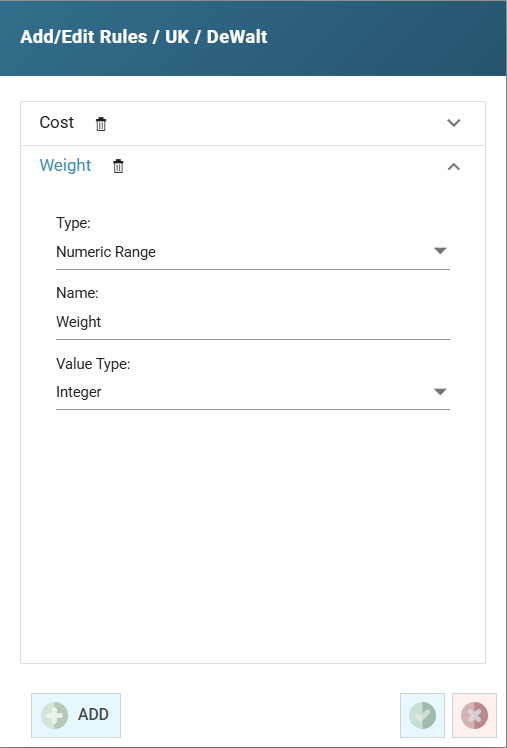
Rule Fields
| Field | Description |
|---|---|
| Tiered Lookup List Value | The value that this definition represents within its parent tier. Only shown when the parent key type is Tiered List. |
| (Next Rule) Type | Determines how the key matches input data. See Rule Types below. |
| (Next Rule) Name | A descriptive name for this rule level (for example "Region" or "Product Code"). Maximum 60 characters. The TieredLookup function passes rule values by rule name, so keep the Name consistent across the rules. For example, if several branches have Weight rules, name them all 'Weight', not a mix of 'Weight', 'Weight (g)' and 'Weight (grams)'. |
| (Next Rule) Value Type | The data type of the key value. Only shown for Fixed Value and Numeric Range types. Options: Boolean, Integer, Decimal, String. |
| (Next Rule) Match Type | How values are compared. Only shown for Multiple Values type. Options: Exact, From Start, From End, Anywhere. |
| (Next Rule) Is Catch All | A check box that allows a key to act as a default/fallback if no exact match is found. Only shown for Multiple Values type. |
Rule Types
| Type | Description |
|---|---|
| Fixed Value | Matches against a single exact value. |
| Numeric Range | Matches when the input falls within a minimum and maximum numeric range. |
| Tiered List | Creates a sub-level of named values, each of which can have its own child key definitions. This creates the hierarchical tiers. |
| Multiple Values | Matches when the input matches any one of a list of values. The Match Type sets the comparison: Exact, or the input starts with, ends with or contains the value. When several values match partially, the longest wins. |
Dialog Actions
- Add New (Grid View)
- Adds a new key definition to the current level. The accordion expands to show the new entry.
- Save
- Saves all key definitions and closes the dialog.
- Cancel
- Closes the dialog without saving.
- Delete (trash icon on each item header)
- Removes the key definition. IMan asks you to confirm.
Working with Lookup Data
After you select a lookup, the editing area shows either a Value List view or a Grid view, depending on the rule type configuration.
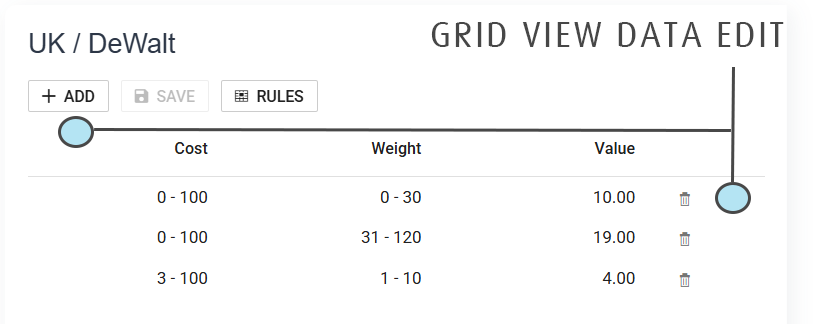
Grid View (Fixed, Range, Multi-Key Types)
The grid displays all lookup entries for the current tier level. Each row shows the key column values and a Value column with the resolved result.
Toolbar actions
- Add
- Opens the edit dialog to create a new lookup entry.
- Save
- Saves all pending changes to the current lookup entries. Only enabled when there are unsaved changes.
- Rules
- Opens the key definition (rules) editor dialog.
Row actions
- Click a row to open the edit dialog for that entry.
- Press the Delete (trash) icon on a row to remove the entry. IMan asks you to confirm first.
Value List View (Tiered List Type)
When a key type is Tiered List, the view shows a list of named values for the current tier. Each value is a branch in the hierarchy.
- Add
- Opens a dialog to add a new value to the current tier.
- Edit (pencil icon)
- Enables inline editing of the selected value's properties.
- Delete (trash icon)
- Removes the value after confirmation.
Click a value in the list to move deeper into the hierarchy. The right-hand side of the view shows the next tier's data: another value list or a grid, depending on the child key definitions.
Edit Dialog
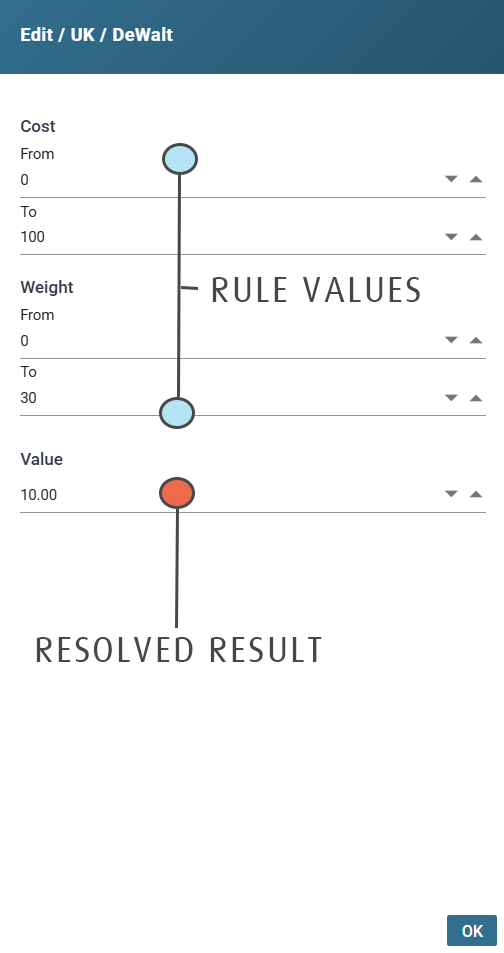
When you add or edit a lookup entry in grid view, a dialog appears with input fields for each defined key:
- Fixed Value
- A single input field.
- Numeric Range
- Minimum and maximum input fields.
- Multiple Values
- Multiple value input fields based on the match configuration.
- Resolved Result
- The result that the lookup returns when matched.
Press OK to confirm the entry.
Unsaved Changes
The page tracks all changes. If you try to leave the page with unsaved changes, IMan asks whether to save them.
TieredLookup Function Snippet
The section at the bottom of the page shows a code snippet that calls TieredLookup.

The snippet updates automatically to match the rule names and their values.
The LookupRuleValues array is a best guess. You will probably need to change each field reference, for example %[Website], to one of the following: the field that holds the value to pass to the function, a constant value or a variable in the VBScript expression.