Office365 Smtp Server
These are the properties you need to set up an Office 365 SMTP server.
Before you create an Office 365 server, configure an app in your Office 365 tenant's Azure Active Directory. See Azure App Configuration.
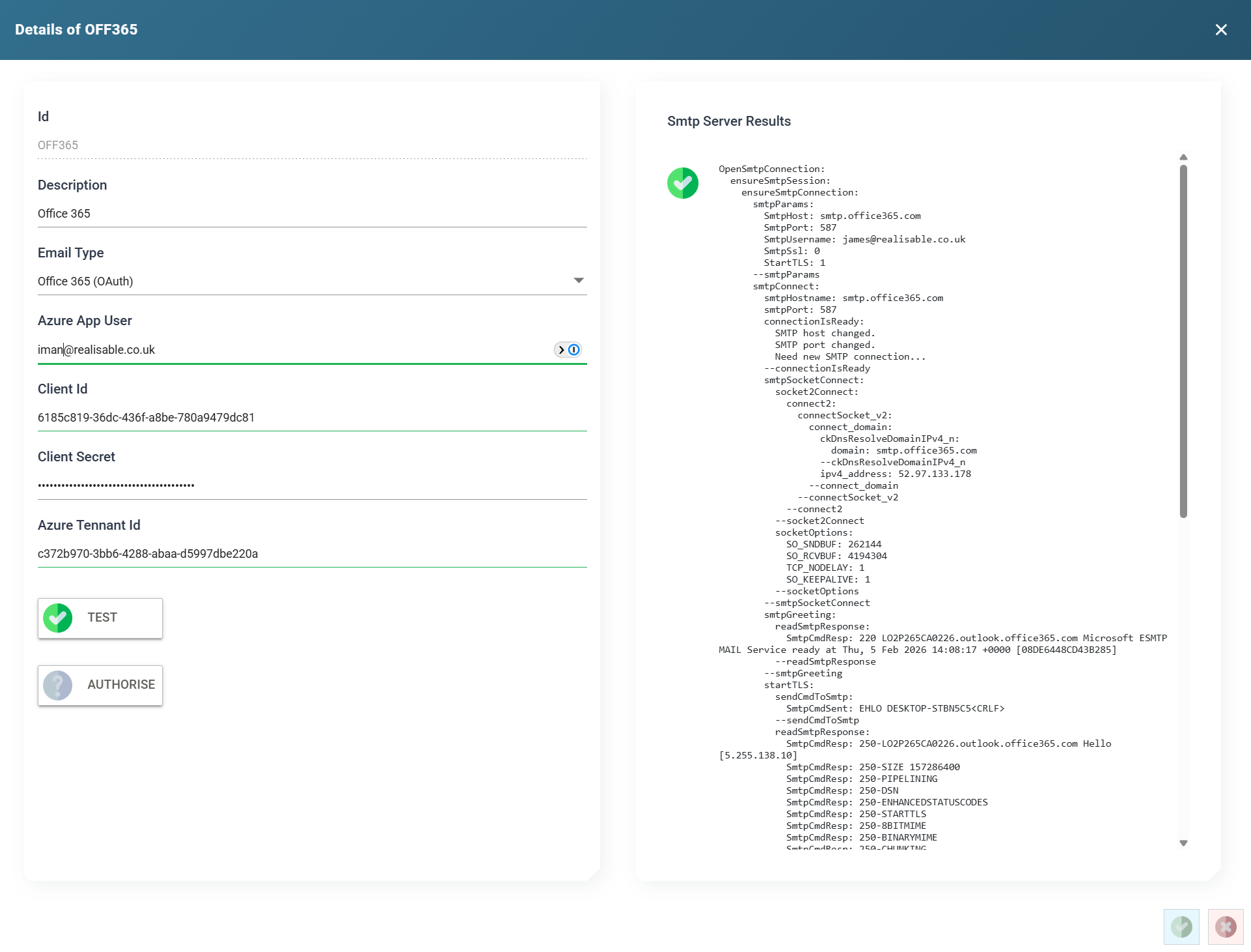
ID
The unique Id of the SMTP Server.
Description
A useful description of the SMTP Server.
Email Type
Set to Office 365 (OAuth).
Azure APP User
The Office 365 email account that sends the email.
Client ID
The client id from the Office 365 app setup.
Client Secret
The client secret from the Office 365 app setup.
IMan masks the saved client secret. The box shows ********, followed by the last three characters when the client secret is eight or more characters long. Press the eye button beside the box to show the stored client secret, and press it again to hide it. Showing a stored client secret needs the Can reveal a stored secret in full permission. To change the client secret, click in the box and type the new one. Leave the box empty to keep the stored client secret.
Azure Tenant Id
The tenant id from the Office 365 app setup.
Test
Press Test to check that the settings are valid and working.
Authorise
Press Authorise to start Authorisation with Office 365.