Audit Report, Auditing, and Log Keys
Set the audit up before the first run, not after the first failure
The audit report is how you find out what an integration did, so set it up correctly now.
15 minutes now will save several hours of debugging and reconciliation when something goes wrong.
Each time IMan runs a process, it compiles an audit report of errors, warnings and user-specific auditing data.
When the process completes, IMan emails the report to a list of recipients you specify. The audit report is the most under-used feature of IMan.
Audit Report Components
Summary
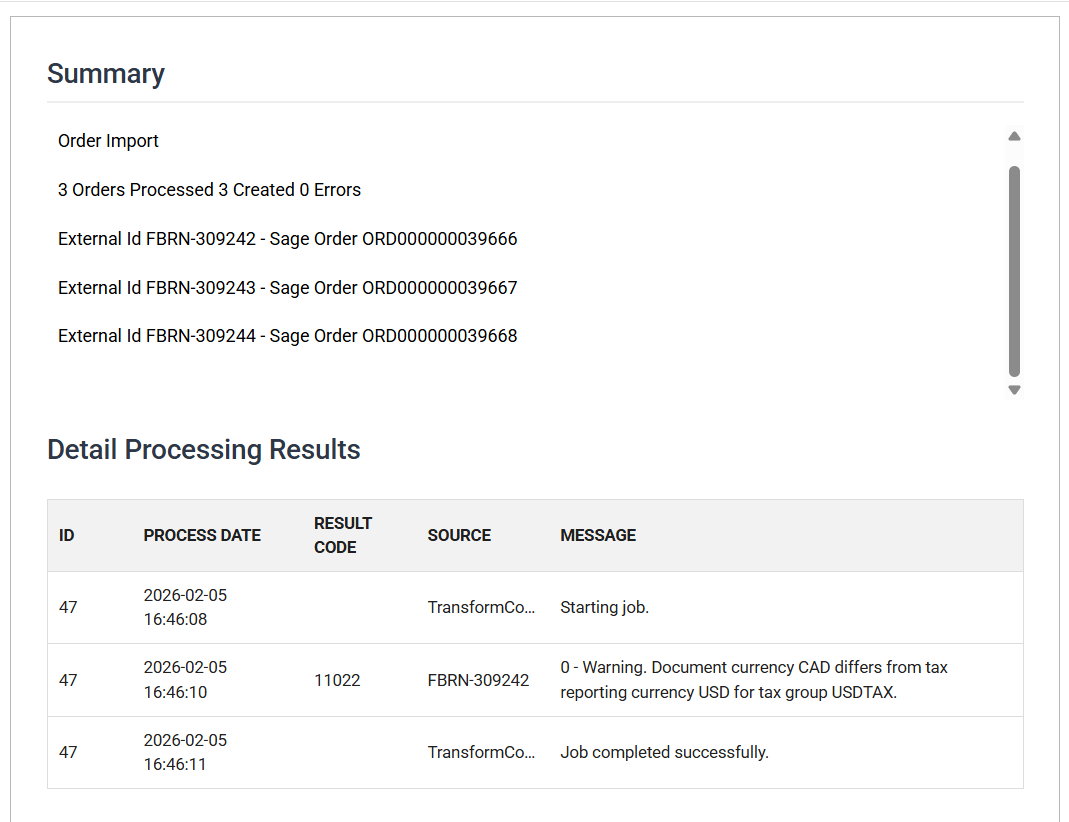
The audit summary shows the key data you need to reconcile what the integration passed from one system to another, for example order numbers or customer ids.
Detail Processing Results
The detail contains any errors, warnings or other messages generated during processing.
Audit summaries
When an error happens, you need a report that points you to the data that caused it.
To get one, configure the Audit Summary correctly.
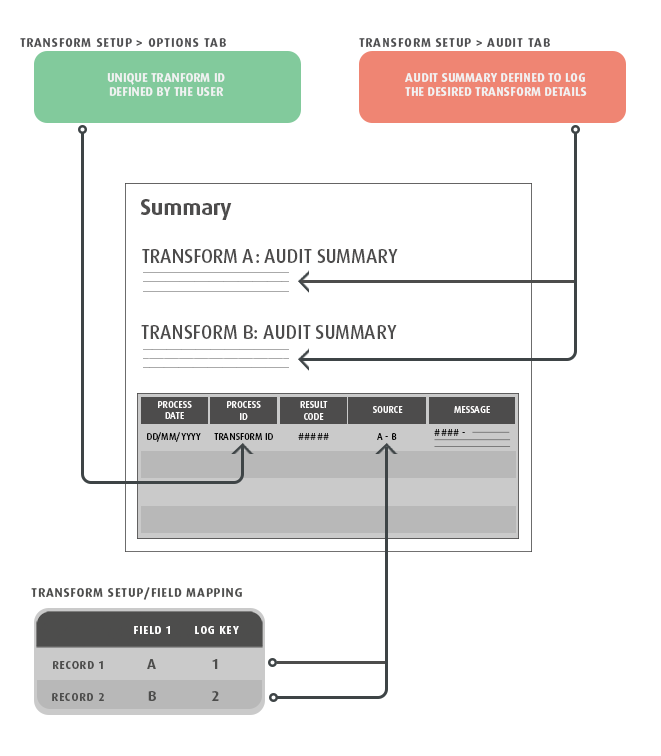
The Audit Summary can list numbered static or Expando Fields for the dataset, with a summary statement of how many records were processed, created or had errors.
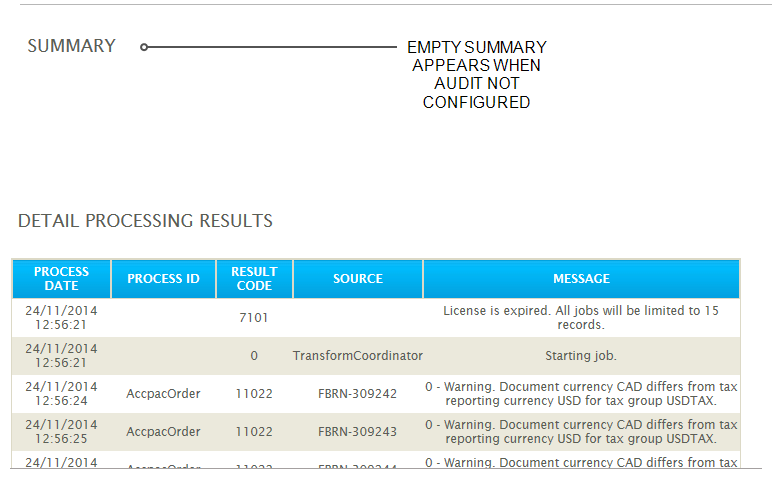
An unconfigured Audit Summary reports only the Processing Results
If you save an integration and run it from the scheduler without configuring the Audit Summary, the report contains only the Processing Results.
An Audit Report with an unconfigured Summary has no Summary section at all. It opens at the Processing Results, which may contain some warnings but no details about individual records, such as the number of customers or the invoice numbers:
When each integration completes, IMan formats the records into this report and emails it to the relevant people.
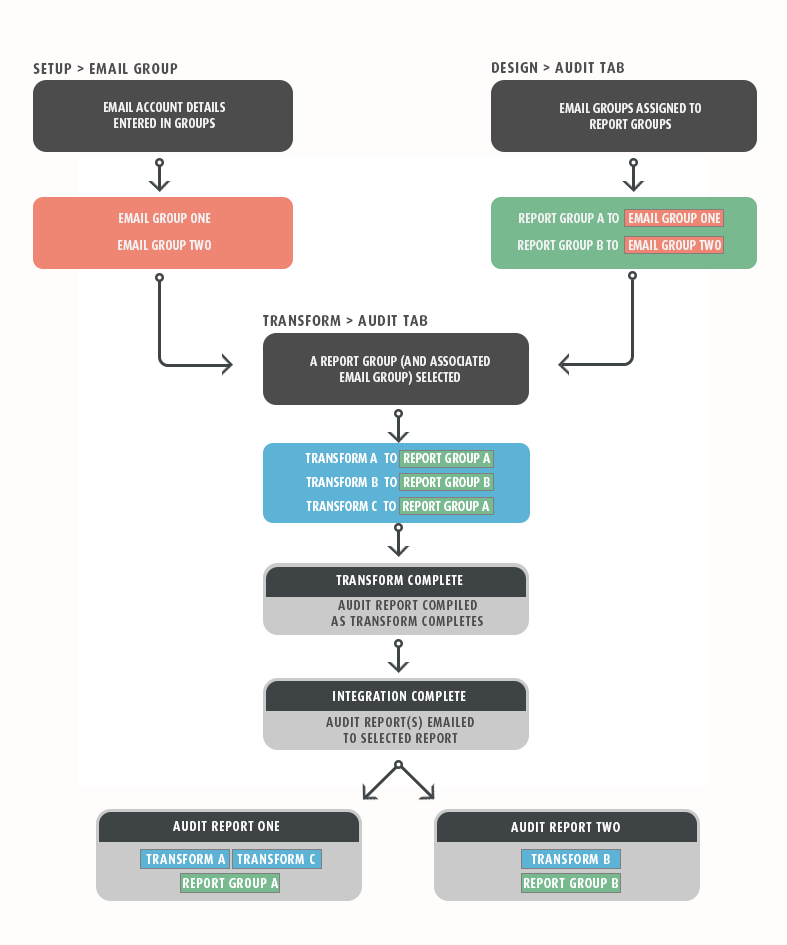
See the Transform Audit Tab to set up Report Groups, and Email Groups for email configuration.
Report Group
Report Groups typically divide the audit report by functional role. Data managed by different departments can be processed together in one integration, and each department receives its own audit report.
For example, an integration that imports data for different parts of an accounting department can have a report group for each part of the dataset. Each group's report goes to the people responsible for that data.
Each integration has one Report Group by default. You can define more, as outlined below.
Email Group
The Email Group defines who receives the Audit Report for the selected Report Group. Because you choose which Email Group receives which Audit Report, users receive only the results relevant to them.
Email Groups are created in the Setup tab.
Log Keys
Log Keys are not the same as the key fields used to set up hierarchies. When the Processing Results show an error, the report also shows the data identified by the Log Keys in its Source column. You can then find the record in error quickly.
The number of summary sections depends on the number of fields that have been assigned log keys values.
You configure log keys separately for each transform, so the feedback in the report can be very specific.
You enter Log Keys at record level to identify a transaction. You do this in the field mapping grid on the Transform Field Mapping tab, but it is a vital part of an accurate Audit Report. Only some transforms, such as the map transform, let you enter Log Keys.
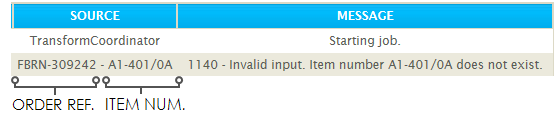
IMan lists the numbered fields, in order, in the Source column of the Audit Report. For example, give the Order Id a '1' in its "Key" field and the Item Number a '2'. IMan then shows the Order Id followed by the Item Number in the Source column.
Example
This screenshot shows audit log entries where the Order Reference and Item Number fields have Log Key numbers to identify each entry.