Options Tab
The Options tab is the first screen you see after you log in. It holds an integration's basic settings and maintenance functions.
Design > Options Tab
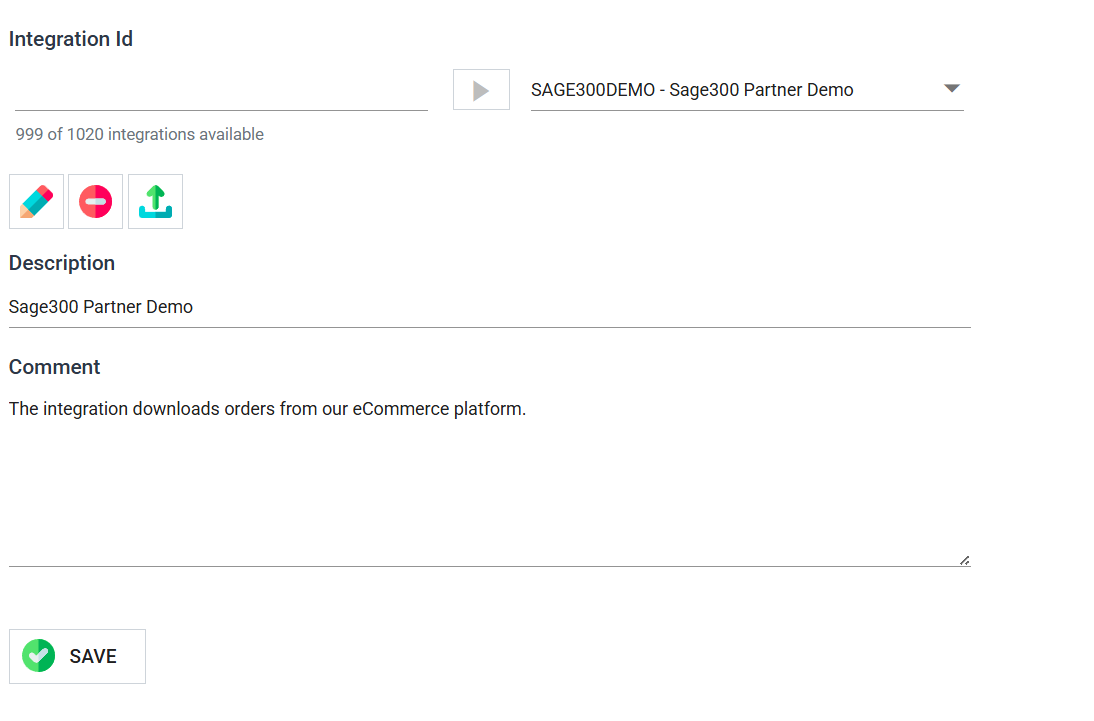
Integration Id
The Id you give the integration. The Id must be unique, and you cannot change it once set.
The line beneath the field reports how many integrations the licence allows and how many remain.
Add Button
To create a new integration, enter an Id into the Integration Id field, and press the Add button beside it.
Integration Drop-down
Lists the defined integrations. Type into it to filter the list. Once an integration is loaded, the text beneath reads Editing "<Integration Id>".
Edit Button

To edit an existing integration, select it from the drop-down and press the Edit button.
Autosaved versions
IMan autosaves the integration you are working on. When you press Edit, IMan may show a Load Integration prompt about one or both of the integrations involved. If both questions apply, they appear in the same dialog.
If the integration currently open has unsaved work:
| Option | Effect |
|---|---|
| Save | Saves the open integration before loading the other one |
| Retain Autosaved | Leaves the autosaved copy in place, to be picked up next time that integration is opened |
| Discard Changes | Throws the autosaved copy away |
If the integration being opened has an autosaved copy, IMan asks whether to load the Saved or the Autosaved version.
No autosave, no prompt
IMan asks neither question when there is no autosaved copy, so most loads show no prompt at all.
Delete Button

Deletes the integration. IMan asks you to confirm, then removes the integration and all references to it.
Audit Log entries outlive the integration
IMan keeps an integration's Audit Log entries even after you delete the integration.
Upload Button

Uploads a configuration file (xml) exported from another IMan instance into this one.
When you press it, IMan asks you to drop the .xml files or browse to them.
You can select and upload several integration configuration files at once.
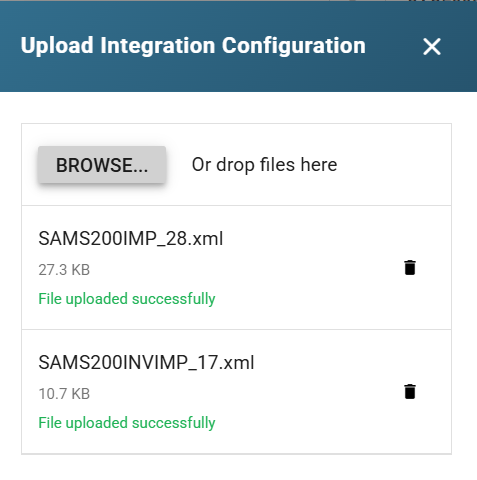
A message appears below each upload to indicate whether it succeeded.
Description
Add a reference for the integration.
This description together with its Integration Id form the integration's title.
Maximum Concurrent Instances
This limits how many runs of the integration can be in progress at the same time. See Integration Concurrency.
Typically, you set it to zero (0), which sets no limit, or one (1), where only one run can be in progress at a time.
For integrations with a Monitor enabled (available for the Email Controller only), IMan sets this field to (1) and you cannot change it.
Ignored while working in the designer
IMan ignores this setting when you run the integration in the designer.
Comment
Enter comments or notes here, such as design decisions or a description of what the integration does and how.
Save Button
Saves the integration.