Adding/Deleting/Moving Transforms
Transforms are the core of any integration. Each transform defines a set of actions, either on the data or as a result of it. The order of the transforms defines their execution order.
Adding a Transform
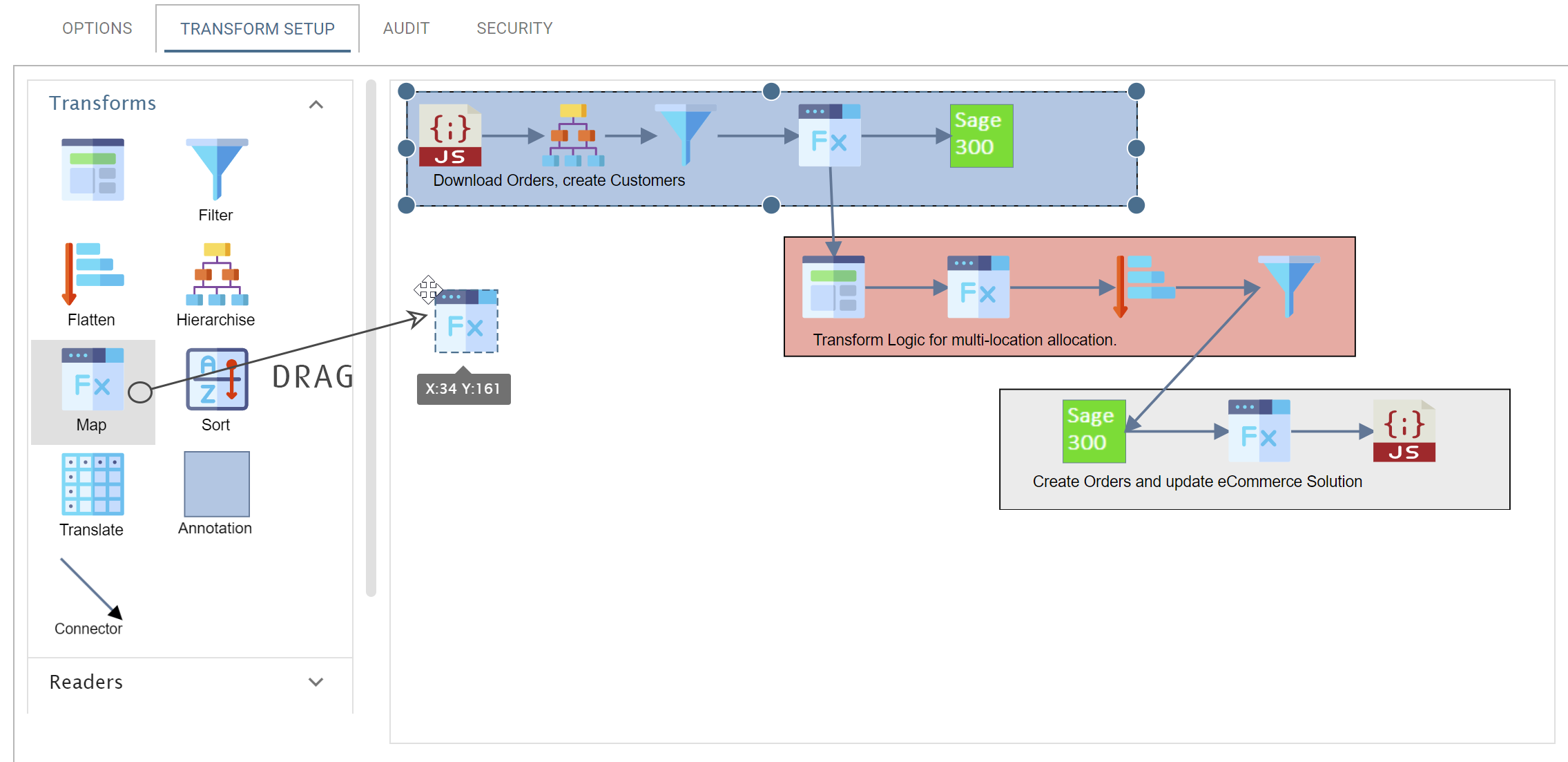
To add a transform, drag it from the palette to the surface.
You can then join it to another transform with the connector (arrow), or double-click it to open its setup & configuration screen.
Opening the Transform Setup Screen
The setup screen opens under the following conditions:
- The transform is a reader or a task transform.
- Any other transform opens only when it is connected to a configured parent transform.
Double-clicking does nothing until the conditions are met
If these conditions are not met, double-clicking does nothing.
Connecting Transforms
You connect transforms with the connector object on the Transforms tab.
The connector is an arrow. Its head shows the direction of the data flow.
Fields propagate once, at the moment of connection
IMan copies the transaction types and fields from the parent at the moment you connect the transform. You do not have to open the setup screen.
IMan copies them only on connection, so connect a transform only once its parent is configured. A transform connected to a reader whose schema has not yet been applied has an empty field grid and no transactions. You cannot refill it: delete the transform and add it again.
Connection Rules
IMan applies the following rules when you connect transforms:
- Each transform can have at most 1 transform as input.
- Transforms cannot be connected in such a way that a cycle is created.
- Each transform may have zero or more outputs (as shown below). When a transform has several outputs or child transforms, each child transform's Priority sets the order in which they run.
- If you are connecting existing transforms, the transaction types and fields must match.
Connecting to a Reader
Readers can also accept connections from a parent transform.
When you connect a transform to a reader, IMan adds the parent transform's fields to the Reader automatically.
Disconnecting a Transform from a Reader
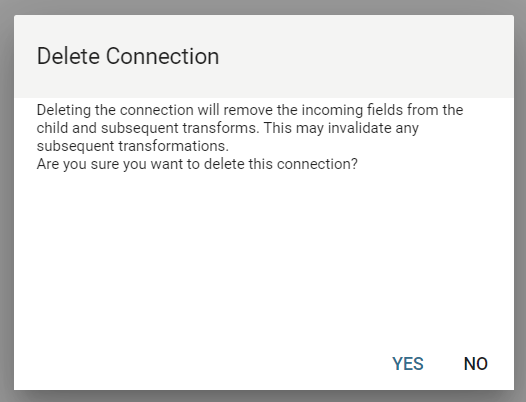
If you disconnect a transform from a Reader, IMan deletes the parent's fields from the Reader.
IMan asks you to confirm before it deletes the fields.
Using the Connector Object
- Drag the connector from the palette onto the Design Surface.
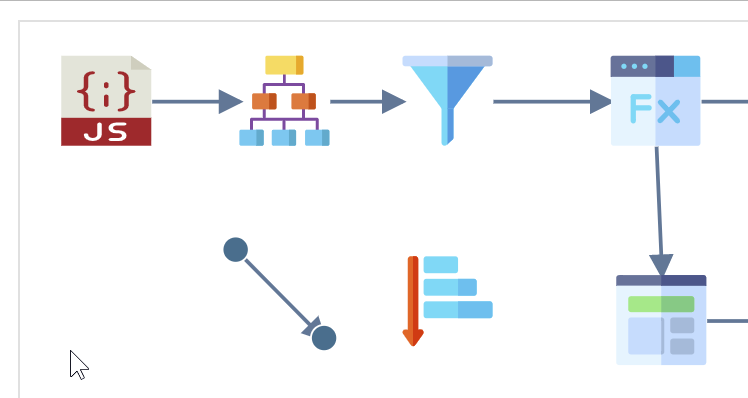
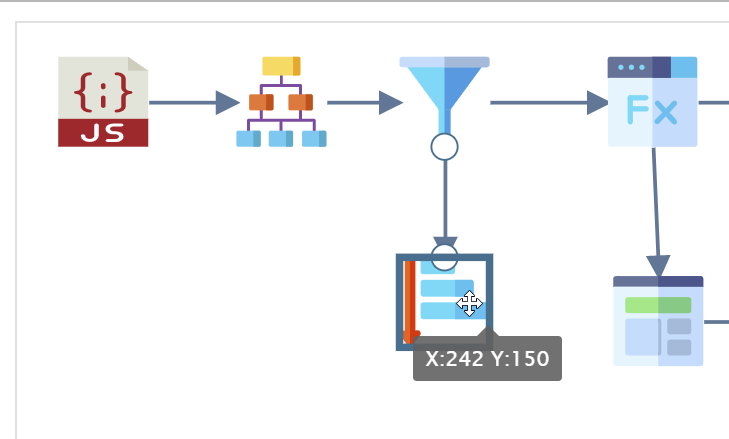
- Select the connector and drag one of the endpoints to a transform until the transform is highlighted and the endpoint turns white.
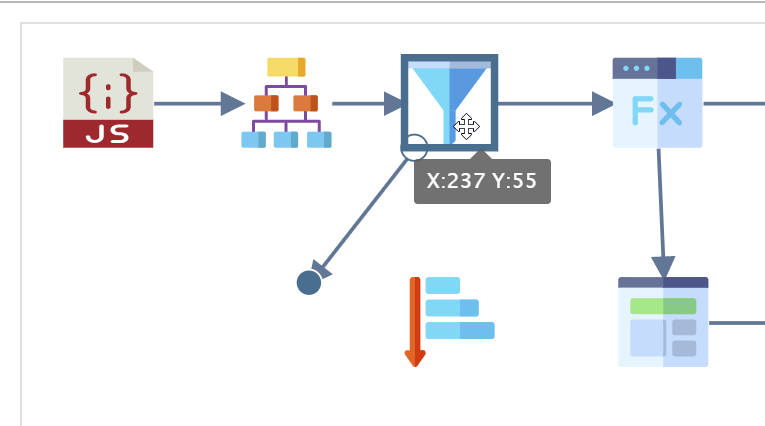
- Repeat this for the other endpoint. If the connection breaks one of the rules, IMan shows an error message.
Selecting & Moving Transforms
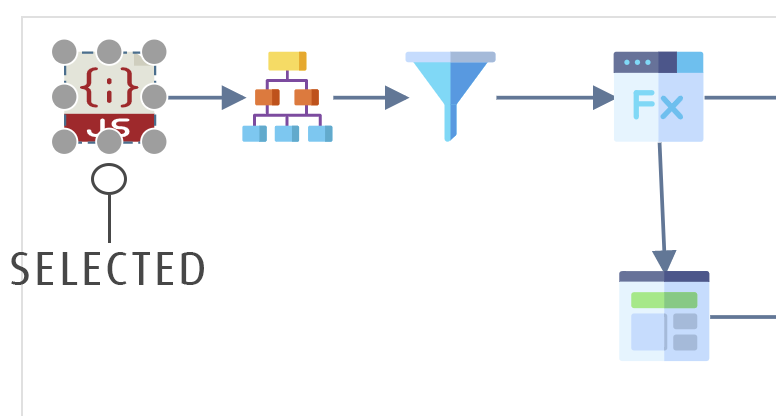
To select a transform, click its icon.
To select several transforms, drag an area around them with the mouse.
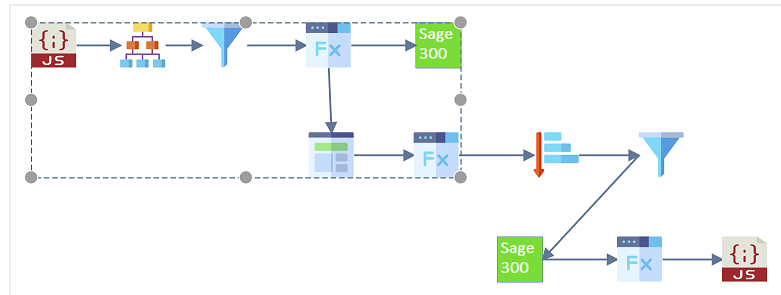
You can move transforms individually or as a group.
Deleting Transforms
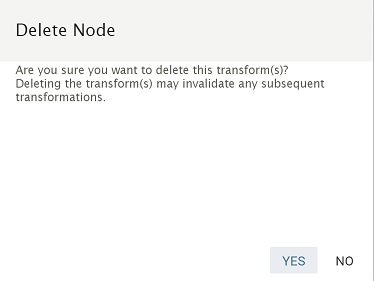
To delete a transform, select it with the mouse and press the Delete key on your keyboard.
To delete several transforms, drag an area around them with the mouse and press Delete.
IMan asks you to confirm.