Order Import
Sage 300 O/E Order Import (SAMACCIMP)
This is typical of an order import from a web-commerce application. A real web store would usually send XML. The sample uses an Excel spreadsheet to keep it readable.
The integration:
- Imports data from an Excel spreadsheet
- Applies transforms to the data
- Creates or updates sales ledger customers
- Creates sales orders in Sage 300, with a prepayment against each
- Writes a status file recording the order number Sage 300 returned
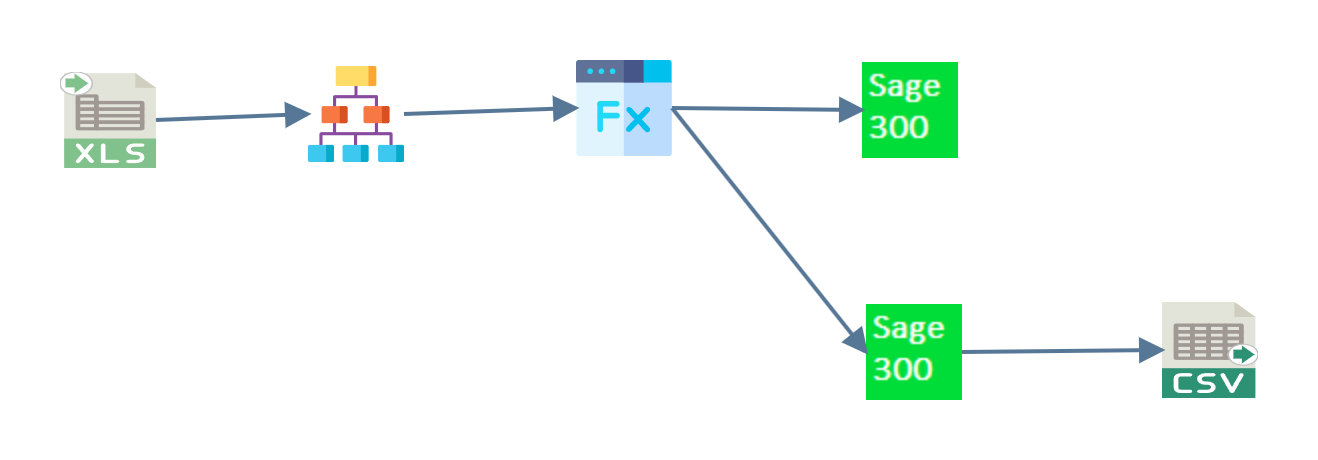
The map feeds two connectors. The first creates the customers and the second creates the orders. They run in that order because each connector transform has a Priority: 1 on the customer connector and 2 on the order connector. Sage 300 cannot create a sales order for a customer that does not exist yet.
There is a Sage 200 equivalent, built to the same shape.
Read
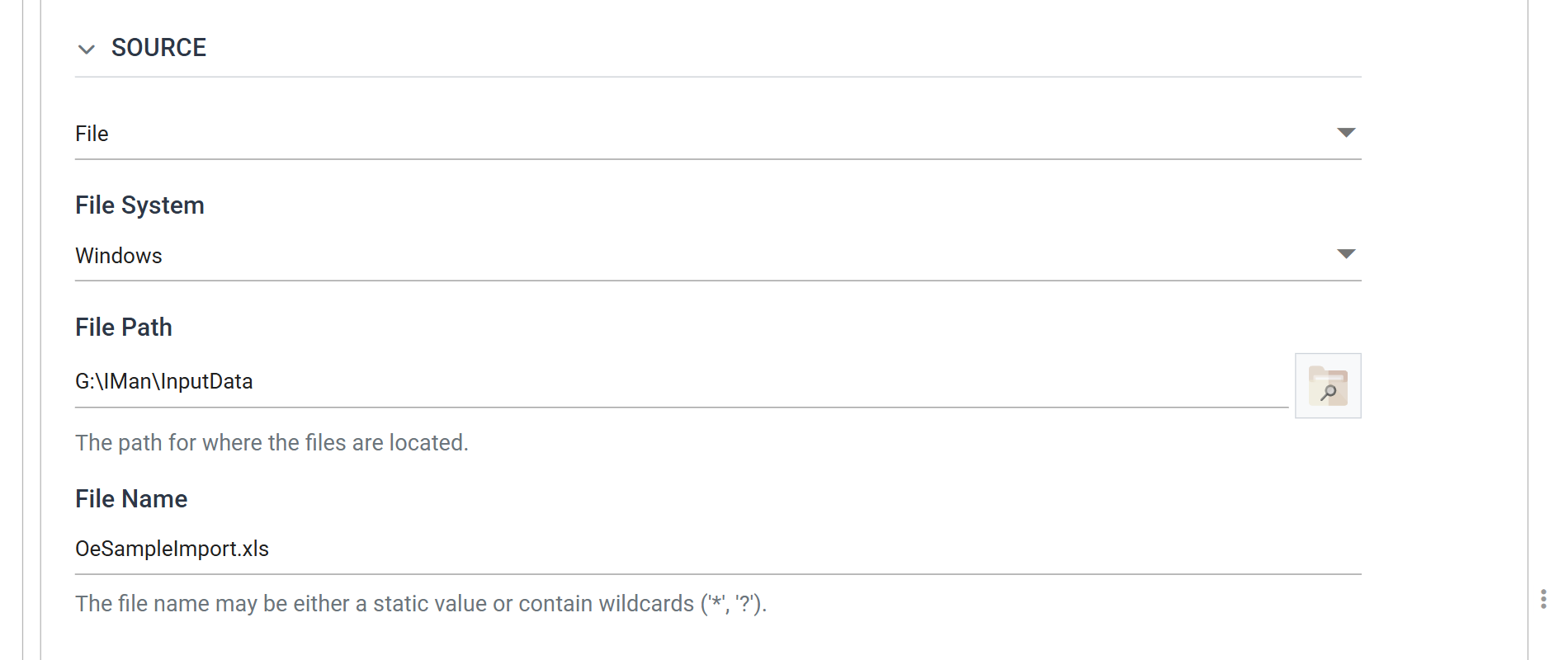
An Excel reader extracts the data from
OeSampleImport.xls in G:\IMan\InputData. One spreadsheet row is one order
line, with the order's own details repeated on every row of that order.
Hierarchy
Sage 300 expects an order as a header with lines beneath it, and the spreadsheet is flat. The Hierarchy transform gives it the structure.

You can repeat the transform to nest more deeply, for example to add shipping details. One level is enough here.
The grid below the tree sets which fields go into which transaction, and how the two transactions are linked:
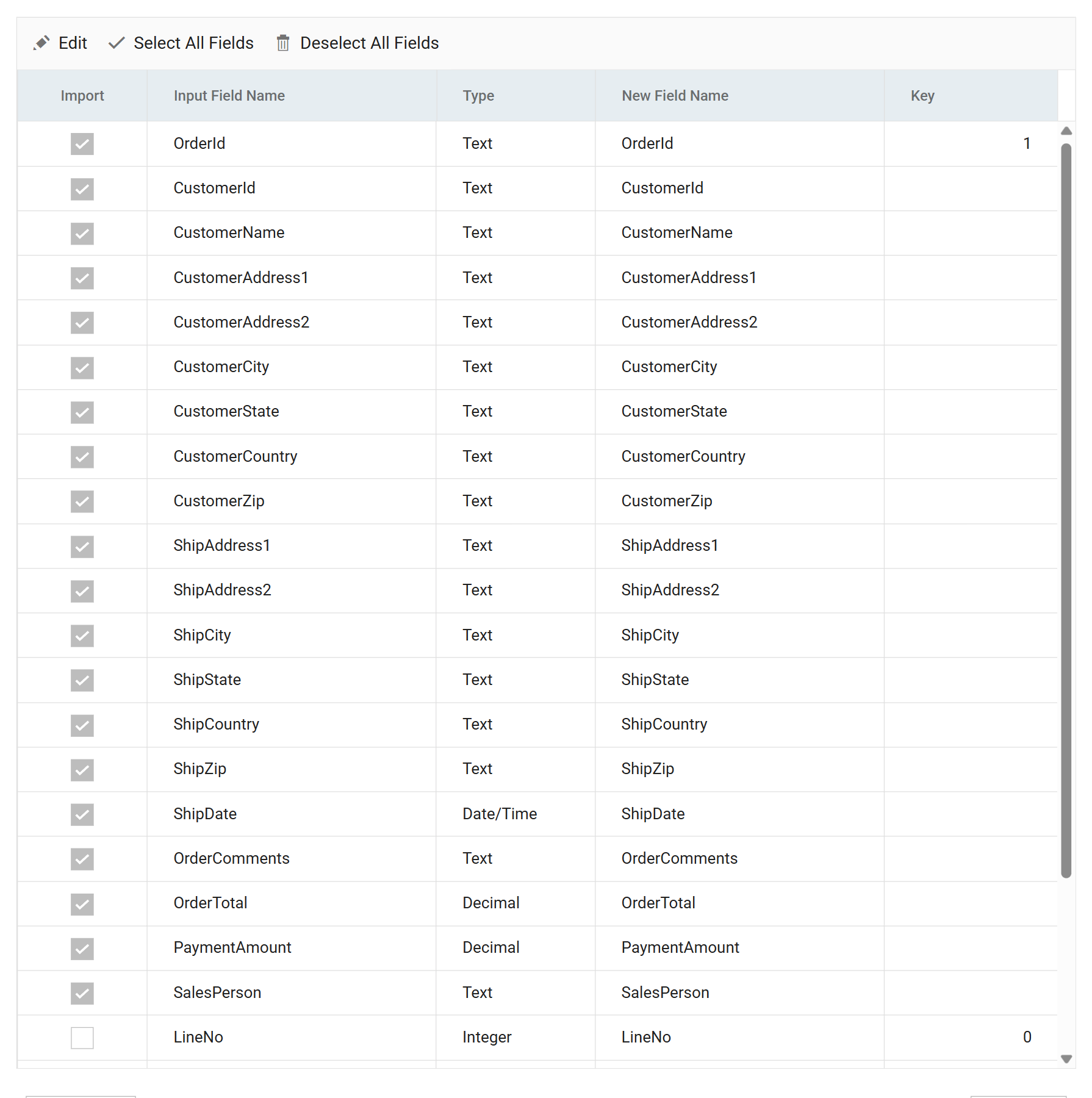
- Import says which fields belong in the transaction being built. Here the order-level fields are ticked and the line-level ones are not.
- Key says which field identifies a record, and so how the two transactions
relate.
OrderIdis Key 1, so the transform creates one Orders record per order, not one per spreadsheet row. On the child,LineNotakes Key 2.
Keys are the part of this transform to understand
Take the time to understand how keys work. See Hierarchy in the User Guide.
Map
The Map transform applies an expression to each field: a static value or a formula. Almost every integration has one. Add one even when nothing needs it yet, so later changes have somewhere to go.
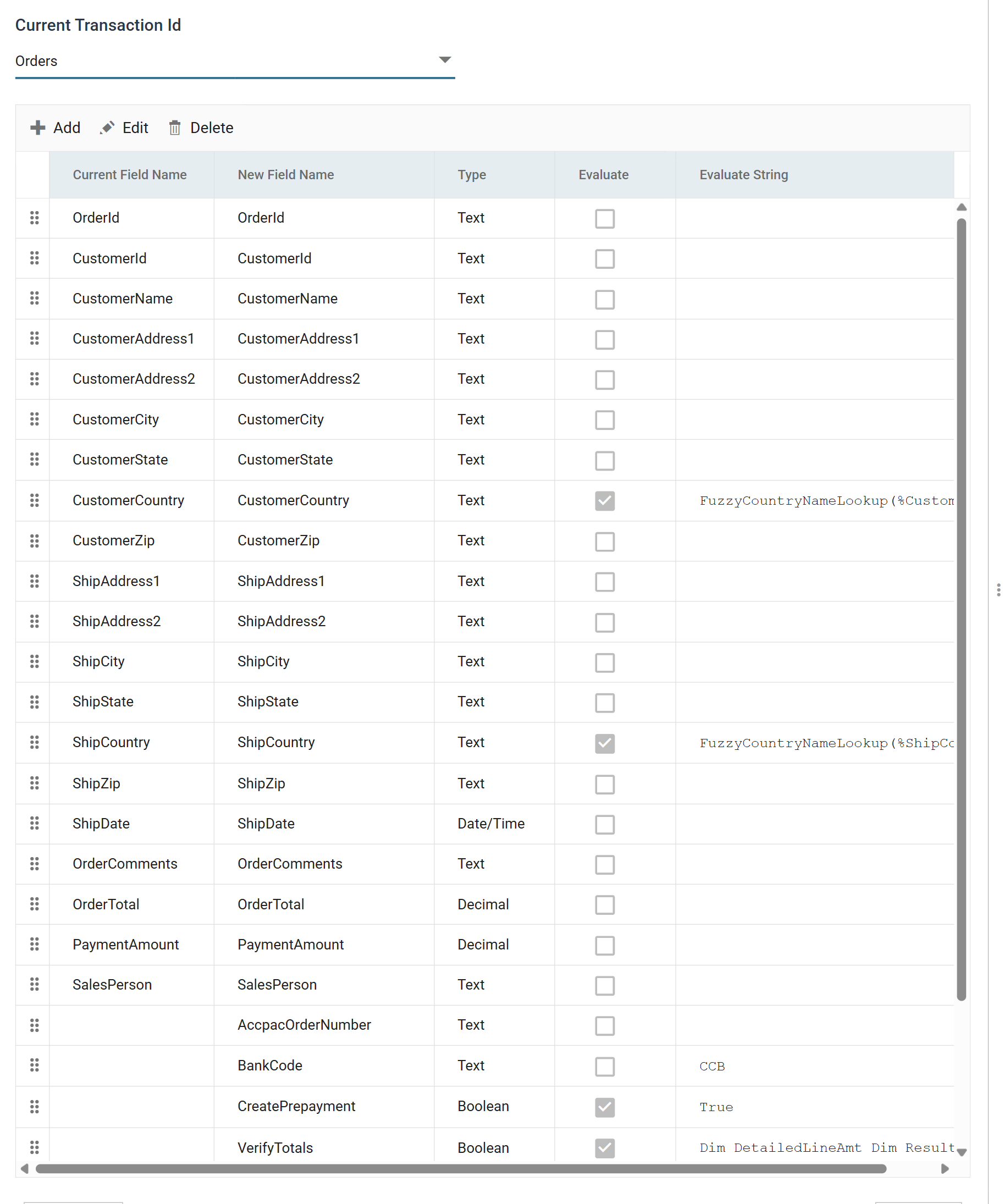
The Map adds nearly everything Sage 300 needs that the spreadsheet does not carry:
- AccpacOrderNumber is empty. It gives the connector a field to write back the order number Sage 300 generates.
- BankCode and CreatePrepayment turn the order's payment into an A/R
prepayment against bank
CCB. - CustomerAccountSet and CustomerTaxGroup are conditionals, so a
Canadian customer is set up differently from a European one:
IIf(%CustomerCountry = "Canada", "TRADE", "EUROPE")andIIf(%CustomerCountry = "Canada", "ONTTAX", "UKTAX").
VBScript
IMan formulas are written in VBScript. IMan adds one thing to the language: you
refer to a field of the current transaction by its name with a % in front.
Example
CustomerCountry normalises whatever the web site sent into a country name Sage 300 will accept:
The function matches on both the name and the synonyms of every country in
the ISO table, so UK, Great Britain and United Kingdom all arrive as
one value. The last argument, True, makes a country it cannot match an
error, not an empty field. See
FuzzyCountryNameLookup.
A formula can run to more than one line. VerifyTotals checks the order total in the file against the sum of its lines, and writes to the audit report when they differ:
Dim DetailedLineAmt
Dim Result

DetailedLineAmt = Sum("ExtendedAmount", "OrderDetails")
Result = %OrderTotal = DetailedLineAmt
If Not Result Then
  WriteToLog "-1", "Order Total [" & %OrderTotal & "] does not match calculated total [" & DetailedLineAmt & "]. Order will be put on hold."
End If

Result
The script shows three things. Sum reads the child transaction, so a header
field can be calculated from the lines beneath it. WriteToLog puts a message
on the audit report for whoever reviews the run. The value of the last bare
expression becomes the field's value, and the next field uses it: OnHold is
Not %VerifyTotals, so IMan still imports an order whose totals do not
reconcile, but puts it on hold for someone to check.
A full VBScript function reference is in the Reference Guide.
Connectors
A connector defines how the dataset's fields map to the application. Every connector has the same setup screen.
Setup tab
The Setup tab sets the system to import into, the type of data to import and the update operation. The customer connector:
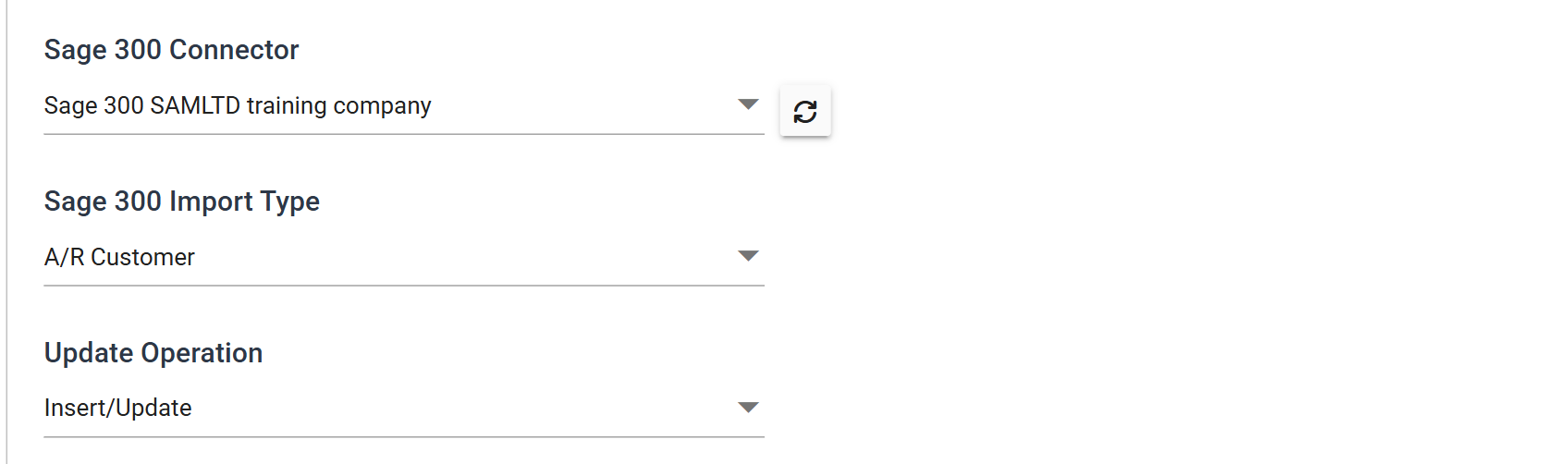
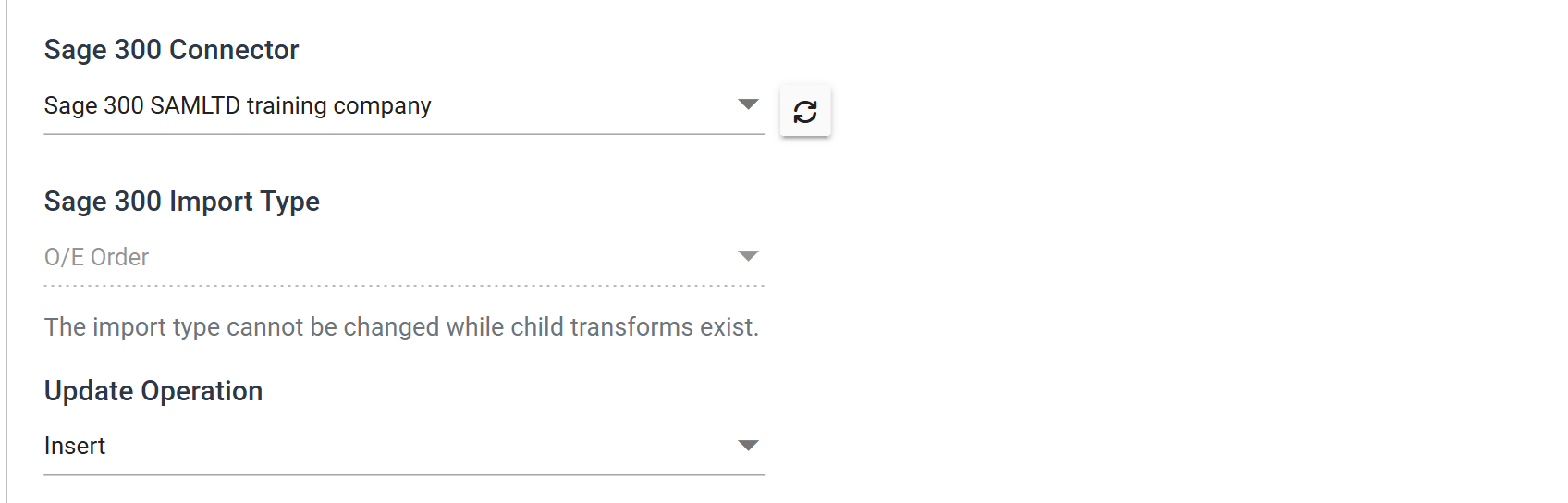
Insert/Update lets the same integration run again the next day. The connector updates a customer who is already in Sage 300 instead of rejecting it as a duplicate. The order connector is set to Insert, because every run should create a new order:
Field Mapping tab
The Field Mapping tab matches the dataset to the import type chosen on the Setup tab, at two levels. Transaction Level Mapping pairs the transactions the earlier transforms built with the transaction types the import type expects:

Beneath it, a grid maps the individual fields. Each row has an Import tick, the
field's name and the Sage 300 field it is written to, as Sage 300 names it:
Customer Number (IDCUST), Tax Group (CODETAXGRP). A field left as
(not mapped) is carried along but not sent. OrderTotal is one, because
Sage 300 calculates the total itself.
Running it
Refresh on a connector does not simulate the import. It runs it. When it
finishes, the preview shows the dataset as it now stands, including anything
Sage 300 wrote back. Scroll right to see ORDNUMBER:
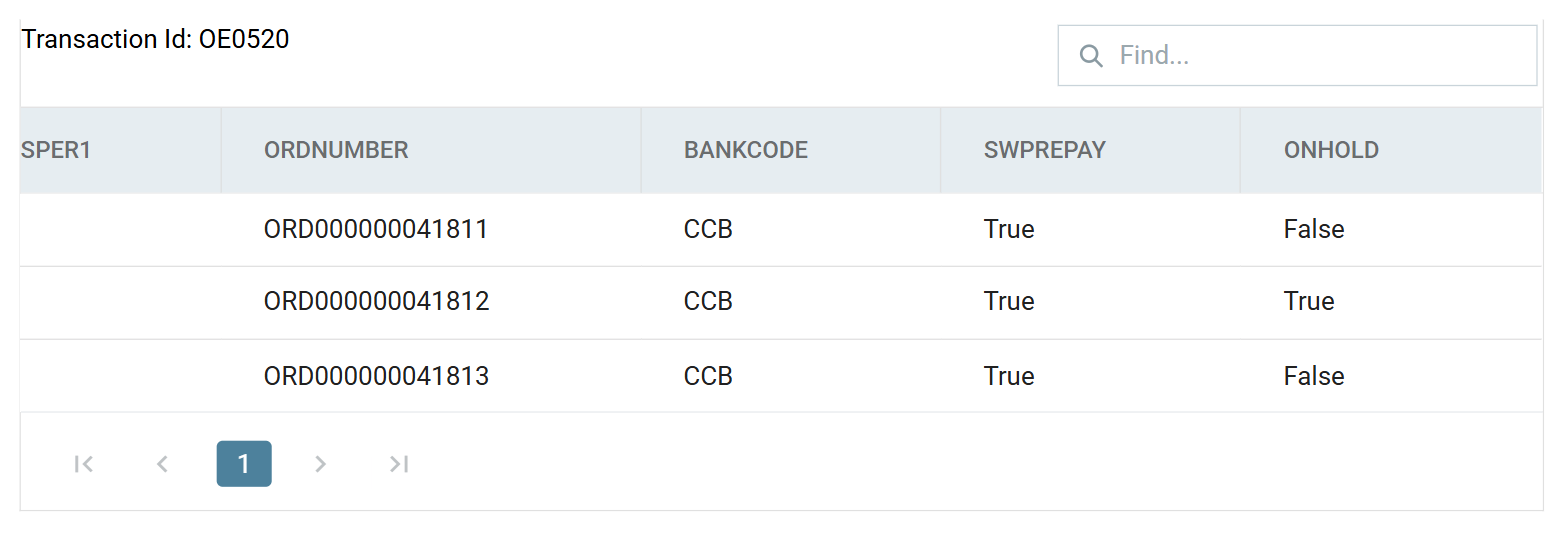
ONHOLD is True on the second order. That order's stated total does not
match the sum of its lines, so VerifyTotals put it on hold. IMan still
imported it, and the audit report says why.
CSV Write
IMan can write CSV and text files, XML, Excel and ODBC/OleDb databases. This transform exports the result of the import to a CSV file. A step like this tells the source system that a transaction has been processed, by passing back the identifier the target application generated.
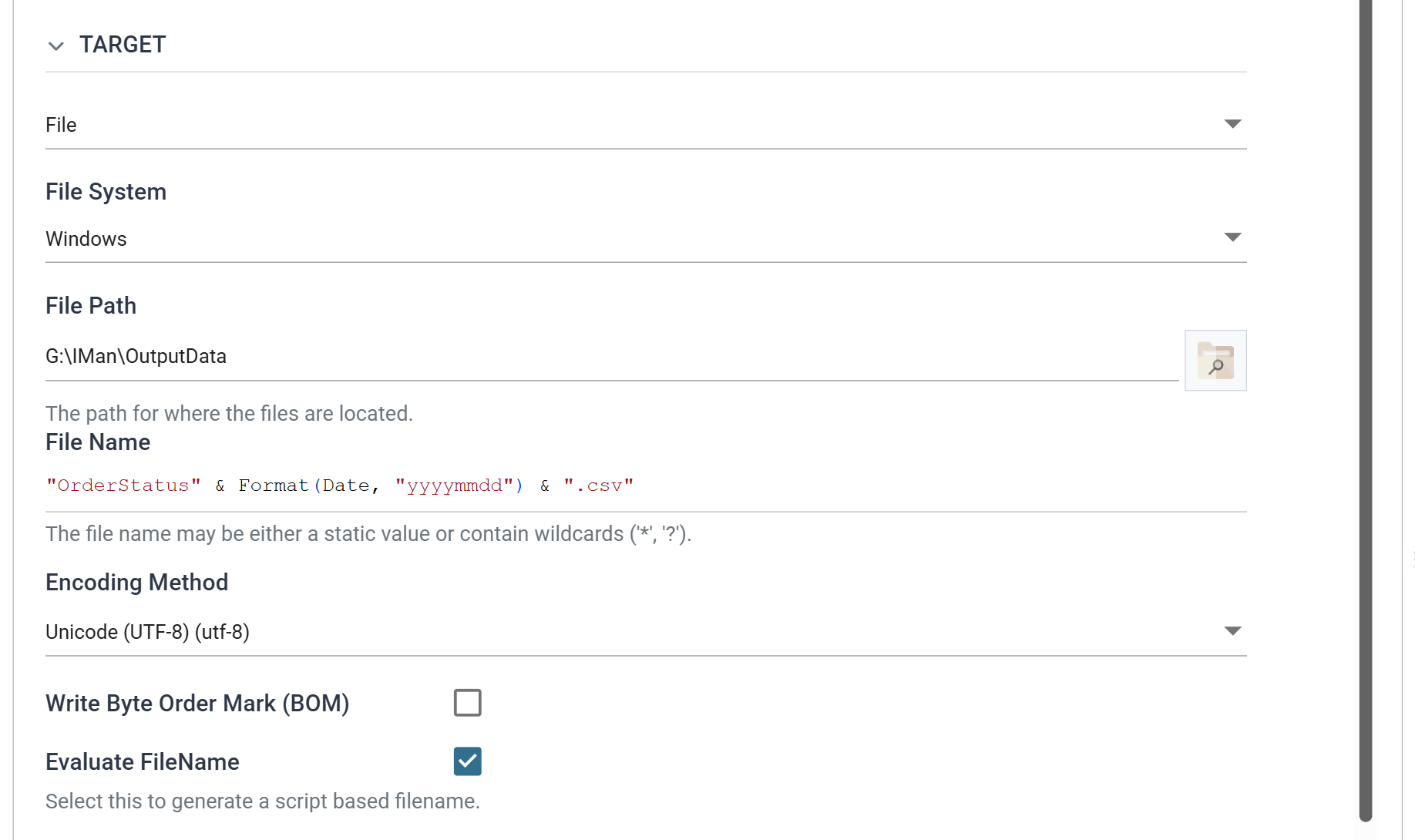
The file name is a formula, not a fixed string. Ticking Evaluate FileName makes IMan evaluate it, so each run writes its own dated file. Press Refresh to generate the file in the folder named by File Path: