Preview Area
The right-hand side of every transform setup pane runs the integration as far as this transform and shows the result. You can build an integration one step at a time: change something, press Refresh and check the result before moving on.
It has three tabs: Preview, Trace and Audit. A dot appears beside Trace or Audit when a run has put something new in it.
Refresh and Cancel
Refresh, at the bottom left of the pane, runs the preview. While a run is in progress, the same button reads Cancel. Press it to stop the run.

Close does not close the pane while a run is in progress. The Refresh button pulses instead. Cancel the run, or let it finish.
A preview is a real run, not a dry run
A preview is a real run of everything upstream of the transform, and it is not a dry run. When you preview a writer, it writes its file and creates its folder. When you preview a connector, it posts its document into the application, just as running the integration would. The only difference is that a preview writes a fuller trace.
Refresh is safe at the start of an integration, but further down it can change data. Build the integration from the reader forward, and refresh each transform as you add it, before you add the next. You then check each step before anything writes.
Preview
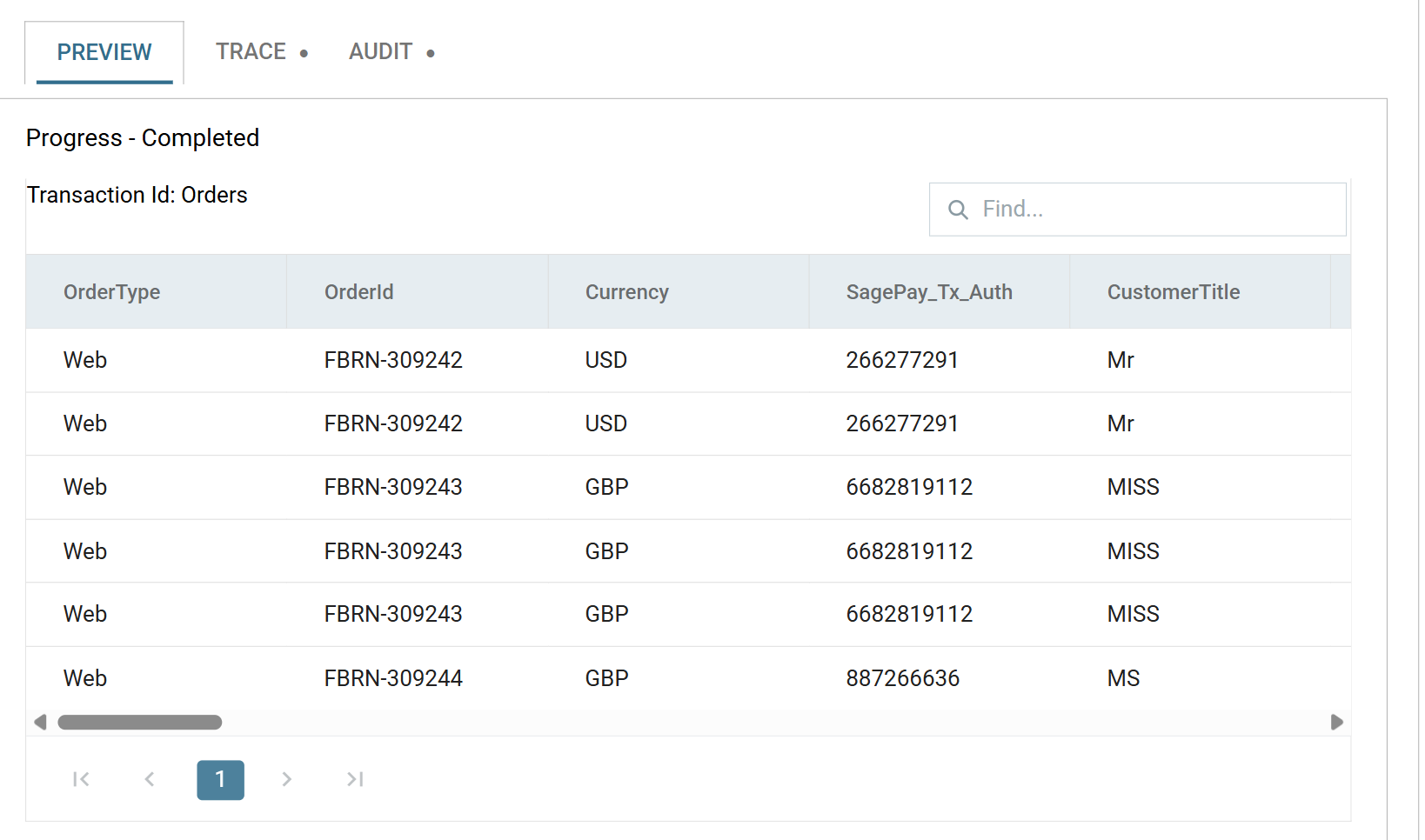
The dataset as it stands after this transform.
Progress
A line at the top of the pane shows the state of the run:
- Progress - Started
- The run is in progress. The grid holds whatever has arrived so far, so a partial result is normal while this shows.
- Progress - Completed
- The run finished and the result is complete.
- Progress - Error
- The run stopped on an error. The Trace and Audit tabs say what happened.
- Progress - Cancelled
- You stopped the run with the Cancel button.
Transaction Id
Above the grid, the transaction type the rows belong to.
Find
Highlights matching cells. It does not filter the grid. Type in the box to mark every cell whose value contains what you typed. You can then find a particular order among a few hundred rows without paging through them.
Expand Record
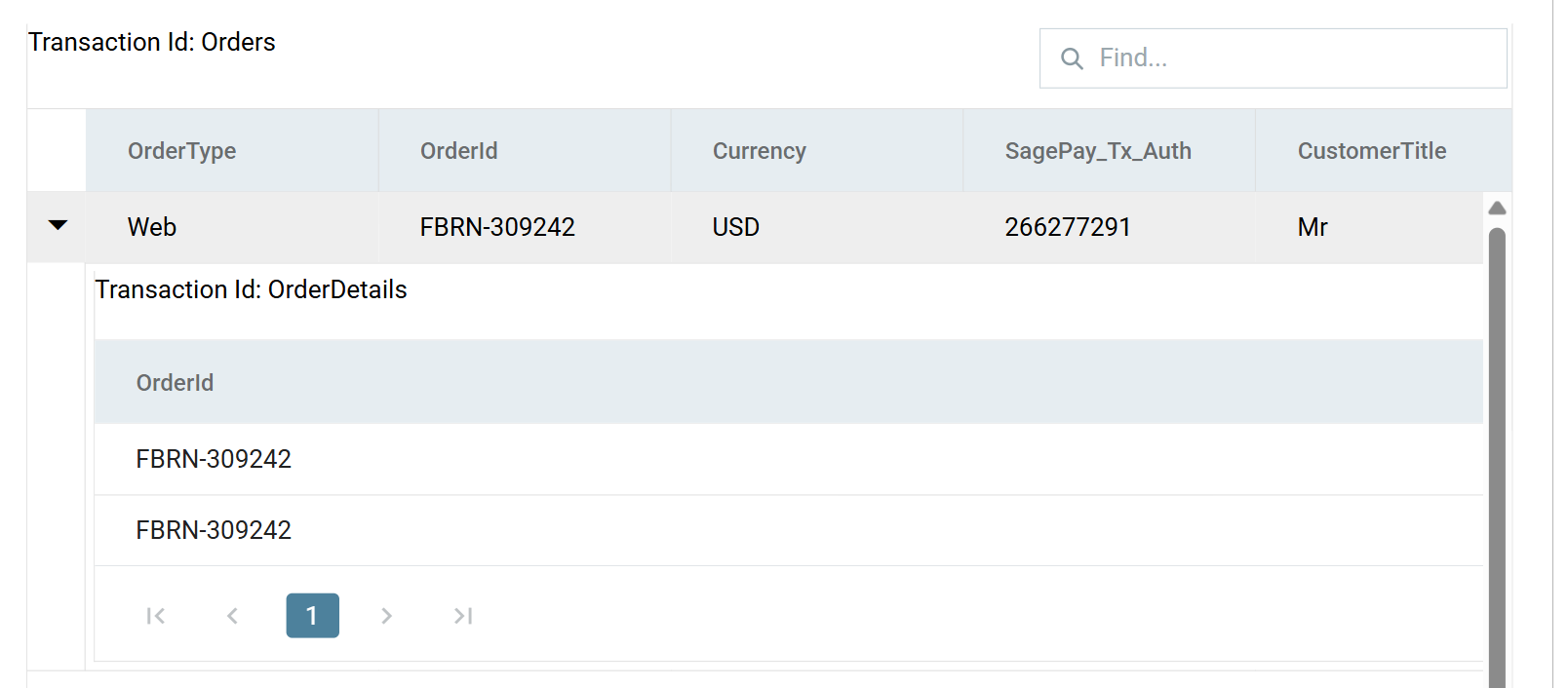
For a hierarchical dataset, an arrow appears at the left of each parent row. Open it to see that record's children. Each child transaction type has its own grid, labelled with its transaction id and paged separately.
Page buttons
Beneath the grid. The preview pages 15 records at a time, and the pager reports how many there are in total.
Trace
What the transform did, in the order it did it: the file it opened, the statements it evaluated and the calls it made.

How much the trace holds depends on the transform. A reader records the source it opened. A connector records much more. Look here first when a preview produces something unexpected but does not raise an error.
Audit
The audit the run would have written, in two parts.
Summary holds the lines this transform's Audit Summary produced, with the counters and field references already filled in. Use it to check an audit summary line without running the integration and reading the report.
Detail Processing Results lists the events the run logged, one row each, with the process date, a result code, the source of the event and its message. Errors and warnings appear here.
Out of Date Results
The preview feeds the transform a cached copy of the data. Its results can therefore be out of date compared with the original source.
For a full refresh, refresh the preview of the integration's Read transform first. That re-reads the source, so the transforms after it have current data to work from. If several transforms sit between the change and the one you are checking, refresh each of them in turn.
A transform refreshed on its own reports the previous run's errors
If you refresh a transform on its own, it returns quickly and reports the previous run's errors. It looks exactly like a transform that is still wrong. Suspect this whenever a correction to the source seems to have had no effect.
Limited Result Sets
A preview reads at most 10,000 records, so it may not cover all of a large source. Anything that depends on the whole dataset, such as an Aggregate total or a record count in an audit summary, covers only the first 10,000 records.
If the licence does not cover the reader in use, the read stops at 15 records instead.