Push Connector > Field Mapping
On this tab you fit the IMan dataset onto the import chosen on the Setup tab. Mapping takes two steps, and the tab is laid out for both:
- map each IMan transaction onto one of the import's transaction types;
- map that transaction's fields onto the fields of the type it was mapped to.
The two drop-downs do different jobs
Current Transaction Id chooses which transaction the grid shows. The drop-down below it changes the application transaction type that the current transaction is mapped to.
Current Transaction Id
The IMan transaction to edit. Choosing one opens it in the grid below.
Transaction Type
The import's own transaction type that the current transaction is mapped onto. The label names the application — Sage 300 Transaction Type on a Sage 300 connector. The import type determines the list, which is fixed.
In the example, IMan's Orders transaction is mapped onto the Sage 300 view
OE0520, and OrderDetails onto OE0500.
If you choose a type that another transaction already uses, IMan asks you to confirm first: "This view is already mapped to a record. Changing this will invalidate the existing mapping. Do you wish to continue?"
Transaction Level Mapping
A tree of the dataset's transactions, with the application transaction type each one writes to shown beside it. It shows the whole mapping at a glance.
The field grid
You edit the grid in batches. Edit puts it into edit mode, Save commits your changes and Cancel discards them.
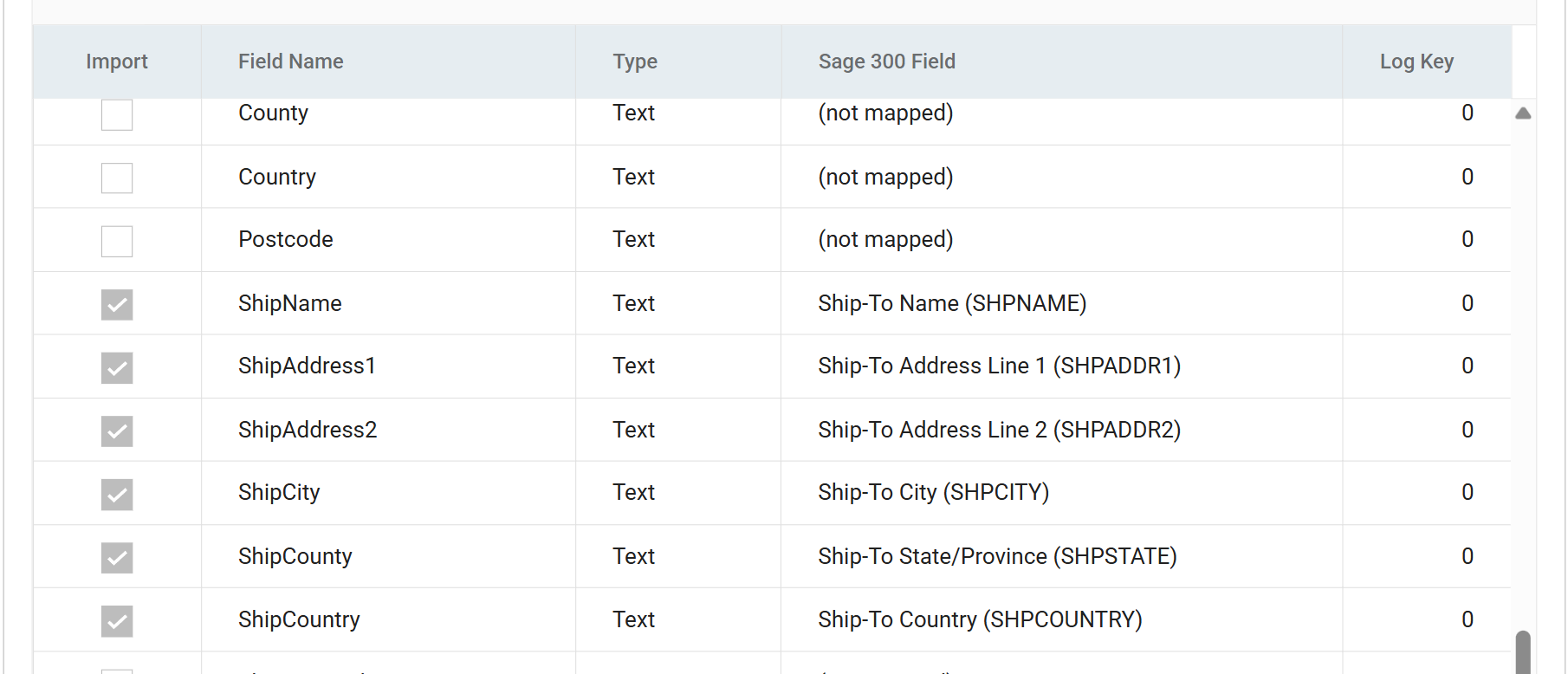
Import
Whether the field is passed to the application.
IMan sets it when you map a field. Log Key below overrides it: a field with a positive log key is imported whether or not it is mapped.
Field Name
The field from the input transform's data. You cannot rename it here.
Type
The data type of the incoming field.
Field
The field on the import type that the row is mapped to. The label names the application — Sage 300 Field. Unmapped rows read (not mapped).
As with each of the drop-downs on this screen, the list is a fixed set, a list built from the application's metadata or a combination of the two.
Example
- Static
- A static set of fields is the same in every installation.
- Combined
- An accounting system connector may employ a mixed strategy: a core set of fields common to every installation, plus the user-definable fields the connector reads from the application itself.
- Dynamic
- A CRM may present a fully dynamic list, generated entirely from the CRM's metadata.
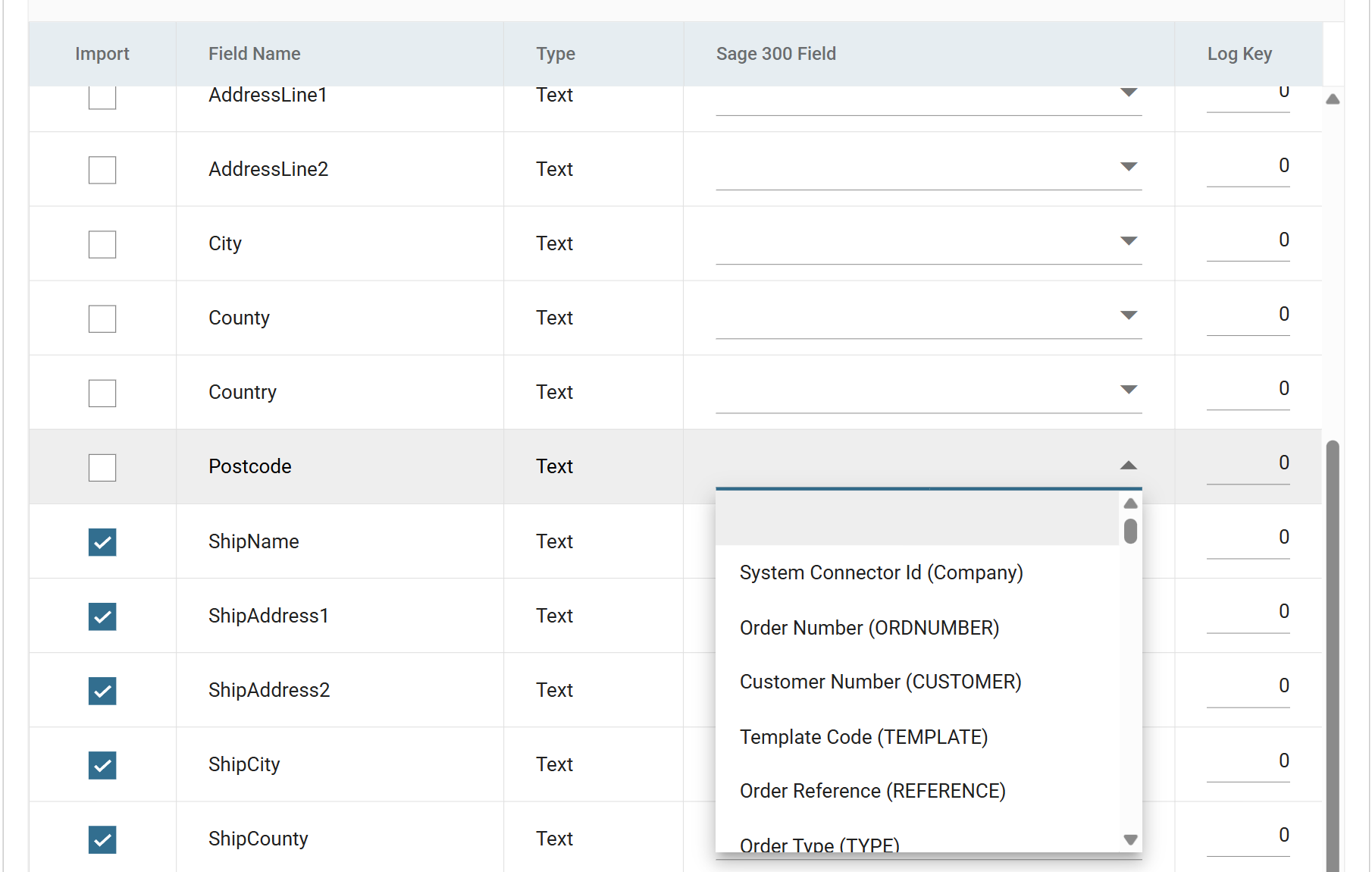
In edit mode the cell becomes a drop-down of every field on the import type that you can map. Where the application gives the underlying view field a display name, the drop-down shows both — Order Reference (REFERENCE). The code in brackets identifies the field:
Unmapping a field
The first entry in that drop-down is blank. Select it to unmap the field. This removes the field from the dataset and so from every transform downstream.
Log Key
Whether this field appears in the Source column of the audit report, and in what order.
See The Audit Report and Log Keys and Push Connector > Audit for how to choose them.
‘Writeback’ Fields
Connectors support writeback fields. When you map one, the connector writes key data from the application back onto the dataset.
Example
- Auto-generation of the master data reference numbers
- Some ERP/Accounting systems generate master data ids such as customer and supplier references. Mapping a field to the writeback field captures the generated id.
- Transaction Ids
- Any system-assigned transaction ids — document numbers — for the transactional imports.
- Totals and Counts
- Batches and some transactional imports provide totals and counts. You can use them in the audit summaries as reconciliation figures.
The writeback fields are in the application's own guide
The writeback fields of a given import are documented in the IMan guide for that application.
Writing errors and warnings back to the dataset
To capture errors and warnings onto the data, map the Error Message and Warning Message fields. They are near the bottom of the field drop-down.
Import Success
Some connectors provide the import success of a record as a mappable field. On
Sage 200 the underlying field name is SAGE200IMPSUCCESS.
Effect of mapping on the dataset
Two things happen to the dataset as it passes through a connector:
- Transactions and fields are renamed to the ids used by the application.
- Only mapped fields flow through. The connector drops everything else, and subsequent transforms cannot use it.
Example
With Orders mapped to the Sage 300 view OE0520 and OrderId mapped to
Order Reference (REFERENCE), the dataset leaving the connector carries a
transaction called OE0520 with a field called REFERENCE. An audit
summary downstream of the connector must therefore use
%OE0520.REFERENCE, not %Orders.OrderId.
Making unmapped fields ‘flow’
Sometimes you need a field downstream without sending it to the application.
Give it a non-zero Log Key. A positive log key imports the field whether or not it is mapped. Because the field is not mapped, it keeps its original name.
If the field should not appear in the Source column of the audit report, give it
a log key well outside the sequence the other fields use, such as 20. The
field then flows through without taking a place in the report's ordering.