Pull Connectors
Pull connectors let you query an external application or service for data. Typical pull connectors are for CRM, eCommerce and webservice applications.
Connector > Setup
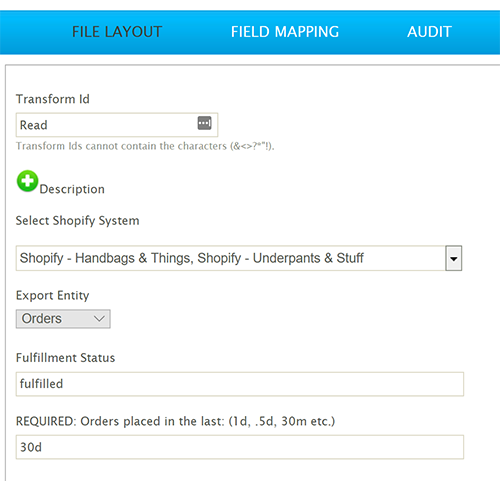
Connectors
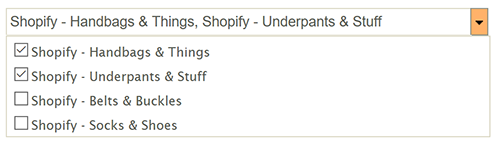
The Connector section opens with a multi-select named after the connector — Shopify Connectors here. It lists the systems of that type configured under Setup. Tick the systems to query. The control shows how many are selected. The metadata of the first system you select drives the entity and field lists. The button beside the control re-reads the configured systems.
When you select more than one system, IMan queries each one and puts all the records into a single IMan dataset.
See Action on Transform Error on how errors are handled.
Two systems with different schemas give indeterminate results
If you select several systems that have different schemas, the results are unpredictable.
Entity
The entity drop-down — Shopify Entity here — lists the entities the connector can query from the application or service. Changing it deletes the existing transaction and field configuration, as the note beneath it says.
For applications with customisable data schemas, such as a CRM, the connector may build this list by querying the application's metadata. Other applications, such as eCommerce platforms, may present a fixed list in which each item is a specific touchpoint.
The selected entity is the top-most entity in the query. For example, an eCommerce connector such as Magento exposes an entity called 'Orders'. When you select it, the connector queries the selected Magento system for Orders and any child entities, such as Line Items.
Any child entities are listed on the Field Mapping screen.
Optional Configuration
Below the entity drop-down are the connector's own settings for retrieving data from the application or webservice. Each connector has its own options. See the relevant application guide for details.
Connector > Field Mapping
The Field Mapping tab defines which entities, and which of their fields, IMan imports into the dataset.
Most connectors include all entities and fields by default. Some connectors exclude entities and fields by default.
Deselect what IMan does not need
Deselect any entities and fields that IMan does not need to process. This improves performance, particularly for entities with many fields or child entities.
Schema changes
Refresh Schema, on the field grid's toolbar, asks the service for its current schema and compares it with this definition. You see new and removed fields here, before a run fails on them. The item beside it reports what the comparison found and opens the review. Field Mapping > Schema changes describes the review.
Hierarchy
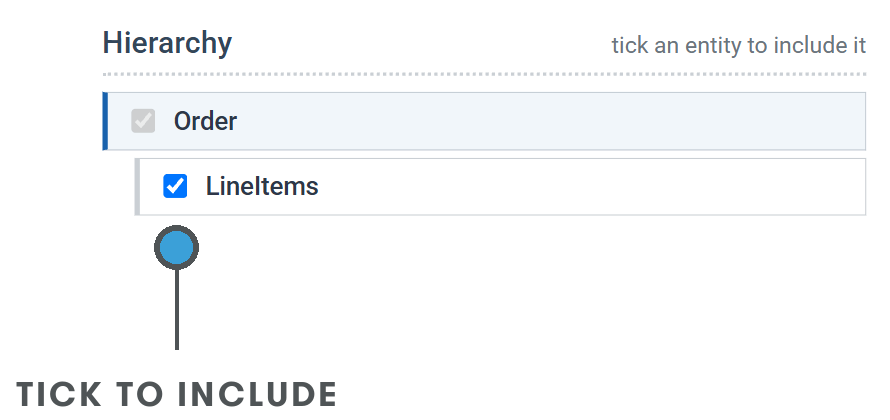
The Hierarchy panel lists the entity chosen on the Setup tab, with each related entity nested beneath it in the shape the service returns them — Order with LineItems under it here. Tick an entity to include it in the IMan dataset. The top-level entity is always included. An entity's position in the tree shows its parent.
Unticking an entity deletes its transaction from every transform downstream
Take care when you untick an entity. IMan asks you to confirm. If you confirm, IMan deletes that transaction from all subsequent transforms.
Click an entity's name to list its fields in the Field Grid.
Field Grid
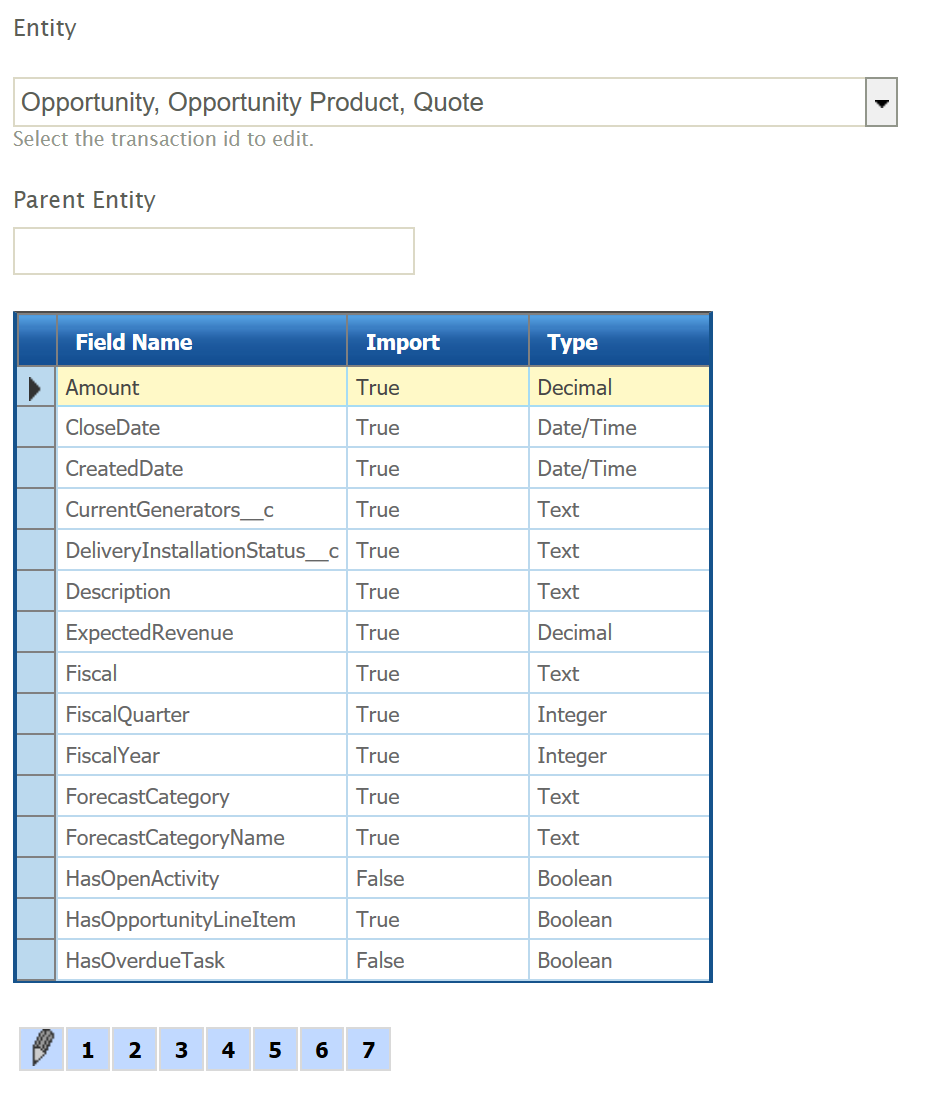
The field grid lists all the fields for the entity selected in the Hierarchy. Press Edit on the grid's toolbar to change them; Save and Cancel then take its place to commit or discard the changes.
Field Name
The field name.
Import
Tick to include the field in the IMan dataset. Untick to leave it out.
Type
The field's type.
Connector > Audit
Auditing & Error Handling
Supported Counters
- PROCESSED
- Incremented for each record being processed.
- INSERTED, UPDATED, DELETED
- Each record read by the pull connector will increment the INSERTED counter.
Action on Transform Error
- Abort
- The transform will stop at the first error and no further processing will take place.
- Reject Record or Continue
- If an error occurs while IMan queries one of the selected systems, IMan logs the error and queries the next selected system. This repeats for each selected system. If you selected only one system and an error occurs, the IMan dataset will contain no records.