Step 8 – Auditing
Every time IMan runs an integration it compiles an audit report. For a job that runs overnight, the report is usually all anyone sees of it. By default it tells you very little: a couple of warnings and whether the job finished. It does not tell you which customers were imported or what order numbers Sage 300 gave them.
In this step you add that information.
An integration that fails should say which record failed
A good integration works, and when it does not, it shows users which data caused the problem.
See Audit Report, Auditing, and Log Keys in the IMan User Guide for the full description.
Where the audit output appears
You can read the audit output in two places:
| Preview > Audit, on each transform | What this transform would report, without running the job. Use it while you are building. |
| Audit Log, in the side menu | The whole job, every transform in one report, kept after the run and emailed to the report group. |
The preview Audit tab is new in IMan 6.1. Before it, to check an audit summary you had to save, switch to the scheduler, run the job and open the report, for every attempt.
Design > Transform Setup > Audit
The integration's own Audit tab sits alongside Options and Transform Setup. It holds the settings for the whole job, not for any one transform.
-
Press the Audit tab.
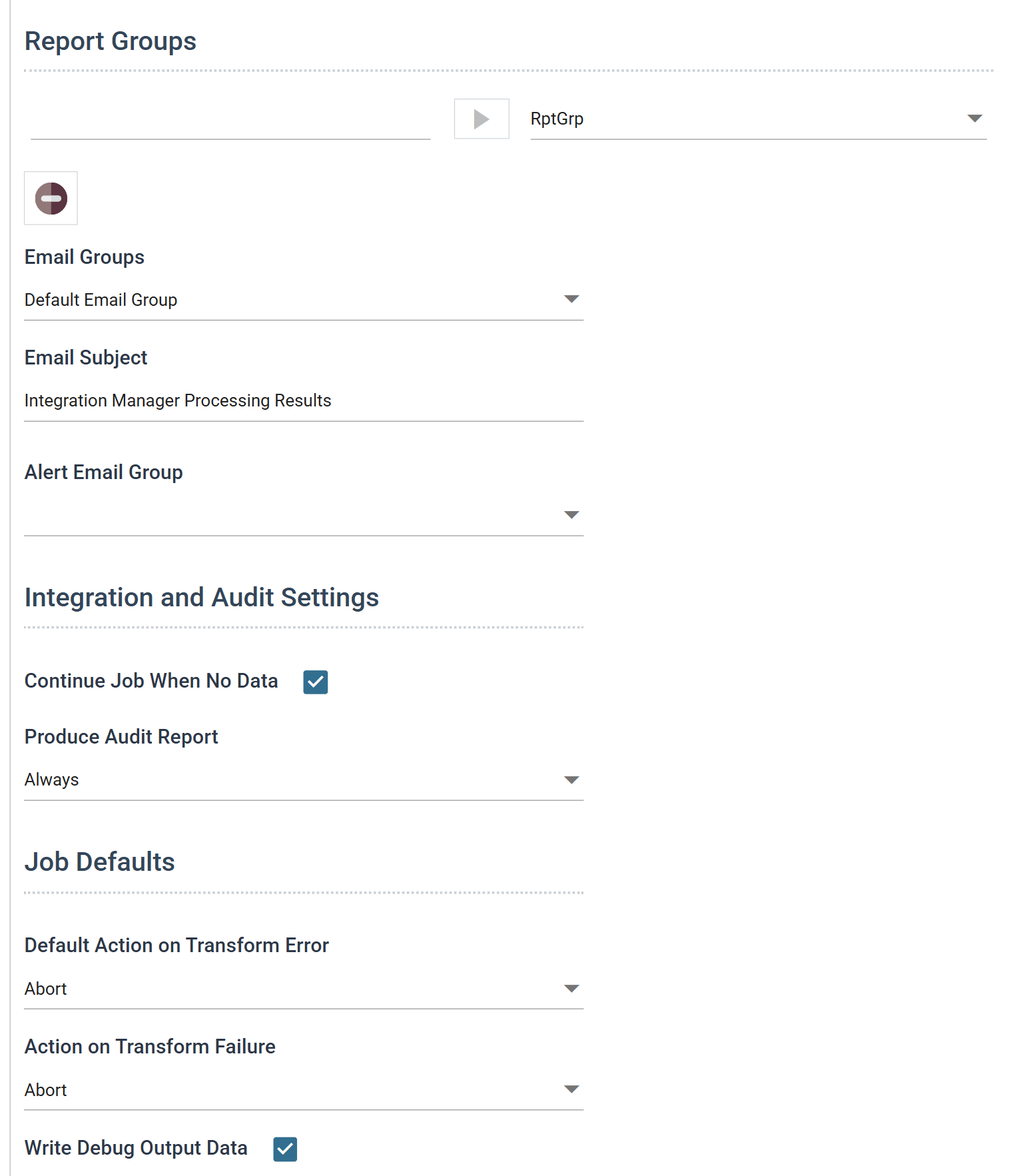
- Report Groups
- Named groups that you assign transforms to. Each group produces its own report and goes to its own recipients, so each department receives only the part that concerns it.
- Every integration starts with one,
RptGrp. - For training, leave it as it is.
- Email Groups
- Who receives this report group's report. Email groups are defined in Setup.
- Produce Audit Report
- For training, leave as: Always
- Default Action on Transform Error
- The value every transform in the integration starts with. This is why the connectors you are about to open are already set to Abort.
- For training, leave as: Abort
- Report Groups
Action on Transform Error
At the top of every transform's own Audit tab is a drop-down that controls what happens when that transform hits an error. It starts at the integration default set above.
On most transforms, leave it at Abort. On connectors, choose with care, because a connector is where data reaches the accounting system. There are three settings:
- Abort
- The whole process stops.
- Reject Record
- IMan processes the valid transactions and rejects the erroneous ones.
- IMan treats each transaction (an Order, Despatch, Customer or Item) as one unit and never leaves a half-written record. If an order has an invalid item code, IMan rejects the entire order, not just the invalid line.
- If you import I/C Items with their units of measure and one unit of measure is invalid, IMan rejects the whole item.
- Continue
- Deprecated. Do not use.
Add a Customer Import summary
Add a line to the report that gives the number of customers imported and the number of errors.
-
Open the Sage 300 connector for the customer import and press its Audit tab.
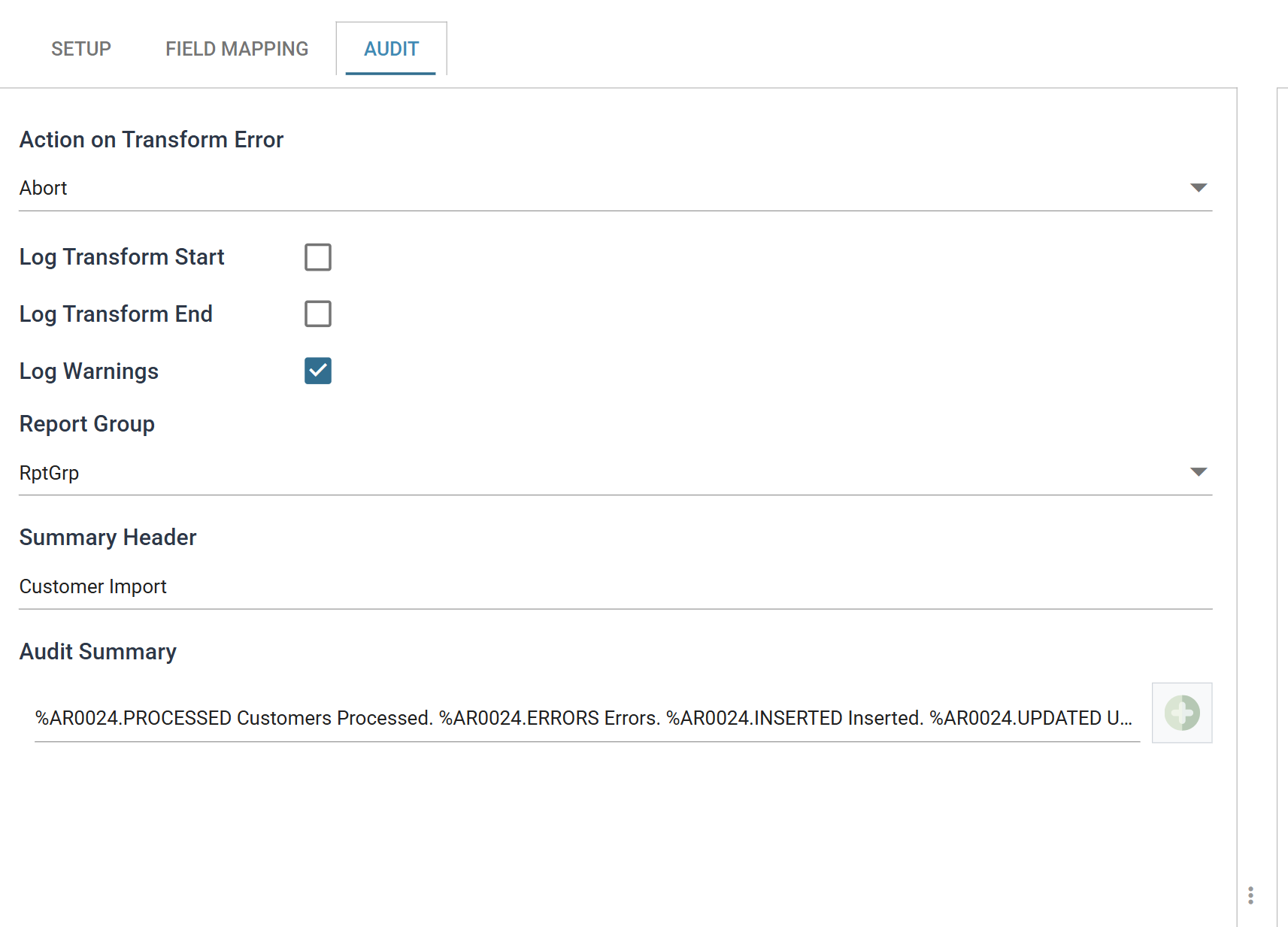
- Summary Header
- The heading for this transform's section of the report.
- For training, enter: Customer Import
- Audit Summary
- Type the line into the empty box at the bottom of the list and press the green + button to its right. Enter it as a single line:
%AR0024.PROCESSED Customers Processed. %AR0024.ERRORS Errors. %AR0024.INSERTED Inserted. %AR0024.UPDATED Updated.
- Summary Header
The prompt in the box is not the syntax
The prompt in the empty box reads e.g. %[Record.Processed] records
processed. That is not the syntax. A counter is written
%<transaction id>.<counter> with no brackets. The transaction id is the
Sage 300 view name: AR0024, not Customers.
This is the renaming described in
step 7.
A connector replaces the incoming transaction ids and field names with the
Sage 300 ones. When IMan evaluates the audit summary, the customer
transaction is AR0024 and the order transaction is OE0520.
The available counters are PROCESSED, INSERTED, UPDATED, DELETED,
ERRORS and WARNINGS. They count what the connector did. INSERTED and
UPDATED can both read zero on a run where every customer was already present
and unchanged.
Checking it without running the job
-
With the connector still open, press Refresh, then press the Audit tab in the preview pane on the right. This is the tab beside Trace, not the connector's own Audit tab on the left.

The preview shows the report exactly as the finished job will, for this transform alone. If the summary line is wrong, you find out here and not after a scheduler run. A mistyped view name shows as literal text instead of a number.
Add an Order Import summary
For the order import, add two things: a count of orders processed and created, and a list that matches each incoming order to the order number Sage 300 allocated it.
Connector > Audit
-
Open the Sage 300 connector for the order import and press its Audit tab.
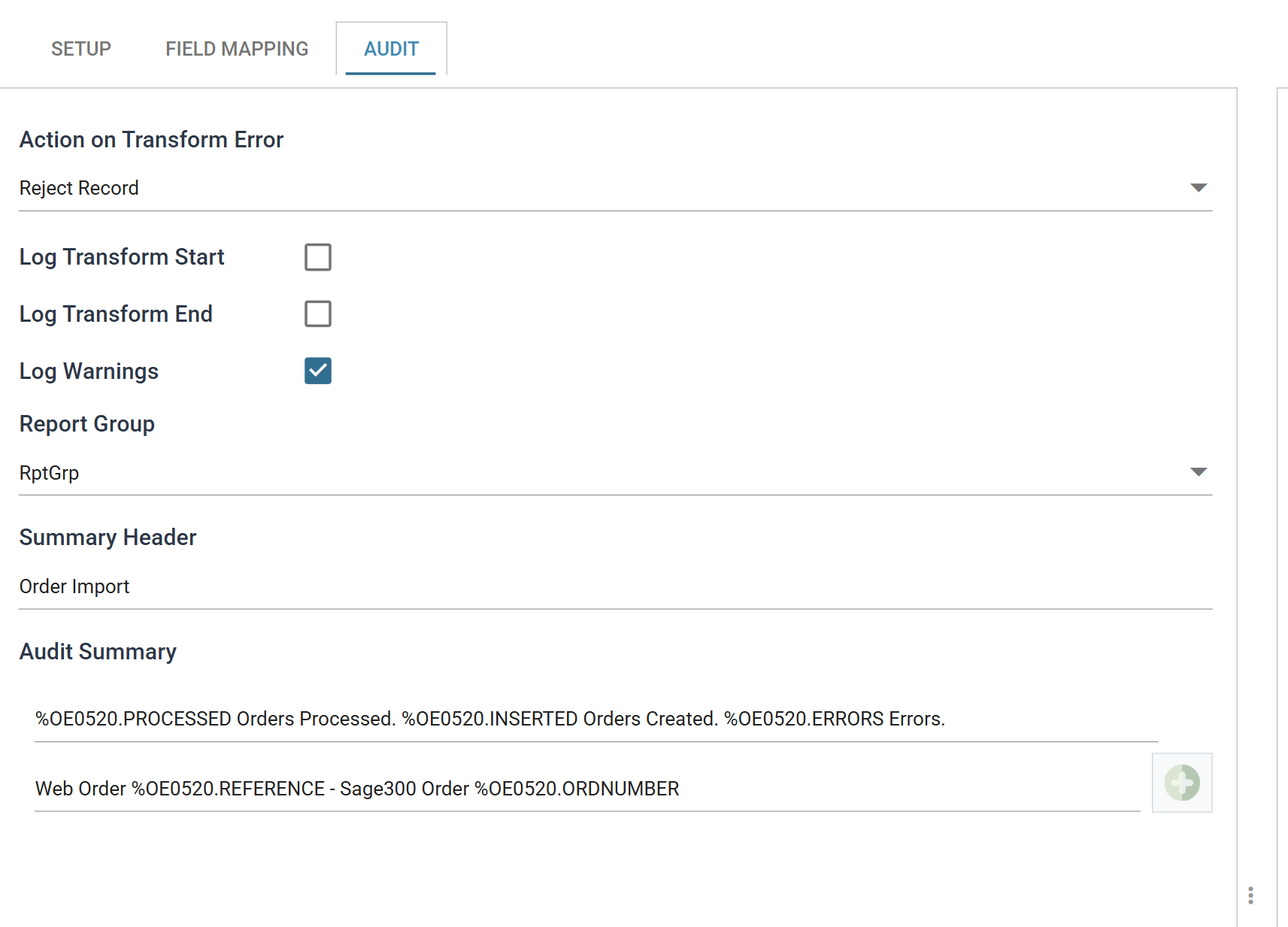
- Action on Transform Error
- For training, set to: Reject Record
- Summary Header
- For training, enter: Order Import
- Audit Summary — first line
%OE0520.PROCESSED Orders Processed. %OE0520.INSERTED Orders Created. %OE0520.ERRORS Errors.
- Audit Summary — second line
- Press + again and add:
Web Order %OE0520.REFERENCE - Sage300 Order %OE0520.ORDNUMBER
- Action on Transform Error
The second line names fields, not counters, so IMan repeats it once per record. The result is a list of each web order against its Sage 300 order.
Lines print in the order they are listed
Lines print in the order they are listed. To reorder them, drag a line by the handle on its left. To remove one, hover over it and press the bin.
Why the two connectors are set differently
The order import is set to Reject Record and the customer import stays on Abort:
- Order Import — Reject Record. On Abort, the process would stop at the first bad order and leave the orders already written in Sage 300. You would probably need to delete those before you ran it again, or you would get duplicates. On Reject Record, IMan rejects the bad orders and carries on to the end, and only the rejected orders need fixing.
- Customer Import — Abort. If the customer import fails, the whole integration should stop. You can run the customer import repeatedly without duplicating data, because it inserts only new records and updates existing ones.
There are more advanced ways to prevent duplicates
Filters and lookups can prevent duplicates in more advanced ways than this training covers. The Integration Cookbook's Preventing Duplicate Transactions builds one and gives the Lookup for this integration.
Connector > Field Mapping — Log Keys
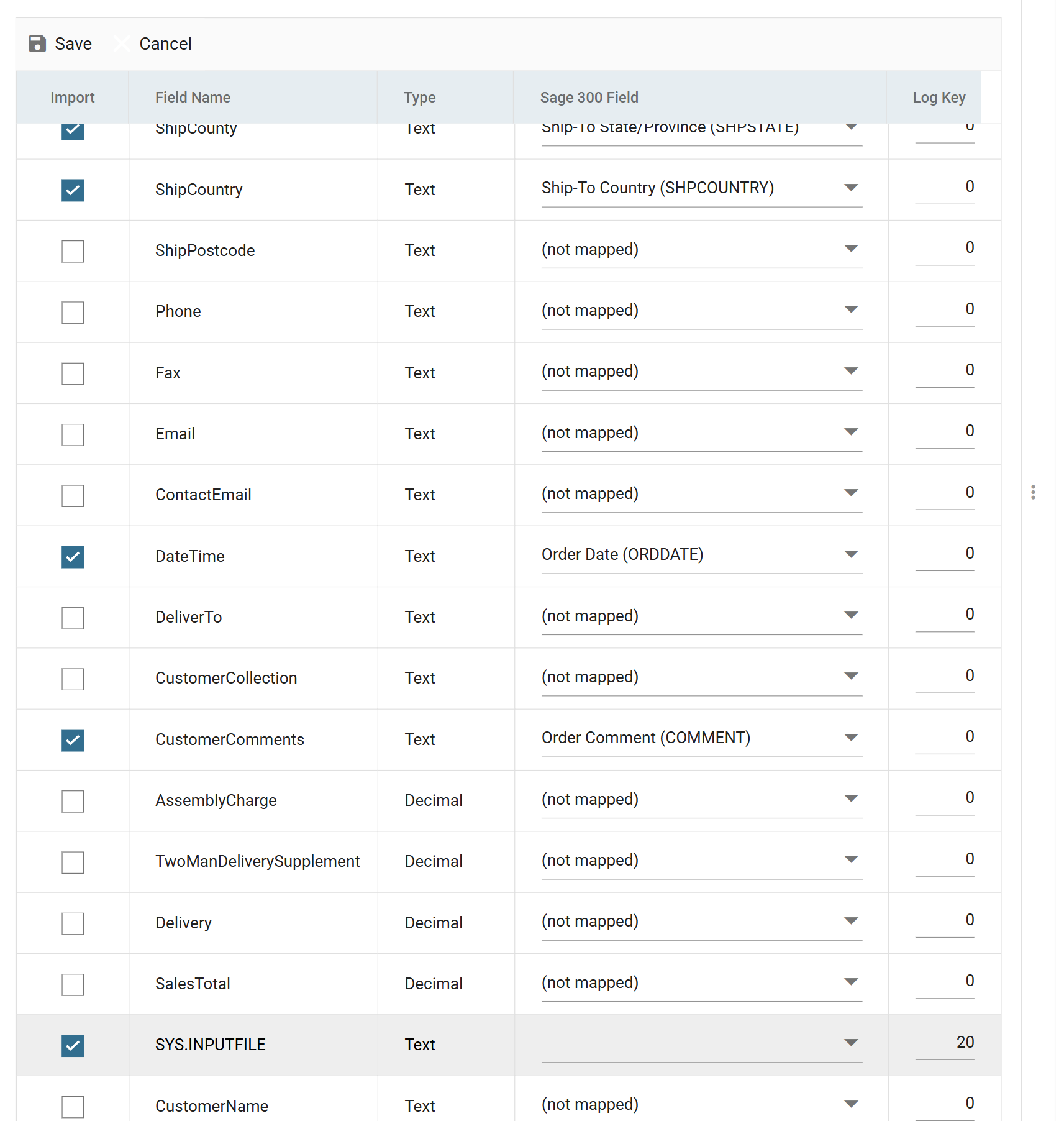
A Log Key marks a field as identifying the record. When a row causes a warning or an error, IMan writes the fields that have log keys into the Source column of the report. You can then tell which order went wrong.
The Log Key column has moved to the end of the grid
In IMan 6 the Log Key column is the last column of the field mapping grid, to the right of the Sage 300 field. Earlier versions placed it between Type and the Sage 300 field.
- Press the Field Mapping tab, check that Orders is the current transaction and press Edit.
-
Set the Log Key on
OrderIdto1.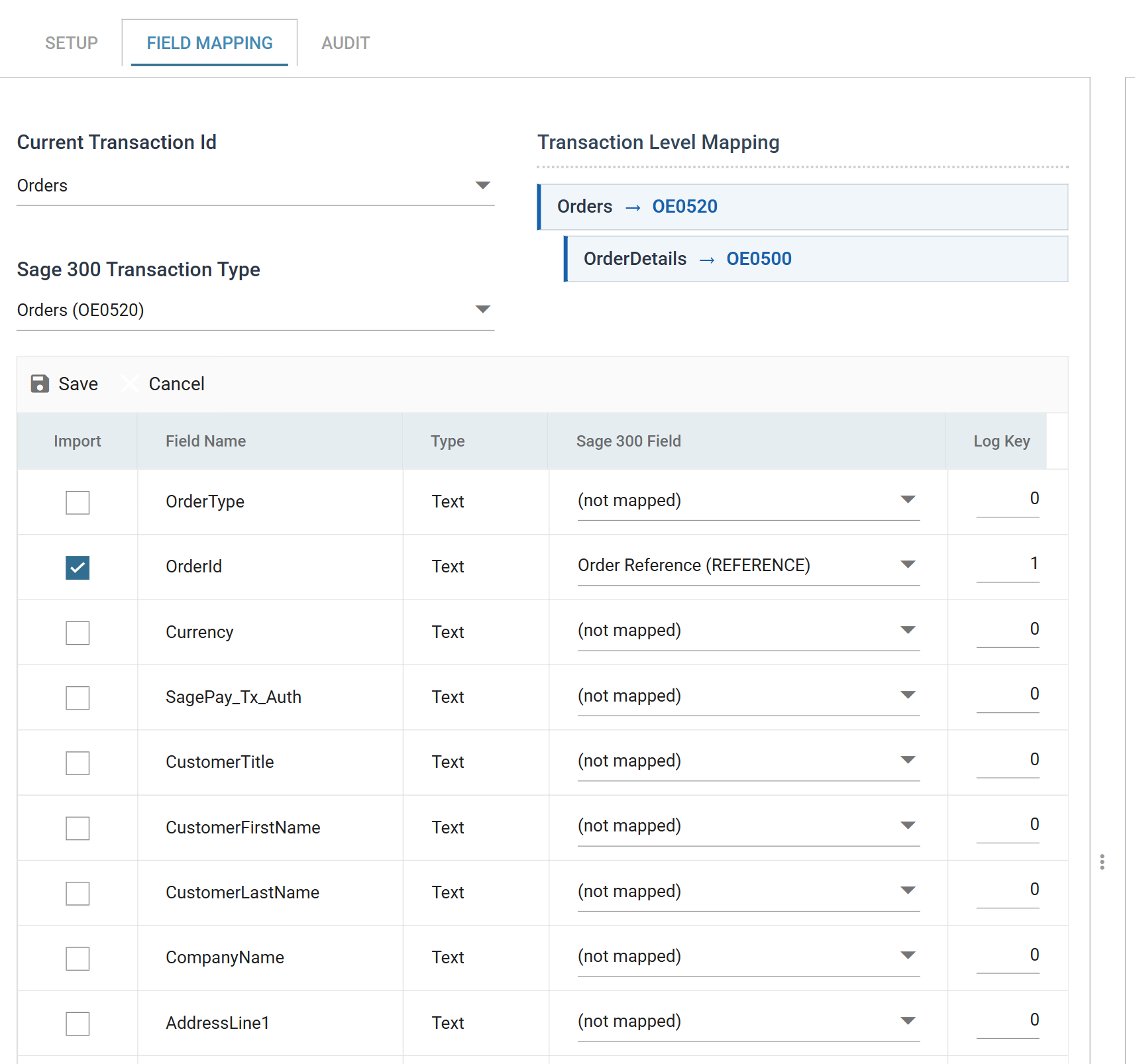
-
Save the grid with the green tick.
-
Change the current transaction to OrderDetails and press Edit again.
- OrderId
- Set Log Key to: 1
- SkuCode
- Set Log Key to: 2
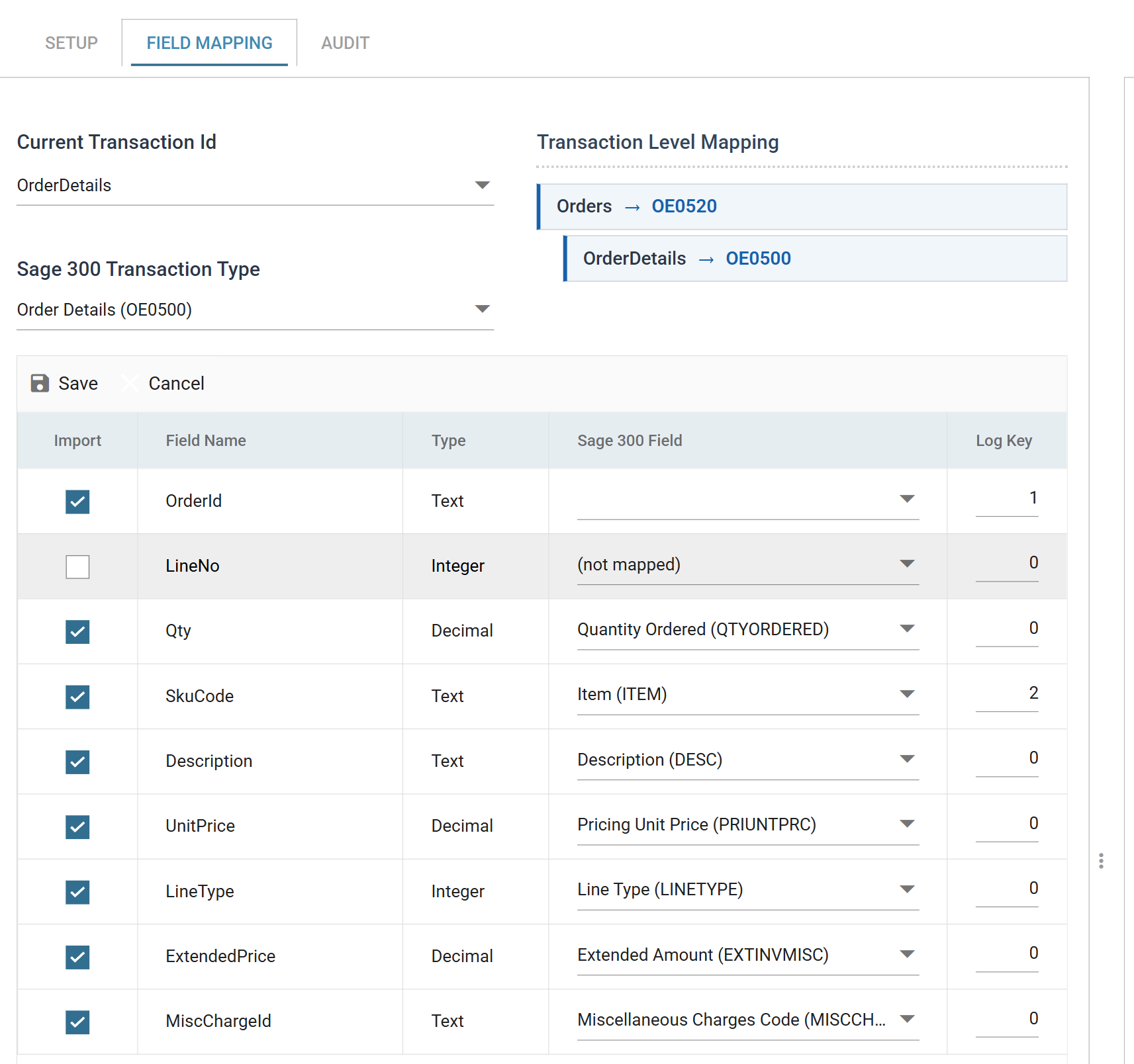
- OrderId
-
Save the grid, close the connector and save the integration.
The numbering matters. IMan joins the log keys in numeric order to build the
Source value. With OrderId as 1 and SkuCode as 2, the Source is the order
reference followed by the item number.
Running the job and reading the report
- Go to Scheduling, select the job and press Run Now (see Scheduling and Running Integrations).
-
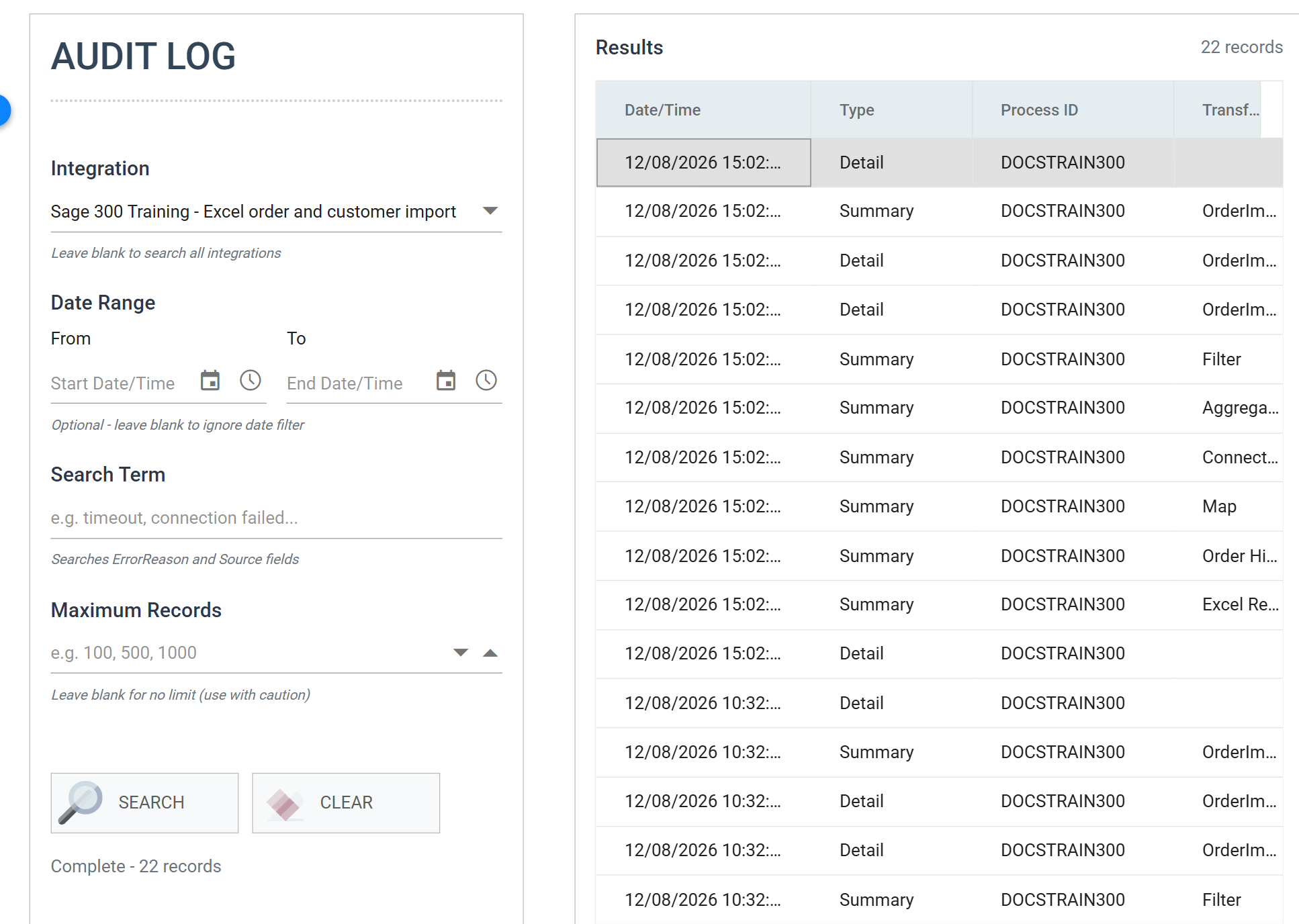
When it finishes, go to Audit Log in the side menu, choose the integration and press Search.
-
Click any row of the run to open the full report.
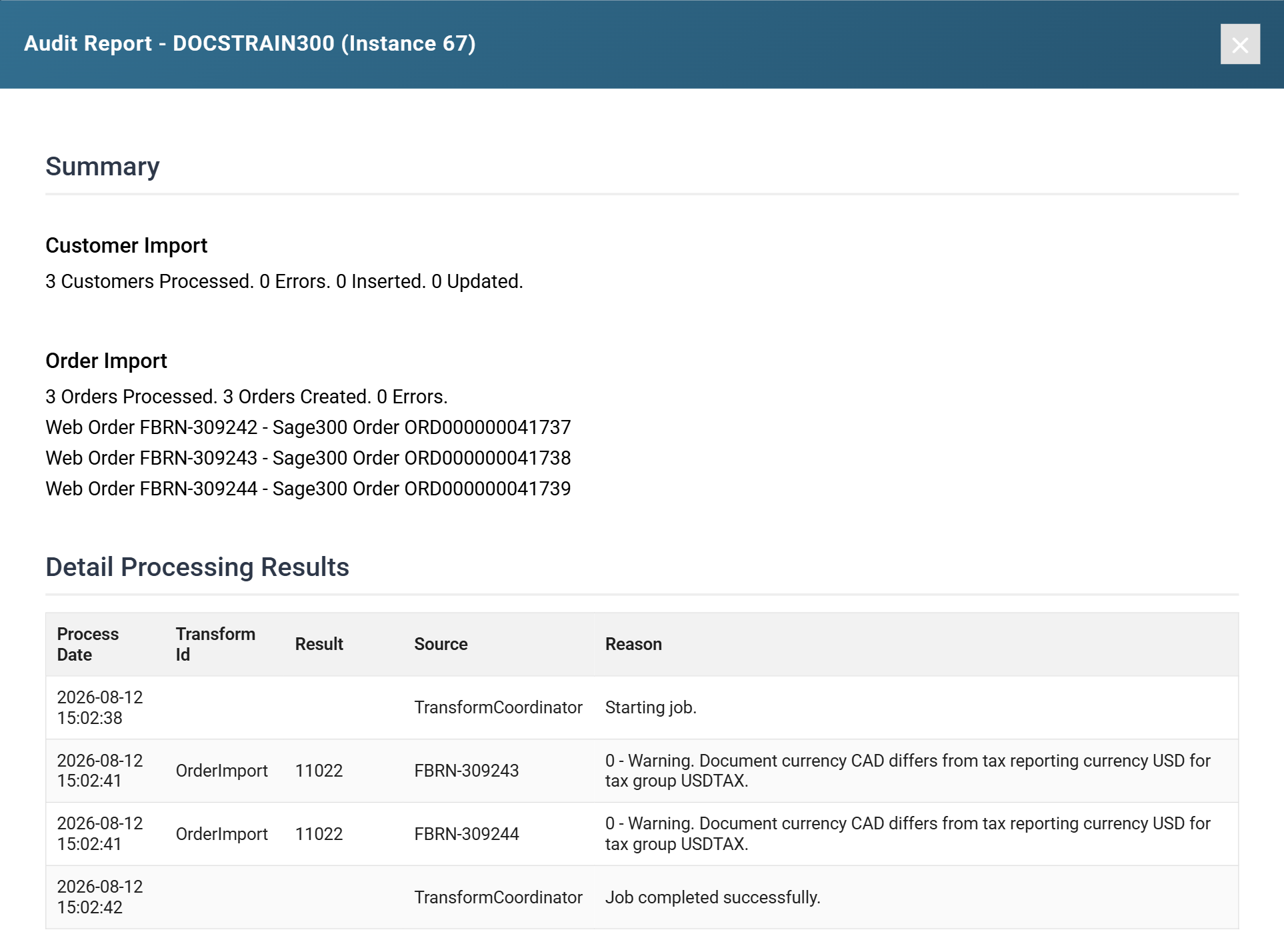
Both connectors now report under their own headings. The report lists the three orders against their Sage 300 numbers. The two currency warnings in Detail Processing Results name their order in the Source column. Without the log keys, that column was empty and the warnings could have belonged to any of the three orders.
Using the Log Key for Unmapped Fields
A non-zero log key makes an unmapped field flow out
Fields that are not mapped in a connector do not flow out of it (see step 7).
To make an unmapped field flow out of the connector, set its log key to a non-zero value.
If you number the log keys in sequence from 1, those fields become part of the Source value that IMan writes when an error or warning occurs.
To make a field flow out but keep it out of the Source column, give it a log key outside that sequence. Set it to 20, and add one for each further field.