Step 10 – FTP Upload
Step 9 wrote a file listing what Sage 300 did with each order. The file is in a folder on the IMan server, where the system that sent the orders cannot reach it. In this step you send it to that system.
There are two parts, as in step 5:
- An FTP server record in Setup, holding the address and credentials.
- An FTP task on the design surface, which uploads the file.
Setup > FTP Servers
You define a server once and then choose it by name in any FTP task. The credentials are kept in one place, not in every integration that uses them.
- Save the integration. In the left-hand menu, press Setup, then FTP Servers. The screen that opens is headed FTP OR SSH.
-
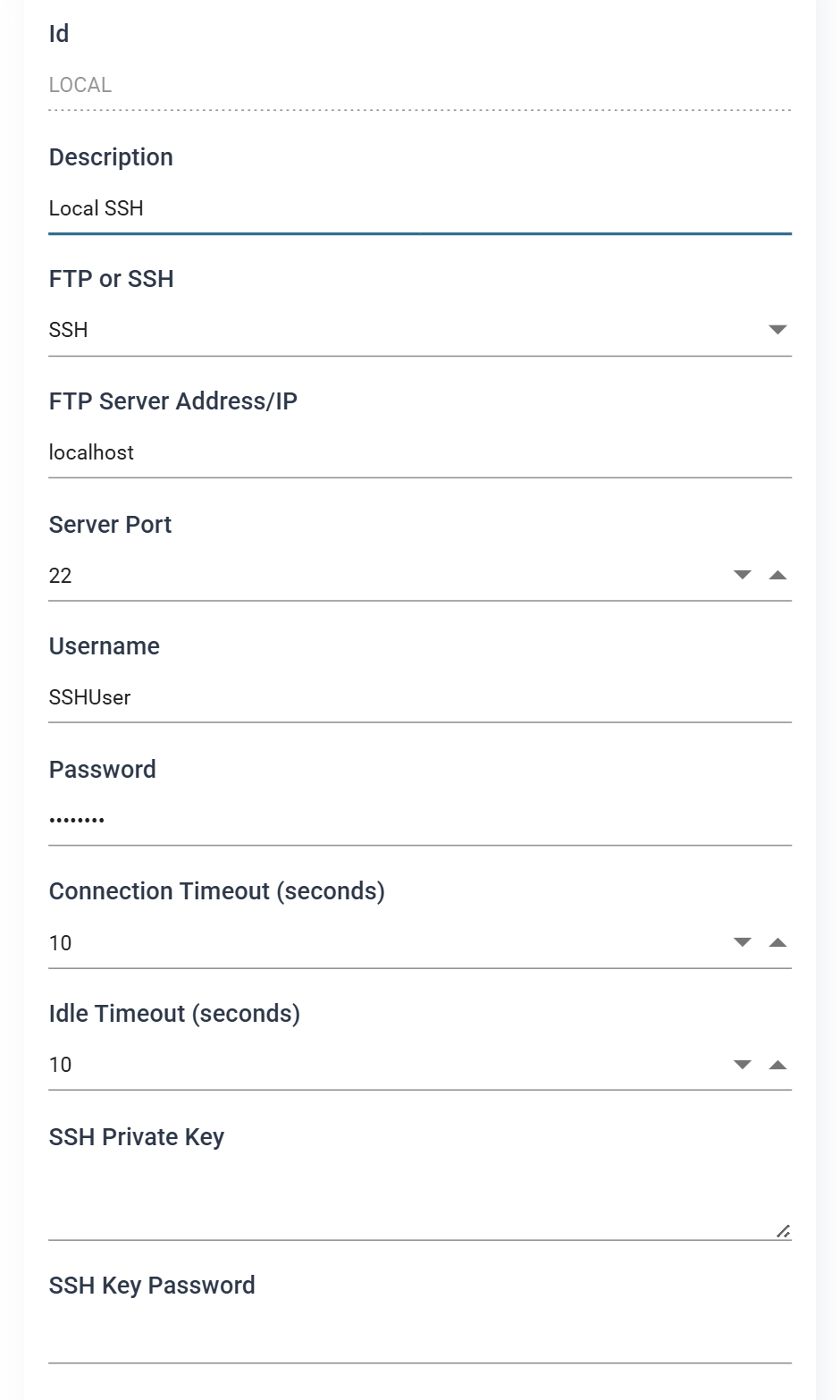
For training, a server called
LOCALis already defined. Double-click the row to open it. Add creates a new one.
- Id
- Identifies the server. You cannot change it after you save the record.
- For training:
LOCAL
- Description
- The FTP task lists servers by description, not by id, so a vague description is hard to find later. The System Connector in step 5 works the same way.
- For training:
Local SSH
- FTP or SSH
SSHtransfers files over SFTP.FTPis plain FTP.- For training, leave as: SSH
- FTP Server Address/IP
- The server, by name or address.
- Server Port
22for SSH,21for FTP, unless the service listens somewhere else.
- Username / Password
- The account IMan signs in as. The password field hides the password as you type.
- Connection Timeout / Idle Timeout
- Seconds to wait before giving up on a slow or unresponsive server.
- SSH Private Key / SSH Key Password
- Key-based authentication instead of a password, for servers that require it. Leave both empty to sign in with the username and password above.
FTP or SFTP?
Use SFTP, the SSH option. It encrypts the credentials and the file, and it
needs one port where FTP needs two (control and data). Most servers now
expect it. This training uses it.
Testing the connection
Press TEST. A tick on the button and a second one in the Ftp Server Results panel beside the form confirm that IMan reached the server and signed in. The System Connector in step 5 confirmed its test the same way.
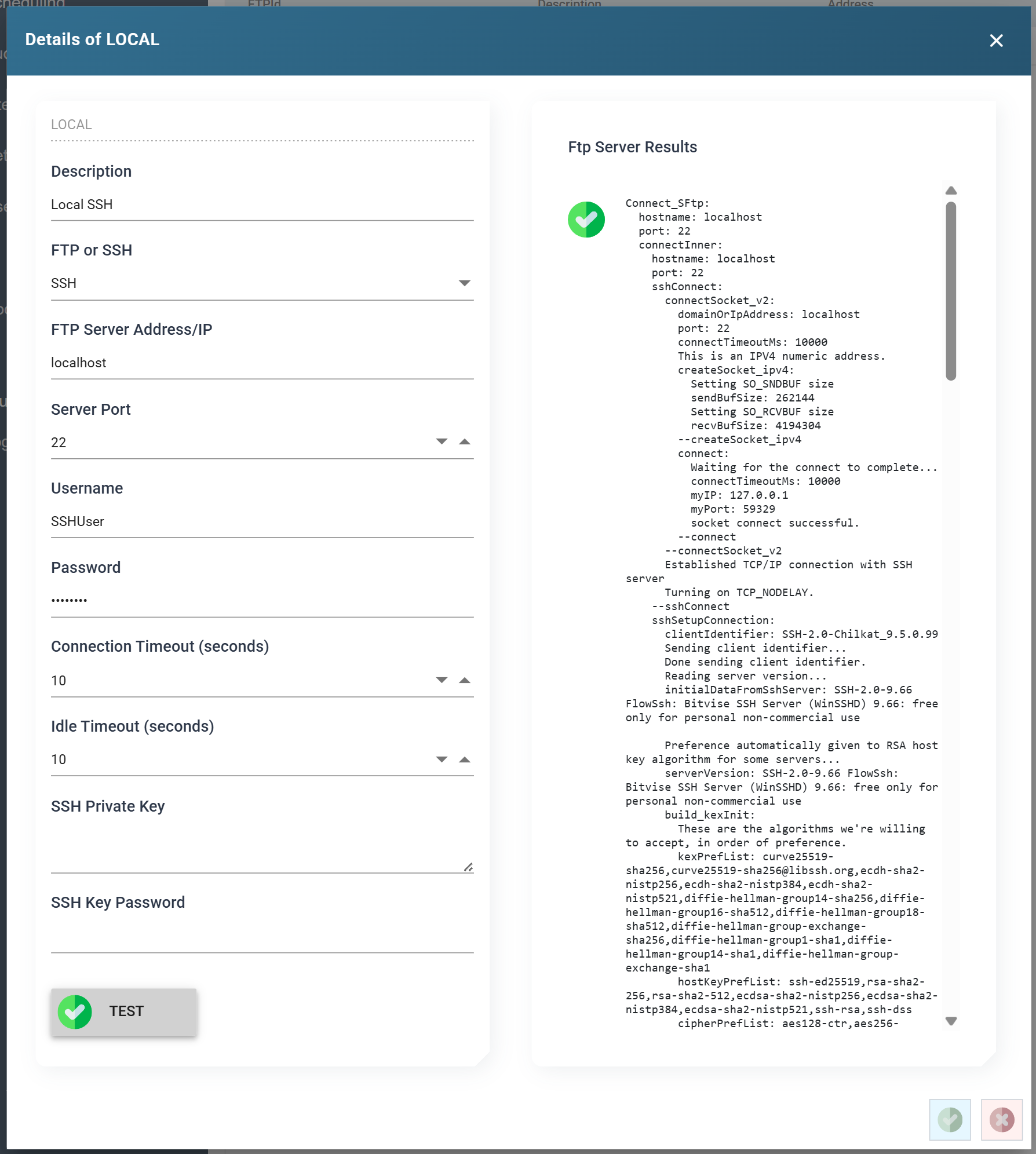
The panel holds the whole exchange with the server, several hundred lines of it,
and scrolls. It shows the connection, the key exchange, the sign-in and the
SFTP session, and each block ends in Success. If a block does not, fix the
details before you go further. The trace names what failed. A later error in a
running integration will not.
TEST uses the values on screen, not the saved ones, so you can try a change before you save it. Press the green tick at the bottom right to save the record, or the red cross to leave it as it was.
Design > Transform Setup
- Return to Design, load the integration and press the Transform Setup tab.
- Open the Tasks group in the palette and drag an FTP task onto the design surface, to the right of the CSV Writer.
- Drag a Connector from the Transforms group and join the writer to it.
-
Save the integration.

FTP Task > Setup
Double-click the task to open it.
- Transform Id
- Identifies the transform in the audit report, in its Process Id
column. It arrives called
FTP. - For training, enter: FTPUPLOAD
- Identifies the transform in the audit report, in its Process Id
column. It arrives called
- FTP System
- The server defined above, listed by its description.
- For training, select: Local SSH
- Action
- What to do:
Upload,Download,Delete Remote FileorDelete Remote Folder. - For training, select: Upload
- What to do:
- File System
- The local file system that IMan reads the file from or writes it to: Windows or Azure Blob storage.
- For training, leave as: Windows
- Local Directory
- The folder holding the file to upload.
- For training, enter:
C:\IMan\OutputData
- Local File
- The file, or files. Use a wildcard here. Step 9 put the run date in the file name, so there is no single name to give.
- For training, enter:
OrderStatus*.csv
- Remote Directory
- The folder on the server to upload into, relative to the folder the account starts in when it signs in.
- For training, enter:
/
- Remote File
- The name to give the file on the server. Leave it blank to keep the local name. When the local name carries a date, that is almost always what you want.
- For training, leave blank.
- Delete File from Server
- Applies only to
Download. It is disabled for every other action.
- Applies only to
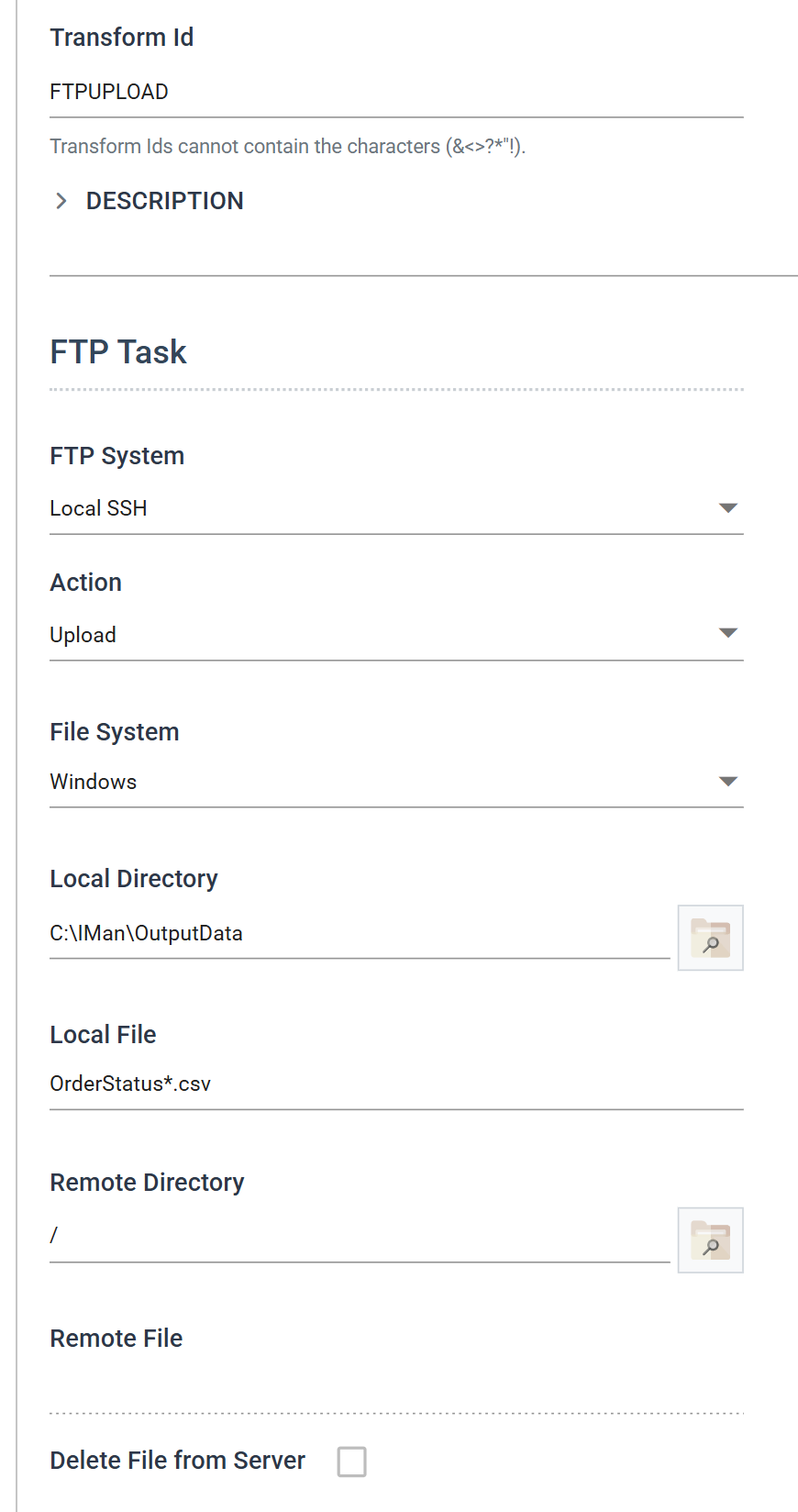
Action arrives set to Download
Action arrives set to Download. If you leave the default, the task
downloads instead of uploading.
Running it
Press Refresh. Everything upstream runs, so the writer produces the file again before the task sends it. As in step 9, another three orders go into Sage 300 each time.
Then press the TRACE tab on the preview side. It shows the same kind of exchange as the setup screen's test, this time for the transfer:
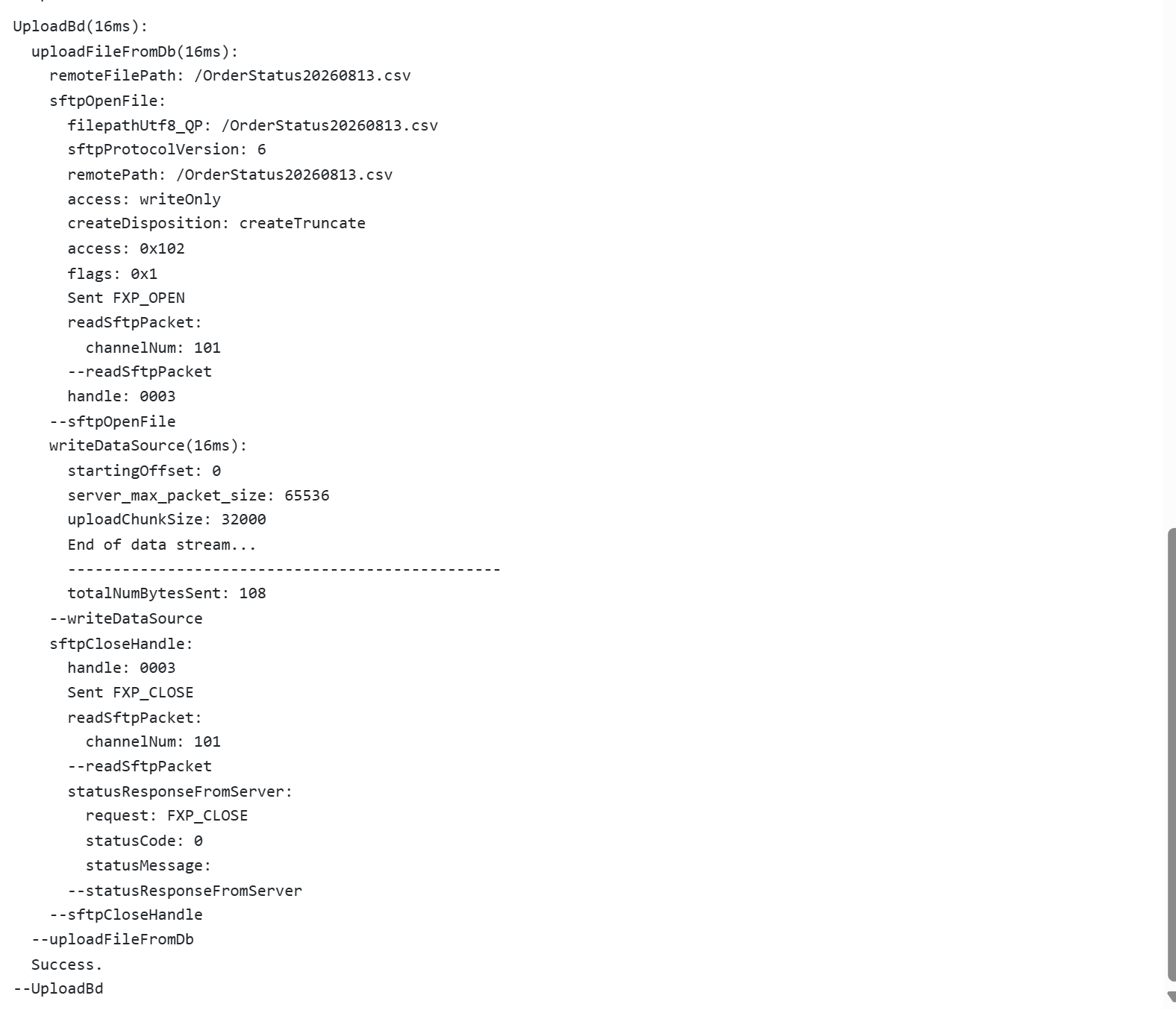
remoteFilePath is where the file landed and totalNumBytesSent is how much of
it arrived. Success. closes the block. It means the server acknowledged the
write, so you do not need to open an FTP client to confirm it.
Close the task and save the integration.