Scheduling and Running Integrations
The rest of this guide assumes the sample jobs exist
The rest of this guide assumes you created the sample jobs.
You can run an integration immediately or schedule it to run in the background. You do both from the Scheduling screen.
-
Select Scheduling from the menu down the left of the screen.
-
Select the integration from the Job ID drop-down. Any schedules already set up for it are listed in the Schedule Details panel beneath.
-
To run it straight away, press Run Now.
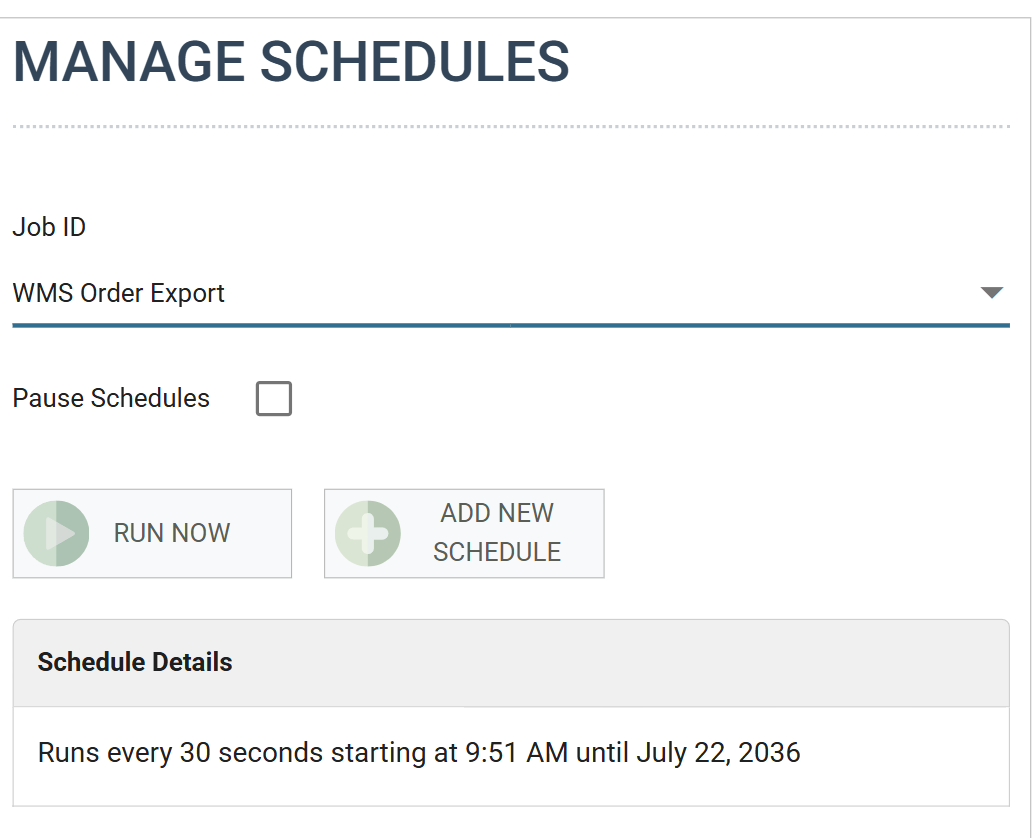
- To have it run repeatedly instead, press Add New Schedule. Give the schedule a description and a frequency, set when it starts and ends, and press the green tick.
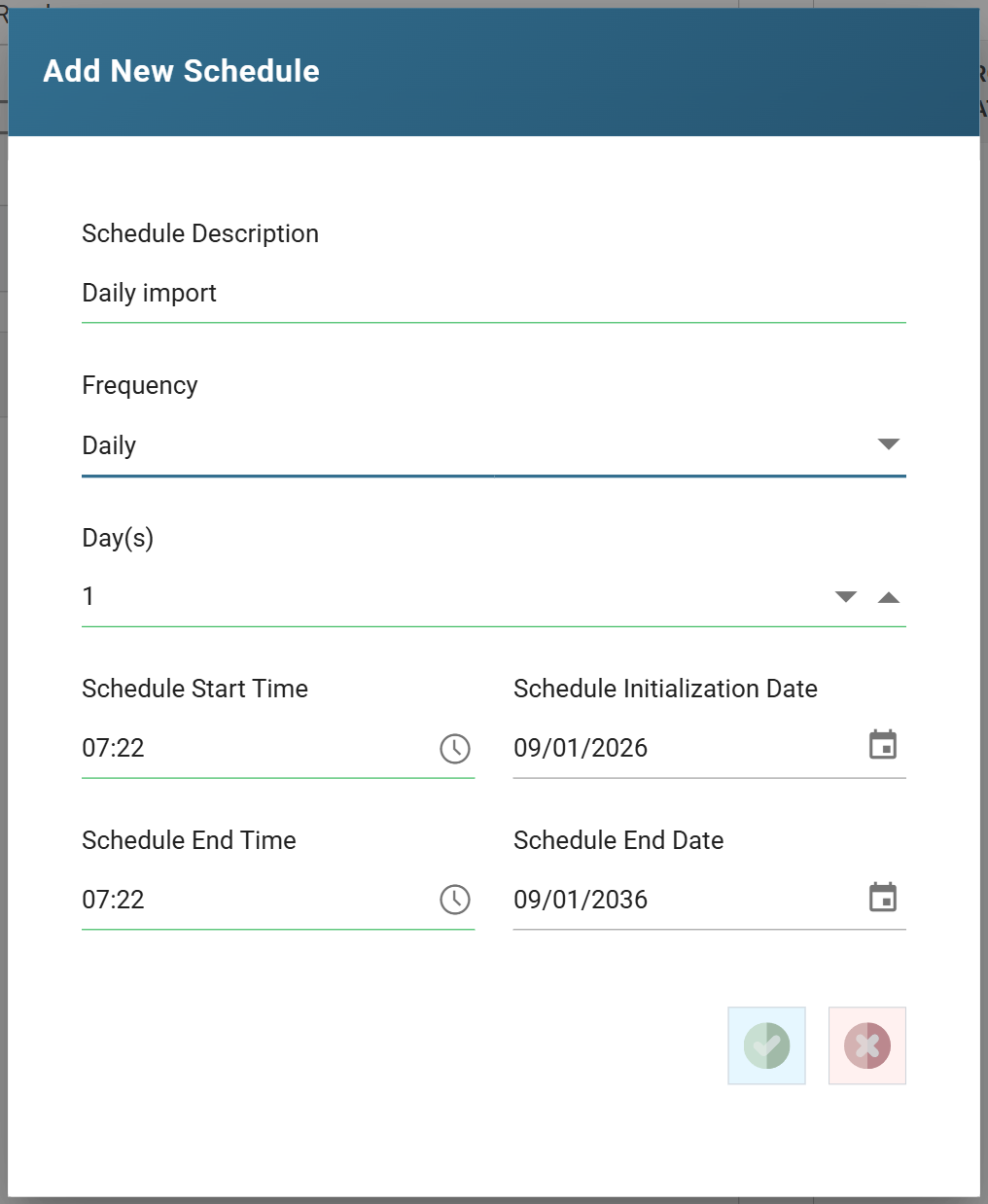
Each frequency and recurrence option is described in [Scheduling tab](../../iman-user-guide/scheduling/scheduling-tab.md) in the IMan User Guide.
The Audit Report
After a few seconds the audit report starts to appear in the pane on the right.
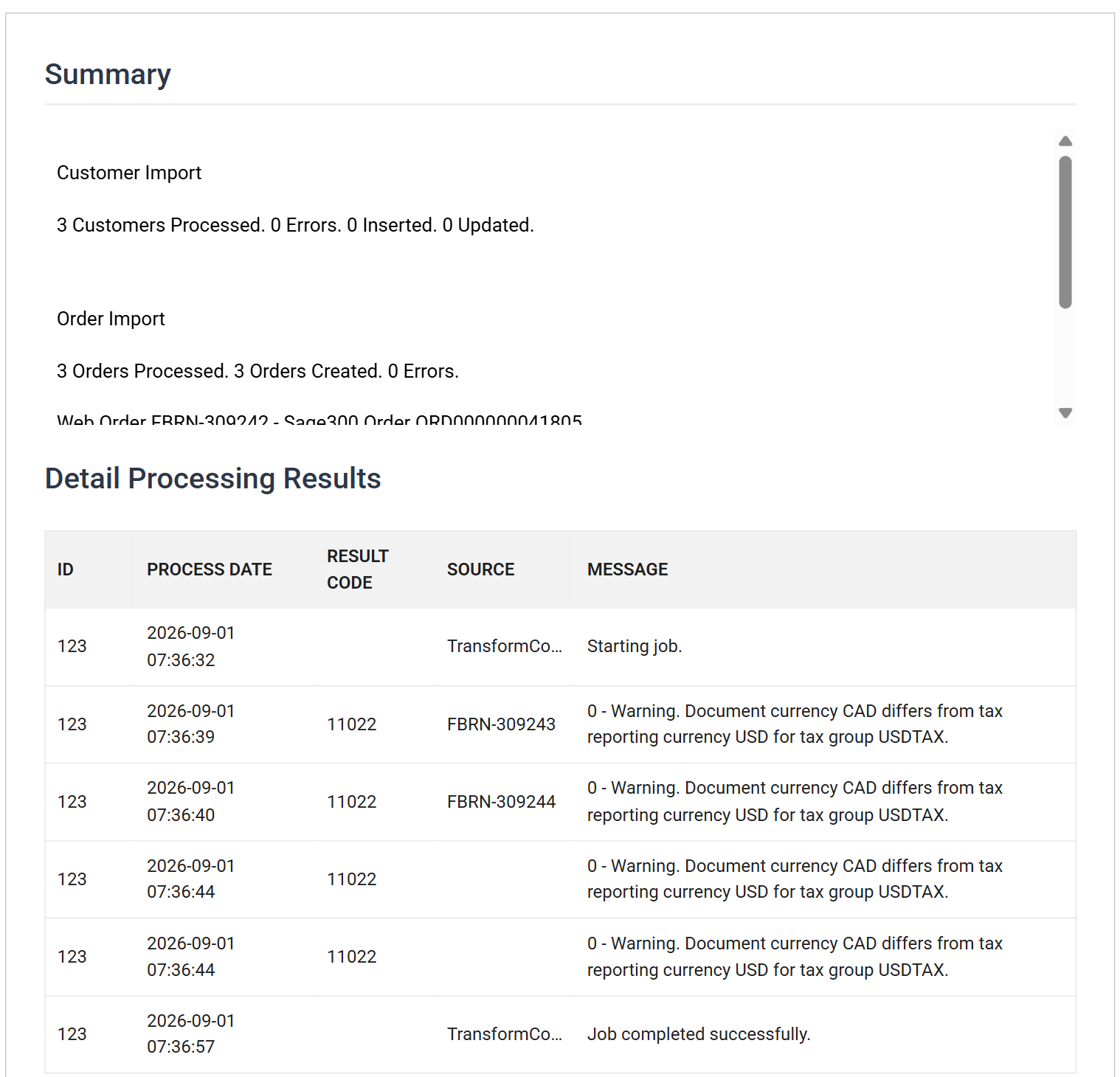
Where to find a finished run, and one in progress
You find the reports for finished runs under Audit Log, and you can watch a run in progress from the Integration Monitor. Both are on the menu down the left of the screen.
The report is emailed as well as shown
When the integration completes, IMan also emails this report to the addresses in the Email and Report Group setup.