2. Printing the O/E Invoice
In this step you print the invoices raised in the last section to PDF files. The next section attaches them to an email.
The printing is done by a Sage 300 connector like the others, but its targets are not fields on a Sage 300 view. They are the print engine's options: which invoice, which report and where to put the result.
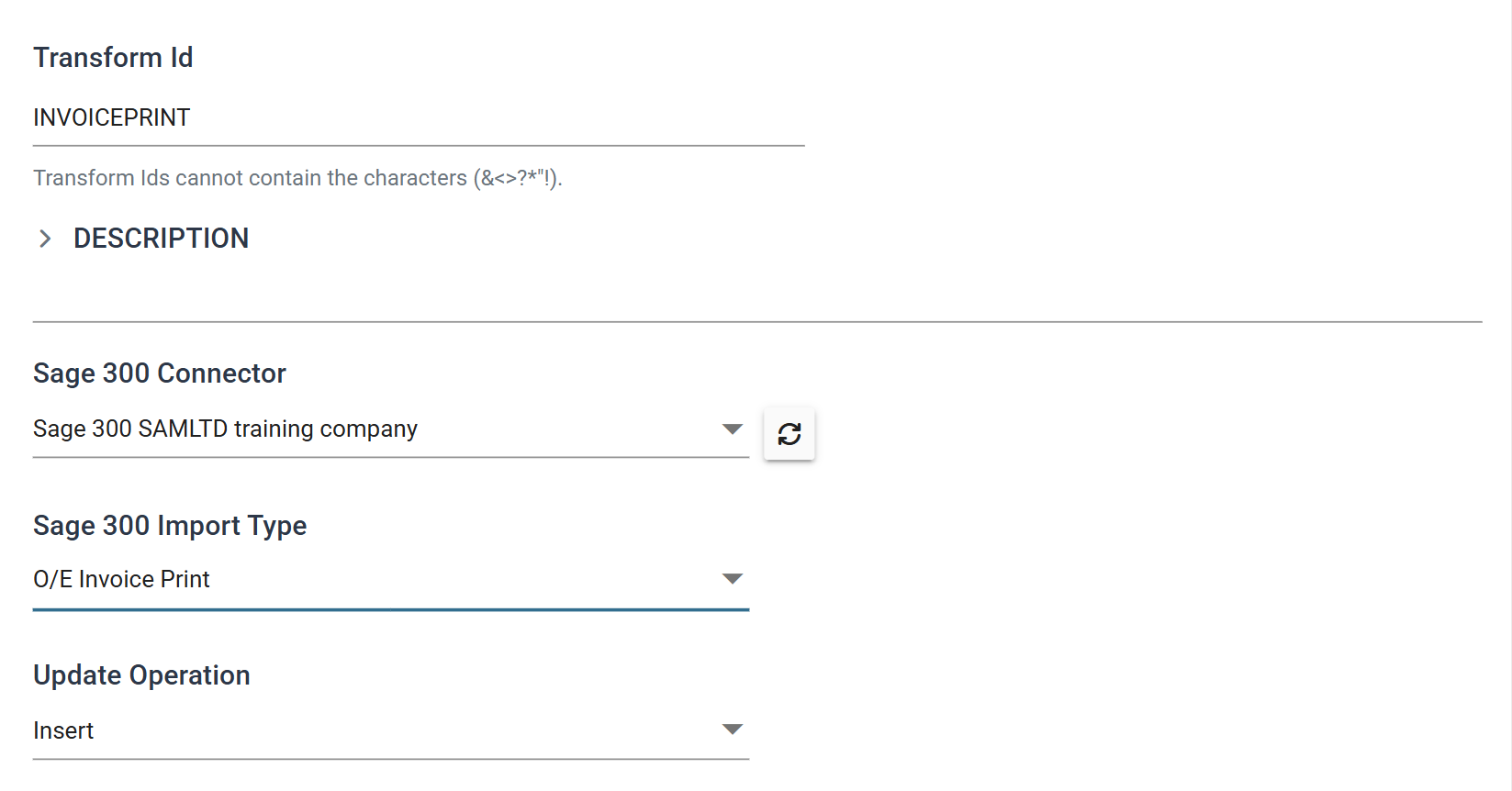
Sage 300 Invoice Print Connector > Setup
- Add a Sage 300 connector to the right of the
INVOICEPREPMap, join it and save the integration. - Double-click it to open it.
- Transform Id
- For training, enter:
INVOICEPRINT
- For training, enter:
- Sage 300 Connector
- Choose this before the import type, which stays disabled until you do.
- For training, select your Sage 300 SAMLTD connection.
- Sage 300 Import Type
- For training, select:
O/E Invoice Print
- For training, select:
- Update Operation
- For training, leave as: Insert
Sage 300 Invoice Print Connector > Field Mapping
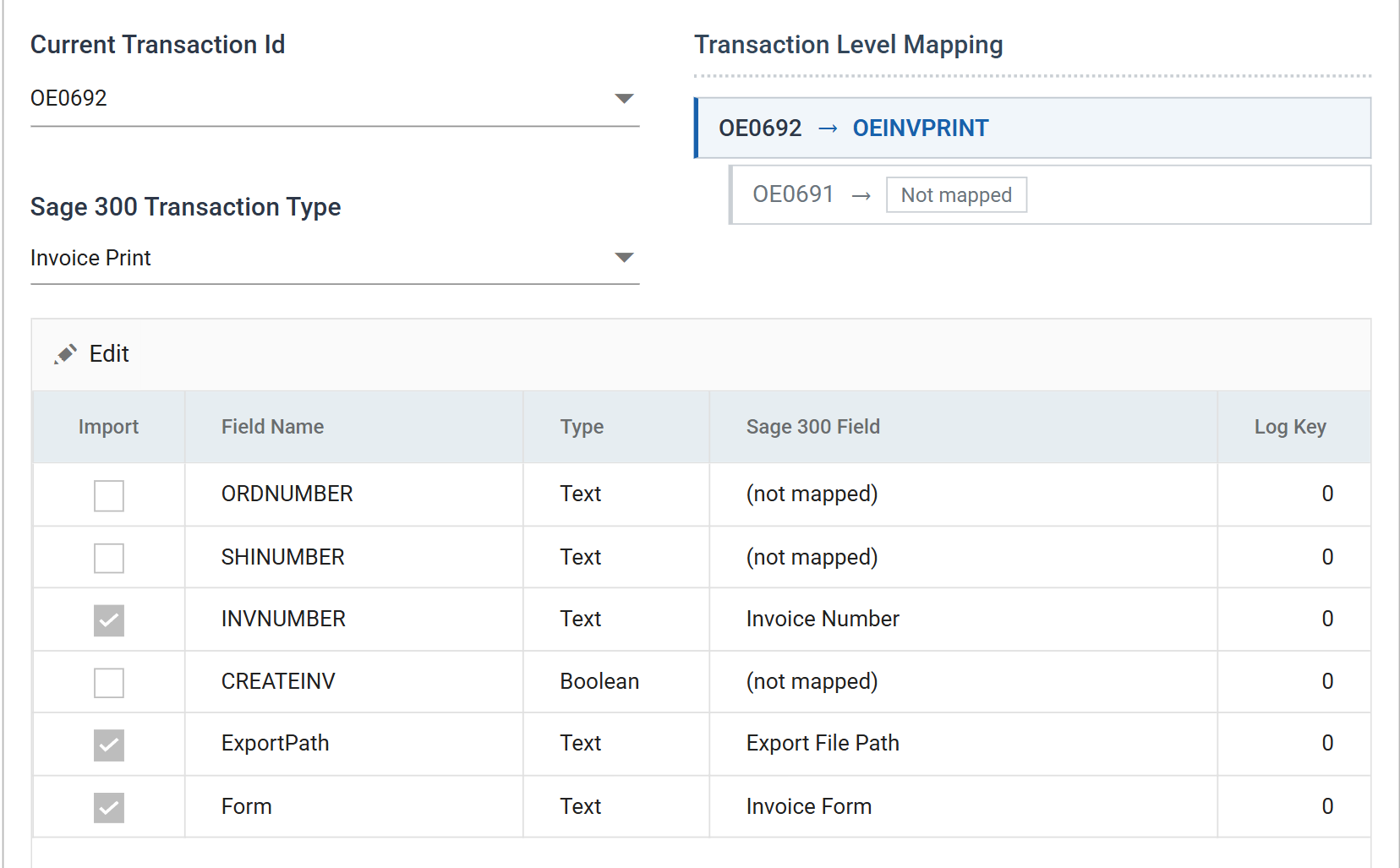
- Press Field Mapping. Current Transaction Id is on
OE0692, the shipment header the invoices were raised from. - Set Sage 300 Transaction Type to
Invoice Print, the only option this import type offers. -
Press Edit and map three fields:
Incoming Field Map To Sage 300 Field INVNUMBER Invoice Number ExportPath Export File Path Form Invoice Form -
Press Save on the grid.
These targets are not Sage 300 view fields
These targets have no system name in brackets, because they are not Sage
300 view fields. The same list offers Print Invoice, Printer Name,
Include Invoices Already Printed, Include Backorder Items and
Retainage, among others: every option the Sage 300 invoice printing
screen asks for. This step exports to a file instead of a printer, so
Export File Path is the one you need.
Running it
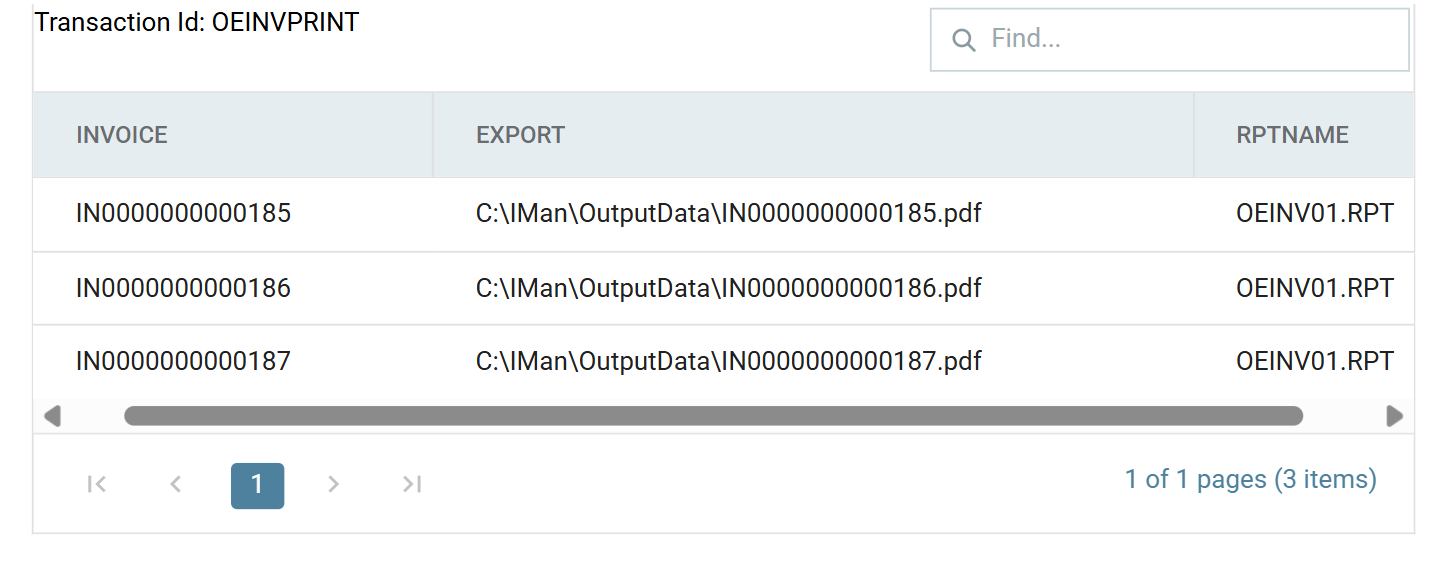
Press Refresh. The connector loads the report and writes one PDF per
invoice. When it succeeds, the preview shows the transaction OEINVPRINT. Its
three columns are the invoice number, the file written and the report used:
The files are in the output folder:
Press Close and save the integration.
The columns leave under the connector's names
The three columns are named INVOICE, EXPORT and RPTNAME, not
INVNUMBER, ExportPath and Form. As with every Sage 300 connector, the
fields leave under the names the connector gives them. The next section
uses these names.