Hierarchical Data Files
A hierarchical file is one where a single file carries more than one kind of record — an order header, its lines, its charges — with a column saying which kind each row is.
This article reads one with a CSV Reader, using Keyed Fields so that the rows do not have to arrive in any particular grouping.
The file
orders-keyed.csv holds three orders. The first column is the record type —
H, D, C — and the second is always the order it belongs to:
H,FBRN-309242,Web,USD,Mr,Ronald,English,Imperial Soap Inc,[email protected],Fairbanks,USA,79160,2016-03-11,282.00
H,FBRN-309244,Web,GBP,Ms,Marie,Esperanca,Endemol Building,[email protected],London,United Kingdom,W15 7UU,2016-03-12,1935.00
H,FBRN-309243,Web,GBP,Miss,Claire,Ward,F3,[email protected],London,United Kingdom,E3 4RR,2016-03-11,1532.60
D,FBRN-309243,2,6,A1-103/0,Desklamp,22.50
C,FBRN-309244,Assembly,60.00
D,FBRN-309242,2,30,A1-401/0,Big Style Notepad,5.10
C,FBRN-309242,Delivery,29.00
D,FBRN-309243,1,2,S1-200/B,Flat Screen 2M,141.80
Look at the order of those rows. No order's lines are next to it, and no
order's lines are even next to each other. FBRN-309243's line 2 arrives
before FBRN-309242 has been mentioned at all. A file like this is what
Keyed Fields is for.
The three record types do not share a column layout — H has fourteen columns,
D has seven, C has four, so this file has no heading row and is
mapped By Position.
What Keyed Fields actually buys you
It buys interleaving, not freedom from ordering.
With Ordered Data, structure comes from position: each parent must be followed by its own children and nothing else. With Keyed Fields, structure comes from the key columns, so children belonging to different parents may be mixed together in any order.
What does not change is that a parent must still be read before any of its children. The reader streams rather than buffering the file, so a child whose parent it has not yet seen fails the whole run:
Orphaned transaction encountered whilst inserting transaction into
hierarchical dataset ... Transaction Id [OrderLine] Parent [Order]
Key Values [FBRN-309243, 2]
That is why this file leads with all three H rows.
Method
Import Hierarchical CSV File
- Create a new integration — this article uses
DOCSCSVREAD. - On the Transform Setup tab, open the Readers group in the palette and drag a CSV Reader onto the design surface.
- Save the integration. A newly dropped node cannot be opened until it has been saved.
- Double-click the node to open its setup pane, and fill in the Source section.
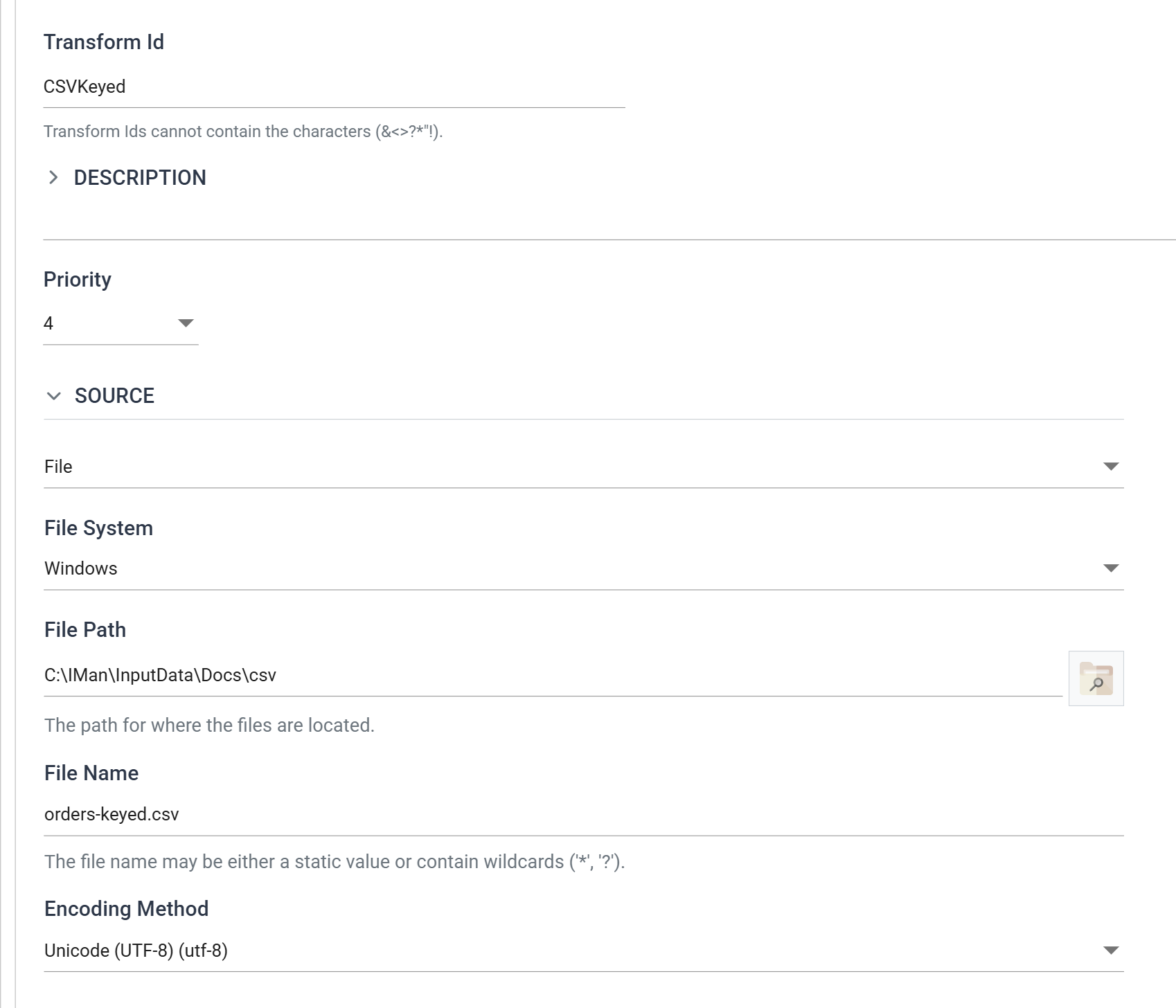
| Field | Value | |
|---|---|---|
| Transform Id | CSVKeyed |
Names the transform in the diagram and in error messages |
| Source | File | |
| File System | Windows | |
| File Path | C:\IMan\InputData\Docs\csv |
|
| File Name | orders-keyed.csv |
May be a static name or contain * or ? |
| Encoding Method | Unicode (UTF-8) |
Set Hierarchical Dataset Options
The Options section below it is where the file stops being a flat list of rows.
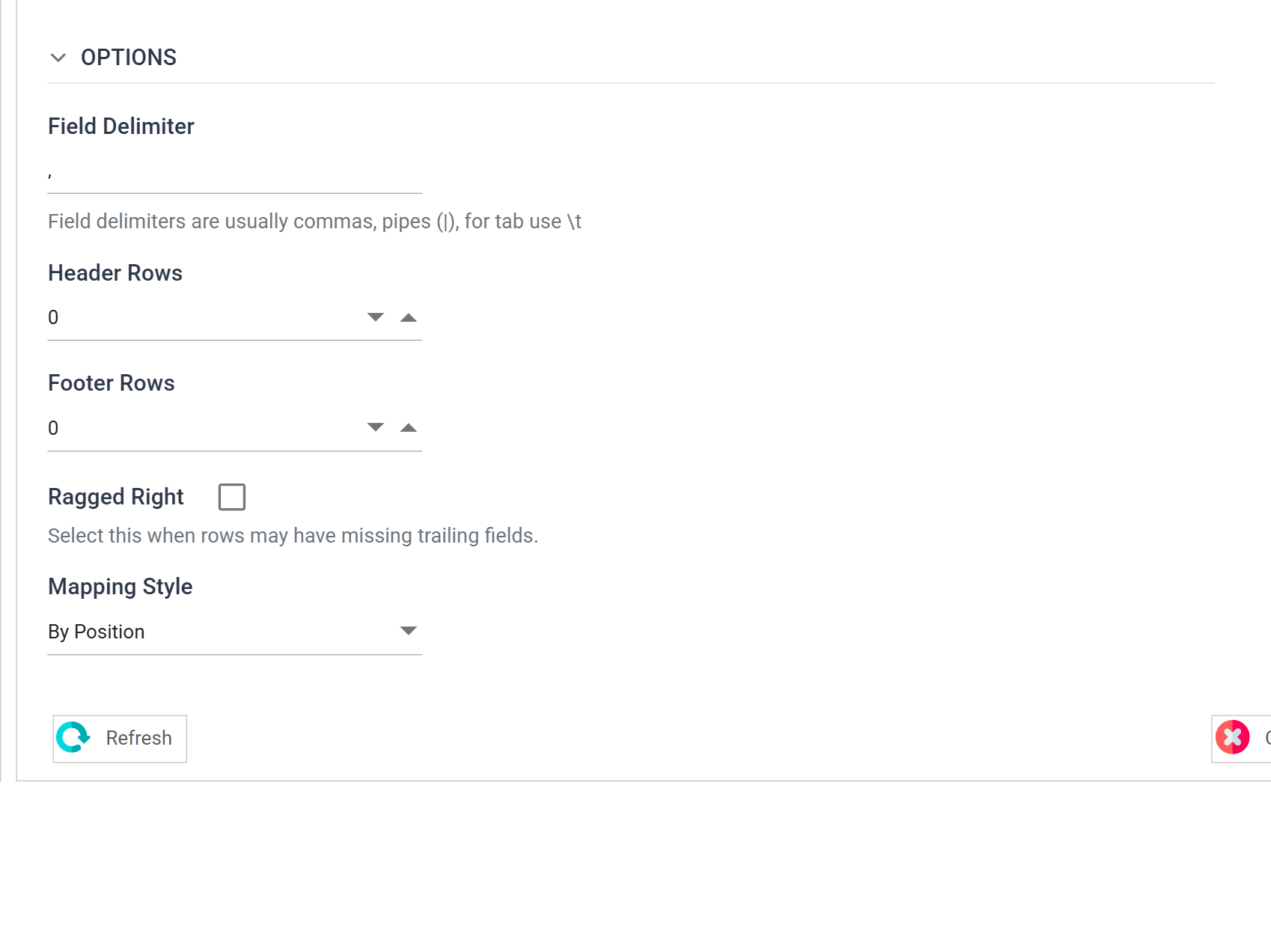
| Field | Value | |
|---|---|---|
| Field Delimiter | , |
|
| Header Rows | 0 |
The file has no heading row — the record types disagree about their columns |
| Footer Rows | 0 |
|
| Ragged Right | unticked | |
| Mapping Style | By Position | Fields are Field1…FieldN. By Field Heading needs a heading row, which this file cannot have |
| Hierarchy Style | Keyed Fields | |
| Record Type Field | Field1 |
Record Type Field is the whole hinge. It names the column whose value says
what kind of row this is, and it only appears once Hierarchy Style is set to
something other than (none).
Press Refresh Schema on the field grid's toolbar. IMan reads the file,
finds the distinct values in Field1 and offers one transaction type per
value for review.
Detection uses the file you point it at
Schema detection can only find the record types that are actually present. Point it at a file missing one and that type is simply never created, and IMan offers to delete any type it no longer finds.
Use a file that contains every record type you expect to handle.
The first row's record type becomes the root
Detection makes the record type of the first row in the file the root transaction, and every other type a child of it.
A file that opens on a D row therefore produces a tree with OrderLine
at the root and Order hanging off it. Nothing warns you, and the root
cannot be deleted afterwards — the transaction tree offers no ✕ on a root
— so the only way out is to build the reader again from a new node.
This file leads with H rows deliberately.
Organise the Hierarchy
Move to the Field Mapping tab. The tree on the left holds the three transaction types detection found.
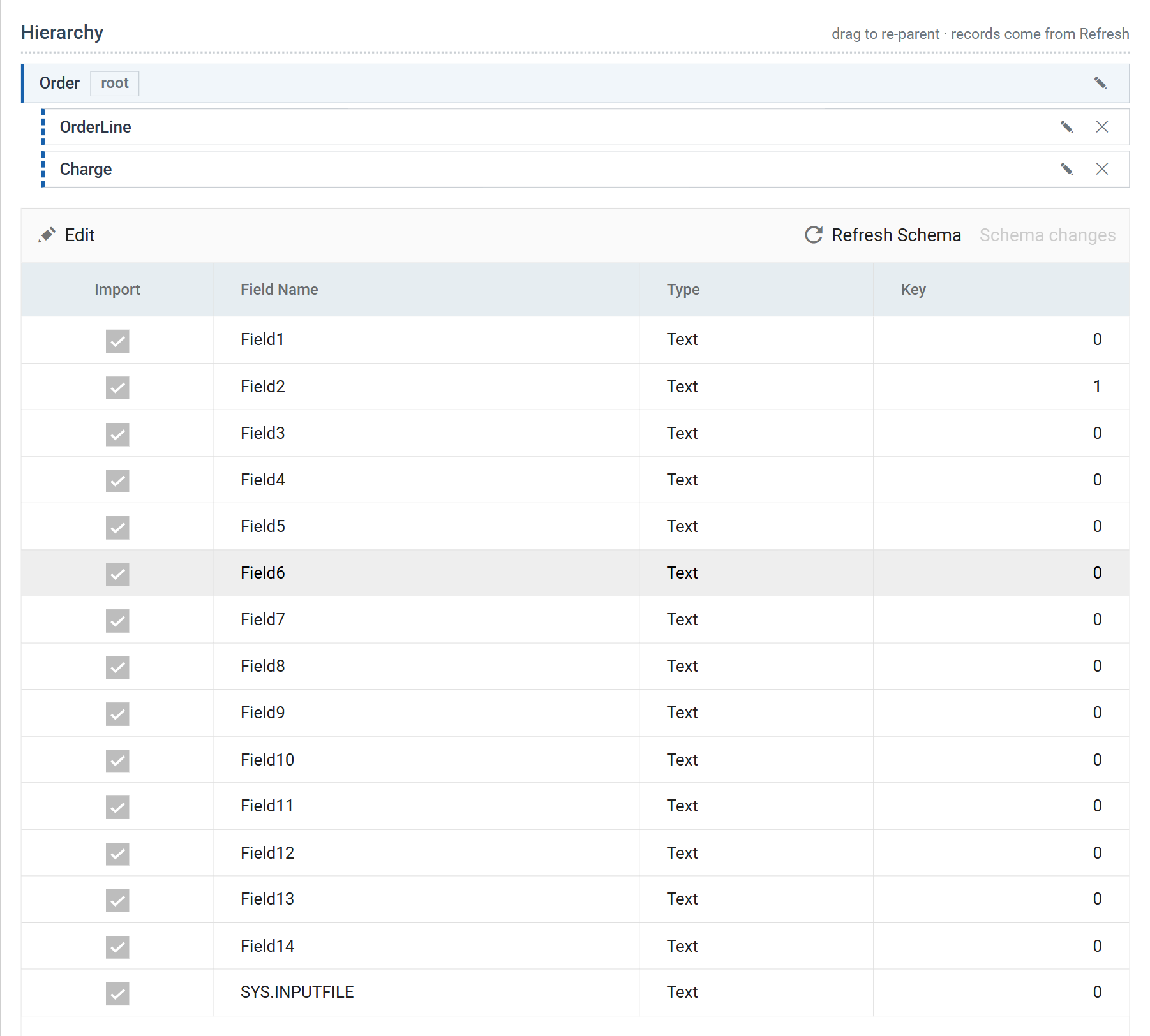
Rename each type to something meaningful and arrange the parentage: Order at
the root, with OrderLine and Charge beneath it.
Selecting a transaction scopes the grid
A Reader has no Current Transaction Id drop-down. Clicking a node in the tree is the only thing that decides whose fields the grid is showing.
The keys
Now set the Key column. It makes the whole thing work, and the rule is short:
A key value of
0means "not a key". Otherwise the number is the field's position in the key, and a child carries its parent's key plus one more field of its own.
Select Order. Its key is the order id alone:
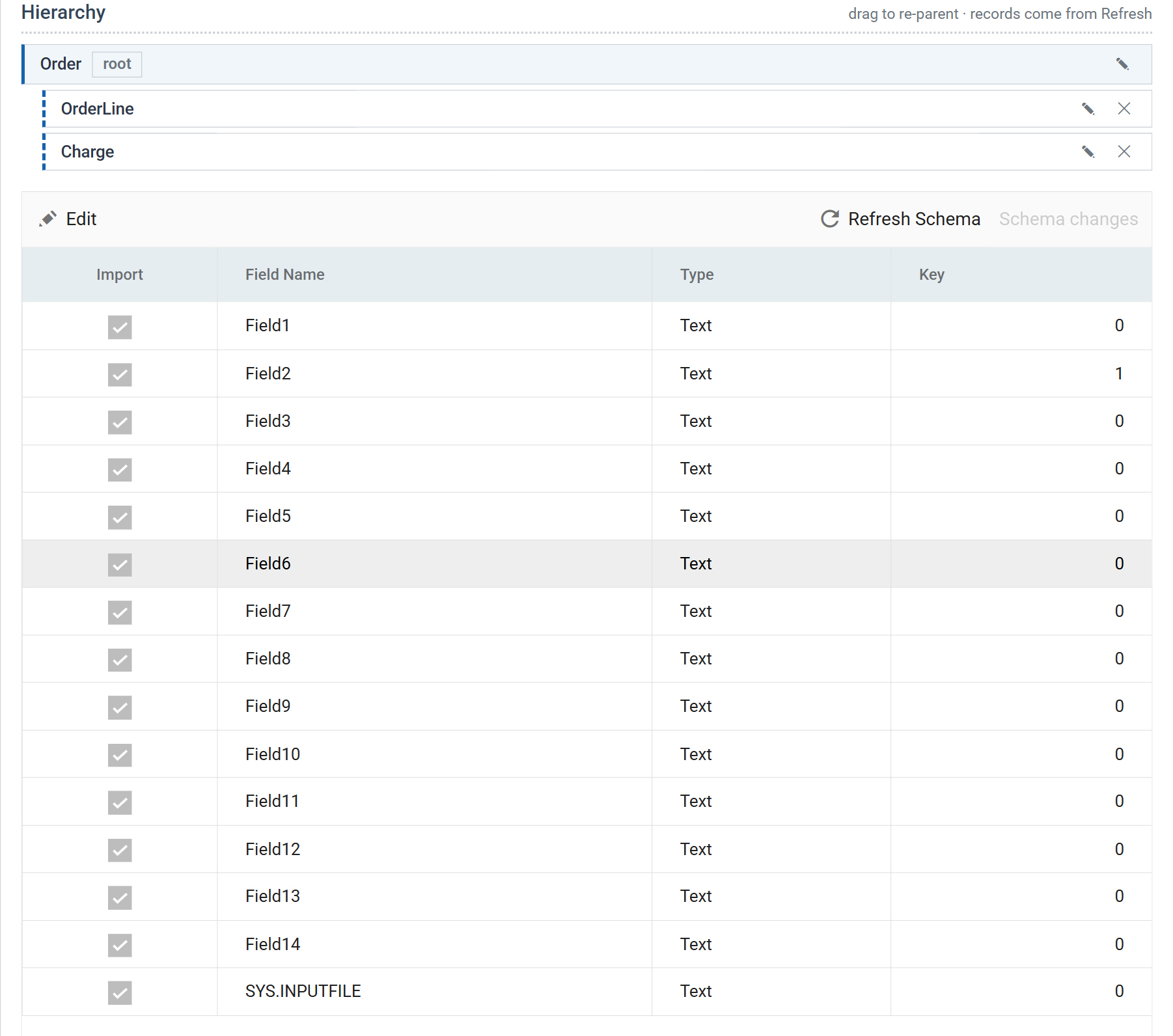
| Field | Holds | Key |
|---|---|---|
Field1 |
record type, H |
0 |
Field2 |
OrderId | 1 |
Field3…Field14 |
order type, currency, customer, address, date, total | 0 |
Select OrderLine. It keys on the order id and its own line number:
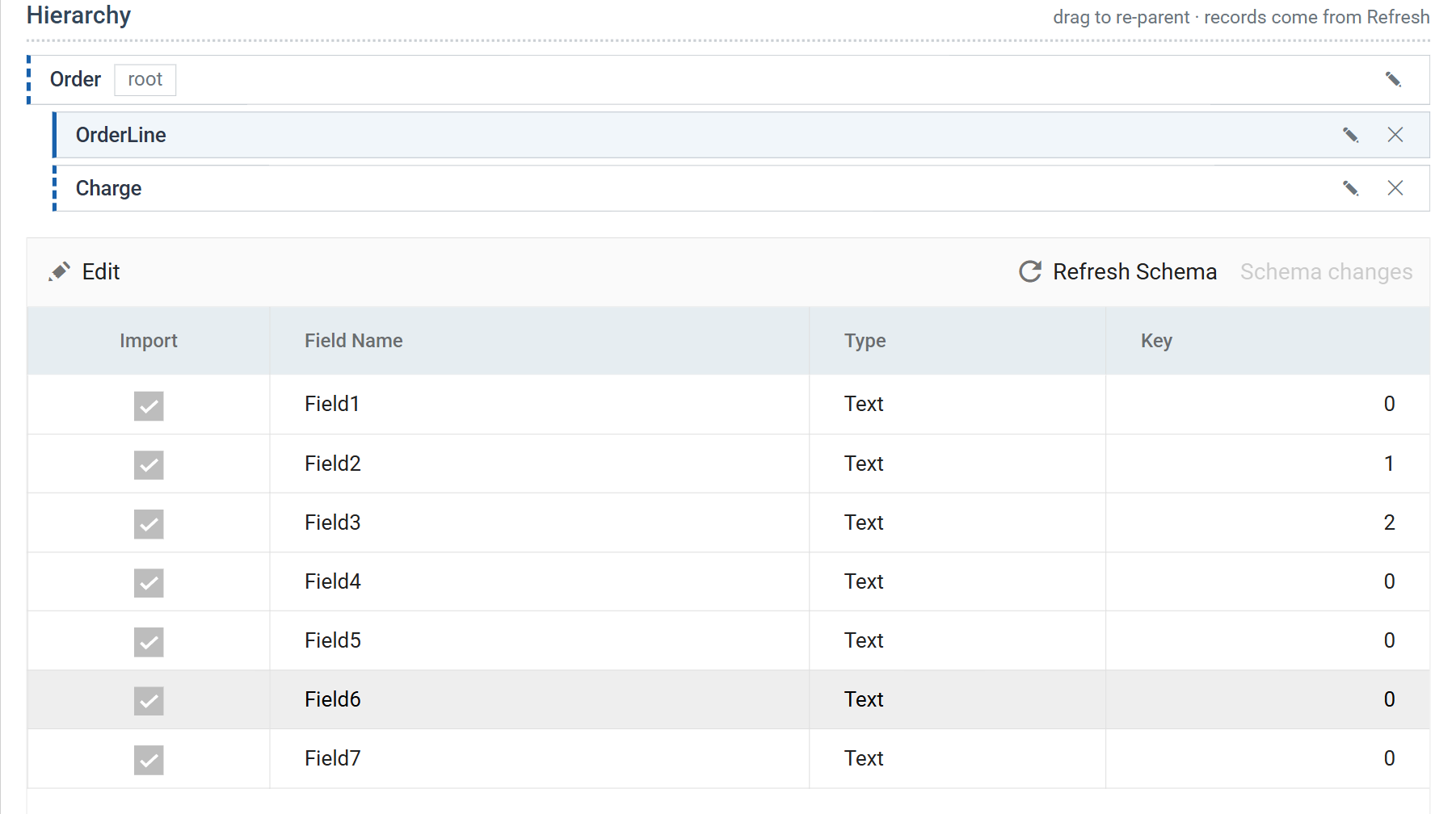
| Field | Holds | Key |
|---|---|---|
Field1 |
record type, D |
0 |
Field2 |
OrderId — the parent's key | 1 |
Field3 |
LineNo — this row's own key | 2 |
Field4…Field7 |
qty, SKU, description, unit price | 0 |
Select Charge, and do the same. Its own key is the charge type rather than a line number, but the shape is identical — the parent's key first, then one more:
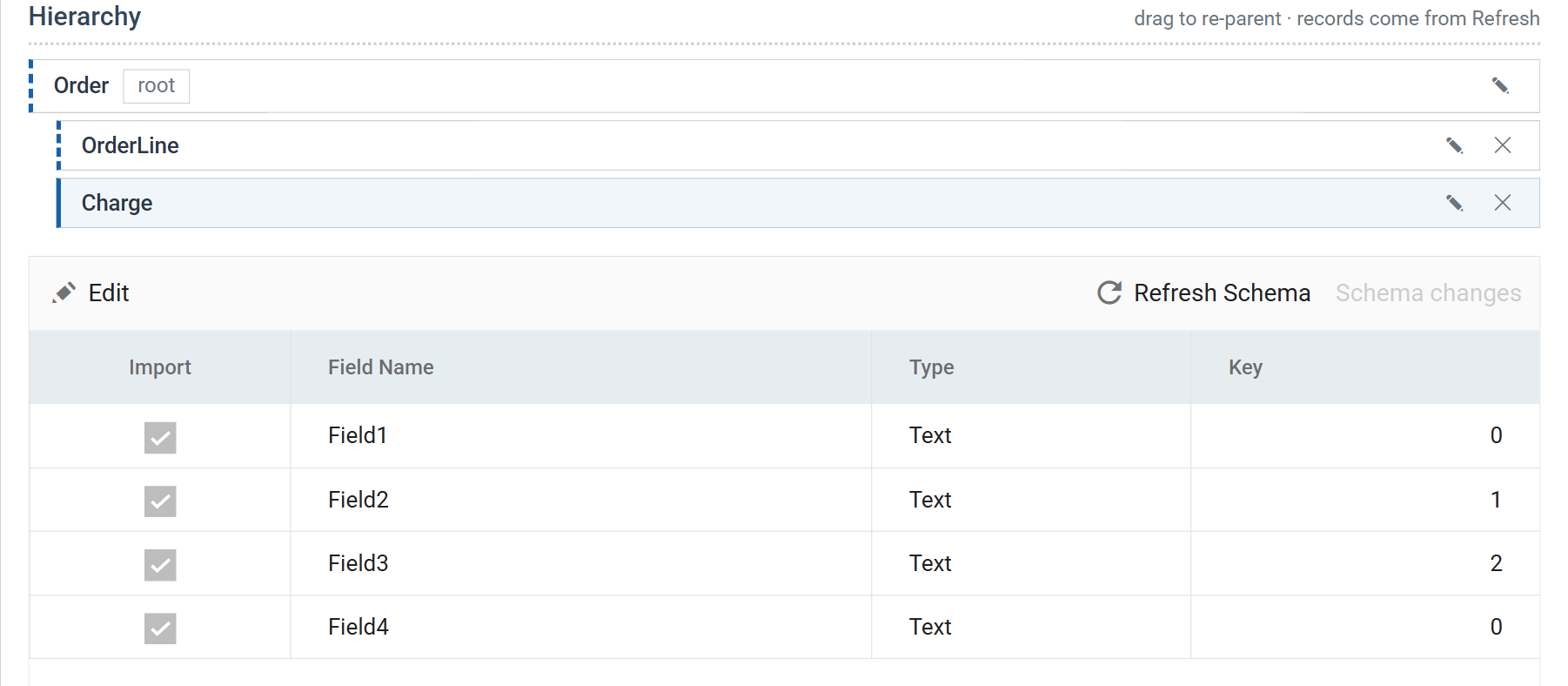
| Field | Holds | Key |
|---|---|---|
Field1 |
record type, C |
0 |
Field2 |
OrderId — the parent's key | 1 |
Field3 |
ChargeType — this row's own key | 2 |
Field4 |
Amount | 0 |
See Key Fields for the underlying concept.
The keys must identify the row, not merely describe it
Charge keys on the charge type, because the charge type is what makes a charge unique
within its order — FBRN-309244 has both an Assembly and a
TwoManDelivery. Had two charges of the same type been possible on one
order, the key would not have been enough and the file would have needed a
sequence column.
Check it
Press Refresh and expand a row in the preview grid.
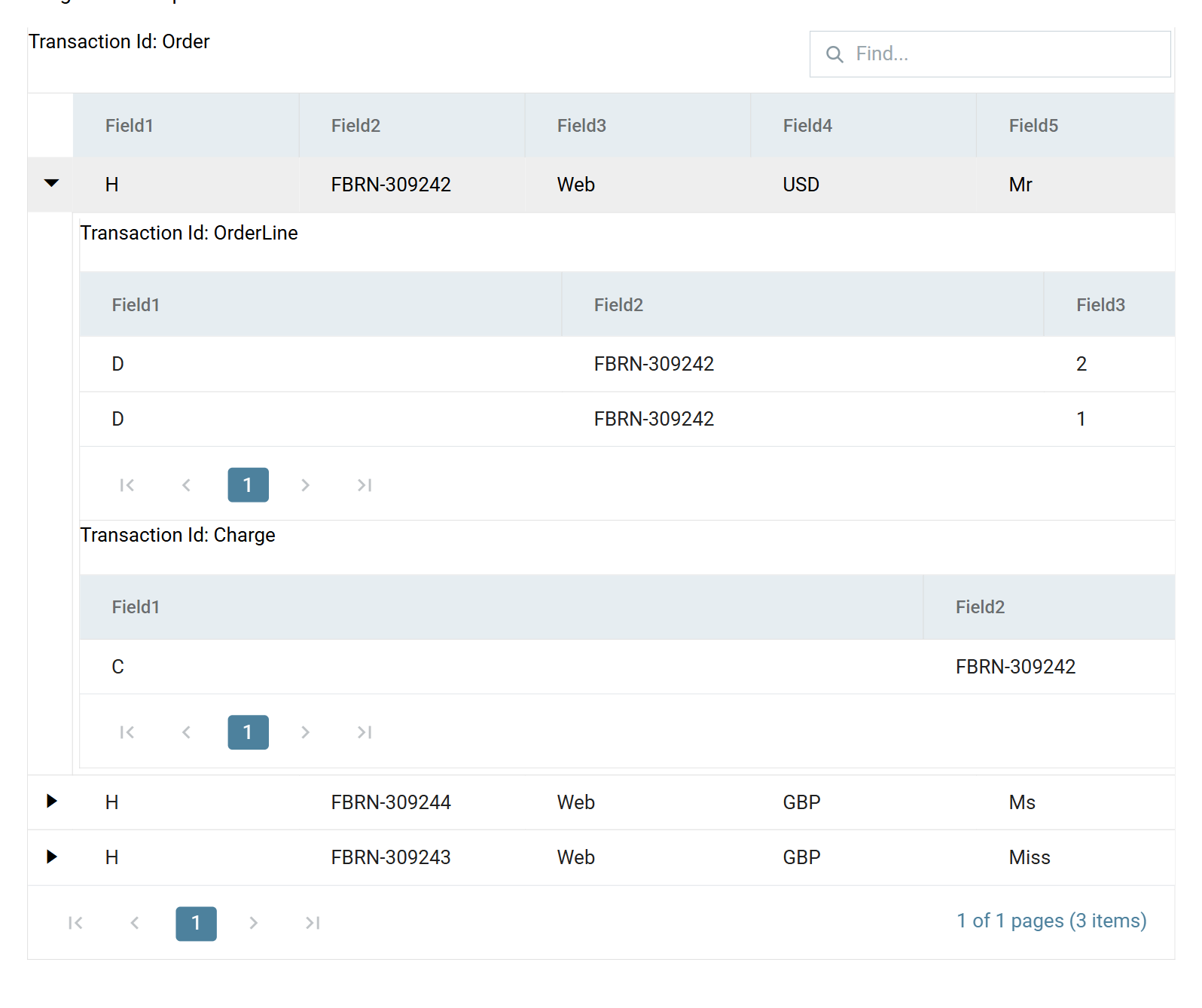
Three orders, each carrying its own lines and charges, reassembled out of a file in which none of them were adjacent. If a row's children are missing or attached to the wrong parent, check the key columns.
Close the setup pane and press Save on the design screen.
Verified against IMan 6.1, September 2026.