Reading Excel Worksheets
One workbook, two sheets, the same three orders arranged two different ways — read either.
This article builds two Excel Readers
over orders-hierarchical.xlsx, and its real subject is the one field that
decides which sheet you get.
The workbook
orders-hierarchical.xlsx holds two sheets:
| Sheet name | Position in the workbook | Arrangement |
|---|---|---|
Ordered |
first | Each order followed by its own lines and charges |
Keyed |
second | All three headers first, then every line and charge interleaved |
Both hold the same three orders, and both use column A as the record type —
H, D, C — exactly as the
hierarchical CSV files do. The two sheets exist so
that one workbook can demonstrate both Hierarchy Style options.
The Worksheet Id
Worksheet Id is zero-based. The first sheet is 0, the second is 1.
The on-screen help beside the field says "The worksheet name or one-based index
to read". That is wrong about the index, and the failure is a quiet one: on
a two-sheet workbook, a 1 meant as "the first sheet" returns the second
sheet's data, which is well-formed, plausible, and not what you asked for.
Both readers below prove it between them. A one-based index has no 0 at all,
yet 0 reads the first sheet; and 1, which a one-based index would make the
first sheet, reads the second.
Or use the name
The field takes a name as readily as an index, and a name is worth
preferring: Keyed says what it means, survives someone reordering the
sheets, and cannot be off by one.
An index is the right choice only when the sheet name varies between files — a monthly export naming its sheet after the month, say.
Step a — The first sheet, Ordered Data
- Create a new integration — this article uses
DOCSXLREAD. - On the Transform Setup tab, open the Readers group in the palette and drag an Excel Reader onto the design surface.
- Save the integration, then double-click the node to open its setup pane.
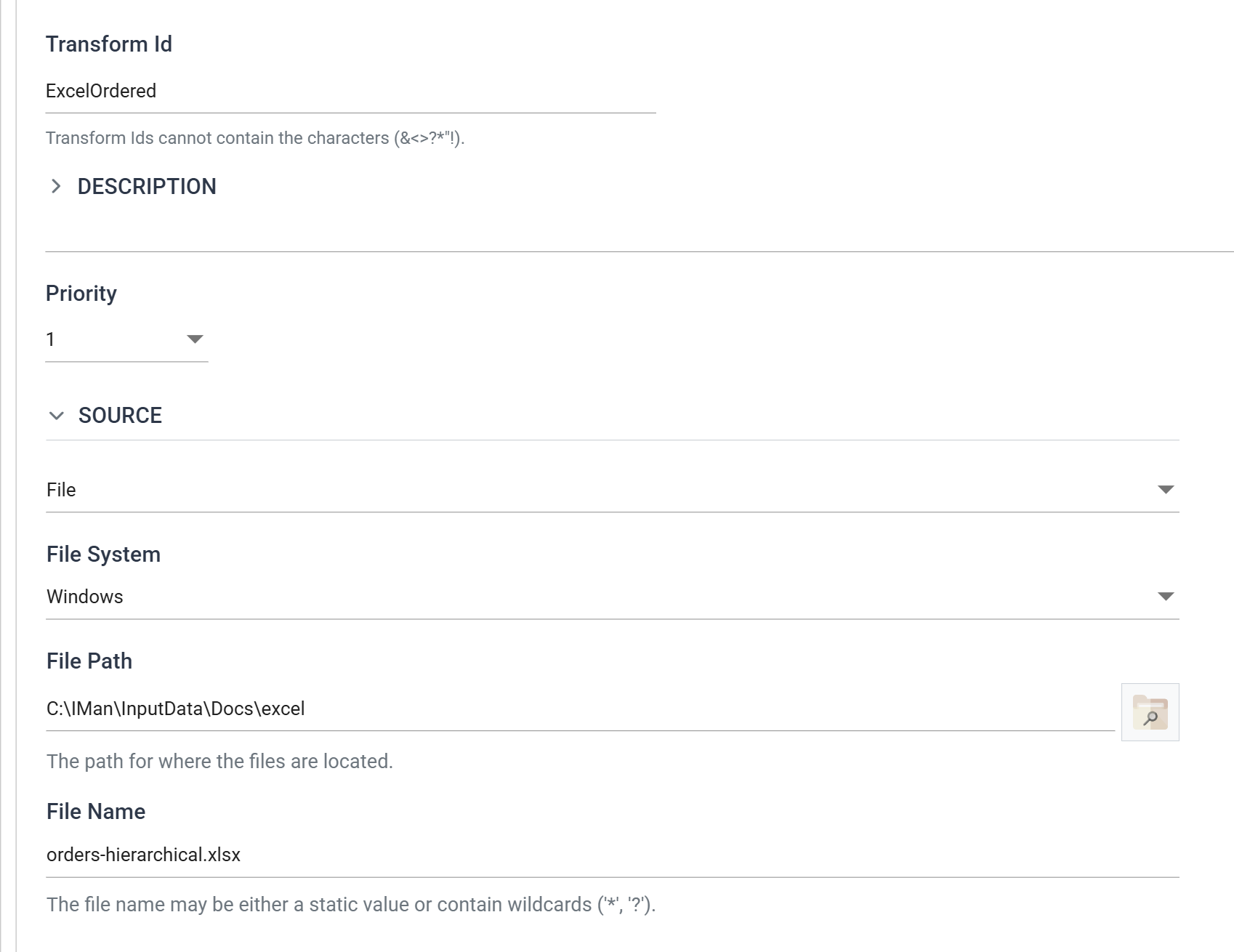
| Field | Value | |
|---|---|---|
| Transform Id | ExcelOrdered |
|
| Source | File | |
| File System | Windows | |
| File Path | C:\IMan\InputData\Docs\excel |
|
| File Name | orders-hierarchical.xlsx |
There is no Encoding Method here, and no Field Delimiter. An .xlsx is
a structured document rather than a text file, so neither question arises — one
of the few places where reading Excel is simpler than reading CSV.
Now the Options section:
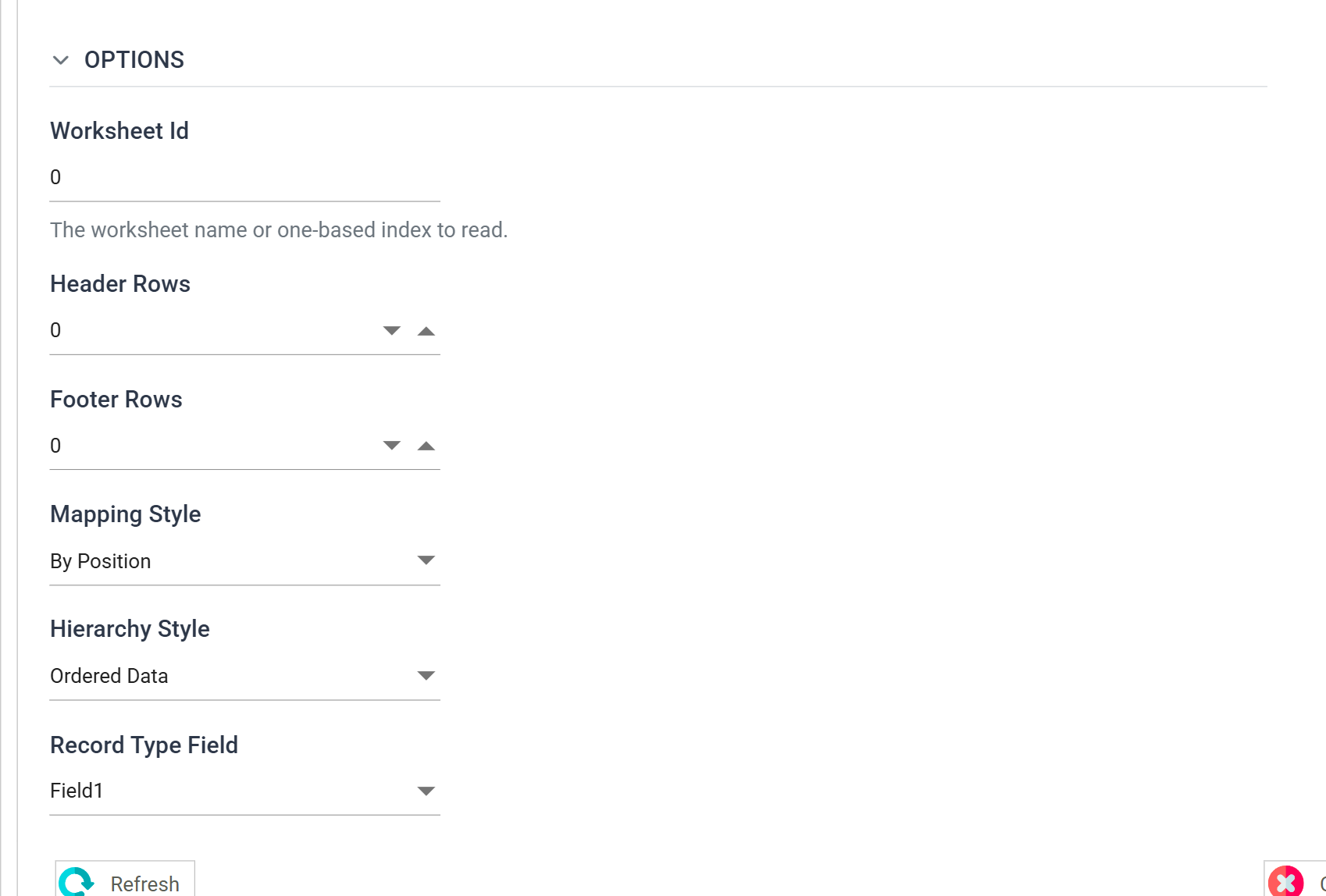
| Field | Value | |
|---|---|---|
| Worksheet Id | 0 |
The first sheet, Ordered |
| Header Rows | 0 |
The record types disagree about their columns, so there is no heading row |
| Footer Rows | 0 |
|
| Mapping Style | By Position | Fields are Field1…FieldN |
| Hierarchy Style | Ordered Data | Structure comes from row order |
| Record Type Field | Field1 |
Press Refresh Schema on the field grid's toolbar, then OK the review.
IMan creates one transaction per record type found in Field1. Rename them Order,
OrderLine and Charge, and set OrderLine and Charge to have Order as
their parent.
Ordered Data needs no key fields at all. Each header is followed by its own lines and charges, so position alone says what belongs to what.
Step b — The second sheet, Keyed Fields
Add a second Excel Reader. Everything in Source is identical — same folder, same workbook — and only the Options differ.
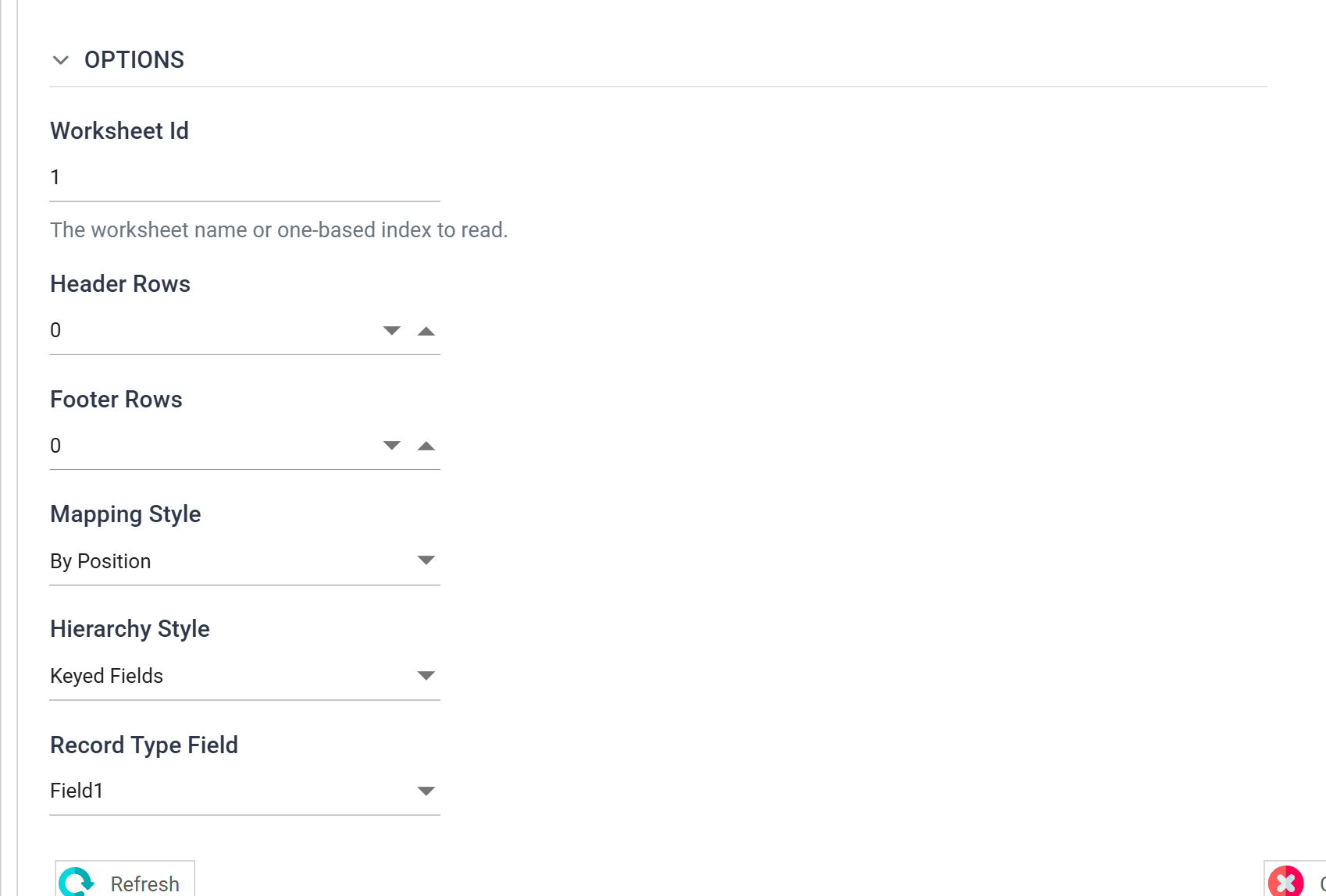
| Field | Value | |
|---|---|---|
| Transform Id | ExcelKeyed |
|
| Worksheet Id | 1 |
The second sheet, Keyed |
| Hierarchy Style | Keyed Fields | Structure comes from the key columns |
| Record Type Field | Field1 |
1 is the only difference that matters, and it selects the second sheet.
That is the correction on this page made concrete: had the index been one-based,
1 would have returned the Ordered sheet and the Keyed Fields setup below
would have quietly failed against data that does not need it.
Because this sheet is keyed, the transactions need key fields. Set them exactly as for the hierarchical CSV:
| Transaction | Key fields |
|---|---|
Order |
Field2 = 1 |
OrderLine |
Field2 = 1, Field3 = 2 |
Charge |
Field2 = 1, Field3 = 2 |
The rules that apply to keyed CSV apply here too
Detection makes the record type of the first row the root, and that root cannot be deleted afterwards. A sheet that opens on a detail row produces an unusable reader that has to be built again.
And a parent must still appear before any of its children — Keyed Fields buys interleaving, not freedom from ordering. Both are covered at length in Hierarchical Data Files.
Check it
Press Refresh on either reader and expand a row.
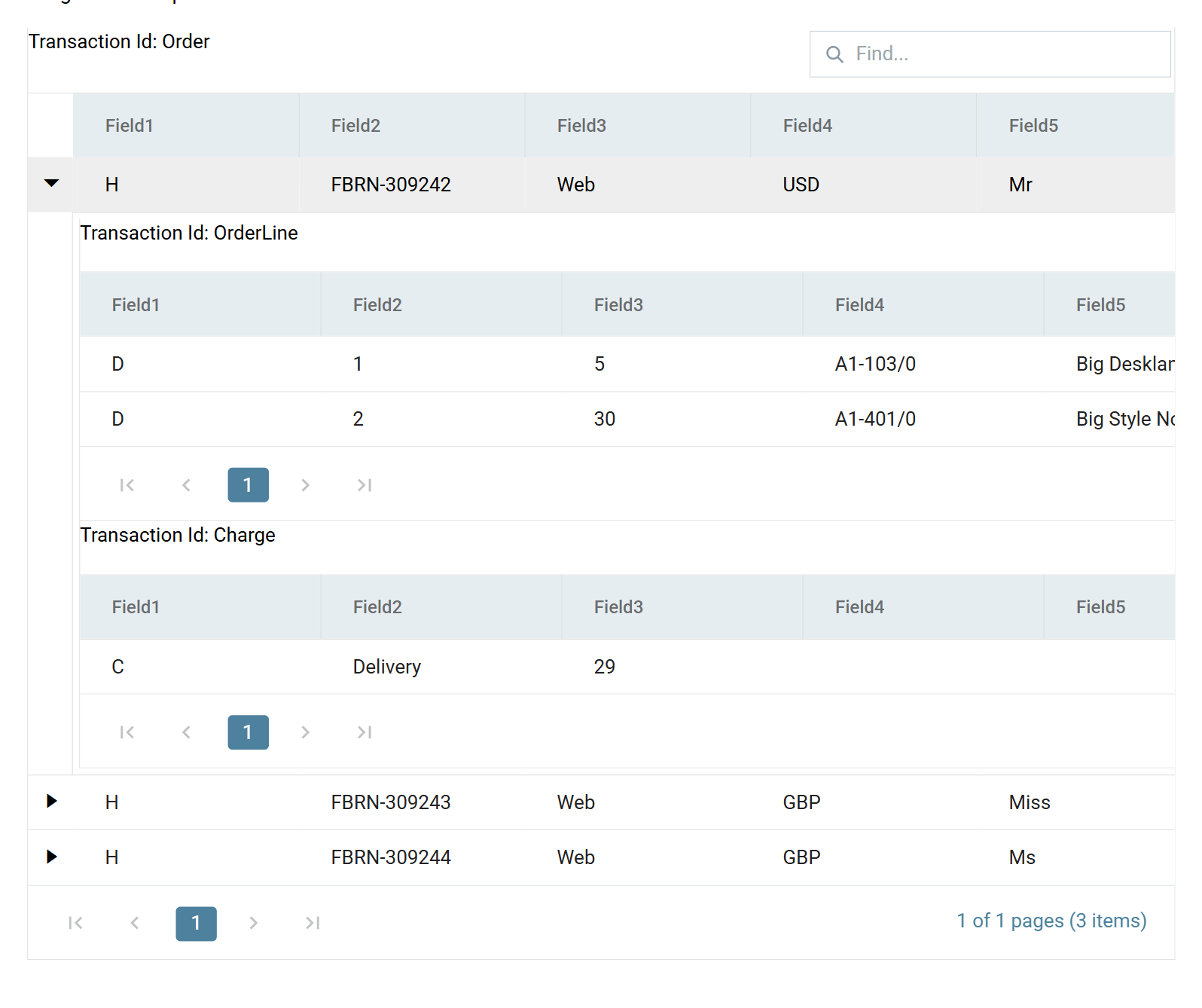
Both readers produce the same dataset — three orders, each with its own lines and charges — out of two sheets that store it completely differently. Which is the point: Hierarchy Style describes the file, and the dataset that comes out the far side is the same either way.
Close the setup panes and press Save on the design screen.
Verified against IMan 6.1, September 2026.