File Systems
The File Systems screen defines the cloud storage locations IMan can read from and write to. Each record names a location — an S3 bucket, a Blob container, a OneDrive or SharePoint drive — and carries the credentials needed to reach it.
Once you define a file system here, you can select it in File Events, on the File IO controllers and in the File, FTP and Email tasks.
Scripts can also address it. The File functions take the Id of a file system as an optional first argument. An expression can then read or write cloud storage in the same way as the IMan server's own disk.
This screen is available to Administrative users only.
Setup > File Systems
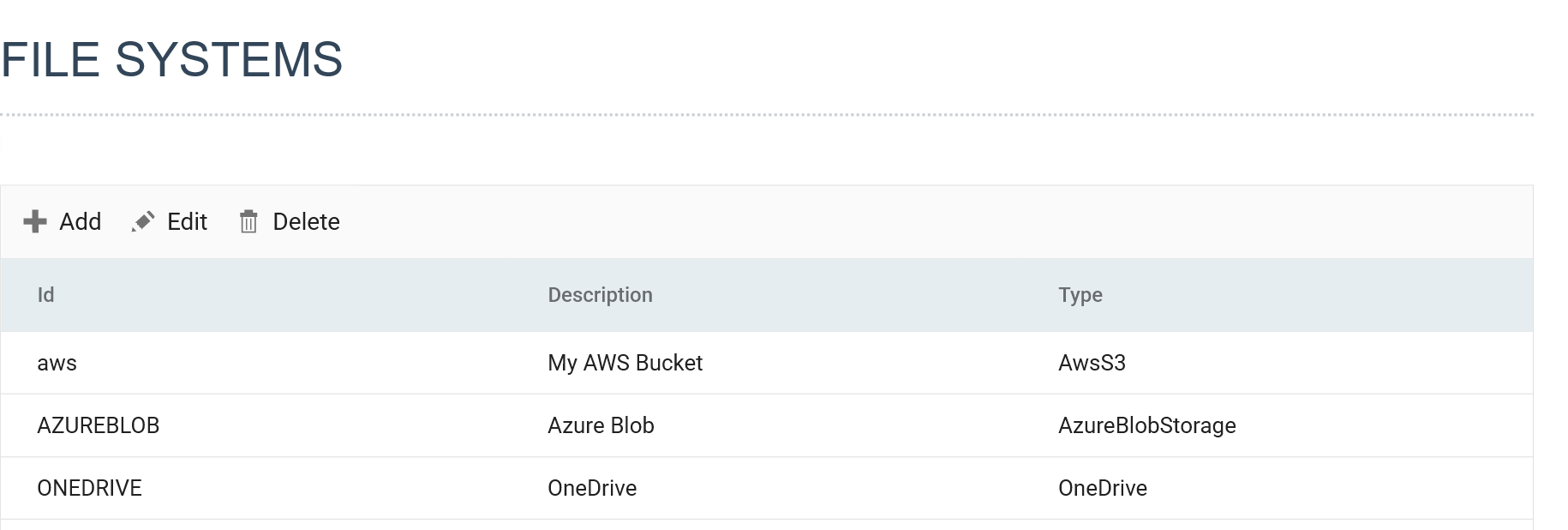
The grid lists the file systems already defined, showing the ID, Description and Type of each. Use the toolbar to add a new file system, or edit or delete an existing one.
Adding or editing a file system opens the setup dialog.
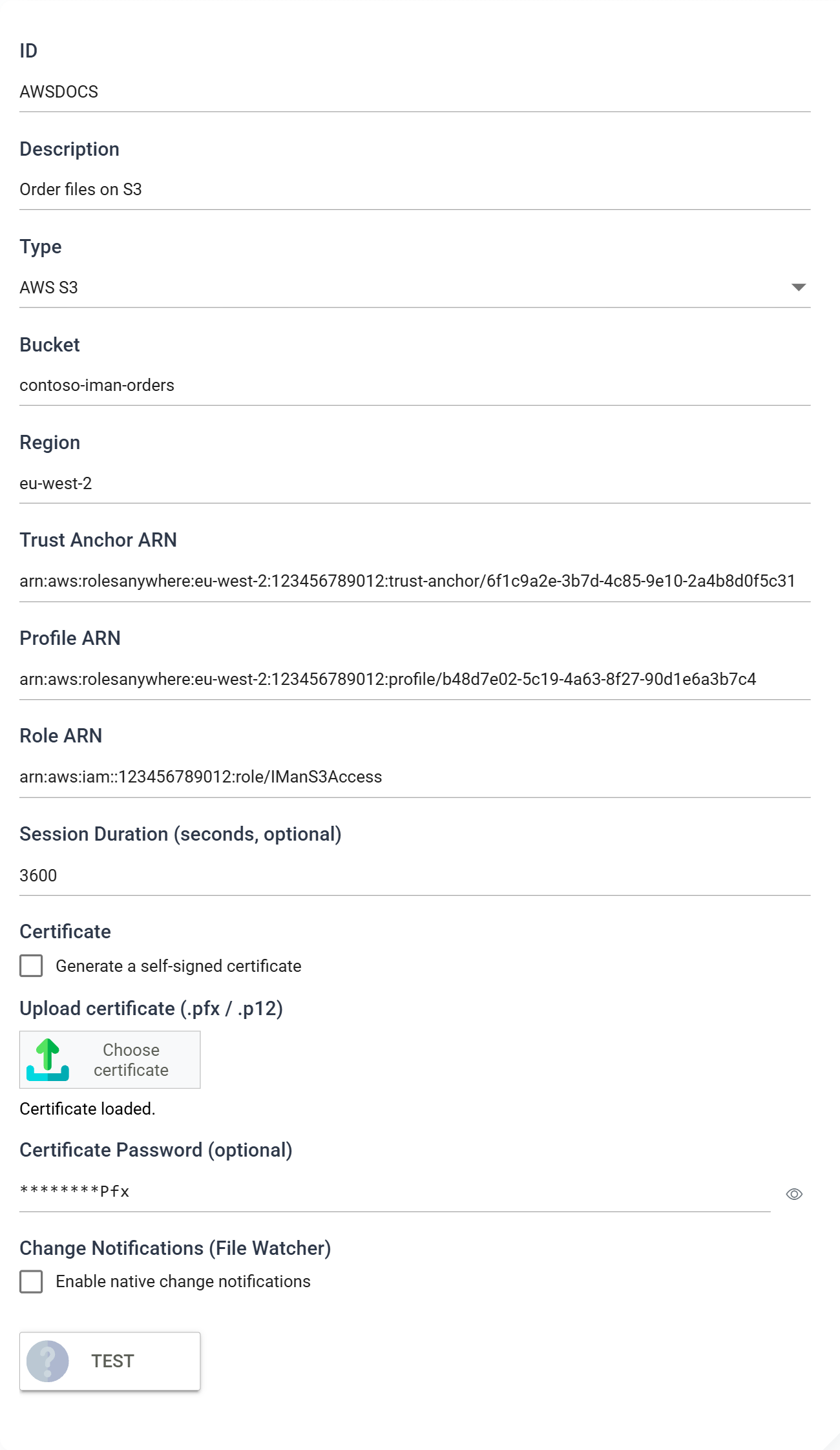
ID
The Id of the file system, to a maximum of 12 characters.
The Id cannot be changed once the record has been saved.
Description
A useful description for the file system, to a maximum of 60 characters.
The drop-downs on other screens identify the file system by its description, so make it recognisable.
Type
The kind of storage this file system connects to:
Selecting a type displays the entry fields for that type. The pages above describe them.
Changing the type clears any certificate already entered and the notification queue settings, because both are specific to the provider. The ID and Description are kept.
Authentication
All three types authenticate with an X.509 client certificate. IMan holds the private key; the cloud provider is given the matching public certificate and told to trust it.
You set the certificate on the type's own page, either by generating one in IMan or by uploading a .pfx / .p12 file. Each page describes what to register with the provider.
There is no certificate to install on the server
When you set the certificate from this screen, IMan stores it inside the encrypted file system record. There is no separate step to install the certificate into a Windows certificate store, and no file to copy onto the IMan server.
IMan does not accept access keys or account keys. An AWS access key or an Azure storage account key is a long-lived secret, and IMan will reject a saved file system that carries one.
Change Notifications (File Watcher)
Tick Enable native change notifications for IMan to subscribe to the provider's own change feed for this file system.
This setting allows a File Event to watch the file system. A File Event on a cloud file system that does not have change notifications enabled will never fire.
Enabling notifications displays the settings that carry the feed:
SQS Queue URL (AWS S3 only)
The URL of the Amazon SQS queue that receives the bucket's event notifications.
Storage Queue Name (Azure Blob Storage only)
The name of the Azure Storage queue that Event Grid delivers the container's blob events to.
Poll Interval (seconds, optional)
How often IMan checks the change feed. Leave it empty to use the default of 15 seconds.
OneDrive needs no queue. IMan detects changes with a Microsoft Graph delta query against the drive, so you only need to enable notifications and set the poll interval.
Test
Press Test to check that the file system's settings are valid and that IMan can reach the location.
IMan displays the results and trace of the connection on the right-hand side. If the test fails, the trace should show the cause.
Enter an ID before you run the test. The test uses the values currently on screen, so you can test a file system before you save it.