Azure Blob Storage
An Azure Blob Storage file system gives IMan read and write access to a single blob container.
IMan authenticates as a Microsoft Entra ID app registration holding an X.509 client certificate. It is the Azure counterpart of AWS IAM Roles Anywhere. It uses a certificate, stores no secret and suits a workload running outside Azure. Azure RBAC then grants that app registration access to the storage account.
IMan does not accept a storage account key. A key is a long-lived secret that grants full control of the account, and IMan refuses to save a file system that carries one.
Setting one up is a round trip through the Azure portal, but you can save the file system part way through. IMan can save as soon as it has the Storage Account, Container, Tenant ID, Client ID and a certificate. You do not need to upload the certificate to Azure first. Work in this order:
- Create the app registration and note its Tenant ID and Client ID.
- In IMan, enter the four fields, generate the certificate, copy the Public certificate box somewhere safe and save.
- Upload the certificate to the app registration, then grant it a role on the storage account.
- Test the file system.
IMan shows the public certificate once
IMan shows the Public certificate box until you save or leave the form, and does not show it again. Copy it before you save. If you lose it, tick Generate a self-signed certificate again and upload the new one.
You need an Azure sign-in that can create an app registration and assign roles on the storage account, and an IMan administrator account.
Setup > File Systems > Azure Blob Storage
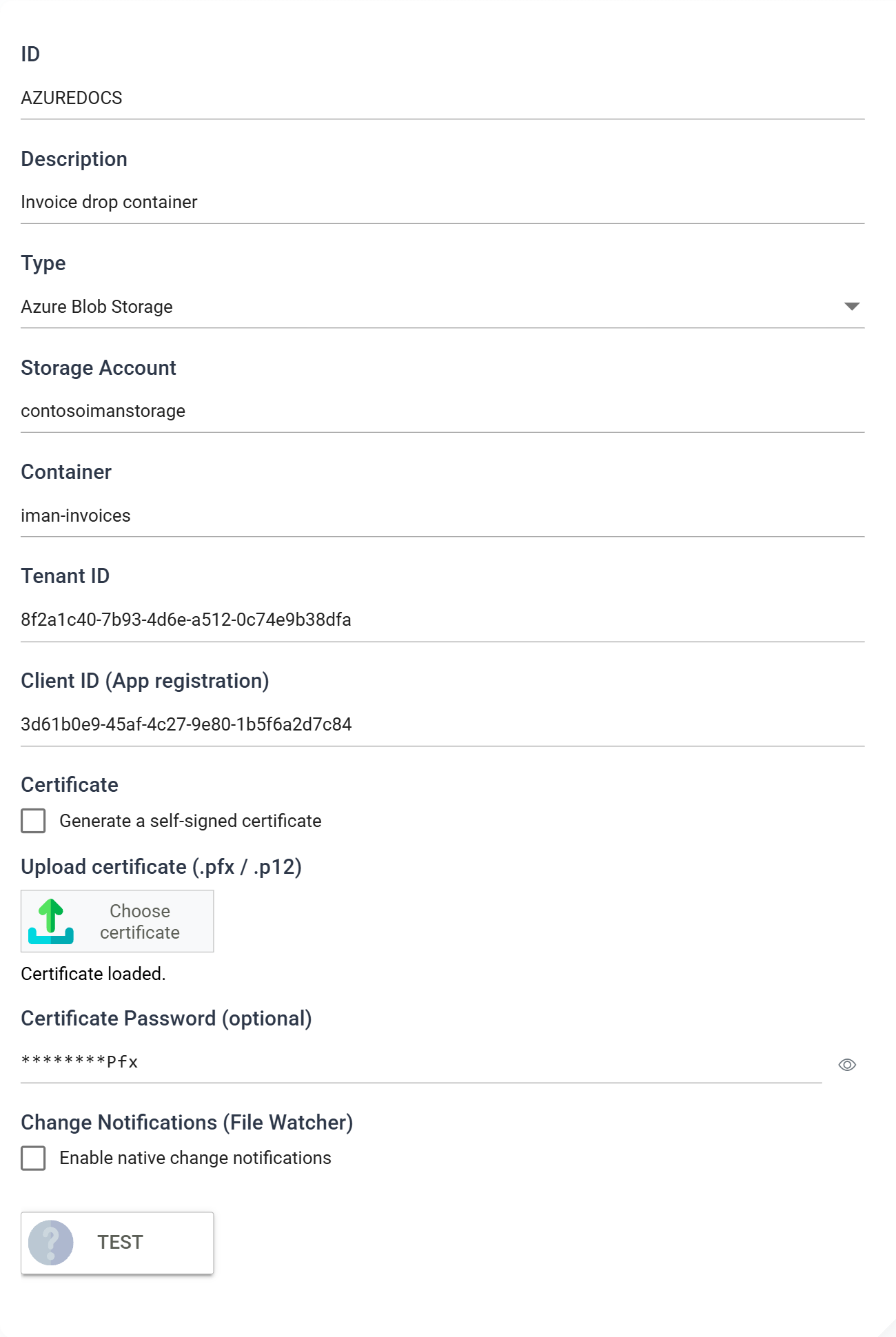
Storage Account
The name of the Azure storage account holding the container.
IMan reaches it at https://<account>.blob.core.windows.net and signs in through the public Entra endpoint. This screen cannot reach a storage account in a sovereign cloud, such as Azure Government or Azure China.
Container
The blob container this file system maps to.
The container is the top folder of the file system. The File Explorer opens on it, and every path on this file system starts with its name. A path picked with a Browse button comes back as container\inbox, and a path you type by hand must start the same way. IMan reads the first segment of any path as the container. A path beginning with some other word reaches a different container in the same storage account.
IMan does not check that the container exists. Test passes for a container that is not there, and the first write creates it if the role allows. Check the name by browsing the file system in the File Explorer once you have saved it.
Blob storage has no real folders. When IMan creates one it writes a zero-byte blob named .imanfolder inside it and hides that blob from listings. Leave it in place. Deleting it removes the folder if the folder is otherwise empty. Folders created by Azure Storage Explorer or azcopy, with their trailing-slash marker, list correctly too.
Tenant ID
The Entra directory (tenant) ID that the app registration belongs to.
Client ID (App registration)
The Entra application (client) ID of the app registration IMan authenticates as.
Certificate
The X.509 certificate IMan presents to Entra. Either generate one or upload your own.
Generate a self-signed certificate — tick this and IMan creates the certificate for you.
- Certificate Subject (CN) — the common name for the generated certificate, for example
iman-azure-client. - Certificate Password (optional) — a password to protect the generated key.
- Generate Certificate — creates the certificate and displays its public half in the Public certificate box below.
Copy the contents of that box and upload it to the app registration. It carries no private key. The private key stays in IMan, inside the encrypted file system record. There is no certificate to install on the server.
One certificate, valid for 100 years
Entra needs a single self-signed certificate. IMan generates one, unlike the authority and client pair it generates for AWS. It is valid for 100 years from the day you generate it. There is no renewal to plan.
Generate Certificate replaces the certificate every time you press it. To replace one, generate the new certificate, upload its public half to the app registration alongside the old one, save the file system and then remove the old certificate from the app registration. An app registration holds several certificates at once. The file system keeps authenticating throughout.
Uploading your own — leave the check box unticked, then use Choose certificate under Upload certificate (.pfx / .p12) to select the file, entering its Certificate Password if it has one. Upload the matching public certificate to the app registration.
When you reopen a saved file system, Upload certificate reads Certificate loaded. and the Certificate Password box beneath it shows ********, followed by the last three characters when the password is eight or more characters long. Press the eye button beside the box to show the stored password, and press it again to hide it. Showing a stored password needs the Can reveal a stored secret in full permission. To change the password, click in the box and type the new one. Leave the box empty to keep the stored password.
Setting up the app registration in Azure
The steps below outline the setup for a typical Azure subscription. They may vary with the level of subscription and administrative privileges, and they do not cover Azure permissions in full. The Azure portal changes more often than this page, so follow the numbered steps and treat the screenshots as illustrations.
Create the app registration
-
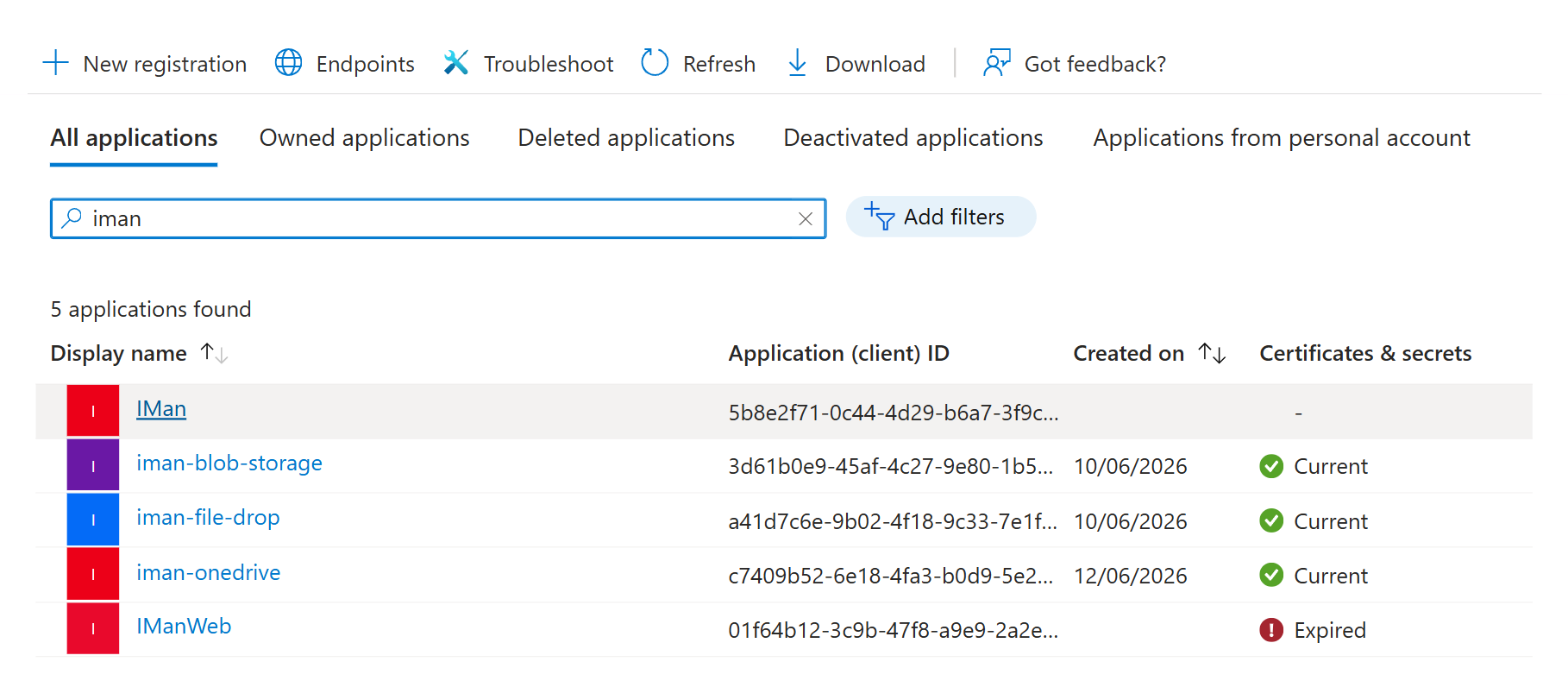
Sign in to the Azure portal with a user that has rights to create an app registration, and open Microsoft Entra ID then App registrations.
-
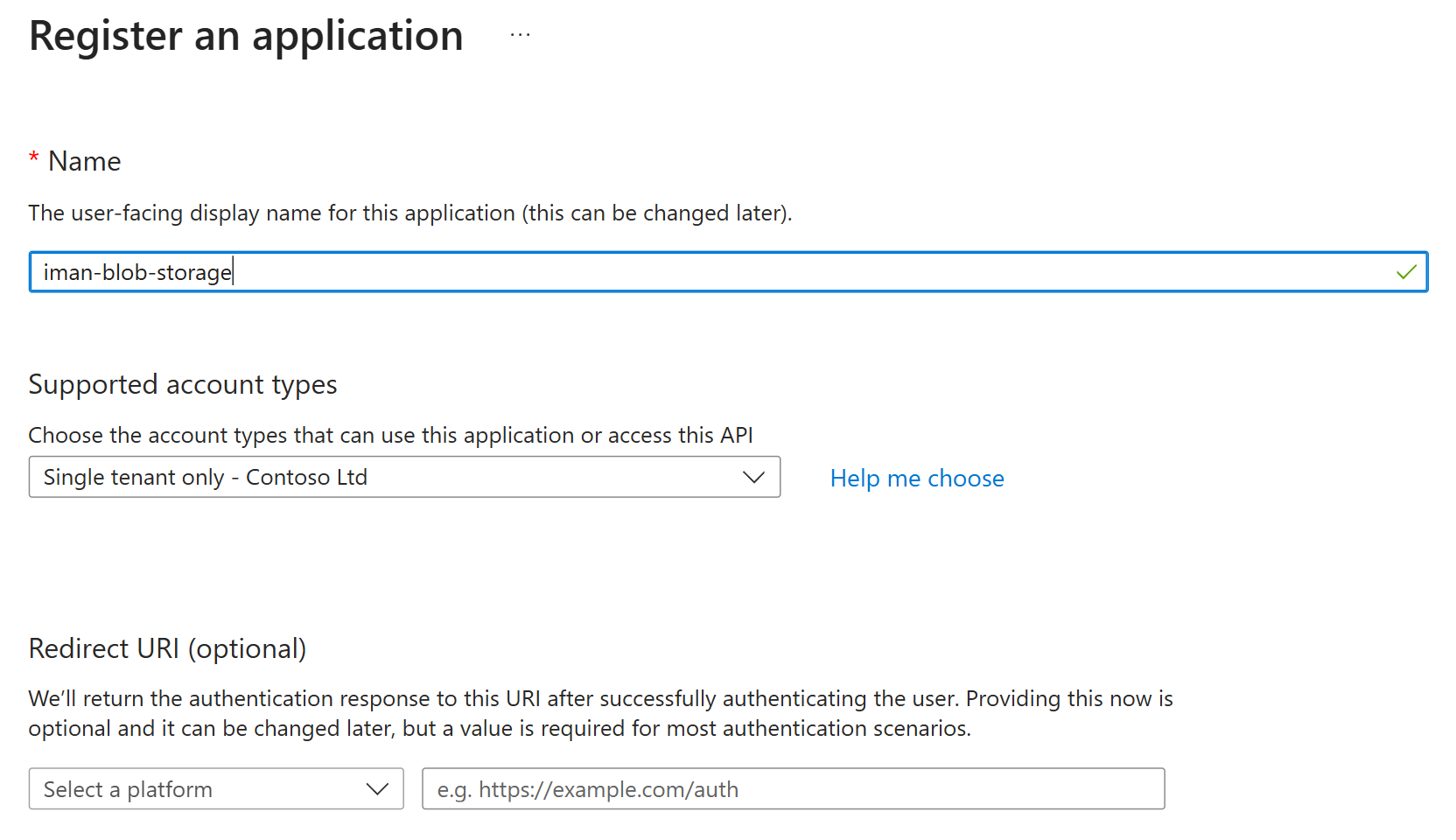
Click New registration, give the application a name and register it.
-
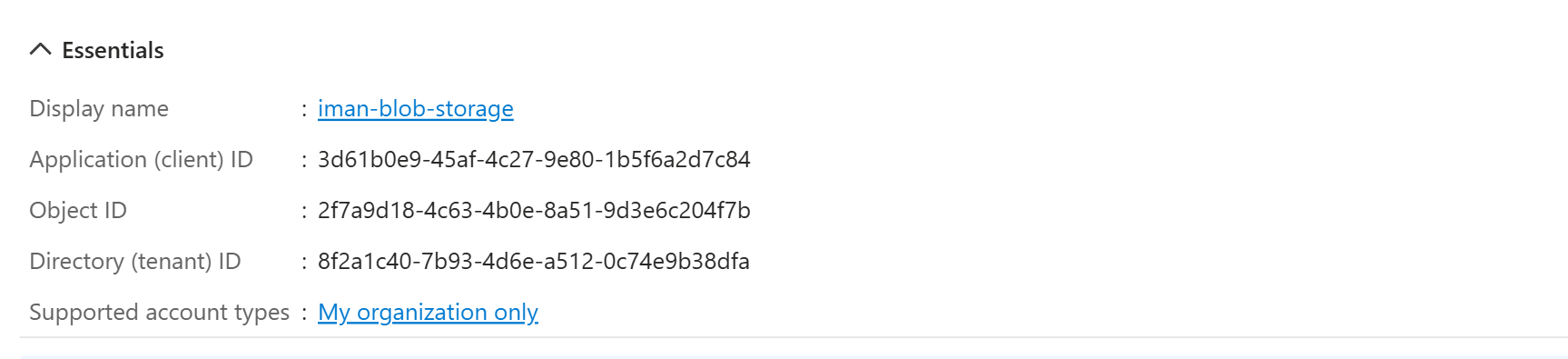
On the Overview page, note the Directory (tenant) ID and the Application (client) ID. These are the Tenant ID and Client ID that IMan needs.
-
Return to IMan, complete the file system, generate the certificate, copy the Public certificate box and save. Saving the certificate to a
.cerfile makes the next step easier.
Upload the certificate
-
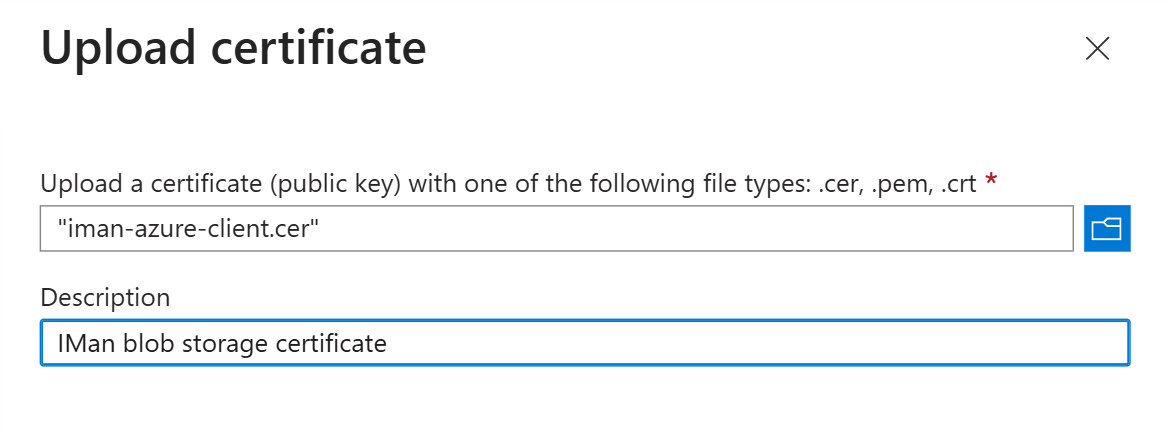
Open Certificates & secrets, then the Certificates tab, and click Upload certificate.
-
Upload the public certificate generated by IMan and confirm. Do not create a client secret. The certificate replaces it.
Grant access to the storage account
-
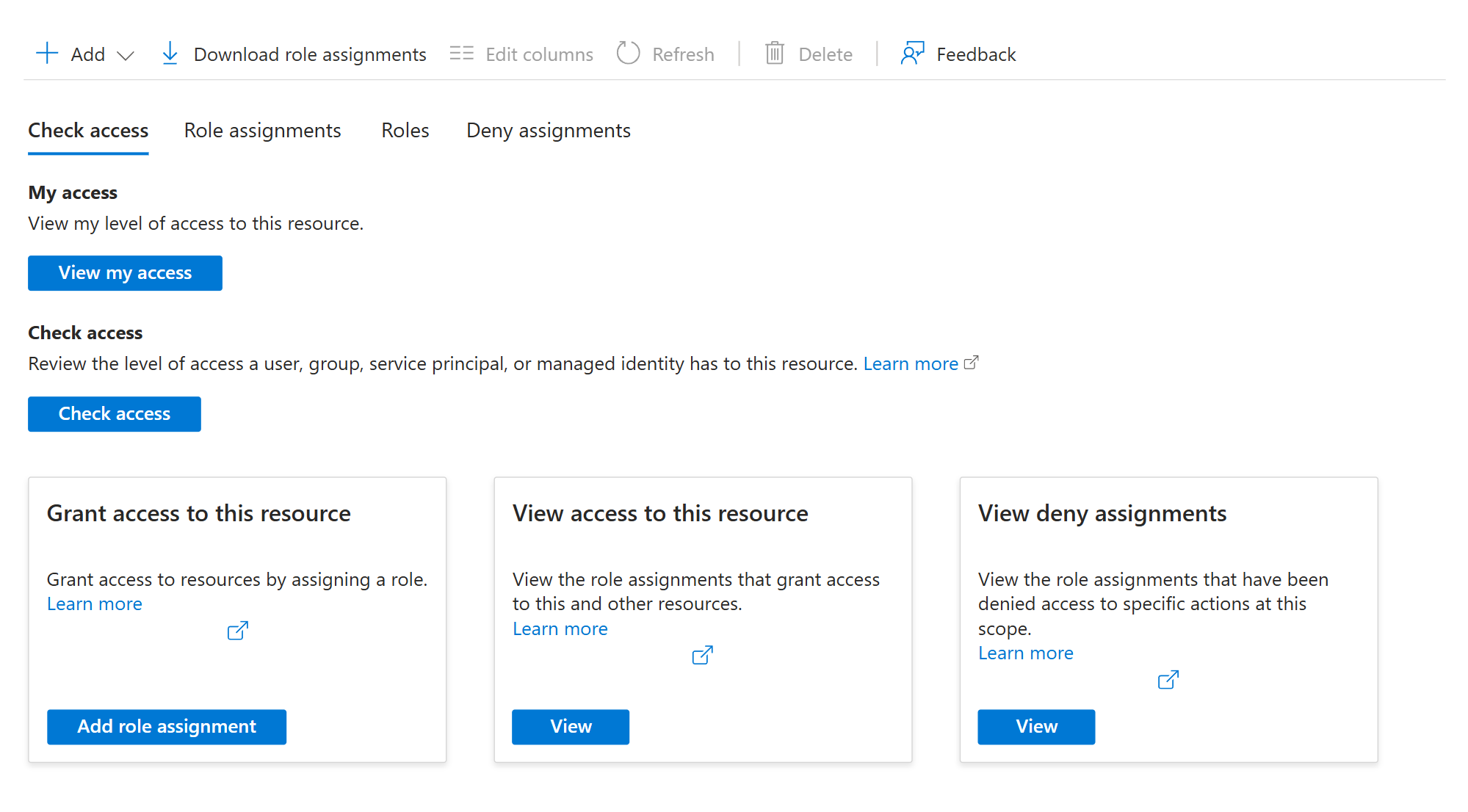
Open the storage account, then Access Control (IAM), and click Add role assignment.
-
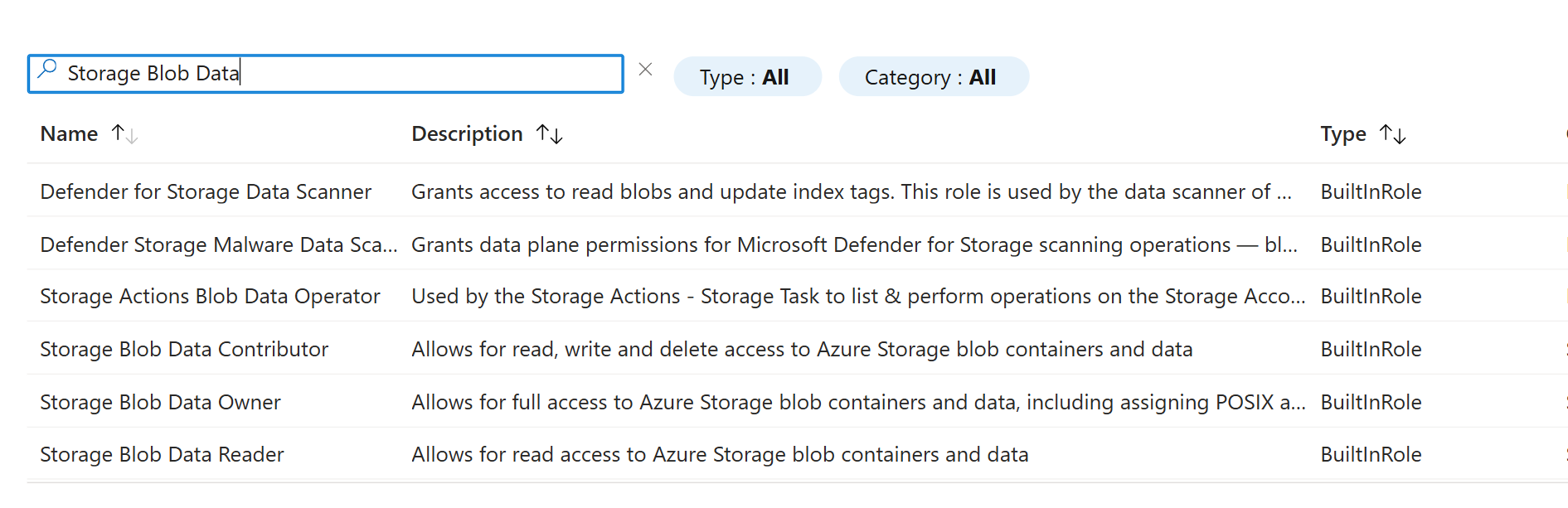
Select a role that carries data access to blobs. Storage Blob Data Contributor gives the read and write access a file system normally needs. Storage Blob Data Reader is sufficient where IMan will only read.
The account's own Owner and Contributor roles are not enough
Those roles manage the storage account and do not grant access to the data inside it. Assign a role from the Storage Blob Data family. Without one, Test can still pass, because it asks only whether the container exists. Browsing the container then fails with an authorisation error, even though the certificate authenticates correctly.
-
Assign the role to the app registration created above, and save.
Complete the file system in IMan
Return to the File Systems screen, open the file system and use Test to confirm the certificate authenticates.
A successful test shows a green tick in the File System Results pane.
What the test proves
Test asks Azure whether the container exists. It proves the certificate matches one uploaded to the app registration, that the Tenant ID and Client ID are right, that the storage account resolves and that the app registration holds a role on it. It does not list or write blobs, and it treats a container that does not exist as success.
If the test fails
An error code beginning AADSTS — Entra refused the sign-in. The certificate does not match one uploaded to the app registration, or the Tenant ID or Client ID is wrong. Regenerating the certificate in IMan without uploading the new public half produces this too.
No such host is known — the Storage Account name is wrong.
An authorisation error — the certificate authenticated. The app registration holds no role on the storage account at all.
Watching a container
To trigger an integration from activity in the container, tick Enable native change notifications and give IMan the Storage Queue Name to read events from.
The queue must be in the same storage account as the container. IMan reaches it at https://<account>.queue.core.windows.net with the same certificate. If you leave the name empty, the watch never fires and IMan raises no error.
Poll Interval (seconds, optional) sets how often IMan asks the queue for new events, and so how long a file waits before the integration starts. On Azure Blob Storage, IMan currently ignores this field and polls every 15 seconds whatever value you enter.
This relies on two pieces of Azure configuration, and IMan sets up neither:
- an Event Grid subscription on the storage account that delivers blob events to the queue
- a role assignment on the queue for the app registration. Storage Queue Data Message Processor lets IMan receive and delete messages.
Either schema works, Event Grid or CloudEvents 1.0. IMan decodes the base64 encoding that Event Grid applies to queue messages.
One queue per file system, filtered to the container
IMan removes every message it reads from the queue, including events for containers it does not serve. Give each file system its own queue, and filter the Event Grid subscription's subject to begin with /blobServices/default/containers/<container>/ so the queue carries this container's events only. Two file systems sharing a queue each lose the other's events.
The File Event's Path does not narrow which events fire
On a cloud file system, a File Event matches events on file name alone. Its Path does not restrict them. A File Event on container\inbox with the filter *.csv also fires when a matching file lands in container\archive, and, without the subject filter above, when one lands in another container the queue carries. Narrow the events at the source. A subject filter beginning /blobServices/default/containers/<container>/blobs/inbox/ narrows the queue to one folder.
Event Grid reports blob creations and deletions only. A File Event on an Azure Blob file system can watch for Created and Deleted. Modified and Renamed have nothing to detect. Overwriting a blob raises a creation, and blob storage has no rename operation.