File Explorer
The File Explorer browses the contents of a file system from within IMan.
Use it to confirm that a newly defined file system resolves to the location you expect, to check that an integration has written what you intended and to organise the folders an integration reads from and writes to.
This screen is available to Administrative users only.
Setup > File Explorer
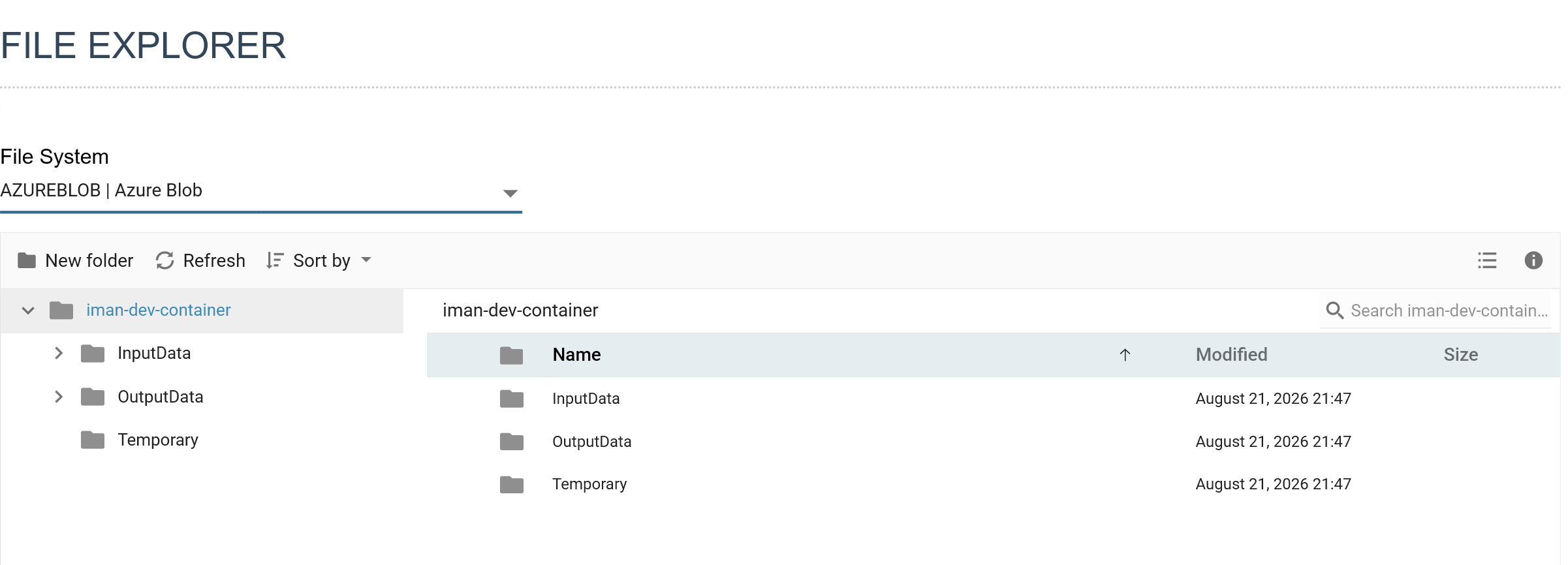
Choosing a file system
The File System drop-down at the top selects what to browse. One file system is shown at a time.
The list holds more than the file systems defined on the File Systems screen:
- Default | Windows — the local file system of the IMan server. Present on an on-premise installation.
- The AWS S3, Azure Blob Storage and OneDrive file systems defined under File Systems, each listed by its ID and description.
- The FTP Servers defined under Setup Items, prefixed
Ftp:and read-only here.
Selecting a file system opens it at its root — the bucket, the container, the drive, or for an FTP server the login home directory.
Browsing
The explorer works as a conventional file browser:
- Double-click a folder to open it, or use the navigation tree on the left.
- The breadcrumb above the file list walks back up the folders you have opened.
- View switches between the large-icon and details layouts, and Sort By orders the current folder.
- Details shows the size and modified date of the selected item.
- Refresh re-reads the current folder from the file system.
Searching
The search box searches from the current folder downwards.
A search returns at most 500 matches. If a search reaches that limit, the results may be incomplete. Narrow the search or start from a folder further down.
Opening a file
Open streams a file's contents into the browser for viewing. It only reads the file, so it is always available.
Organising files
The AWS S3, Azure Blob Storage, OneDrive and local file systems are writable, so the explorer can also reorganise them:
- New Folder creates a folder in the current location.
- Rename renames the selected file or folder.
- Cut, Copy and Paste move and duplicate files and folders within the file system.
The explorer shows an FTP server read-only, so these actions are not drawn for it.
What the File Explorer will not do
The explorer is for browsing and organising. It does not offer several actions that a desktop file manager does:
- Files cannot be uploaded or downloaded. Use an integration to move files into and out of a file system, where the transfer is audited and repeatable. You can still view a file's contents with Open.
- Files and folders cannot be deleted. Where an integration needs to remove a file after processing it, the File Task does so as part of the job.
- Browsing cannot go above the file system's root. The explorer goes no higher than the bucket, container or drive the file system names.
Hidden folders
On a file system rooted at the IMan installation, the explorer does not show the Addins, Cache and Config folders, and you cannot browse into them.
These folders hold the installation's own files. Config carries the configuration file with the database credentials, and Addins carries loadable assemblies. Neither is partitioned per tenant.
The exclusion applies only to the installation's own paths. A bucket, container or FTP server with folders of the same name browses normally.