AWS S3
An AWS S3 file system gives IMan read and write access to a single S3 bucket. There is no prefix or sub-folder setting. One file system covers the whole bucket.
IMan authenticates using IAM Roles Anywhere. It lets a workload running outside AWS exchange an X.509 certificate for temporary AWS credentials. IMan stores no access key. IMan presents its certificate, AWS verifies that the certificate chains to a trust anchor, and AWS issues short-lived credentials for the role you nominate.
Setting one up is a round trip. Generate the certificate in IMan, register the certificate authority in AWS, then bring the three ARNs AWS gives you back to IMan.
Finish the round trip in one sitting
IMan holds a generated certificate in the open form until you save the file system, and it cannot save the file system until you have pasted all three ARNs. Open the AWS console in a second browser tab and leave the File Systems page untouched until you have saved. Navigating away or changing Type discards the private key. The trust anchor you registered in AWS then belongs to a key that nobody holds.
You need an AWS sign-in that can administer IAM, and an IMan administrator account.
Setup > File Systems > AWS S3
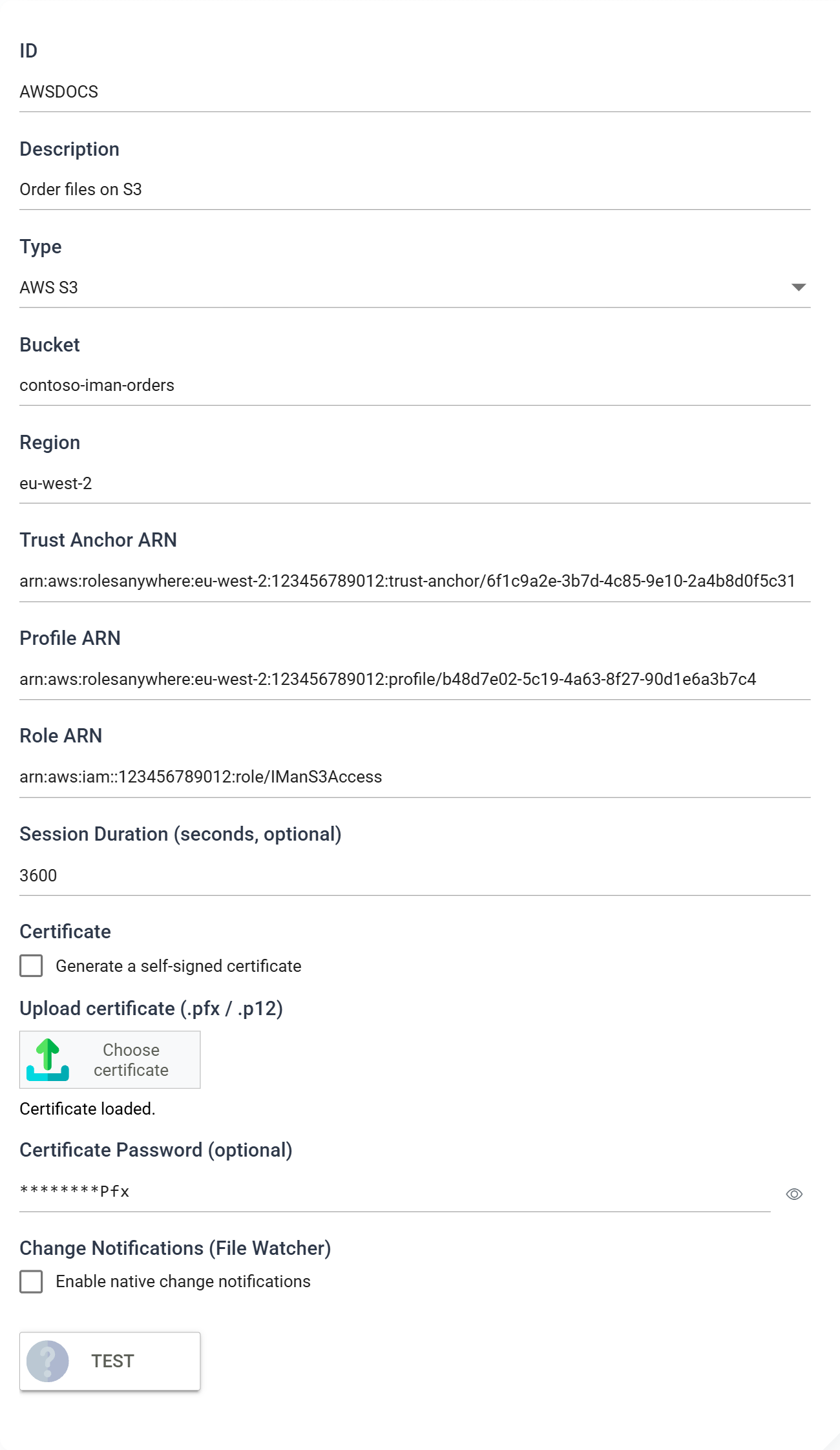
Bucket
The name of the S3 bucket this file system maps to. The bucket is the root of the file system. Browsing and paths are relative to it.
S3 has no real folders. When IMan creates a folder it writes a zero-byte object whose key ends in /, following the convention the AWS console and CLI use. Anything that moves files into folders works, and the folders appear in both IMan and AWS.
Region
The AWS region the bucket is in, for example eu-west-2.
Region picks the Roles Anywhere endpoint too
IMan calls https://rolesanywhere.<region>.amazonaws.com, built from this field. Create the trust anchor and the profile in this same region. If you create the trust anchor in a different region, such as us-east-1 out of habit, the ARNs look correct but every credential exchange fails.
Trust Anchor ARN
The ARN of the IAM Roles Anywhere trust anchor that trusts IMan's certificate.
Profile ARN
The ARN of the IAM Roles Anywhere profile that names the role IMan may assume.
Role ARN
The ARN of the IAM role IMan assumes, and whose permissions it operates under.
Session Duration (seconds, optional)
How long the temporary credentials issued to IMan remain valid. Leave it empty and IMan requests 3600 seconds.
AWS accepts 900 to 43200 seconds. IMan does not check the figure you type, and the role's own maximum session duration can cap it further. A value outside the range fails later as an AWS error when IMan next exchanges its certificate.
Certificate
The X.509 certificate IMan presents to AWS. Either generate one or upload your own.
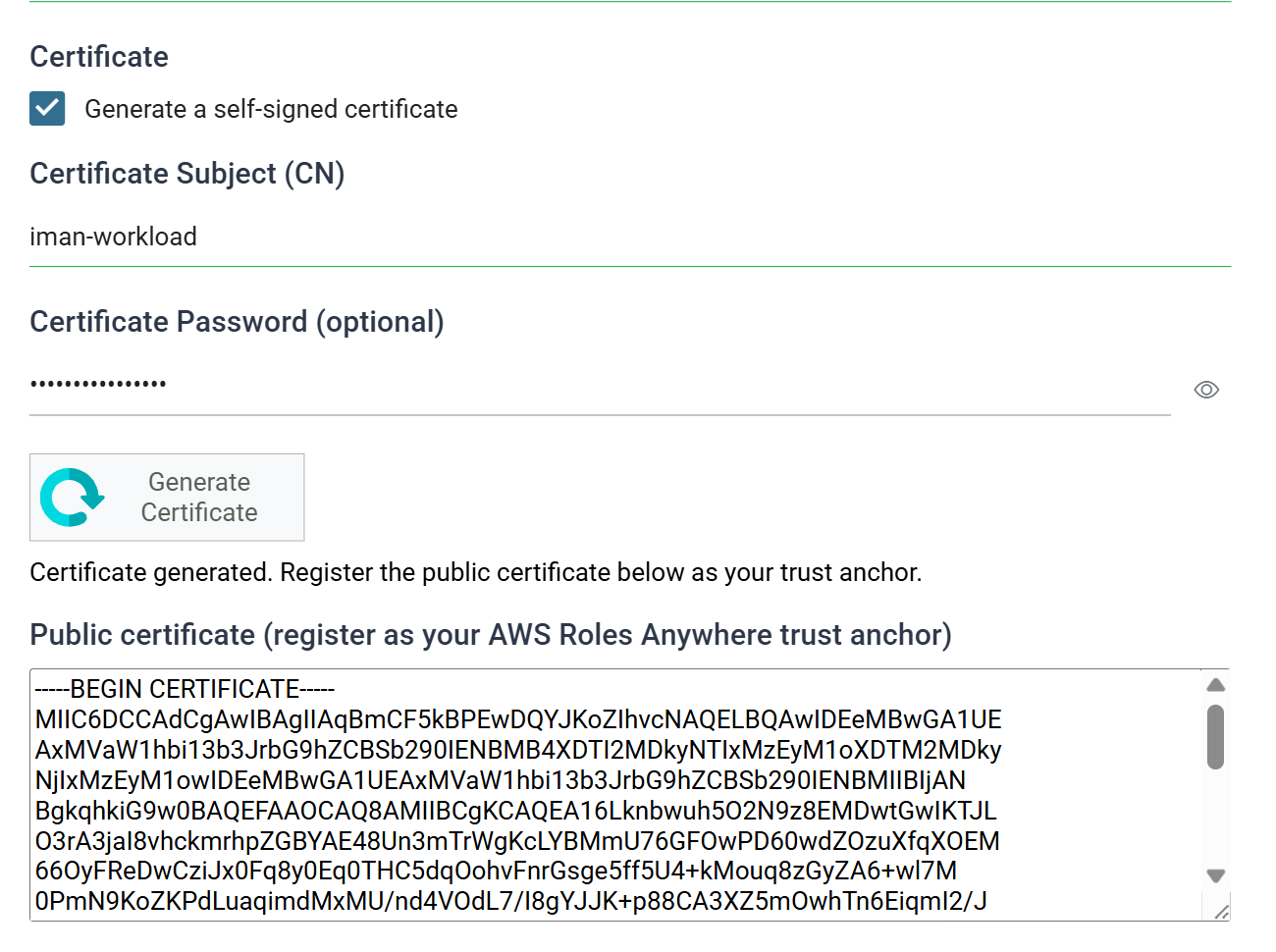
Generate a self-signed certificate — tick this and IMan creates the certificate for you.
- Certificate Subject (CN) — the common name for the generated certificate, for example
iman-workload. - Certificate Password (optional) — a password to protect the generated key.
- Generate Certificate — creates the certificates and displays the certificate authority in the Public certificate box below.
IMan generates two certificates, and the box shows the authority
Roles Anywhere requires the trust anchor to be a certificate authority and the workload's certificate to be an ordinary certificate that chains to it. One self-signed certificate cannot do both jobs, so IMan creates a pair:
- a certificate authority, named
<subject> Root CA— the Public certificate box holds this, and you register it as the trust anchor - a client certificate, named with the subject you typed — IMan presents this to AWS, and it stays in IMan
Copy the whole of the Public certificate box. It carries no private key. The client certificate's private key never leaves IMan. IMan holds it in the file-system record and encrypts that record. There is no certificate to install on the server.
Azure Blob Storage works differently and uses a single certificate. Do not carry that page's wording across to this one.
The certificate expires in two years, and renewing it changes the trust anchor
The client certificate is valid for 2 years from the day you generate it, and the certificate authority for 10. When the client certificate expires the file system stops authenticating, and every integration that reads or writes this bucket fails.
Generate Certificate creates a new authority every time, so renewing means more than replacing the client certificate. You must generate again in IMan, register the new Public certificate as a trust anchor in AWS, point the profile at it, paste the new Trust Anchor ARN back into IMan and save. Plan the renewal before the two years are up, and record the date somewhere you will see it.
Uploading your own — leave the check box unticked, then use Choose certificate under Upload certificate (.pfx / .p12) to select the file, entering its Certificate Password if it has one. Use this where your organisation issues certificates from its own CA. Register that CA's certificate as the trust anchor, not the certificate you uploaded.
When you reopen a saved file system, Upload certificate reads Certificate loaded. and the Certificate Password box beneath it shows ********, followed by the last three characters when the password is eight or more characters long. Press the eye button beside the box to show the stored password, and press it again to hide it. Showing a stored password needs the Can reveal a stored secret in full permission. To change the password, click in the box and type the new one. Leave the box empty to keep the stored password.
Setting up IAM Roles Anywhere in AWS
The steps below outline the setup for a typical AWS account. They may vary with your organisation's account structure and administrative privileges, and they do not cover AWS permissions in full. The AWS console changes more often than this page, so follow the numbered steps and treat the screenshots as illustrations.
Generate the certificate in IMan first, and have the public certificate on the clipboard before you start.
Create the trust anchor
-
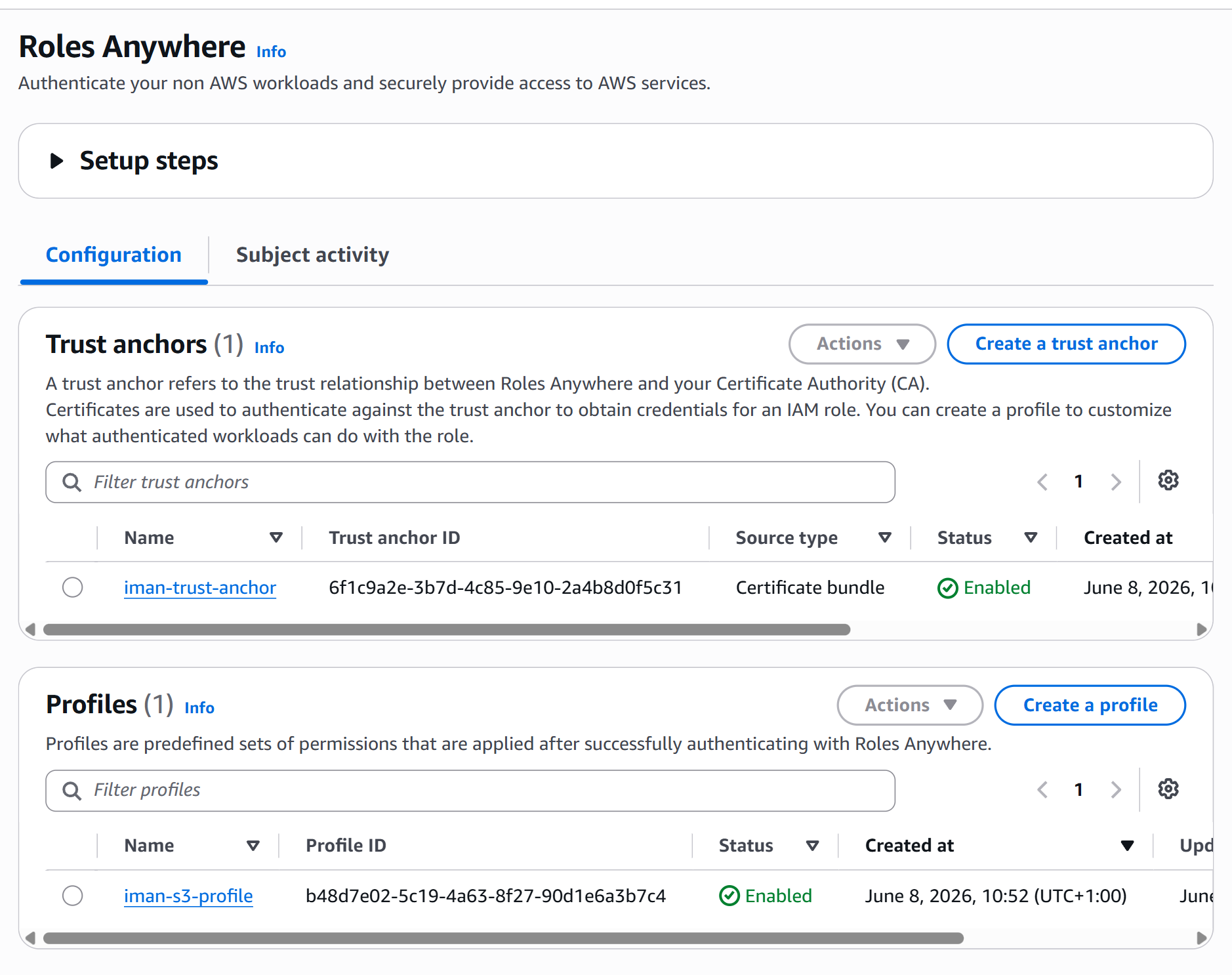
Sign in to the AWS console with a user that can administer IAM, and open IAM then Roles Anywhere.
-
Check the region shown in the console, and switch it to the region you entered in IMan.
-
Under Trust anchors, click Create a trust anchor.
-
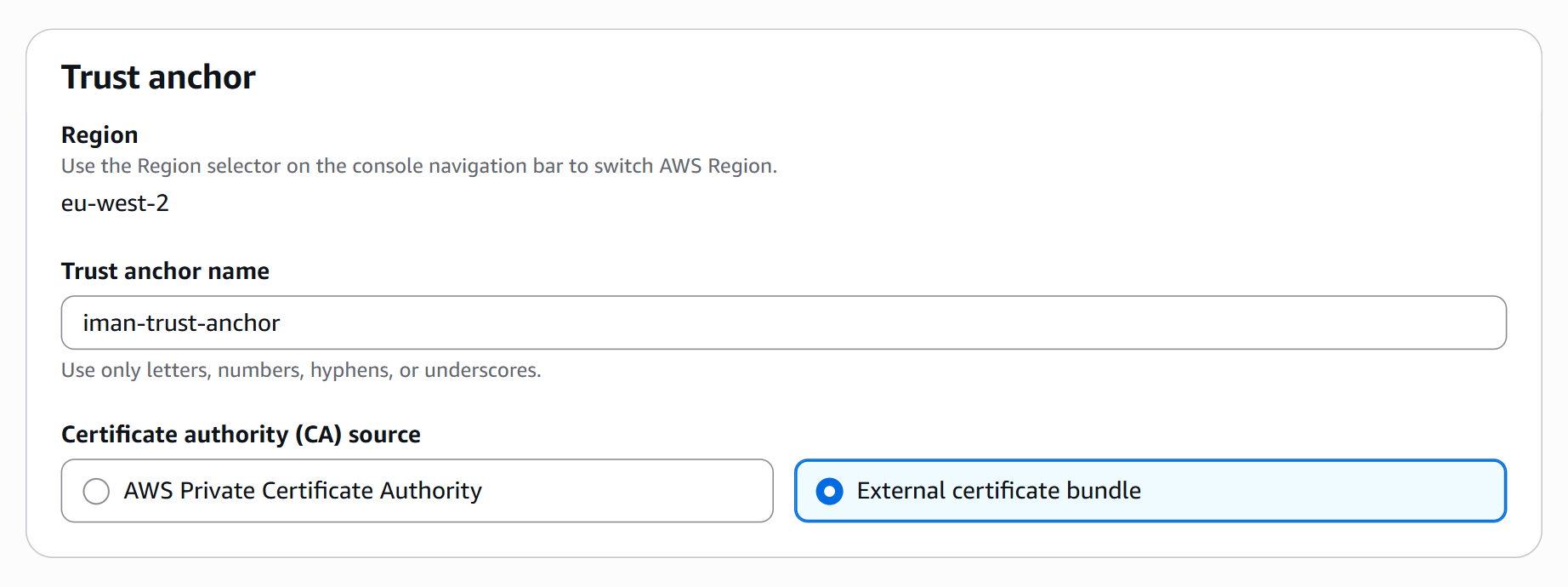
Name the trust anchor, and choose External certificate bundle as the source.
-
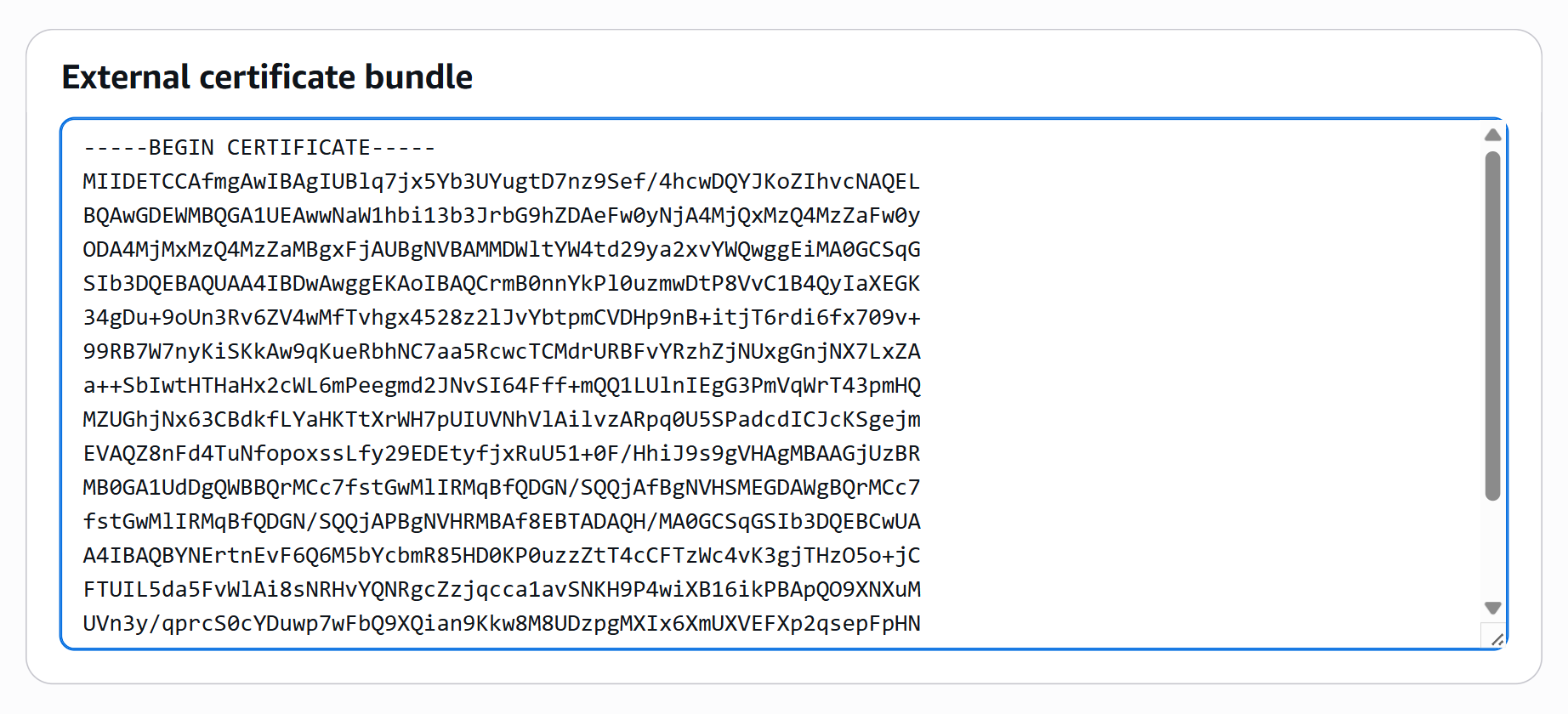
Paste the public certificate copied from IMan into the certificate bundle box, then create the trust anchor.
-
Note the Trust anchor ARN.
Create the role
-
Open IAM then Roles, and create a role whose trusted entity is the AWS Roles Anywhere service.
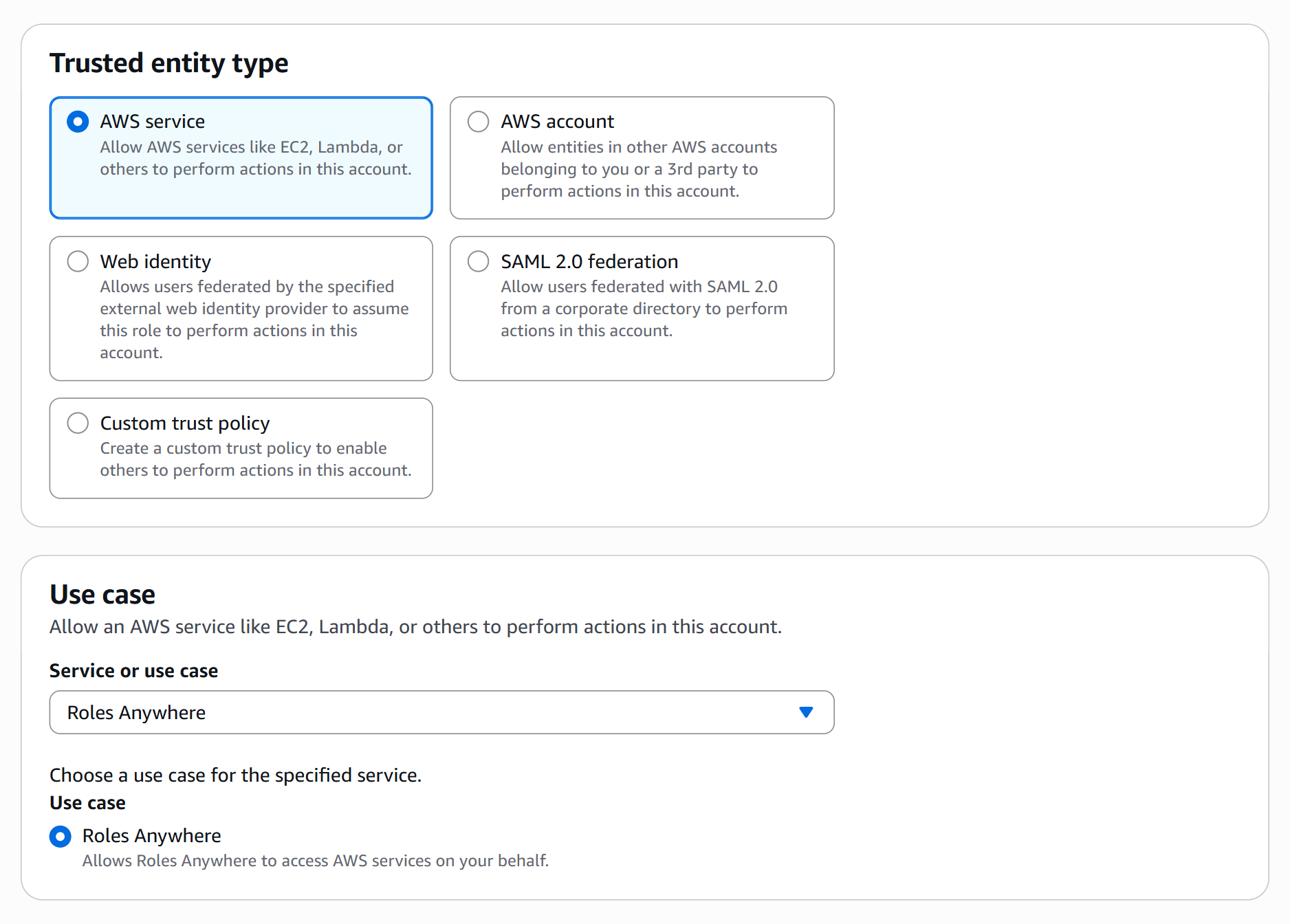
The wizard writes the trust relationship for you. It lets
rolesanywhere.amazonaws.comcallsts:AssumeRole,sts:TagSessionandsts:SetSourceIdentity. If a service control policy or a permission boundary applies to your account, check that it keeps those three permissions. -
Attach a policy granting the role access to the bucket. IMan uses the following actions:
s3:ListBucketon the bucket, to browse it.s3:GetObject,s3:PutObject,s3:DeleteObjecton the objects within it, to read, write and delete files.
Where a File Event will also watch the file system, add
sqs:ReceiveMessageandsqs:DeleteMessageon the notification queue. -
Note the Role ARN.
Create the profile
-
Back under Roles Anywhere, in the Profiles section, click Create a profile.
-
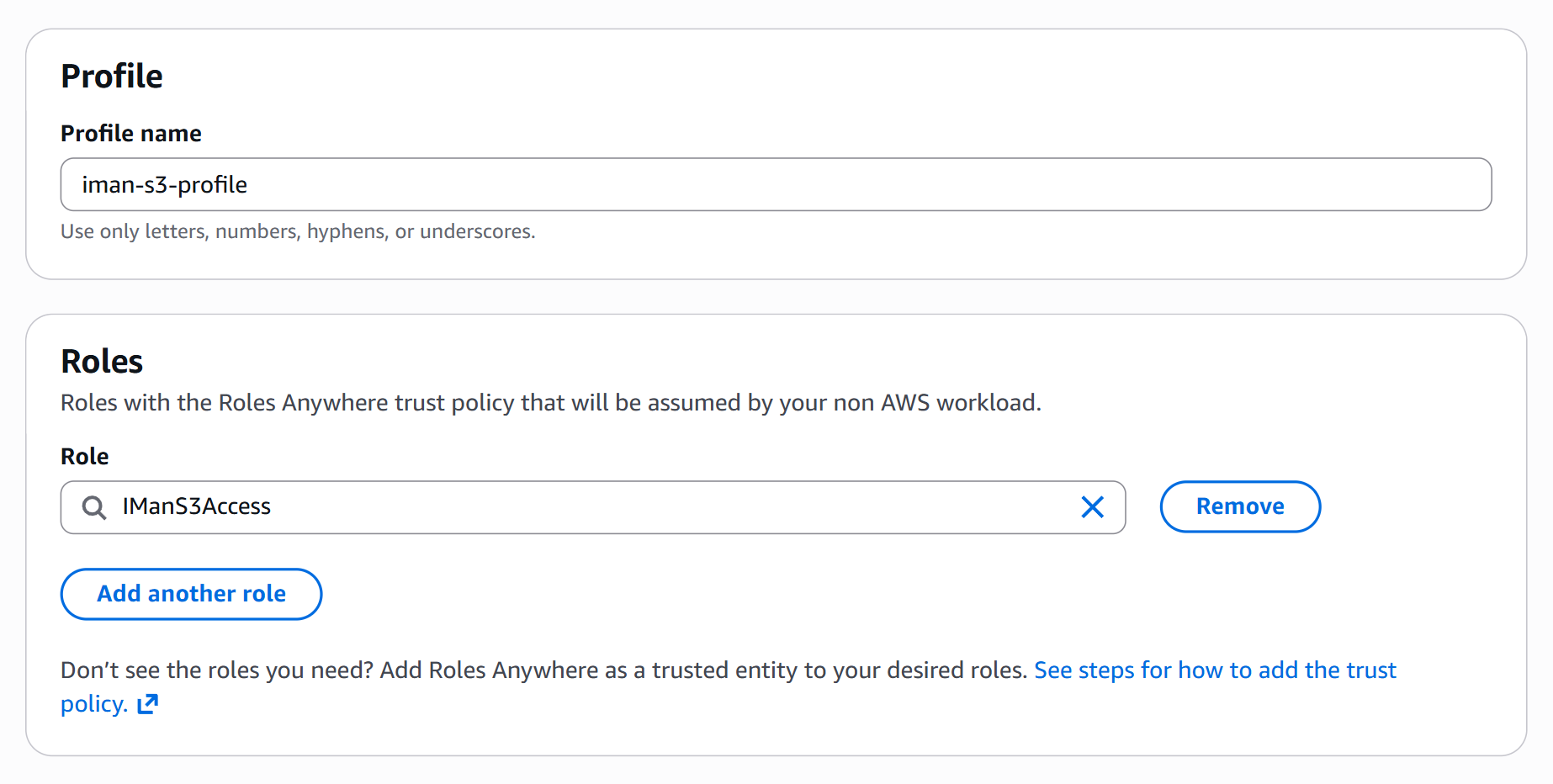
Name the profile and select the role created above.
-
Note the Profile ARN.
Complete the file system in IMan
Return to the File Systems screen and paste the Trust Anchor ARN, Profile ARN and Role ARN into their fields, then use Test to confirm the credentials resolve and IMan can reach the bucket. Save the file system.
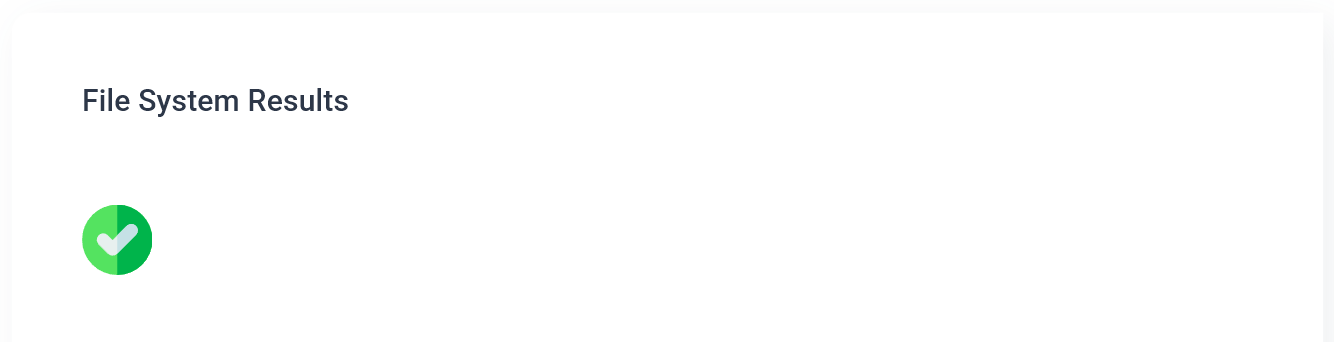
A successful test shows a green tick in the File System Results pane.
What the test proves
Test lists the bucket. It proves the certificate chains to the trust anchor, that the profile and role resolve, and that the role holds s3:ListBucket. It writes nothing. A role missing s3:PutObject or s3:DeleteObject still shows a green tick and fails the first time a job writes.
If the test fails
AccessDenied when IMan exchanges the certificate — the client certificate does not chain to the trust anchor, or the trust anchor is in a different region from the one in the Region field. Regenerating the certificate in IMan without registering the new authority in AWS produces this too.
AccessDenied listing the bucket — the credentials resolved. The certificate and the ARNs are right. The role's policy is missing s3:ListBucket on the bucket, or it names the wrong bucket.
The bucket cannot be found — check the bucket name for typing, and that the bucket lives in the region named in Region.
Watching an S3 bucket
To trigger an integration from activity in the bucket, tick Enable native change notifications and give IMan the SQS Queue URL to read events from.
Poll Interval (seconds, optional) sets how often IMan asks the queue for new events, and so how long a file waits before the integration starts. Leave it empty and IMan polls every 15 seconds.
This relies on two pieces of AWS configuration, and IMan sets up neither:
- the bucket must publish its event notifications to that SQS queue
- the queue's access policy must let S3 send messages to it
A queue that grants nothing to S3 accepts the URL, returns no error and delivers no events. In IMan, this looks the same as a bucket where nothing happened. Check the queue policy first when a watch sees nothing.
S3 reports object creations and removals only. A File Event on an S3 file system can watch for Created and Deleted. Modified and Renamed have nothing to detect. Overwriting an object raises a creation, and S3 has no rename operation.