IMan Database Setup
Create the IMan database. It stores the configuration settings for all integrations.
- Open SQL Management Studio.
- To create a database in SQL Server:
- Right-click Databases and select New Database.
- Name it
IMan.
- Create an SQL user:
- Right-click Security and select New > Login.
- Set a password and untick Enforce password policy.
- Click OK to close.
Windows authentication works, but takes more setting up
IMan supports Windows authentication, but it is harder to set up.
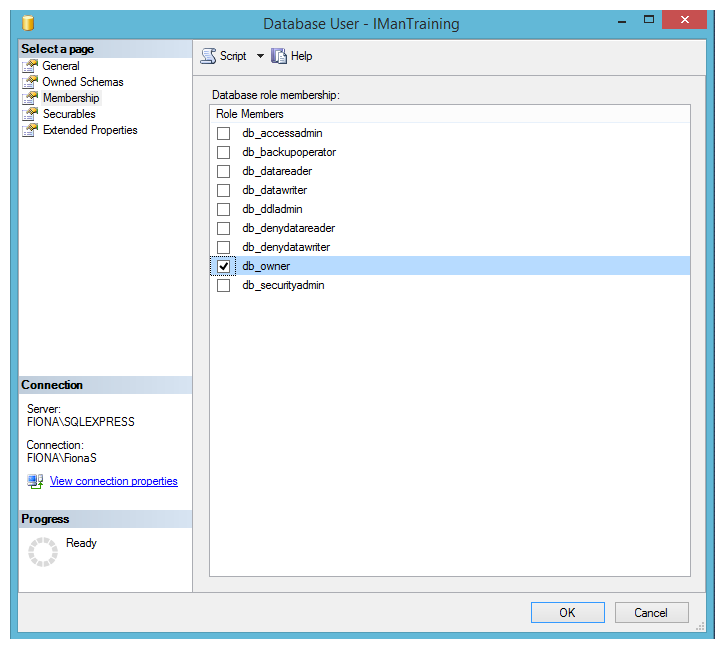
- Assign the IMan user db_owner rights to the IMan database:
- Open the new user.
- In SQL Server 2012, open Membership in the left-hand panel.
- Tick the db_owner check box.
-
Open the IMan Admin Console:
- From the Windows Start menu, click Realisable IMan > Admin Console, and approve the Windows prompt.
-
Under Database Settings, set these fields to match the database you created in step 2:
- Server\Instance
- Database
- Authentication: SQL Server, for the SQL user you created.
- Username
- Password
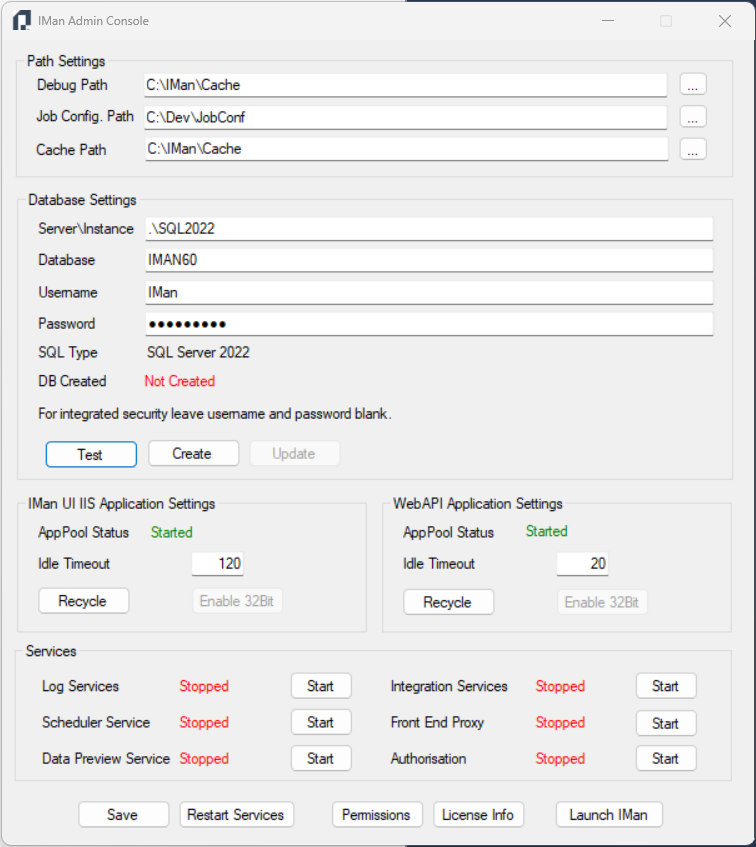
- Press Test to check the connection. A message box shows the result:

- If the test succeeded, DB Created shows Not Created. Press Create to create the database.
- The Admin Console shows the recovery code for IMan's stored passwords and keys:
- Press Copy, or write the code down, and keep it somewhere safe, away from the server.
- Tick I have recorded this code in a safe place and press OK.
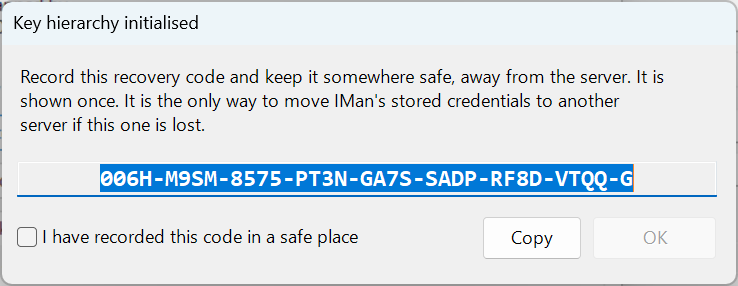
You need the recovery code to move or restore IMan
IMan shows the code only once. Without it, IMan cannot read its stored passwords on another server. See Secrets.
- Press Yes to create the sample integration jobs.
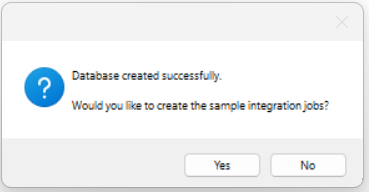

- The Admin Console confirms that it has initialised the database's secrets, then restarts the IMan services.
The rest of this guide assumes the sample jobs exist
The rest of this guide assumes you created the sample jobs.