Appendix 2 – Exporting Transaction Data - Sage 300
Estimated time
Estimated time: 1 hr
In this exercise you export transactional data and use the Database Writer to flag the exported transactions, so that they are not exported again.
Method
- Sage Optional Field Setup
- Create A/R Invoice
- Set up a Database Reader
- Add the Map Transform
- Add the Excel Writer
- Create the second Map Transform
- Configure a Database Writer
Other Considerations
Sage Optional Field Setup
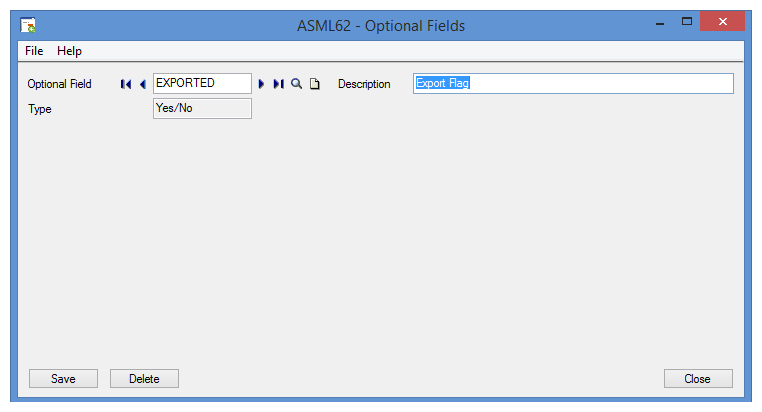
- Set up a
Yes/Nooptional field in Sage 300, namedEXPORTED. - Assign the optional field to the relevant ledger and transaction. For training, that is A/R Invoices.
-
Ensure the following:
Setting Value Value Set Yes Default Value No Required No Auto Insert Yes 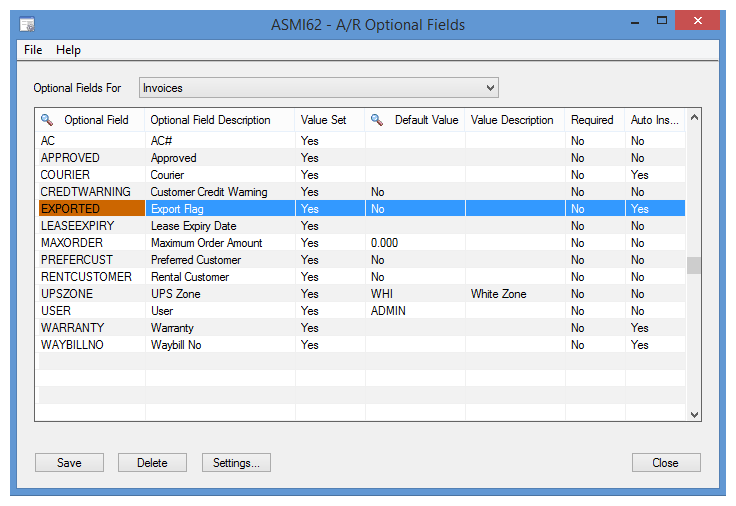
The export depends on Auto Insert. With it set to Yes, every new A/R
invoice automatically gets an EXPORTED optional field with the default value
of No, which the export query matches on.
Create A/R Invoice
-
Create an A/R invoice in Sage 300 and post the batch.
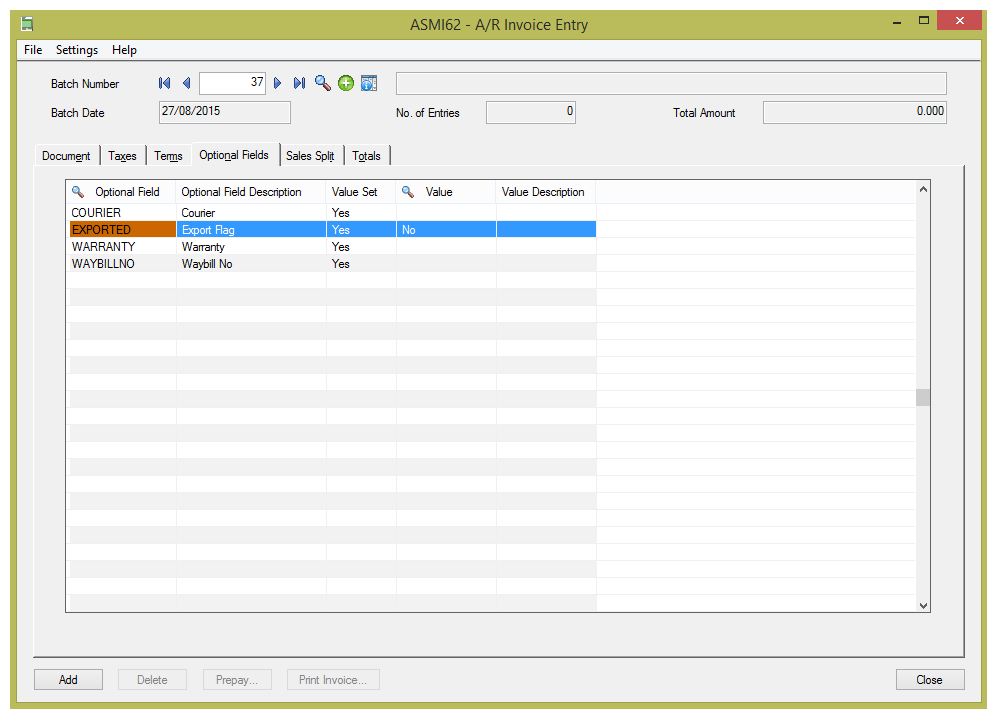
-
After posting, you can query either
ARIBHOorAROBLOin SQL Manager to see the optional field and its value.
The training company already has some
A company that has had the optional field for a while already holds
unexported documents, so the query in the next section returns rows whether
or not you post one of your own. Post one anyway, so you can see EXPORTED
appear on it with the value No.
Set up a Database Reader
-
Return to IMan, go to the Design tab and create a new integration.
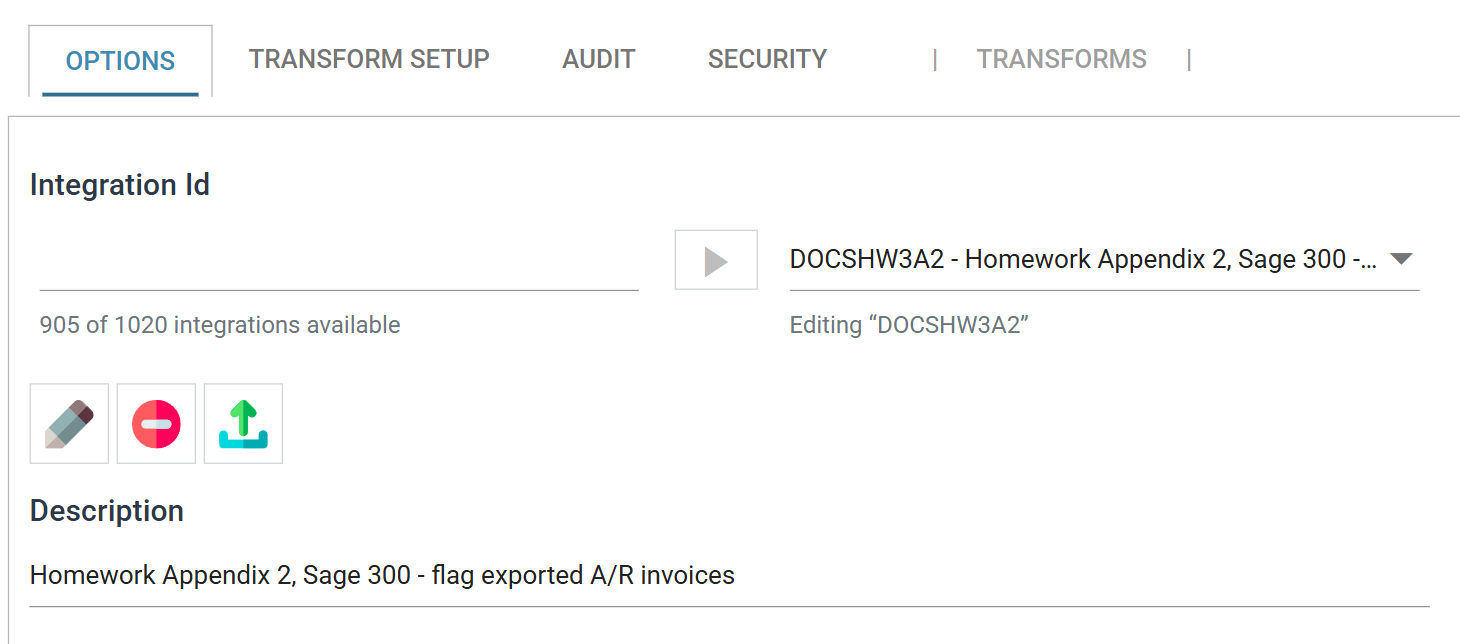
-
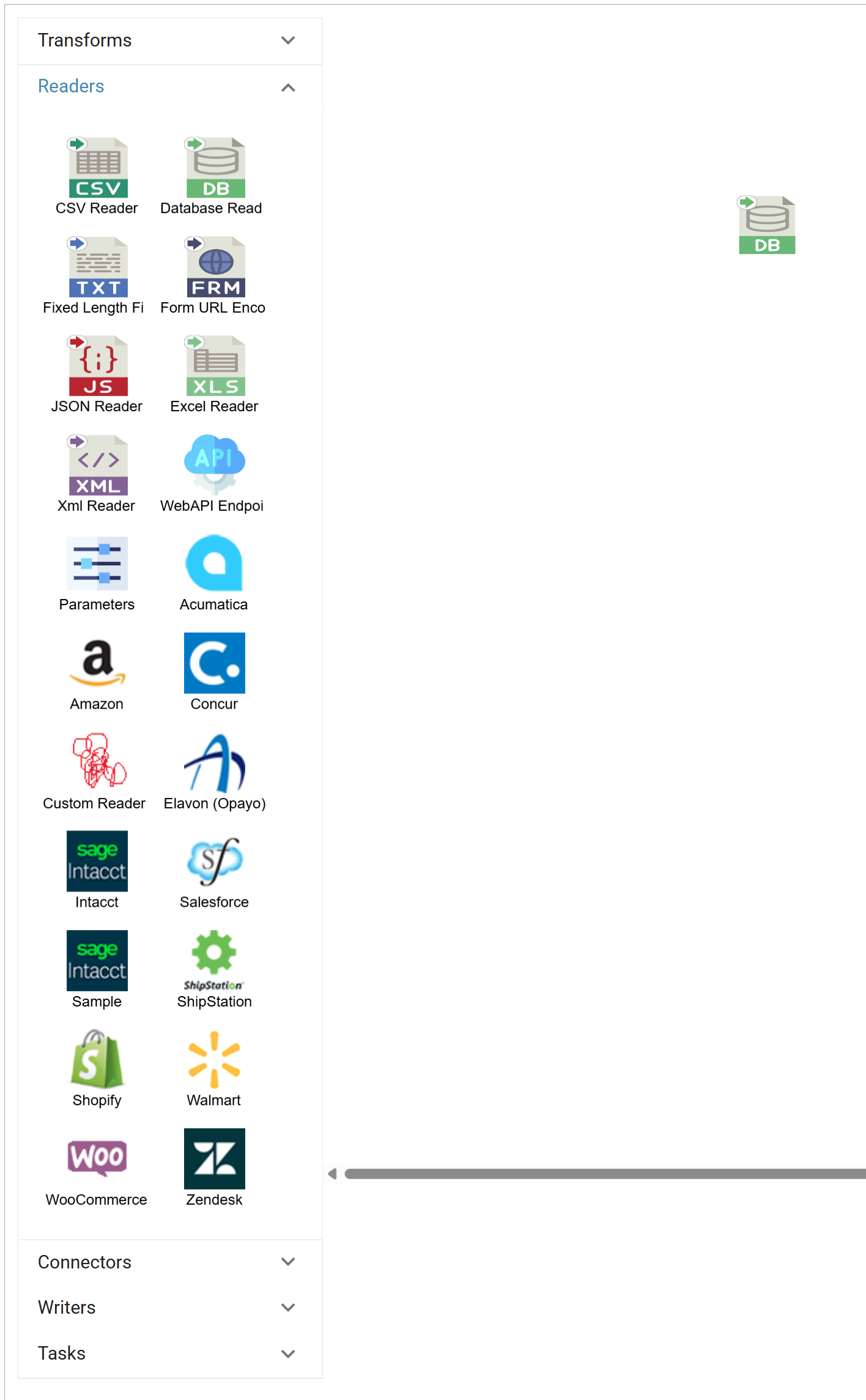
Press the Transform Setup tab, drag a Database Reader onto the integration and double-click it to open.
-
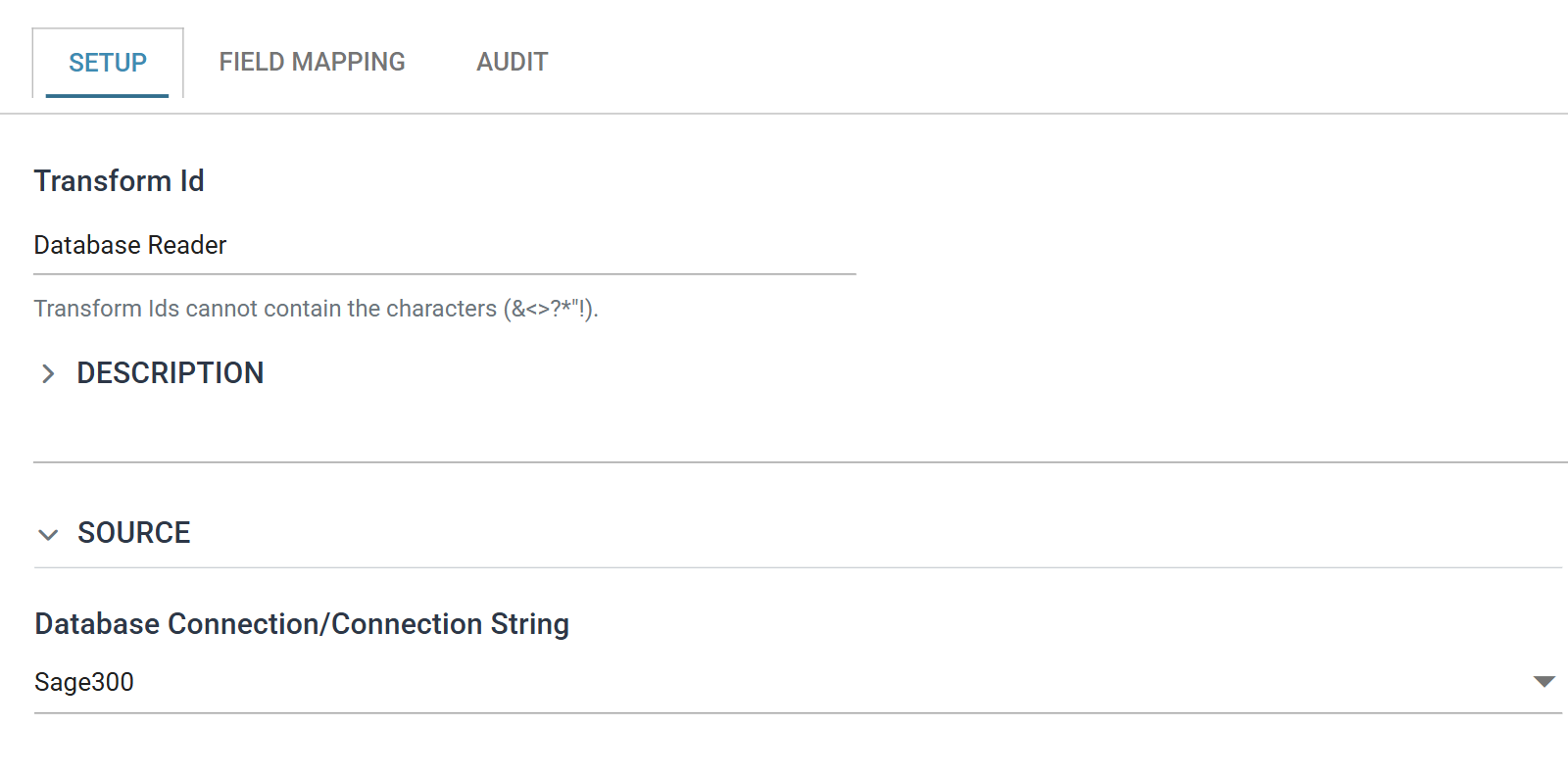
Under Source, select the Sage 300 shared database connection set up in the previous task from the Database Connection drop-down.
-
Enter the following SQL query into SQL Statement:
select I.IDCUST, I.IDINVC, IDCUSTPO, DATEDUE,
       TRXTYPEID, DESCINVC, AMTINVCHC
from AROBL I
inner join AROBLO O on I.IDCUST = O.IDCUST
                   and I.IDINVC = O.IDINVC
                   and O.OPTFIELD = 'EXPORTED'
where LTRIM(O.VALUE) = '0'
  and I.TRXTYPEID = 14
Sage 300 stores a
Yes/Nooptional field as1and0, not as text, so the where clause tests for'0'and not for'No'.TRXTYPEID = 14limits the export to invoices. Without it the query also returns credit notes and payments, which carry the same optional field. The training company has 39 credit notes and 9 payments against 2 invoices, so most of the documents the exercise flagged would be ones it did not mean to export. -
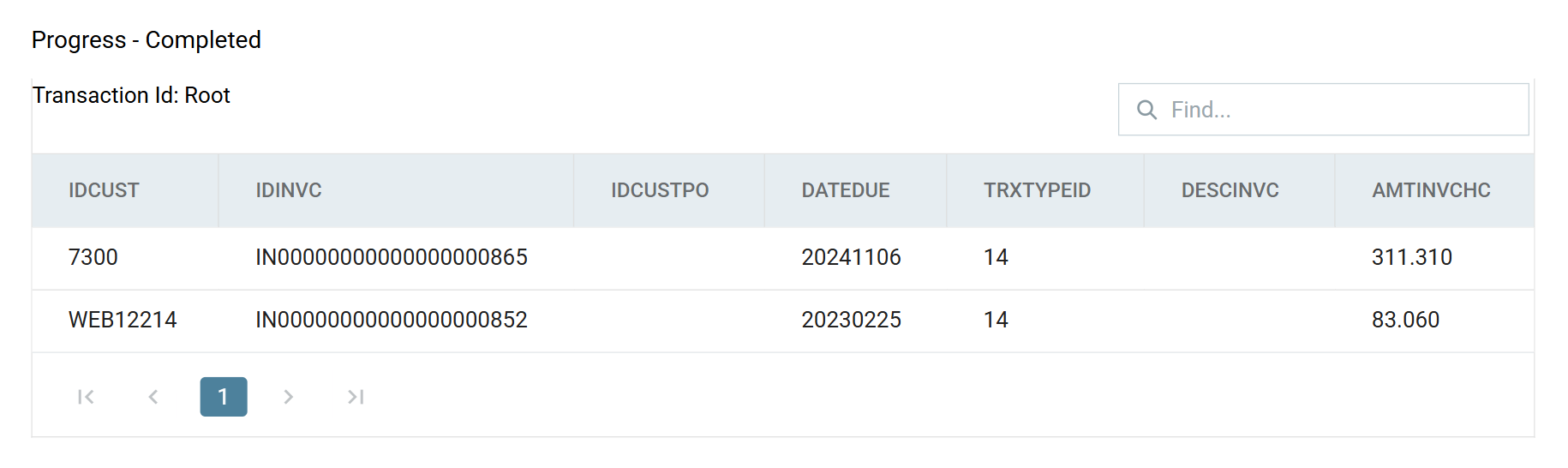
Press Refresh. The query returns the unexported A/R invoices.
-
Press the Field Mapping tab and rename the transaction to
Orders. The pencil is beside it in the Transaction strip above the grid.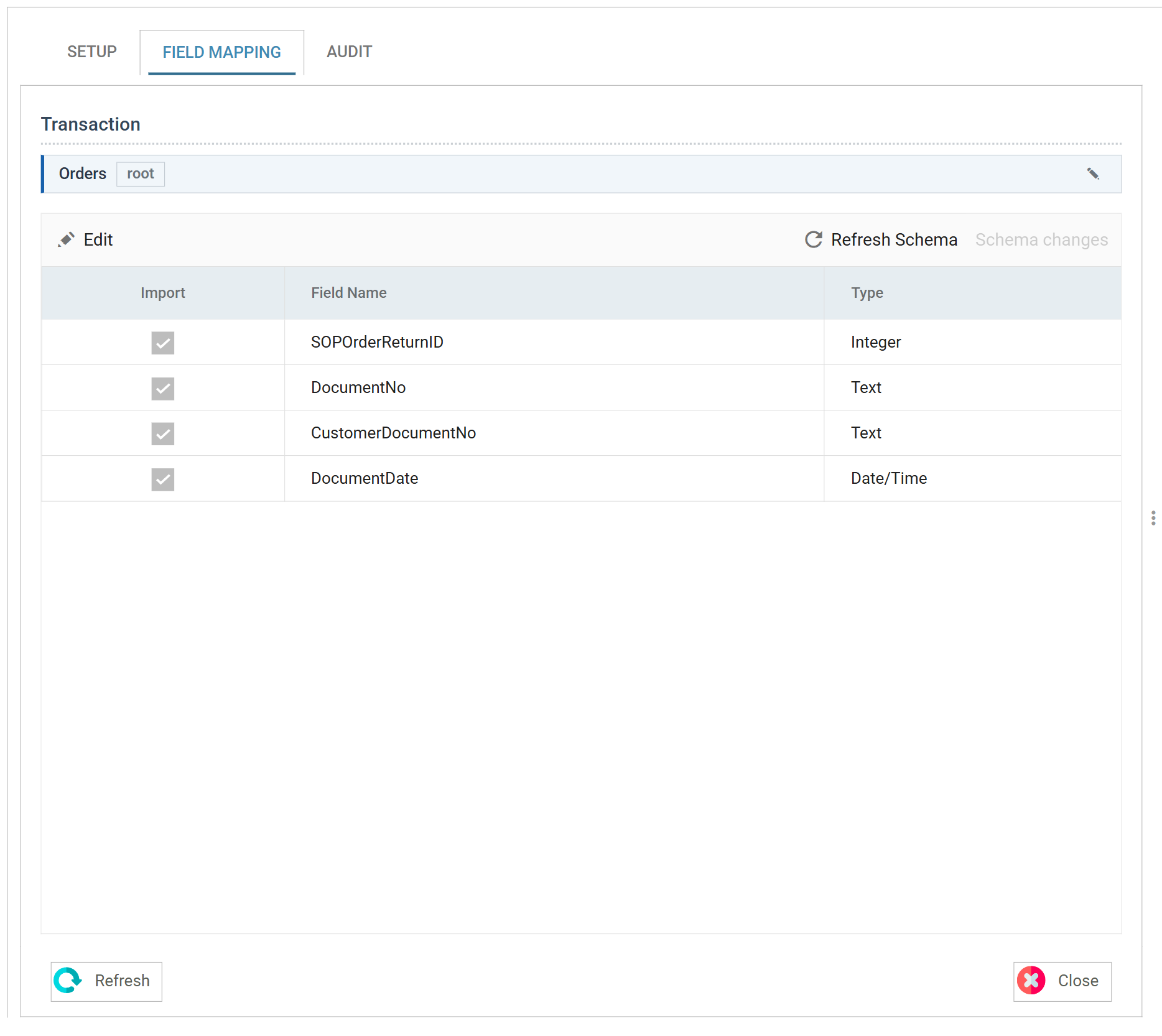
The rename changes only the display name. The transaction's id stays
root, and the preview still showsrootuntil you save and reload the integration. -
Press Close. A transform pane has no Save of its own. Closing it commits the pane to the integration, and the integration's own Save then stores it.
Add the Map Transform
- Drag a Map transform onto the integration and connect it to the reader.
- Double-click it to open it, which initialises the transform setup, then close it immediately.
-
You will come back to this transform later.
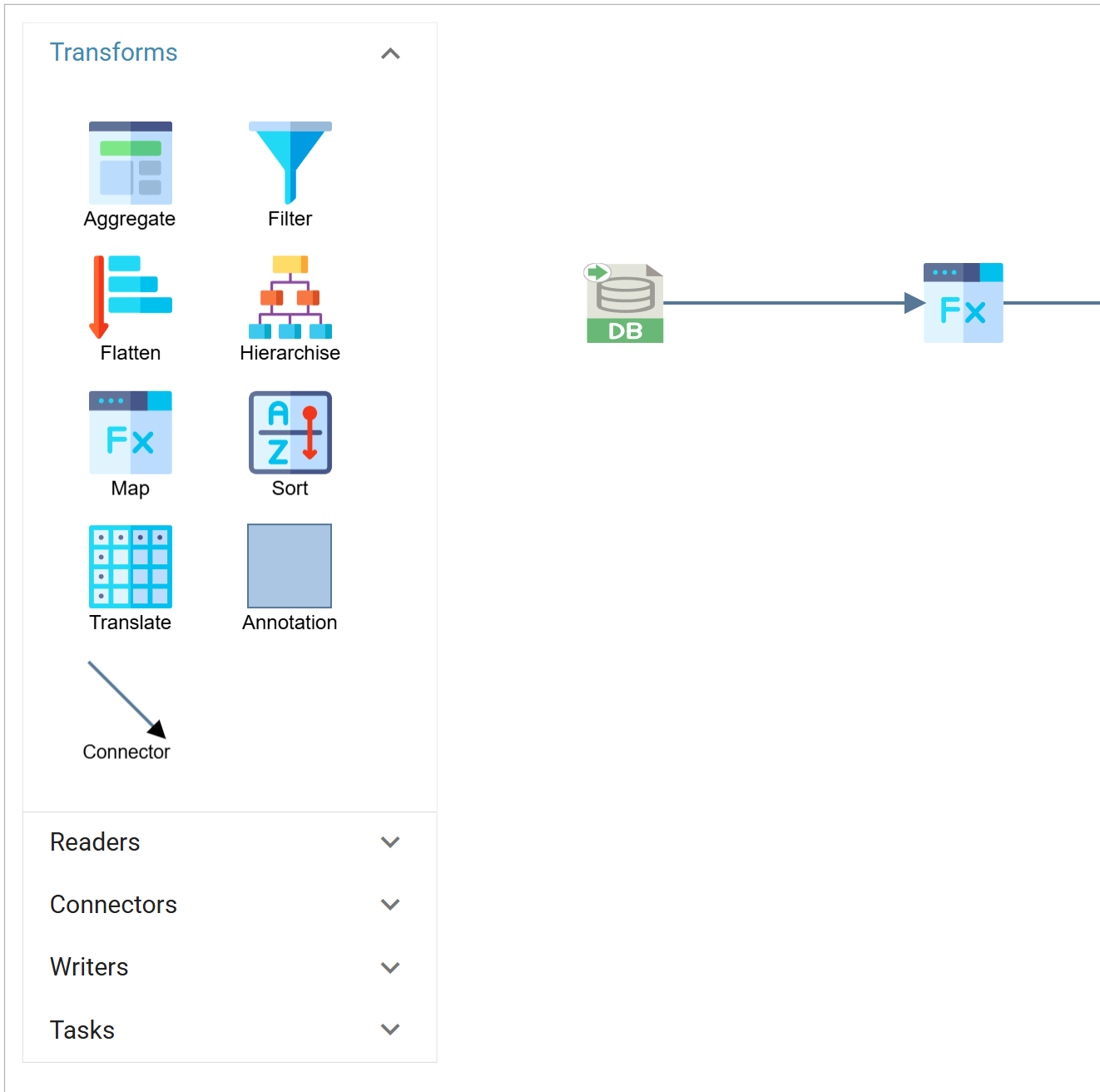
Connect it before you configure it
A transform copies its parent's records when you connect it, and never again. Drop it, connect it and save, and only then open it. A Map connected to a reader whose query has not yet run opens with an empty field grid, and no Refresh will fill it.
Add the Excel Writer
-
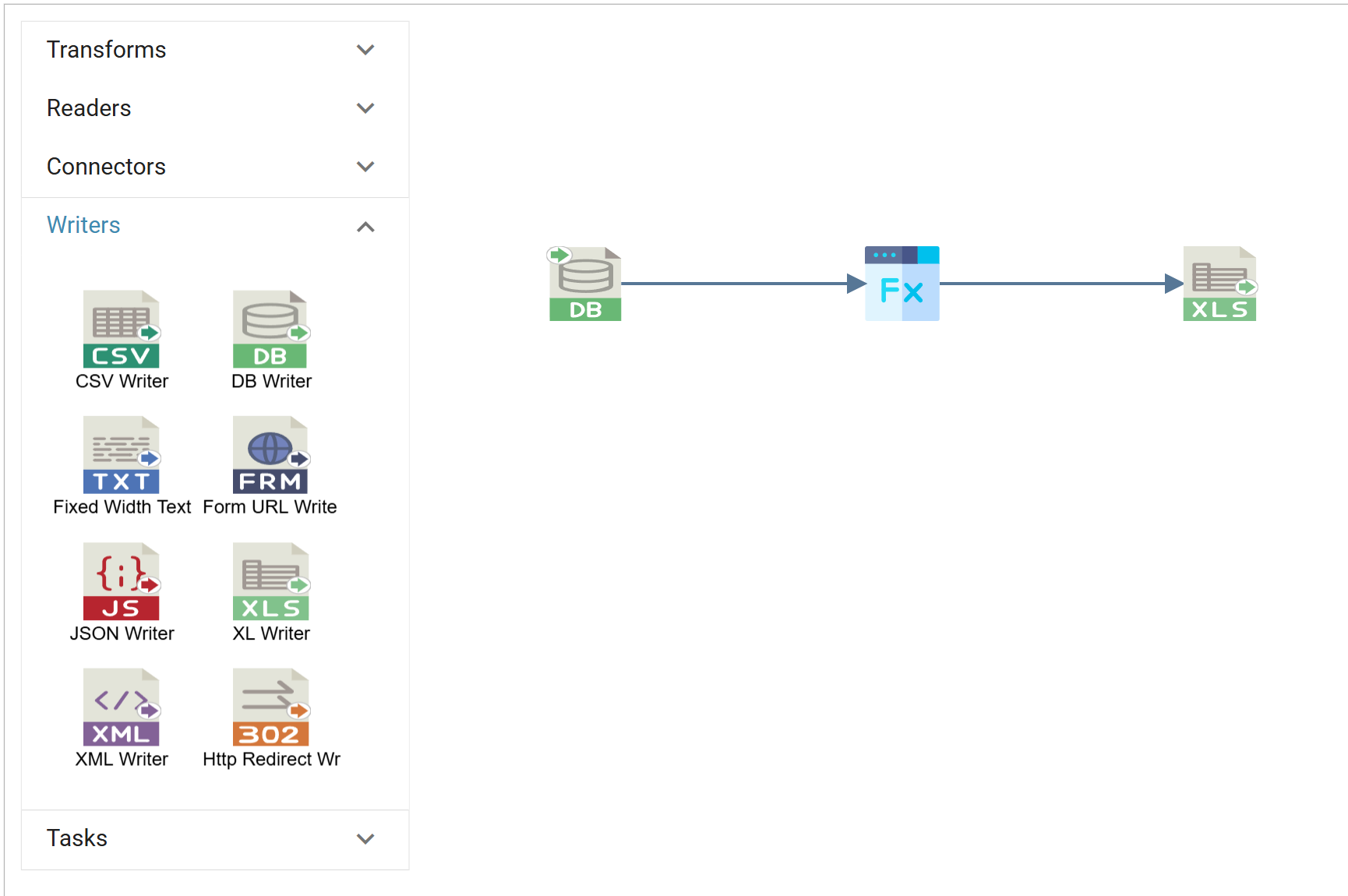
Drag an Excel Write transform onto the integration and connect it to the Map transform.
-
Double-click it to open, and under Target set:
Field Value Target The destination of the file. For training, select File File Path C:\IMan\OutputDataFile Name ARInvoice.xlsx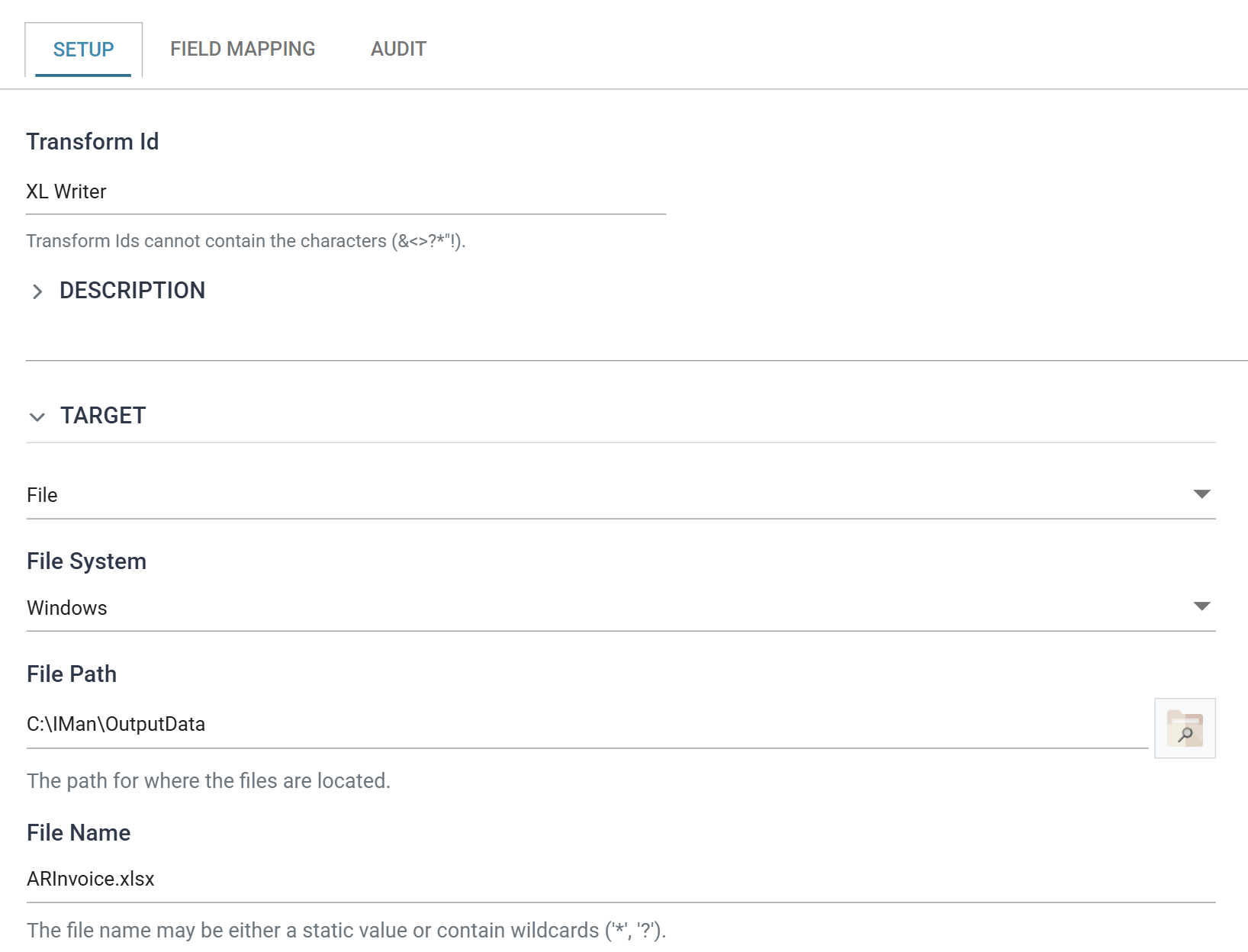
-
Under Options set:
Field Value Excel Version Excel 2007, to match the .xlsxfile nameWorksheet Id 0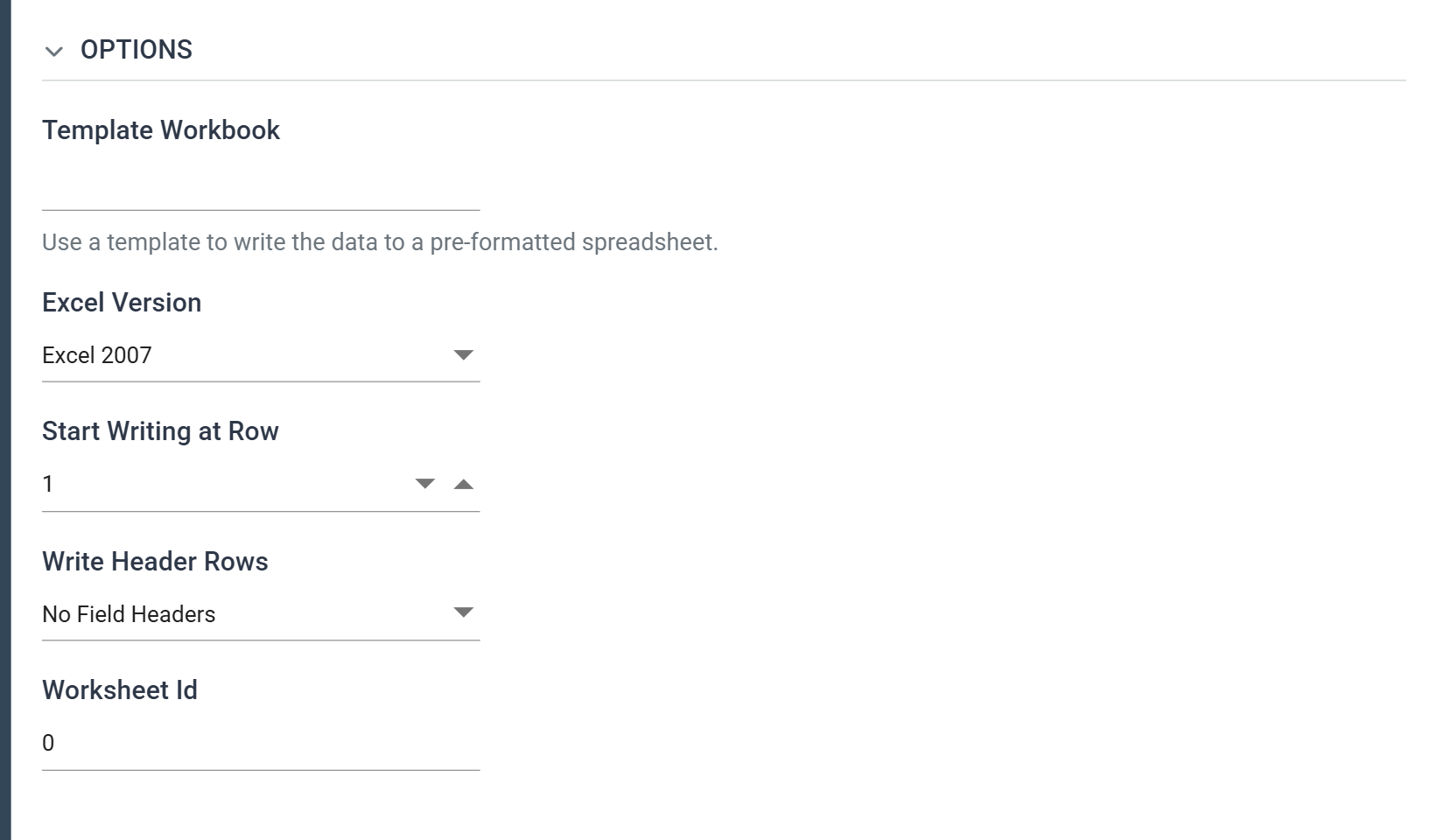
Worksheet Id is not optional here, and it has to be the index
With no Template Workbook the writer creates the workbook itself, and it has only one sheet. Worksheet Id takes a name or a zero-based index, but there is no sheet you have named, so a name or an empty box fails the run with "Worksheet [] does not exist in workbook." Enter
0. The message appears as a dialog after the Refresh, not as a validation message on the field, and the run behind it reports no failures. -
Press Refresh and open the file at the File Path and File Name you set.

Write Header Rows is left at No Field Headers, so the first row of the sheet is data, not field names. Columns C and F are empty because these invoices have no customer PO number and no description.
Create the second Map Transform
-
Add a second Map transform to the end of the Write transform.

-
Open it, go to Field Mapping and press Add in the toolbar to create a new field:
Field Value New Field Name VALUEType Text Evaluate Untick Evaluate String 1With Evaluate unticked, IMan uses the Evaluate String as a literal value. A
Yes/Nooptional field stores Yes as1.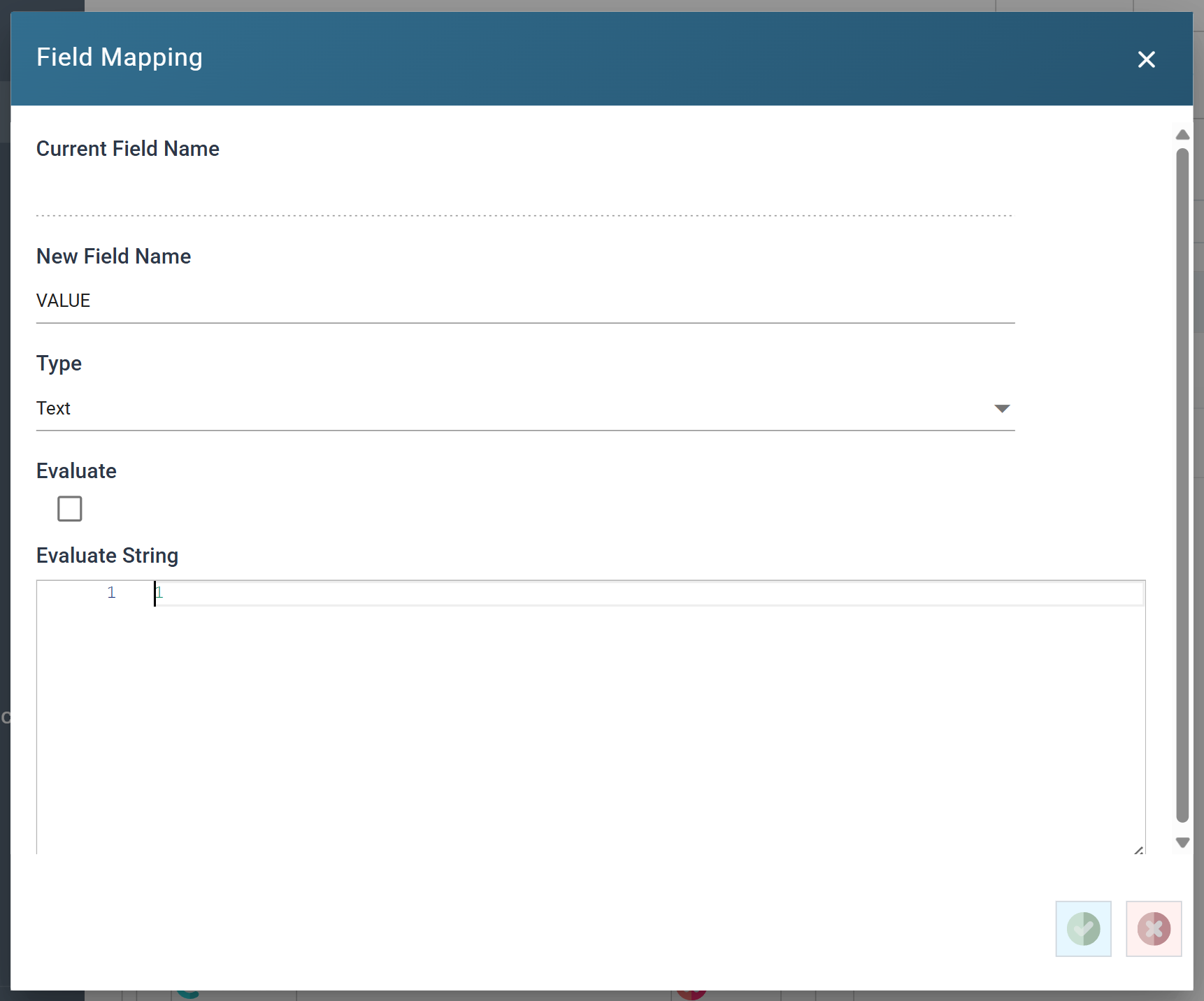
-
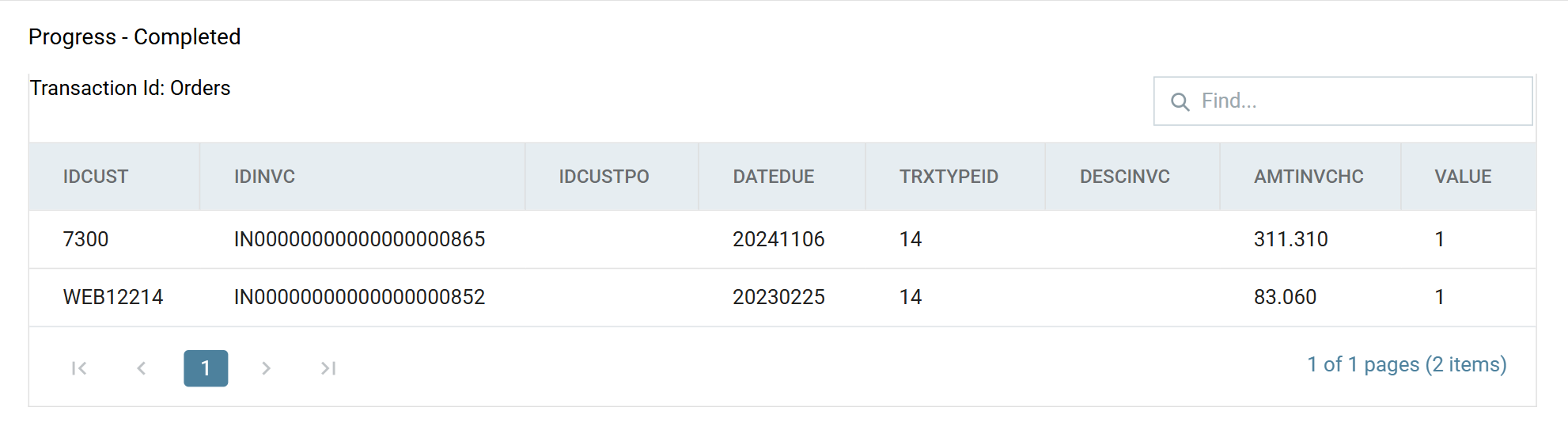
Press the green tick to save the field, then Refresh. The new field appears on every record, carrying the literal
1.
The Map goes after the writer, not before it. In this position the VALUE
field never reaches the Excel file, and IMan sets the flag only on records the
export has written.
Configure a Database Writer
-
Add a DB Writer to the end of the second Map transform.

-
Open it, and on the Setup tab select the Sage 300 connection from the Database Connection drop-down.
-
Set the SQL Operation to Update.
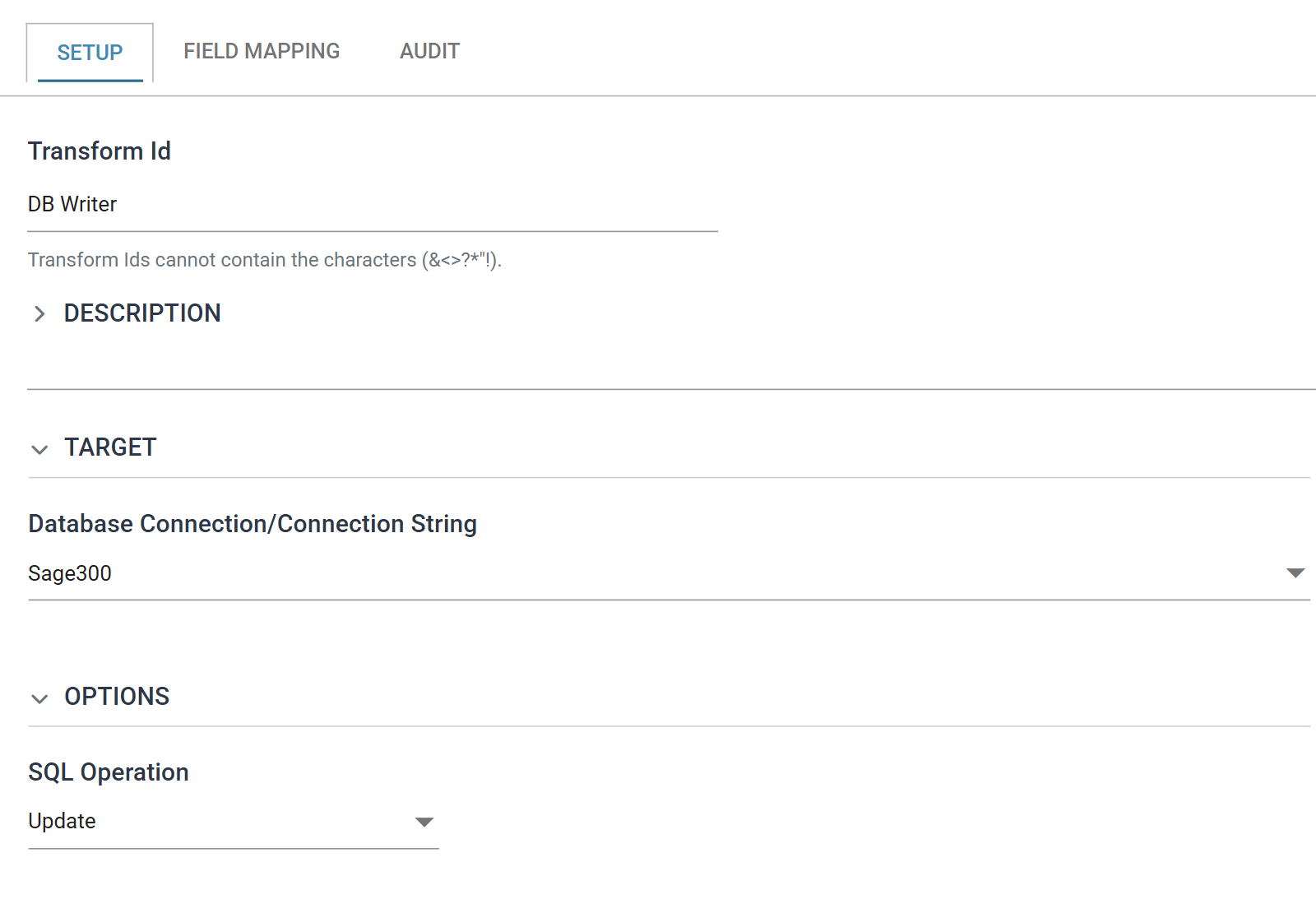
Left on Insert this writes new rows instead of flagging
On Insert, the writer adds new rows to
AROBLOinstead of flagging the existing ones. The Where Clause in the next step does not appear until the operation is Update. If the Field Mapping tab has no Where Clause, check the operation. -
Go to the Field Mapping tab.
- Set the Map To Table to
AROBLO, the table in the Sage 300 database that IMan will update. -
Set the Where Clause to:
For each record in the dataset, IMan replaces
%[Orders.IDCUST]and%[Orders.IDINVC]with that record's values.A field reference has to name its transaction. IMan accepts and saves an unqualified
%[IDCUST], and the field reports "'%[IDCUST]' is an unqualified field reference - merge fields are entered as %[Record.Field]." underneath it in orange.OPTFIELD = 'EXPORTED'is not optionalAROBLO's key is the customer, the invoice and the optional field. Each of these invoices carries five optional fields, so a clause ofIDCUST = … and IDINVC = …alone matches all five rows and sets every one of them to1. It overwritesCOURIER,SHOPID,WARRANTYandWAYBILLNOas well asEXPORTED, and reports nothing. Restrict the clause to the optional field you mean to flag. -
Press Edit on the grid, set the Column for
VALUEtoVALUE, and leave every other row's Column empty. Press Save.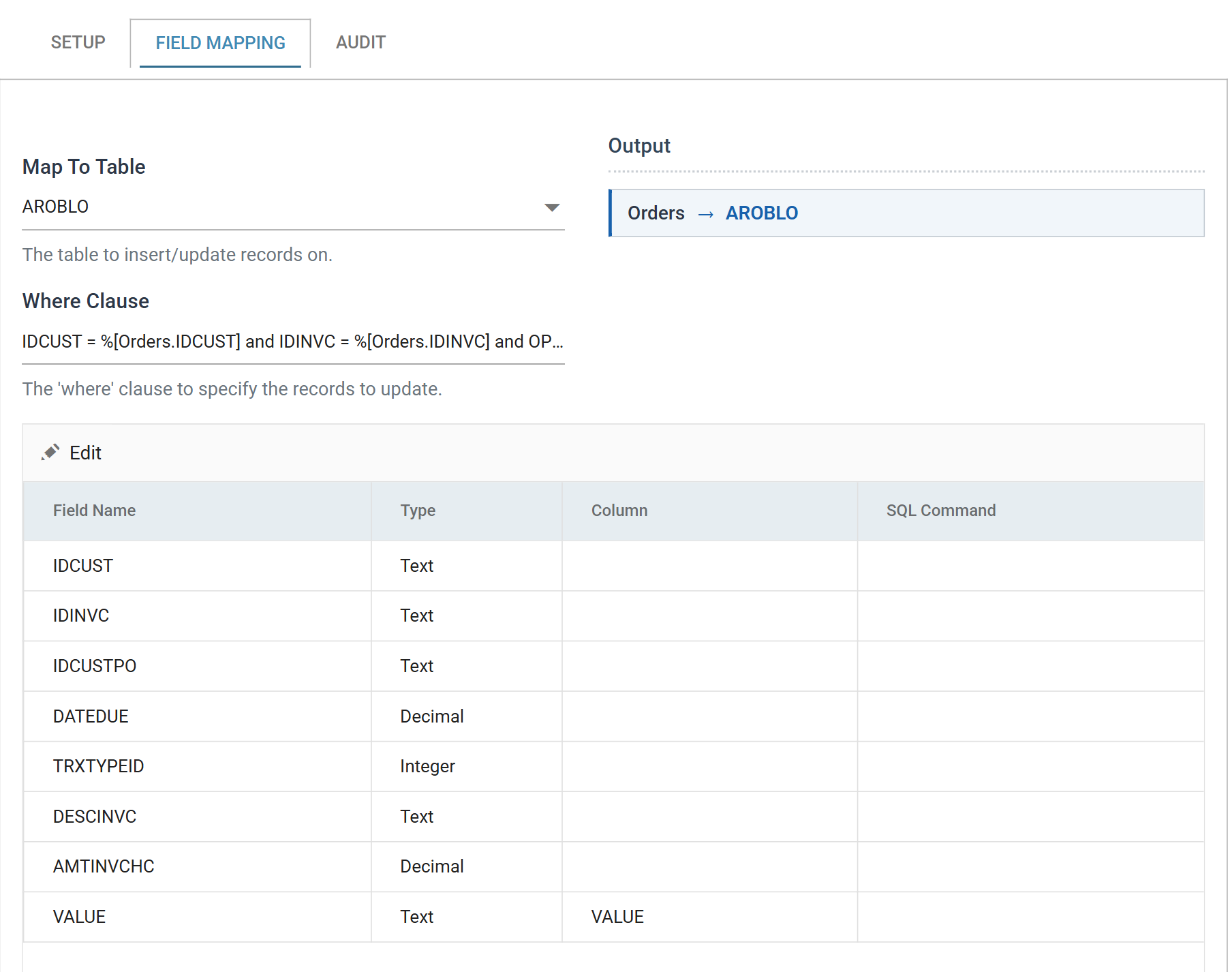
There is no Export column on a Database Writer. The writer writes a field only if it names a Column. Mapping only
VALUElimits the update to that one column. -
Press Close, then save the integration.
- Reopen the DB Writer and press Refresh. This step writes to Sage 300: the update runs as the preview runs.
-
Return to Sage 300 and view the invoice through the Customer Inquiry. The
EXPORTEDoptional field is now set toYes: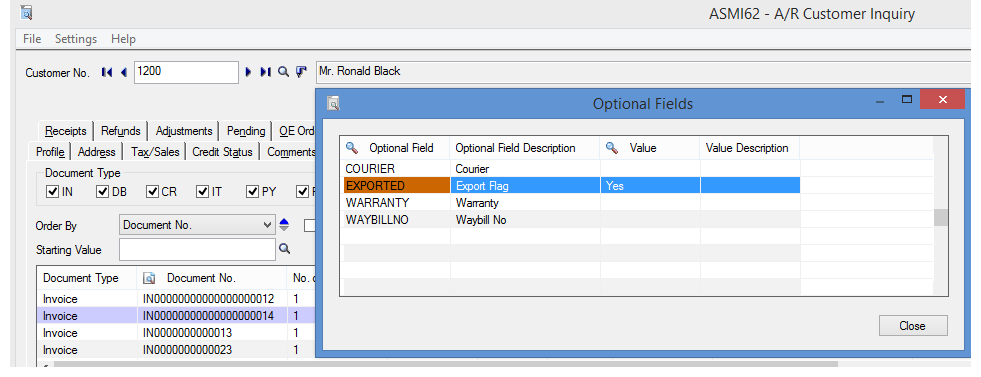
-
Return to the first DB Reader and press Refresh. The dataset is now empty, because the invoices it previously returned no longer match
LTRIM(O.VALUE) = '0'.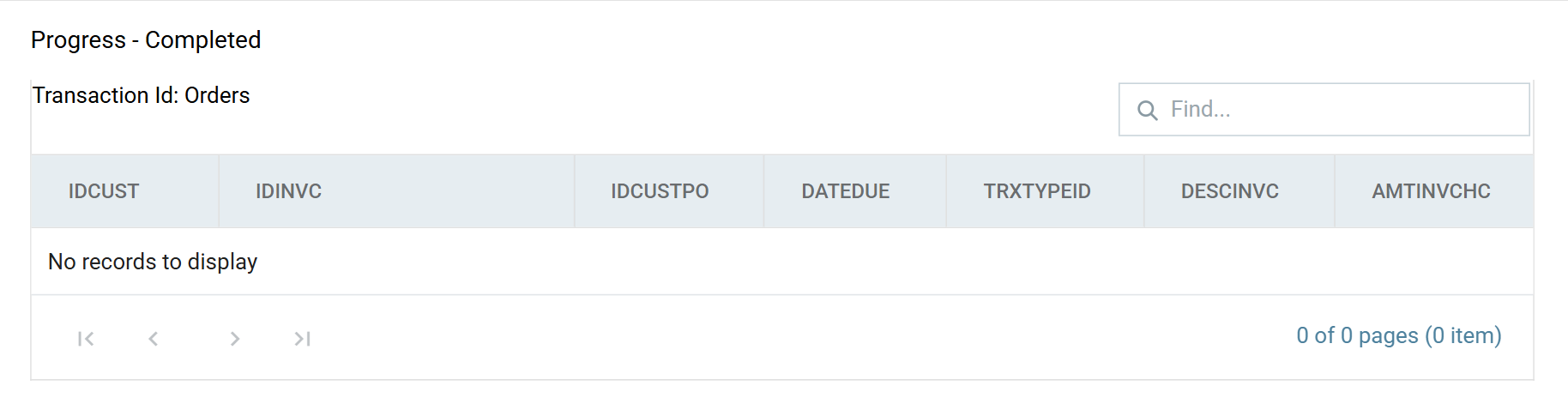
Refresh the reader, not the writer. A Refresh anywhere else reuses the dataset the reader produced last time. That dataset still holds the two invoices, so the update appears to have done nothing.
Data Integrity Considerations
Use this method of updating data only in very narrow cases. This example changes a single optional field value.
Take-on Considerations
Invoices created before the optional field was set up have no EXPORTED
optional field, so the inner join in the reader's query does not return them.
You may need to run an initial export that takes every record, and only then
add the where clause on the optional field value to the DB Reader.
Congratulations
You have completed the Sage 300 homework for IMan.