Field to Row Transposition
Some source files carry several amounts side by side on one line — a net amount and a tax amount, or a line total and a line-level shipping charge — where the target system wants each of them as a line of its own. This article turns columns into rows.
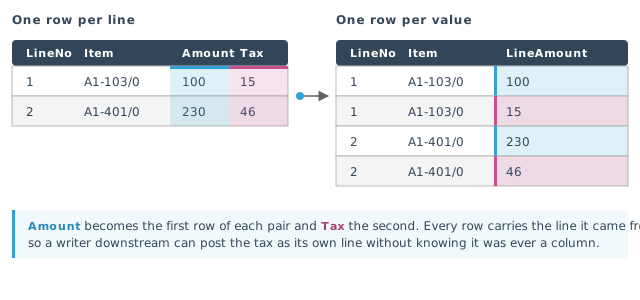
It is worth doing when:
- there are net and tax amount fields, and these must be imported as separate lines;
- a line-level shipping charge has to be posted as its own line.
No single transform does this. What does it is four of them in a row, and the point of the recipe is the shape of the chain rather than any one setting. Read the Aggregate and Hierarchy transforms first; between them they do the actual work.
The chain

| Transform | What it is for | |
|---|---|---|
| 1 | Excel Reader | Reads the sample workbook |
| 2 | Hierarchy | Splits the flat rows into a header and its lines |
| 3 | Hierarchy | Adds a level below the line, which is where the transposition happens |
| 4 | Map | Adds the empty field the transposed values will land in |
| 5 | Aggregate | Writes one record per column being transposed |
| 6 | Flatten | Folds that level back up, so each transposed value is a line |
Steps 1 and 2 exist only to produce a header/detail dataset to work on. If your integration already has one — and most do, because a reader usually builds it — start at step 3.
1. The sample data
- Download the sample workbook and save it somewhere the IMan server can read.
-
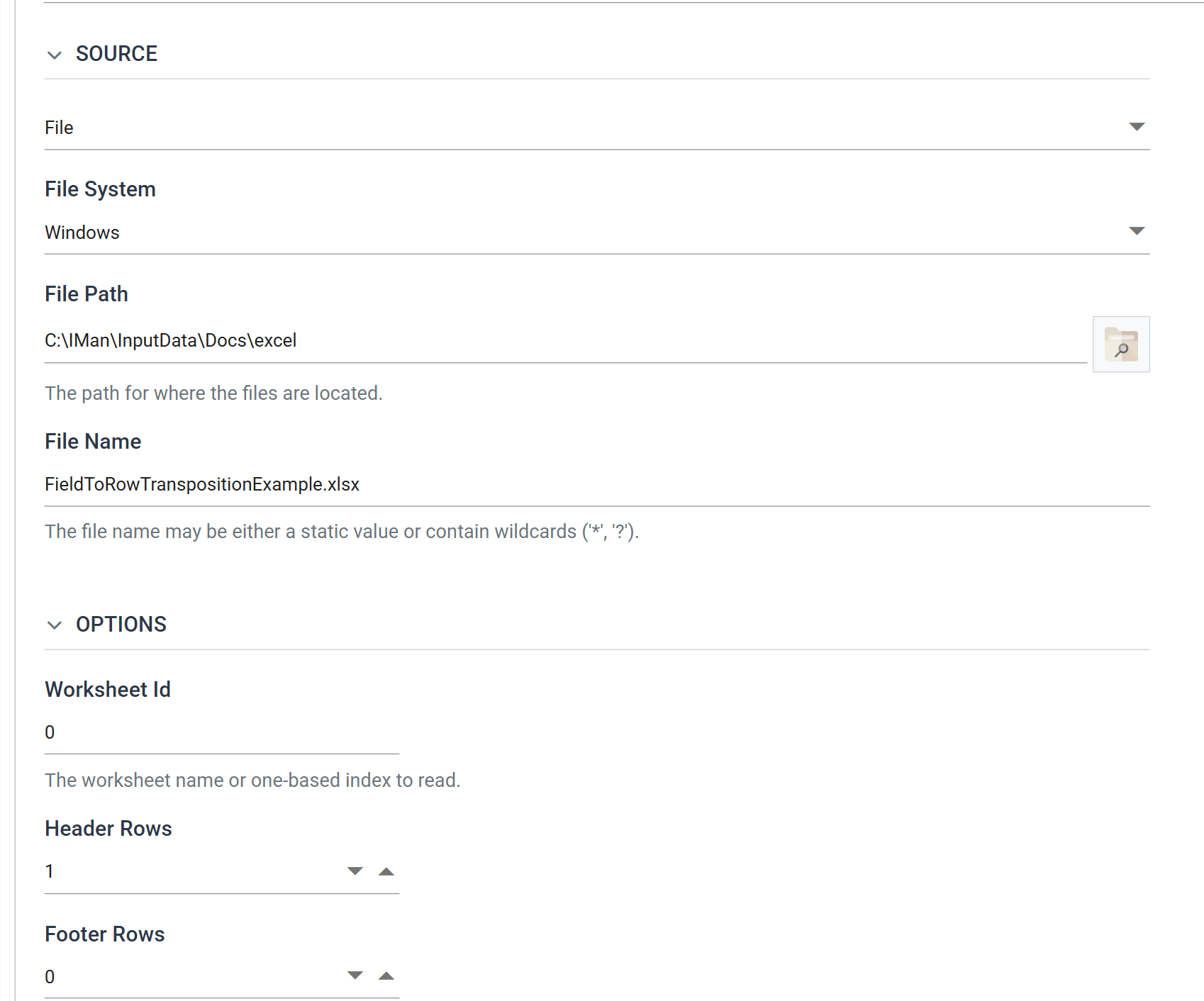
Add an Excel Reader, set File Path and File Name to where you saved it, and set Header Rows to 1.
-
Press Refresh.
The workbook holds two rows, both belonging to order REF00123: line 1 for item
A1-103/0 with an amount of 100 and tax of 15, and line 2 for item A1-401/0
with an amount of 230 and tax of 46. By the end there will be four.
2. Hierarchy: a header and its lines
- Close the reader, add a Hierarchy transform and open its Field Mapping tab.
- Leave Transaction Id to Hierarchise on
Root, and press Edit to make the field list editable. -
Give
IDandTranNokeys 1 and 2, and deselectLineNo,Item,Qty,AmountandTax.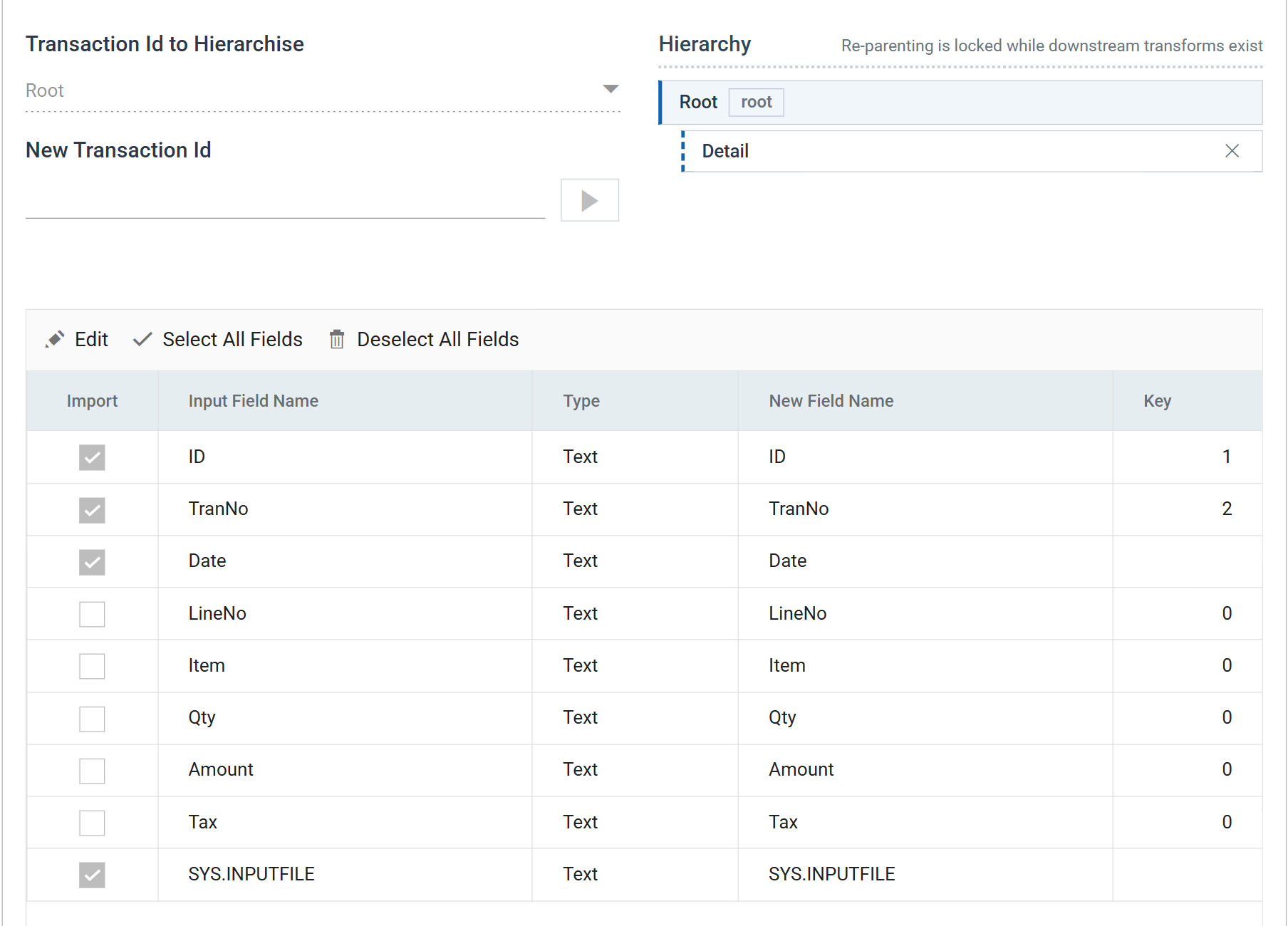
-
Press Save.
Unticking Import asks you to confirm
Saving a batch in which any field has been unticked raises a Remove Fields dialog listing them. That is the transform telling you those fields are about to leave it, and it has to be answered before anything else on the pane will respond.
-
Type
Detailinto New Transaction Id and press the ▶ button beside it.
-
Select
Detailin the hierarchy, press Edit, giveID,TranNoandLineNokeys 1, 2 and 3, and deselectDate.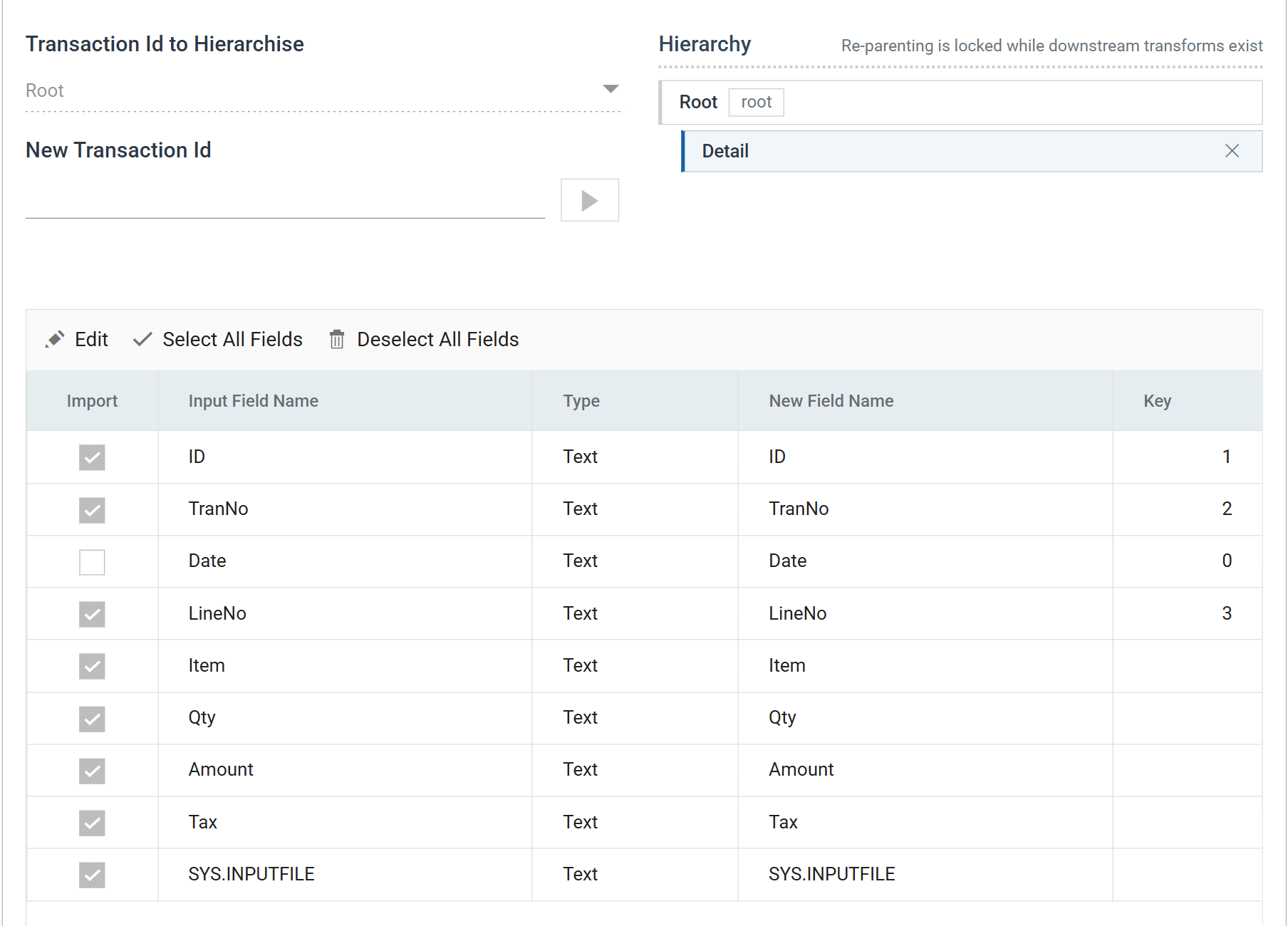
-
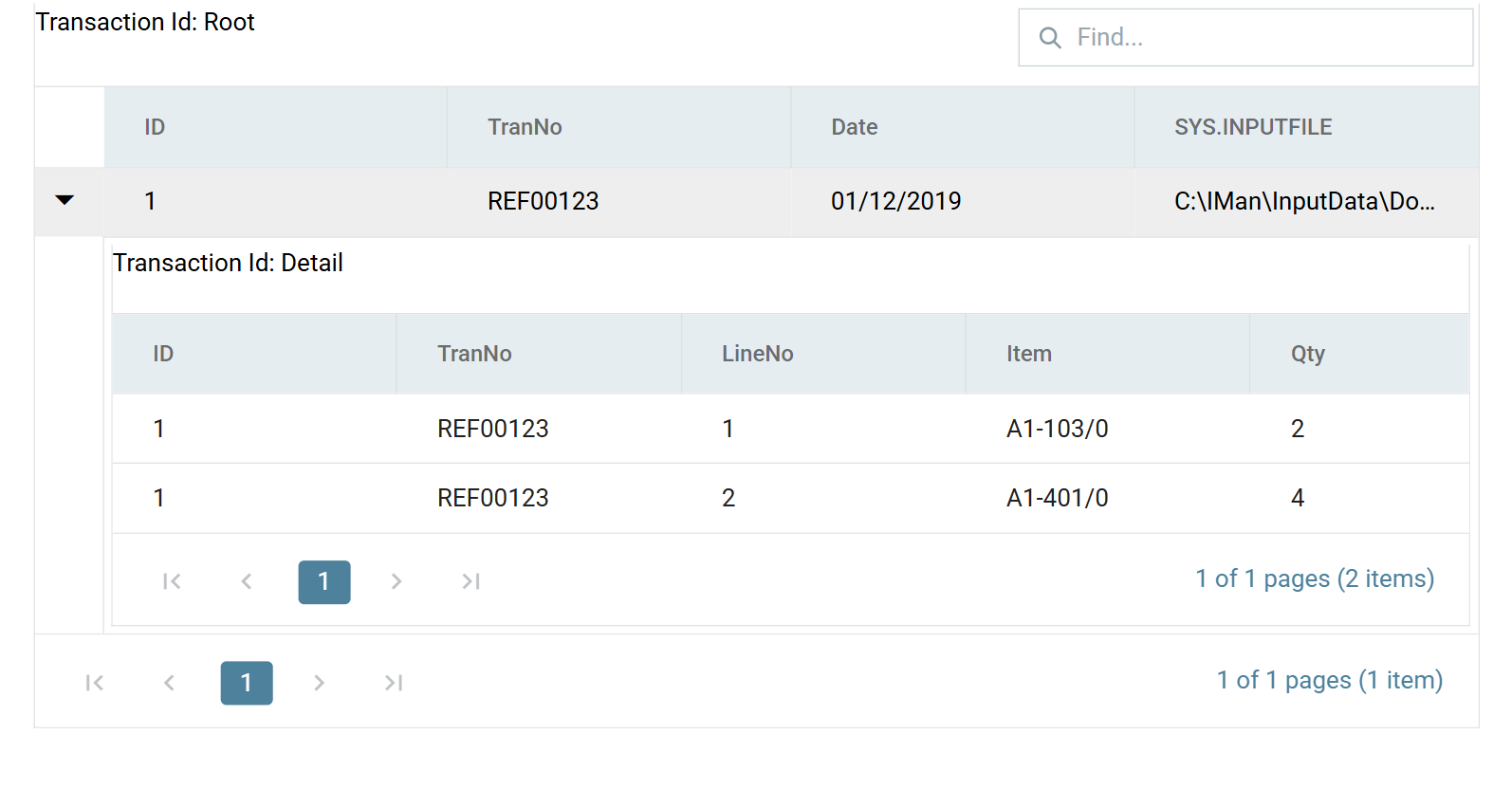
Press Save, then Refresh. The data is now a header with its lines beneath it.
3. Hierarchy: a level below the line
This is the first step of the transposition proper. It creates a transaction
that is a child of Detail, and everything that follows happens on that new
level rather than on the line itself. Working a level down lets the
Aggregate multiply records without multiplying lines.
Depending on your input you may be able to use a hierarchy that already exists. This example adds a second one.
-
Add a Hierarchy transform, open Field Mapping, and set Transaction Id to Hierarchise to
Detail.
Set this first
Until Transaction Id to Hierarchise has a value the rest of the tab does nothing at all: the hierarchy renders empty, the field grid has no Import column, and New Transaction Id and its button accept input and produce nothing. Nothing is greyed out and nothing reports an error, so it reads as a broken pane rather than an unset field.
-
Press Edit, deselect
AmountandTax, and giveLineNoa key of 1.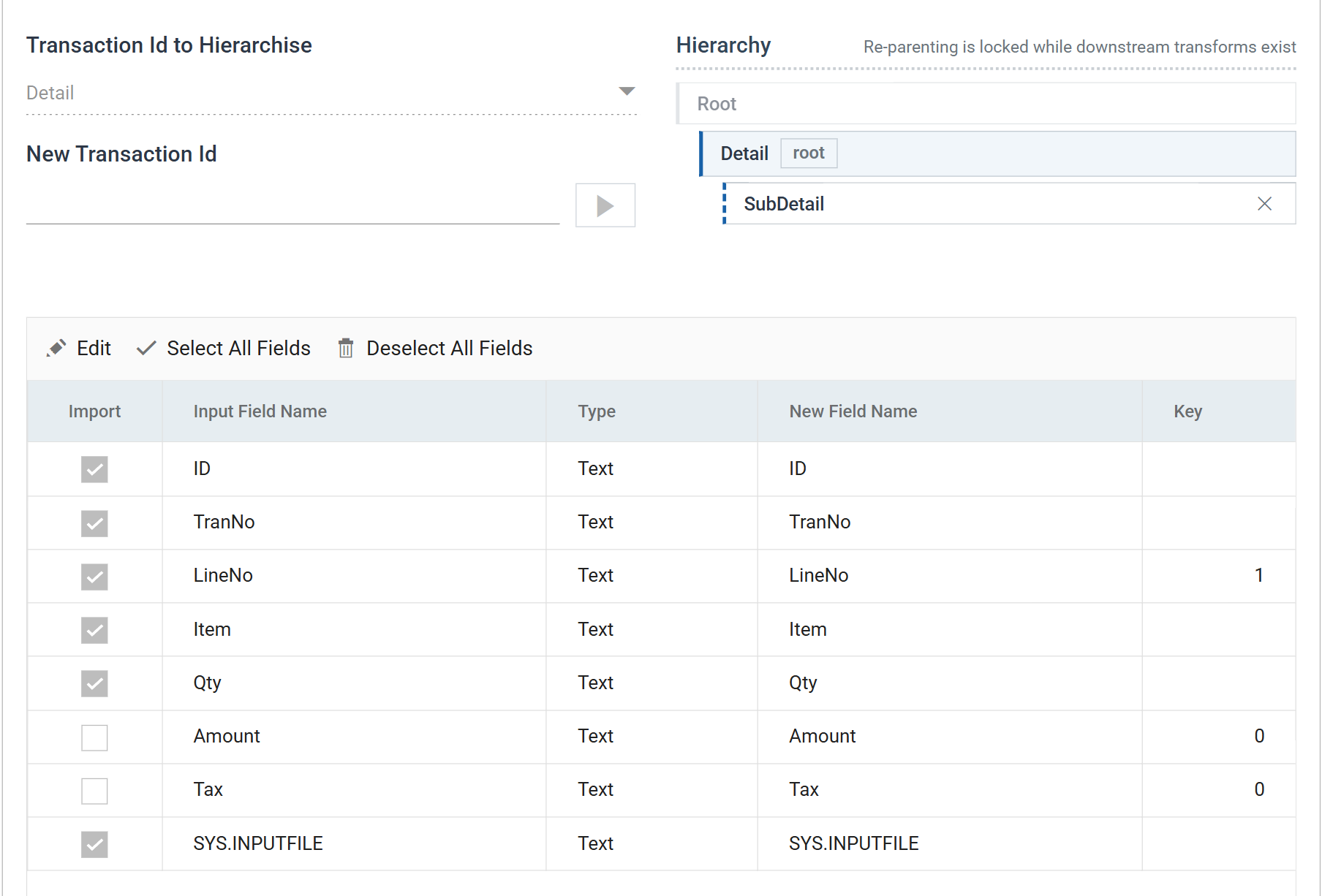
-
Press Save, then create a transaction called
SubDetailthe same way as before. -
Select
SubDetail, press Edit, deselectID,TranNo,QtyandSYS.INPUTFILE, and giveLineNoandItemkeys 1 and 2.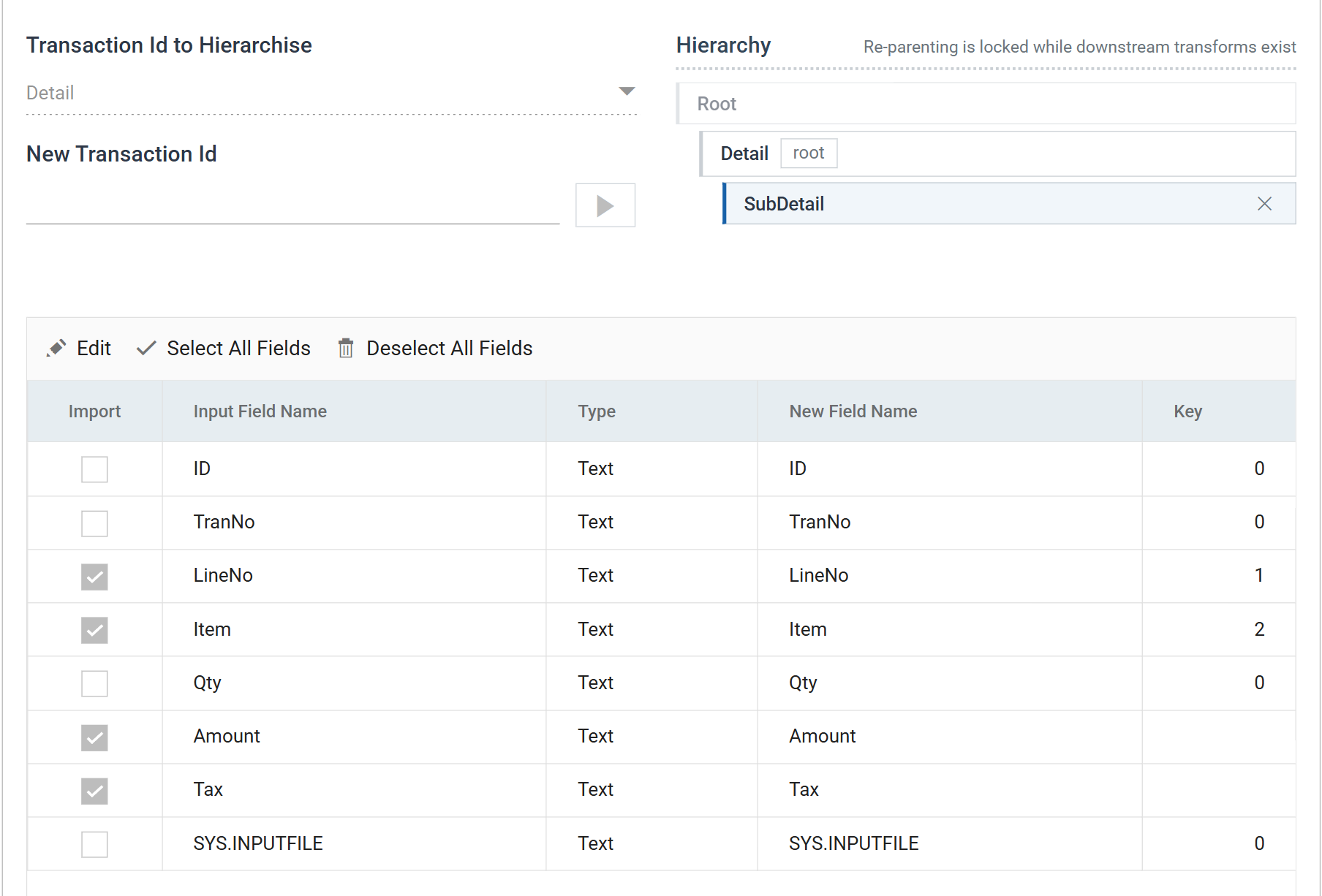
-
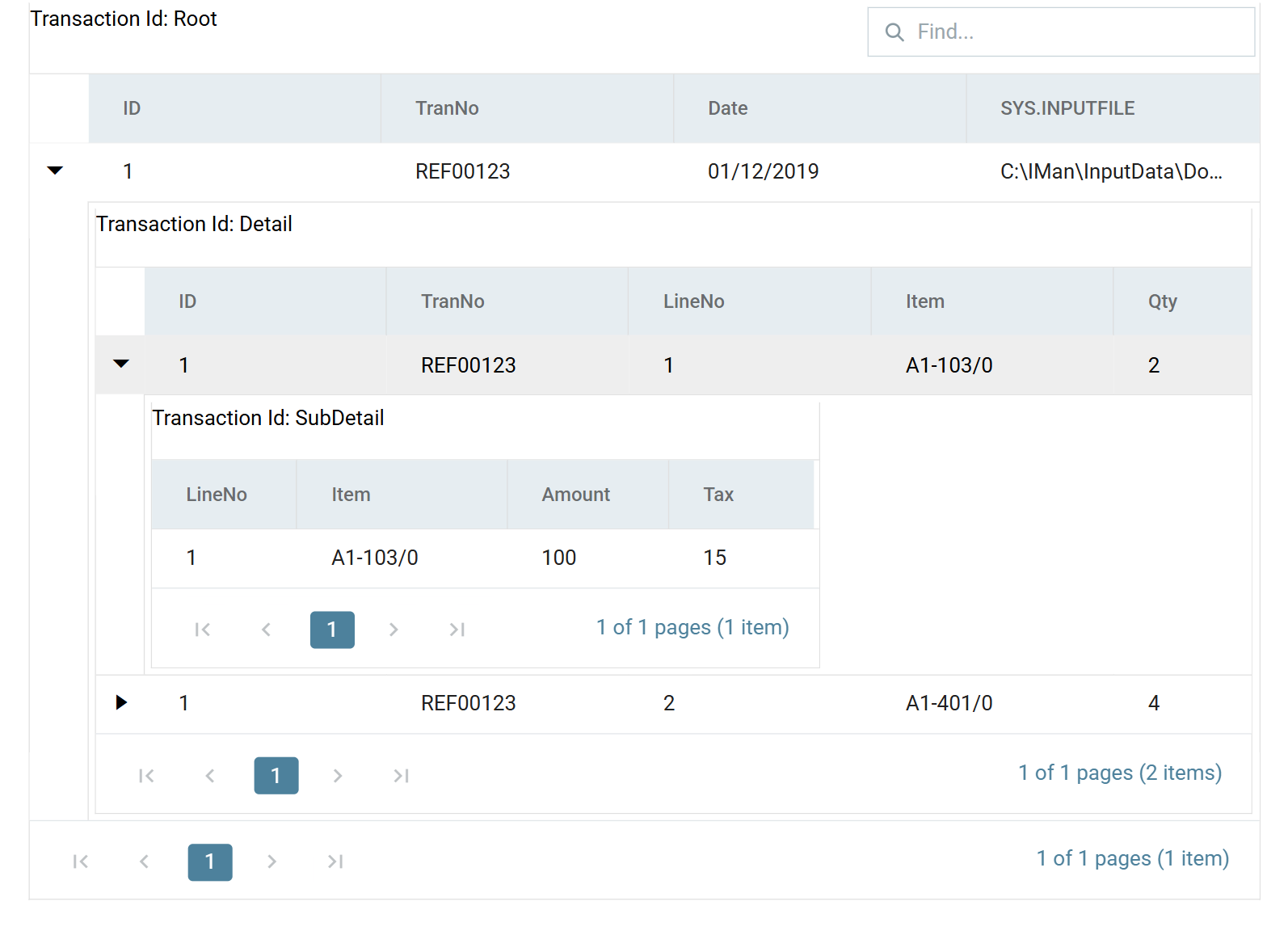
Press Save, then Refresh. There are now three levels, and the bottom one holds a single record per line.
4. Map: somewhere for the value to go
The Aggregate cannot write into a field that does not exist, so this step adds one. If you had two sets of columns to transpose you would add a field per set.
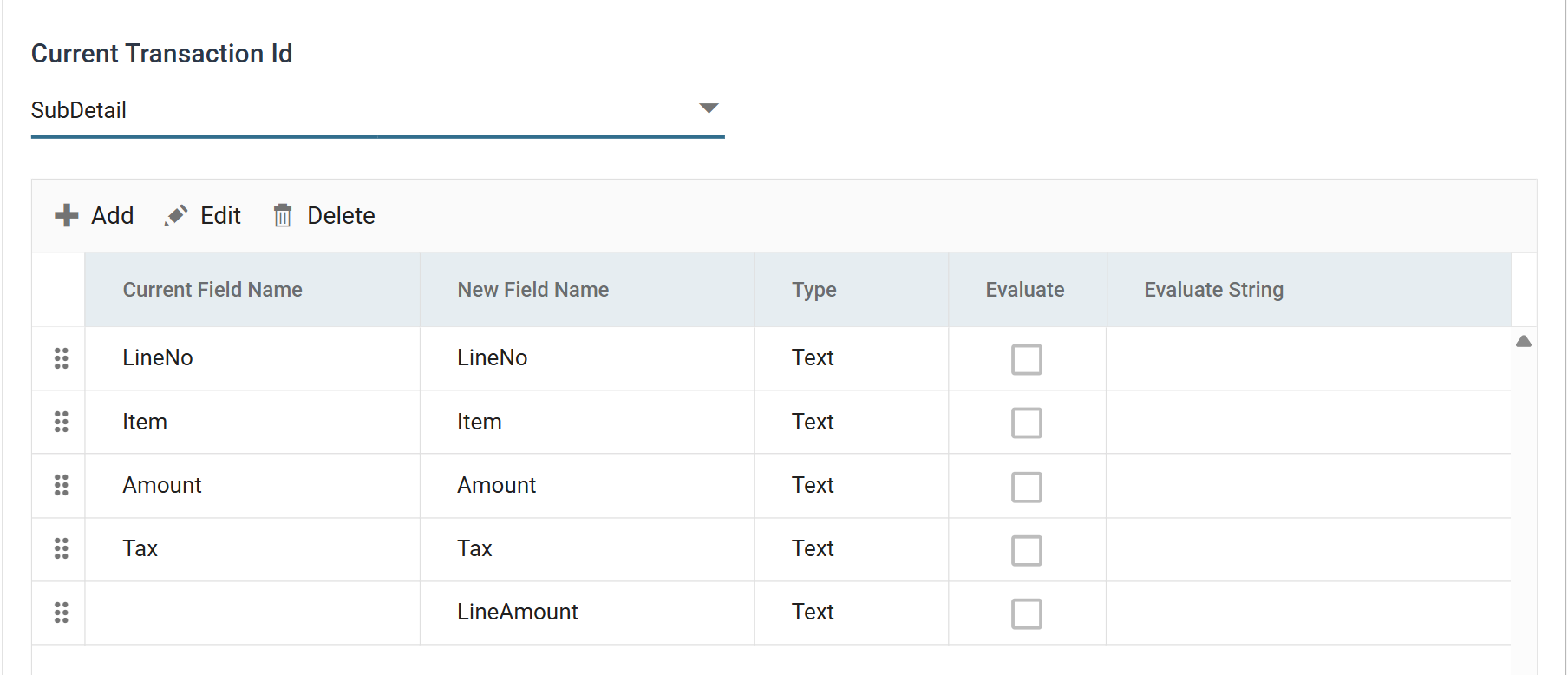
- Add a Map transform, open Field Mapping and change Current
Transaction Id to
SubDetail. -
Press Add, name the field
LineAmount, and leave Evaluate String empty — the Aggregate fills it, not the Map.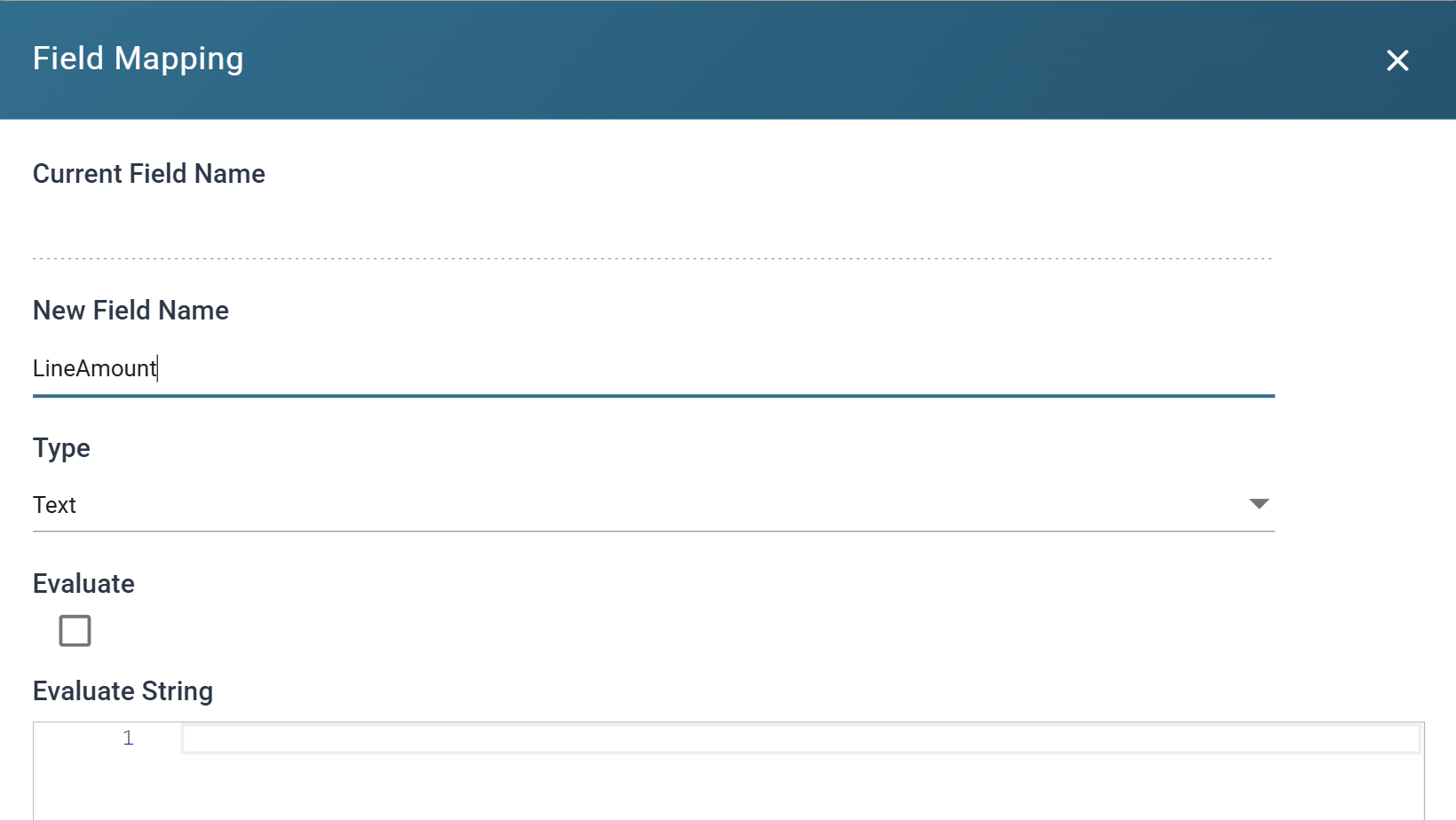
-
Press the green tick to save.
-
Press Refresh.
LineAmountnow exists on theSubDetaillevel, empty.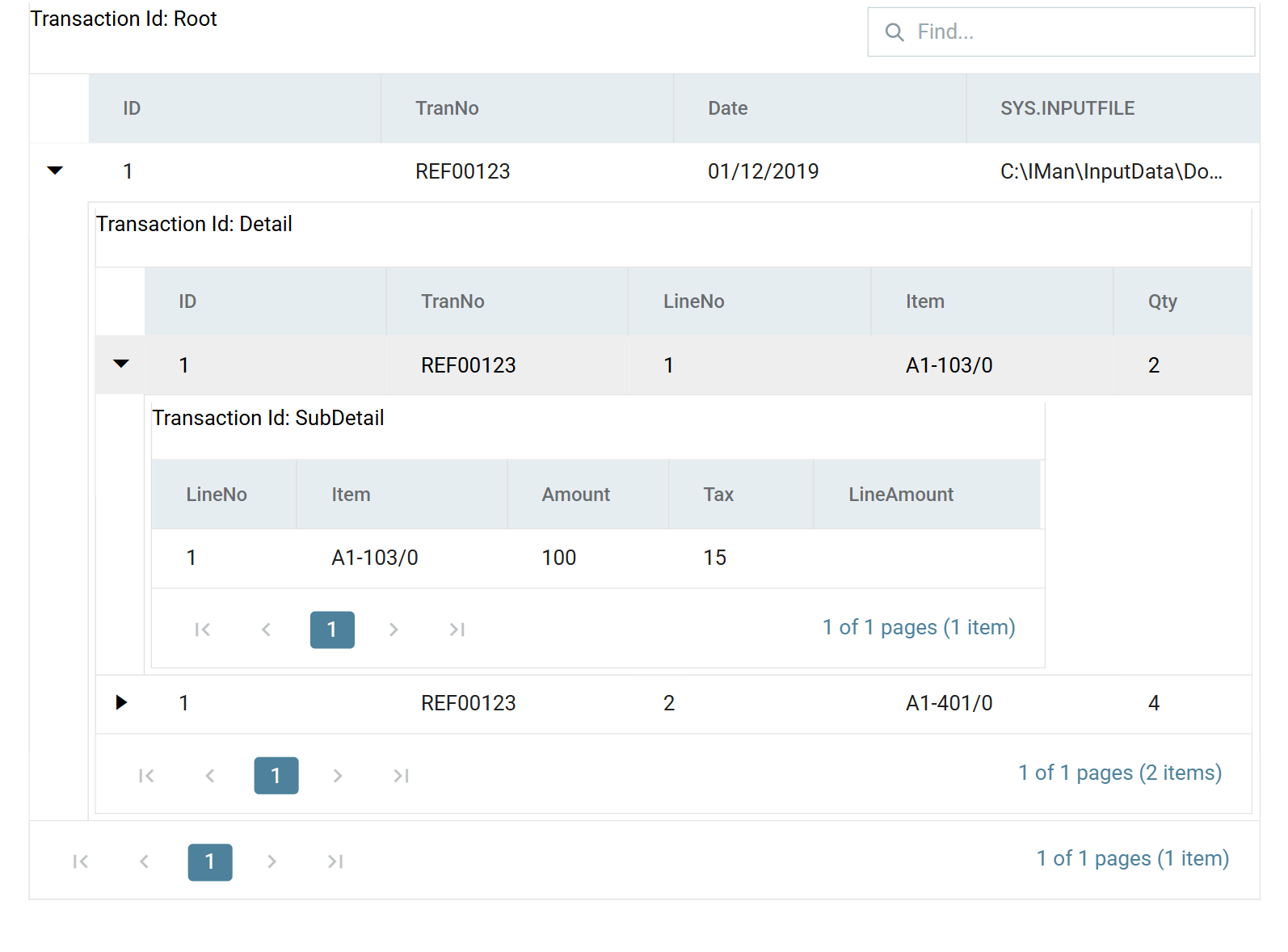
5. Aggregate: the transposition
This is where the work happens. The Aggregate adds two calc records to
SubDetail, one per column being transposed. Each is a copy of the record it
came from, with LineAmount set from a different source field — so one record
carries the amount and the other carries the tax.
- Add an Aggregate transform, open Field Mapping and change Current
Transaction Id to
SubDetail. -
Press +, set Description to
AmountLine, then edit theLineAmountrow: tick Evaluate and set Evaluate String to%Amount.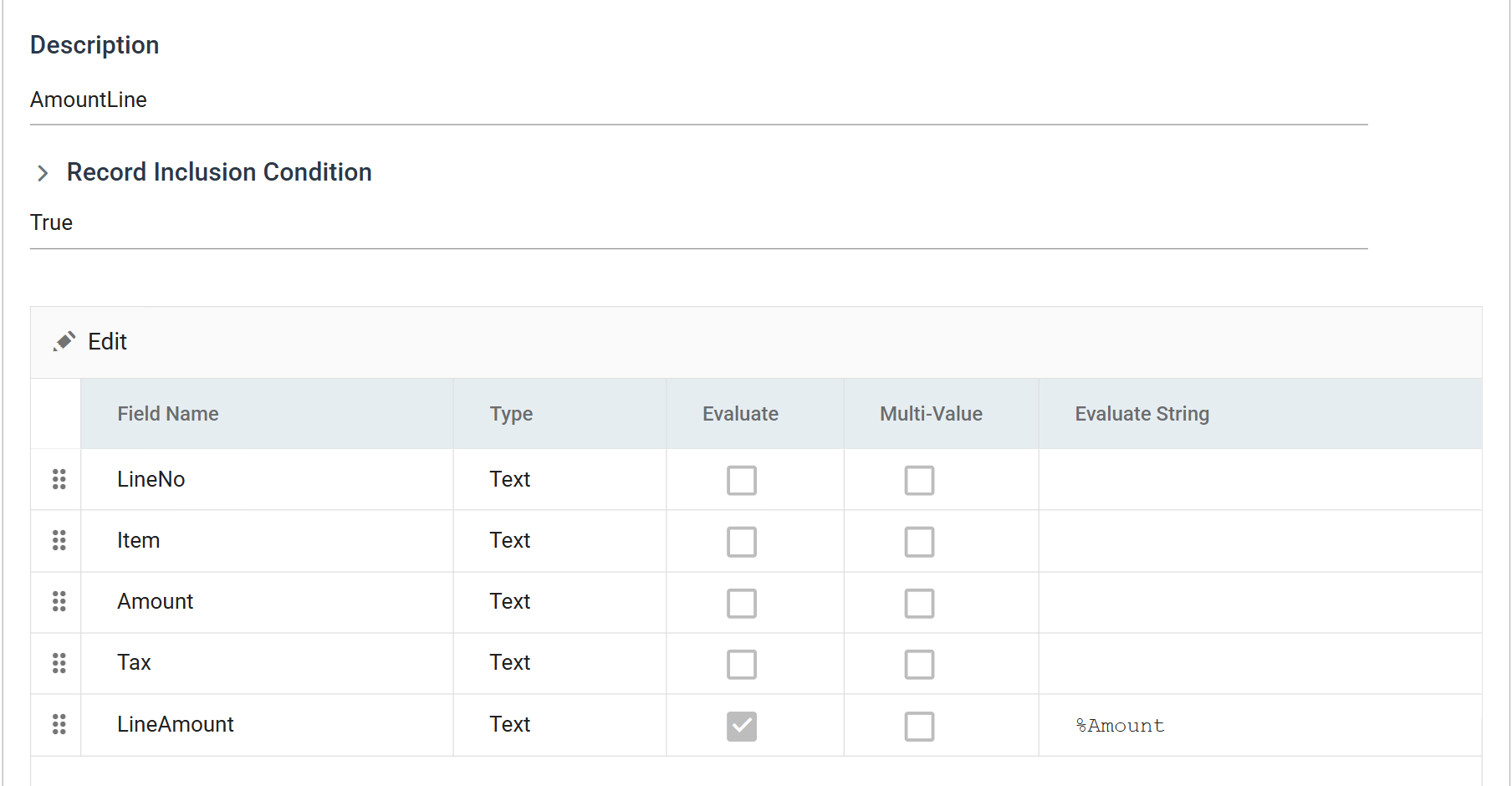
-
Press + again, set Description to
TaxLine, and set the same field's Evaluate String to%Tax.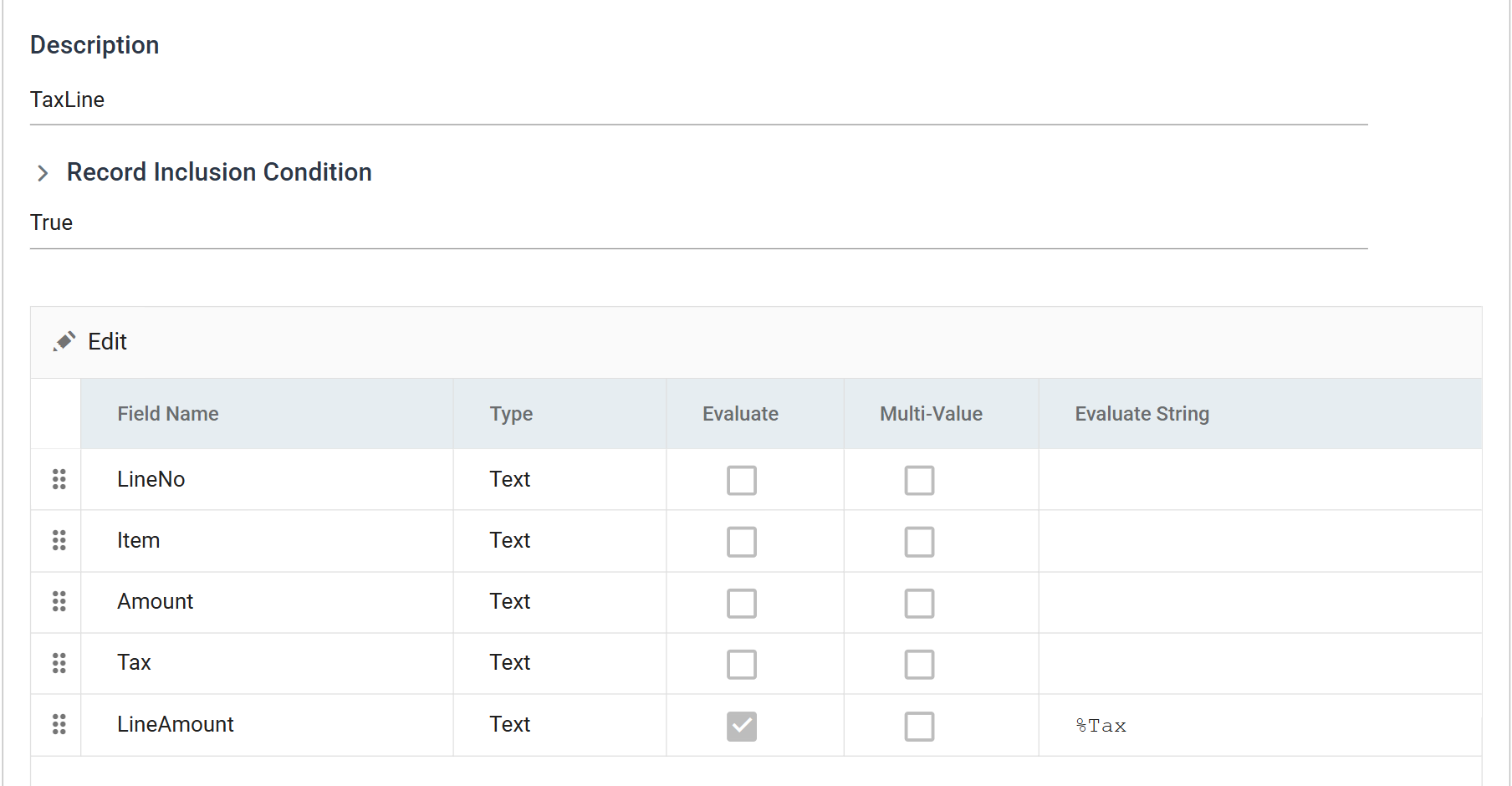
-
Tick Delete Child Records. This removes the original
SubDetailrecord, leaving only the two calc records — otherwise the line's own row survives alongside them with an emptyLineAmount.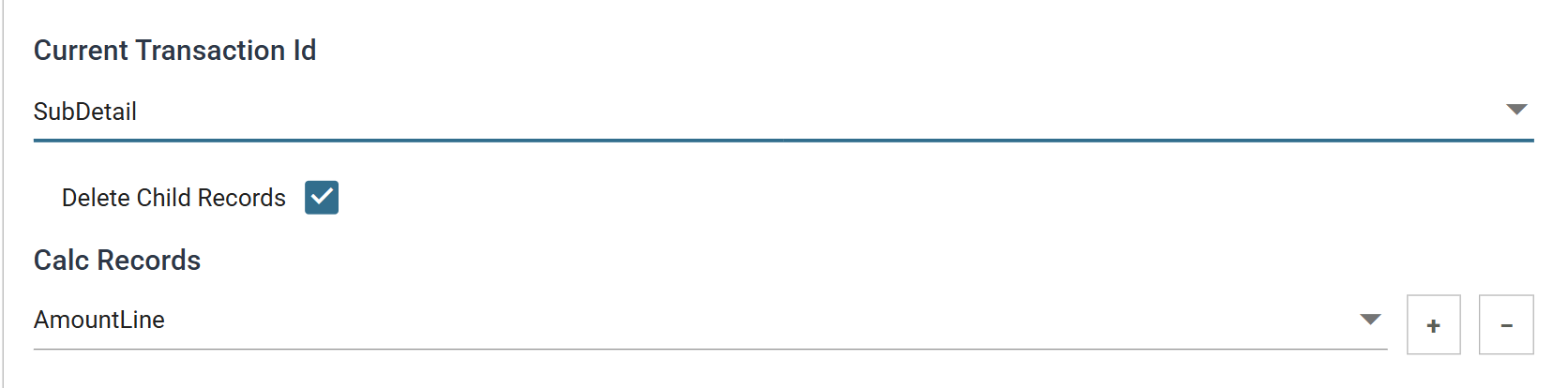
Both of these belong to
SubDetailDelete Child Records is per transaction, and so are the calc records. Both apply to whatever Current Transaction Id is showing when you set them. Ticked while the pane is on
Rootit deletes the entire dataset: the transform emits no rows, reports no error, and every transform upstream of it still previews correctly.Current Transaction Id is a view selector rather than saved state, so the pane always reopens on
Root. Change it back toSubDetailbefore reading anything off this tab. -
Press Refresh and expand down to
SubDetail. Each line now has two records where it had one, andLineAmountcarries the amount on the first and the tax on the second.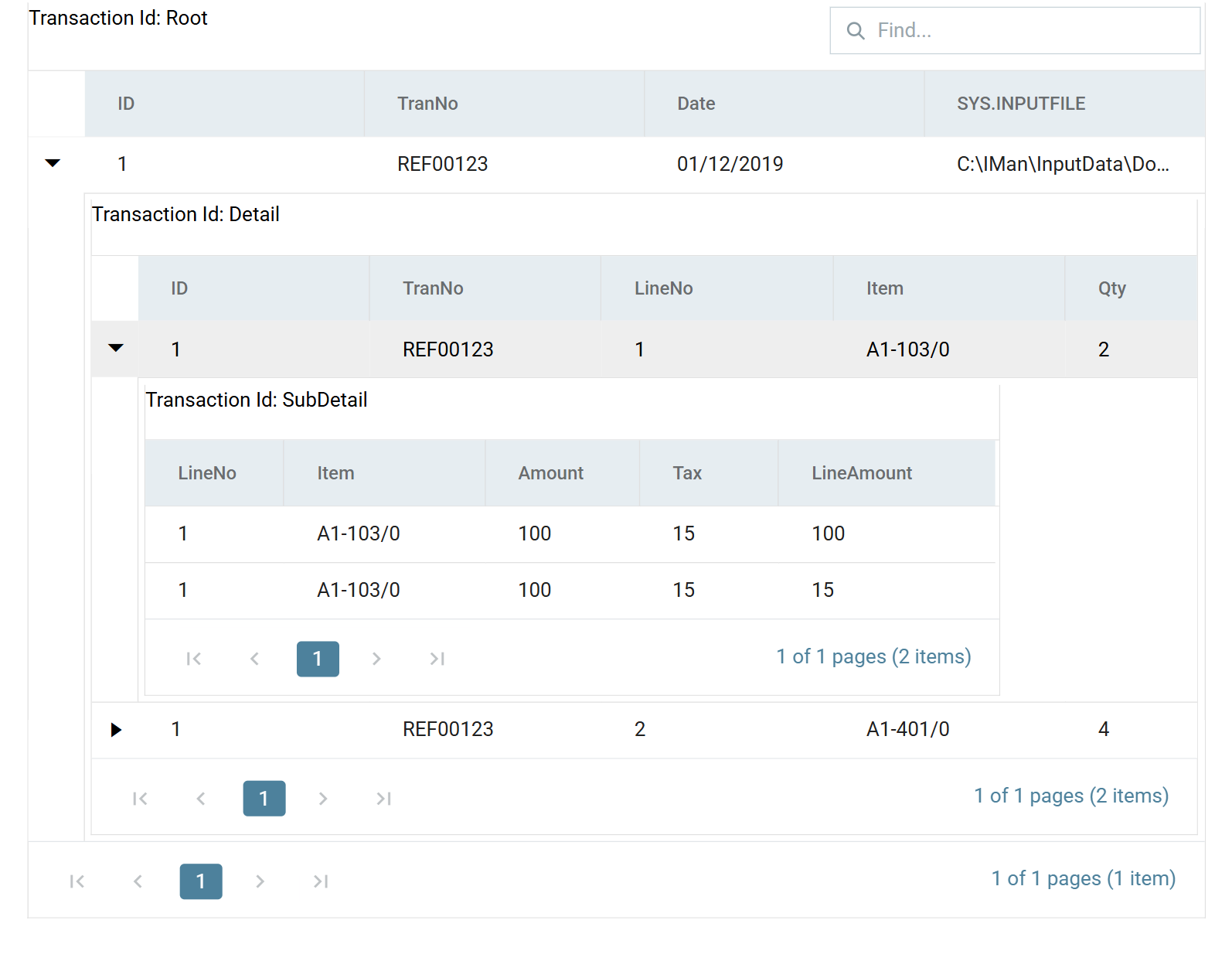
Why both records are made here
The obvious alternative is to copy Amount into LineAmount back in the Map
transform, and have the Aggregate create only the TaxLine record. It works,
and it is a little clumsy: the logic for what becomes a line is then spread
across two transforms, and the Map's copy is doing something quite different
from the field creation around it. Making both records in the Aggregate keeps
the whole rule in one place, where it can be read at once and changed at once.
6. Flatten: back to one row per value
The SubDetail level has done its job. Flattening it away leaves the
transposed values on the lines themselves.
- Add a Flatten transform, open Field Mapping and set Transaction Id
to Flatten to
Detail. -
Press Edit and deselect
LineNo,Item,AmountandTaxfrom theSubDetailrows, leaving onlyLineAmount.Detailalready carries aLineNoand anItemof its own, so the copies coming up from below are not wanted — and why the Flatten has renamed themSubDetail_LineNoandSubDetail_Itemin New Name. It does that to whichever of two colliding fields it reaches second, so the shallower one keeps the plain name.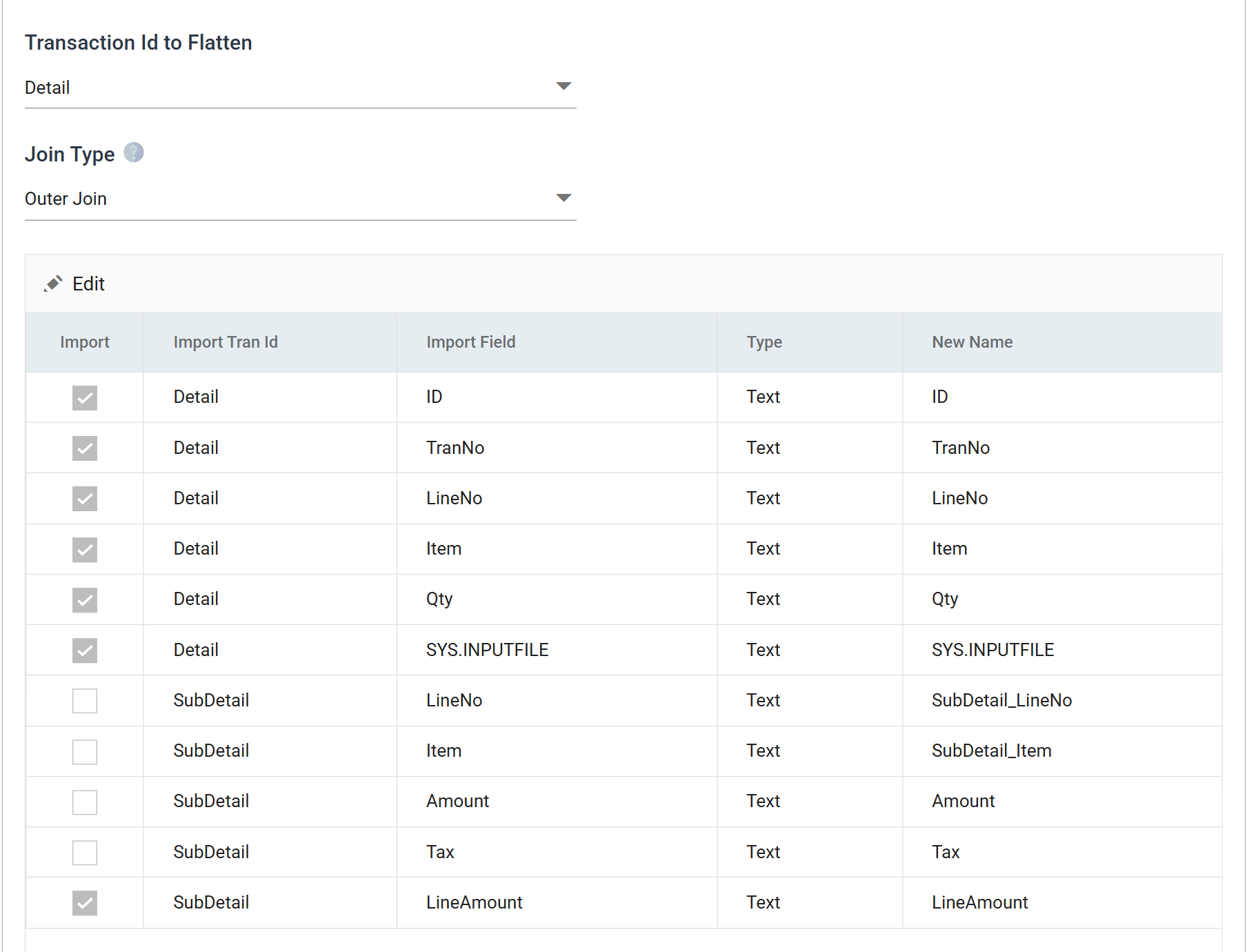
-
Press Save, then Refresh, and expand the header row.
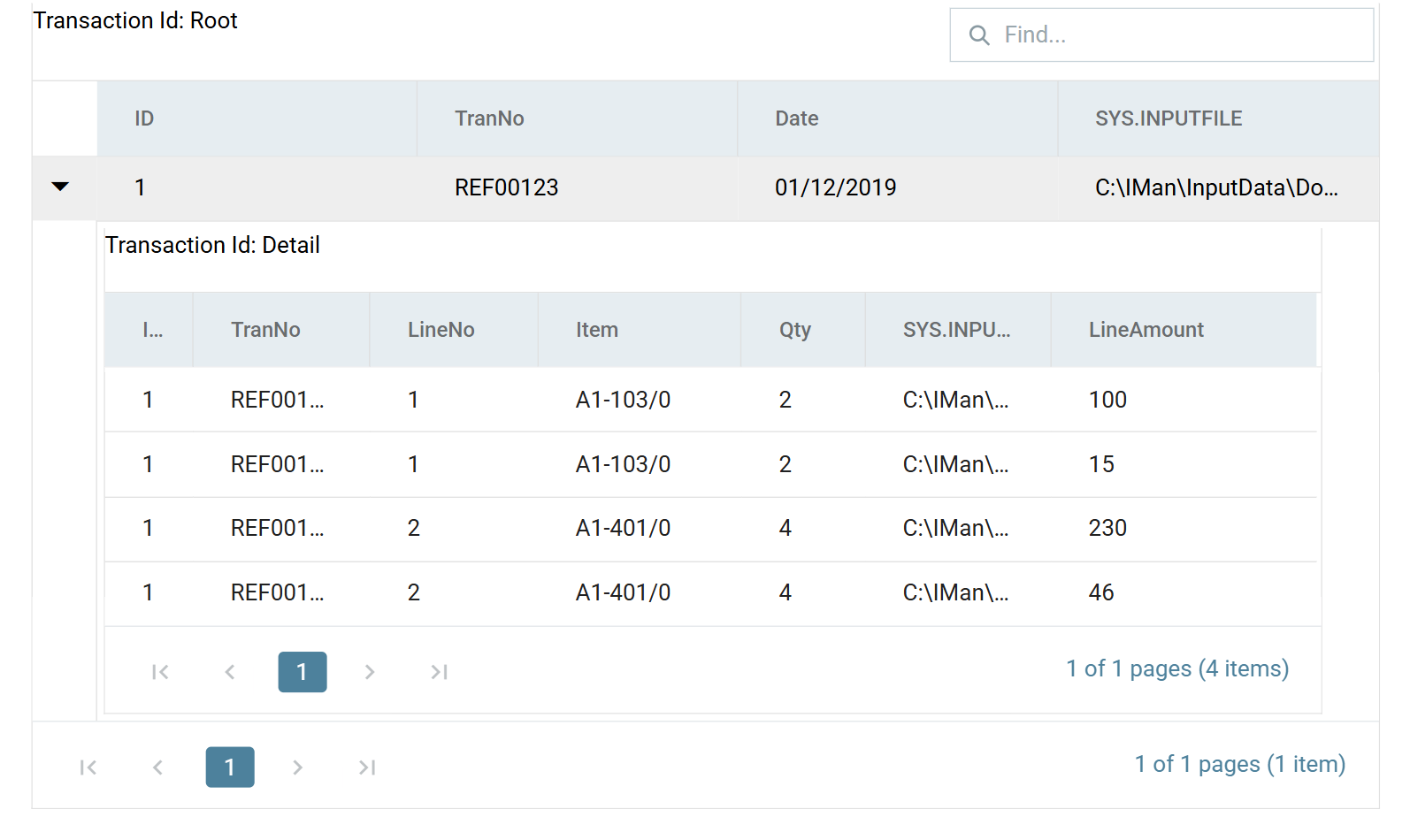
Two source rows have become four, each carrying one value in one field. A writer downstream can now post the tax as a line without knowing it was ever a column.
Verified against IMan 6.1, September 2026.