Reading Fixed Width Files
A fixed width file has no delimiters. Every field is found by counting characters from the start of the line, and the file is readable only if you already know the layout.
This article reads one with a Fixed Width Reader.
The file
orders.txt carries a banner line, HDR and DTL records, and a totals
trailer:
         1         2         3         4         5         6         7         8         9        10        11
123456789012345678901234567890123456789012345678901234567890123456789012345678901234567890123456789012345678901
ORDEREXPORT     Web Storefront          2016-03-12
HDRFBRN-309242 Web   USDEnglish, Ronald         Fairbanks       USA             79160    2016-03-11    282.00
DTL  1    5A1-103/0  Big Desklamp                 20.00
DTL  2   30A1-401/0  Big Style Notepad             5.10
HDRFBRN-309243 Web   GBPWard, Claire            London          United Kingdom  E3 4RR   2016-03-11   1532.60
TRL   3     3749.60
The first three characters of every record line are the record type. The banner
and the trailer are neither HDR nor DTL and have to be skipped.
The line ending is part of the format
A fixed width file is one of the few formats where this matters. orders.txt
has CRLF endings, and its field positions were counted against them.
A file rewritten with LF endings, or one that has been through a tool that "helpfully" normalised them, can shift every position after the first line. If a reader that worked yesterday returns fields sliced one character off, check the line endings before you check anything else.
Step a — The source
- Create a new integration — this article uses
DOCSFWREAD. - On the Transform Setup tab, open the Readers group in the palette and drag a Fixed Width Reader onto the design surface.
- Save the integration, then double-click the node to open its setup pane.
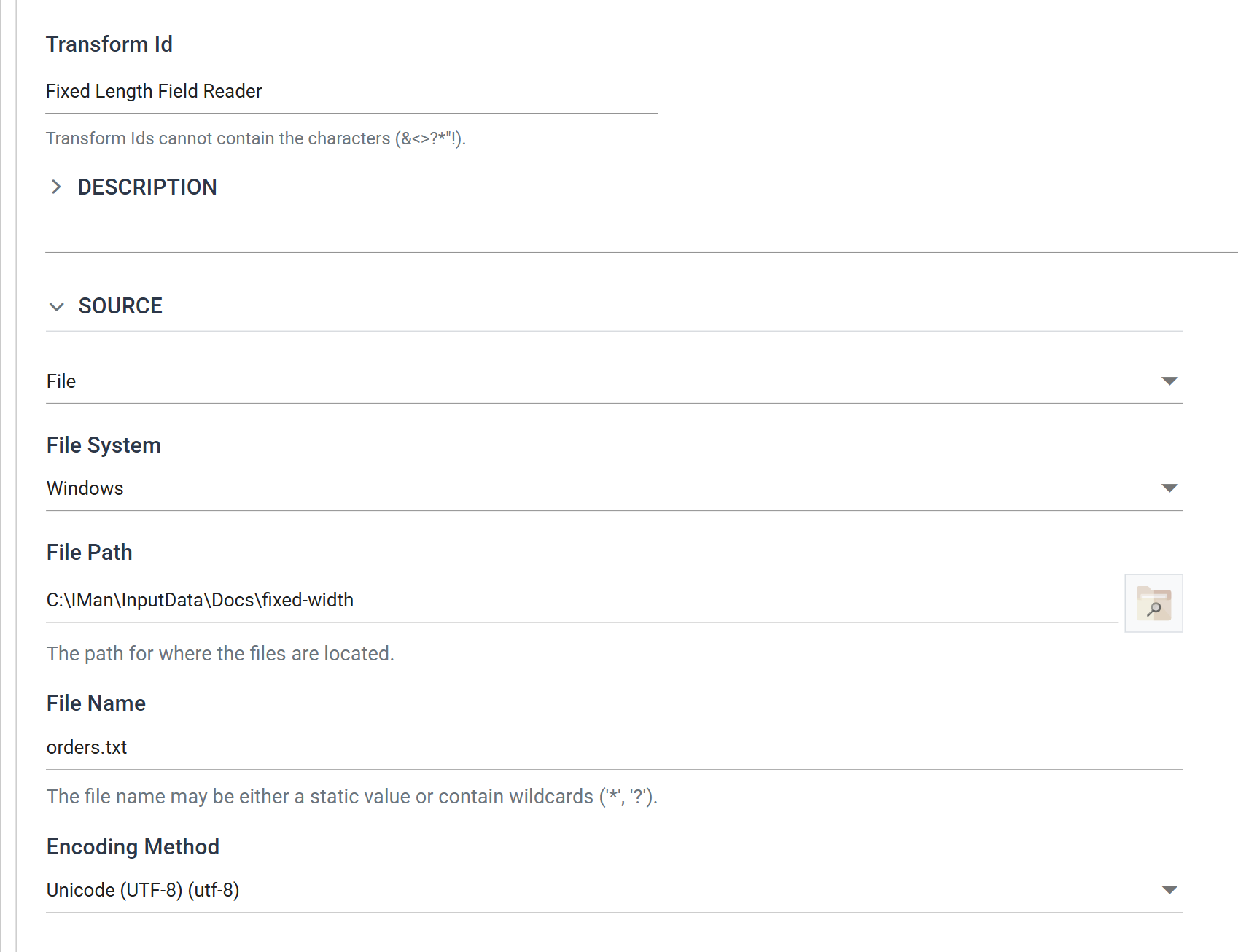
| Field | Value | |
|---|---|---|
| Transform Id | Fixed Length Field Reader |
|
| Source | File | |
| File System | Windows | |
| File Path | C:\IMan\InputData\Docs\fixed-width |
|
| File Name | orders.txt |
|
| Encoding Method | Unicode (UTF-8) | Positions are character positions, not byte positions — a multi-byte encoding does not shift them |
Step b — The options
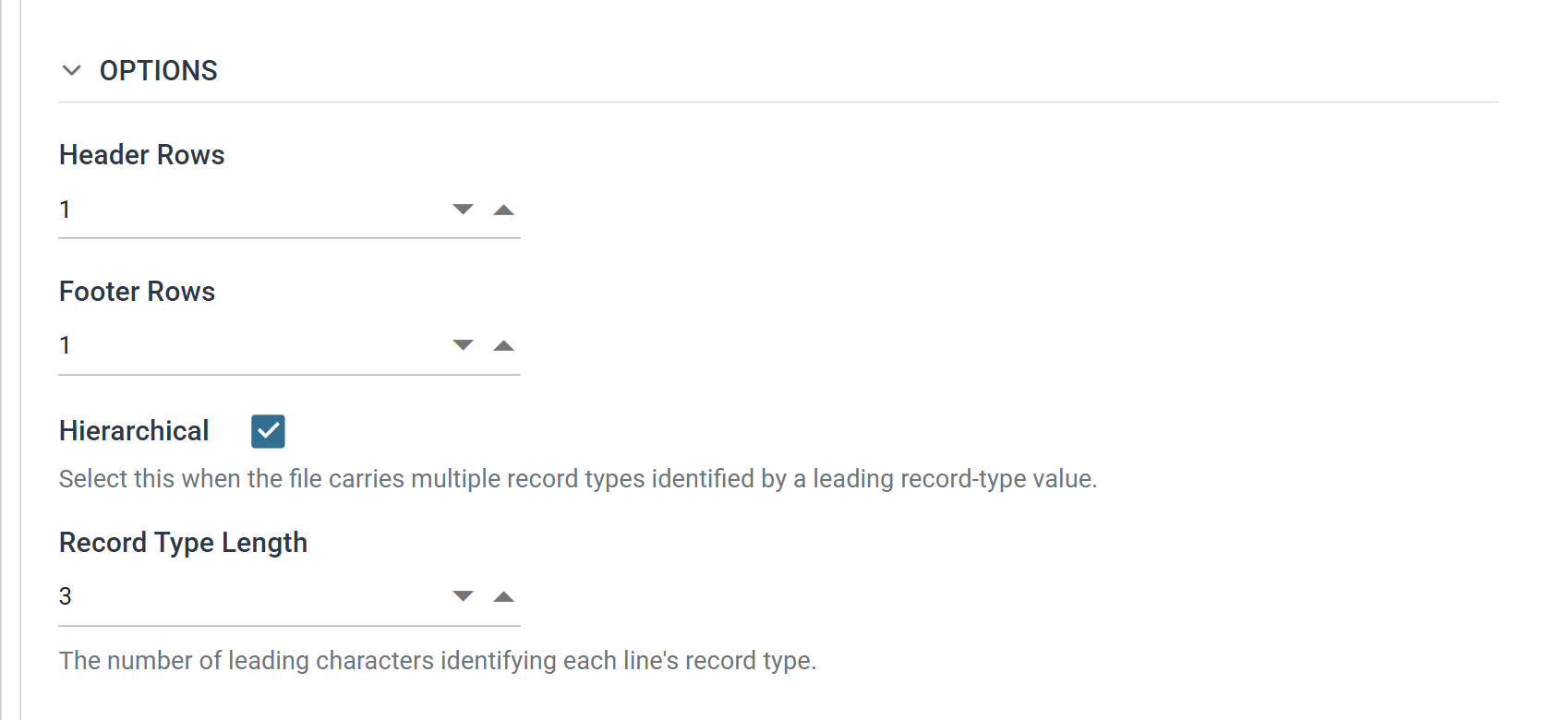
| Field | Value | |
|---|---|---|
| Header Rows | 1 |
Skips the ORDEREXPORT banner |
| Footer Rows | 1 |
Skips the TRL totals line |
| Hierarchical | ticked | The file carries more than one record type |
| Record Type Length | 3 |
The number of leading characters identifying each line's type |
Header Rows and Footer Rows are counted in lines, not records, and they are taken off the top and bottom of the file before anything else happens. That is how the banner and the trailer disappear: neither is a record type IMan ever sees.
Why the trailer is skipped rather than read
TRL holds a line count and a grand total — data about the file rather
than data in it. It could be given its own record type, but then it would
arrive as a transaction that belongs to no order and every downstream
transform would have to filter it out.
Skipping it as a footer row is simpler. Read a trailer only when you intend to reconcile against it.
Step c — Define the fields by hand
This is the one reader with no schema detection. Its toolbar carries no Refresh Schema, and nothing will work the layout out for you: every transaction and every field is created by hand, because nothing in the file says where one field stops and the next starts.
Move to the Field Mapping tab and add two transactions, HDR and DTL,
with HDR as the root and DTL as its child.
The field grid here has its own columns — Field Name, Type, Position and Length — where every other reader has Import and Key. Position is 1-based and counts from the start of the line, including the record type characters.
Select HDR:
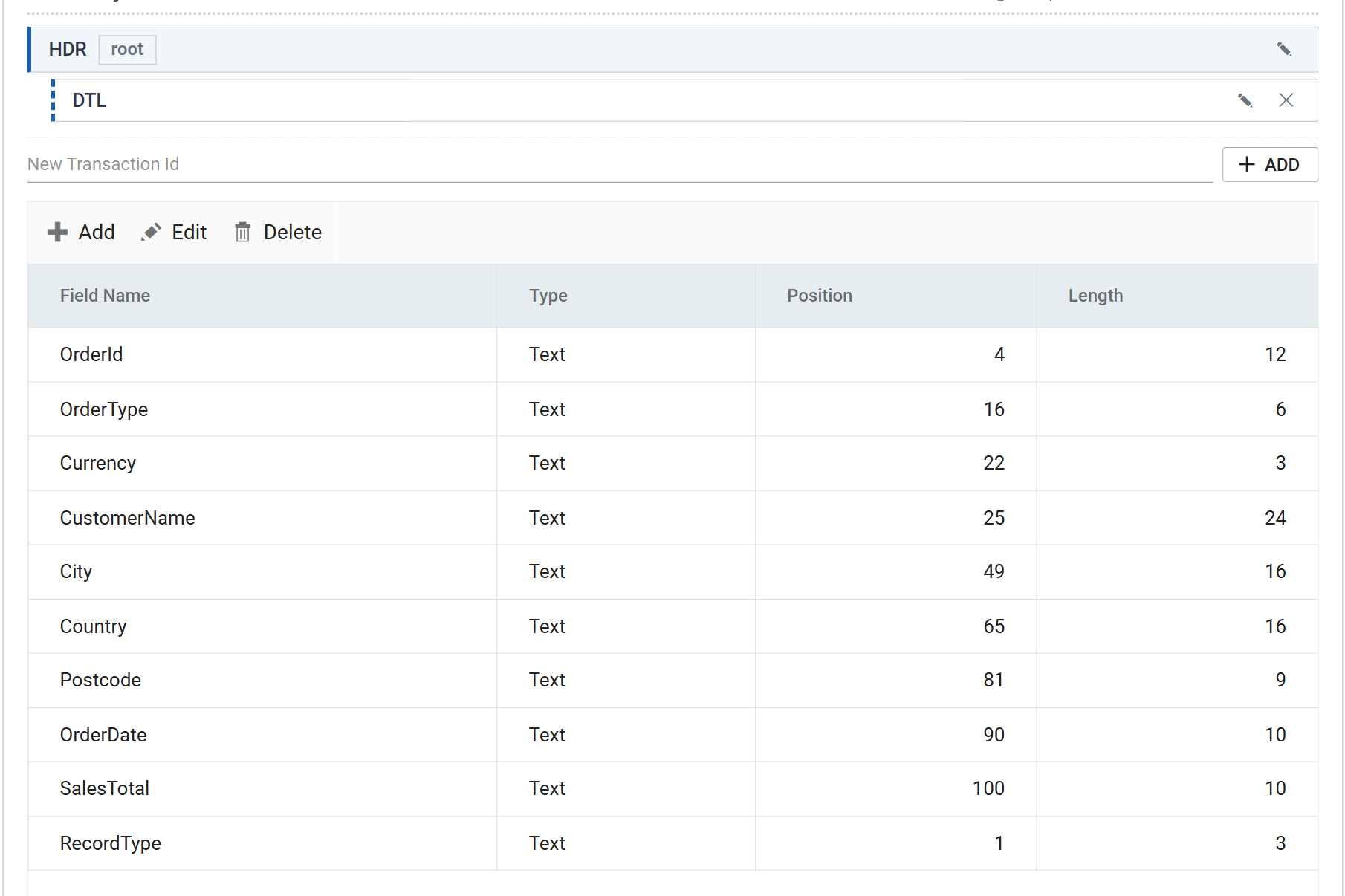
| Field Name | Position | Length |
|---|---|---|
OrderId |
4 | 12 |
OrderType |
16 | 6 |
Currency |
22 | 3 |
CustomerName |
25 | 24 |
City |
49 | 16 |
Country |
65 | 16 |
Postcode |
81 | 9 |
OrderDate |
90 | 10 |
SalesTotal |
100 | 10 |
RecordType |
1 | 3 |
Then DTL:
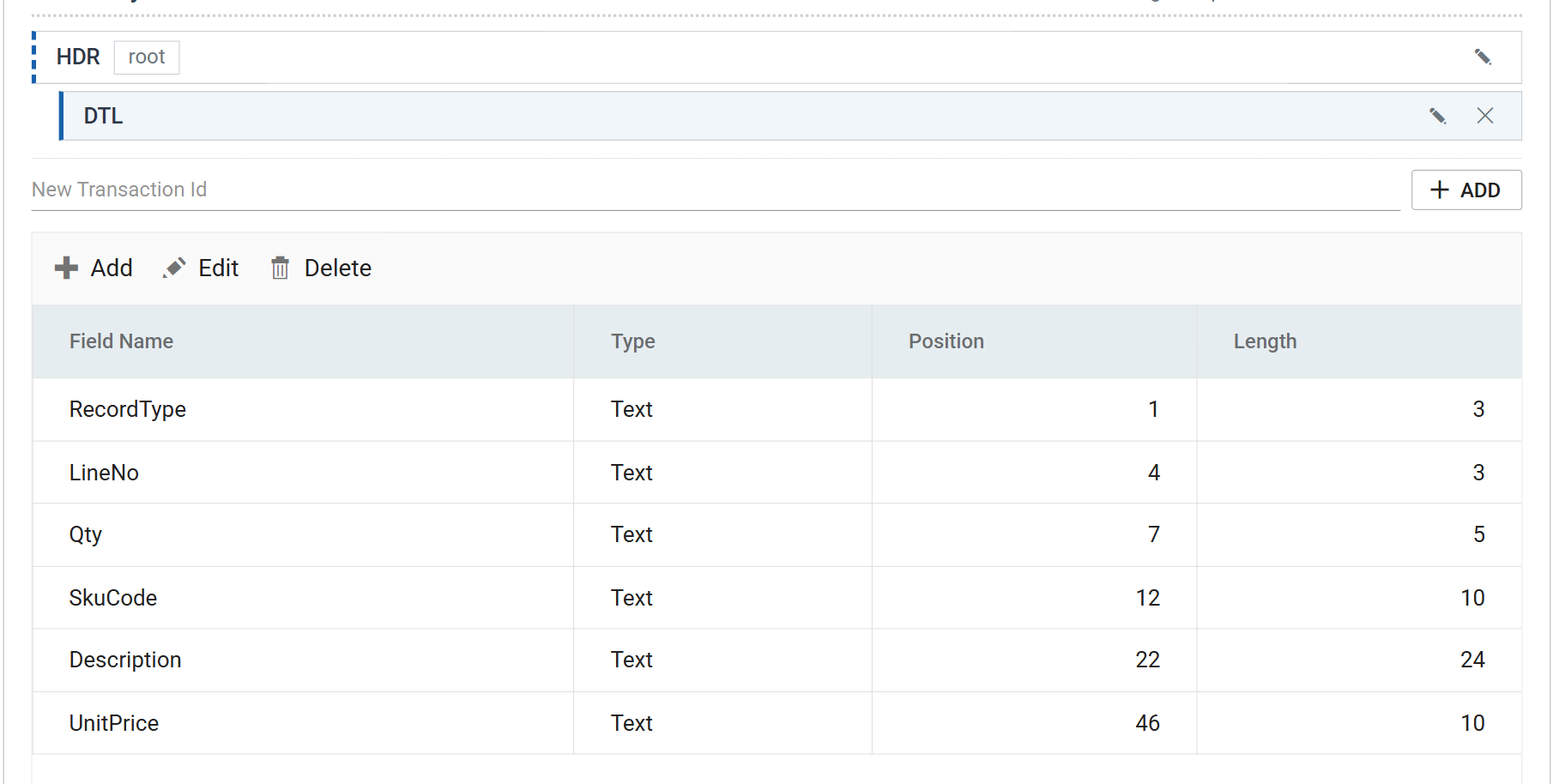
| Field Name | Position | Length |
|---|---|---|
RecordType |
1 | 3 |
LineNo |
4 | 3 |
Qty |
7 | 5 |
SkuCode |
12 | 10 |
Description |
22 | 24 |
UnitPrice |
46 | 10 |
Every transaction must carry a record-type field, and IMan adds it for you.
Tick Hierarchical and set Record Type Length, and each transaction gets
a RecordType field at position 1 with that length — the two rows above that
neither table's other entries explain.
It is not decoration and it cannot be left out. The field binds a
transaction to the value that identifies it in the file: HDR's marks it as the
transaction for lines beginning HDR, and the value it binds to is the
transaction's own Id at the moment the field is created. That is why the
transactions here are named HDR and DTL rather than Order and
OrderLine: on this reader the transaction Id is the record type, so name
each transaction after the literal that appears in the file.
If a transaction has no RecordType field, the read fails
Error - The transaction [HDR] does not define a record type (on change)
field, so its records cannot be identified. Please check the transaction's
field definitions.
Nothing on the Field Mapping tab will create one: the field dialog has no control for it, and the tree's pencil only renames. Change a setting on the Setup tab — Record Type Length itself will do — and the missing fields are added as the setup saves.
This bites a reader whose transactions were created before Hierarchical was ticked, which is the ordinary way round to build one.
Take the positions from the specification, not from the screen
Counting characters off a screenshot or a text editor is where fixed width readers go wrong, and an off-by-one is invisible until a value happens to be long enough to collide with its neighbour. Every field in this file is padded, so a wrong position produces plausible-looking values with a stray leading space for a long time before it produces an obvious error.
Where the layout is published, copy it. This file's is tabulated in
sample-data/README.md.
Check it
Press Refresh and expand a row.
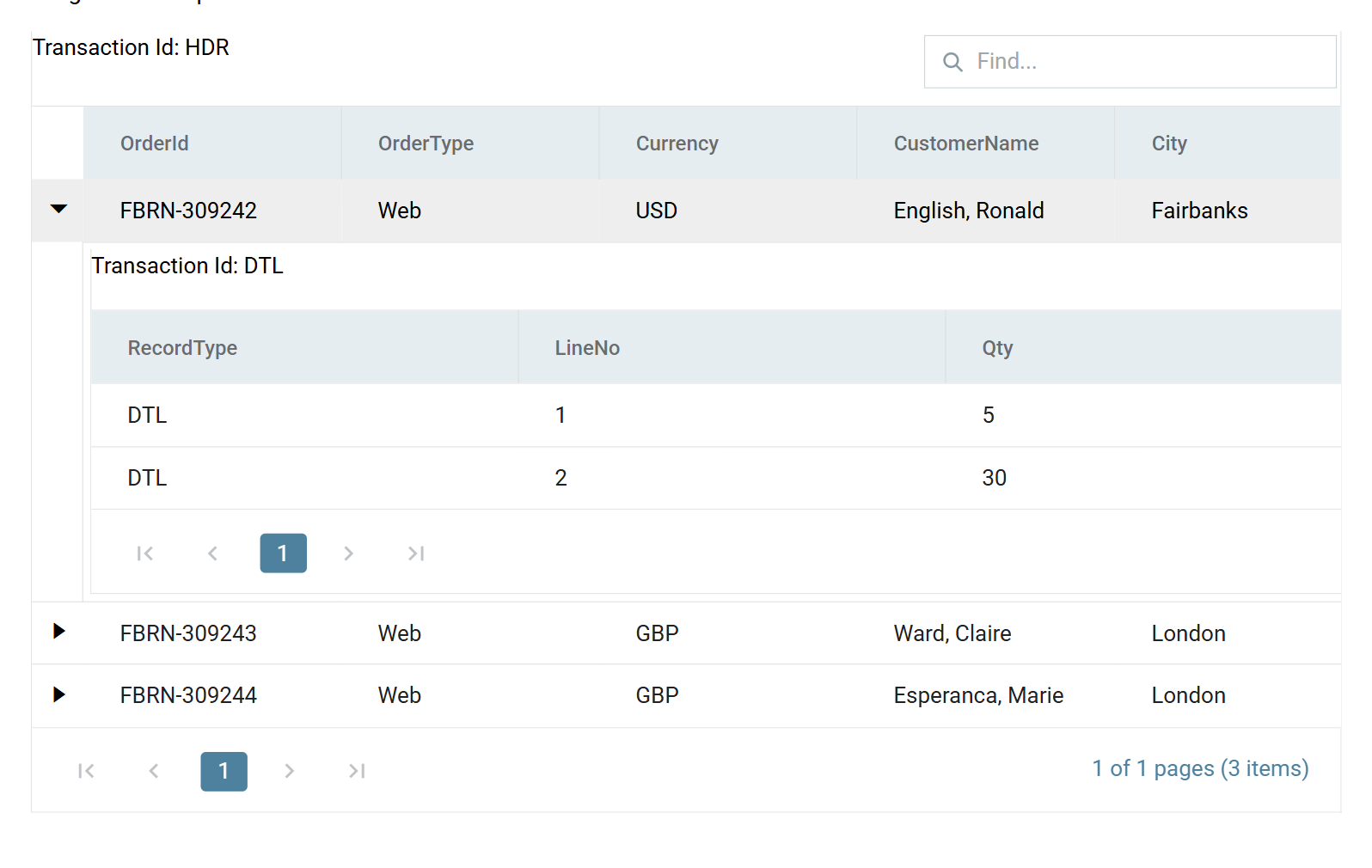
Three orders with their lines, no banner and no trailer. Check the ends of the
longest values — Description and CustomerName are the fields most likely to
reveal a position that is one out.
Close the setup pane and press Save on the design screen.
Verified against IMan 6.1, September 2026.