Excel Writer
The Excel Writer writes a dataset out as an Excel workbook.
Use it when presentation matters, such as forms, reports and alert distributions. It can write into a template workbook that already carries the formatting, instead of producing a bare grid of values.
An IO controller sets where it writes to. This writer accepts fewer controllers than the text writers do. An Excel workbook is binary, so there is nothing sensible to put in a dataset field.
Setup
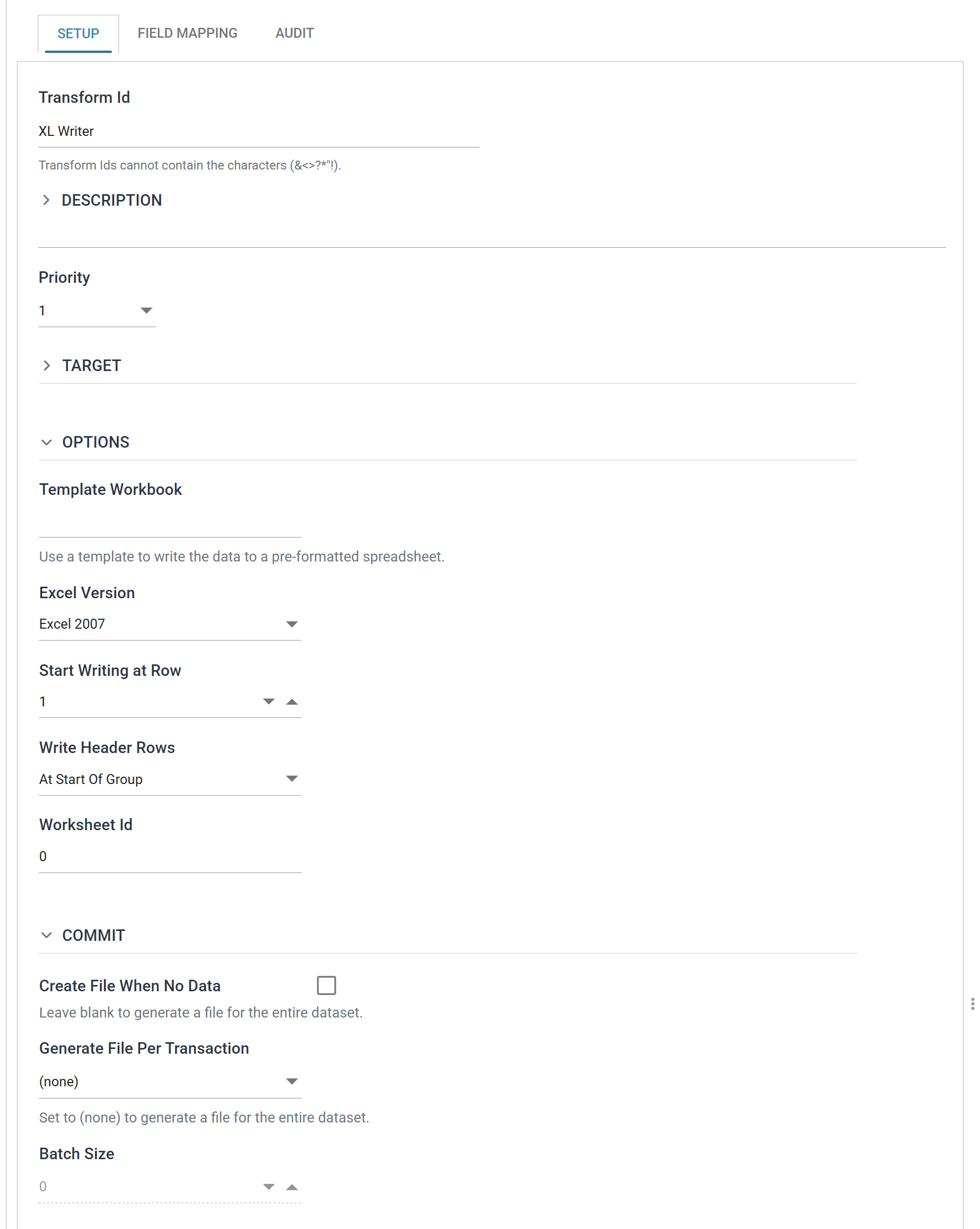
Transform Id, Description and Priority are the same on every transform. See Transform > Setup.
Target
The Target section holds the IO controller, which sets where the workbook is written, and the controller's own fields.
The Excel Writer accepts two:
- File — File System, File Path, File Name, Evaluate FileName, Overwrite Existing File, Auto-Create Folder
- http(s) Url — Webservice Behaviour, Http Headers, Insert Url, Http Operation, Modify Field, Modify Url, Modify Operation
Those fields belong to the controller, not to the writer. The controller's own page describes them.
No Encoding Method, and only two controllers
There is no Encoding Method here and no Write Byte Order Mark. The CSV and Fixed Width Text writers have both. A workbook is a binary file, so neither setting applies.
Only two controllers are offered. The CSV, XML and JSON writers also accept Transaction and WebAPI. The Fixed Width Text writer offers the same two as this one, so the limit is not because the format is binary. Those writers declare the wider set and these two do not.
Changing the Target prompts "Changing the target will reset its settings." If you accept, IMan clears the fields belonging to the old controller. So set the controller first and fill in its fields afterwards.
Options
Template Workbook
The path to a pre-formatted workbook to write the data into, leaving its formatting, formulae and any other sheets intact.
Left blank, the writer creates a new workbook.
A template is the main reason to choose Excel over CSV. Build the workbook once with the headings, column widths, number formats and branding you want. Then point this setting at it, and the writer fills in the rows.
Excel Version
Which workbook format to write:
| On screen | Format |
|---|---|
| Excel 97 - 2003 | The .xls binary format |
| Excel 2007 | The .xlsx format |
Give the File Name a matching extension. The receiving application looks at the file name first, not at this setting.
Start Writing at Row
The row the writer begins at, from 0 to 99.
It leaves room above the data for a template's own heading block. Set it past the last row of the letterhead and the rows start underneath.
Write Header Rows
Whether the writer writes the field headings, and where:
- No Field Headers — no headings.
- At Beginning of File — one heading block at the row named by Start Writing at Row.
- At Start Of Group — a heading block at the start of each record group, so a hierarchical dataset gets one per transaction instead of one per file.
The two per-record options under Field Mapping work only with At Start Of Group. Neither appears until you choose it.
Worksheet Id
Which worksheet the writer writes to, either as a name or as an index.
The index is zero-based: the first sheet is 0, the second 1. IMan
matches a name exactly as typed.
With a Template Workbook this picks the sheet to fill, so a template whose data
sheet is second needs 1 here.
Commit
The Commit section decides how many workbooks the writer writes, and when.
Create File When No Data
When ticked, the writer writes a workbook even when the dataset is empty. With Write Header Rows also set, that workbook contains the headings and nothing else.
When unticked, an empty dataset writes no file at all.
The help text belongs to the check box below
The help text under this check box, Leave blank to generate a file for the entire dataset, belongs to Generate File Per Transaction below it. It does not describe this setting.
Generate File Per Transaction
Left at (none), the writer writes one workbook for the whole dataset.
Set to a transaction, the writer writes a workbook for each record of that transaction.
Without a field reference in the File Name, each file overwrites the last
Give the File Name a field reference when this is in use, or every file after the first overwrites the one before it. See Evaluate FileName on the File controller.
Not every transaction is offered
The drop-down lists the transactions down the unbranched top of the hierarchy and stops at the first transaction that has more than one child. A dataset of Order → OrderLine offers both; a dataset of Order → OrderLine and Charge offers Order alone, because "a file per OrderLine" would not say which file the Charges belong in.
A transaction missing from this list is not a fault. It means the hierarchy branches above it.
Batch Size
How many records of that transaction go into each workbook. 0 writes one
workbook per record.
The field is enabled only once Generate File Per Transaction names a
transaction. With (none) there is one workbook and nothing to batch.
Field Mapping
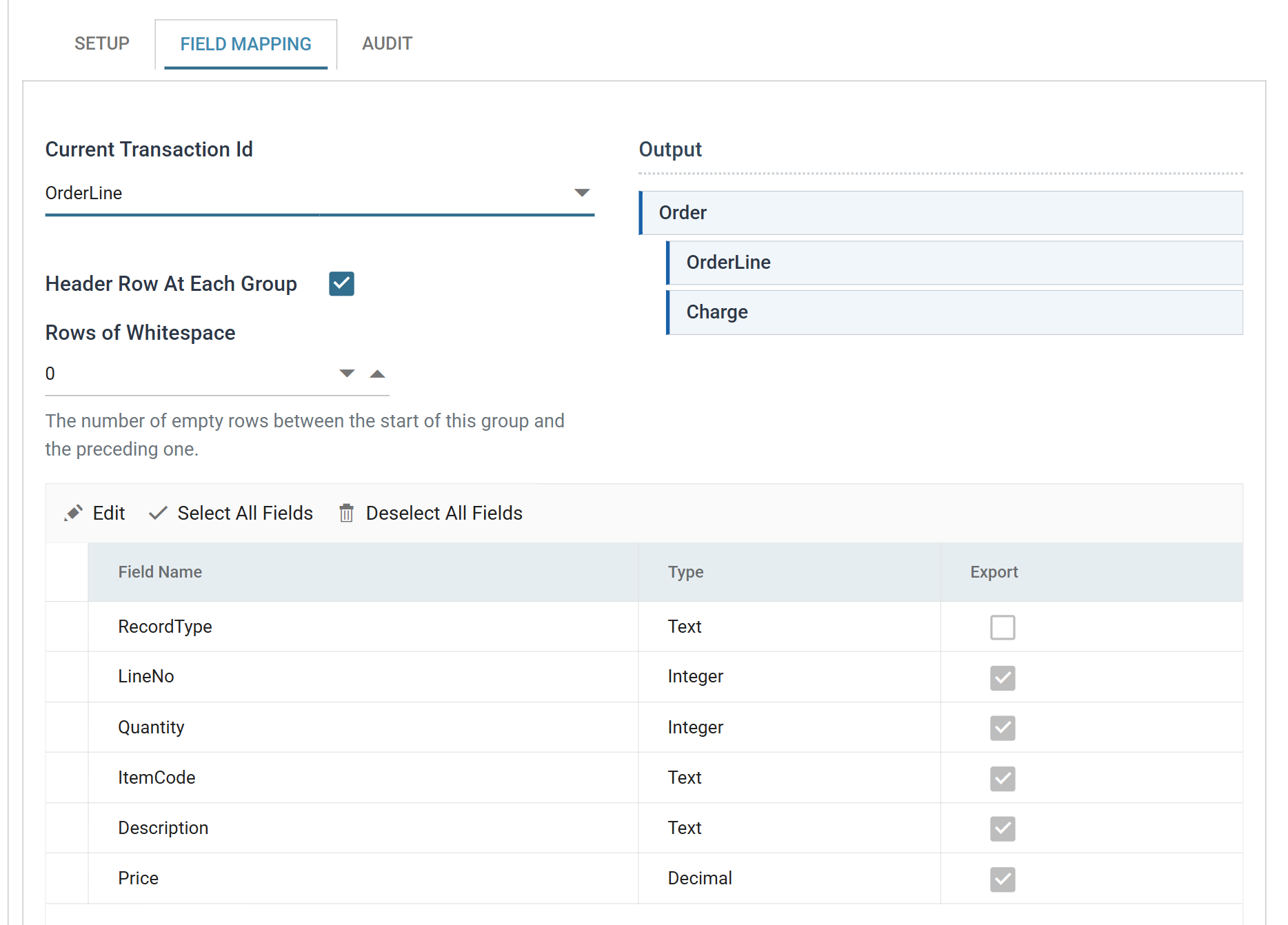
Current Transaction Id
The transaction whose fields the grid is showing. The two options below it also apply to this transaction. Both are per-transaction settings, so you set each transaction separately.
Output
A tree of the transactions in the dataset, showing which of them this writer produces. A transaction with at least one exported field is highlighted. One with none is marked Not mapped and contributes nothing to the workbook.
Use it to catch a common mistake: a hierarchy whose detail transaction has no exported fields. The writer then writes a sheet of headers and parents with no lines, and raises no error.
Header Row At Each Group
Whether the writer writes this transaction's heading block at the start of each of its groups.
It appears only while Write Header Rows is set to At Start Of Group. You set it per transaction, so a sheet can carry headings above its order lines and none above its charges.
Rows of Whitespace
The number of empty rows left between the start of this group and the one before it. The gap keeps the levels of a hierarchy visually apart.
The field grid
The grid edits in batch: Edit puts the whole grid into edit mode, Save commits it and Cancel discards it. Select All Fields and Deselect All Fields apply to the transaction currently selected.
The writer writes fields in grid order, left to right across the sheet. Drag rows to reorder them. The drag handle appears only once Edit has put the grid into edit mode.
Field Name
The name of the field within IMan. Fixed here. Rename it upstream, in the reader or in a Translate.
Type
The data Type of the field, which decides the cell format the writer uses. A Date/Time field becomes a date cell and a Decimal becomes a number, not text that Excel will not total.
Export
When ticked, the writer writes the field. When unticked, it does not.
Audit
Supported counters
- PROCESSED — incremented for each record processed.
- INSERTED — incremented for each record written.
- UPDATED — incremented for each record written. INSERTED and UPDATED are normally equal.
- ERRORS — incremented for each unhandled error.
Action on Transform Error
The setting and the rest of the tab are described on Transform > Audit.